
If you want to cast DIRECTV app to TV, the good news is that it can work, but the best method depends on the device you are using and the type of TV or streaming receiver you have. In some setups, you can cast directly from the app. In others, you may need AirPlay, screen mirroring, or a third-party app instead.
How to Cast DIRECTV App to TV
There is no single casting method that works best for every DIRECTV viewer. The right option depends on whether your TV supports built-in casting, whether you are using an iPhone or Android phone, and how stable you need the connection to be. Before jumping into the detailed steps, use the quick comparison below to choose the method most likely to work on your setup.
| Method | Best For | Main Advantage | Main Limitation |
|---|---|---|---|
| Built-in cast option | Phones and TVs that already show the cast icon | Fastest and most direct playback path | Not available on every setup |
| Chromecast | Google-friendly TVs and streaming devices | App-style playback without full-screen mirroring | Discovery and permission issues can block setup |
| AirPlay or screen mirroring | iPhone users and Apple TV or AirPlay-compatible TVs | Easy fallback for Apple devices | Mirroring is less elegant than direct casting |
| PigeonCast | Mixed-device households and unreliable native casting | More consistent across different device combinations | App installation required |
Use the Built-In Cast Option
The easiest way to cast from DIRECTV app is to use the in-app cast button if it appears. This is the cleanest option because the TV handles playback directly instead of mirroring your whole phone screen.
Step 1. Connect your phone, TV, or streaming device to the same Wi-Fi network.
Step 2. Open the DIRECTV app and start the show or channel you want to watch.
Step 3. Look for the cast icon in the playback screen.
Step 4. Tap the cast icon and choose your TV or streaming device from the list.
Step 5. Wait for playback to move to the TV, then use your phone as the controller.
Try Chromecast on Compatible Devices
If you are asking, can I cast DIRECTV app to Chromecast?, the short answer is yes, on compatible setups. Chromecast is one of the best options when you want app-style playback without mirroring your whole screen, although setup can vary a little by device.
Step 1. Make sure your phone, computer, and Chromecast-enabled TV or receiver are on the same Wi-Fi network.
Step 2. If you are casting from a phone, install or update the DIRECTV app and Google Home if your device setup requires it.
Step 3. Open the DIRECTV app on your phone, or open the supported playback flow in Chrome on your computer.
Step 4. Tap or click the cast option and choose your Chromecast or compatible TV.
Step 5. If the device does not appear, check local network permissions on iPhone, confirm Chromecast is powered on, and try reopening the app before testing another method.
Use AirPlay or Screen Mirroring on iPhone
If you want to know how to cast DIRECTV from iPhone to TV, start by checking whether your TV supports AirPlay or whether you use an Apple TV. For iPhone users, this is usually the most natural method when direct casting is inconsistent.
Step 1. Connect your iPhone and TV to the same Wi-Fi network.
Step 2. Open the DIRECTV app and start playing the content you want on your TV.
Step 3. Check whether an AirPlay option appears in playback controls or in iPhone media controls.
Step 4. If AirPlay appears, tap it and choose your TV or Apple TV.
Step 5. If AirPlay does not appear or does not work well, open iPhone Screen Mirroring from Control Center and select your TV or Apple TV instead.
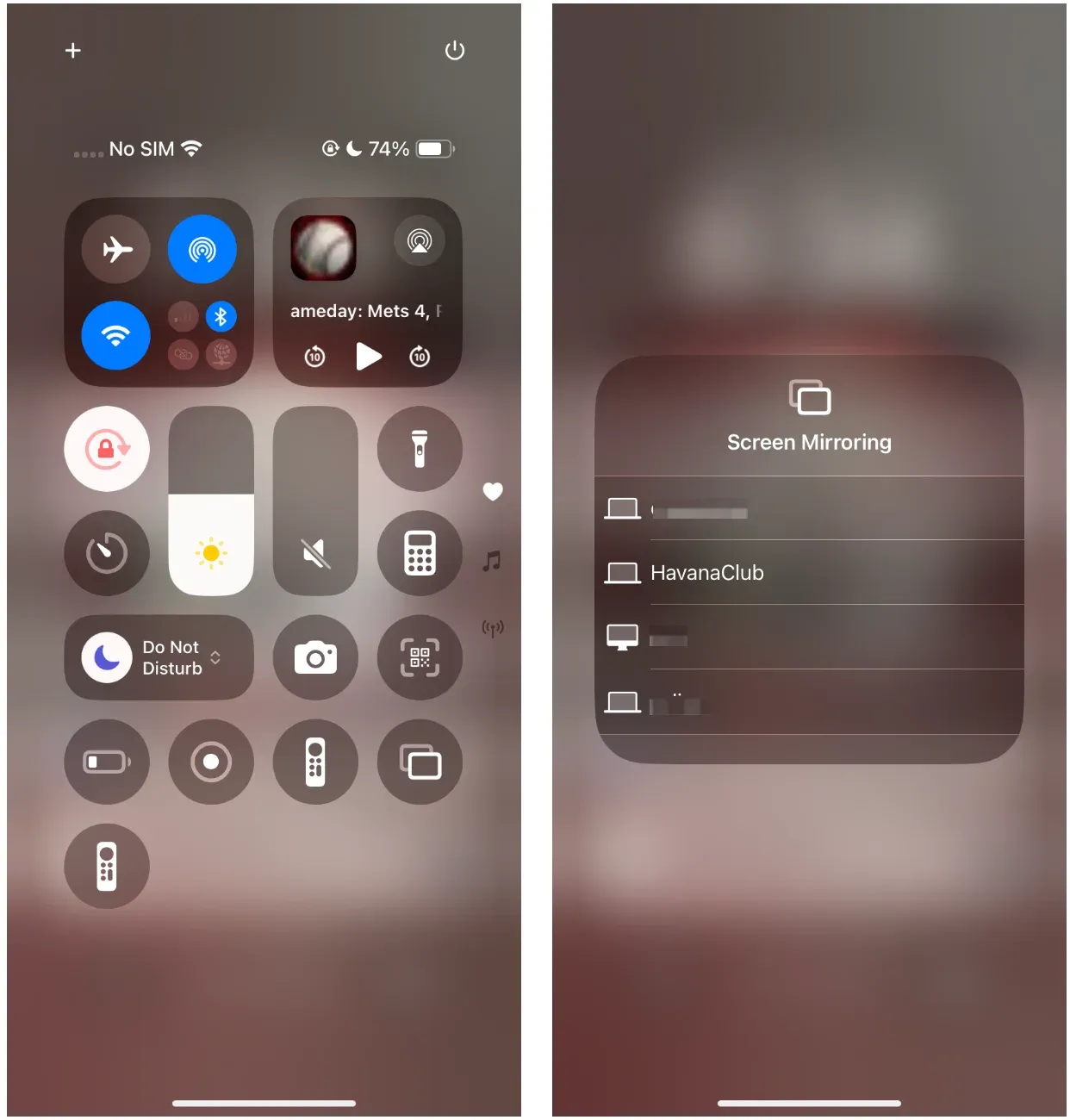
Keep in mind that AirPlay sends video more directly, while screen mirroring copies your full iPhone display, so mirroring is usually less elegant but can be more reliable.
Use PigeonCast as an Alternative Method
PigeonCast works well when built-in casting, Chromecast, or AirPlay does not give you a stable result. It is especially useful in mixed-device households where you want one repeatable workflow instead of changing methods every time.
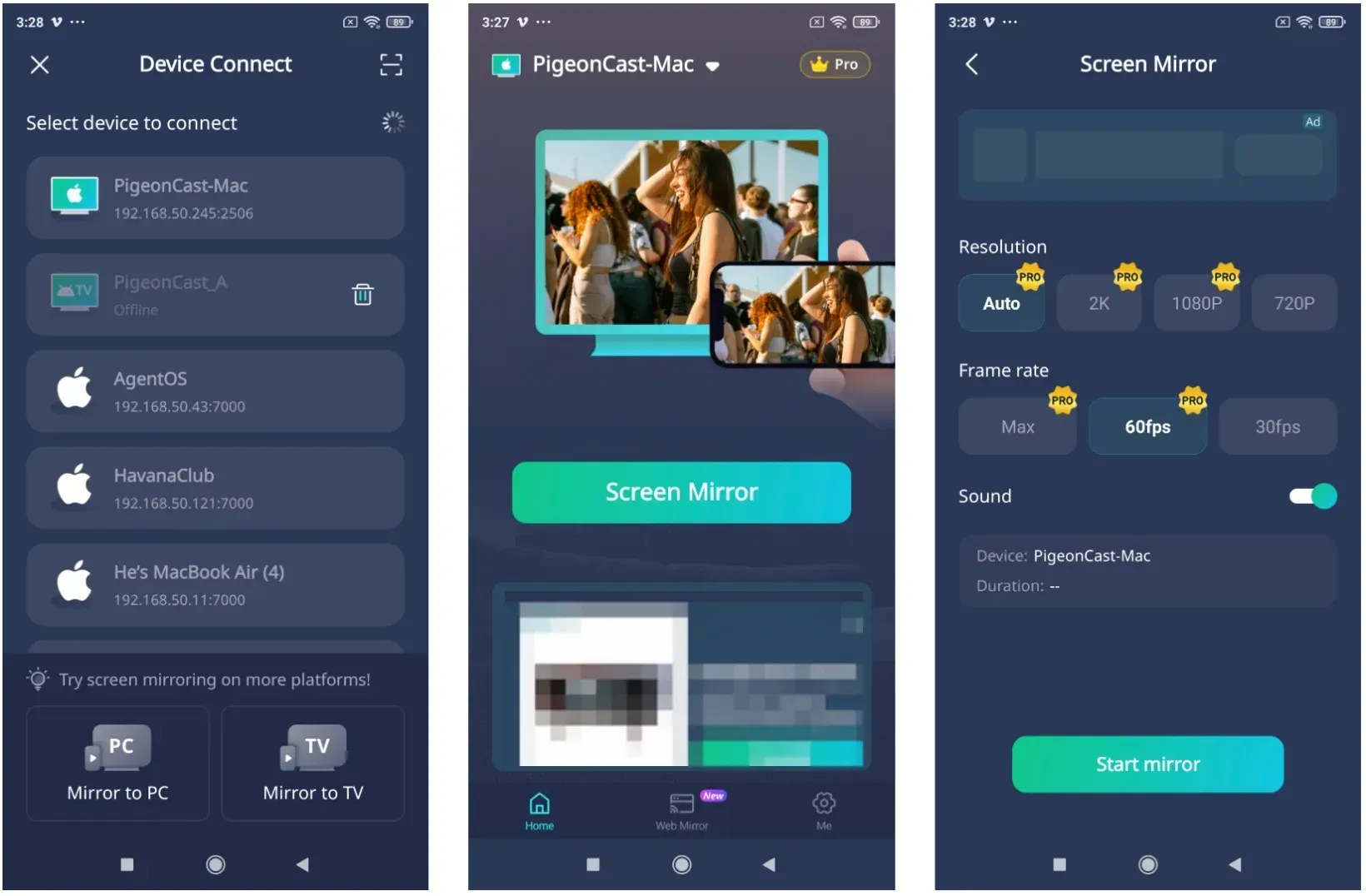
Step 1. Install PigeonCast on the sending device you want to use.


Overall Rating:



Step 2. Connect the phone and TV to the same network if your setup requires local discovery.
Step 3. Open DIRECTV content on your phone, then launch PigeonCast and choose the correct TV or receiver.
Step 4. Start the casting or mirroring session through PigeonCast and confirm the picture appears correctly on the TV.
What to Do If None of These Methods Work
If none of the methods above works, do not keep retrying the same tap sequence over and over. First, confirm that your phone, TV, and any streaming receiver are on the same Wi-Fi network. Then restart the phone, TV, and Chromecast or Apple TV if you are using one.
After that, check for app and system updates. DIRECTV also highlights device permissions and network setup as common causes of failure, especially on iPhone with Chromecast discovery. If direct casting still does not work, switch to screen mirroring, PigeonCast, or the DIRECTV app on a supported TV platform if available.
Why the DIRECTV App Won't Cast to TV
Most DIRECTV casting problems fall into three buckets: the app cannot find the TV, the TV appears but will not connect, or the connection starts but playback does not work correctly. That is why troubleshooting goes faster when you separate discovery problems from playback problems. In many cases, the issue is not the app itself, but a network mismatch, a permission setting, or a limitation in the casting path you are trying to use.
The Cast Icon Does Not Appear
When the DIRECTV app won't cast to TV, the most common issue is that there is no cast icon in the first place. This usually happens because the receiver is not compatible, the phone cannot discover it on the network, or the app is not exposing direct cast support in that situation.
It can also happen when your phone is on a guest network, mobile hotspot, or a different Wi-Fi band that prevents device discovery. Before assuming the app is at fault, verify the basic connection path.
Your TV or Streaming Device Is Not Showing Up
If the cast icon appears but your TV does not, the problem is usually discovery rather than playback. Make sure the TV or Chromecast is powered on and already connected to the same home network. Restarting both the sending device and the receiver often fixes this faster than digging through menus.
On iPhone, DIRECTV also mentions privacy and local network permissions as part of Chromecast setup. If those permissions are blocked, the app may fail to find the TV even if everything else looks correct.
The App Connects, but Playback Fails
Sometimes the app connects to the TV, but the video does not play correctly. That usually points to a weaker Wi-Fi connection, a temporary app glitch, or a content-specific limitation. DIRECTV also notes that not every type of content behaves the same way with Chromecast.
In that case, test a different method instead of assuming every casting path will fail. If direct cast does not hold the connection, AirPlay, screen mirroring, or PigeonCast may still work.
Conclusion
If you want to cast DIRECTV app to TV, start with the simplest option first: check for the built-in cast button inside the app. If that works, use it. If not, try Chromecast on compatible devices, then AirPlay or screen mirroring on iPhone, and then move to PigeonCast if needed.
The main thing to remember is that there is no single method that works the same way on every setup. The best result usually comes from matching the casting method to your device, TV, and network instead of forcing one approach to work everywhere.
Cast DIRECTV App FAQ
Can I cast the DIRECTV app to Chromecast?
Yes, on compatible setups. DIRECTV says Chromecast can work from mobile devices and Chrome browsers, but setup requirements and content behavior can vary by device and permissions.
How do I cast DIRECTV from iPhone to TV?
The best options are AirPlay first, then screen mirroring if AirPlay or direct casting is not available. Make sure the iPhone and TV are on the same Wi-Fi network.
Why won't the DIRECTV app cast to my TV?
The usual causes are missing device discovery, different Wi-Fi networks, blocked local network permissions, receiver incompatibility, or unstable playback after connection.
Is screen mirroring the same as casting?
No. Casting sends the content to the TV directly, while screen mirroring copies your entire phone screen to the TV.
Mia Clarke is a technology editor specializing in screen mirroring and casting solutions across multiple platforms. Mia provides clear, practical guides and in-depth insights to help users seamlessly connect their devices. Passionate about enhancing digital experiences, Mia is dedicated to keeping readers updated on the latest trends and tools in cross-platform screen sharing. Whether you’re looking to mirror your smartphone, laptop, or smart TV, Mia’s content delivers reliable, user-friendly advice to simplify your tech setup.