
Google Meet is easy to use on a computer, but a larger screen can make group calls, family chats, presentations, and small-room meetings much easier to follow. If you want to cast Google Meet to TV, the first thing to check is whether your TV can receive a Cast connection.
Some TVs have Google Cast built in, while others may need an external Cast device or another receiver option. In this guide, we’ll show you how to check your TV’s compatibility, cast a Google Meet meeting to the TV, and fix common connection or audio issues.
Check TV Compatibility Before Casting Google Meet
Before you cast Google Meet to TV, first check whether your TV can receive a Google Cast connection. The key is the receiving device: your TV needs either built-in Google Cast support or another way to act as a Cast receiver.
Start by checking your TV's specifications or settings for Google Cast or Chromecast built-in. You can also check our Chromecast-supported TV list if you are not sure.
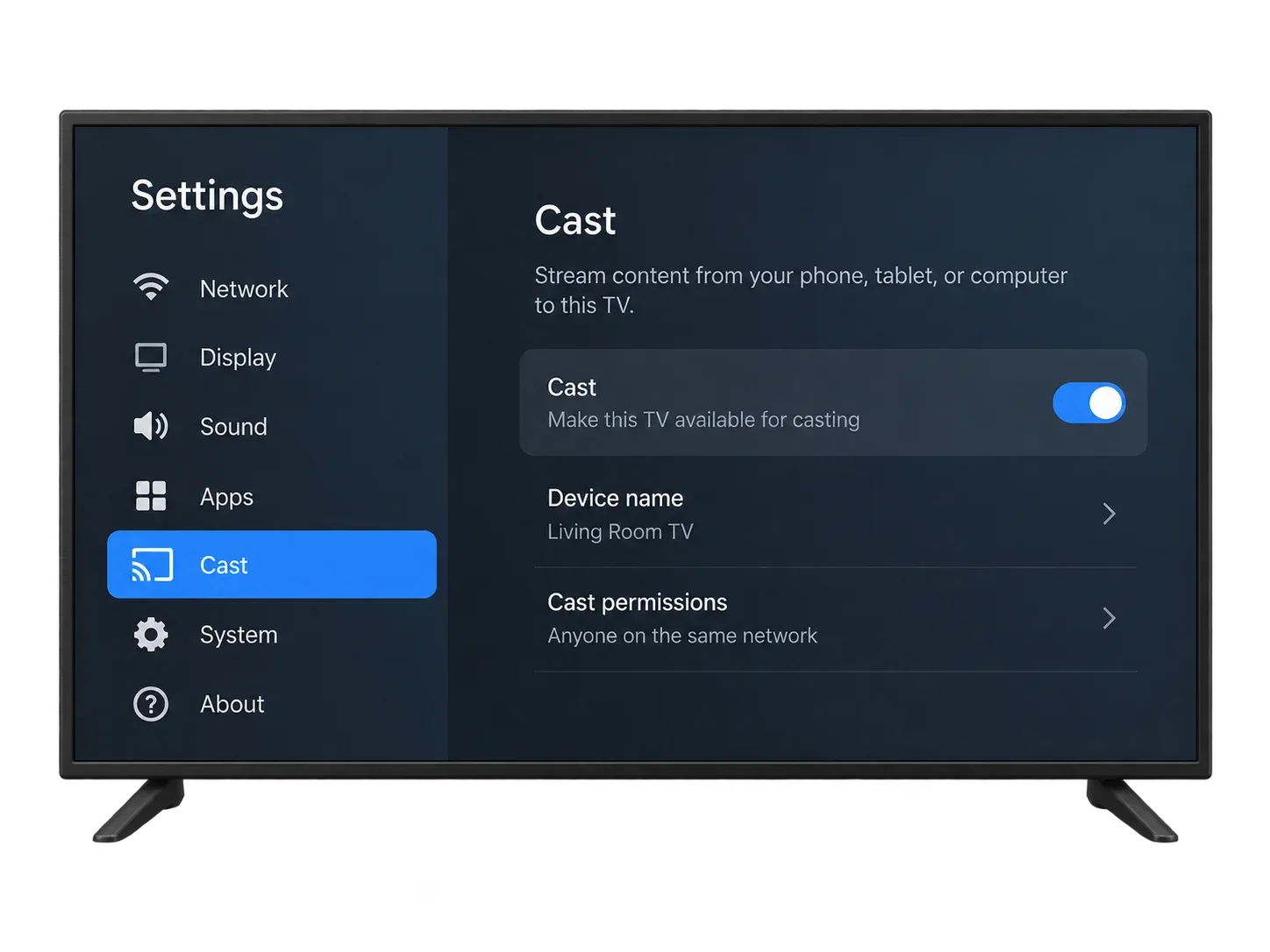
If your TV already supports Google Cast, connect it and your computer to the same Wi-Fi network and you are ready to cast.
If Google Cast is not built in, you can add an external receiver such as Chromecast, Chromecast with Google TV, or Google TV Streamer. Connect the streaming device to your TV, complete the setup, and make sure it is on the same network as your computer.
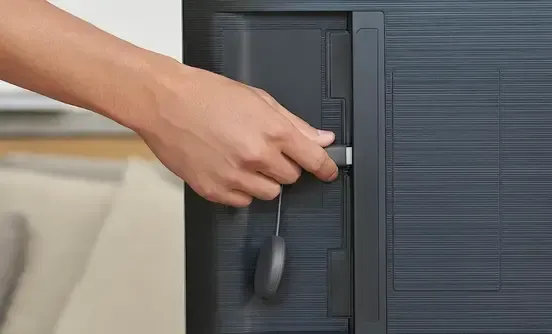
If you do not have a compatible TV or an external Cast device, you can also try PigeonCast, a cross-platform casting app that can turn a supported TV or TV browser into a receiving screen.
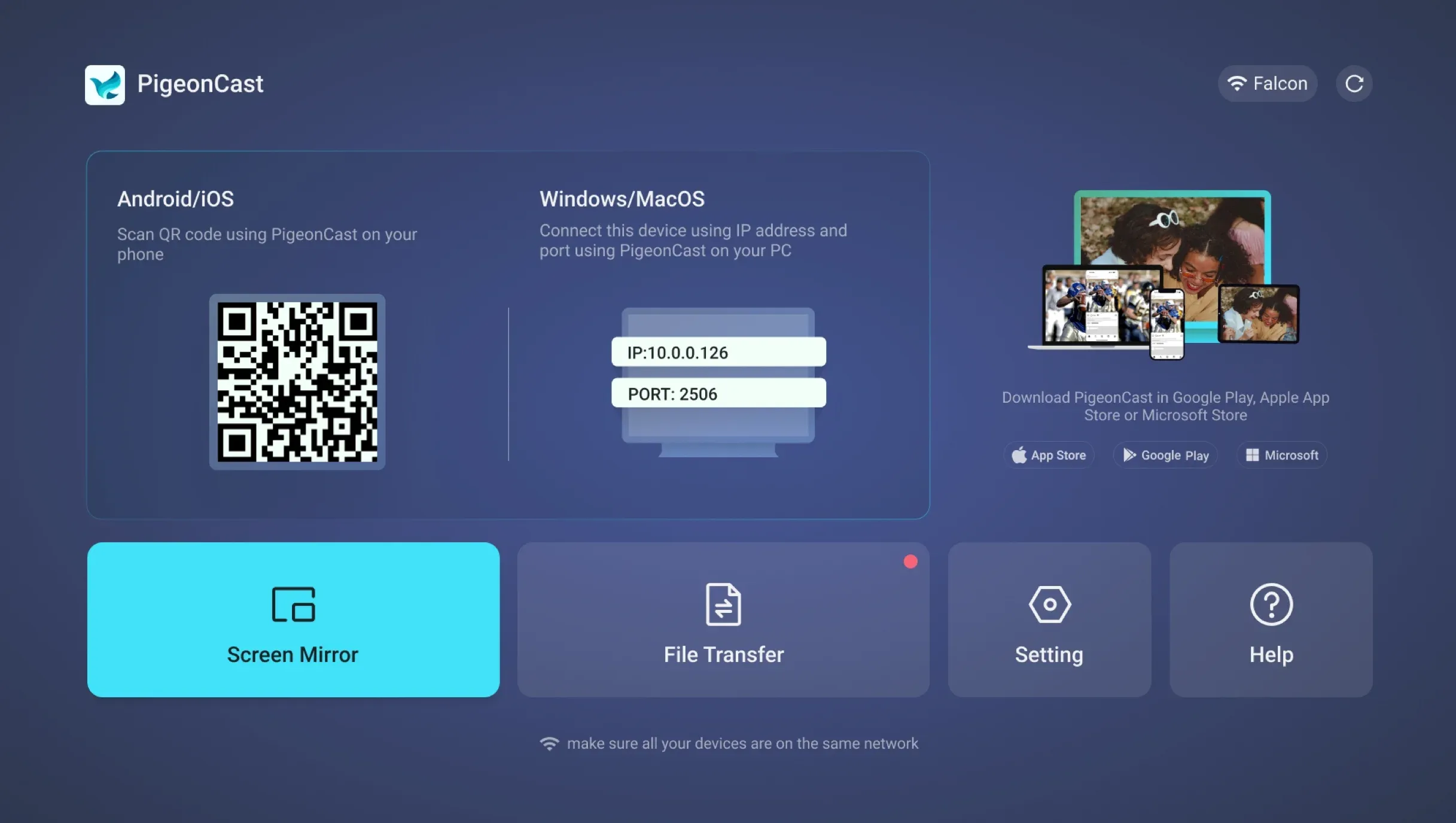
On the TV side, you have two options:
- App-based receiver: Install and open the PigeonCast receiver app on a supported smart TV or streaming platform.
- Browser-based receiver: Open the PigeonCast web receiver in the TV's browser if installing an app is not convenient or supported.
Once the receiver is open on the TV, it is ready for a compatible device to connect and cast content to the larger screen.
How to Cast Google Meet from Laptop to TV
Once your TV is ready to receive Google Cast and your computer is connected to the same Wi-Fi network, the actual process is simple. Google Meet lets you start casting either before you join a meeting or while the meeting is already in progress.
Before You Join the Meeting
Step 1. Open your meeting in Google Calendar or Google Meet.
Step 2. Select Cast this meeting, which is located underneath the "Join now" and "Present buttons".
Step 3. Choose the Cast-enabled TV or receiver you want to use from the pop-up.
Step 4. Join the meeting and watch its video on the large screen.
During a Meeting
Step 1. Select the three-dot More menu at the bottom of Google Meet.
Step 2. Choose Cast this meeting.
Step 3. Select your Google Cast-enabled TV or receiver.
Your meeting will then appear on the TV while your computer continues to handle the camera, microphone, and audio.
To stop casting, open the More menu again and select Stop casting meeting.
How to Cast Google Meet From Phone to TV
The laptop method shared above may not work the same way on a phone. To cast Google Meet from phone to TV, you usually need to show your phone screen on the TV first, then open Google Meet. The steps are slightly different on Android and iPhone.
How to Cast Google Meet to TV from Android Phone
Casting Google Meet from an Android phone is usually straightforward if your TV supports Google Cast.
Step 1. Connect your Android phone and TV to the same Wi-Fi network.
Step 2. Swipe down from the top of your phone to open Quick Settings.
Step 3. Tap the Cast option.
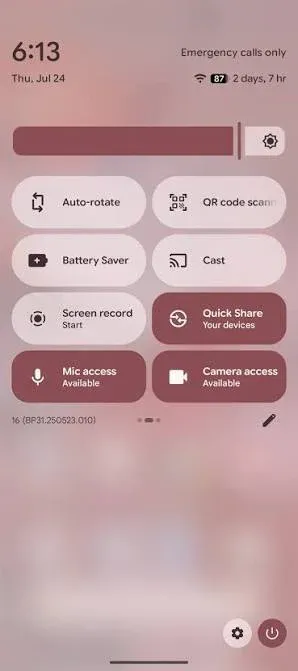
Note: If you cannot find a Cast option, you can use the Google Home app or PigeonCast for Android screen mirroring.


Overall Rating:


Step 4. Tap your TV from the device list.
Step 5. Confirm the connection if a message appears on the TV.
Step 6. Once your phone screen appears on the TV, open Google Meet and join your meeting.
How to Cast Google Meet to TV from iPhone
Casting Google Meet from an iPhone depends more on what your TV supports. If your TV supports AirPlay, you can use the iPhone's built-in Screen Mirroring feature:
Step 1. Connect your iPhone and TV to the same Wi-Fi network.
Step 2. Swipe down from the top-right corner of the iPhone to open Control Center.
Step 3. Tap Screen Mirroring and select your TV.
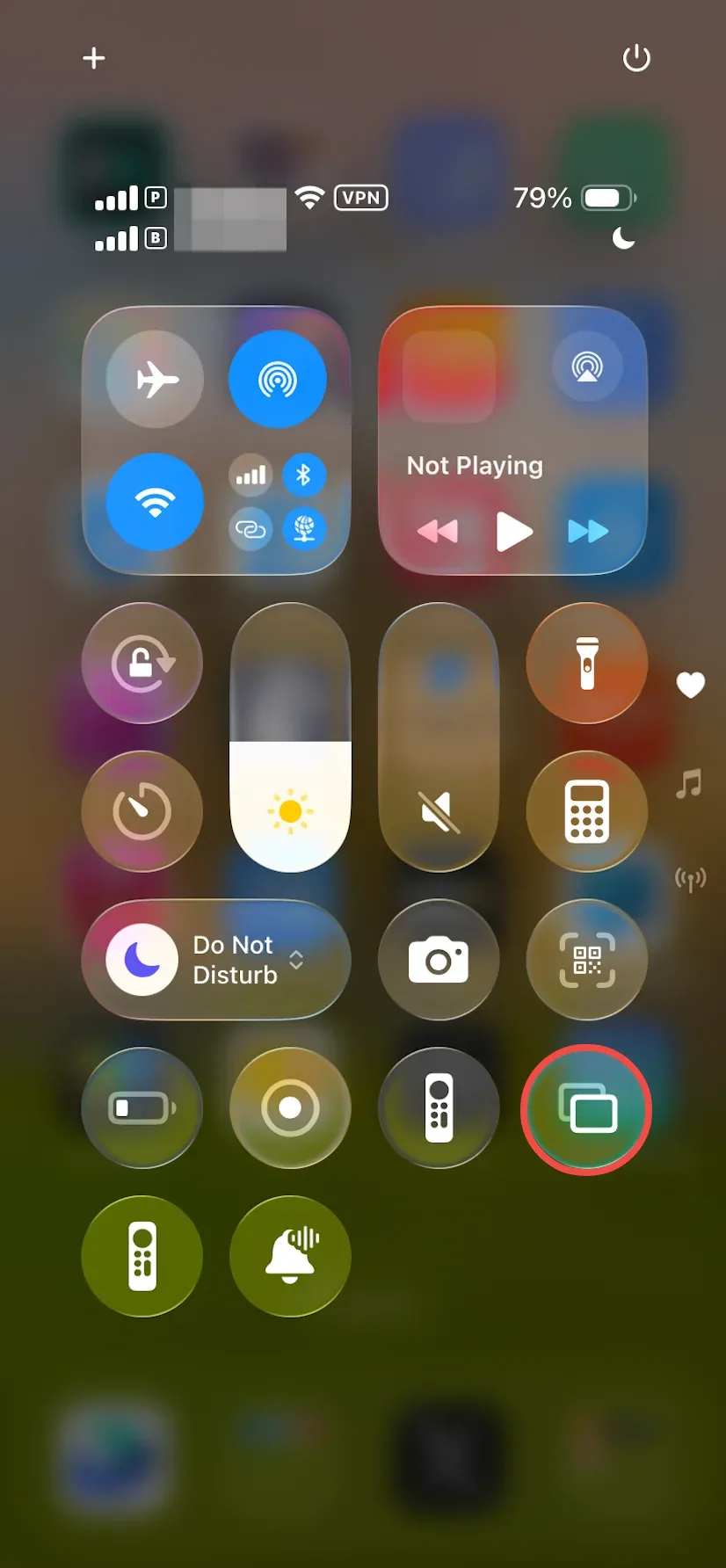
Step 4. Enter the AirPlay code shown on the TV if prompted.
Step 5. Once the iPhone screen appears on the TV, open Google Meet and join your meeting.
Apple officially supports this method with Apple TV and AirPlay-compatible smart TVs.
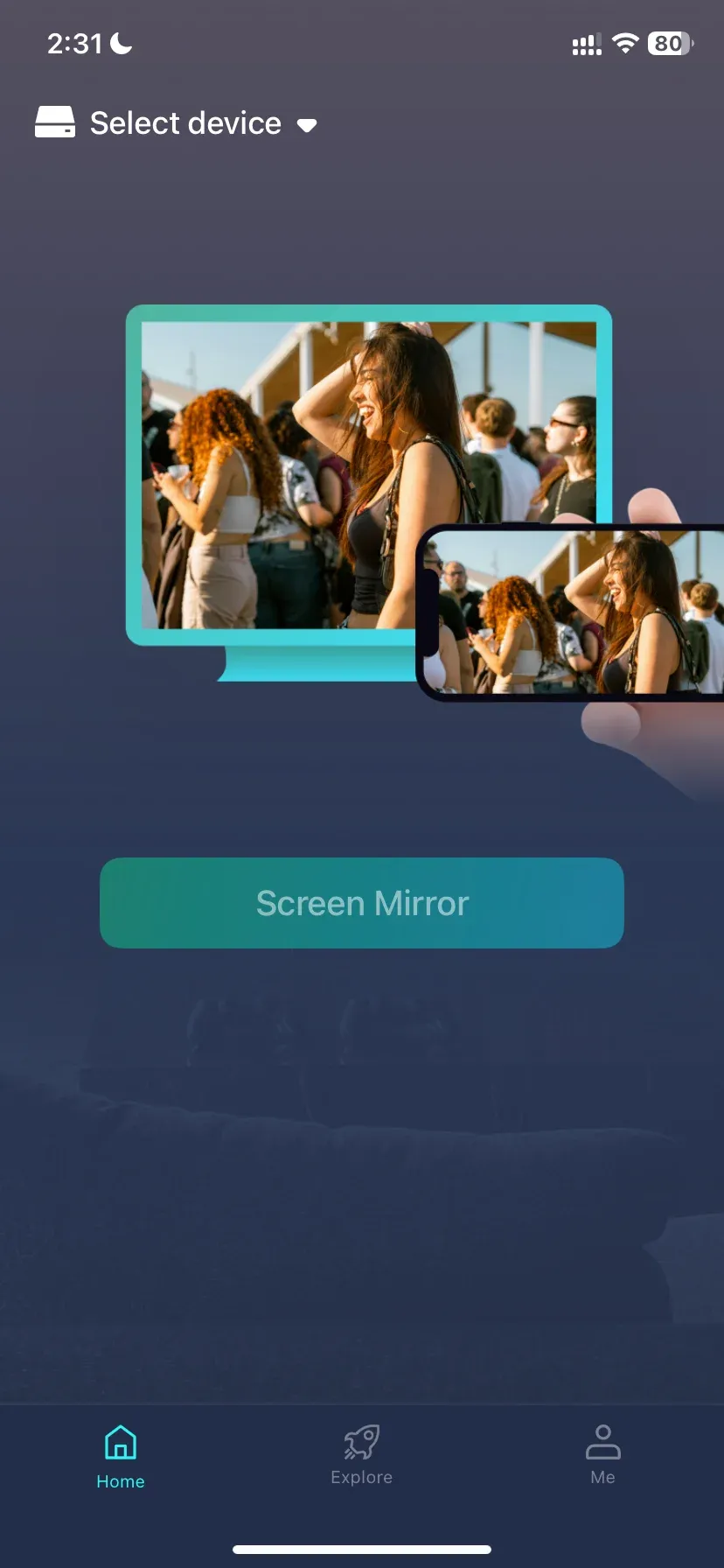
If your TV supports Google Cast but not AirPlay, the iPhone's Screen Mirroring button will not normally connect to it. In that case, you can use a third-party iPhone screen mirroring app. Open the app on both your iPhone and TV, connect your iPhone to TV, and then open Google Meet to display the meeting on the larger screen.
Overall Rating:

Troubleshooting Google Meet Casting to TV
If Google Meet does not cast correctly, the problem is usually related to the network, audio settings, or the way your phone or computer connects to the TV. Try the fix that matches your issue below.
Google Meet Cast to TV With No Sound
If the meeting appears on the TV but you cannot hear anything, first check the volume on both the TV and your sending device.
If you are casting Google Meet from a laptop, open Google Meet > Settings > Audio and make sure the correct speaker is selected. Your computer may still be sending sound to headphones, a Bluetooth speaker, or another connected device.
Also check that:
- The Meet tab is not muted.
- Your computer volume is turned up.
- The TV or streaming device is on the correct input.
- Any connected Bluetooth headphones or speakers are disconnected if you do not want to use them.
If you are casting from a phone, sound behavior can vary depending on your phone, TV, and casting method. If there is video but no audio, stop the connection and reconnect the phone to the TV before reopening Google Meet.
Google Meet Looks Small or Vertical on TV
If you cast Google Meet from a phone while holding it vertically, the meeting may only use part of the TV screen or show large empty areas on the sides.
Rotate your phone to landscape mode before or during the meeting. If the picture does not rotate, make sure screen rotation is enabled on your phone.
You may also need to disconnect and reconnect the TV after changing the phone orientation.
Keep in mind that the TV is wider than a phone screen, so some empty space can still appear depending on the Google Meet layout.
Google Meet Cannot Find Your TV
If your TV does not appear when you try to cast Google Meet, start with these checks:
- Make sure your phone or computer and TV are connected to the same Wi-Fi network.
- Make sure Google Cast, AirPlay, or the receiver app you are using is turned on and ready on the TV.
- Restart the TV or streaming device, then try again.
- Turn Wi-Fi off and back on on your phone or computer.
If you are using a laptop with Google Meet's built-in Cast option, make sure the TV actually supports Google Cast or has a Chromecast, Chromecast with Google TV, or Google TV Streamer connected.
If the TV does not support the required casting method, you can use an external Cast device or open a receiver such as PigeonCast on the TV before connecting again.
Conclusion
To cast Google Meet to TV, the most important thing is to make sure your TV has a compatible way to receive the connection. If Google Cast is built in, you can use it directly. If not, an external device such as Chromecast or Google TV Streamer can add that support.
The best method also depends on what you are casting from. A laptop can use Google Meet’s built-in casting option, while Android and iPhone users can show the meeting on a TV through the casting features available on their devices. If your TV does not support the method you need, a casting app such as PigeonCast can provide an app-based or browser-based receiving option.
Whichever method you use, connect your devices to the same Wi-Fi network and test the connection before the meeting starts.
Cast Google Meet to TV FAQ
How do I install Google Meet on Google TV?
Open the Apps section or Google Play Store on Google TV, search for Meet, and select Install if the app is available for your device. Availability can vary by region and hardware. Also, do not confuse the TV app with the computer casting feature: for a scheduled Google Meet meeting, casting from a computer remains the documented shared-TV workflow.
Can I join a Google Meet call directly from a TV?
Sometimes, but it depends on the TV platform, app availability, and whether the device has a usable camera and microphone. Android TV support for the Meet app is focused on calling and has feature limits. For ordinary meeting links, use the computer to join and cast the meeting to the TV so you keep full call controls.
Can people in the meeting see my TV screen?
No. Casting a meeting to a TV changes where you view the call; it does not automatically share the TV screen back to other participants. To show people a document, tab, or app, use Google Meet’s Present now control from your computer.
Does Google Meet casting work with a Chromecast without Google TV?
Yes. Google lists Chromecast second generation and later as supported receivers for Meet casting, so Google TV is not required. The important point is that the receiver supports Google Cast and is on the same Wi-Fi network as the computer.
Can I use a TV camera and microphone for Google Meet?
Not with the native Meet casting workflow described here. Google states that your computer continues to provide the camera, microphone, and audio. A TV-based Meet app may have separate camera and microphone requirements, but that is different from casting an existing meeting to a TV.
Does casting Google Meet use a lot of internet data?
It uses data continuously because the meeting remains live, and the amount depends on call quality, participant video, and network conditions. A stable home or office Wi-Fi connection is usually more important than a special data setting. If you use a metered connection or hotspot, test a short call first and watch your data allowance.
Mia Clarke is a technology editor specializing in screen mirroring and casting solutions across multiple platforms. Mia provides clear, practical guides and in-depth insights to help users seamlessly connect their devices. Passionate about enhancing digital experiences, Mia is dedicated to keeping readers updated on the latest trends and tools in cross-platform screen sharing. Whether you’re looking to mirror your smartphone, laptop, or smart TV, Mia’s content delivers reliable, user-friendly advice to simplify your tech setup.