

Apple Music works with Chromecast, but the method depends on the device you are using.
On Android, Apple Music has built-in Google Cast support, so you can send music directly to a compatible Chromecast device. On iPhone, the Apple Music app does not offer the same native Chromecast workflow, so you will need another method if your TV relies on Google Cast. You can also play Apple Music from a computer and cast the browser to a Chromecast or Google Cast-enabled TV.
Follow the post to play music on your big screen.
Can You Cast Apple Music to Chromecast?
Yes. The easiest setup is Apple Music on Android, where Chromecast support is built directly into the app.
Apple officially supports casting Apple Music from an Android phone or tablet to a compatible Chromecast device as long as both devices are connected to the same Wi-Fi network.
The situation is different on iPhone. Apple does not currently provide the same native Apple Music-to-Chromecast casting workflow in the iOS app. If you use an iPhone with a Chromecast-based TV, a third-party casting or screen mirroring solution is the more practical option.
Here is the simplest breakdown:
| Device | Apple Music to Chromecast | Best Method |
|---|---|---|
| Android | Yes | Cast directly from Apple Music |
| iPhone / iPad | No native Cast option | Use PigeonCast or another compatible casting method |
| Windows | Yes | Cast Apple Music Web from Chrome |
| Mac | Yes | Cast Apple Music Web from Chrome |
| Google Nest / Home | Yes | Link Apple Music in Google Home |
How to Cast Apple Music to Chromecast From Android
Android provides the most straightforward way to use Apple Music with Chromecast.
Before you start, make sure your Android device and Chromecast are connected to the same Wi-Fi network.
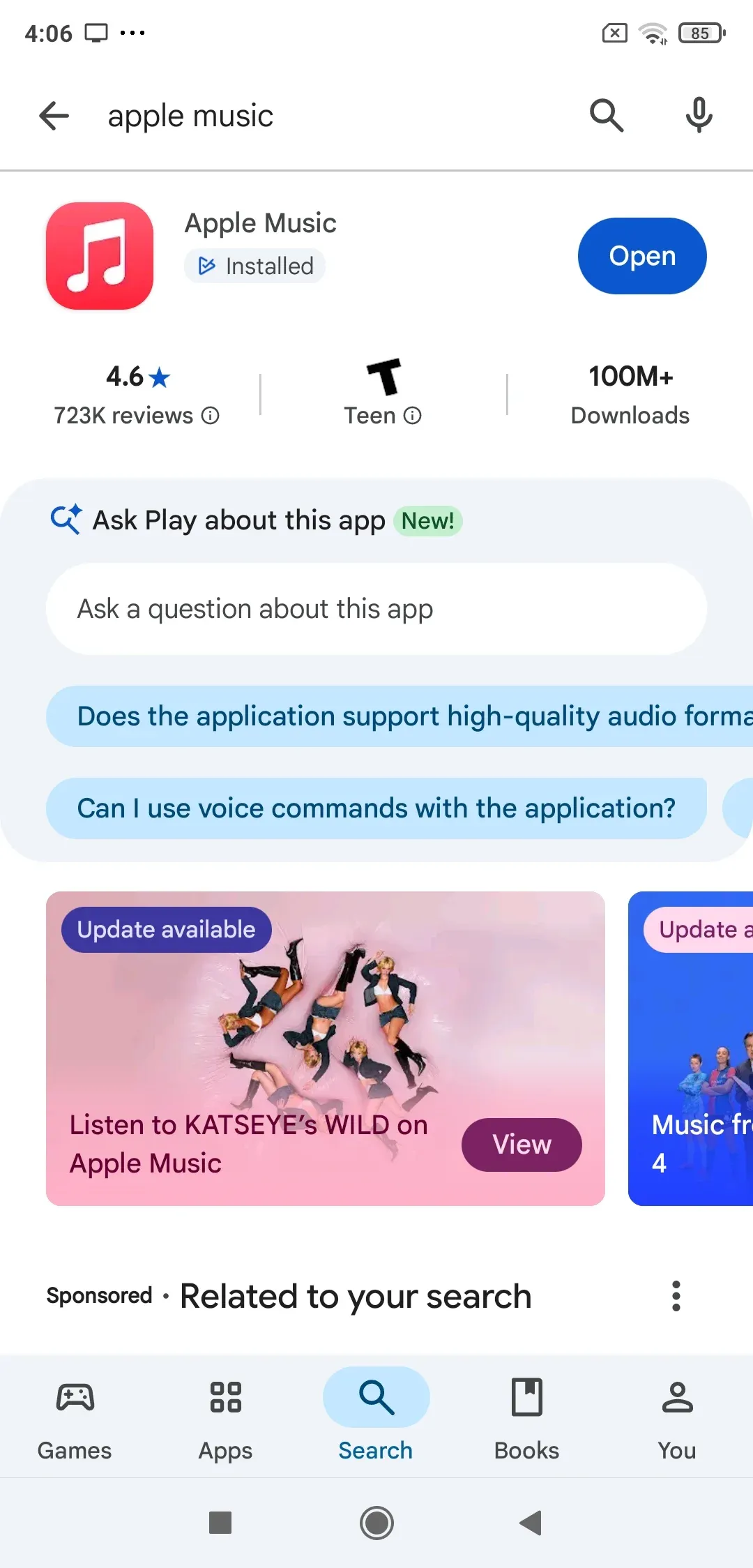
Step 1. Launch the Apple Music app on your Android phone or tablet and start playing the song, album, or playlist you want to hear.
Step 2. Tap the song currently playing to open the full playback controls.
Step 3. Tap the Cast icon near the bottom of the screen.
Apple Music will search for compatible Chromecast and Google Cast devices on your network.
Step 4. Choose your Chromecast, Google TV, or compatible Google Cast-enabled device from the list.
The music should begin playing through the selected device. To disconnect, tap the Cast icon again and stop the casting session.
Apple notes that not every type of Apple Music content and not every Chromecast device is supported, so availability may vary depending on the content and receiver you use.
How to Cast Apple Music to Chromecast From iPhone
Apple Music works differently on iPhone.
Unlike the Android version, the Apple Music app on iOS does not provide the same built-in Chromecast Cast button. That means you generally cannot open Apple Music on your iPhone and directly select a Chromecast in the way you can on Android.
If your TV supports AirPlay, it is easy to play Apple Music on TV through AirPlay. But if your TV or receiver is built around Chromecast or Google Cast, you can use PigeonCast as an alternative way to connect your iPhone to the larger screen.
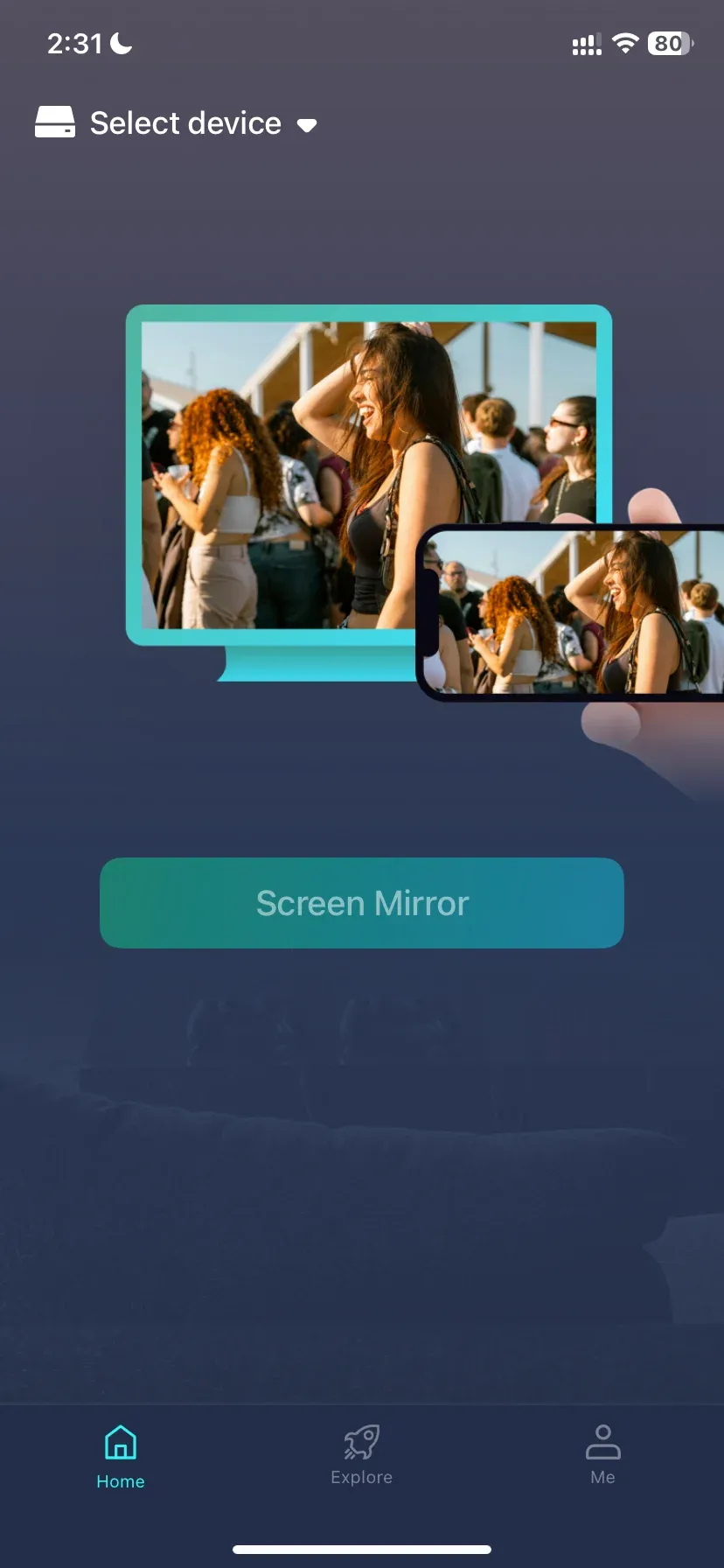
PigeonCast provides a broader iPhone-to-TV casting setup without relying on native Chromecast support inside Apple Music.
A typical setup is:
Step 1. Install and open PigeonCast on your iPhone.


Overall Rating:


Step 2. Open PigeonCast on the receiving TV or supported device.
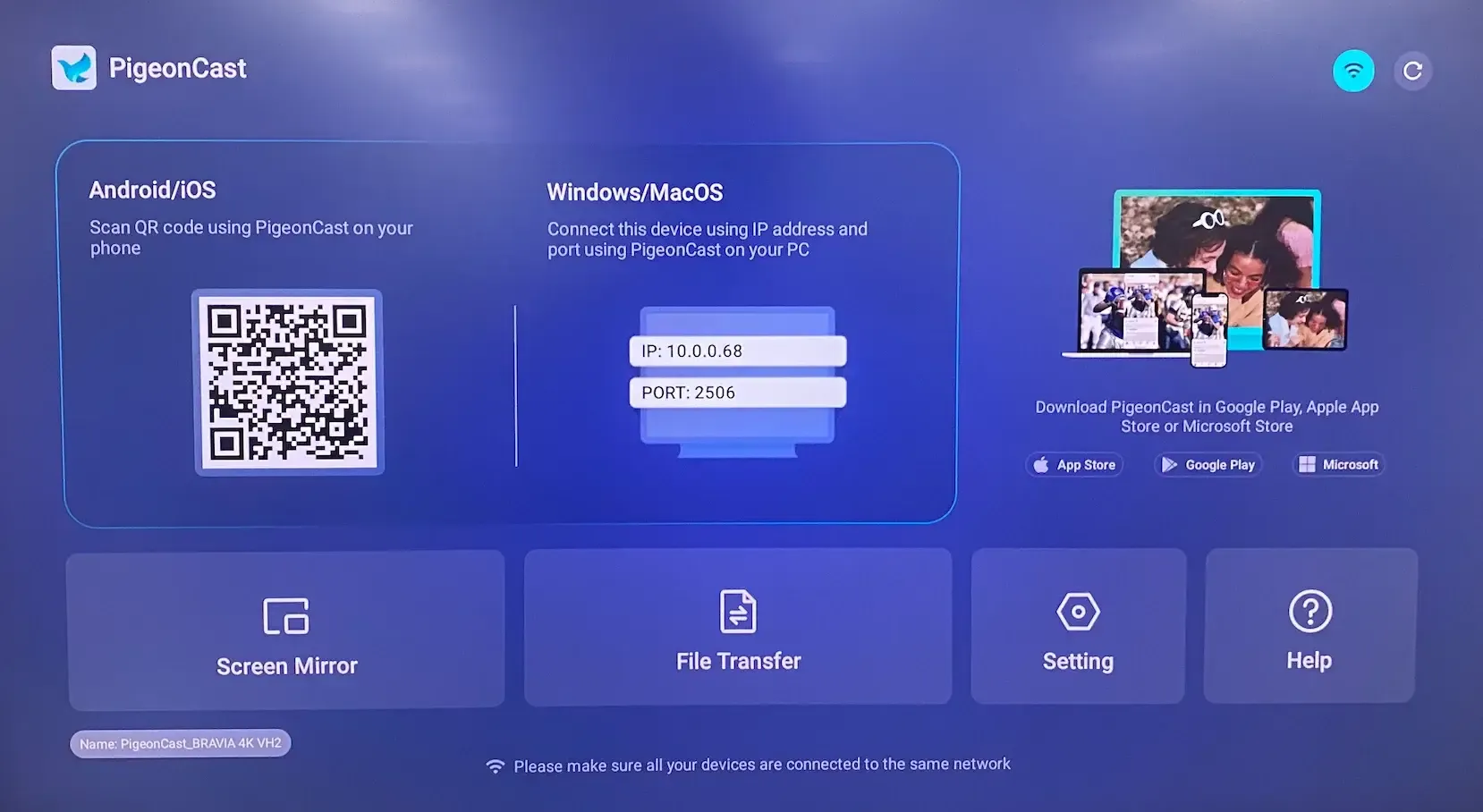
Step 3. Connect the two devices using the available connection method.
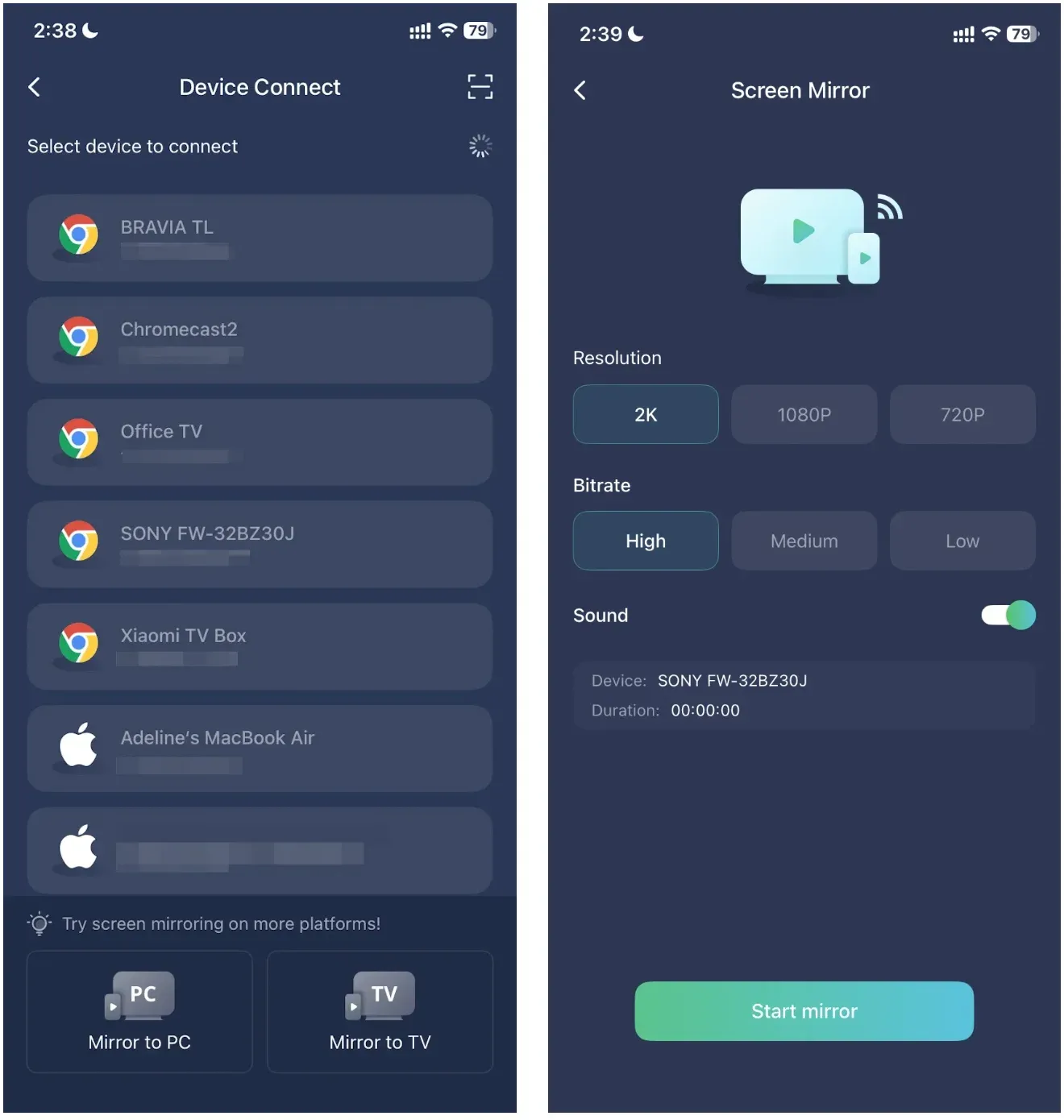
Step 4. On your iPhone, choose the target device and start mirroring.
Step 5. Open Apple Music and begin playback.
This is especially useful when the problem is not Apple Music itself, but the lack of a native Google Cast option on iPhone. Since iOS does not provide system-wide Chromecast support, using a Chromecast app for iPhone like PigeonCast gives you another way to connect your iPhone to a Chromecast-based TV.
Note: Screen mirroring and protected media playback do not always behave identically across apps and devices. If you only need audio playback and your TV supports AirPlay or a native Apple Music app, those options may be more direct.
How to Cast Apple Music From Windows or Mac
You can also play Apple Music through a browser and cast that browser tab to a Chromecast-enabled TV.
This works on Windows and Mac using Google Chrome.
Step 1. Open Chrome and go to music.apple.com and sign in with your Apple Account and start playing music.
Step 2. Click the three-dot menu in the upper-right corner of Chrome and choose Cast, save, and share → Cast.
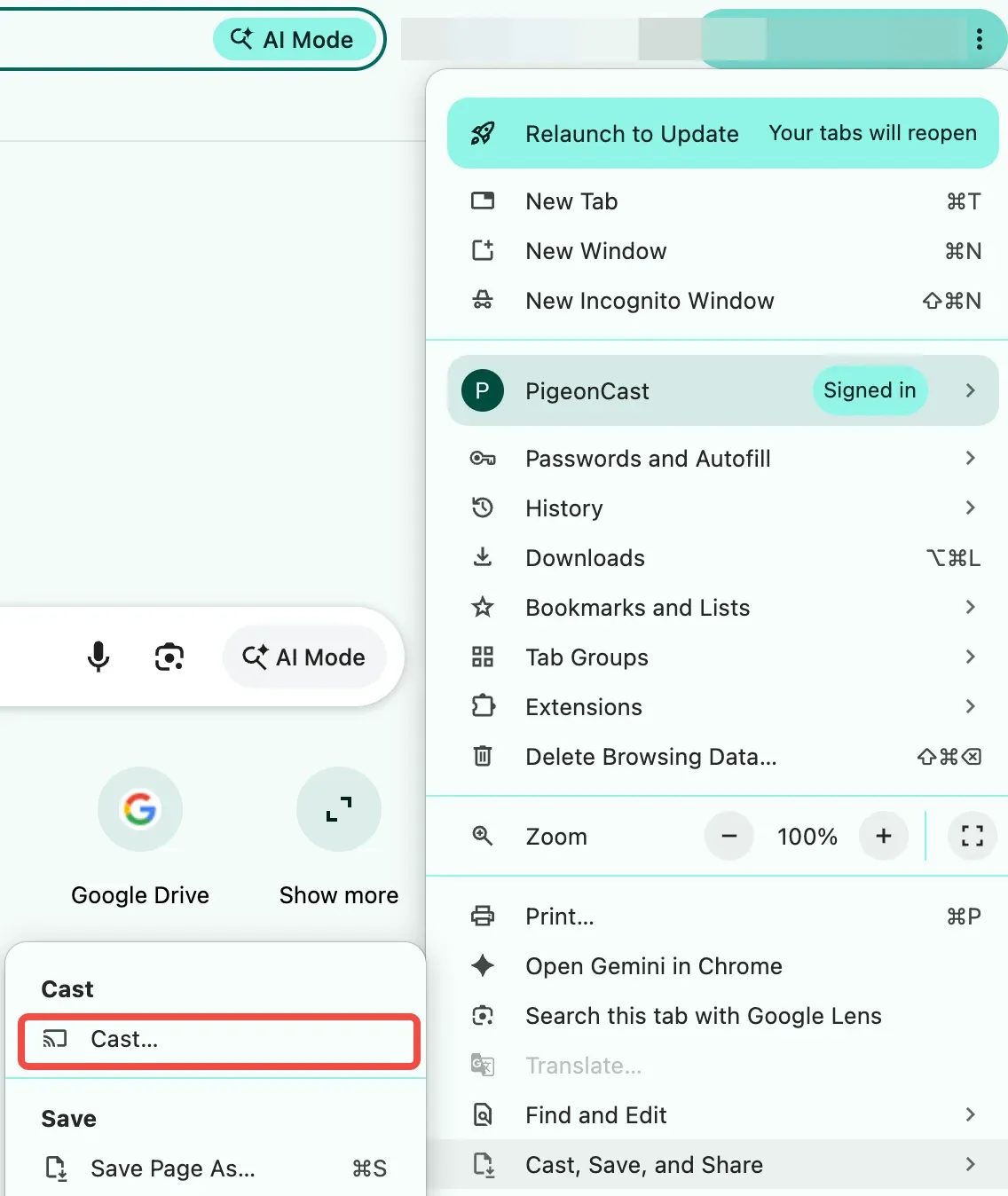
Note: Depending on your Chrome version, the wording may appear slightly differently.
Step 3. Select your Chromecast, Google TV Streamer, or TV with Google Cast. Chrome can cast the current tab to the TV, including its audio.
Step 4. Click the Cast icon in Chrome and choose Stop casting.
This method is different from Android's native Apple Music Cast button. Chrome is casting the browser tab, rather than Apple Music directly handing playback to the Chromecast receiver.
How to Play Apple Music on Google Home or Nest
If your goal is listening Apple Music through a Google Home or Google Nest speaker, you do not necessarily need to cast from your phone at all.
Google allows Apple Music to be linked as a music service.
To connect it:
Step 1. Open the Google Home app.
Step 2. Tap your profile picture.
Step 3. Open Home settings.
Step 4. Select Music under Services.
Step 5. Find Apple Music and link your account.
Step 6. Sign in with your Apple Account when prompted.
Once connected, you can ask your Google speaker or display to play songs, artists, albums, or playlists from Apple Music.
For example:
"Hey Google, play my Apple Music playlist."
This is a linked music service rather than a normal phone-to-Chromecast session.
Why Is Apple Music Not Casting to Chromecast?
If Apple Music is not finding your Chromecast or playback will not start, check these common causes first.
- Make Sure Both Devices Use the Same Wi-Fi
Your phone, computer, and Chromecast generally need to be on the same local network for Cast discovery to work.
If your phone is using mobile data or another Wi-Fi network, the Chromecast may not appear.
- Check Which Device You Are Using
If you are following Android instructions on an iPhone, the Cast button may simply not be available.
The Apple Music Android app has native Chromecast support. The iPhone version does not provide the same workflow.
- Update Apple Music
Open Google Play and make sure Apple Music is running the latest version.
Older versions may have bugs or compatibility problems.
- Restart Your Chromecast
If the Chromecast appears but will not connect, close Apple Music, restart the Chromecast or Google TV device, restart your phone, and open Apple Music and try again.
- Try Another Song
Apple says not every type of Apple Music content supports casting.
If one item refuses to play, try another song, album, or playlist before troubleshooting your network further.
- Check Chromecast Setup
Try casting from another Google Cast-enabled app such as YouTube.
If other apps also cannot find the Chromecast, the issue is probably with the Chromecast or network rather than Apple Music.
Conclusion
Casting Apple Music to Chromecast is simple on Android because Google Cast support is built directly into the Apple Music app. Windows and Mac users can also play Apple Music in Chrome and cast the browser to a compatible TV.
iPhone is the main exception. Apple Music on iOS does not offer the same native Chromecast workflow, so the best method depends on your TV. Use AirPlay when available, or use PigeonCast when you need a broader iPhone-to-TV casting option.
The key is to choose the method that matches your sending device instead of expecting Apple Music to behave the same way on Android, iPhone, and computers.
Apple Music Chromecast FAQ
Can you play Apple Music on multiple Chromecast devices at once?
Yes, if your devices support Google speaker groups or multi-room playback. You can create a speaker group in the Google Home app and play music across multiple compatible Google speakers, displays, and streaming devices at the same time.
Does Apple Music work with Chromecast Audio?
Chromecast Audio can still be used as a Cast playback device in supported Google setups, although Google has discontinued the hardware. If it appears as an available Cast target, Apple Music on Android may be able to send audio to it, but support can vary by device.
Can Apple Music play Lossless audio over Chromecast?
Apple Music offers Lossless Audio on supported devices, but Apple does not specifically guarantee that a Chromecast session preserves Apple Music Lossless quality. The final audio quality depends on the sending device, Cast implementation, receiver, and audio hardware.
Does Apple Music Dolby Atmos work with Chromecast?
Do not assume that casting Apple Music automatically preserves Dolby Atmos. Apple supports Dolby Atmos on selected Android devices and other compatible hardware, but Chromecast playback support depends on the receiving device and audio setup.
Can I control Apple Music after casting it to Chromecast?
Yes. When Apple Music is casting from Android, you can normally use the phone as the controller to pause playback, skip tracks, change songs, and disconnect from the Cast device without playing the audio through the phone itself.
Can I cast downloaded Apple Music songs to Chromecast?
Downloaded Apple Music tracks can be available for offline listening on your device, but casting still depends on Apple Music's Cast support and the Chromecast connection. Apple notes that not every type of Apple Music content supports casting, so downloaded status alone does not guarantee that a track can be cast.
Mia Clarke is a technology editor specializing in screen mirroring and casting solutions across multiple platforms. Mia provides clear, practical guides and in-depth insights to help users seamlessly connect their devices. Passionate about enhancing digital experiences, Mia is dedicated to keeping readers updated on the latest trends and tools in cross-platform screen sharing. Whether you’re looking to mirror your smartphone, laptop, or smart TV, Mia’s content delivers reliable, user-friendly advice to simplify your tech setup.