

There is no single free Chromecast app for iPhone that handles everything you might want to put on a TV.
For video, you often do not need a separate casting app at all. Popular iPhone apps such as YouTube, Netflix, Disney+, Hulu, and Vimeo already include Google Cast for supported content. If you want to mirror the iPhone itself rather than send a movie or video, you need a different type of app, such as PigeonCast.
One distinction is worth making before comparing them: free app does not always mean free content. YouTube can be used without a paid subscription, while Netflix, Disney+, and Hulu require access to their respective services. In those cases, you are not paying extra just to add Chromecast support.
Best Free Chromecast Apps for iPhone
| App | What it sends to Chromecast | Main catch |
|---|---|---|
| YouTube | YouTube videos, Shorts, playlists | Limited to YouTube content |
| Netflix | Supported Netflix movies and shows | Device and plan restrictions apply |
| Disney+ | Disney+ movies and shows | Requires Disney+ access |
| Hulu | Hulu shows, movies, and live content where available | Requires a supported Hulu plan |
| Vimeo | Vimeo-hosted videos | Only useful for Vimeo content |
| PigeonCast | Your iPhone screen to Google Cast devices | Designed for mirroring rather than handing off a streaming service |
YouTube: The Easiest Place to Start
YouTube is probably the clearest example of why you may not need to search for a separate Chromecast utility.
To cast YouTube to TV from iPhone, open YouTube on your iPhone, tap the Cast icon, choose your Chromecast or Google Cast-enabled TV, and the video moves to the TV. Your iPhone then becomes the controller: you can pause playback, change videos, browse recommendations, or build a queue without keeping the same video on your phone screen.
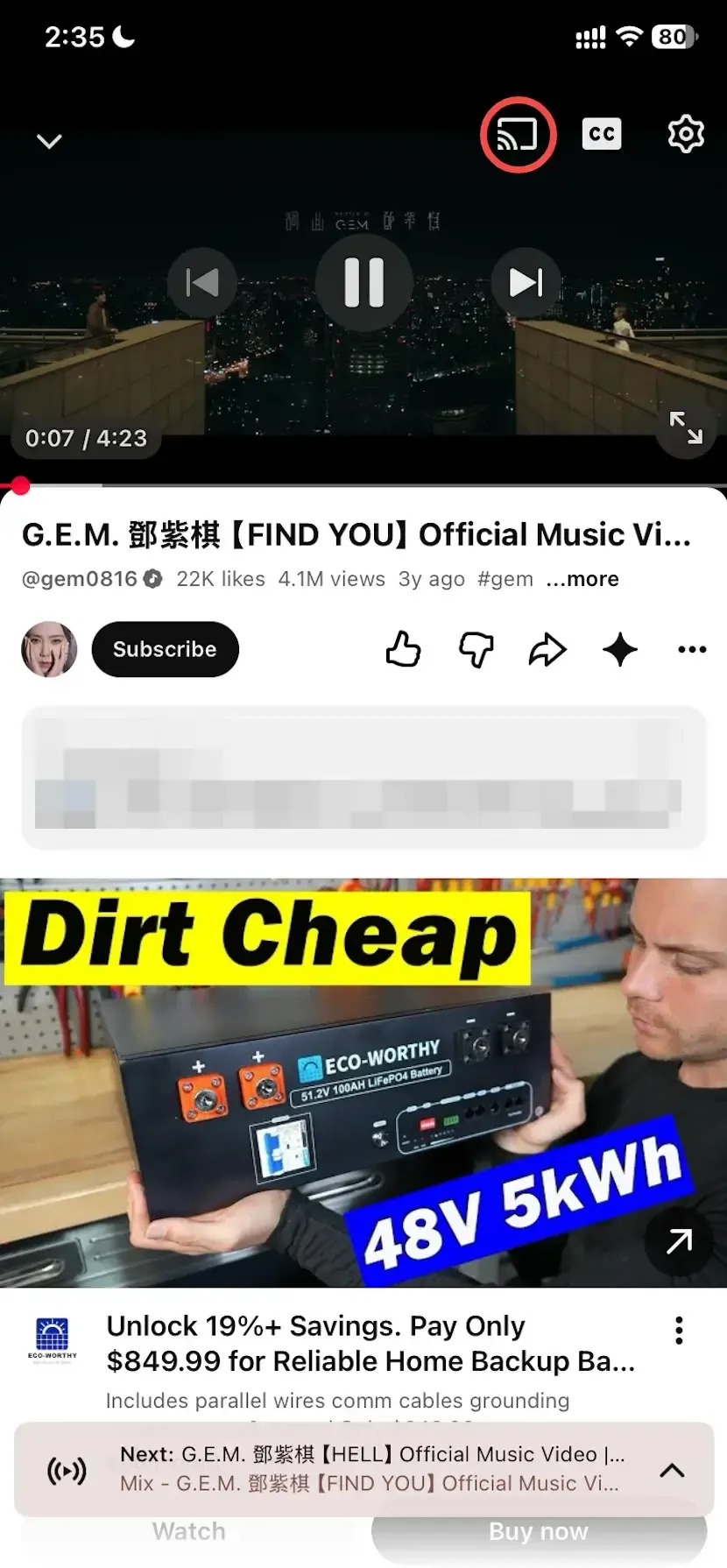
That last point matters. YouTube is casting the video, not mirroring the iPhone (check the differences between casting and screen mirroring).
Because the Chromecast receives the media separately, you can leave the YouTube playback screen and continue using your phone while the video stays on the TV.
It is a particularly good free option if your goal is simply:
- watching YouTube on a larger screen
- sending a playlist to the TV
- controlling playback from the couch
- letting several people on the same network add videos to a queue
But YouTube does not help when the content lives somewhere else. You cannot open another iPhone app and use YouTube's Cast feature to send that app to the TV.
Netflix: Useful, but Chromecast Support Is More Restricted
Netflix is still an important iPhone Chromecast option, but it needs more explanation than it used to.
If your Netflix account and receiving device support casting, the iPhone app includes a Cast icon. You can select the receiver, start a movie or show, and then use the phone to pause, seek, or change audio and subtitles.
The important issue in 2026 is receiver compatibility.
Netflix does not treat every device with Google Cast in exactly the same way. Casting from the mobile app is currently limited to certain compatible receivers, including older Chromecast models without a physical remote and some supported displays. On devices that Netflix does not expose as mobile Cast targets, you may need to open the Netflix app directly on the TV instead.
Netflix also places restrictions around subscription plans and casting support, so the absence of a Cast button does not automatically mean your Wi-Fi is broken.
There is another important limitation for anyone thinking about screen mirroring: Netflix does not support AirPlay from iPhone, and protected video can also be problematic with third-party mirroring methods.
So Netflix belongs on this list because its iPhone app can provide native Chromecast playback in supported setups—not because it is a universal way to mirror Netflix from an iPhone.
Disney+: Straightforward Chromecast Support
Disney+ is much closer to the traditional Chromecast experience.
On a supported iPhone, open Disney+, choose the movie or series you want to watch, tap the Chromecast icon, and select the receiver. The video then plays on the TV while playback controls remain available from the phone.
Disney+ supports Chromecast devices as well as televisions and Android TV devices with Google Cast built in, which makes it useful even if you do not have a separate Chromecast dongle attached to the TV.
This is worth checking before downloading anything else. Many newer TVs already provide the receiver you need.
For example, some Sony TVs include Google Cast functionality directly. If that is your setup, it is better to first confirm how Chromecast works on Sony Bravia than to assume you need another piece of hardware or another generic casting app.
Like Netflix, Disney+ is not a free streaming service. The point here is that once you have access to Disney+, you do not need to buy a separate Chromecast app just to move supported Disney+ playback from the iPhone to the TV.
Hulu: Use the Cast Button Already in the App
Hulu is also one of Chromecast-enabled apps and follows the same basic idea: if your goal is to watch Hulu, start with Hulu itself rather than downloading a generic “TV casting” app.
With a compatible receiver available on the same network, the Cast control lets the iPhone hand Hulu playback over to the TV. You can then continue using the phone as the controller instead of mirroring every frame of the iPhone display.
The distinction is useful because people often search the App Store for something like “free Chromecast for iPhone” when the feature they need is already built into the streaming service.
If Hulu is the specific service you are trying to get onto the big screen, the normal route is to Chromecast Hulu from Hulu's own playback interface.
A separate casting app becomes relevant only when the content you want to show falls outside what Hulu itself can Cast.
Vimeo: Better for Individual Videos and Creator Content
Vimeo is another Cast-enabled option, but the reason to use it is different from Netflix or Disney+.
You may encounter Vimeo when watching creator videos, embedded business videos, courses, portfolios, event recordings, or privately shared video content.
When the video and your setup support Google Cast, Vimeo can send the playback to a Chromecast-compatible receiver without mirroring the entire iPhone screen.
So if someone sends you a Vimeo link and your goal is simply to watch that video on the TV, it makes more sense to use the supported Vimeo casting workflow than to mirror the whole phone.
The exact path can depend on how the Vimeo content is being viewed, especially when a video is embedded on another website. Our guide on how to Chromecast Vimeo covers that workflow in more detail.
Vimeo becomes less useful as soon as you leave Vimeo content. Like the other streaming apps above, its casting feature belongs to the service rather than to iOS as a whole.
PigeonCast: For More Than App-Based Casting
Apps like YouTube and Disney+ work well when all you want to do is send a supported video to the TV. But not everything on an iPhone comes with a Cast button.
That is where PigeonCast is more useful.
With PigeonCast for iPhone screen mirroring, you can mirror your screen to a compatible Chromecast or Google Cast device. This works well when you want to show something outside a Cast-enabled streaming app, such as another app, a webpage, photos, or whatever is currently on your screen.
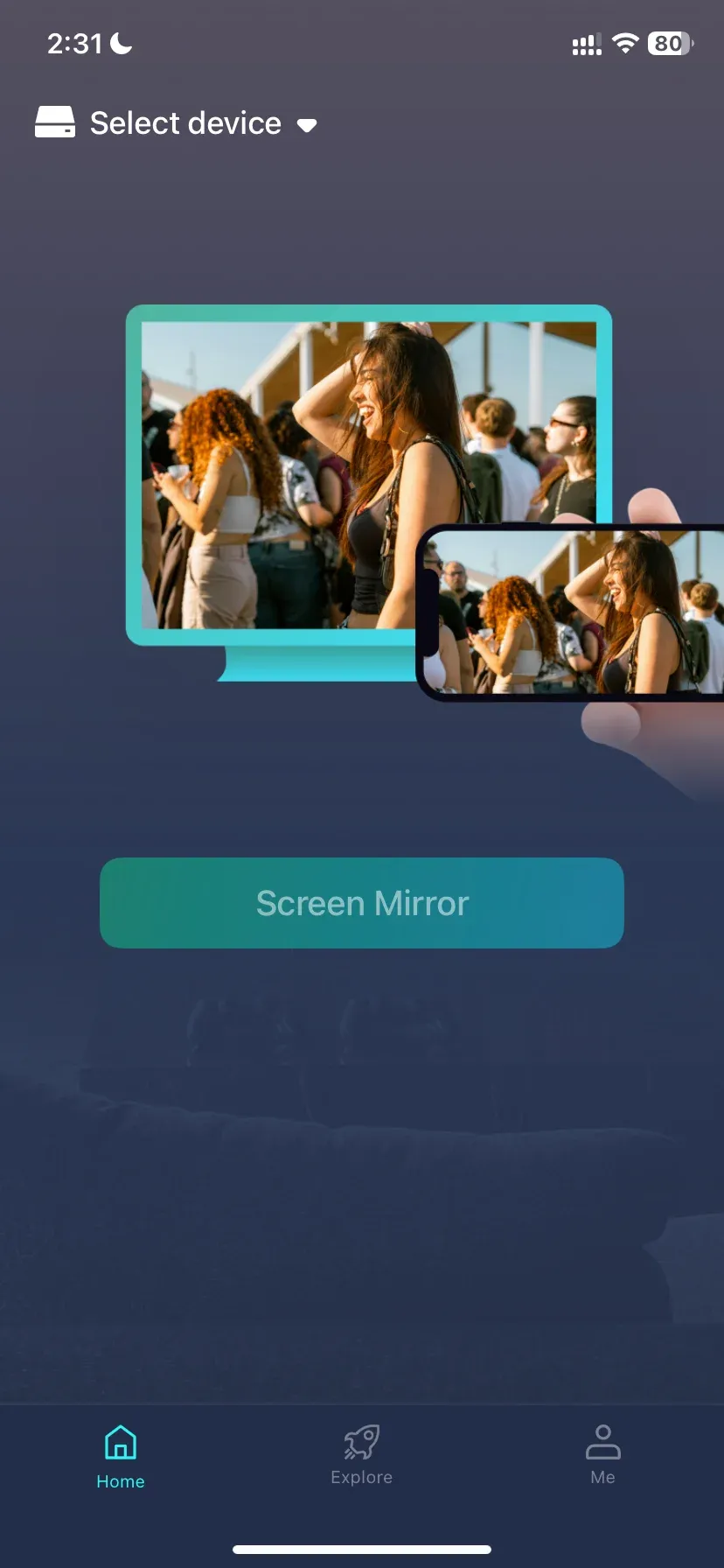
If you use Google TV or Android TV, you also have another option. Install PigeonCast for TV screen mirroring, then mirror your iPhone to it through AirPlay.
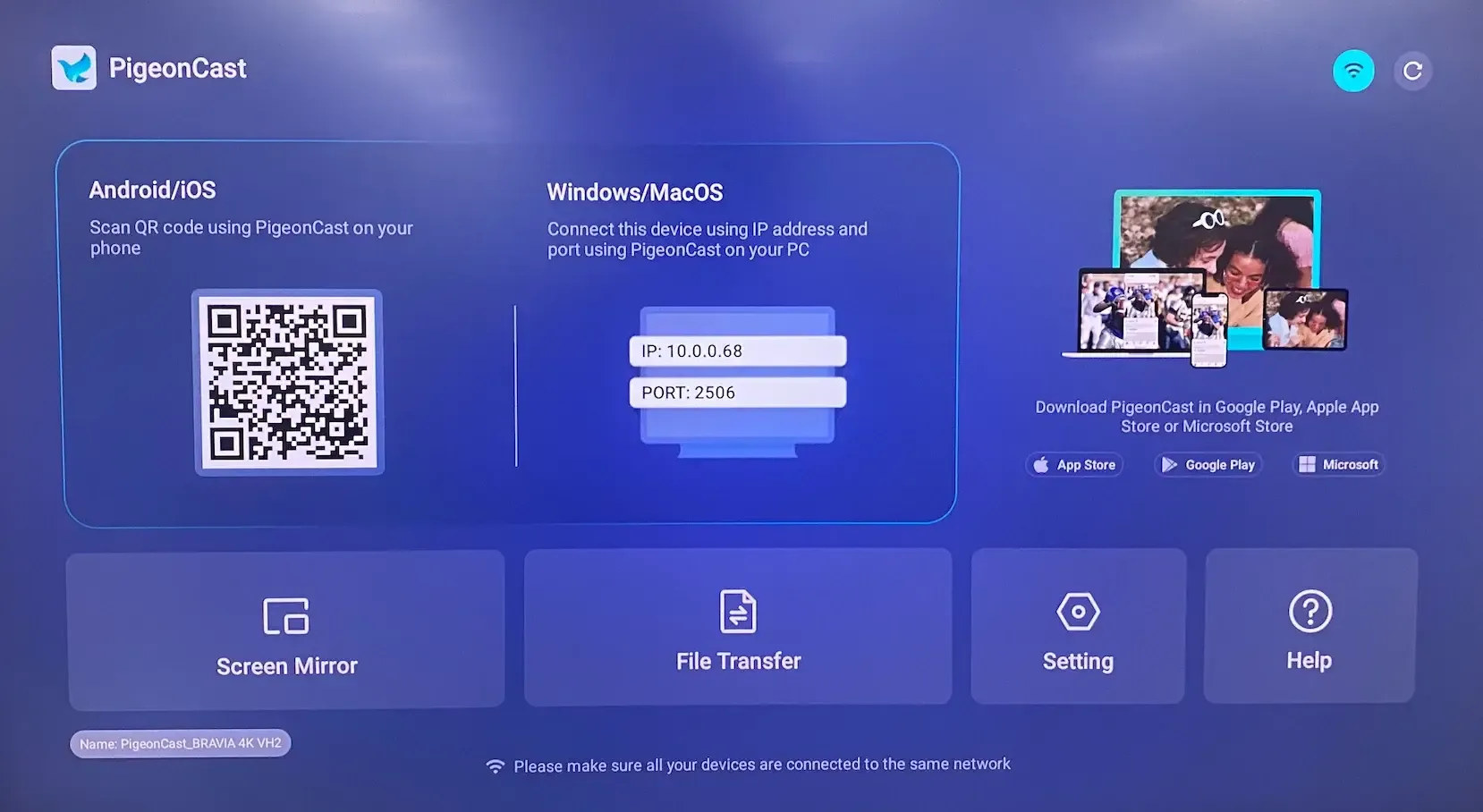
So instead of checking whether every app on your iPhone supports Chromecast, you can use PigeonCast when you simply want to get your screen onto the TV. It is especially handy if you regularly cast to Android TV or use different phones, computers, and TV devices at home.
For Netflix, Disney+, and other DRM-protected streaming services, stick with their built-in Cast option when available. Screen mirroring does not bypass their content protection.
How to Chromecast From iPhone for Free
For apps such as YouTube, Disney+, Hulu, or another service with native Google Cast support, the process is usually:
Step 1. Connect the iPhone and Chromecast or Google Cast device to the same Wi-Fi network.
Step 2. Open the app containing the content.
Step 3. Allow Local Network access if iOS requests it.
Step 4. Tap the Cast icon in the app.
Step 5. Choose the Chromecast or compatible TV.
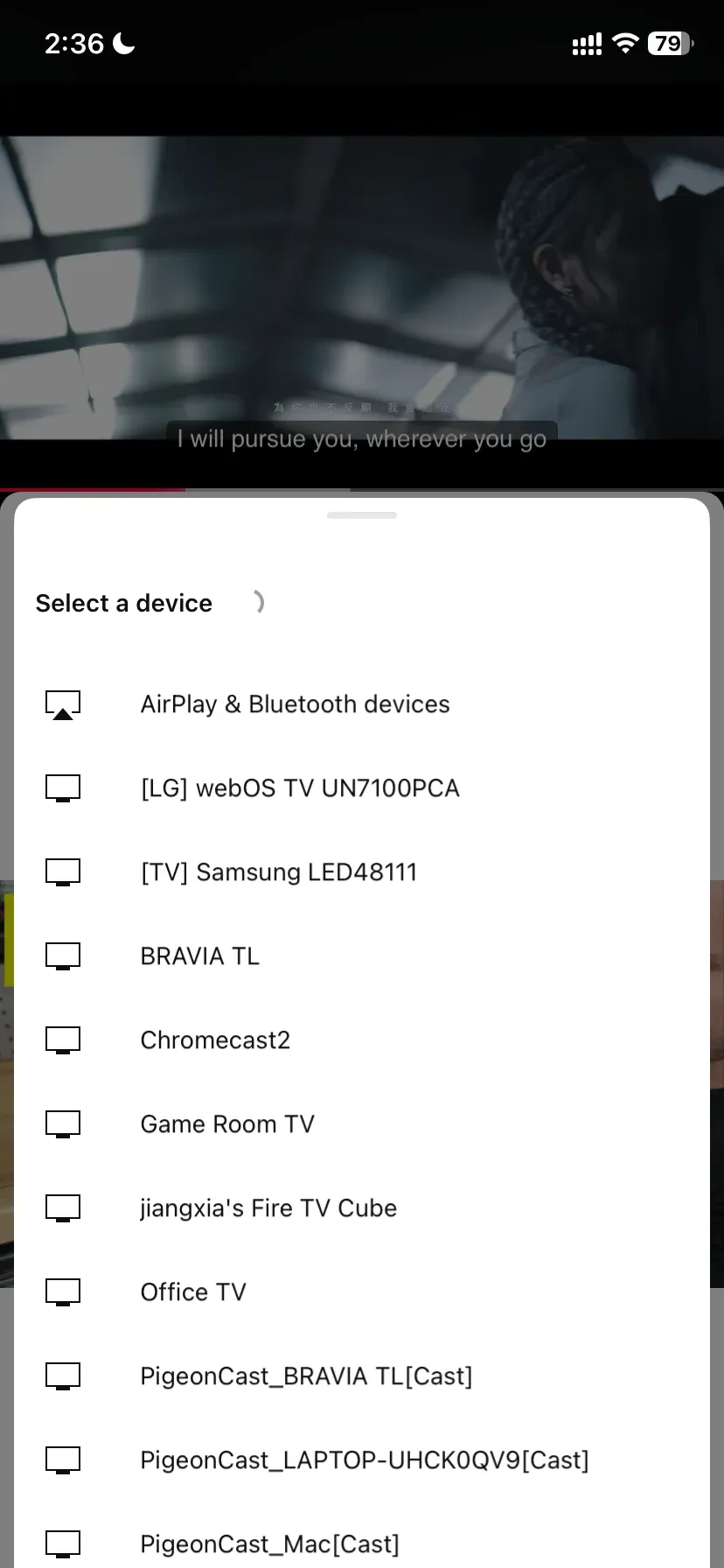
Step 6. Start the video.
Once the stream begins, the phone normally acts as a controller rather than continuously sending a copy of its screen.
How to Mirror iPhone to Chromecast With PigeonCast
If you want the iPhone screen itself on the Chromecast rather than a supported video stream:
Step 1. Open PigeonCast on the iPhone.


Overall Rating:


Step 2. Make sure the iPhone and Google Cast receiver are on the same network.
Step 3. Choose the available Chromecast, Google TV, or compatible Google Cast device.
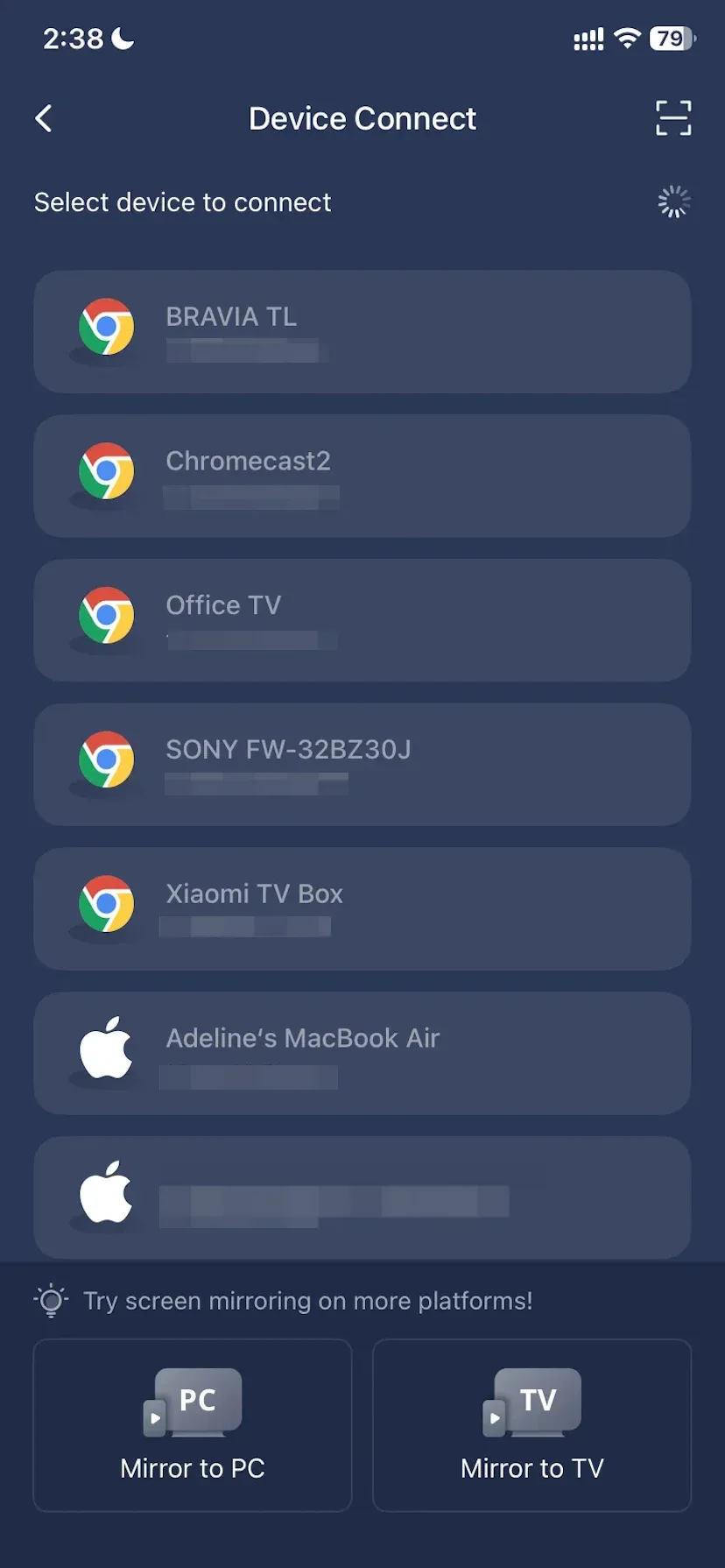
Step 4. Start the mirroring session.
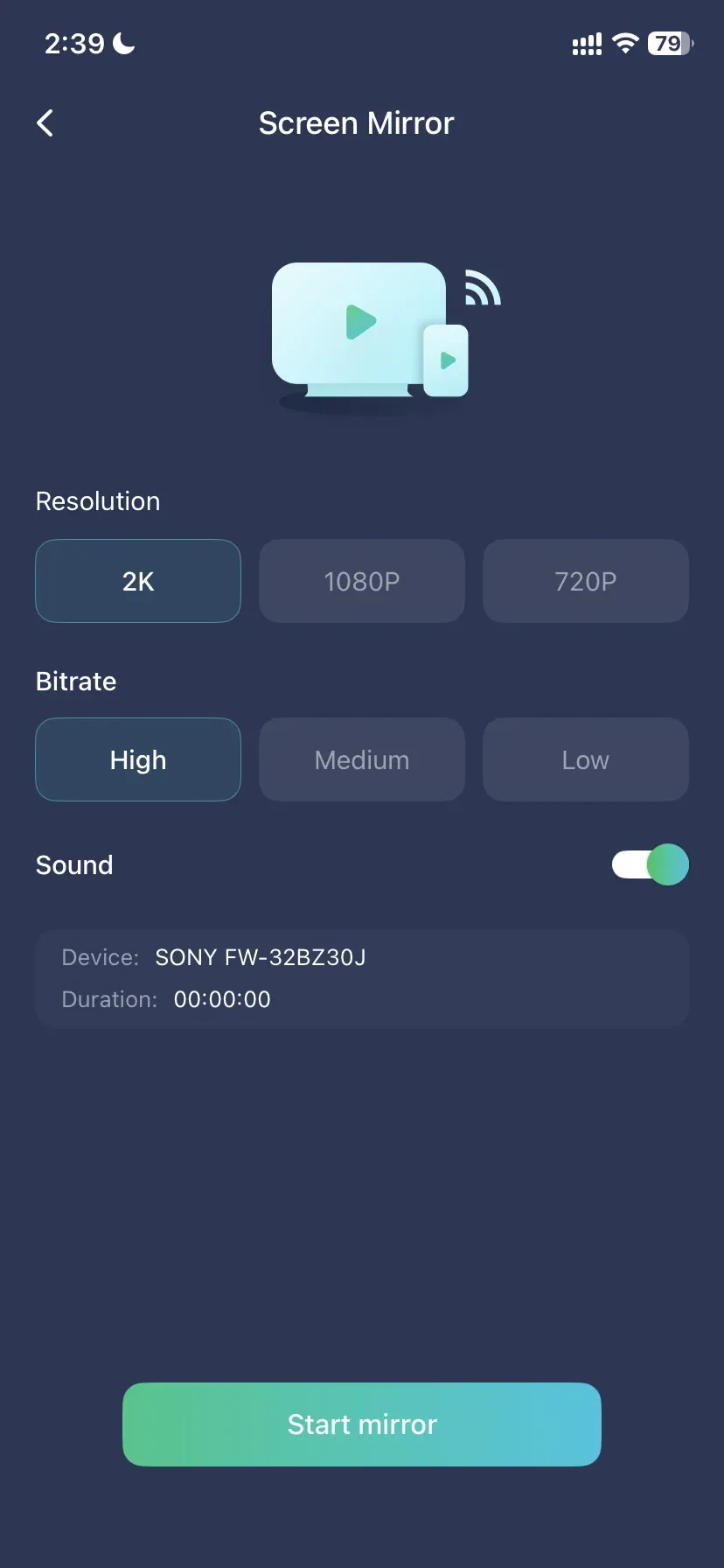
Alternatively, you can turn your Google TV into an AirPlay receiver:
Step 1. On your TV, search for PigeonCast on the app store, download and install it.
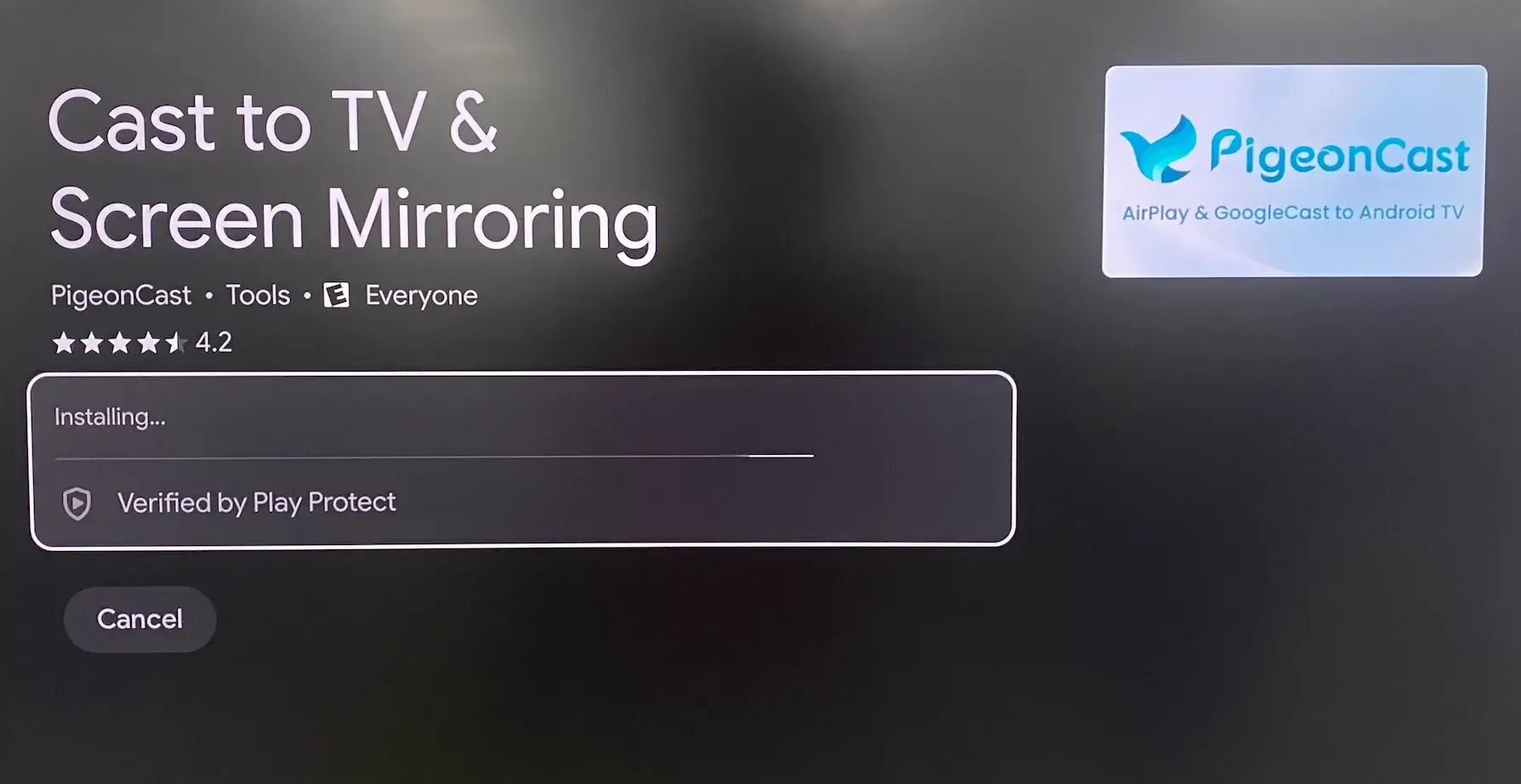
Step 2. Open the PigeonCast app on your TV and check your TV using the same Wi-Fi network as your iPhone.
Step 3. On your iPhone, scroll down the Control Center and tap the Screen Mirror option.
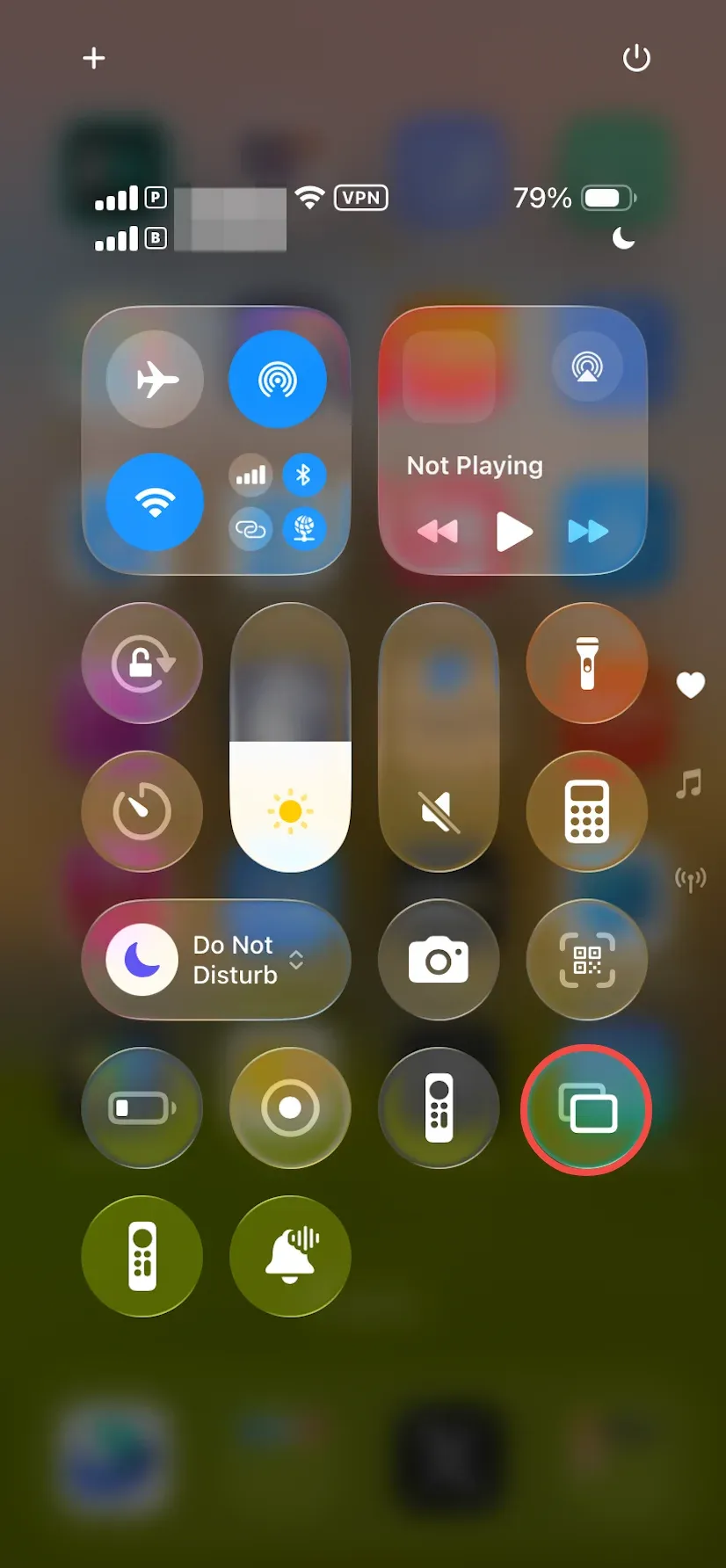
Step 4. Choose the TV from the list and start screen mirroring.
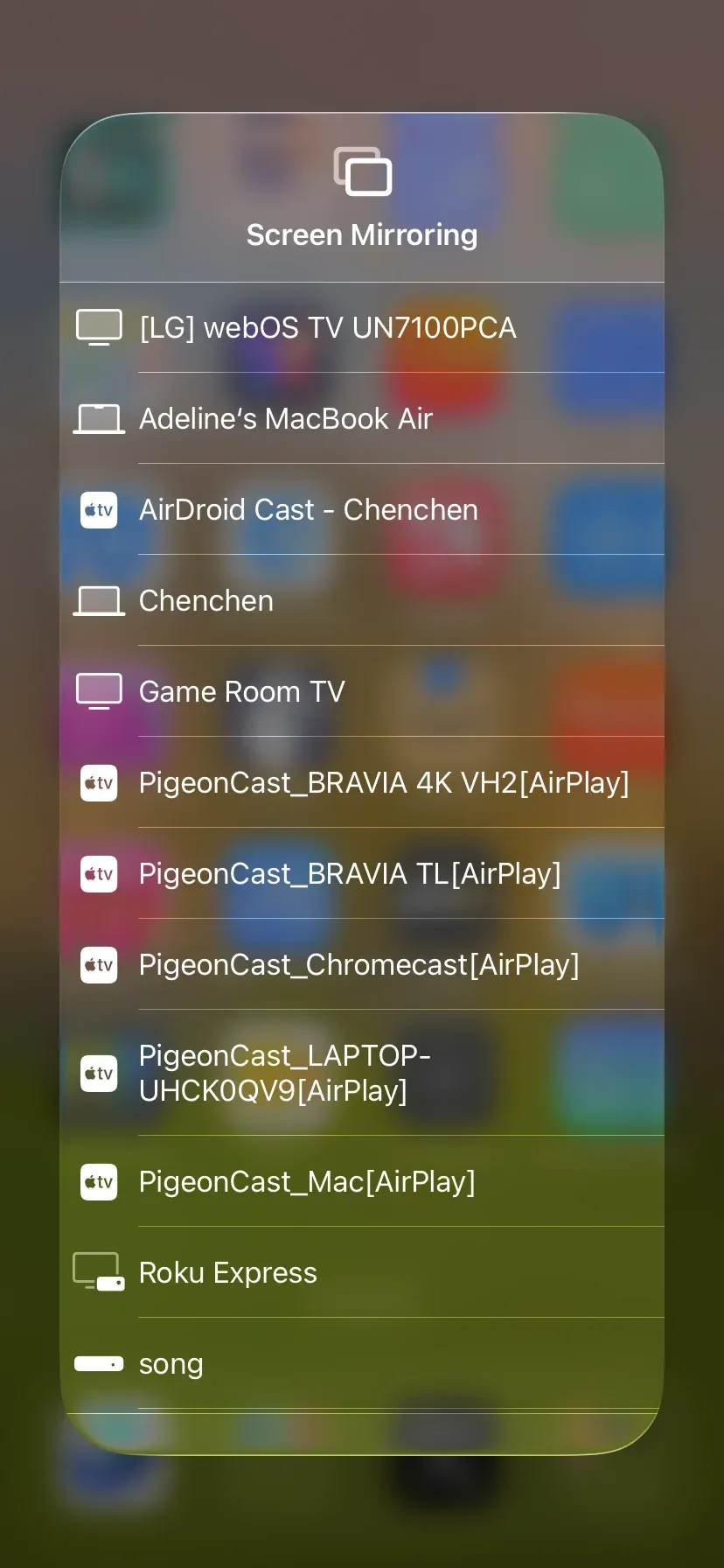
Step 5. Browse your iPhone screen on the big display.
Why Can't My iPhone Find the Chromecast?
If the Cast button exists but your TV or Chromecast does not appear, start with the network rather than installing another app.
If you can't cast iPhone to Chromecast, check that:
- the iPhone and receiver are on the same Wi-Fi network
- Local Network permission is enabled for the app
- the receiver is powered on and connected
- you are not using a guest network that prevents devices from seeing one another
- a VPN is not interfering with local discovery
There is an important difference between “I can see the Cast button but not my device” and “this app has no Cast button at all.”
The first usually points to discovery, network, permission, or receiver compatibility.
The second often means that the app does not offer native Google Cast in that situation. Installing Google Home will not add a Cast button to an unsupported app.
Conclusion
The most useful free Chromecast app for iPhone may already be on your phone.
YouTube, Netflix, Disney+, Hulu, and Vimeo can handle their own supported video playback without requiring a separate casting utility. The details and device restrictions differ, but the underlying idea is the same: use native Google Cast when the service already provides it.
PigeonCast serves the part those apps do not cover—mirroring an iPhone to a Google Cast receiver when you want to show more than one Cast-enabled video service.
Free Chromecast App for iPhone FAQ
Do I need Google Home to cast from iPhone?
Not for normal playback every time. Google Home is mainly used to set up and manage Chromecast devices and can also help when a Chromecast is offline or cannot be discovered. Once the receiver is configured, apps such as YouTube or Disney+ normally start casting from their own Cast buttons.
Can I mirror my entire iPhone screen to Chromecast?
Yes, but not with the iPhone's built-in Screen Mirroring feature, which uses AirPlay rather than Google Cast. To mirror the entire iPhone screen to a standard Chromecast or other Google Cast device, you need a third-party screen mirroring app such as PigeonCast.
Can I use Chromecast on iPhone without paying?
Yes. There is no separate fee simply for using Google Cast with a supported free app such as YouTube. Paid streaming services are different: Netflix, Disney+, or Hulu may require a subscription even though their iPhone apps and casting functionality do not require you to purchase a separate Chromecast utility.
Why doesn't Netflix show my Chromecast?
Netflix currently supports mobile casting only with certain compatible receivers and plans. If the Cast button or receiver is missing, check Netflix's current device compatibility as well as Local Network permissions and Wi-Fi before assuming there is a problem with the iPhone.
Can I Chromecast from iPhone without Google Home?
Yes. Once your Chromecast or Google Cast device is already set up, you can usually cast directly from supported iPhone apps such as YouTube, Disney+, or Hulu without opening Google Home. Google Home is mainly useful for initial setup, device management, and troubleshooting when the Chromecast cannot be found.
Mia Clarke is a technology editor specializing in screen mirroring and casting solutions across multiple platforms. Mia provides clear, practical guides and in-depth insights to help users seamlessly connect their devices. Passionate about enhancing digital experiences, Mia is dedicated to keeping readers updated on the latest trends and tools in cross-platform screen sharing. Whether you’re looking to mirror your smartphone, laptop, or smart TV, Mia’s content delivers reliable, user-friendly advice to simplify your tech setup.