

If you want to know how to watch Patreon videos on TV, the short version is that Patreon works well on phones and in a browser, but TV playback is still more of a workaround than a built-in TV-first experience.
Right now, Patreon officially supports its app on iPhone, iPad, Android phones, and Android tablets, and it also supports watching in desktop and mobile browsers. What Patreon does not present in its current official support materials is a standard TV app route across platforms like Apple TV, Android TV, Google TV, Fire TV, Roku, Samsung TV, or LG TV.
So the real question is not whether Patreon videos can reach a TV at all. They can. The real question is which method gives you the least friction on your devices. This guide focuses on the four most practical options.
Quick Answer to Watch Patreon Videos on TV
Patreon does not currently present a mainstream official TV-app experience. The easiest ways to watch Patreon videos on a TV are AirPlay from iPhone or iPad, Chromecast from Android, screen mirroring from a phone or laptop, opening the Patreon website in a TV browser, or installing an unofficial APK on compatible TV devices if you are comfortable with a more technical setup.
Check Patreon App Availability on Different Platforms
Before you choose a method, this is the important platform split:
| Platform | Official Patreon app or TV app status |
|---|---|
| iPhone | Yes |
| iPad | Yes |
| Android phone | Yes |
| Android tablet | Yes |
| Web browser | Yes |
| Apple TV | No standard TV app listed in current support materials |
| Android TV | No standard TV app listed in current support materials |
| Google TV | No standard TV app listed in current support materials |
| Fire TV | No standard TV app listed in current support materials |
| Roku | No standard TV app listed in current support materials |
| Samsung TV | No standard TV app listed in current support materials |
| LG TV | No standard TV app listed in current support materials |
That is why most people end up choosing between casting, mirroring, using a browser on the TV, or taking a more technical sideloading route instead of simply installing Patreon on the TV.
How to Watch Patreon on TV
The best method depends on two things: your device ecosystem and your tolerance for setup friction. If you already use Apple devices, AirPlay is the cleanest starting point. If you are on Android, Chromecast is the most natural first try. If you want the broadest compatibility across different TVs and computers, screen mirroring usually gives you the fewest surprises. If your TV can run a usable browser, web playback is another workable fallback.
Method 1: AirPlay Patreon Video From iPhone to TV
If you use an iPhone or iPad, AirPlay is the first method worth trying. It makes the most sense when you have Apple TV or a smart TV with AirPlay support built in.
How to watch Patreon on Apple TV:
Step 1. Connect your iPhone or iPad and your TV to the same Wi-Fi network.
Step 2. Open the Patreon app and start the video you want to watch.
Step 3. Tap the AirPlay control from the video player if it appears.
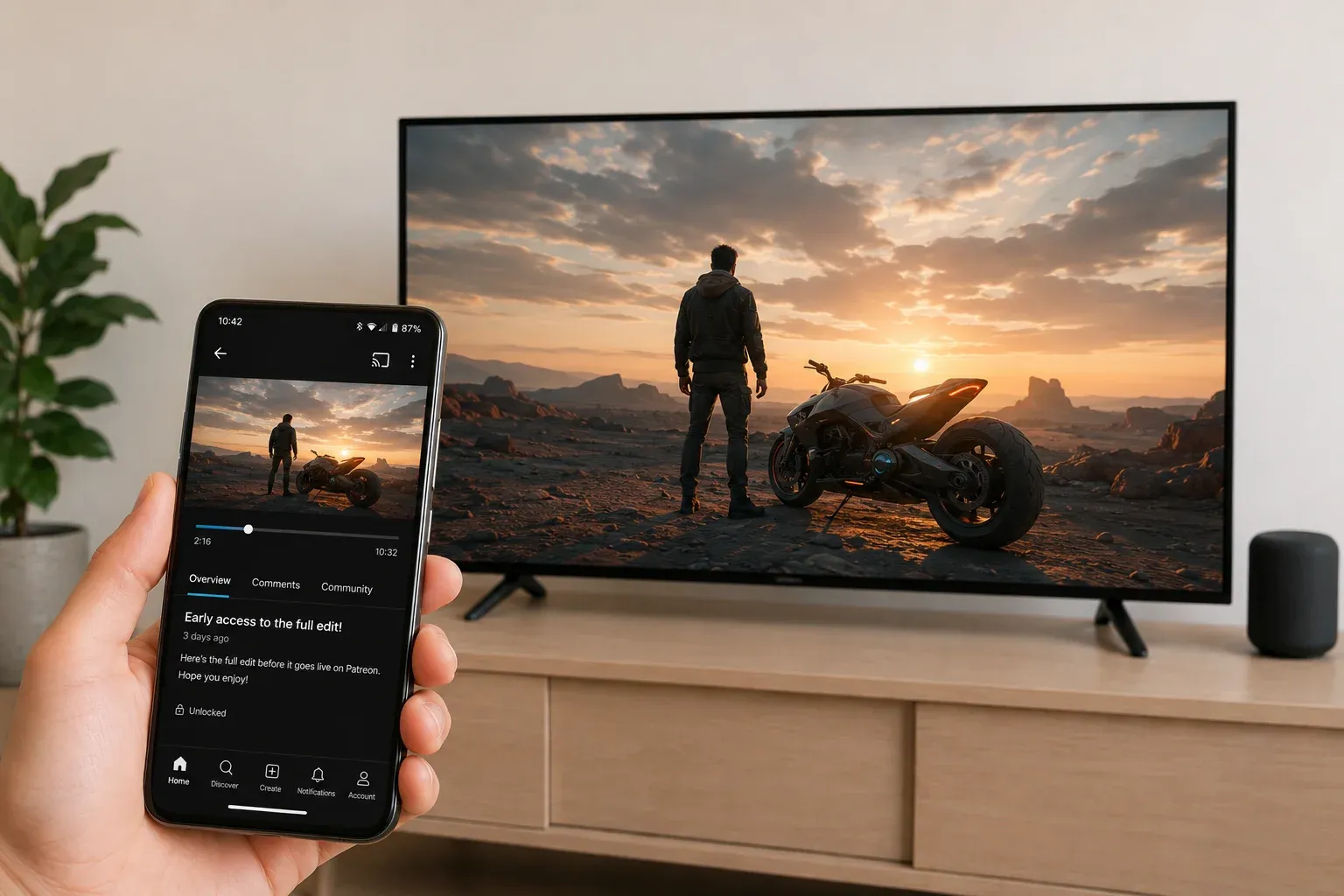
Step 4. Choose your Apple TV or AirPlay-compatible TV from the device list.
Step 5. Let the TV handle playback while your phone stays as the controller.
The main advantage of AirPlay is that it feels closer to native playback than full-screen iPhone mirroring. You can usually keep basic playback controls on the iPhone or iPad without showing notifications, app switching, or the rest of your screen on the TV.
The limit is that AirPlay still depends on how well your TV and Apple device talk to each other. If the TV does not appear, playback starts but feels unstable, or the video player does not hand off cleanly, the problem is usually compatibility or network behavior rather than Patreon alone.
Method 2: Cast Patreon Video From Android to TV
If you watch Patreon on an Android phone or tablet, Chromecast is the most natural next option. Patreon is one of the Chromecast-enabled apps, which makes it easy to watch videos on Google TV.
How to cast Patreon to TV:
Step 1. Connect your Android device and your Chromecast or Google TV device to the same Wi-Fi network.
Step 2. Open the Patreon app and play the video you want to watch.
Step 3. Tap the Cast button when it appears.
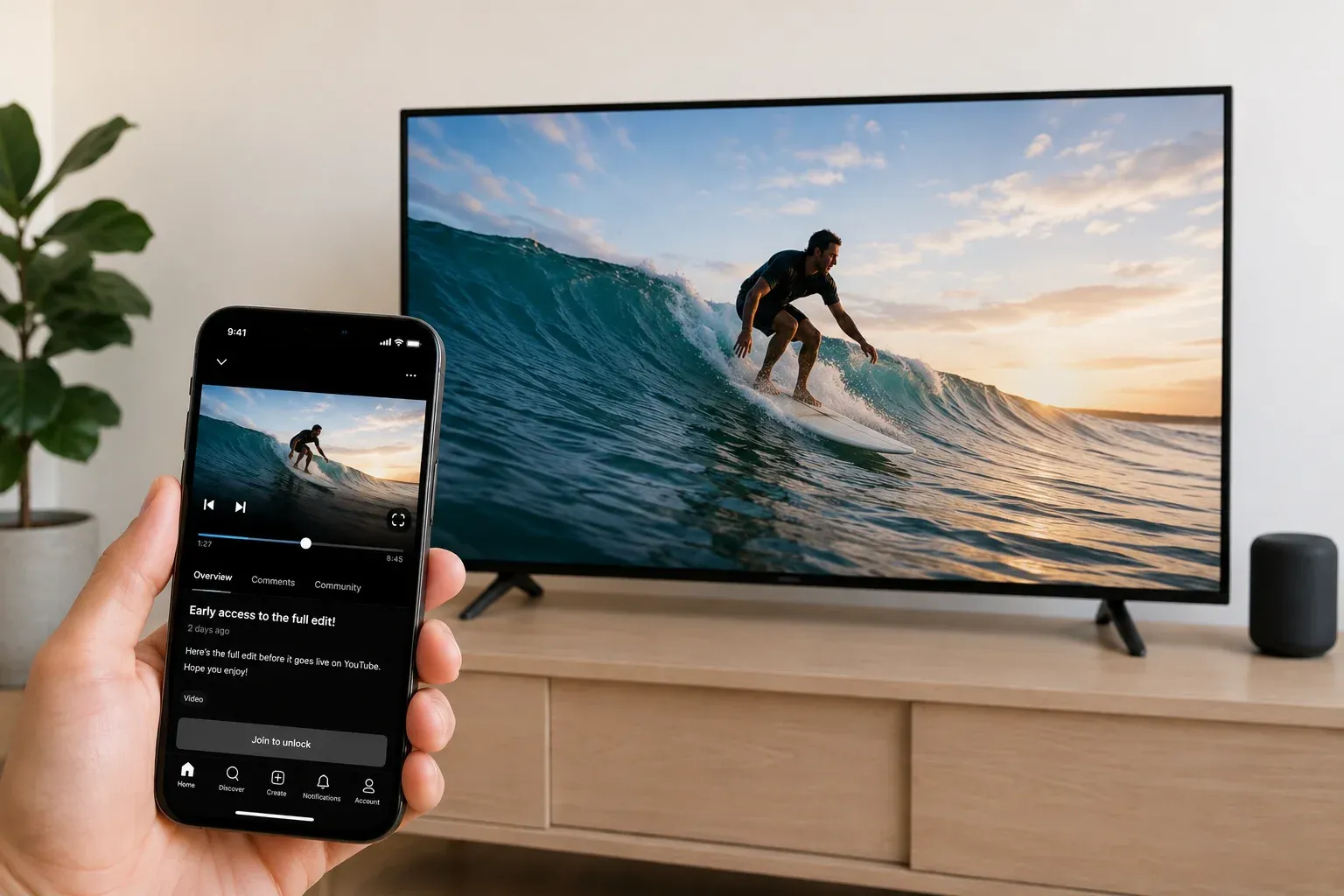
Step 4. Choose the TV or Chromecast receiver.
Step 5. Control playback from your phone while the video plays on the TV.
This is usually the cleanest Android route because the video is sent to the TV instead of duplicating everything on the phone screen. In a simple Android-plus-Chromecast setup, it often feels more convenient than mirroring.
The tradeoff is that Patreon is not built around a full TV-first experience. If the cast button does not appear, if device discovery feels inconsistent, or if you would rather not troubleshoot Chromecast behavior every time, it makes more sense to move to a broader fallback instead of forcing this method.
Method 3: Screen Mirror Phone or Laptop to TV
Screen mirroring is different from casting. Casting tries to send the video to the TV directly, while mirroring keeps playback on your phone or laptop and shows that screen on the TV in real time.
That is why mirroring is often the safer fallback for Patreon. You can open Patreon on your iPhone, Android phone, Windows laptop, or Mac, start the video there, and mirror that screen to the TV without depending too much on one specific cast standard.
Because every device handles screen mirroring a little differently, using a dedicated screen mirroring app is often the simplest option if you don't want to worry about casting protocols or compatibility. This is where PigeonCast stands out. It provides a more consistent mirroring experience across iPhone, Android, Windows, Mac, Android TV, Google TV, Fire TV, and other supported devices.
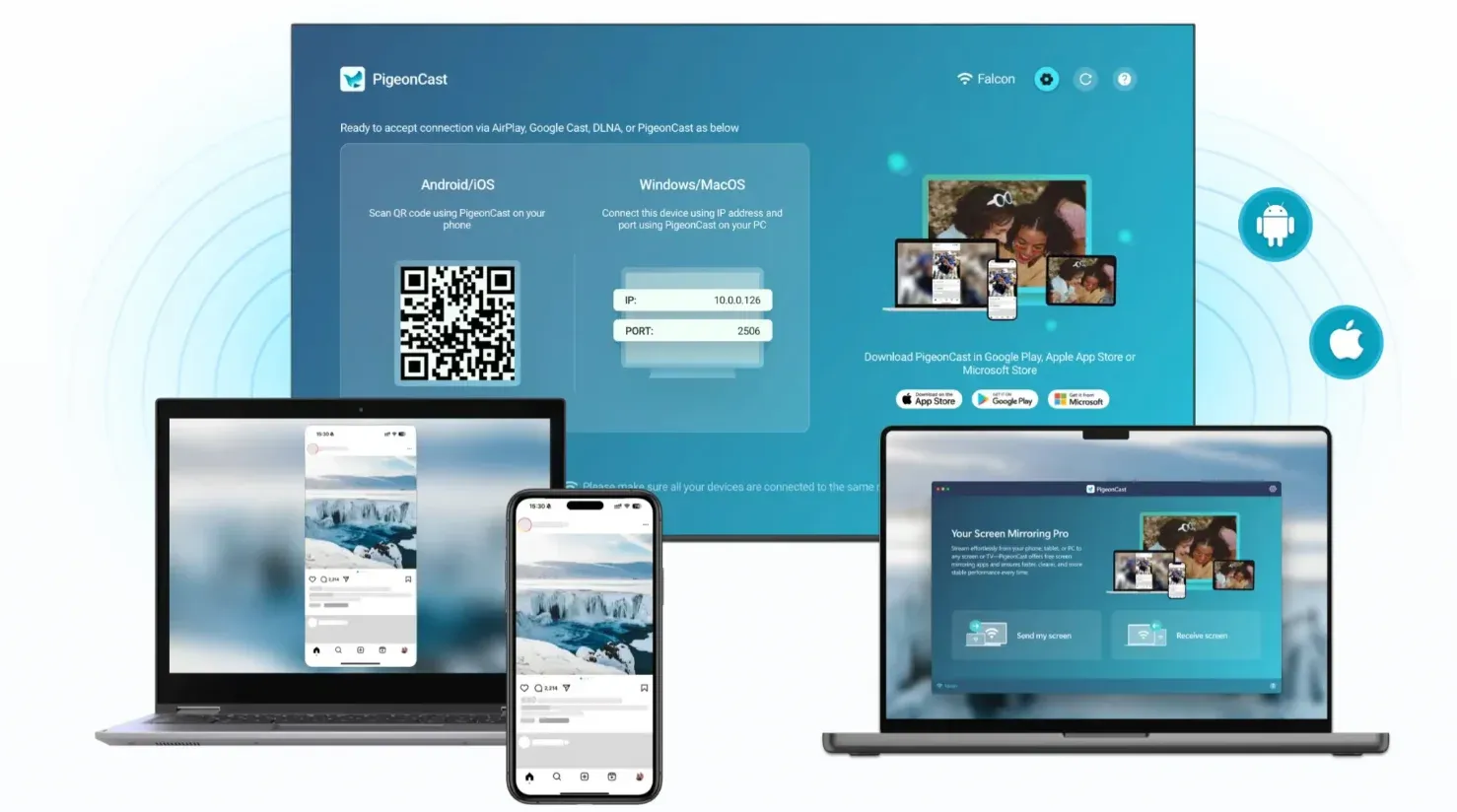
This method is especially practical in mixed-device households, where one person uses an iPhone, another uses Android, and someone else wants to watch Patreon from a laptop. If you only care about one Apple-to-Apple setup, AirPlay may still feel cleaner. If you want broader compatibility with less trial and error, screen mirroring is usually the better choice.
How to screen mirror Patreon to TV via PigeonCast:
Step 1. Install PigeonCast on your phone or laptop and TV.


Overall Rating:



Step 2. Ensure your devices are connected to the same Wi-Fi network.
Step 3. Open PigeonCast on both devices and choose your TV from the device list on the sending device.
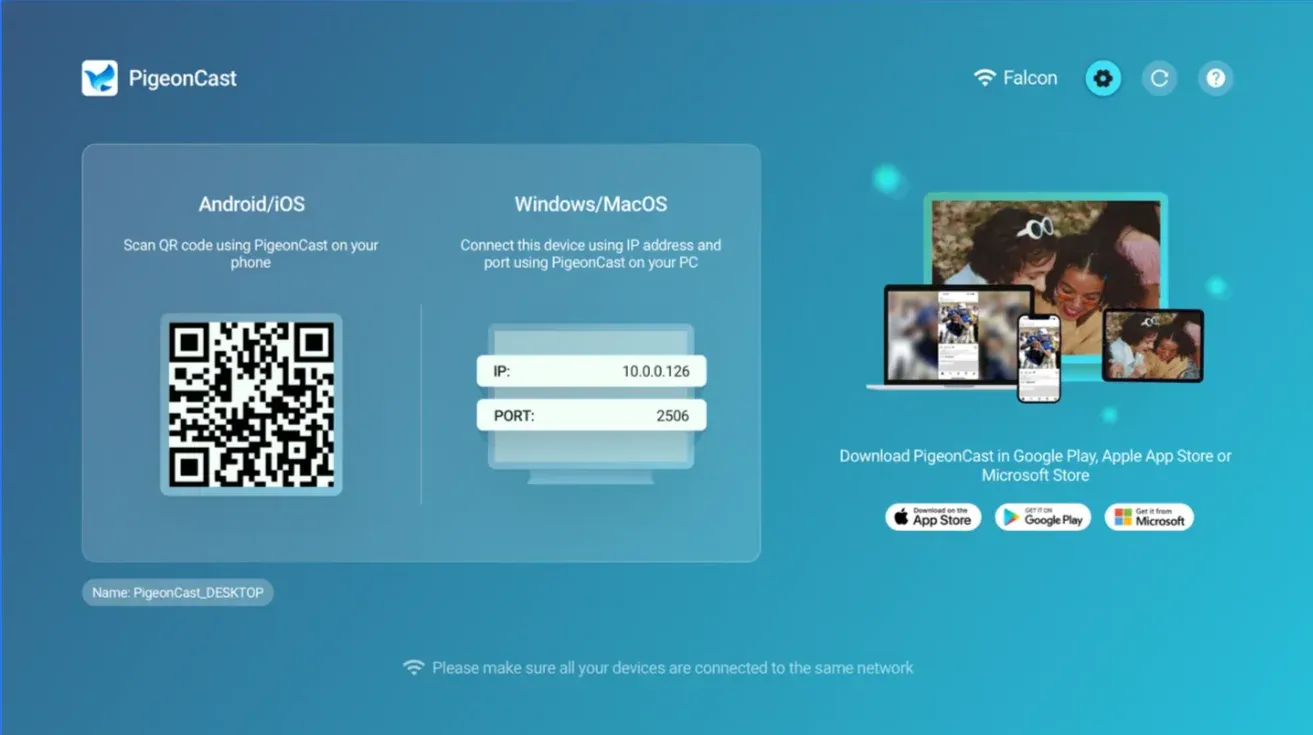
Step 4. Once connected, start screen mirroring, and your phone or laptop screen appears on the big display.
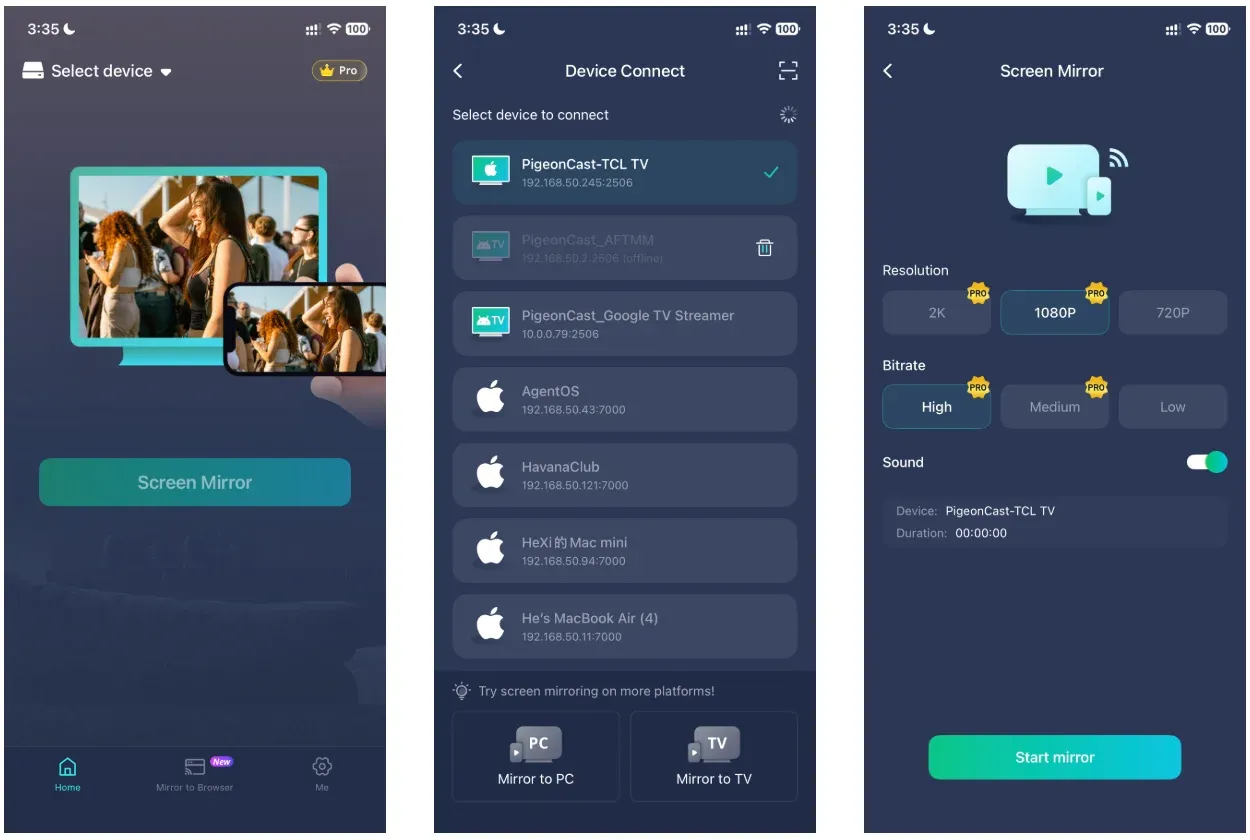
Step 5. Go to the Patreon app or website on the sending device and play the videos you want to watch on the TV.
Method 4: Watch Patreon Website in TV Browser
Using the Patreon website in a TV browser is a practical middle-ground option when you do not want to mirror another device but also do not have a native Patreon TV app to install. This tends to work best on Android TV, Google TV, and Fire TV setups where a browser is available.
How to watch Patreon videos on Smart TV:
Step 1. Open a browser on the TV, such as Silk or another browser your device supports.
Step 2. Go to patreon.com.
Step 3. Sign in to your Patreon account.
Step 4. Open the creator page or post you want to watch.
Step 5. Start playback directly in the browser.
This method can work, but it usually feels less comfortable than using a proper TV app. Logging in with a remote can be slow, typing passwords is awkward, and Patreon’s web interface is designed for phones and computers more than for ten-foot TV navigation.
Even so, the browser route is useful when you want direct playback on the TV without depending on AirPlay or Chromecast support from another device. It is also a reasonable fallback when mirroring is unavailable or unstable on your network.
Method 5: Install Patreon APK File on TV
Installing an APK on the TV is the most technical method on this list, and it should stay that way. This is not the path I would suggest to most people first.
Some third-party developers have built unofficial Patreon clients for Android TV or Fire TV devices, and those apps can sometimes be sideloaded as APK files. In plain terms, that means manually installing software on the TV outside the normal app store flow.
This route comes with obvious tradeoffs:
- these apps are not official Patreon products
- setup is more technical than casting or mirroring
- reliability can change over time
- long-term support is less predictable
- account and security comfort matter more here
For technical users, this can be a workable experiment. For most people, it is better treated as a niche fallback than as the default answer to Patreon on TV.
Final Words
Most people do not look for Patreon on TV just to make the picture bigger. They usually want to watch something that already feels like TV content: a long course, a video podcast, a workout session, a game replay, or a creator-only extended cut that is easier to enjoy on a couch than on a phone.
That is why the best Patreon-on-TV method is usually the one that matches how you want to watch, not just what devices you own. If you want the cleanest Apple setup, start with AirPlay. If you are already in the Android and Chromecast world, casting is the obvious first try. If you want the least hassle across phones, laptops, and different TV platforms, screen mirroring is usually the more practical answer.
How to Watch Patreon Videos on TV FAQ
Can you watch Patreon on Samsung TV or LG TV?
Yes, but usually not through a dedicated Patreon TV app. In most cases, Samsung TV and LG TV owners will need to rely on AirPlay support, screen mirroring, or a browser-based workaround if the TV platform offers one.
Can you watch Patreon on Roku?
Sometimes, but usually through a workaround rather than a native app. Roku setups are more likely to depend on screen mirroring from a phone, tablet, or laptop than on direct Patreon installation.
Is the TV browser method better than screen mirroring?
Usually not, but it can be useful. A TV browser gives you direct playback on the television itself, while screen mirroring is usually easier to control and more flexible across devices. The browser route makes more sense when you want to avoid using a second device during playback.
Is it safe to install an unofficial Patreon APK on TV?
It can be acceptable for experienced people who understand sideloading risks, but it is still less predictable than official app-store software. You should treat it as a technical fallback, not the default recommendation for everyday viewing.
Why won't Patreon cast to TV?
Usually because the cast path is more sensitive than people expect. The phone and TV may be on different networks, the receiver may not support the same standard, the cast button may not appear reliably, or the handoff may fail even though the app opens normally. If that keeps happening, screen mirroring is usually the simpler fallback.
Why are Patreon videos locked?
Patreon videos are often locked because they belong to a paid membership tier or creator-only post. In other cases, you may be signed into the wrong account or not have the right access level for that creator. If a video is locked on your phone or computer, sending it to a TV will not remove that access restriction.
Mia Clarke is a technology editor specializing in screen mirroring and casting solutions across multiple platforms. Mia provides clear, practical guides and in-depth insights to help users seamlessly connect their devices. Passionate about enhancing digital experiences, Mia is dedicated to keeping readers updated on the latest trends and tools in cross-platform screen sharing. Whether you’re looking to mirror your smartphone, laptop, or smart TV, Mia’s content delivers reliable, user-friendly advice to simplify your tech setup.