
To get Chromecast Hulu working, start with the Cast button inside the Hulu mobile app while your phone and Chromecast are on the same Wi-Fi network. If that fails, switch to casting from a computer browser, and if both native methods fail, use the third alternative method to keep watching without repeating the same broken setup loop.
What You Need Before Casting Hulu to Chromecast
Before you cast Hulu to TV with Chromecast, make sure your setup meets the basic requirements. Most issues, like the Cast icon not showing, device not found, or connection failing, happen before playback even begins.
Hulu is a Google Cast–enabled app, but successful casting depends on your subscription plan, device compatibility, and network setup. If any of these are misaligned, the connection may fail silently.
Use this checklist before you start:
Step 1. Confirm your Hulu subscription plan supports streaming on your target device.
Step 2. Update the Hulu app on your phone and reboot the Chromecast receiver once.
Step 3. Connect the sender device and Chromecast to the same Wi-Fi SSID and band if possible.
Step 4. Disable VPN, proxy, or mobile hotspot mode during first pairing.
Step 5. Verify your Chromecast shows up in Google Home and responds to a test cast from YouTube.
Skipping these checks is the most common reason users experience issues when trying to cast Hulu to TV with Chromecast. Once everything above is confirmed, the connection process becomes much more reliable.
Method 1: Chromecast Hulu from Phone
For most homes, mobile casting is the fastest path because Hulu and Chromecast are designed to pair directly through the Cast workflow. This method also gives better day-to-day convenience since playback control stays on your phone. Start here before trying desktop options.
Whether you Chromecast Hulu from iPhone or Chromecast Hulu from Android, the steps are the same:
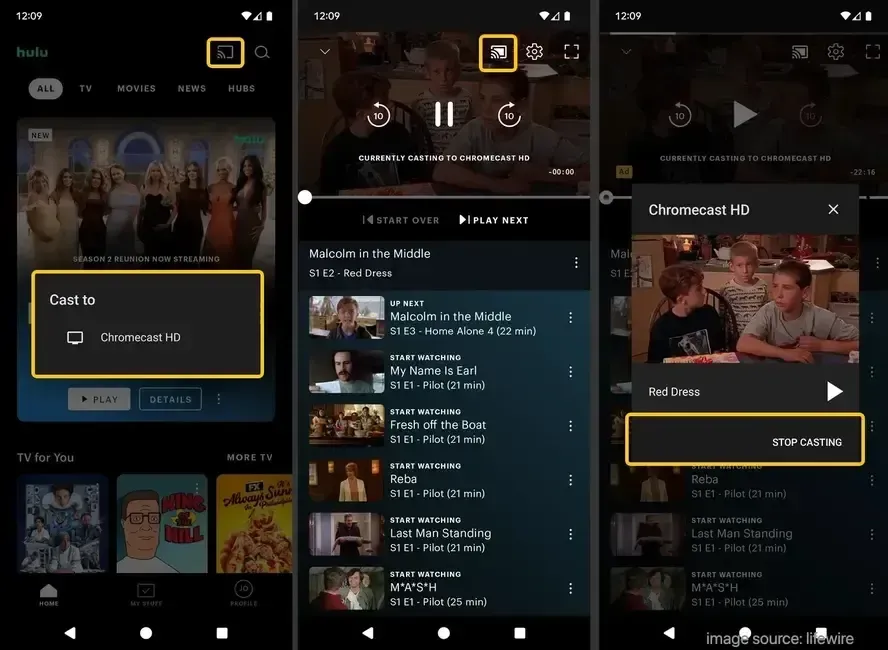
Step 1. Open Hulu on your phone and sign in to the correct profile.
Step 2. Tap the Cast icon near the top-right area of the playback screen.
Note: If the Hulu Cast icon not showing issue continues after one app restart and one device reboot, move to Method 2 instead of retrying the same mobile flow repeatedly.
Step 3. Select your Chromecast device from the list.
Step 4. Start a show, then wait 5-10 seconds for TV playback to begin.
Step 5. Keep the Hulu app open in the background while streaming.
Method 2: Chromecast Hulu from Laptop
Desktop casting is useful when mobile discovery is unstable or when you want to isolate whether the problem is phone-specific. A browser-based path can also be more predictable on some managed routers because device discovery behaves differently than mobile app discovery. Use this method as your second attempt.
How to Chromecast Hulu on Windows laptop or MacBook:
Step 1. Open Chrome on your laptop and visit Hulu in the browser.

Step 2. Sign in, start any title, and confirm video plays locally first.
Step 3. Open Chrome menu, choose Cast, Save, and Share > Cast, then select your Chromecast target.
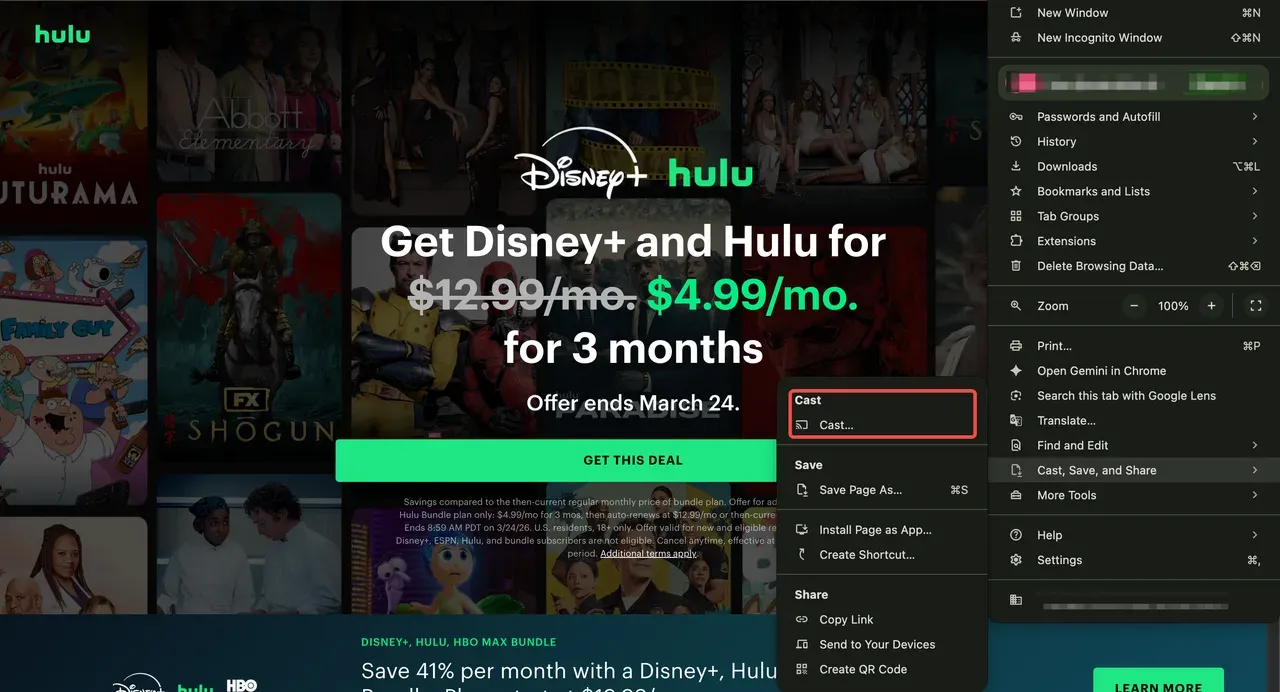
Step 4. Choose the tab-cast option first for the most stable Hulu playback.
Step 5. Switch to full-screen playback after the TV stream is stable.
Method 3: Cast Hulu Without Chromecast
Casting Hulu does not always have to rely on Chromecast. In some setups, factors like network restrictions, device compatibility, or unstable receiver behavior can affect the native casting experience—even when everything is configured correctly.
Instead of troubleshooting repeatedly, you can choose a free screen mirroring app that works independently of Chromecast. A reliable option is using PigeonCast, which allows you to mirror your phone directly to a larger screen without relying on Google Cast protocols.
PigeonCast works across multiple platforms and provides a more flexible and stable screen mirroring experience, especially in environments where Chromecast is limited or inconsistent. It is also quick to set up:
Step 1. Install PigeonCast on your phone or computer sender device.


Overall Rating:



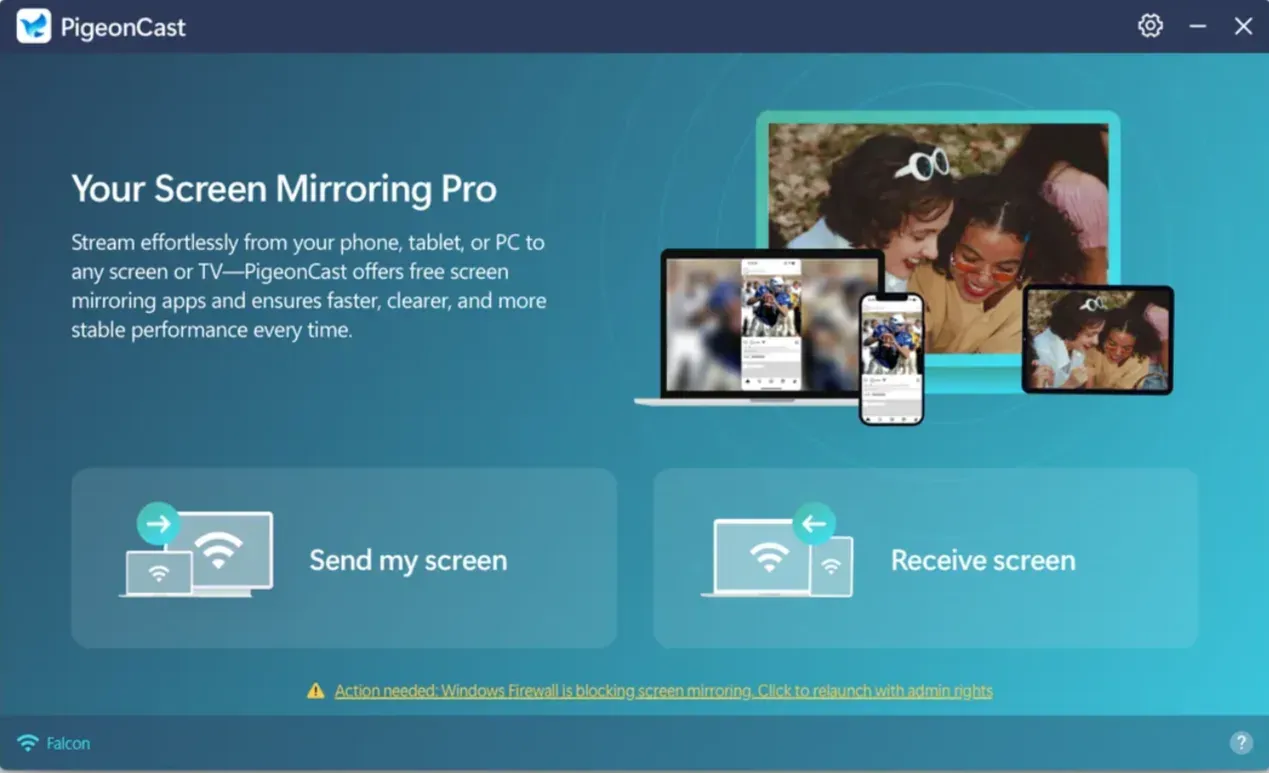
Step 2. Install PigeonCast on the TV or streaming player from the app store.
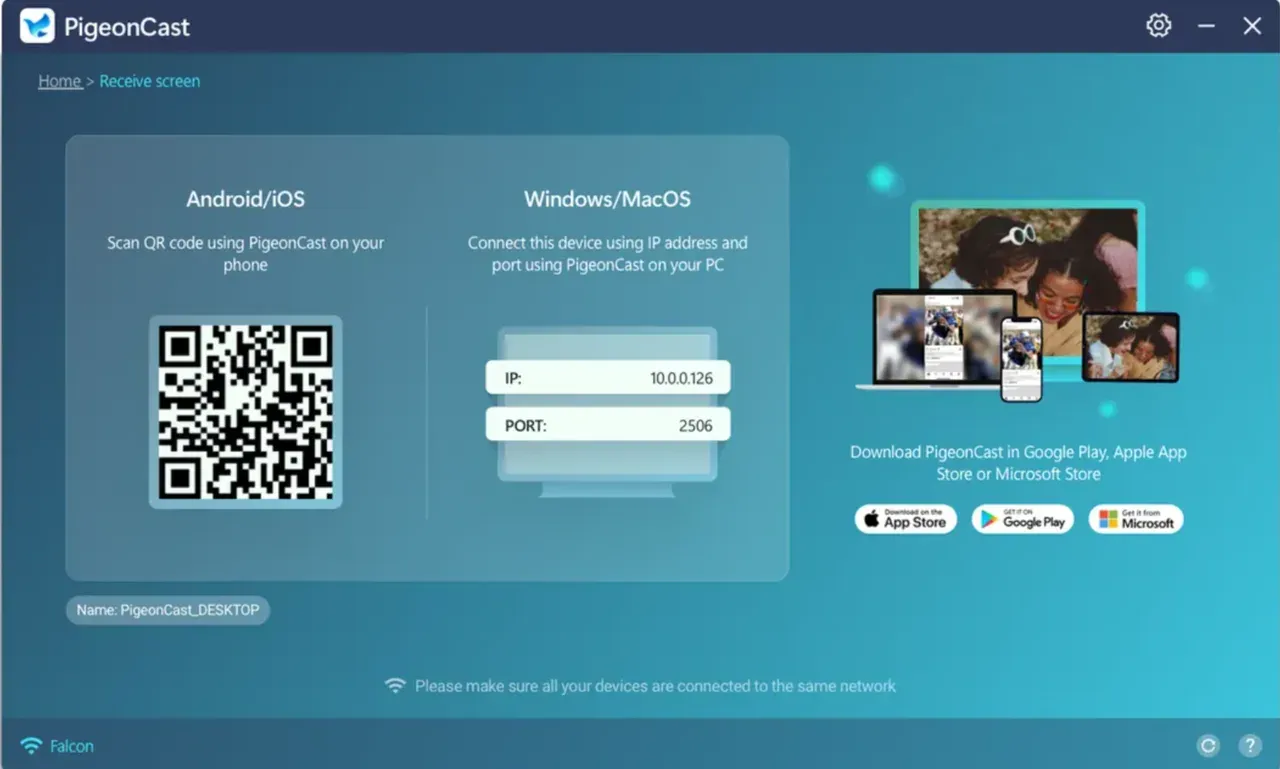
Step 3. On your phone or computer, follow the onscreen instructions to choose your target device.
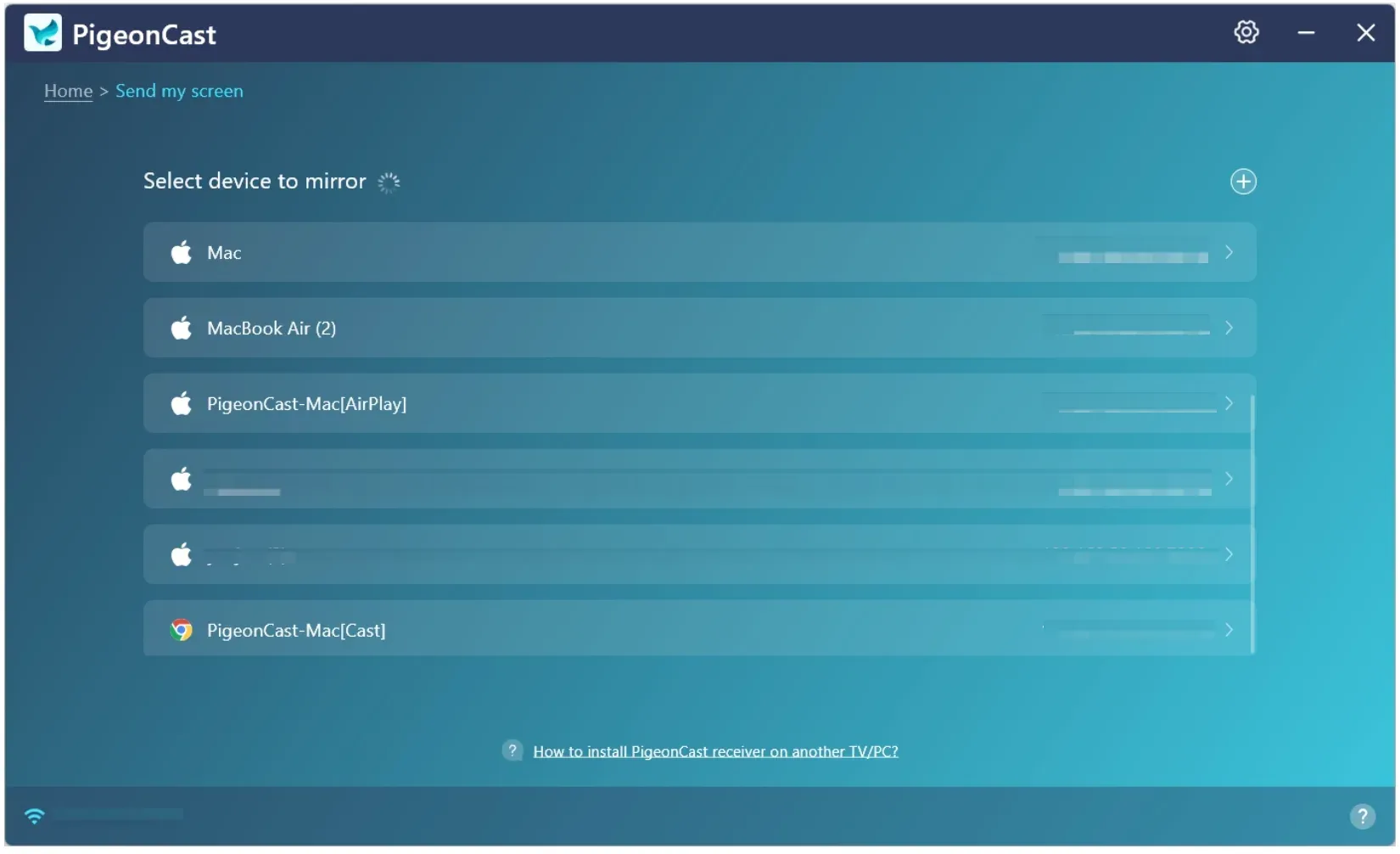
Step 4. Once connected, start mirroring.
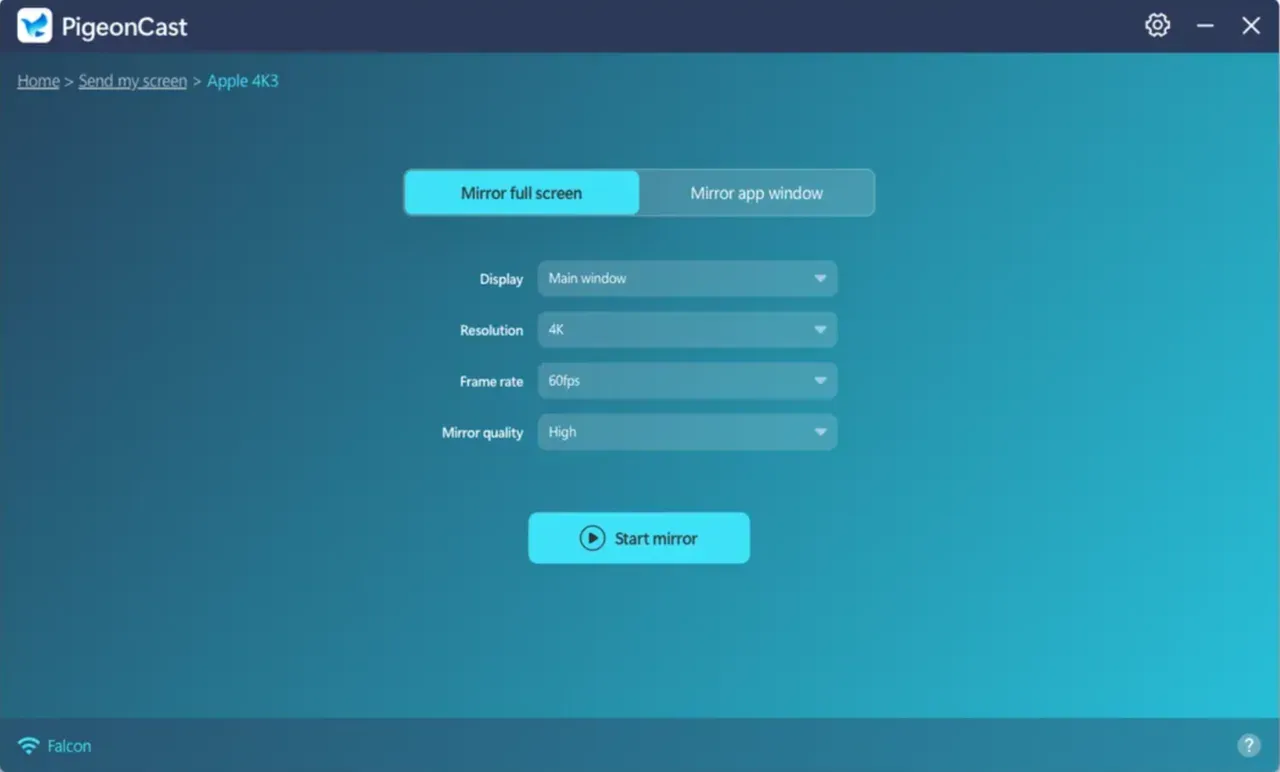
Step 5. Open Hulu on your phone or laptop, begin playback, and enjoy it on a large screen.
Troubleshooting Hulu Chromecast Not Working
If Hulu won't cast to Chromecast, the key is not to try random fixes, but to troubleshoot in the correct order. Most casting issues come from one of four layers: app, network, device, or account state. Start with quick fixes, then move to deeper diagnostics:
Step 1. Force-close Hulu, reopen it, and retest Cast.
Step 2. Restart phone/computer, Chromecast, and router in that order.
Step 3. Rejoin the same Wi-Fi SSID on both the sender and Chromecast.
Step 4. Update your Hulu app, Chrome browser, and Chromecast firmware.
Step 5. Remove stale cast sessions in Google Home and reconnect.
Step 6. Disable VPN, private DNS, and security filtering temporarily.
Step 7. Test a second app (for example, YouTube) to confirm Chromecast health.
Step 8. If other apps cast but Hulu does not, sign out of Hulu and sign back in.
Step 9. If no app casts reliably, factory-reset Chromecast as last resort.
Conclusion
Chromecast Hulu is straightforward, whether you are using the Hulu app, browsing the Hulu webpage, or screen mirroring your device via PigeonCast. Mobile casting is usually fastest to start, browser casting is useful for isolating device-specific issues, and PigeonCast is strong when you want consistent full-screen control across device combinations.
If you have a casting issue, use your symptoms as signals, not noise. If Chromecast is visible but playback never starts, focus on Hulu session refresh and app updates. If Chromecast disappears across multiple apps, focus on the router, Wi-Fi band consistency, and receiver stability. This way, each retry gives you new information and moves you toward a fix instead of repeating the same cast attempt.
Chromecast Hulu FAQ
Why does my Chromecast show up, then disappear in Hulu?
This usually points to unstable local discovery, often from Wi-Fi band steering or router isolation behavior. Keep both devices on the same SSID and retest after restarting router and Chromecast.
Can I cast Hulu from iPhone to Chromecast directly?
Yes. Open Hulu on iPhone, tap Cast, select your Chromecast, and start playback. If detection fails twice in a row, move to the computer method before returning to iPhone.
Why is there no Cast icon in the Hulu app?
Common causes are wrong network, outdated app version, or temporary discovery cache issues. Update Hulu, reconnect Wi-Fi, and reboot Chromecast before trying again.
Why can't I cast to my TV from Hulu?
Most cases come from one of four blockers: sender and TV are on different networks, Hulu app session is stale, Chromecast receiver is unstable, or local network discovery is restricted.
Is computer casting worse than phone casting for Hulu?
Not necessarily. Desktop tab casting can be very stable for troubleshooting, but it may use more local resources. Keep it as a second method when phone casting is inconsistent.
Should I factory-reset Chromecast if Hulu will not cast?
Only after completing the priority fix list once and confirming that multiple apps fail, not just Hulu. A factory reset can help, but it should be your final step, not your first step.
Mia Clarke is a technology editor specializing in screen mirroring and casting solutions across multiple platforms. Mia provides clear, practical guides and in-depth insights to help users seamlessly connect their devices. Passionate about enhancing digital experiences, Mia is dedicated to keeping readers updated on the latest trends and tools in cross-platform screen sharing. Whether you’re looking to mirror your smartphone, laptop, or smart TV, Mia’s content delivers reliable, user-friendly advice to simplify your tech setup.