
If you want a reliable Sony Bravia Chromecast setup, start with Chromecast built-in first, then switch to an external Chromecast dongle if discovery or stability issues appear. This path works for most homes because it minimizes hardware changes and avoids repeating the same failed pairing loop.
Follow this guide to set up Chromecast on your Sony TV, then cast to your TV easily from your phone or laptop.
Check Sony Bravia Chromecast Compatibility First
Before starting the setup, take a moment to confirm that your Sony Bravia TV supports Chromecast built-in and that your network allows local device discovery. Many first-time setup failures happen simply because this quick compatibility check is skipped.
Use this checklist before proceeding:
-
Open TV Settings and confirm that Google TV or Android TV is running.
-
Look for Chromecast built-in in the TV's network, apps, or casting settings.
-
Make sure the TV firmware is up to date: Settings → System → About → System software update.
-
Connect both your phone and TV to the same Wi-Fi network, preferably on the same band.
-
Update the Google Home app on your phone before pairing.
Set up Chromecast Built-In on Sony Bravia (Primary Method)
Use this as your first method when your TV already exposes Chromecast built-in controls. It is usually the fastest route because there is no extra HDMI hardware and daily casting stays simple after first pairing. If this process fails after one clean attempt, move to the external Chromecast section instead of retrying the same sequence.
How to set up Chromecast on Sony TV:
Step 1. Turn on your Sony Bravia TV and connect it to home Wi-Fi.
Step 2. On TV, enable Chromecast built-in in settings.
Step 3. On your phone, join the same Wi-Fi network.
Step 4. Open a cast-compatible app such as YouTube or Netflix.
Step 5. Tap the Cast icon and select your Sony Bravia TV.
Step 6. Start playback and verify pause, resume, and volume control from your phone.
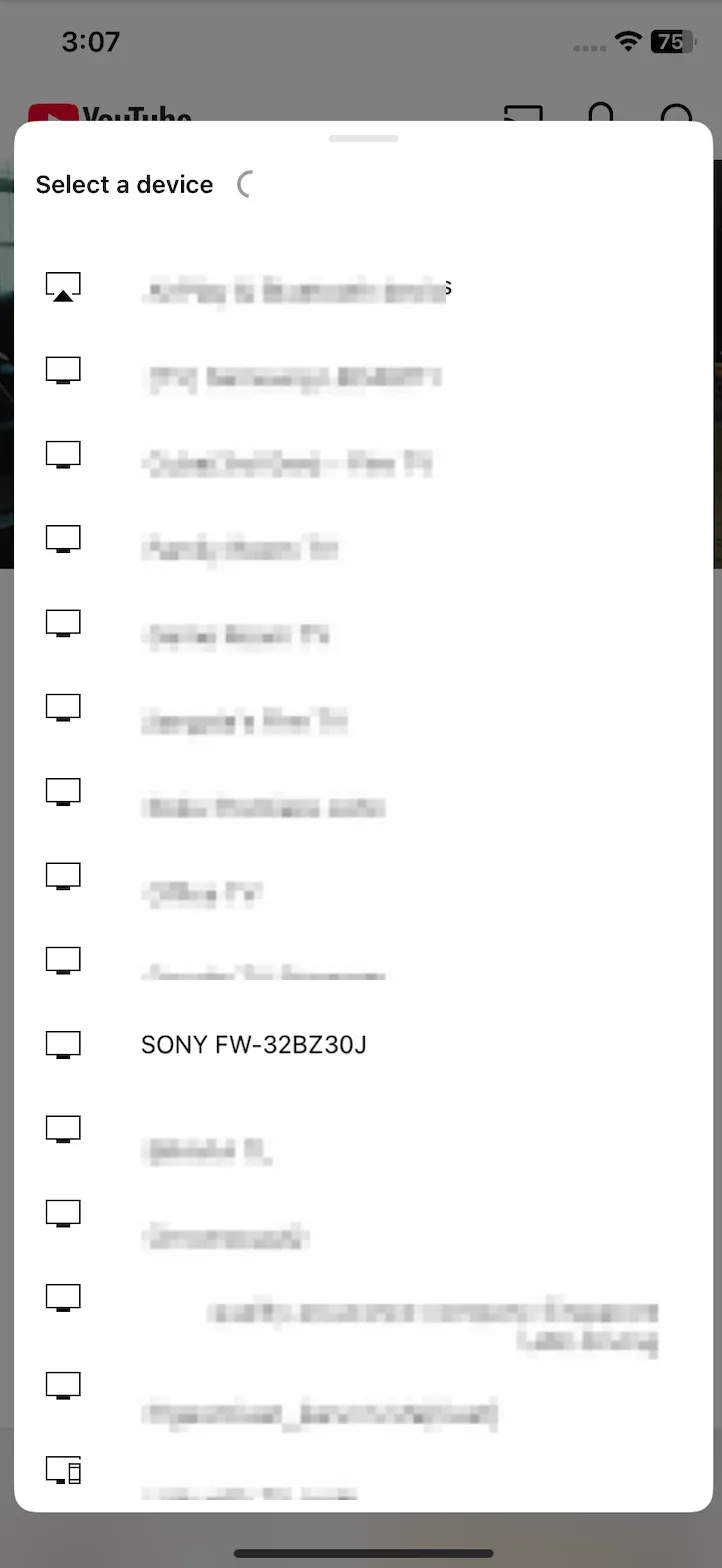
A family streams YouTube to TV every evening from Android phones. After one successful pairing, the TV appears consistently in the Cast list and playback starts in seconds. In this case, built-in casting remains the most efficient long-term setup.
Set up an External Chromecast Dongle on Sony Bravia
What to do if Chromecast built-in is missing, unstable, or slow to appear in discovery after basic network checks? A dedicated external Chromecast often resolves inconsistent receiver behavior because it separates casting from the TV's internal software stack.
Step 1. Plug the Chromecast dongle into an HDMI port on Sony Bravia.
Step 2. Connect the Chromecast power cable to a stable USB power source.
Step 3. Switch TV input to the HDMI port used by the dongle.
Step 4. Open Google Home on your phone and tap Set up device.
Step 5. Follow pairing prompts and confirm the on-screen setup code.
Step 6. Assign a room name, connect Chromecast to Wi-Fi, and complete setup.
Step 7. Open a cast-enabled app and select the external Chromecast device.
Which Sony Bravia Chromecast Setup Path Should You Choose?
Pick the method based on your failure point, not on preference for built-in versus dongle. This decision table helps you choose faster so you can avoid spending 20 minutes repeating scans that already failed once. Follow the order after the table to keep troubleshooting time predictable.
| Situation | Best path | Why |
|---|---|---|
| TV clearly supports Chromecast built-in | Built-in method | Fastest setup and no extra hardware |
| Built-in cast appears but drops often | External Chromecast | More consistent dedicated receiver |
| Built-in option missing on TV | External Chromecast | Adds casting support through HDMI |
| You need fastest troubleshooting path | Built-in once, then external | Reduces repeated trial-and-error |
Decision order for most homes:
-
Try built-in setup once.
-
Run quick fixes once.
-
Switch to external Chromecast if issues continue.
Fast Fixes if Sony Bravia Chromecast Setup Fails
Run these checks in order when Sony Bravia Chromecast does not connect or disconnects during playback. This sequence targets the most common blockers first: network mismatch, stale discovery cache, outdated firmware, and app-level conflicts. If issues continue after this pass, treat it as a method-switch signal and move to external Chromecast.
Step 1. Restart phone, TV, and router.
Step 2. Reconnect both devices to the same Wi-Fi SSID and same band.
Step 3. Turn off VPN or private DNS temporarily on the phone.
Step 4. Update Sony TV firmware and Google Home.
Step 5. Remove old cast pairings and retry discovery.
Step 6. Test from a second casting app to isolate app-specific issues.
Step 7. Switch to external Chromecast if instability remains.
If the TV appears and disappears, check router isolation settings and mesh handoff behavior first. Those two conditions cause many intermittent discovery problems.
Set Up Sony TV Screen Mirroring via PigeonCast
If Chromecast setup on your Sony TV becomes unreliable, using a dedicated screen mirroring app can simplify the process. PigeonCast on Android TV supports multiple streaming protocols, including AirPlay, Google Cast, and DLNA, which makes it easier to connect different types of devices without switching between separate casting methods.
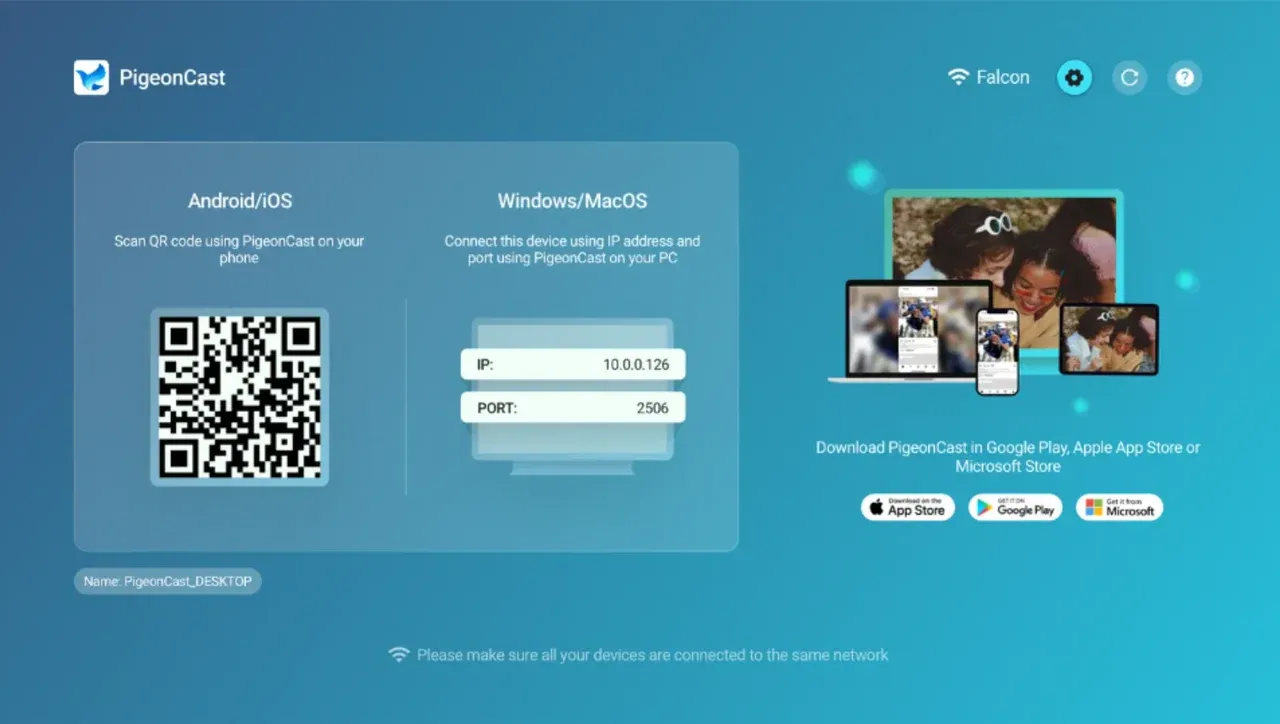
Because the app integrates several protocols in one receiver, it can often maintain connections in situations where standard Cast discovery fails—such as managed office networks, restricted guest Wi-Fi, or mixed-device environments.
For typical home setups, Chromecast built-in or an external Chromecast device should still be your default option. Use PigeonCast as a flexible Chromecast alternative when compatibility or discovery issues persist.
How to use PigeonCast on your Sony TV:
Step 1. Download PigeonCast from the Google Play on your Sony TV.
Step 2. Launch the screen mirroring app.
Step 3. Ensure your phone or laptop is on the same Wi-Fi network as your TV.
Step 4. For a smoother connection, also set up PigeonCast on your phone or laptop.


Overall Rating:



Step 5. Follow the onscreen instructions to screen mirror to your Sony TV.
Final Words
Start with Chromecast built-in, because it is the quickest setup when your Sony Bravia supports it and network discovery is healthy. Switch to an external Chromecast dongle after one full built-in attempt and one troubleshooting pass if reliability remains poor.
This order keeps setup time low and avoids repeated troubleshooting loops: built-in first, external second, and a mirroring fallback only when the network environment requires it. In those cases, a cross-platform app like PigeonCast can help maintain connections by supporting multiple streaming protocols in one receiver. It is especially useful when device compatibility is unclear or when discovery protocols do not stay stable.
Sony Bravia Chromecast FAQ
Does every Sony Bravia TV support Chromecast built-in?
Check your TV settings first for Chromecast built-in under Google TV or Android TV options. Many models support it, but not every Sony Bravia version includes the same casting feature set.
Why is my Sony Bravia Chromecast not showing up on my phone?
Reconnect both devices to the same Wi-Fi SSID and band, then restart TV and router before rescanning. Most discovery failures come from network mismatch, router isolation settings, or stale pairing cache.
Is external Chromecast better than Sony Bravia Chromecast built-in?
Use built-in first, then move to external Chromecast when you see recurring dropouts or delayed discovery. External Chromecast is usually more stable when the TV's internal casting stack behaves inconsistently.
Should I keep troubleshooting built-in casting or switch methods sooner?
Switch sooner after one complete built-in attempt plus one quick-fix sequence. Repeating the same discovery process several times rarely adds value and often delays a working setup.
Can I mirror my full screen instead of casting from apps?
Open Google Home and use screen casting when your device supports full-display mirroring. If managed networks block normal casting behavior, use the fallback mirroring workflow in the PigeonCast section.
What should I do if casting works but video keeps buffering?
Reduce network load first by pausing large downloads and forcing both devices onto a stronger Wi-Fi band. If buffering continues, test an external Chromecast to isolate whether the issue is with the TV's internal receiver.
Mia Clarke is a technology editor specializing in screen mirroring and casting solutions across multiple platforms. Mia provides clear, practical guides and in-depth insights to help users seamlessly connect their devices. Passionate about enhancing digital experiences, Mia is dedicated to keeping readers updated on the latest trends and tools in cross-platform screen sharing. Whether you’re looking to mirror your smartphone, laptop, or smart TV, Mia’s content delivers reliable, user-friendly advice to simplify your tech setup.