
If you are searching for how to connect phone to Sony TV quickly, start with native wireless methods first. For most homes, AirPlay or Cast is fastest, a third-party screen mirroring is convenient, and HDMI is a reliable wired solution when discovery fails. This guide gives exact steps for iPhone and Android plus a clear switch rule.
Check Compatibility Before You Start
Before you try Sony TV screen mirroring, make sure the core setup is correct. This quick prep prevents most discovery errors and saves time before you move into device-specific steps.
Use this quick checklist before you cast phone to Sony Bravia TV:
-
Connect both devices to the same Wi-Fi network and the same band when possible.
-
Keep Bluetooth on during discovery.
-
Update TV firmware in Settings > System > About > System software update.
-
Update your phone OS and your streaming apps.
-
Confirm AirPlay or Chromecast support in TV settings.
My preference is to run this checklist first, because it removes common setup friction.
How to Connect iPhone to Sony TV with AirPlay
The cleanest path for Apple users is to connect iPhone to Sony TV through native tools. Follow these steps in order so your TV appears correctly in Screen Mirroring on the first attempt.
How to connect mobile to Sony Bravia TV wirelessly:
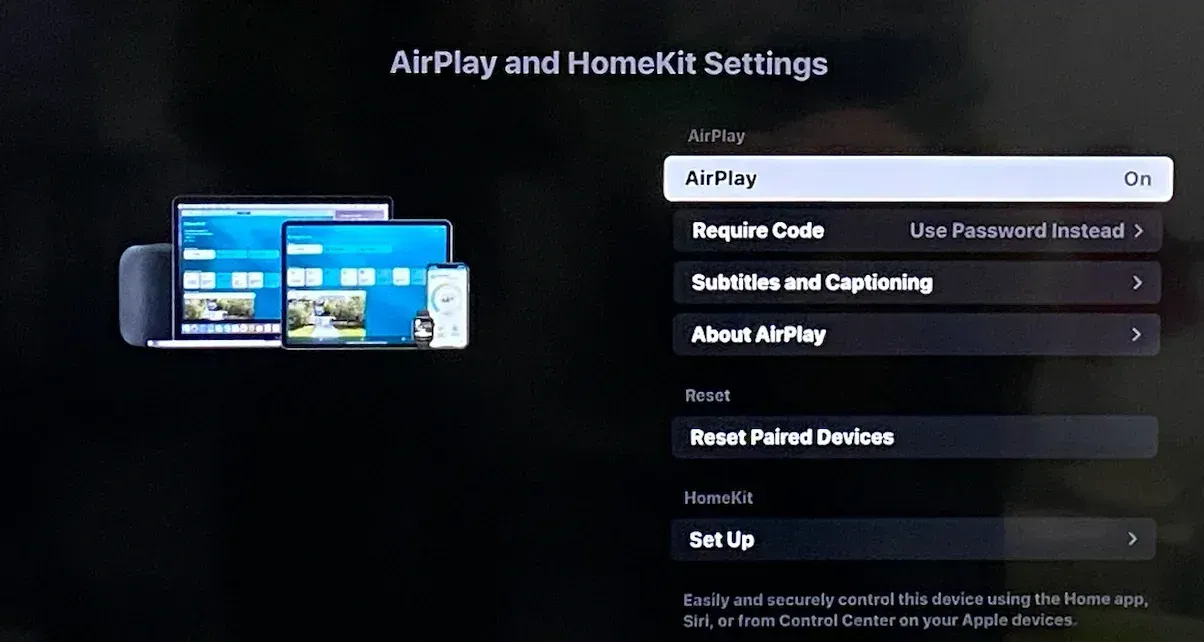
Step 1. Open Settings > Apple AirPlay and HomeKit on Sony TV and turn AirPlay on.
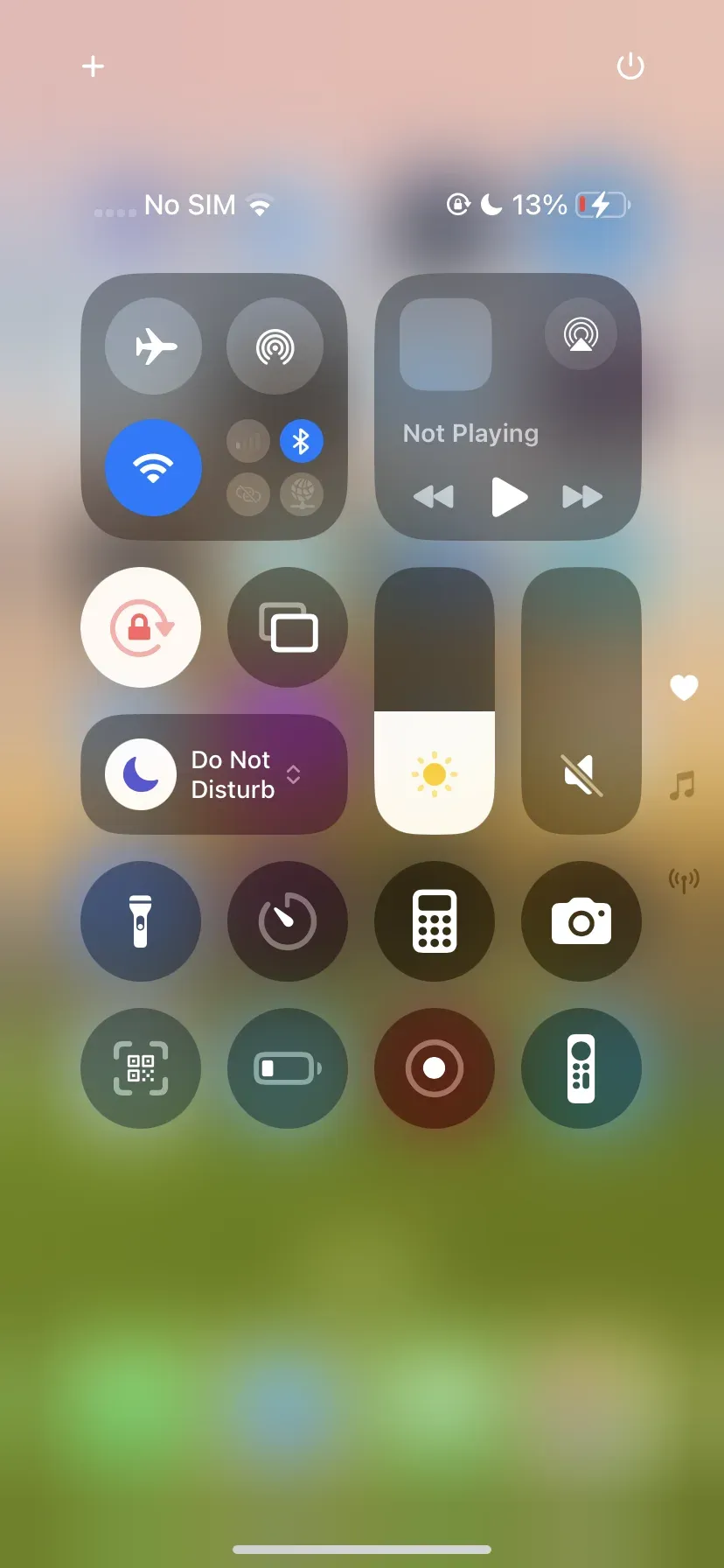
Step 2. On your iPhone, open Control Center and tap Screen Mirroring.
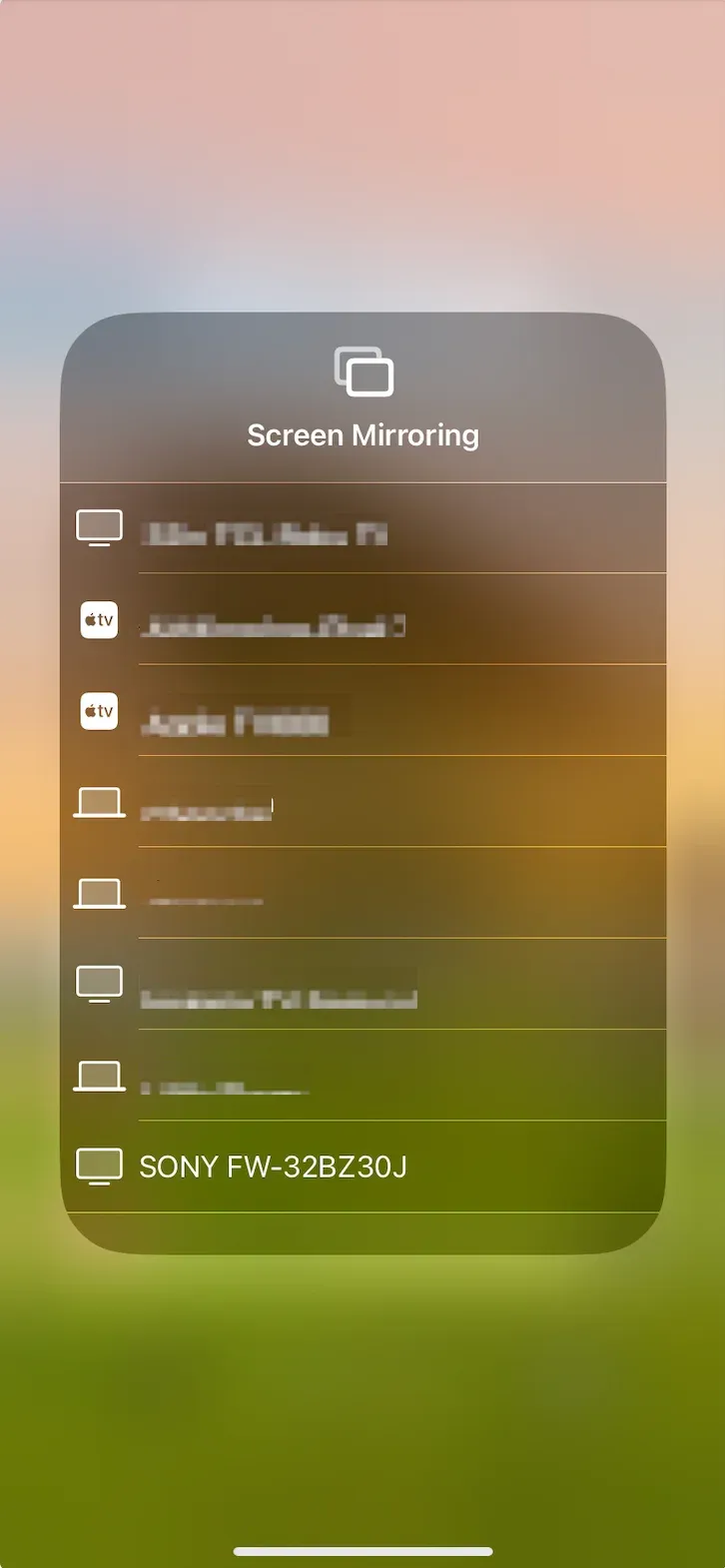
Step 3. Choose your Sony TV name from the device list.
Step 4. Enter the verification code shown on TV if prompted.
AirPlay is best for iPhone users on stable home Wi-Fi, and not ideal for locked enterprise or guest networks that block local discovery.
How to Connect Android Phone to Sony TV with Google Cast
If you want to connect Android phone to Sony TV, the default path is built-in casting. The steps below cover both app casting and quick full-screen share when you need to mirror everything.
Step 1. Confirm phone and TV are on the same network.
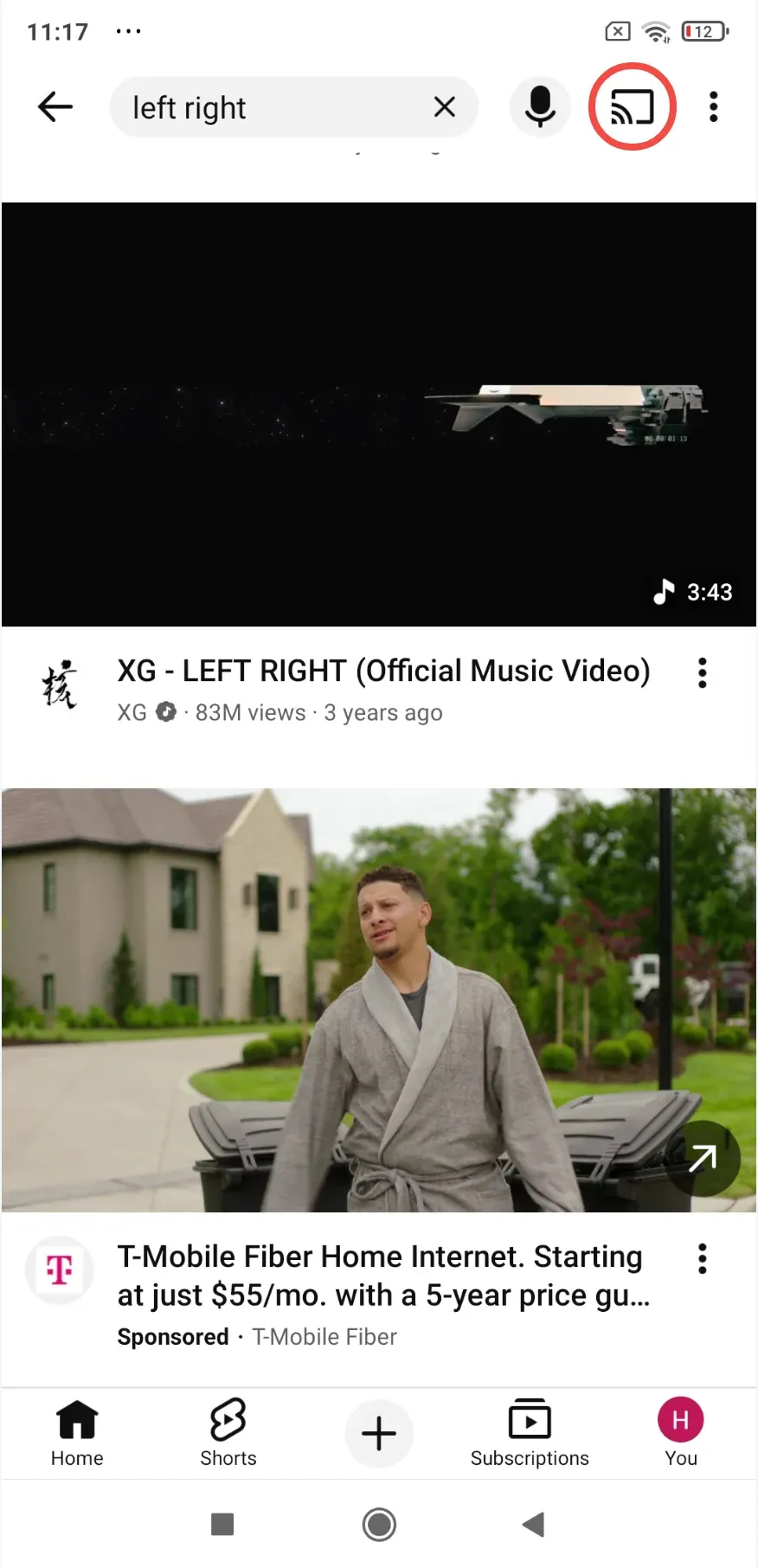
Step 2. Open a Chromecast built-in app like YouTube and tap the Cast icon.
Step 3. Select your Sony TV from the list.
Step 4. Start playback and use your phone for control.
For full-screen share, open Google Home, select the TV, then choose Cast my screen.
Google Cast is best for Android users who stream from supported apps, but it becomes useless to stream apps (like Disney Plus, Netflix, ect.) that disable casting due to content protection.
How to Connect Phone to Sony TV with PigeonCast
When native discovery is unstable, connecting a Sony TV through PigeonCast can serve as a practical backup. This approach is especially useful in restricted environments where standard local pairing may not remain stable.
How to connect phone to Sony TV:
Step 1. Install and open PigeonCast on your phone and TV.


Overall Rating:



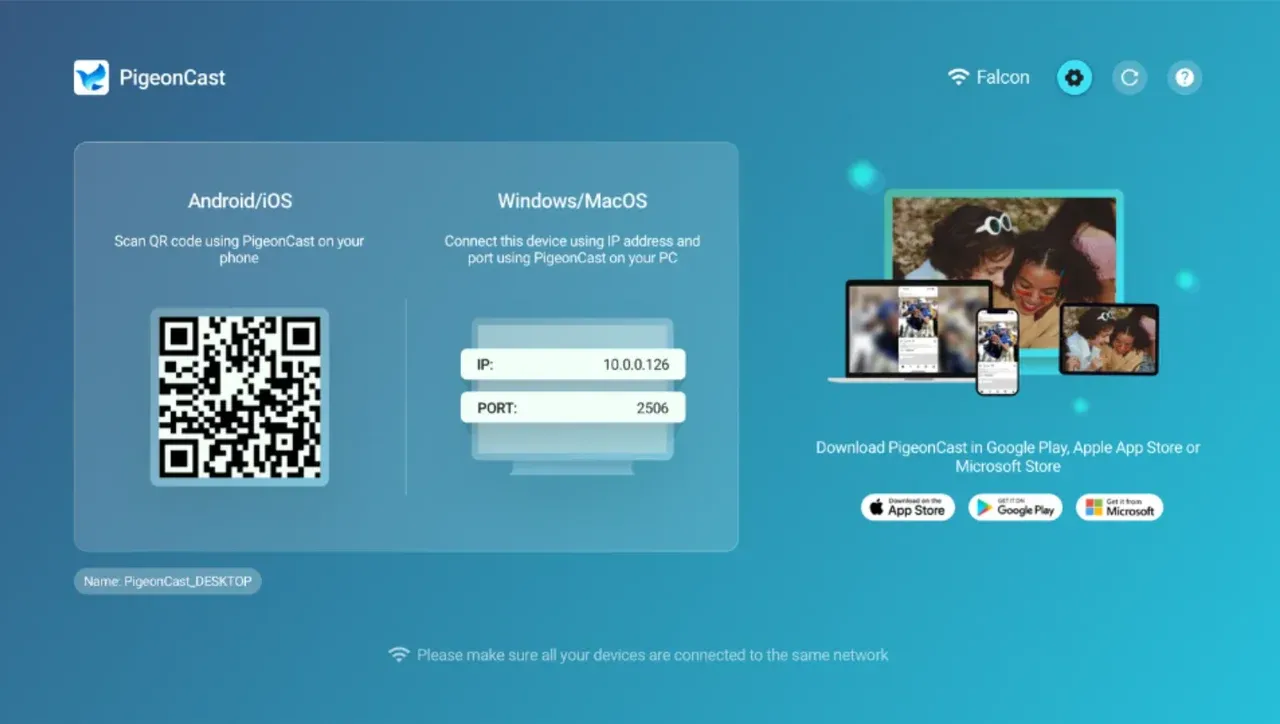
Step 2. On your phone, select your Sony TV target or scan the QR code on the TV using your phone, and start screen sharing from the phone.
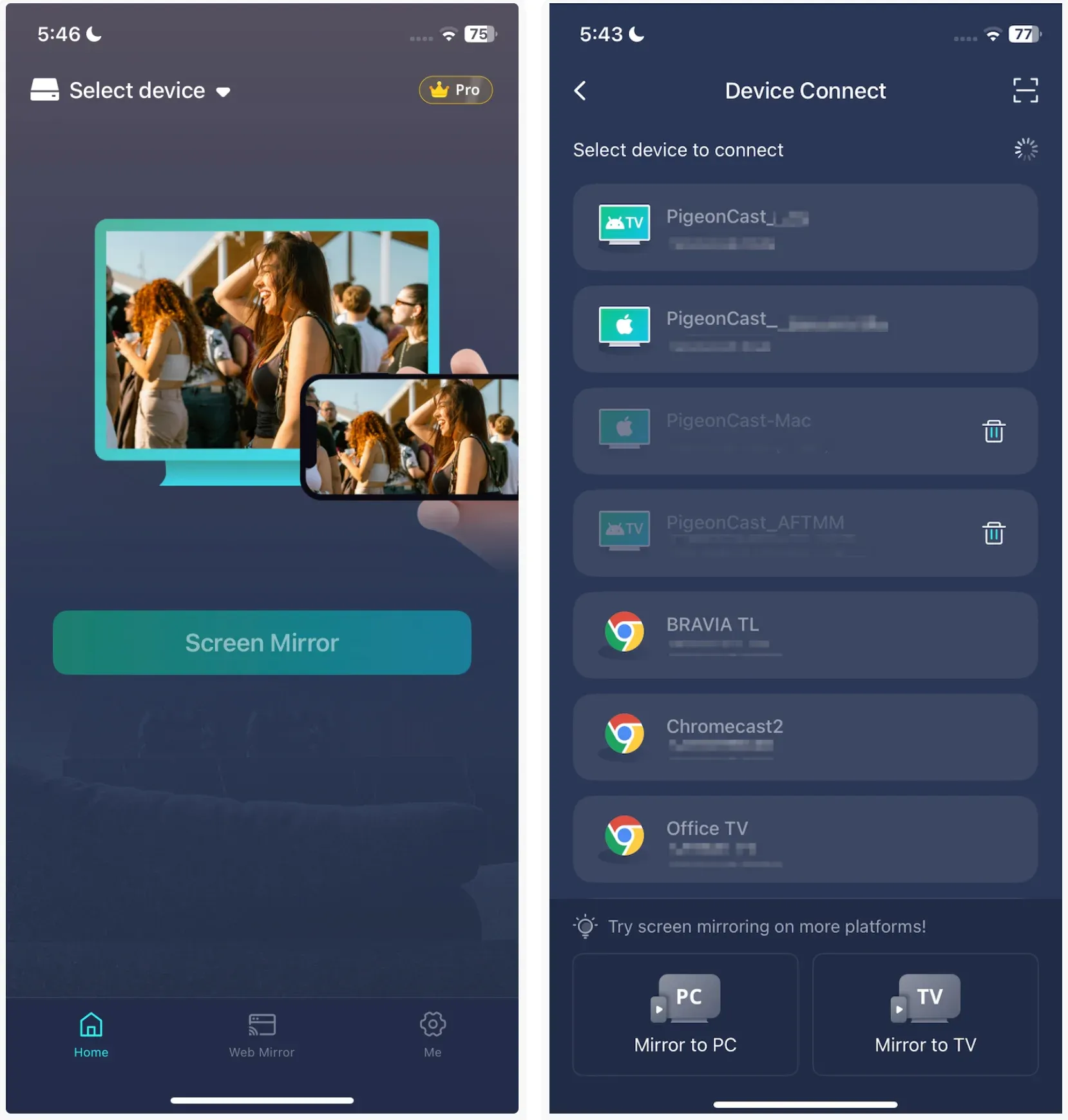
Step 3. Check audio output and orientation, then lock settings for stable playback.
This method works across phones, laptops, and TVs, enabling a cross-platform wireless connection.
How to Connect Phone to Sony TV with HDMI Cable
Cable wins when reliability matters. If your connection keeps dropping or your TV never appears on your iPhone, this wired path gives you a direct and predictable signal.
For modern Android phones and iPhones, a USB-C to HDMI Sony TV setup is often plug-and-play. For older iPhones, use a Lightning to HDMI Sony TV adapter.
How to mirror phone to Sony TV:
Step 1: Connect the adapter to your phone and HDMI cable to TV.
Step 2: Switch Sony TV input to the matching HDMI port.
Step 3: Unlock your phone and start the video or app.
Step 4: If the image does not appear, reseat the adapter and retry.
The wired connection is best for unstable Wi-Fi, hotel networks, and apps that block wireless output.
Which Phone-to-Sony TV Connection Method Should You Choose?
If you only need the best way to connect phone to Sony TV, choose based on the exact failure point instead of retrying the same method. Use this table to map your scenario to the fastest working option.
| Situation | Best method | Why it works |
|---|---|---|
| iPhone on home Wi-Fi | AirPlay | Native integration and fast pairing |
| Android streaming apps | Google Cast | Built-in support with low setup effort |
| Restricted or unstable discovery | PigeonCast | Flexible pairing path in constrained cases |
| Wireless fails repeatedly | HDMI | Direct signal path with highest stability |
Rule of thumb: test one wireless method for two minutes, then switch.
Troubleshooting When Sony TV Does Not Show Up
If you see Sony TV not showing on phone, run this sequence from top to bottom. It also resolves many Sony TV casting not working cases without resetting your whole setup.
-
Restart phone, TV, and router in that order.
-
Reconnect both devices to the same Wi-Fi band.
-
Turn off VPN, guest mode, or AP isolation on the router.
-
Retry native cast once, then switch method if discovery still fails.
If the TV appears but playback stutters or audio drops, move to HDMI for consistent output.
Final Thoughts
To connect your iPhone or Android to Sony TV, use a simple decision flow to avoid long troubleshooting loops. Start with native wireless options first: AirPlay for iPhone and Google Cast for Android. If connection still fails, HDMI is the reliable finish. I recommend one short compatibility check, one wireless attempt, then immediate method switching.
How to Connect Phone to Sony TV FAQ
Can I connect phone to Sony TV without Wi-Fi?
Yes. HDMI is the most dependable way to connect phone to Sony TV without Wi-Fi.
What is the best alternative when AirPlay is not working on Sony TV?
If AirPlay fails, try Google Cast on compatible apps or a screen mirroring app like PigeonCast for cross-platform streaming. If discovery remains unstable, use HDMI.
Is casting the same as screen mirroring?
No. Casting sends content from an app to TV playback, while mirroring duplicates your entire phone display in real time.
Why does my Sony TV appear sometimes and disappear later?
This usually points to Wi-Fi band switching, router isolation settings, or VPN interference.
Should I troubleshoot longer or switch methods faster?
Switch faster. One focused attempt per method works better than repeated retries.
Why is my phone not connecting to my Sony TV?
Common causes include different Wi-Fi networks, disabled casting settings on the TV, outdated software, or network restrictions such as VPNs or router isolation.
How do I connect my phone to my TV if it's not a smart TV?
Use an HDMI adapter or a streaming device like Chromecast, Fire TV Stick, or Roku to enable wireless casting and screen mirroring.
Can I connect my phone to a screen or monitor?
Yes. You can connect using an HDMI adapter, USB-C video output, or a wireless display device that supports screen mirroring.
Mia Clarke is a technology editor specializing in screen mirroring and casting solutions across multiple platforms. Mia provides clear, practical guides and in-depth insights to help users seamlessly connect their devices. Passionate about enhancing digital experiences, Mia is dedicated to keeping readers updated on the latest trends and tools in cross-platform screen sharing. Whether you’re looking to mirror your smartphone, laptop, or smart TV, Mia’s content delivers reliable, user-friendly advice to simplify your tech setup.