
If your Mac shows the iPhone Mirroring unable to connect to iPhone error, the problem is usually one of three things: your devices do not meet Apple's requirements, one of the setup rules is missing, or another setting is blocking the connection. This guide is about Apple's built-in iPhone Mirroring on Mac, not AirPlay to a TV. Start with support checks, then move to the quick fixes, then reset the feature only if the simple steps do not work.
Why iPhone Mirroring Says Unable to Connect to iPhone
This error looks vague, but the causes are usually easy to sort into a few groups.
- Your Mac or iPhone is not supported.
- The two devices are not signed in to the same Apple Account.
- Two-factor authentication is off.
- Wi-Fi or Bluetooth is off, unstable, or busy.
- The iPhone is not locked, too far away, or currently in use.
- AirPlay, Sidecar, internet sharing, a VPN, a firewall, or security software is getting in the way.
That is why the right fix is not always "try again." You need to confirm support first. After that, check the settings Apple says iPhone Mirroring depends on. If you want the broader context first, this overview of iPhone Mirroring on Mac explains what the feature does and where it fits.
Check If Your Mac and iPhone Support iPhone Mirroring
Before you change settings, make sure your devices can use the feature at all. Unsupported setups often look like a broken connection even when nothing is actually wrong.
What Apple requires right now
As of April 2, 2026, Apple says iPhone Mirroring requires:
- a Mac with macOS Sequoia 15 or later
- an iPhone with iOS 18 or later
- the same Apple Account on both devices
- two-factor authentication turned on
- Wi-Fi and Bluetooth turned on
- the iPhone to be locked and nearby
Your Mac cannot be sharing its internet connection while you use iPhone Mirroring. AirPlay and Sidecar can also stop it from connecting.
Why unsupported devices often look like a connection problem
Many people see "unable to connect to iPhone" and assume the feature is temporarily broken. In some cases, the real issue is that the Mac is too old, the iPhone is on an older iOS version, or the devices are not signed in the right way.
That is important because no amount of restarting will fix an unsupported setup. If your Mac or iPhone does not meet the requirements above, the article ends there. You need a different screen mirroring app or a different device pairing.
Quick Fixes for iPhone Mirroring Unable to Connect to iPhone
If your devices are supported, start with the fastest checks first.
Restart your Mac and iPhone
A full restart clears short-lived wireless and Continuity issues.
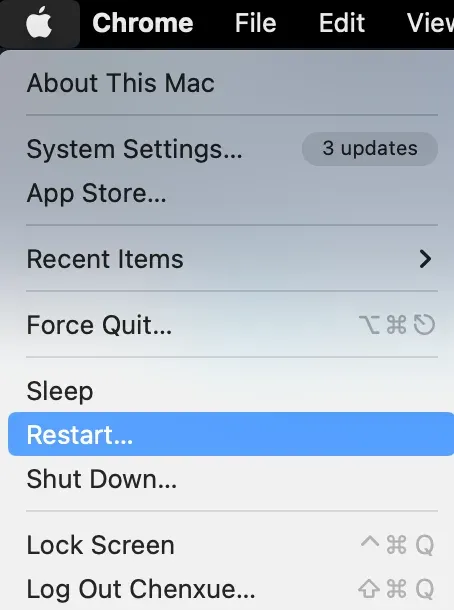
Step 1. Restart your Mac by clicking the Apple icon in the top-left corner and choosing Restart.
Step 2. Restart your iPhone. You can also ask Siri, “Restart my iPhone.”
Step 3. Wait until both devices are fully back on.
Step 4. Open iPhone Mirroring again on your Mac.
This sounds basic, but Apple includes restart steps for a reason. Temporary Bluetooth, Wi-Fi, and account handoff issues often clear after both devices reconnect cleanly.
Turn Wi-Fi and Bluetooth off and back on
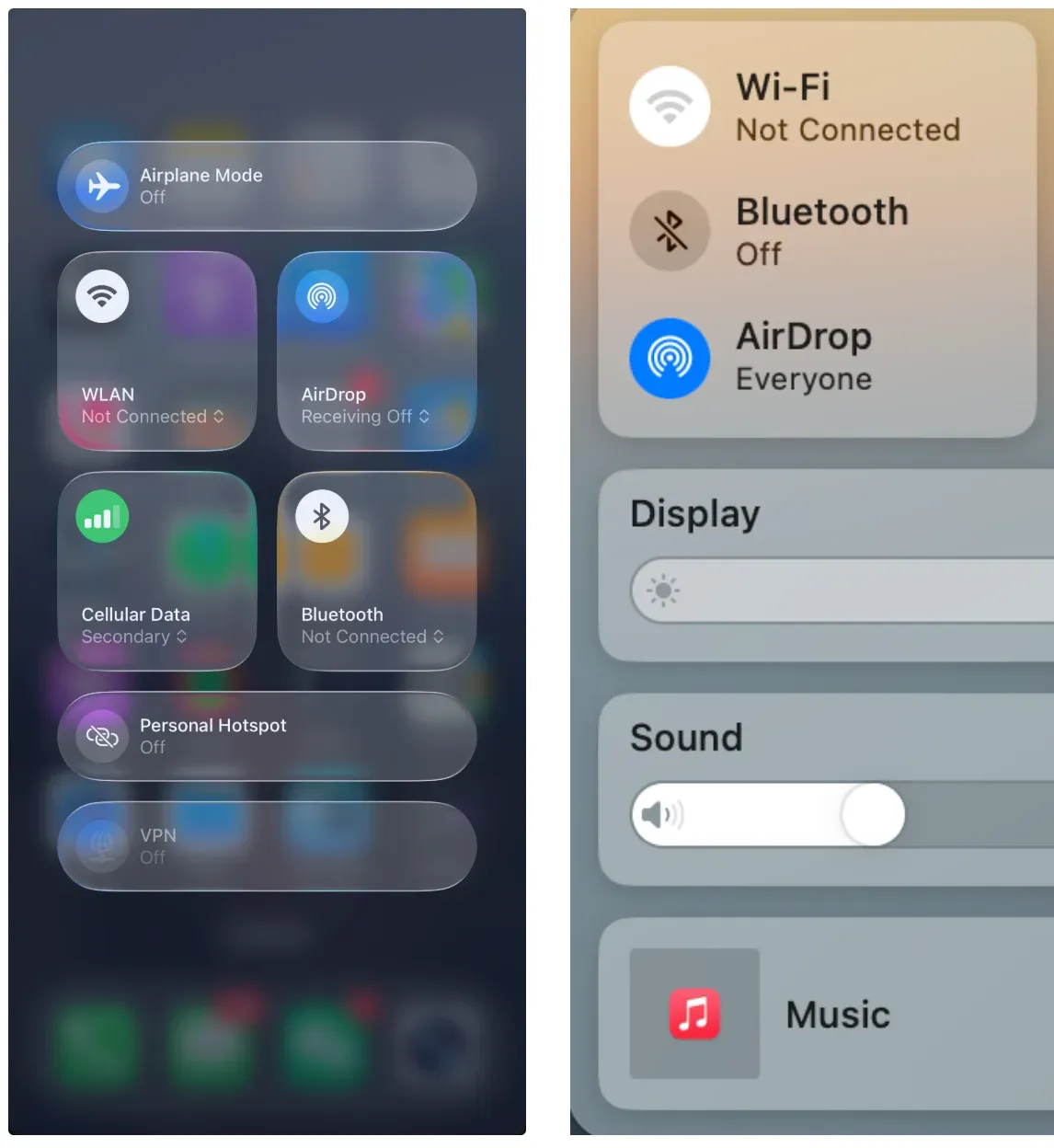
iPhone Mirroring depends on both Wi-Fi and Bluetooth. If one of them is stuck or unstable, the Mac may not find the iPhone or may fail while trying to connect.
On both devices:
Step 1. Turn Wi-Fi and Bluetooth off in the Control Center menu.
Step 2. Wait a few seconds.
Step 3. Turn both settings back on.
After that, put the iPhone next to the Mac and try again.
Keep your iPhone locked and close to your Mac
This is one of the most missed requirements. Your iPhone must be locked and nearby. If the iPhone is not locked, in active use, or sitting in another room, iPhone Mirroring may not start.
Check these points:
- Lock the iPhone before you connect.
- Keep it next to your Mac, not across the room.
- Stop using the iPhone while the Mac is trying to connect.
If the iPhone is in your hand and not locked, the connection can fail even though every other setting looks correct.
Update macOS and iOS
If iPhone Mirroring can't connect to iPhone, old system software is a common cause.
On your Mac:
Step 1. Open System Settings.
Step 2. Go to General > Software Update.
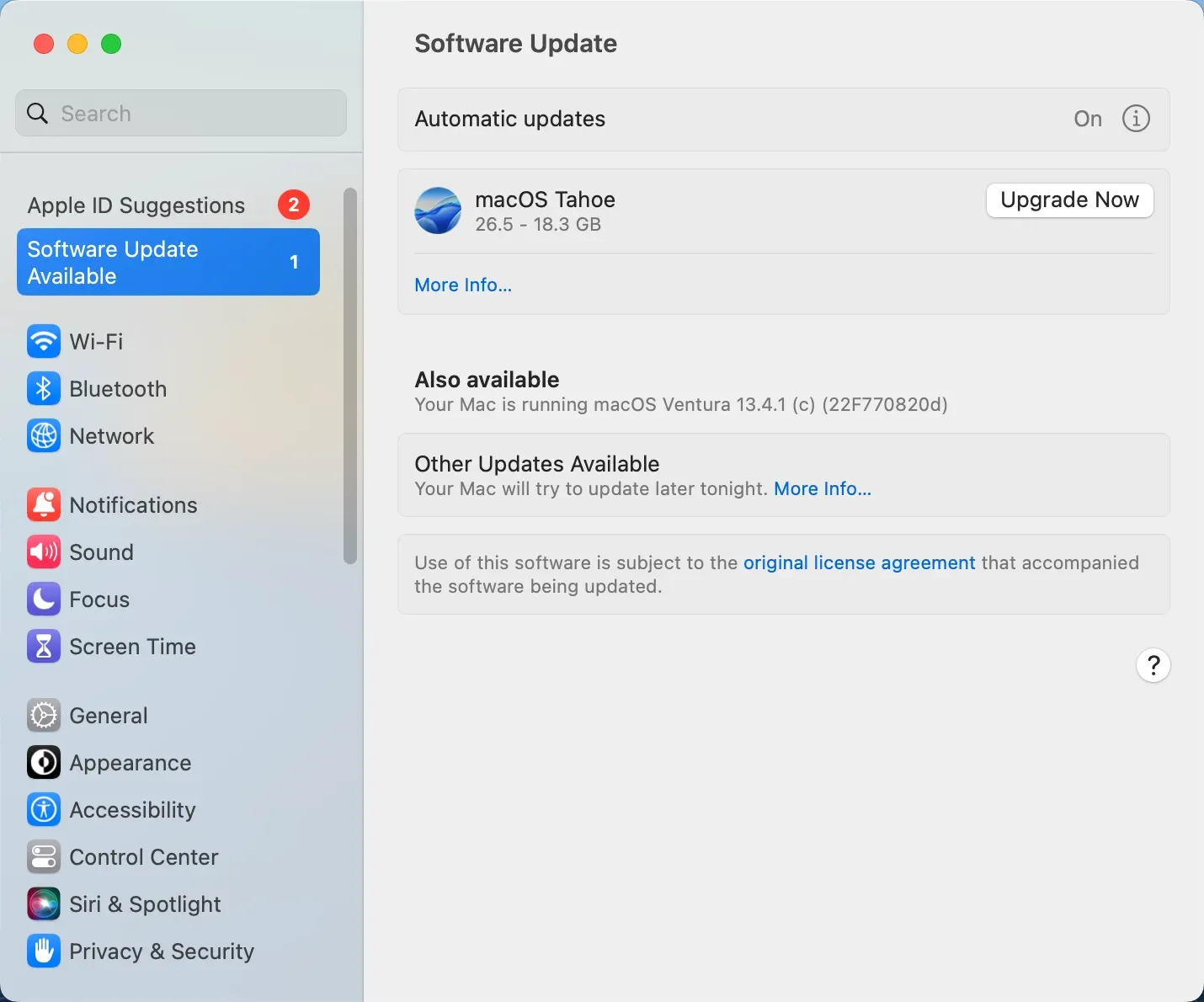
Step 3. Install any available macOS updates.
On your iPhone:
Step 1. Open Settings.
Step 2. Tap General > Software Update.
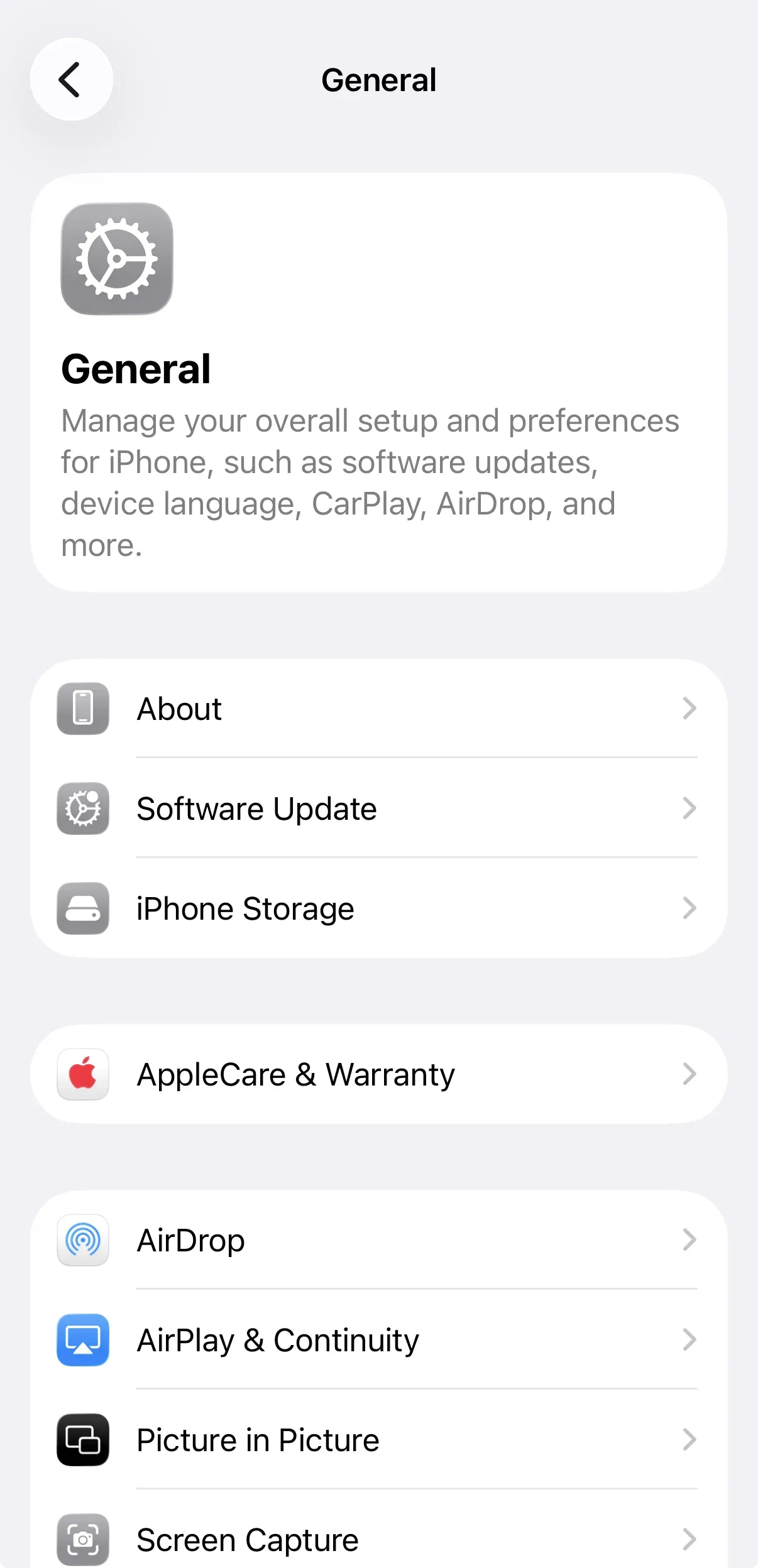
Step 3. Install any available iOS updates.
If your iPhone is below iOS 18 or your Mac is below macOS Sequoia 15, iPhone Mirroring will not work. If the feature connects but the display size feels awkward after the update, this guide on making iPhone Mirroring full screen on Mac covers that part.
Check Your Apple Account Settings
When support and software look correct, the next place to check is your Apple Account setup.
Make sure both devices use the same Apple Account
iPhone Mirroring does not work across different Apple Accounts. Your Mac and iPhone must be signed in to the same account.
On Mac:
Step 1. Open System Settings.
Step 2. Click your Apple Account at the top of the sidebar.
On iPhone:
Step 1. Open Settings.
Step 2. Tap your Apple Account name at the top.
Compare the accounts carefully. Even a second account used on one device can block the feature.
Confirm two-factor authentication is on
Apple also requires two-factor authentication. If it is off, iPhone Mirroring may never finish setup.
Check that:
- two-factor authentication is enabled on the Apple Account
- both devices are signed in normally
- neither device is stuck on a verification prompt
If you recently changed your password or security settings, give both devices a minute to finish syncing.
Sign out and sign back in if the setup is stuck
Use this only after the simpler checks above. Signing out is more disruptive than a restart.
If iPhone Mirroring not connecting continues:
Step 1. Sign out of your Apple Account on the Mac.
Step 2. Restart the Mac.
Step 3. Sign back in.
Step 4. Check the account on your iPhone as well if needed.
Do this carefully. Signing out can affect messages, photos, and other Apple services until everything syncs again.
Remove Settings That Can Block the Connection
Sometimes the devices are supported and signed in correctly, but another feature is still blocking the session.
Turn off AirPlay, Sidecar, and internet sharing
iPhone Mirroring can fail if the Mac is already using AirPlay or Sidecar. Internet sharing can also block the feature.
Check these one by one:
- stop any current AirPlay session
- disconnect Sidecar
- turn off internet sharing on the Mac
Then try iPhone Mirroring again. This check is worth doing even if you are not actively watching media. A background AirPlay session or display link can still interfere.
Check VPN, firewall, and security software
Some VPN settings, firewalls, and third-party security tools can interfere with iPhone Mirroring.
If iPhone Mirroring not working continues:
Step 1. Turn off any active VPN on your Mac and iPhone.
Step 2. Temporarily disable third-party firewall or security software.
Step 3. Try the connection again.
If the feature works after that, one of those services is the cause.
Reduce wireless interference
Weak or crowded wireless conditions can also cause connection attempts to fail.
Try these steps:
- move the iPhone closer to the Mac
- stop connecting many Bluetooth accessories at the same time
- avoid crowded public wireless environments while testing
- try again after other nearby wireless activity drops
This is not the most common reason, but it does show up in homes and offices with many active devices. If you are dealing with a broader Mac mirroring issue, this guide on how to stop screen mirroring on Mac also helps distinguish AirPlay and display settings from app-specific problems.
Reset iPhone Mirroring and Set It Up Again
If the basic checks do not help, reset the feature and reconnect it from scratch.
Revoke iPhone Mirroring access on your Mac
You can remove the Mac’s saved access to the iPhone Mirroring session and set it up again.
On your iPhone:
Step 1. Open Settings.
Step 2. Tap General.
Step 3. Tap AirPlay & Continuity.
Step 4. Tap iPhone Mirroring.
Step 5. Remove the Mac from the list if it appears there.
On your Mac, close iPhone Mirroring after that.
Connect your iPhone again
Now set it up again with a clean connection.
Step 1. Make sure the iPhone is locked and next to the Mac.
Step 2. Open iPhone Mirroring on the Mac.
Step 3. Follow the prompts to reconnect the iPhone.
This reset step helps when iPhone Mirroring not finding iPhone or repeated setup failures continue after the simple checks.
What to Do If It Still Will Not Connect
If you have checked support, restarted both devices, confirmed the account, turned off conflicting settings, and reset the feature, the issue is usually one of these:
- the Mac does not fully support iPhone Mirroring
- the iPhone is on unsupported software
- a security or network rule still blocks the connection
- the account state on one device is still out of sync
At that point, Apple Support is the right next step for the built-in feature. This is especially true if your devices meet the published requirements but the connection still fails on a clean restart with Wi-Fi and Bluetooth on.
When Another Screen Mirroring App Makes More Sense
Apple’s built-in iPhone Mirroring is convenient, but it only works within Apple’s hardware and software requirements. If you use Windows, Android, older Macs, or simply want more flexibility, a third-party tool may work better.
PigeonCast is a lightweight option for cross-platform screen mirroring. It supports wireless connections between iPhone, Android, Windows, and macOS devices, with HD quality and low latency that work well for videos, presentations, gaming, or everyday screen sharing.
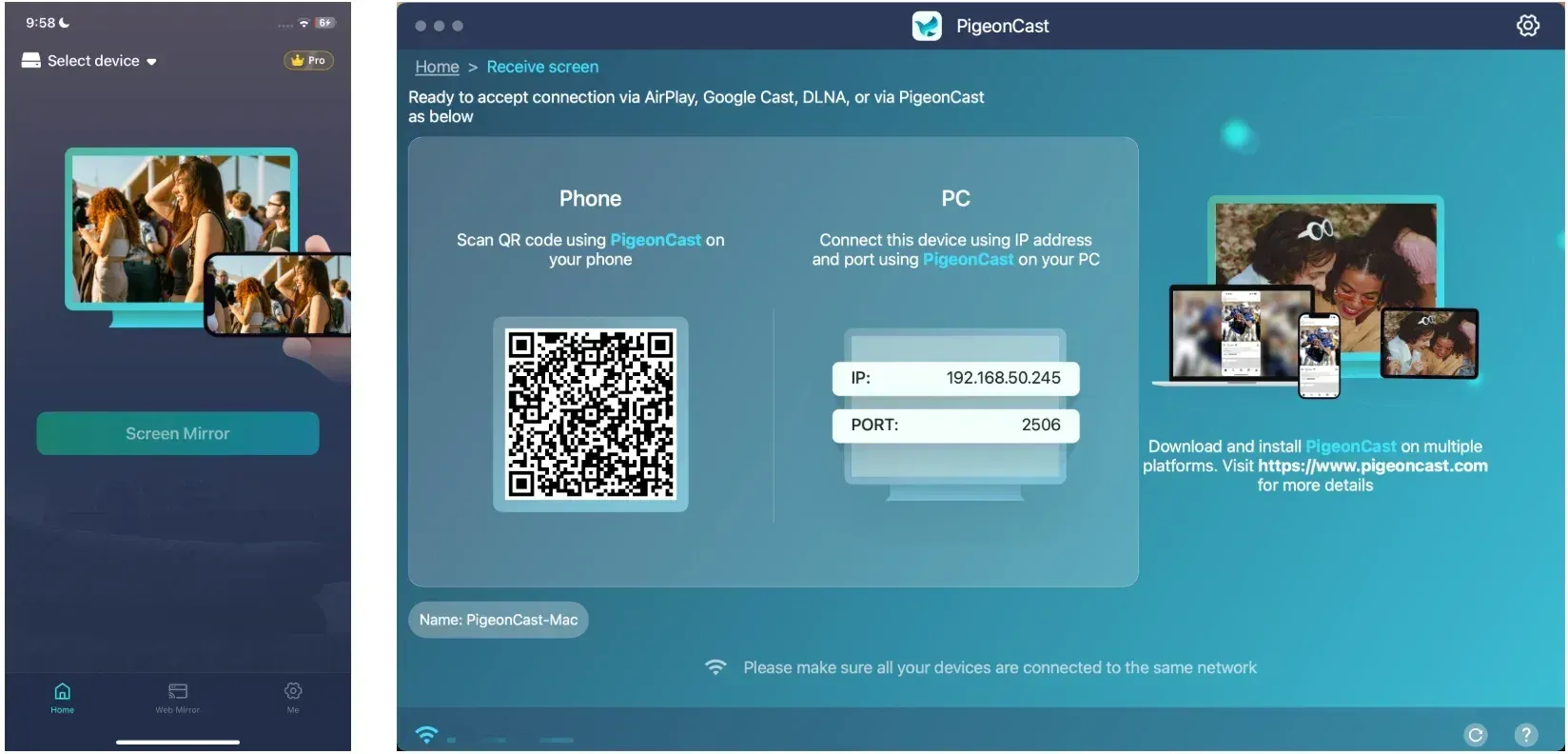
Screen mirroring setup is simple:
Step 1. Install PigeonCast on both devices you want to connect, such as your iPhone and Mac.


Overall Rating:


Step 2. Make sure both devices are connected to the same Wi-Fi network.
Step 3. Open the app and connect the two devices.
- Click Receive screen on Mac and keep the window open.
- On your iPhone, tap the top bar and choose your Mac from the device list.
- Once the Mac name appears, the connection is established.
- Tap Screen Mirror, select the mirroring resolution and frame rate, enable the Sound option if needed, then tap Start mirror.
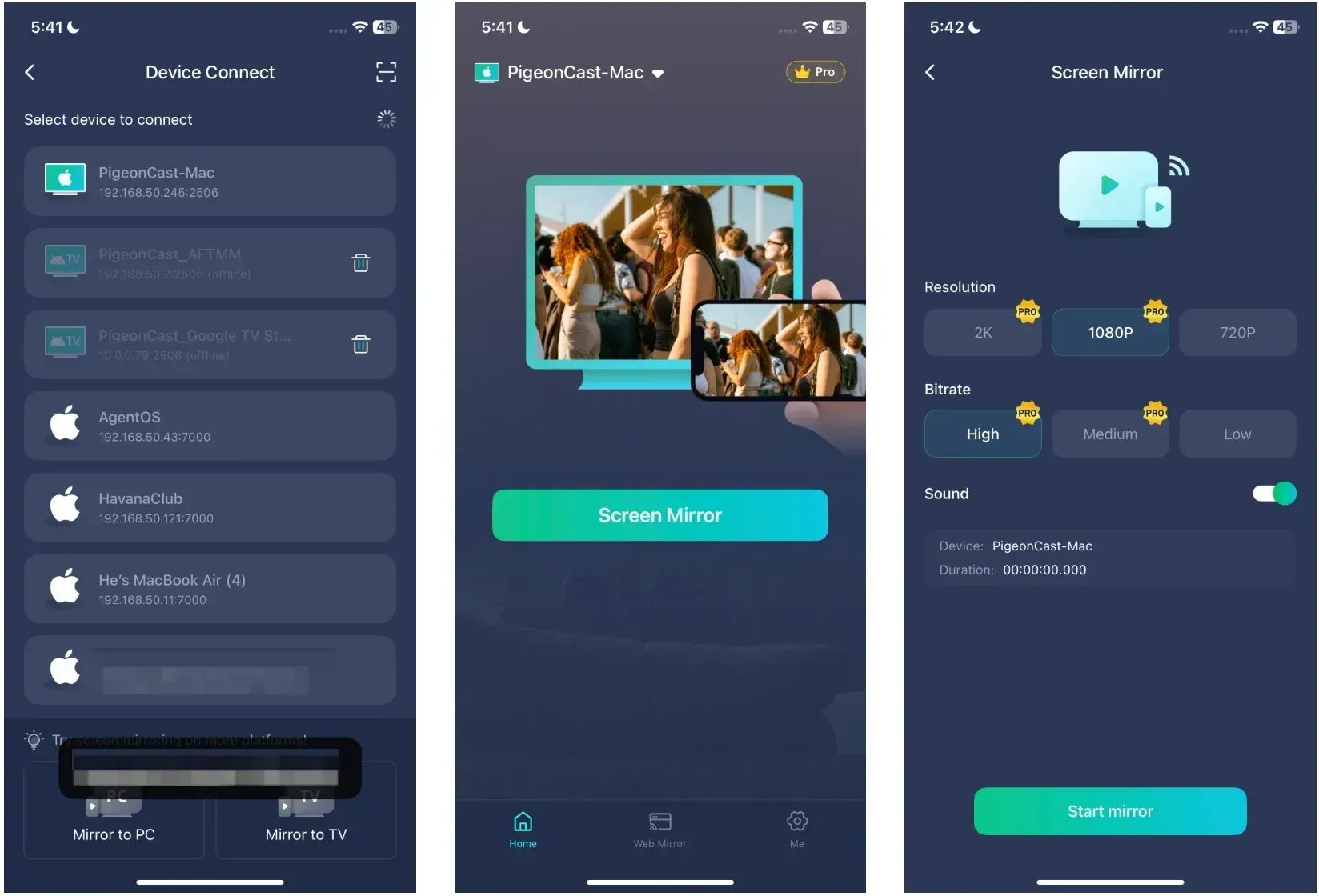
Step 4. Your iPhone screen will now appear on your Mac.

Conclusion
The iPhone Mirroring unable to connect to iPhone error usually comes down to support limits, account setup, wireless settings, or another Apple feature getting in the way. Start by confirming your Mac and iPhone meet Apple's requirements. Then work through the quick checks in order. If that still does not fix it, reset iPhone Mirroring and set it up again. If your devices or setup do not fit Apple's rules, use a different screen mirroring app instead of forcing a feature your hardware cannot support.
iPhone Mirroring Unable to Connect to iPhone FAQ
Why is iPhone Mirroring not finding my iPhone?
In most cases, the problem is caused by basic connection requirements. Make sure Wi-Fi and Bluetooth are enabled on both devices, the iPhone is locked and nearby, and both devices are signed in to the same Apple Account. Restarting both devices can also help refresh the connection.
Does my iPhone have to stay locked?
Yes. Apple requires the iPhone to remain locked for iPhone Mirroring to work properly. If you unlock or actively use the iPhone, the mirroring session may pause or disconnect.
Can I use different Apple Accounts?
No. Apple’s iPhone Mirroring only works when the Mac and iPhone are signed in with the same Apple Account and have two-factor authentication enabled.
Can VPN or firewall settings stop iPhone Mirroring?
Yes. VPN apps, firewall settings, security software, or restrictive network configurations can interfere with the connection. If mirroring is not working, try temporarily disabling VPNs or testing on another Wi-Fi network.
Does iPhone Mirroring work on Windows?
No. Apple’s built-in iPhone Mirroring feature is currently limited to Mac and iPhone devices. It does not officially support Windows PCs. If you want to mirror iPhone to your Windows PC wirelessly, you can use a screen mirroring app like PigeonCast.
How to reset iPhone mirroring?
You can reset the feature by turning Wi-Fi and Bluetooth off and back on, restarting both devices, or signing out and back into your Apple Account. On the iPhone, you can also go to Settings > General > Transfer or Reset iPhone > Reset > Reset Network Settings to clear connection-related settings.
Why is screen mirroring not working on my iPhone?
Screen mirroring can fail for several reasons, including unstable Wi-Fi, outdated iOS or macOS versions, incompatible devices, network restrictions, or temporary software bugs. Updating both devices and reconnecting to Wi-Fi often resolves the issue.
Mia Clarke is a technology editor specializing in screen mirroring and casting solutions across multiple platforms. Mia provides clear, practical guides and in-depth insights to help users seamlessly connect their devices. Passionate about enhancing digital experiences, Mia is dedicated to keeping readers updated on the latest trends and tools in cross-platform screen sharing. Whether you’re looking to mirror your smartphone, laptop, or smart TV, Mia’s content delivers reliable, user-friendly advice to simplify your tech setup.