
If you need to know how to stop screen mirroring on Mac fast, first identify what started the session. On your Mac, screen mirroring can come from AirPlay, a wired external display, a third-party mirroring app, or Chrome casting. The way you turn it off depends on which one you are using.
You usually want to stop screen mirroring because you are done presenting, your Mac starts lagging, the connection delays audio or video, you do not want other people to keep seeing your screen, or mirroring turned on by accident. Once you identify the source, turning it off is usually quick.
What Screen Mirroring on Mac Usually Means
On your Mac, "screen mirroring" can refer to several different workflows:
- AirPlay Mac screen to a TV
- a wired mirrored display over HDMI or USB-C
- a mirroring session over a free third-party Mac mirroring app
- Chrome casting from a tab or your full desktop
That is the key point for this guide. You do not always stop every kind of screen mirroring from the same menu.
Identify Your Mac Screen Mirroring Type First
Before you click around in Control Center or Displays, check what kind of mirroring session is active.
AirPlay Built Into macOS
If you are mirroring to Apple TV or a compatible smart TV, you are probably using the built-in AirPlay path.
Common signs:
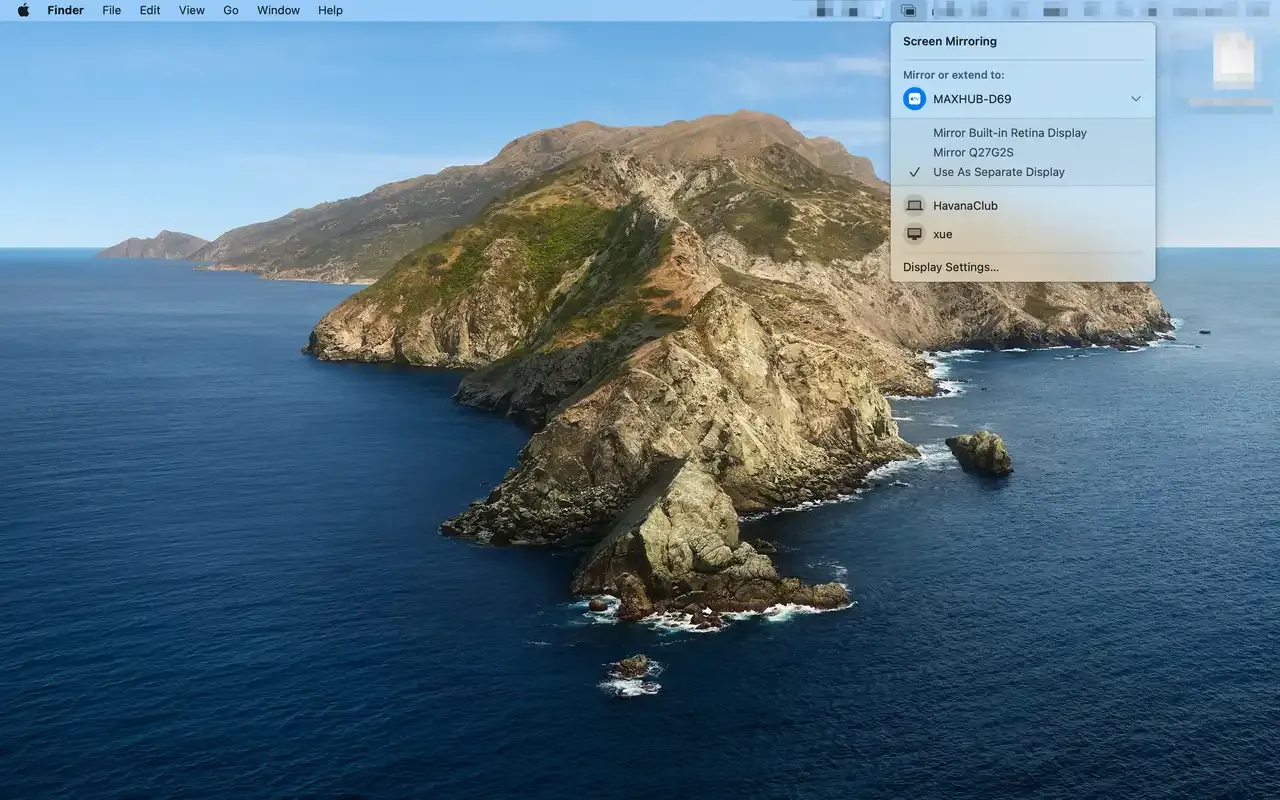
- you see a Screen Mirroring icon in the menu bar
- the connection was started from Control Center
- your Mac is sending its screen wirelessly to a TV or another AirPlay device
External Display Through HDMI or USB-C
If your Mac is mirroring via an HDMI cable and the second screen is showing the same desktop, you are dealing with display mirroring in Displays settings rather than AirPlay.
Common signs:
- your Mac is physically connected by HDMI, USB-C, or an adapter
- you turned on Mirror Displays
- the second screen stays connected even after AirPlay is off
Third-Party Mirroring Apps
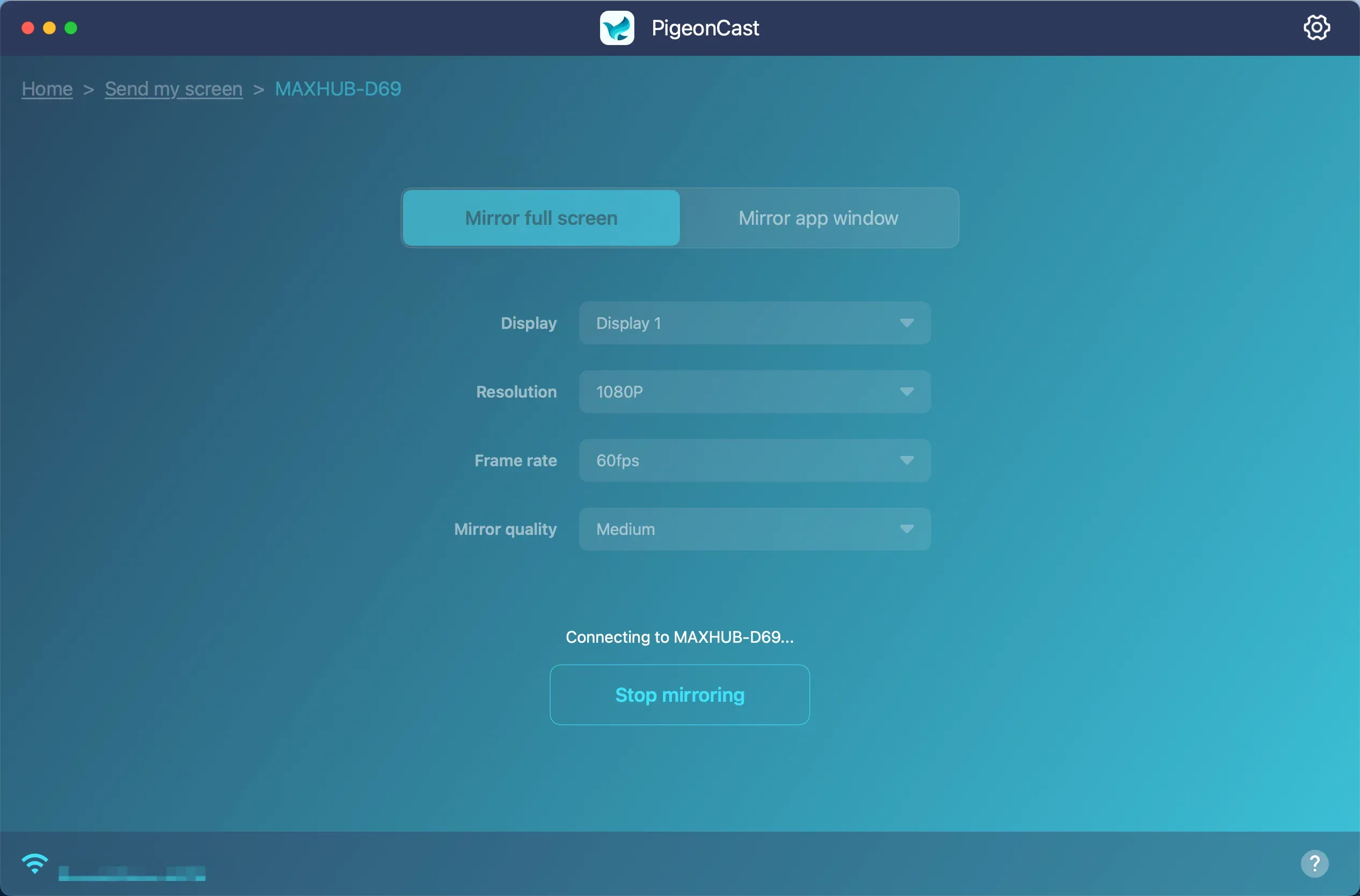
If you started mirroring from a third-party app like PigeonCast, Reflector, or AirServer, macOS system controls usually will not stop the session for you.


Overall Rating:


Common signs:
- you opened a mirroring app before the session started
- the app has its own Stop, Disconnect, or End Casting button
- turning off AirPlay does not stop the mirrored session
Chrome Browser Casting
If you cast a Chrome tab or your desktop to Chromecast, the session is controlled from Chrome rather than standard macOS mirroring menus.
Common signs:
- you started casting from Chrome's three-dot menu
- you see a Cast icon in Chrome
- only the browser tab or browser-driven desktop cast is active
How to Turn Off AirPlay Screen Mirroring on Mac
If your session was started with built-in macOS AirPlay, use one of these methods.
Method 1: Menu Bar
If you see the Screen Mirroring icon in the menu bar:
Step 1. Click the Screen Mirroring icon.
Step 2. Select the active TV or AirPlay device.
Step 3. Deselect the device.
This is often the fastest way to turn off screen mirroring on Mac when the icon is already visible.
Method 2: Control Center
If you do not see the menu bar icon:
Step 1. Open Control Center.
Step 2. Click Screen Mirroring.
Step 3. Click the connected device again to disconnect it.
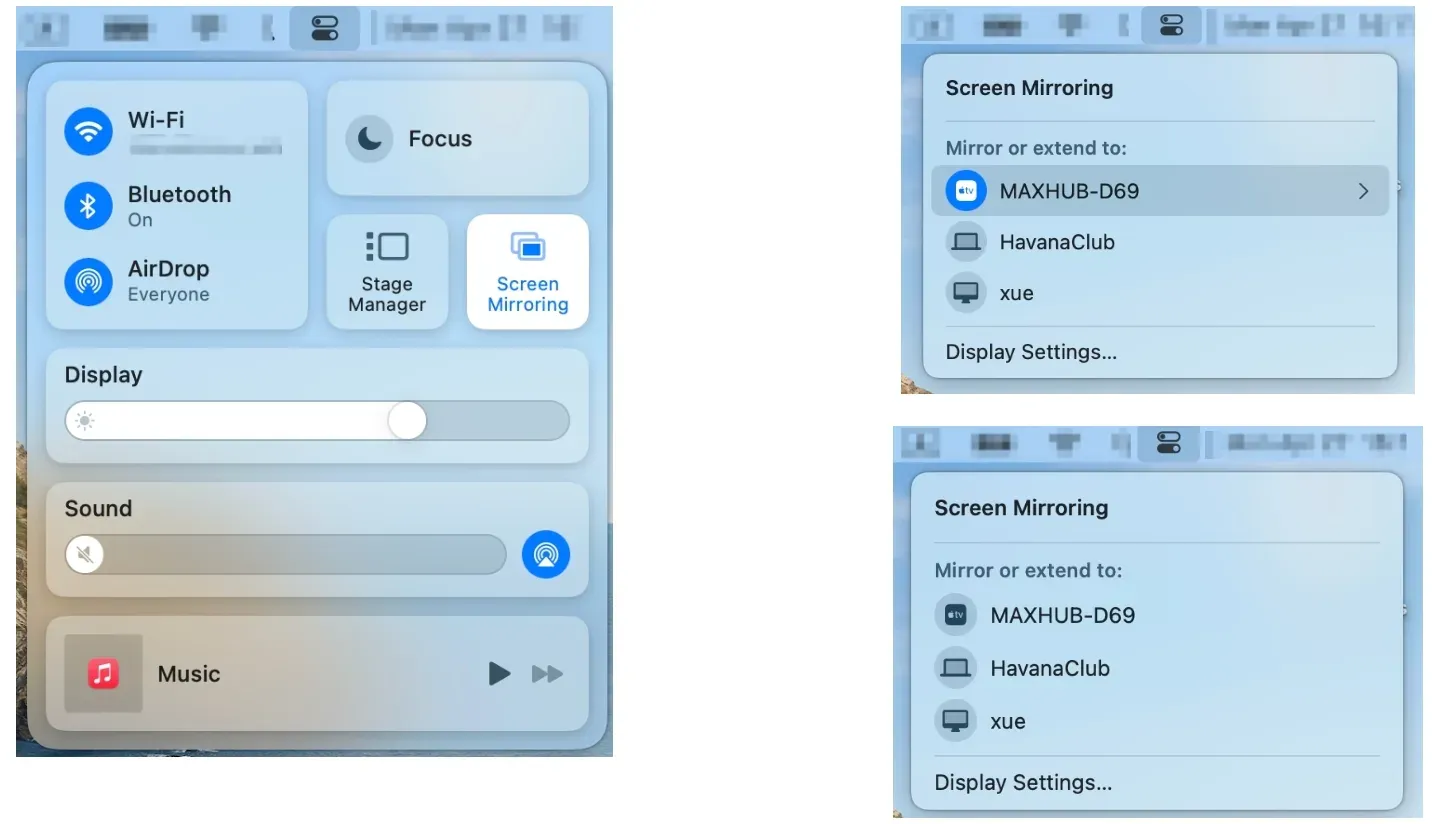
If you are looking for the quickest answer to how to turn off AirPlay on Mac, this is usually the right place to start.
Method 3: System Settings
If the connection still looks active:
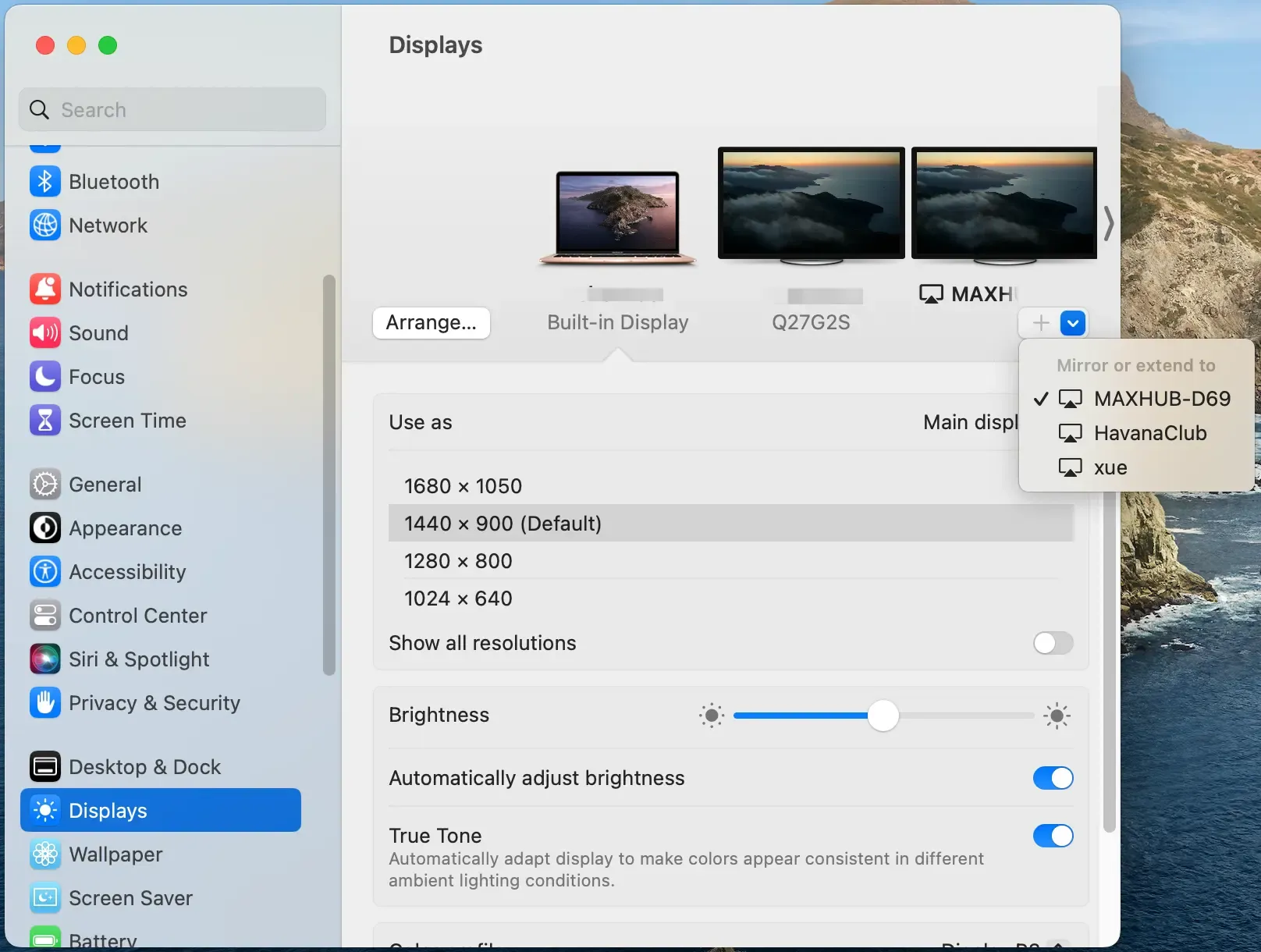
Step 1. Open System Settings.
Step 2. Go to Displays.
Step 3. Select the connected AirPlay display if it appears there.
Step 4. Disconnect it or switch back to your normal display setup.
How to Turn Off Display Mirroring on an External Monitor
If your Mac is connected to another screen by HDMI or USB-C, you may not be dealing with AirPlay at all.
How to turn off screen mirroring on Mac? Use this path:
Step 1. Open System Settings.
Step 2. Go to Displays.
Step 3. click the menu in Use as, then choose Stop Mirroring.
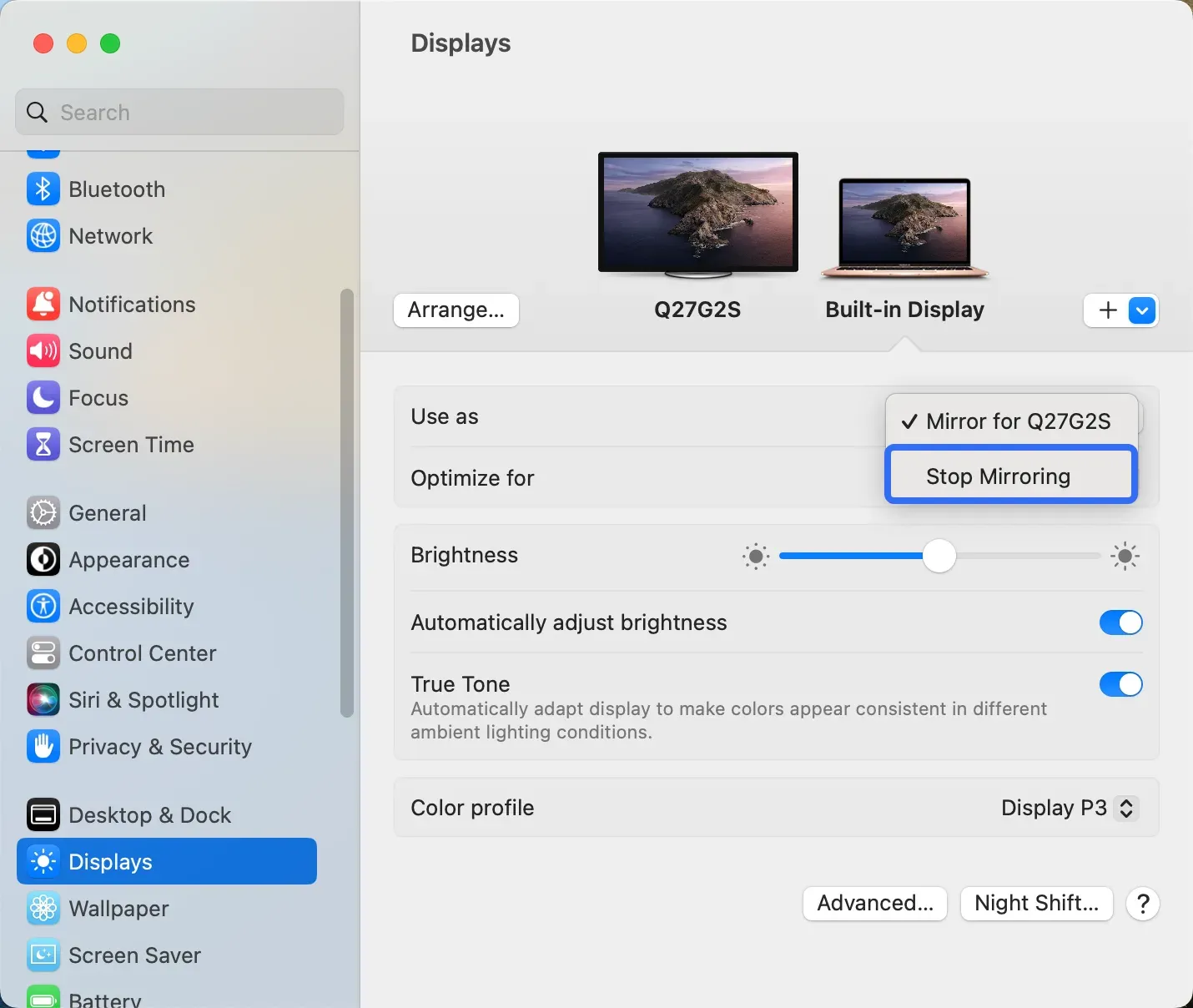
Step 4. Switch to Extended Display if you still want to use the second screen without mirroring.
If you only want to disconnect the second screen completely, unplug the cable after you change the display mode.
How to Turn Off Screen Mirroring in Third-Party Apps
If you started mirroring from a third-party app, you need to stop it inside that app.
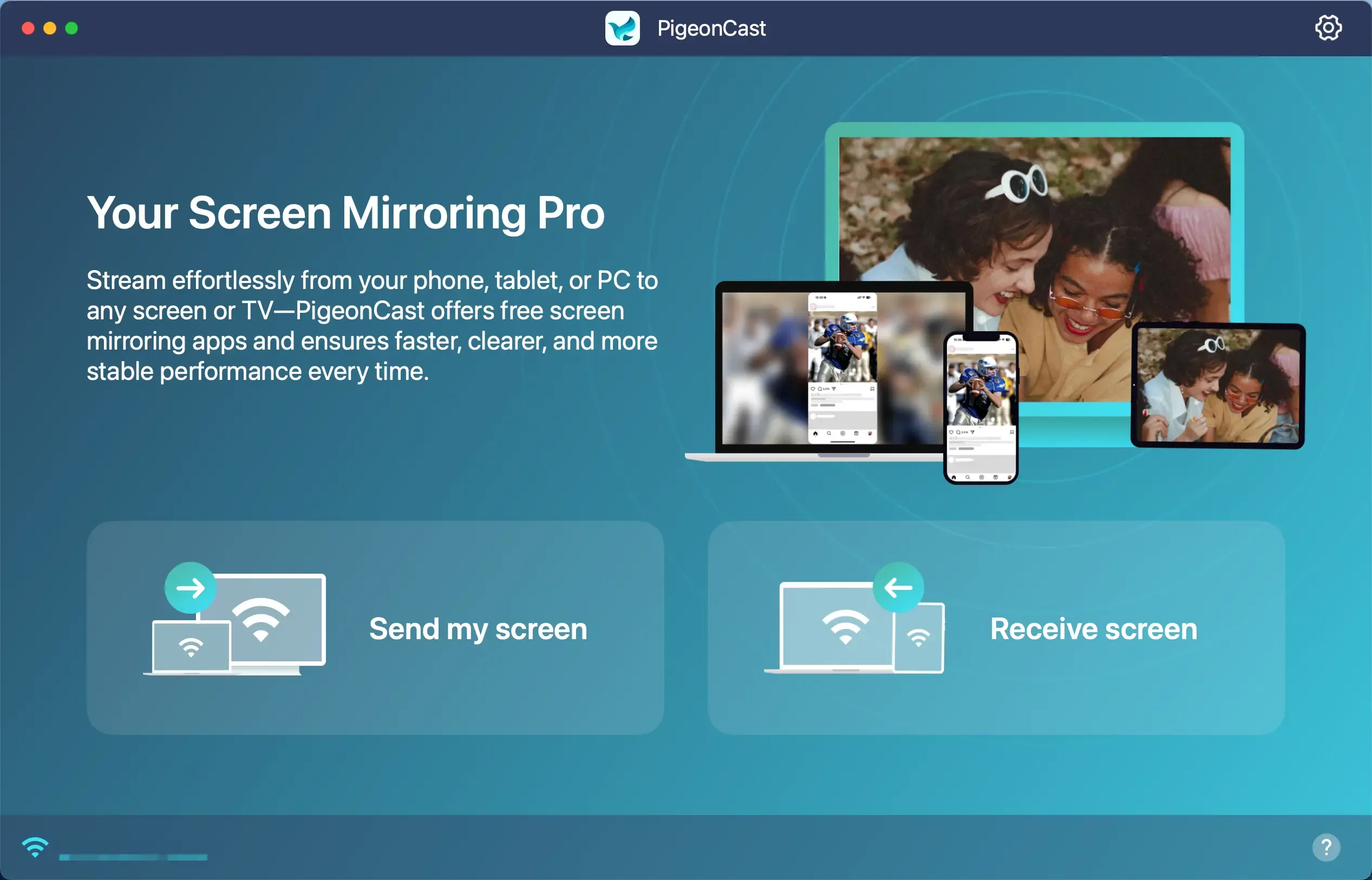
For example:
Step 1. Open PigeonCast.
Step 2. Find the active mirroring session.
Step 3. Click Stop mirroring.
Step 4. If the session still looks active, quit the app completely.
Important Notes for Third-Party Mirroring:
- Turning off AirPlay will not stop PigeonCast if PigeonCast started the session.
- You need to control the session inside the app.
- If mirroring continues, check whether the app is still running in the background.
The same logic usually applies to apps like Reflector or AirServer. If the app started the session, the app needs to end it.
How to Turn Off Chrome Casting on Mac
If you cast a tab or your desktop from Chrome, you need to stop the session from Chrome.
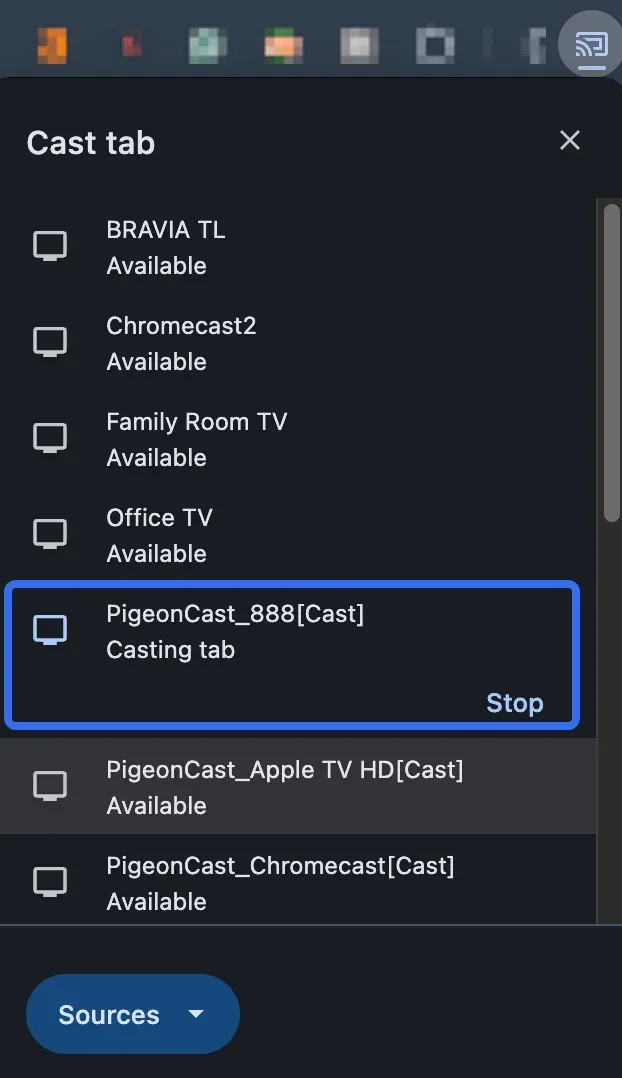
Method 1: Chrome Menu
Step 1. Open Chrome.
Step 2. Click the three-dot menu in the top-right corner.
Step 3. Select Cast.
Step 4. Click Stop.
Method 2: Address Bar Cast Icon
Step 1. Click the Cast icon in Chrome.
Step 2. Select the active device.
Step 3. Stop the cast from there.
If Chrome casting is still active, closing the tab alone may not end the session. Open the Cast controls directly and stop it there.
Conclusion
After screen mirroring stops, take a moment to confirm that your Mac has returned to the display setup you actually want. Check the Displays settings, audio output, and any casting apps that may still be running in the background, especially if the external screen remains active or sound continues playing elsewhere.
If mirroring keeps reconnecting automatically, review saved AirPlay devices, Chrome casting sessions, login items, and app permissions. Removing an old receiver or disabling automatic reconnection can prevent the same issue from returning the next time your Mac joins the network.
How to Stop Screen Mirroring on Mac FAQ
Why does my Mac still show that screen sharing is active?
A screen-sharing indicator can remain visible when an app such as Zoom, Microsoft Teams, Chrome, or a mirroring tool is still capturing or transmitting the screen in the background. Check the menu bar, Control Center, active browser tabs, and open apps. If no session is visible, quit the suspected app and reopen Control Center to confirm that sharing has stopped.
Why does screen mirroring reconnect automatically on my Mac?
Automatic reconnection may come from a previously selected AirPlay display, a browser casting session, or a third-party app that launches at login. Disconnect the receiver, close the casting app, and review System Settings > General > Login Items & Extensions. You may also need to remove saved devices or disable automatic connection inside the app.
How do I force quit iPhone Mirroring on a MacBook?
Open the iPhone Mirroring app and choose iPhone Mirroring > Quit iPhone Mirroring from the menu bar. You can also press Command-Q while the app is active. If the session does not close, open Activity Monitor, search for iPhone Mirroring, select it, and click the stop button to force quit the process.
How do I completely disconnect my phone from my Mac?
Stopping screen mirroring may not disconnect Bluetooth, USB syncing, Personal Hotspot, AirDrop, or Continuity features. Check each active connection separately if your phone still appears linked to the Mac. See how to disconnect a phone from a Mac when you want to remove more than the current mirroring session.
Why is audio still playing through the TV after mirroring stops?
The display connection and audio output can remain selected independently. Open Control Center > Sound or go to System Settings > Sound > Output, then select your Mac speakers or another preferred device. Also close any media app that may still be sending audio through AirPlay or another connected receiver.
Why does the external display stay on after I turn off mirroring?
Stopping mirroring does not always disconnect the display. Your Mac may have switched from mirrored mode to an extended desktop. Open System Settings > Displays and check the arrangement. To stop using the display completely, disconnect the cable, end the AirPlay connection, or turn off the external display.
Does closing the MacBook stop screen mirroring?
Not always. A Mac connected to power, an external display, keyboard, and mouse may continue operating in closed-display mode. Wireless sessions may also remain active until they are manually disconnected. End the AirPlay, Chrome, or third-party app session before closing the lid if you want to make sure the mirrored display stops.
Mia Clarke is a technology editor specializing in screen mirroring and casting solutions across multiple platforms. Mia provides clear, practical guides and in-depth insights to help users seamlessly connect their devices. Passionate about enhancing digital experiences, Mia is dedicated to keeping readers updated on the latest trends and tools in cross-platform screen sharing. Whether you’re looking to mirror your smartphone, laptop, or smart TV, Mia’s content delivers reliable, user-friendly advice to simplify your tech setup.