
Is screen mirroring safe? In most cases, yes. Problems can happen if you connect to the wrong TV, use an untrusted app, or show private messages and notifications on a shared screen. Knowing what others can see and checking your device before you start can help you protect your privacy while casting.
Is Screen Mirroring Safe
Yes, screen mirroring is usually safe when you use trusted devices, a private WiFi network, and an app from a reliable source. Problems are more likely when you choose the wrong receiver, connect through a shared network, or display private content where other people can see it. The level of safety depends on the devices, connection method, app permissions, and what appears on your screen.
What Can the Receiving Device See
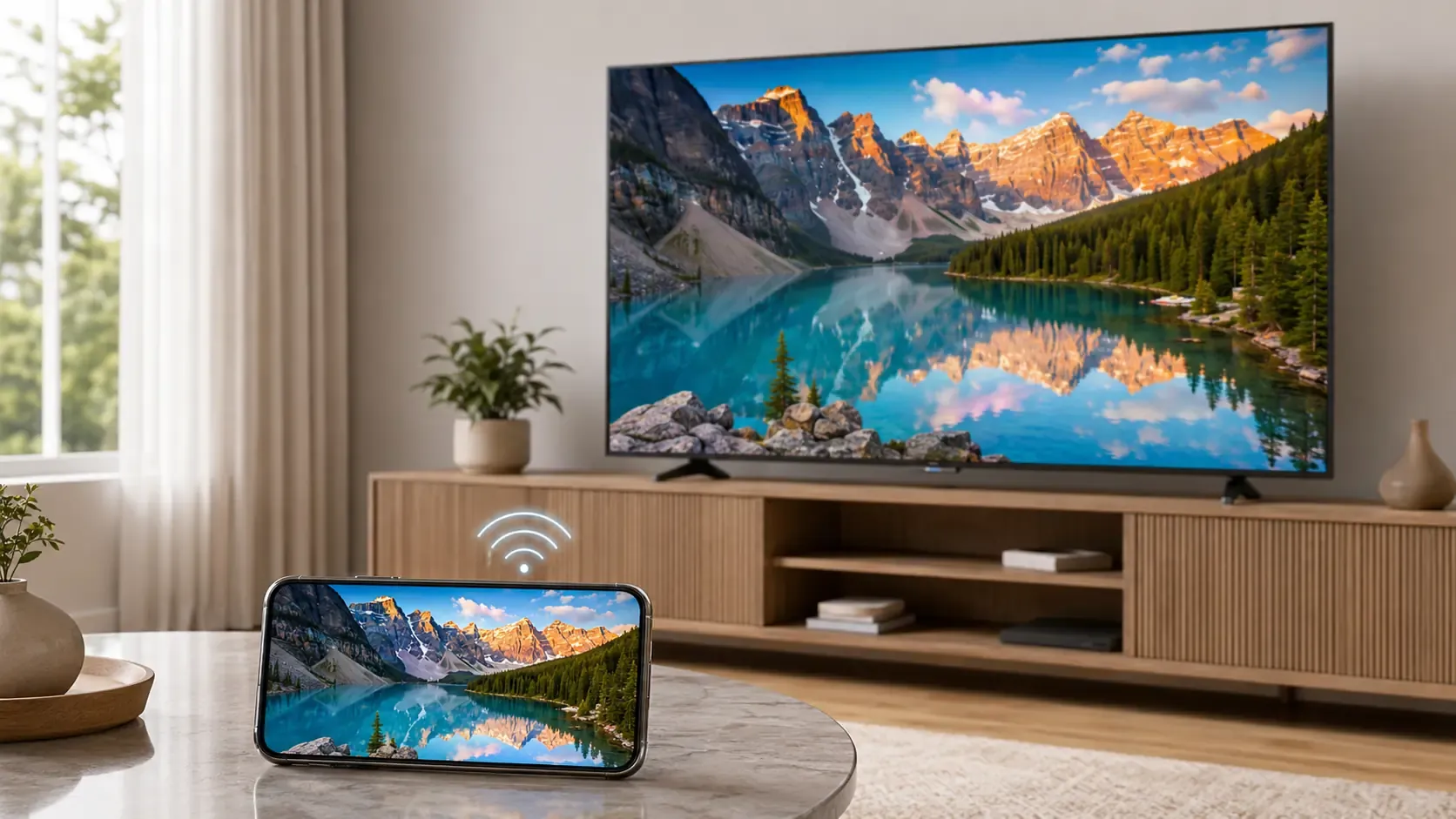
Full screen mirroring shows almost everything visible on your phone or computer. This can include notifications, messages, photos, browser pages, passwords you type, and apps you open. Casting a single video, photo, or browser tab usually shares only the selected content, so unrelated information stays on your device.
Is Screen Mirroring the Same as Remote Access
No. Screen mirroring mainly copies your picture and sound to another display. It does not normally allow the receiver to open your apps, control your device, or search through your files. Remote access requires separate software and additional permissions. However, anyone near the receiving screen can still see or record the content you choose to display.
What Are the Risks of Screen Mirroring
Most problems come from what you show, where you mirror, and which app or receiver you choose. Screen mirroring does not automatically open every file on your device, but anything visible on your screen may appear on another display.
- Private Content Can Appear on the Larger Screen
Full screen mirroring can show text messages, email previews, calendar alerts, verification codes, and app notifications as soon as they arrive. Switching between apps may also reveal browser tabs, personal photos, cloud drives, documents, or account details that you did not plan to share.
The same risk applies at work. Mirroring an entire desktop can expose team chats, customer information, internal tools, and private files. Sharing one window, browser tab, or selected media is usually a better choice when the option is available.
- Content Can Reach the Wrong Receiver
Homes, offices, hotels, and schools may have several TVs or computers on the same network. Similar device names make it easy to choose the wrong screen. Your content may then appear in another room or in front of people you did not expect.
A receiver you do not own also requires more care. You may not know who can access it, how its connection settings are managed, or who is standing near the display. Check both the device name and physical screen before you start.
- Untrusted Apps Can Request Too Much Access
A mirroring app may need screen recording or local network access to find nearby devices and share your display. It should not normally need unrelated access to contacts, messages, calls, or precise location.
Download mirroring software from its official website or a trusted app store. Check the developer, app permissions, privacy information, and recent updates before allowing it to display content from your phone or computer.
- Shared Networks and Old Devices Need More Care
Screen mirroring often uses the local network to find a receiver. Some guest networks block devices from finding one another, while other shared networks may show several nearby TVs or computers. The main concern is knowing which receiver belongs to you and preventing unwanted connection requests.
Old TVs, computers, and mirroring apps may also miss important security fixes. Keep both the sending and receiving devices updated, especially when you use them in an office, school, hotel, or other shared space.
How to Screen Mirror Safely
Before you begin, treat the receiving display as a screen that other people may see. Reduce what can appear on it, check where your content is going, and share only what you need.
Check Your Devices Before Connecting
A few checks before mirroring can prevent content from reaching the wrong screen or appearing in front of the wrong people. Prepare both devices before opening the mirroring menu.
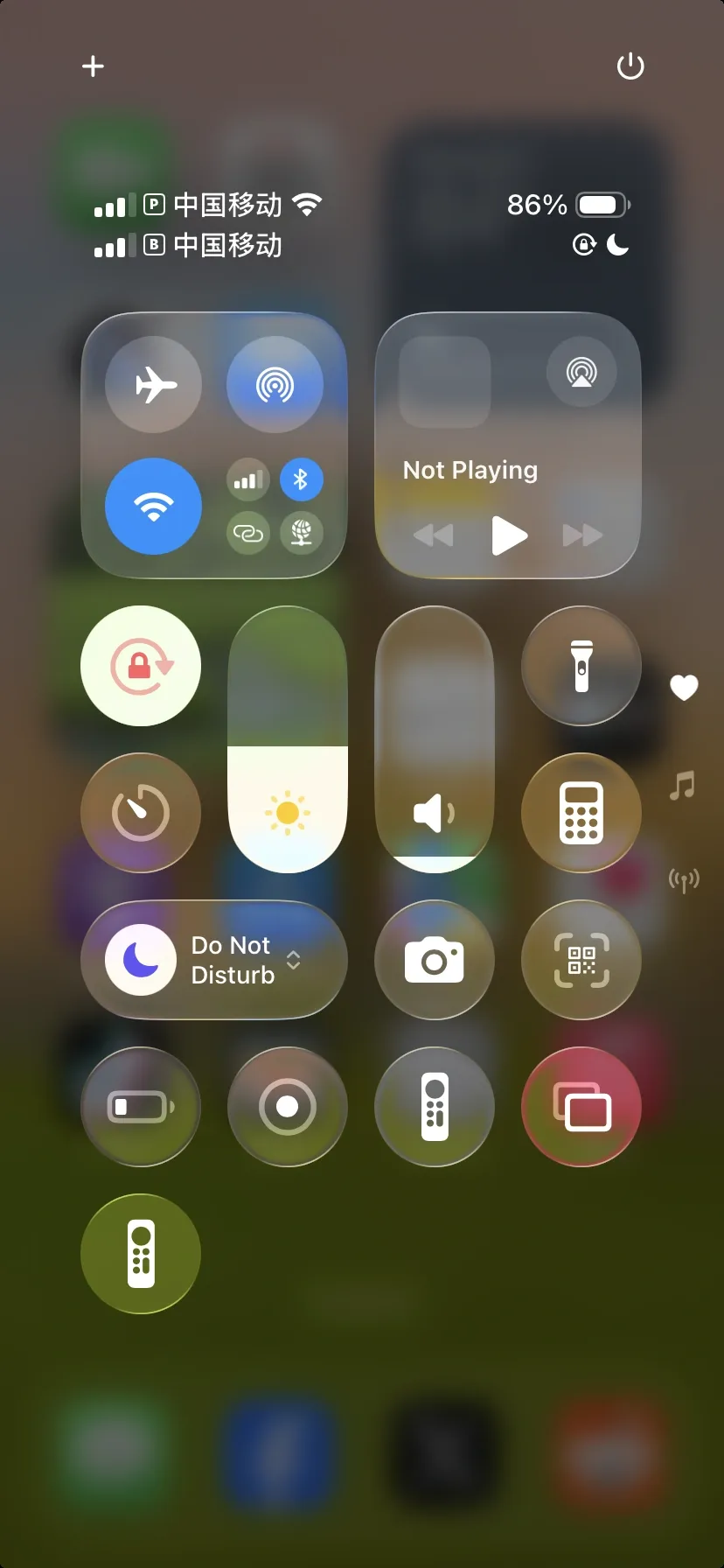
- Turn off notification previews or enable Do Not Disturb before sharing your whole screen.
- Close private messages, photos, browser tabs, account pages, and work files.
- Use a trusted home or office WiFi network instead of an open public network.
- Select a receiver that you recognize and confirm that the correct screen is in front of you.
- Check any PIN, code, or approval request that appears before allowing the connection.
- Update the sending device, receiving device, and mirroring app.
The available sharing options differ between devices. Choose the option that displays the least amount of unrelated content.
| Device | Safer choice |
|---|---|
| iPhone | Swipe down from the top right corner to open Control Center, tap Focus, and select Do Not Disturb. Close private apps before opening Screen Mirroring |
| iPad | Swipe down from the top right corner to open Control Center, tap Focus, and select Do Not Disturb. Check your open apps before choosing a receiving device |
| Mac | Click Control Center in the menu bar, select Focus, and turn on Do Not Disturb. Share one app window when you do not need to show the whole desktop |
| Android | Swipe down to open Quick Settings, turn on Do Not Disturb, and close sensitive apps. Check the device name carefully before tapping Cast or Screen Cast |
| Windows | Open Settings > System > Notifications and turn on Do not disturb. Share one app window when the whole desktop is not needed |
Mirror Across Devices with PigeonCast
PigeonCast can send and receive mirrored content across phones, computers, and TV devices. It supports iPhone, iPad, Android, Windows, Mac, Android TV, Google TV, and Apple TV through AirPlay, Google Cast, and DLNA. You can use it to display photos, videos, apps, games, presentations, or your full screen without cables or extra casting hardware. Encrypted connections help keep the content private while it moves between your devices.
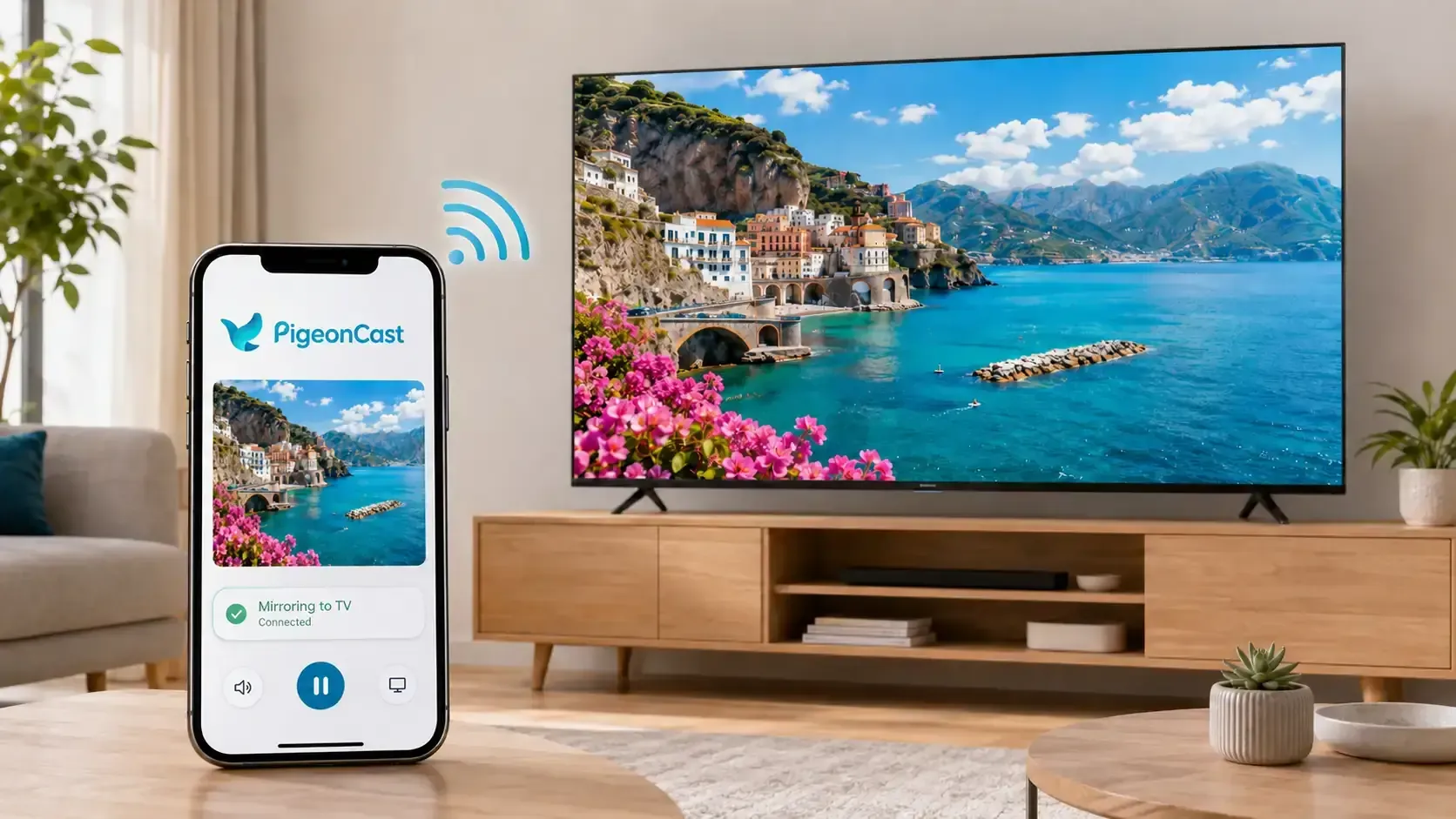
Step 1. Ensure your devices are connected to the same wireless network.


Overall Rating:



Step 2. Download PigeonCast from its official website or the app store for your device.
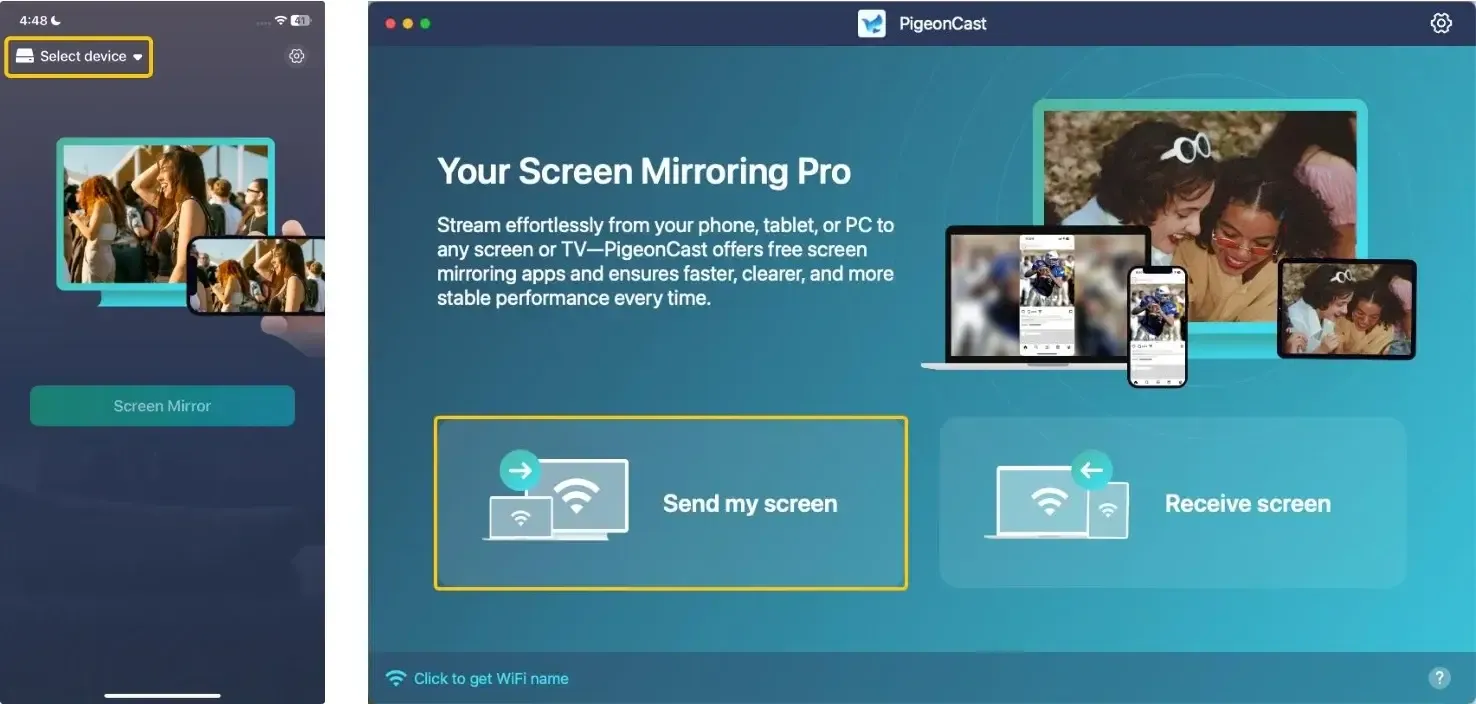
Step 3. Open PigeonCast, tap Select device or Send my screen to select the PC, TV, phone, or other screen you want to use.
Step 4. Enter the onscreen PIN code to confirm the pairing process.
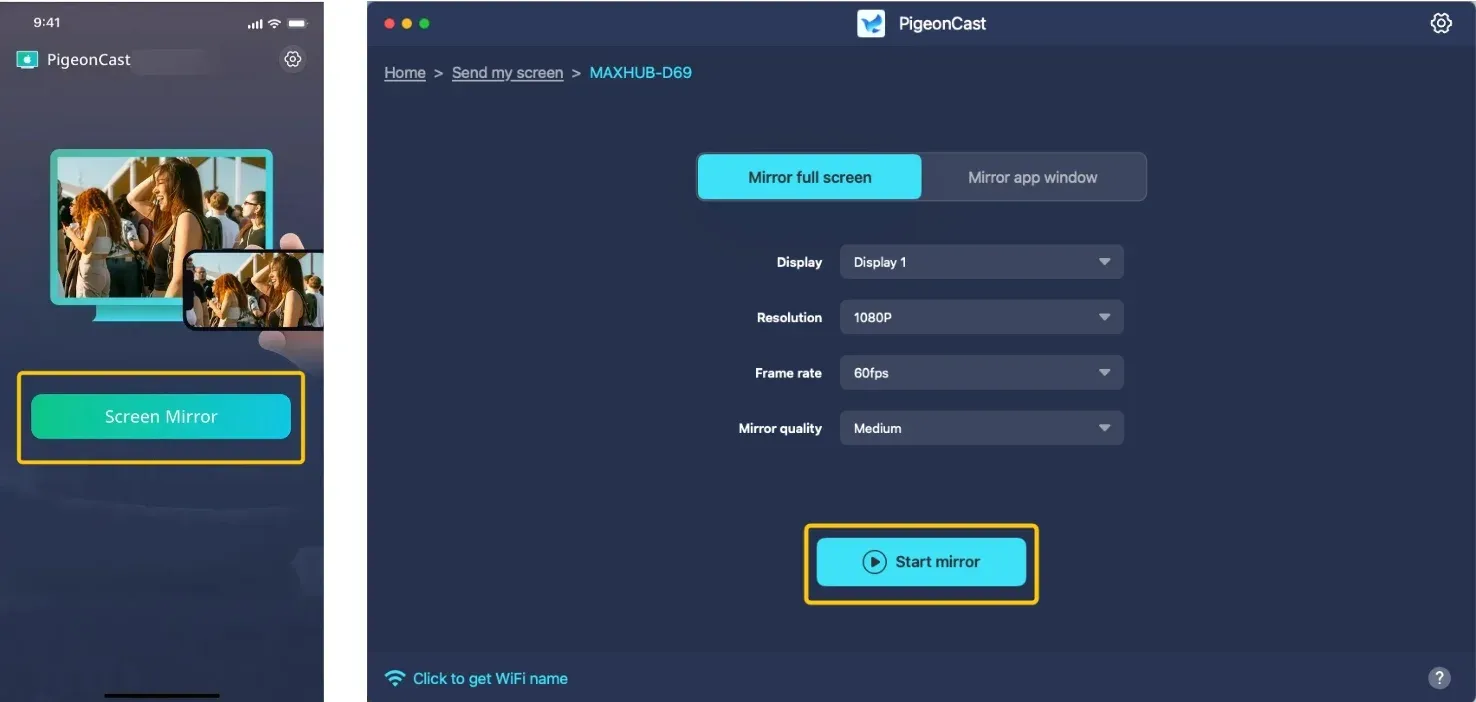
Step 5. When you finish the connection, you can tap Screen Mirror or Start mirror to begin the mirroring activities.
Disconnect When You Finish
Closing a video, photo, or app does not always stop mirroring. Disconnect before opening private content, leaving the room, or allowing someone else to use the receiving screen.
-
Select Stop Mirroring, Disconnect, or Stop Casting on the sending device.
-
Check that the mirroring icon has disappeared from your phone or computer.
-
Confirm that the TV or computer has returned to its normal screen.
-
Close the receiving app if the device no longer needs to accept mirrored content.
-
If you used a shared device, remove any saved connection and sign out of personal accounts before leaving.
Conclusion
The best sharing method depends on the content. Use media casting for a video or photo, one window for work, and full screen mirroring only when the entire display is needed. A home TV and a meeting room screen should not be treated in the same way. Match the sharing method to the place and audience, and you can use wireless display tools with fewer privacy concerns.
Is Screen Mirroring Safe FAQ
Is mirrored content encrypted?
It depends on the protocol, app, and receiving device. AirPlay, Google Cast, and trusted mirroring apps may use encrypted connections, but an old or unknown receiver may not provide the same protection. Check the provider information when handling sensitive content.
Does screen mirroring use Bluetooth?
Usually no. Most screen mirroring uses WiFi, WiFi Direct, or a cable to carry the picture and sound. Some devices may use Bluetooth to find or pair with a nearby receiver, but it does not normally transmit the mirrored screen.
Does screen mirroring work without the internet?
Yes, in many cases. Your devices can mirror through the same local WiFi network or a supported direct wireless connection. You only need internet access when loading online videos, websites, or content from cloud based apps.
Why do some videos show a black screen while mirroring?
Some streaming apps use copyright protection that blocks full screen mirroring or screen recording. You may still see the app menus while the video remains black. Try the official TV app or the Cast or AirPlay button inside the video app instead.
Does mirroring continue after the phone is locked?
It depends on the phone, app, and sharing method. Full screen mirroring may stop, pause, or display the lock screen, while a video sent through Cast or AirPlay may continue playing on the receiver. Locking the phone does not always end the connection.
Is an HDMI connection safer than wireless mirroring?
It can be safer when you control the cable, adapter, and display. HDMI does not rely on local network discovery, so you are less likely to connect to the wrong screen. It can still expose or record visible content if the display or capture device is not trusted.
Clara Rossi is an experienced technology editor and a seasoned expert in screen mirroring and casting technologies. With a keen eye for detail and a deep understanding of how to seamlessly connect devices, Clara excels at optimizing user experiences for effortless sharing and streaming. Whether you're seeking quick fixes or advanced tips, her expertise and responsiveness ensure that every query is met with a well-informed and efficient solution.