
Setting up a Vimeo Chromecast stream is straightforward when you follow the correct path for Android, iOS, or desktop browsers. This guide outlines the essential execution order to ensure a perfect connection every time. We also include a recovery ladder to handle discovery issues or missing icons, helping you pinpoint any blockers quickly without resorting to random resets.
Can You Chromecast from Vimeo
Yes, Vimeo supports Chromecast across most devices, but success depends on a proper initial configuration. Before casting, lock down these prerequisites in one pass to ensure your Vimeo on Chromecast setup is valid and to avoid debugging avoidable mistakes later.
- Verify Receiver Readiness
If you use a Chromecast dongle, confirm it is powered and showing as "Online" in the Google Home app. For TVs with Chromecast built-in, ensure the "Google Cast" or "AirPlay & Cast" feature is toggled ON in the system settings.
- Sync Devices to the Same Primary Wi-Fi
The sender and receiver must reside on the same primary Wi-Fi SSID. Avoid Guest Wi-Fi, mobile hotspots, or separate VLANs during setup, as these environments often block the discovery protocols required for casting.
- Remove Network Discovery Blockers
Disable VPNs and strict network privacy filters on your sender device. Multicast discovery (which lets your phone "see" the TV) can fail even when your internet browsing appears to work perfectly.
- Update the Vimeo Ecosystem
Ensure the Vimeo app, Google Home, and your receiver's firmware are all running the latest versions. Version mismatches are a leading cause of failed handshakes and missing icons.
- Establish a Baseline with Public Content
Always test your setup with a known public Vimeo video first. Since creators can restrict casting on individual videos, using a public sample helps you confirm the setup is working before troubleshooting account-level content limits.
How to Chromecast Vimeo Videos
Once your prerequisites are locked down, follow the specific execution order for your device to initiate a high-quality stream.
Chromecast Vimeo Android
How to cast Vimeo on Chromecast Android? Most Android devices running Android 6.0 (Marshmallow) or later support native Vimeo casting. However, for the most stable 2026 experience, ensure your Google Play Services are updated. High-end tablets and flagship phones (like the Samsung Galaxy S-series or Google Pixel) provide the best buffer management for 4K streams.
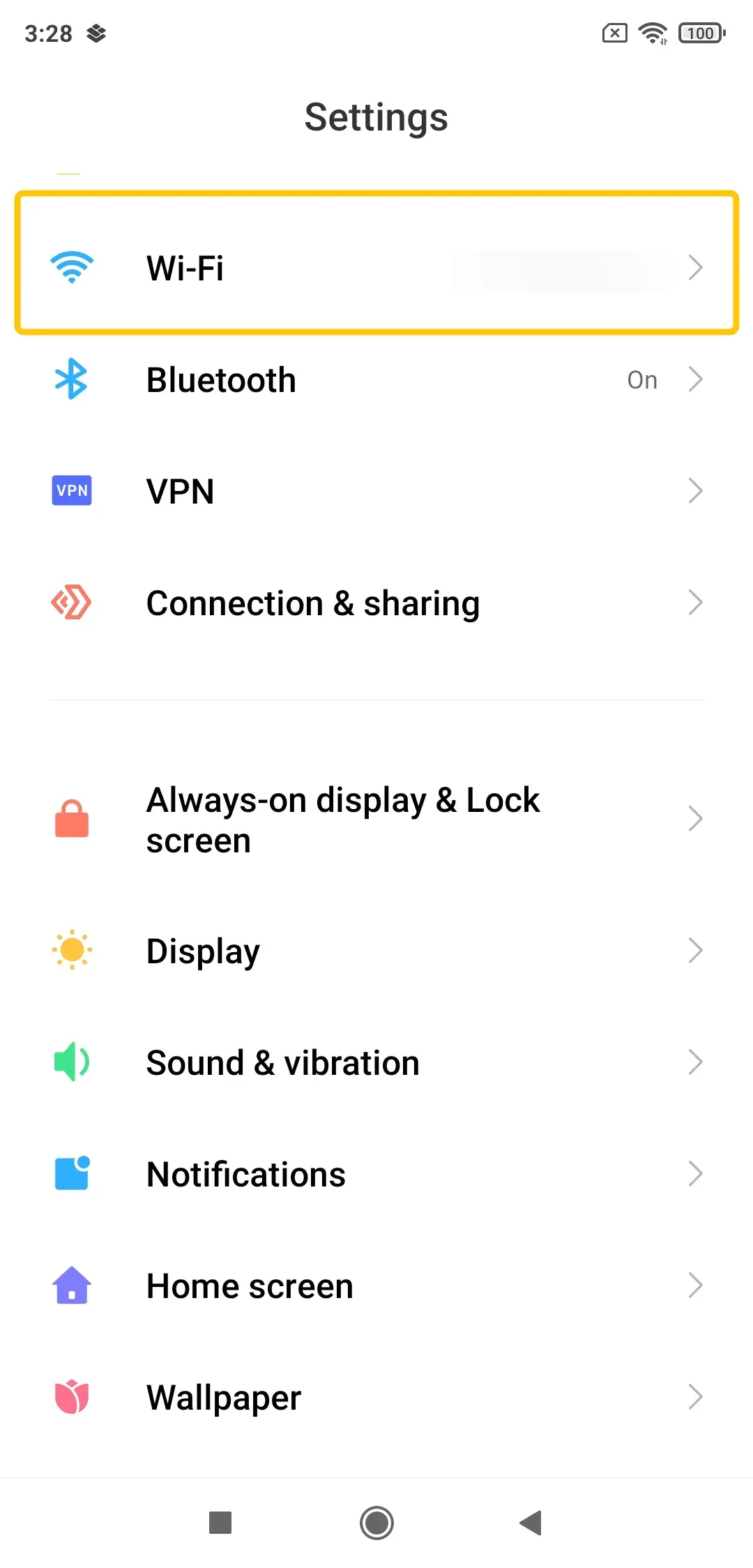
Step 1. Go to Android Settings > Wi-Fi and confirm you are on the exact same SSID (Network Name) as your Chromecast.
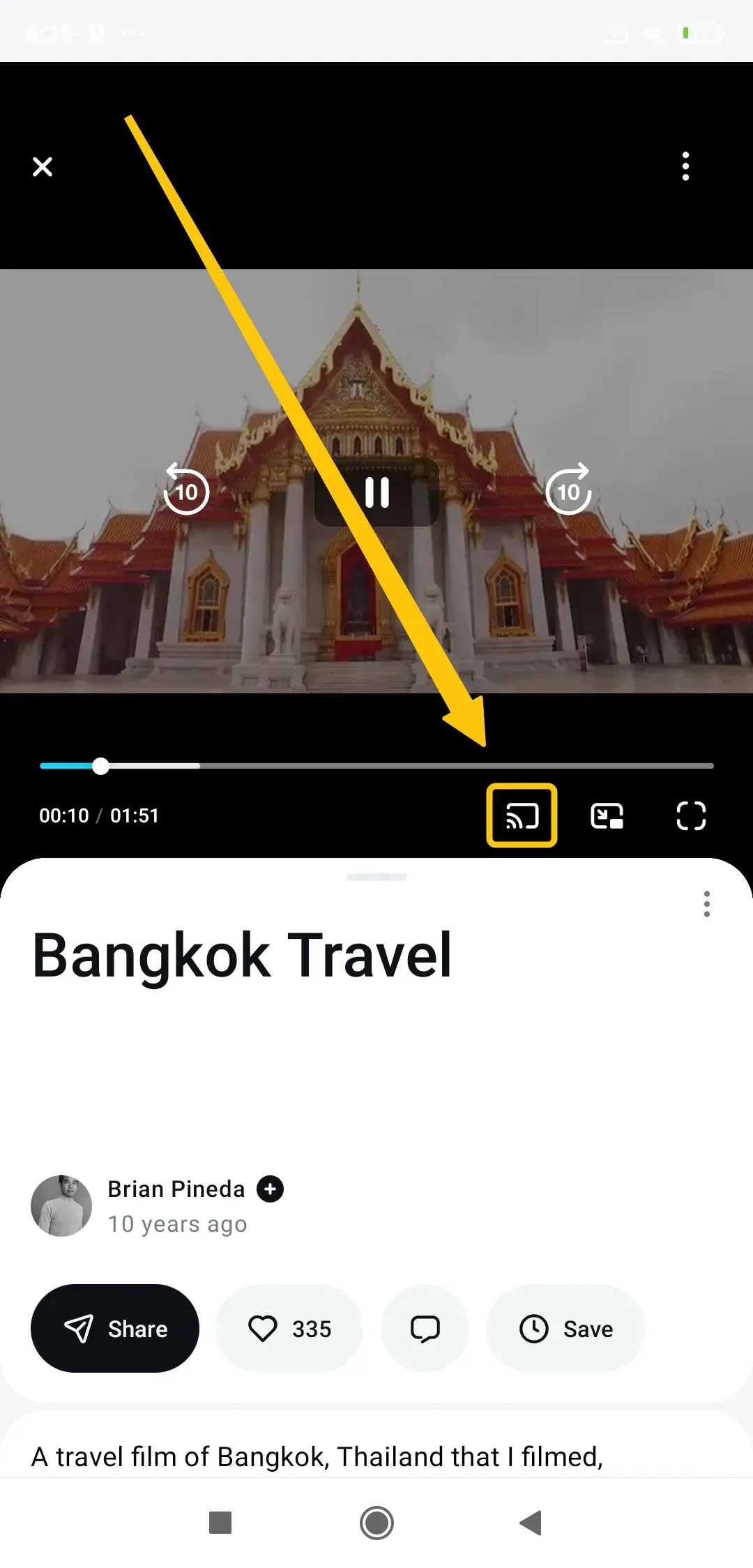
Step 2. Open the Vimeo app and tap the Cast icon in the top-right corner before playing the video.
Step 3. Tap your Chromecast name. The icon will pulse until it turns solid. If the "Google Home" media overlay appears in your notification shade, the handshake is successful.
Step 4. Start your video. You can now lock your screen or use other apps, and Chromecast will pull the stream directly from Vimeo's cloud.
Chromecast Vimeo iPhone
While iOS does not natively support Chromecast at the system level (Control Center only supports AirPlay), the Vimeo app includes a built-in Google Cast SDK. This allows iPhones running iOS 15.0 or later to communicate with Chromecast devices directly from within the app interface. Here's how to stream Vimeo on Chromecast from iPhone:
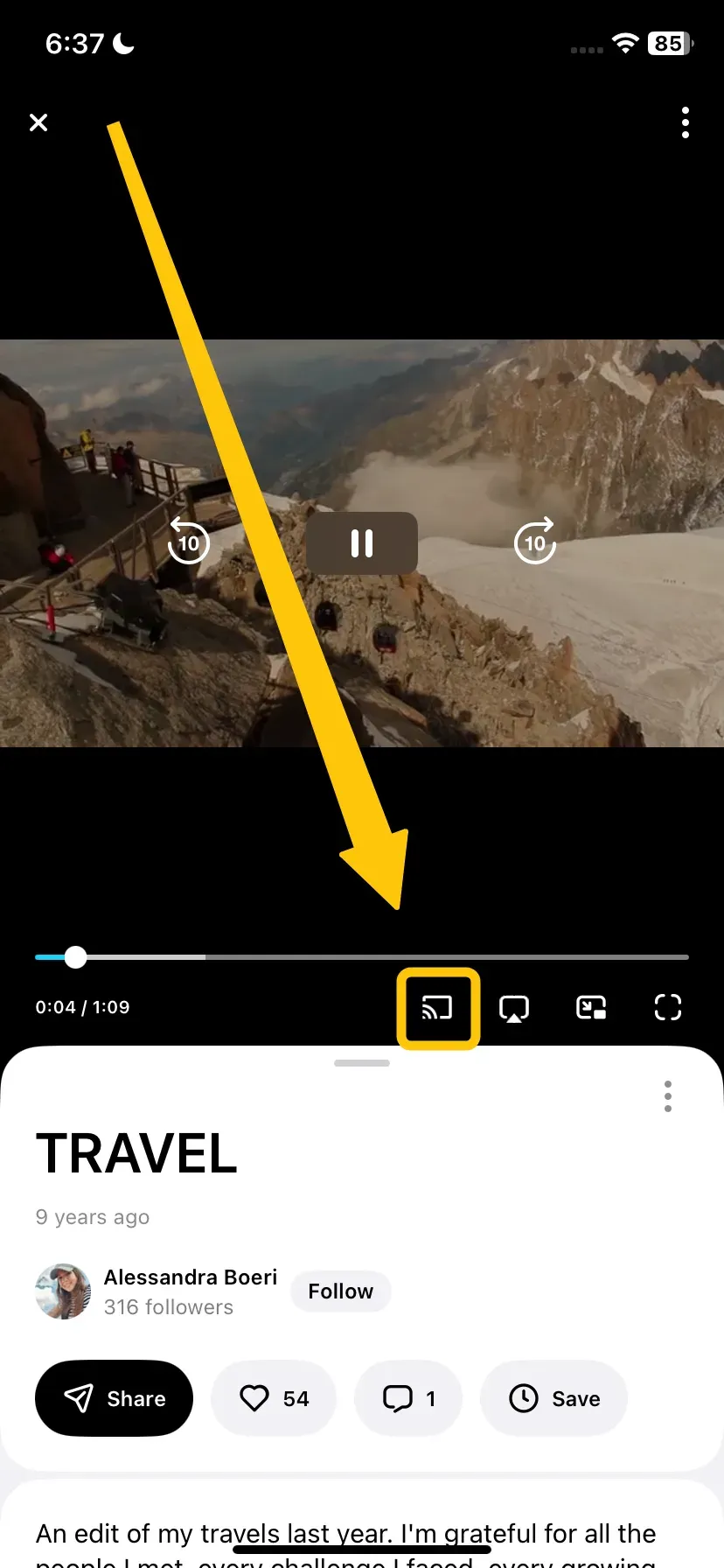
Step 1. Ensure your iPhone is on the same primary Wi-Fi as the Chromecast.
Step 2. Open the Vimeo app and tap the Cast icon (square with signal waves).
Step 3. Select your target receiver. Once the TV displays the "Vimeo" splash screen, hit play.
Chromecast Vimeo Desktop (Chrome & Edge)
Desktop casting is the most robust method for Windows, macOS, and Linux users because it leverages the Chromium Media Router—a sub-system that can mirror a browser tab even if the video player itself lacks a Cast button. This path is uniquely capable of handling Vimeo Pro, Business, and password-protected content that often fails on mobile due to credential-handshake errors. Read on to check Vimeo player Chromecast:
Step 1. Your PC/Mac must be on the same primary Wi-Fi or Ethernet subnet as the Chromecast.
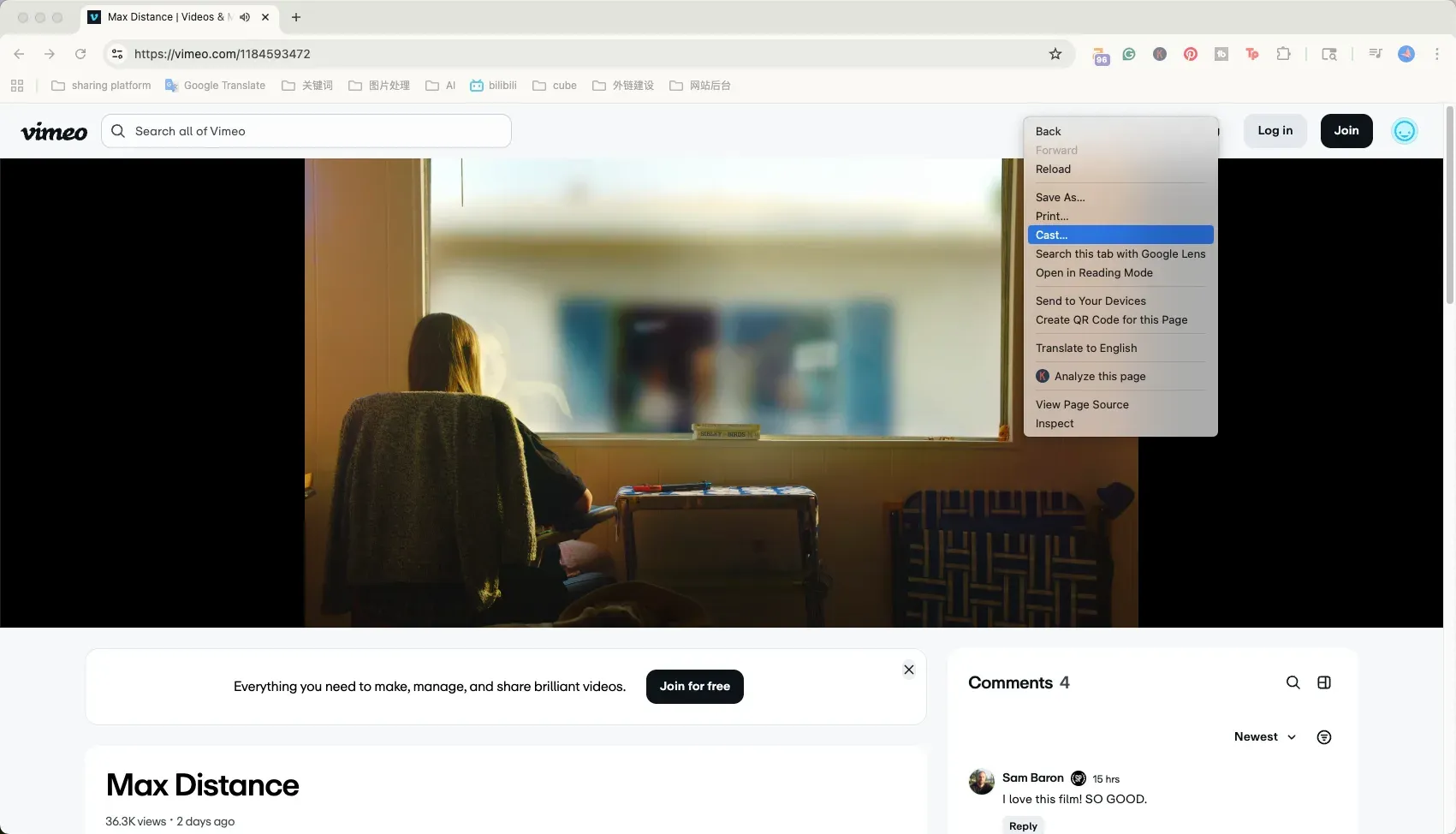
Step 2. Open the Vimeo video page. You have two primary paths:
-
In-Player: Click the Cast icon inside the Vimeo player's settings (the gear icon).
-
Browser Menu: Click the three dots (top right) > Cast, Save, and Share > Cast... (or right-click any empty space and select Cast...).
Step 3. In the "Sources" dropdown, ensure the Cast tab is selected. Unlike "Cast screen", which mirrors your entire monitor and lags, "Cast tab" sends the raw video stream directly to the Chromecast hardware for 1080p/4K optimization.
PigeonCast: A Cross-Protocol Chromecast Alternative
Native casting often hits a wall when trying to bridge different ecosystems, specifically when casting from an iPhone to a Google-based receiver. If the native Vimeo icon refuses to appear or your browser's Media Router fails to discover the TV, PigeonCast serves as a specialized Chromecast alternative designed to bypass these protocol restrictions.


Overall Rating:



Step 1. Install the PigeonCast on the device you want to watch on (Smart TV, PC, or Mac) from the app store.
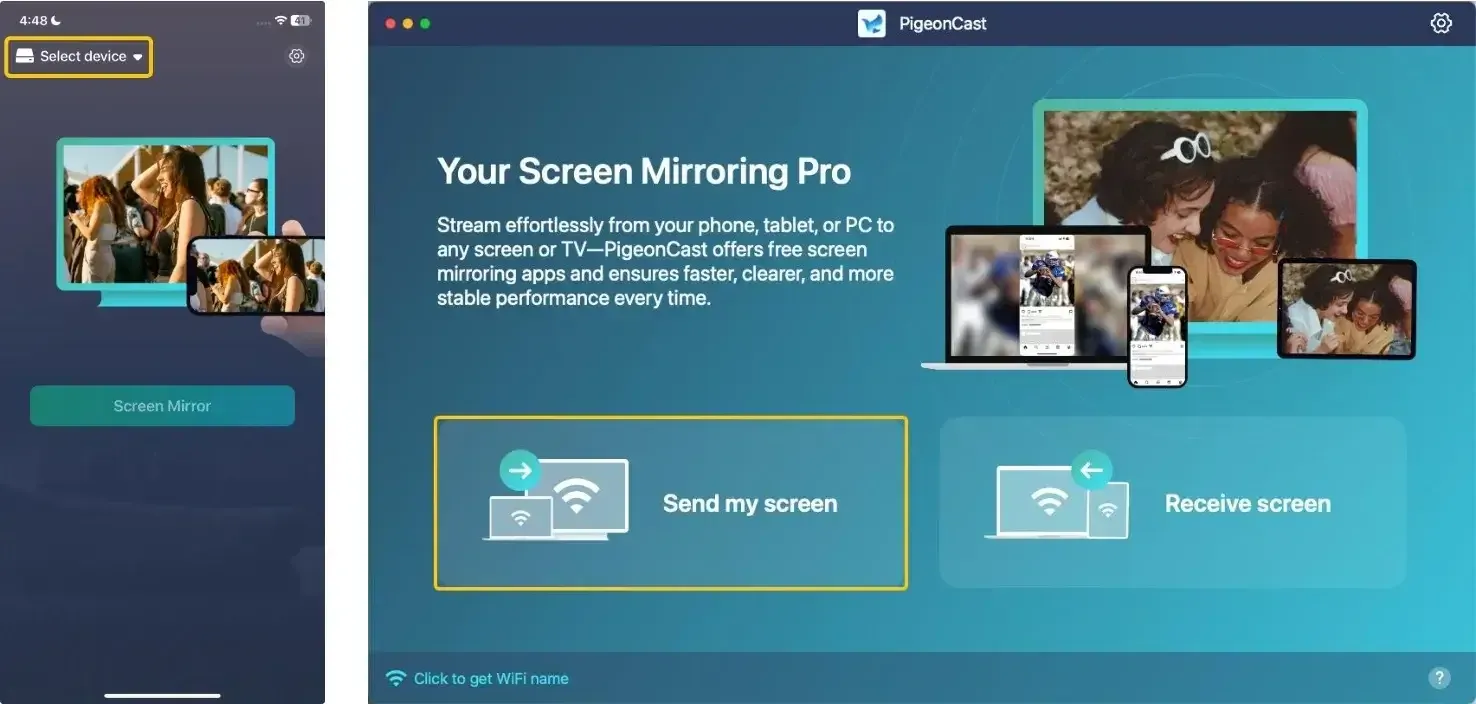
Step 2. Open the PigeonCast app on your phone or use the desktop version. Tap Select device or Send my screen to select your target device from the list.
Step 3. Enter the onscreen PIN code to finish the pairing process.
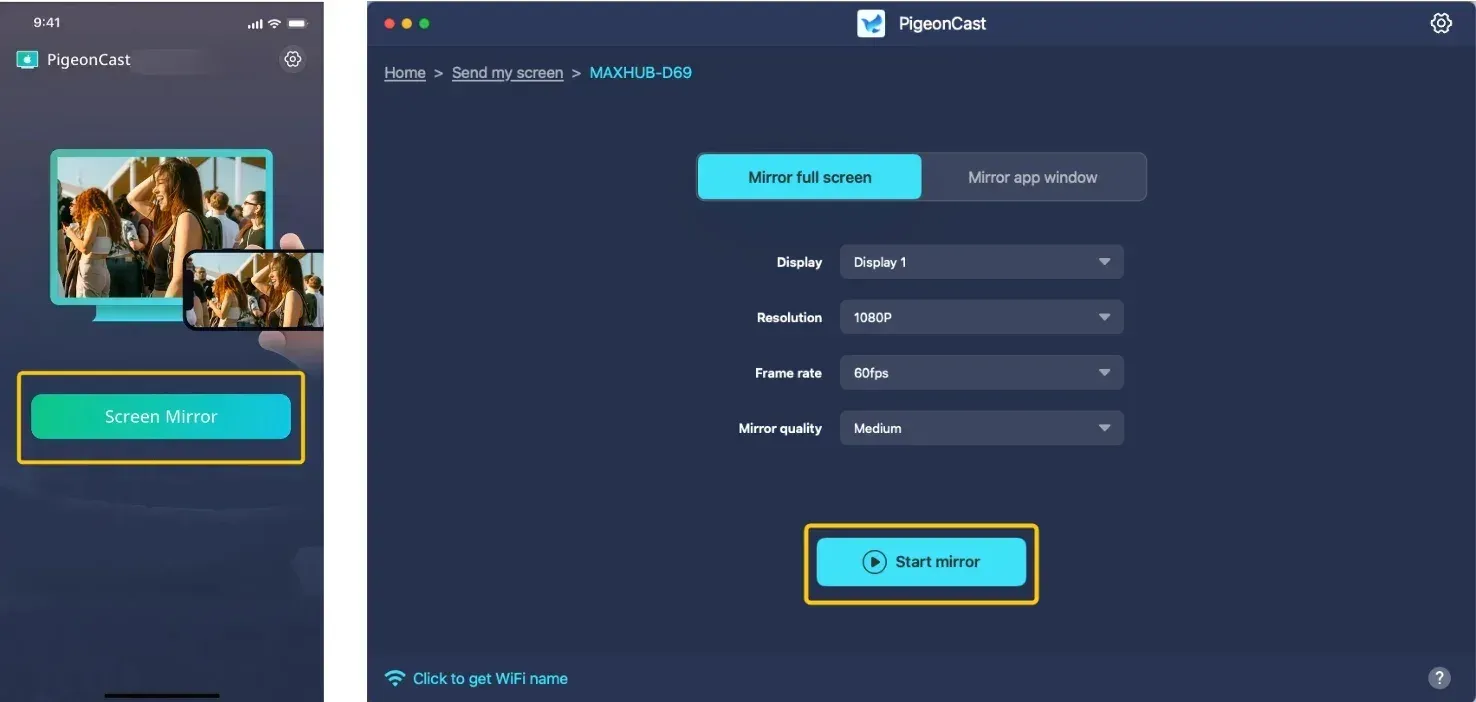
Step 4. Once the handshake is confirmed, click Screen Mirror or Start mirror to cast Vimeo to Chromecast. If you use a laptop, you are allowed to cast the whole screen or a single app window.
Vimeo Won't Cast to Chromecast
When Vimeo not working on Chromecast, do not waste time on random reboots. Use this diagnostic ladder to isolate the specific failure class and resolve the blocker systematically.
- Cast Icon is Missing (Network Visibility)
The most common cause is a mismatched Wi-Fi SSID or a hidden network permission. Confirm both devices are on the same 2.4GHz or 5GHz band; separate VLANs or Guest networks will block the discovery protocol. On iOS, the Local Network toggle in system settings must be manually enabled for the Vimeo app to "see" the receiver.
- Icon Appears Only on Some Videos (Creator Restrictions)
Vimeo allows video owners to disable casting at the individual video level. If the Cast icon is visible on a public "Staff Pick" but disappears on your specific video, you are facing a hard account-level restriction. No amount of troubleshooting or resetting can bypass a creator-side block.
- Device Selected but Screen Stays Black (Handshake Failure)
This indicates the receiver has acknowledged the request but the media URL failed to load. Force-close the Vimeo app or refresh the browser tab to clear the hung network session. If the TV displays the Vimeo splash screen but the video never starts, the receiver's firmware likely needs a cold reboot to clear its cache.
- Playback Drops When Phone Sleeps (Session Management)
On Android, aggressive Battery Optimization often kills the background "Cast Heartbeat" required to keep the session alive. On desktop, if the stream stops when switching tabs, ensure you are using "Cast tab" instead of "Cast screen" to allow the Chromecast to pull the stream directly from the cloud.
- Constant Buffering or Low Resolution (Throughput Limits)
High-bitrate 4K Vimeo content can saturate older 2.4GHz Wi-Fi channels. If buffering persists, manually lower the player quality to 1080p. If multiple devices are active, a 10-second power cycle of the router is necessary to clear the NAT table and restore priority to the media stream.
Bottom Line
Successful play Vimeo to Chromecast relies on precise Wi-Fi synchronization and updated software across all platforms. While native integration works for most, ecosystem barriers on iOS often hide the cast icon, making a cross-protocol alternative like PigeonCast essential for a reliable connection. By following a structured execution order and a symptom-based recovery ladder, users can bypass discovery errors and creator restrictions to ensure a stable viewing experience.
Vimeo Chromecast FAQ
How to enable and troubleshoot Vimeo subtitles on Chromecast?
Successfully displaying subtitles on a secondary screen requires a stable metadata handshake between the Vimeo player and the receiver. If captions appear on your device but not the TV, use these targeted synchronization steps:
-
Tap the Cast icon and select your receiver first.
-
Once the stream is active on the TV, open the CC menu on your phone or browser.
-
Select the desired language. The player will pulse as it pushes the subtitle coordinates to the hardware.
Why is the Chromecast icon missing on Vimeo?
-
Local Network Permissions (iOS Only)
-
Creator-Level Restrictions
-
Network Isolation & Discovery Blocks
-
Browser Router Stalls (Desktop)
Does Vimeo work on Chromecast?
Yes, Vimeo is fully compatible with Chromecast, though the streaming experience varies depending on your device and content settings. To ensure a successful connection, you can initiate a stream via the native Vimeo app (Android/iOS) or through a Chromium-based browser (Chrome/Edge) on your desktop.
Why Vimeo won't cast to your TV?
When Vimeo fails to cast, the issue typically falls into one of three categories: a broken discovery "handshake", a creator-imposed restriction, or a protocol mismatch between your devices.
-
Discovery and Network Issues
-
Local Network Permissions (iOS)
-
Content and Account Restrictions
-
Handshake Failures and Hardware Stalls
Why is Vimeo not working on Chrome?
If Vimeo is not working on your Chrome browser, the failure is typically triggered by one of the following technical conflicts:
-
Extension Interference: Ad-blockers, tracking shields, or script-management extensions (like uBlock Origin or Ghostery) often misidentify Vimeo's player scripts or DRM (Digital Rights Management) modules as malicious, causing the player to hang or fail to load.
-
Hardware Acceleration Mismatch: Chrome uses your GPU to decode high-definition video. If there is a compatibility gap between your current graphics drivers and Chrome’s internal rendering engine, the player may produce a green screen, a black box, or a total browser crash.
-
Media Router Stalls: Chrome's internal sub-system for discovering network devices (the Media Router) can become unresponsive or blocked by "Incognito Mode" privacy settings, preventing the browser from identifying a Chromecast or Smart TV on your network.
-
Corrupted Service Workers: Vimeo utilizes Service Workers to manage local buffering and playback data. If these background scripts become corrupted or out of sync with the latest site update, the player will often enter an infinite buffering loop.
-
Protocol Handshake Failure: When casting, Chrome must perform a multicast discovery to find your TV. Strict local network security, active VPNs, or internal browser flags can prevent this "handshake," causing the cast icon to disappear even if your internet is working.
Does Vimeo have a Cast option?
Yes, Vimeo has a built-in Cast option, though its visibility depends on your device and the specific settings chosen by the video's creator. Where to find the Cast option:
-
On Mobile (iOS & Android): Open the Vimeo app and start playing a video. The Cast icon (a rectangle with signal waves) will appear in the player's bottom-right or top-right corner.
-
On Desktop (Chrome/Edge): You can use the player's native button or the browser's system menu (Three dots > Save and Share > Cast...). For the best results, ensure you select Cast tab so the Chromecast pulls the high-bitrate stream directly from Vimeo's servers.
Clara Rossi is an experienced technology editor and a seasoned expert in screen mirroring and casting technologies. With a keen eye for detail and a deep understanding of how to seamlessly connect devices, Clara excels at optimizing user experiences for effortless sharing and streaming. Whether you're seeking quick fixes or advanced tips, her expertise and responsiveness ensure that every query is met with a well-informed and efficient solution.