
If Chromecast is not working on your iPhone, start with the iOS Local Network permission and Wi-Fi connection, as these are the two most common causes. If neither solves it, the problem may lie with the casting app, Chromecast setup, or network configuration. Follow the fixes below in order to find the cause without resetting everything too early.
How to Fix Chromecast Not Working on iPhone
Start with the Wi-Fi connection and iPhone permissions, as both determine whether your iPhone can discover Chromecast. Test the connection after each fix before moving to the next one.
Fix 1. Fix the Wi-Fi and Local Network Connection
Your iPhone and Chromecast must be able to find each other through the local network. Check the Wi-Fi connection, iPhone permission, and router restrictions together.
Step 1. Open Settings > Wi-Fi on your iPhone and note the full name of the connected network.
Step 2. Open Google Home, select your Chromecast, and go to Settings > Device information > Wi-Fi. Connect both devices to the same network if the names do not match.
Step 3. Go to Settings > Privacy & Security > Local Network on your iPhone. Enable access for Google Home and the app you use to cast.
Step 4. Temporarily turn off any VPN or network-filtering app that may prevent local device discovery.
Step 5. Make sure neither device is using a guest network. If your router has AP isolation, client isolation, or a similar setting enabled, turn it off so devices on the network can communicate.
Step 6. If the network is still unstable, unplug the router for two minutes, reconnect it, and wait until both devices are back online.
Fix 2. Check Whether the App Supports Chromecast
Chromecast works through apps that support Google Cast. It does not appear under Control Center > Screen Mirroring, which searches for AirPlay receivers instead. If you have been looking for Chromecast there, open a Cast-enabled app and connect from inside the app.
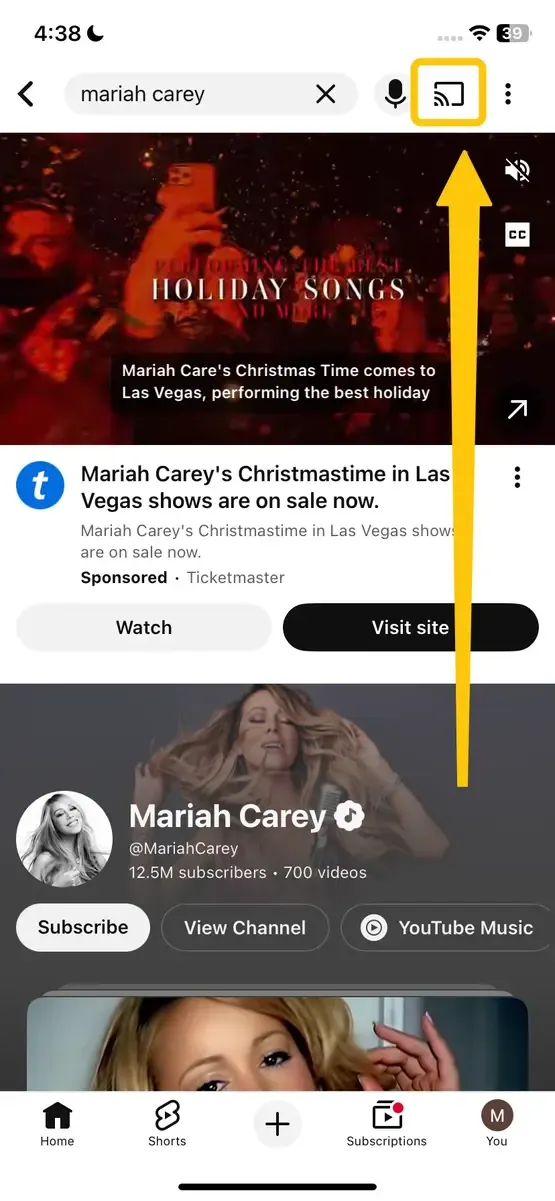
Step 1. Open an app that supports Google Cast, such as YouTube or Spotify.
Step 2. Start playing a video or song, then tap the Cast icon inside the app.
Step 3. Select your Chromecast or Google Cast-enabled TV from the device list.
Step 4. If the Cast icon is missing or no device appears, test another Cast-enabled app. If the second app works, the problem is limited to the original app. If neither app finds your Chromecast, continue to Fix 3.
- Tip: Mirror an App Without a Cast Button
If Chromecast works in a supported app but the content you want to show has no Cast option, the Chromecast connection itself is working. You can use PigeonCast to mirror your iPhone screen to Chromecast instead of relying on an in-app Cast button. The app supports Google Cast, AirPlay, and DLNA, giving you another way to share apps, photos, videos, browser pages, and presentations on a larger screen.


Overall Rating:



Fix 3. Restart the App, iPhone, and Chromecast
A temporary error in the casting app, iOS, or Chromecast can prevent a new connection even when the network settings are correct. Restart all three parts of the connection before changing more advanced settings.
Step 1. Open the App Switcher on your iPhone and swipe up on the casting app to close it completely.
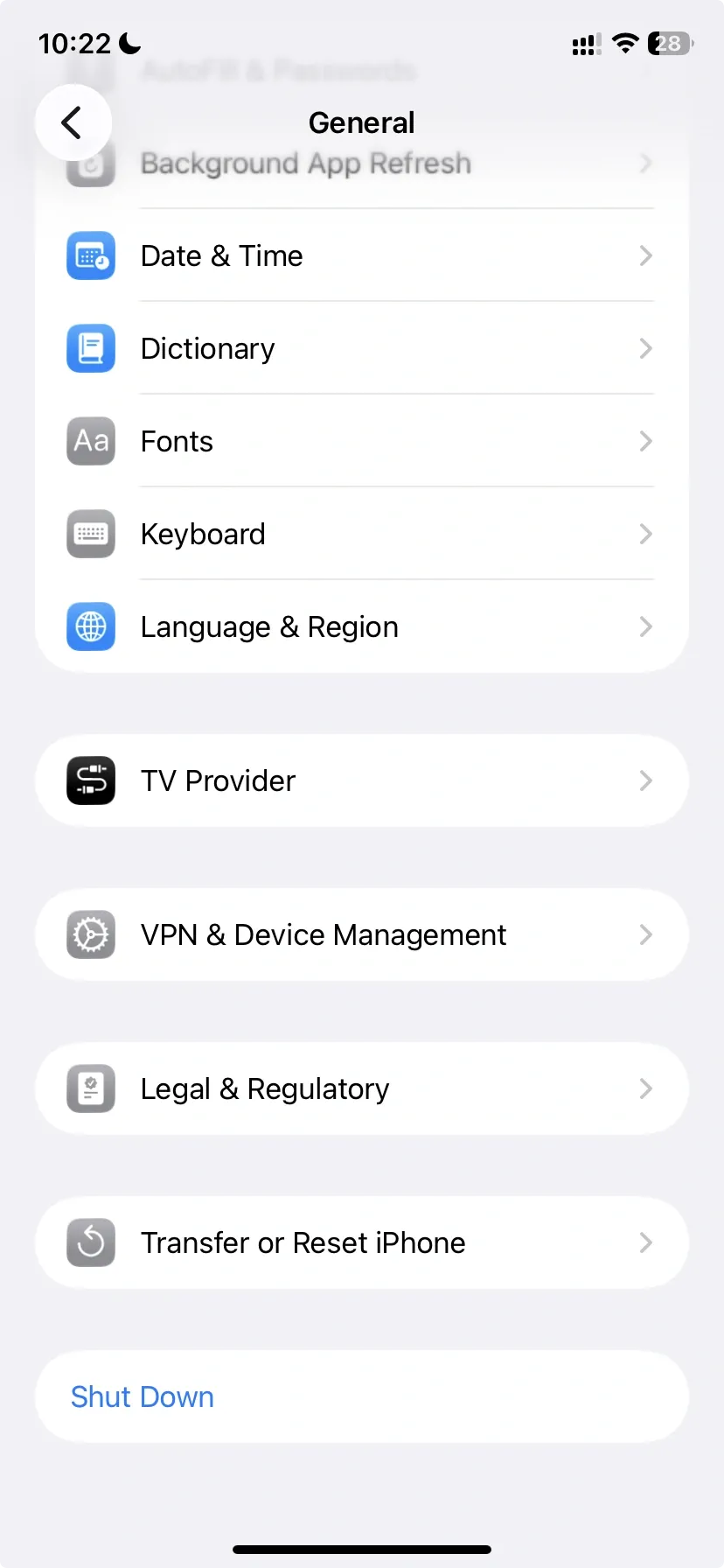
Step 2. Go to Settings > General > Shut Down, turn off your iPhone, and then switch it back on.
Step 3. Disconnect the power cable from Chromecast for about one minute. Reconnect the cable and wait for Chromecast to finish starting.
Step 4. Reopen the casting app, tap the Cast icon, and select your Chromecast.
Fix 4. Update iOS and the Casting Apps
An outdated iOS version or casting app may no longer communicate correctly with Chromecast. Update the iPhone software, Google Home, and the app that fails to cast.
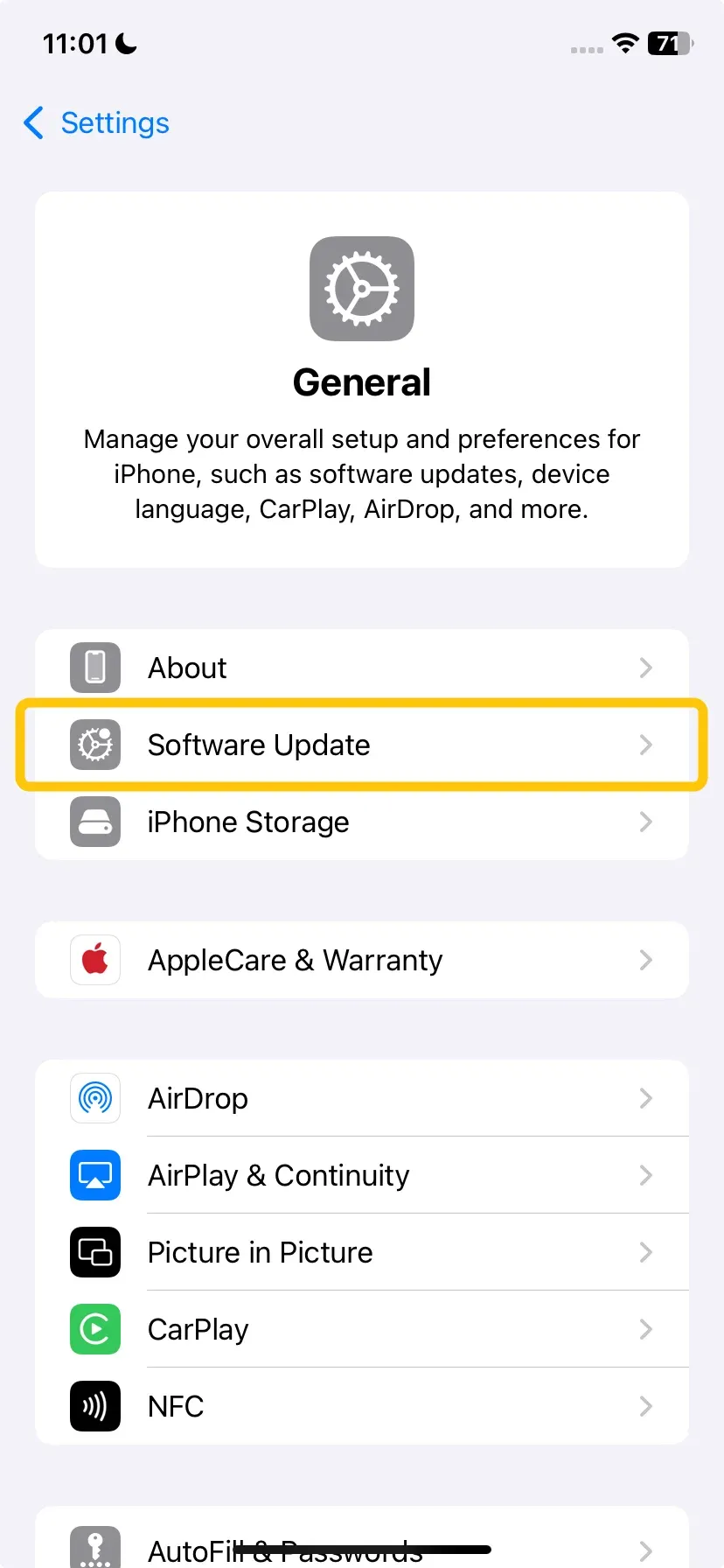
Step 1. Open Settings > General > Software Update on your iPhone. Install any available iOS update.
Step 2. Open the App Store, tap your profile picture, and scroll to the available updates.
Step 3. Update Google Home and the app you use to cast, such as YouTube, Netflix, or Spotify.
Step 4. Keep Chromecast powered on and connected to the internet. Chromecast firmware updates install automatically, so there is no manual update button in Google Home.
Step 5. Restart the updated app and try casting again.
Fix 5. Reinstall the App That Cannot Cast
If Chromecast works in other apps but fails in only one, the affected app may contain damaged or incomplete data. Reinstalling it gives the app a clean setup on your iPhone.
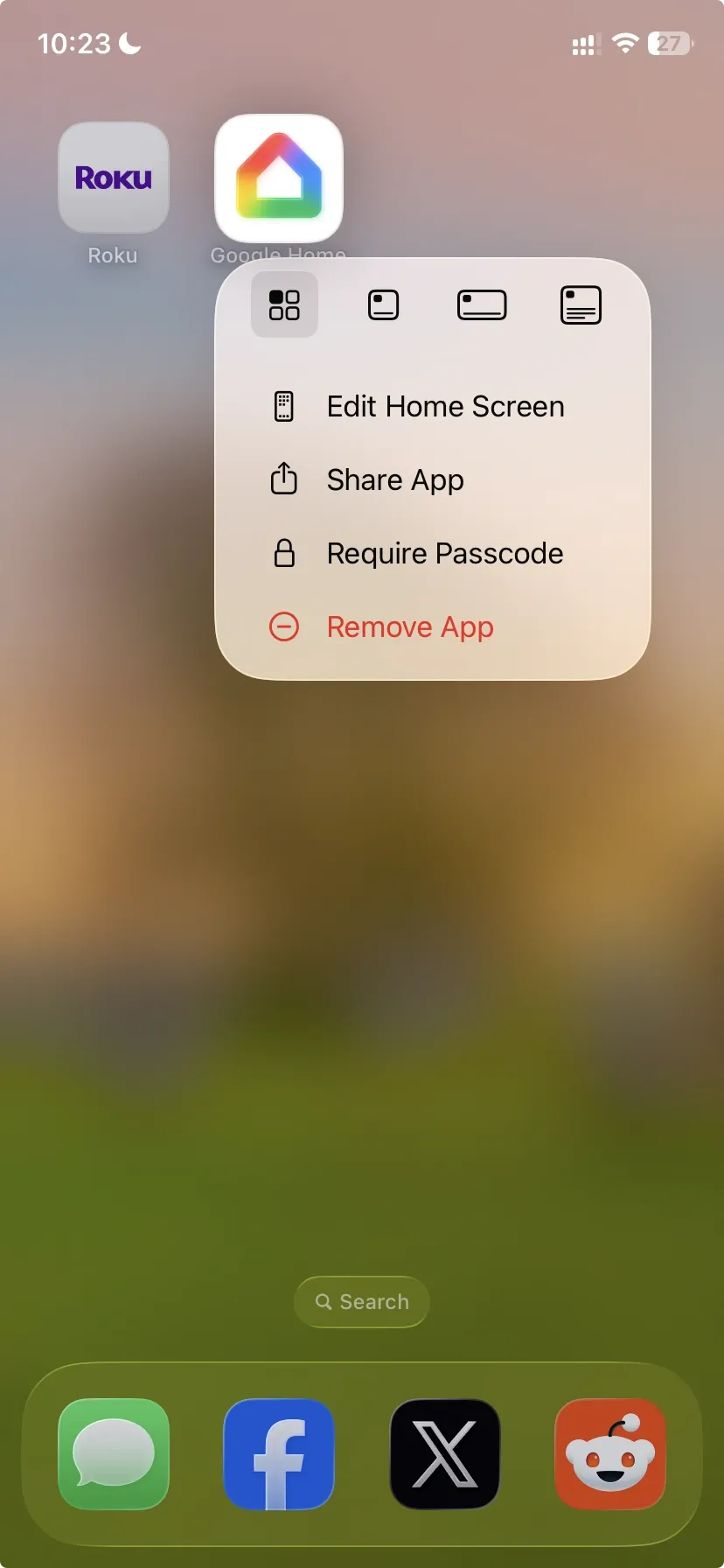
Step 1. Press and hold the app icon, then tap Remove App > Delete App.
Step 2. Open the App Store, search for the app, and install it again.
Step 3. Sign back in and allow Local Network access when requested.
Step 4. Open the app, play some content, and tap the Cast icon to reconnect.
Deleting an app may also remove its downloaded videos, music, or other offline content.
Fix 6. Check Whether Chromecast Is Online in Google Home
Your iPhone cannot connect if Chromecast is powered off, still starting, or shown as offline in Google Home. Check the receiving device before changing any more iPhone settings.
Step 1. Open Google Home and find your Chromecast under Devices.
Step 2. If it appears online, tap the device tile and confirm that Google Home can open its controls.
Step 3. If it appears offline, check the Chromecast power cable and make sure the TV is using the correct HDMI input. Use the supplied power adapter if the TV’s USB port does not provide stable power.
Step 4. Wait for the Chromecast home or ambient screen to appear on the TV, then check its status in Google Home again.
If your TV has Google Cast built in, restart the TV and confirm that it is connected to the network instead of checking an external Chromecast power cable.
Fix 7. Reconnect Chromecast to Wi-Fi
If you recently changed your router, Wi-Fi name, or password, Chromecast may still be using the old network details. Connecting your iPhone to the new Wi-Fi will not update Chromecast automatically.
- For Chromecast (3rd generation or older) or Chromecast Ultra:
Step 1. Open Google Home and touch and hold the Chromecast device tile.
Step 2. Tap Settings > Device information > Wi-Fi > Forget this network.
Step 3. Return to the Google Home home screen and tap Devices > Add > Google Nest or partner device.
Step 4. Follow the on-screen instructions to connect Chromecast to the current Wi-Fi network.
- For Chromecast with Google TV:
Step 1. Open Settings on the TV.
Step 2. Select Network & Internet, choose the current Wi-Fi network, and enter the password.
Fix 8. Factory Reset Chromecast
To factory reset Chromecast only if it remains unavailable in Google Home or cannot reconnect to Wi-Fi after the previous fixes. This removes its network, device name, and other saved settings, so you will need to set it up again.
- If Chromecast is still accessible in Google Home:
Step 1. Open Google Home and touch and hold the Chromecast device tile.
Step 2. Tap Settings > More > Factory reset.
Step 3. Tap Factory reset again to confirm.
Step 1. Keep Chromecast connected to the TV and powered on.
Step 2. Press and hold the button on the Chromecast device. The LED will begin blinking orange on many older Chromecast models or yellow on Chromecast with Google TV.
Step 3. Release the button when the LED turns solid white and the TV screen goes blank.
Step 4. Open Google Home on your iPhone and follow the setup instructions to add Chromecast again.
These button and LED behaviors may vary by Chromecast generation, so check Google’s instructions for your exact model before performing the physical reset.
Bottom Line
Once Chromecast reconnects, confirm that playback, pause, and disconnect controls all work from the same iPhone app. If other apps cast normally but one service still fails, treat it as an app-specific problem instead of changing the Chromecast setup again. This helps you preserve a working connection and avoid unnecessary resets.
Chromecast Not Working on iphone FAQ
Will Chromecast Keep Playing If You Lock Your iPhone?
Yes, content from services such as YouTube and Spotify normally continues playing after you lock the iPhone. Chromecast receives the stream directly and does not need the app to remain visible on your screen. Playback may stop when you are casting a local file through an app that must remain active.
Does Chromecast Use Bluetooth on an iPhone?
Chromecast uses Wi-Fi to receive media and playback commands. Bluetooth may help detect or configure certain models during setup, but it does not carry the video or audio stream. Leaving Bluetooth off after setup normally has no effect on an existing Wi-Fi casting session.
Can Chromecast Work Without an Internet Connection?
Most streaming services require an internet connection even when your iPhone and Chromecast can see each other on the local network. Some apps can send downloaded or locally stored media over Wi-Fi, but support varies by app and Chromecast model. A Wi-Fi network without internet access is therefore not a reliable option for every type of content.
Can You Listen Through AirPods While Casting to a TV?
Not through the iPhone’s normal AirPods connection. Once you cast, Chromecast sends the audio to the TV or its connected sound system rather than back to the iPhone. If you use Chromecast with Google TV, you may be able to pair Bluetooth headphones directly with the Google TV device.
Can You Cast 4K Video from an iPhone?
Yes, but the final resolution depends on the Chromecast model, TV, streaming service, subscription plan, and source video. The iPhone does not force Chromecast to output 4K. A service may also lower the resolution when the connection cannot maintain the required speed.
Why Is Chromecast Audio Out of Sync with the Video?
Audio delay may come from the streaming app, TV picture processing, soundbar, or Bluetooth audio connection. Pause and resume the video first, then test the TV speakers without a soundbar or Bluetooth device. If the TV has lip-sync, audio-delay, or heavy motion-processing settings, adjust or disable them and test again.
Clara Rossi is an experienced technology editor and a seasoned expert in screen mirroring and casting technologies. With a keen eye for detail and a deep understanding of how to seamlessly connect devices, Clara excels at optimizing user experiences for effortless sharing and streaming. Whether you're seeking quick fixes or advanced tips, her expertise and responsiveness ensure that every query is met with a well-informed and efficient solution.