
Want to cast Google Drive to your TV? The easiest method depends less on Google Drive itself and more on what you are trying to display.
A video stored in Drive may work well with Chrome casting, while PDFs, documents, spreadsheets, and presentations are usually easier to control through screen mirroring. Your device also matters: Android, iPhone, Windows, and Mac each offer slightly different ways to get Drive content onto a bigger screen.
This guide walks through the practical options and helps you choose the right one.
Can You Cast Google Drive Directly to a TV?
You can show Google Drive content on a TV, but there is no single universal Cast workflow that works equally well for every device and file type.
Google Drive is mainly where your files are stored. When you want to put those files on a TV, the actual connection is usually handled by another feature, such as Google Cast or Chrome casting, screen mirroring, AirPlay, a third-party screen mirroring app, or an HDMI cable.
For example, a Drive video opened in Chrome can often be cast to a Chromecast-enabled TV. A PDF or spreadsheet usually works better when you mirror the entire screen because you still need to scroll, zoom, or move between pages.
So instead of asking whether Google Drive itself can Cast, it is more useful to choose a method based on your device and file type.
Best Way to Cast Google Drive to TV
Here is the quickest way to decide which method to use:
| What you want to show | Recommended method | Why |
|---|---|---|
| Google Drive video from Windows or Mac | Chrome casting | Convenient for browser-based video playback |
| PDF, Doc, or spreadsheet | Screen mirroring | Easier to scroll, zoom, and interact with the file |
| Photos stored in Drive | Screen mirroring | Simple when browsing multiple images |
| Google Drive from Android | Android screen casting | Uses the phone's built-in wireless display controls when supported |
| Google Drive from iPhone | AirPlay or screen mirroring app | iPhone does not use Google Cast in the same way as Android |
| Mixed devices or incompatible TVs | PigeonCast | Provides another cross-platform screen mirroring route |
| Important presentation with unreliable Wi-Fi | HDMI | Avoids most wireless connection problems |
How to Cast Google Drive to TV
Once you know which casting method fits your file, the next step is choosing the right setup for your device. The process differs slightly between computers, Android phones, and iPhones, so follow the method below that matches the device you are casting from.
From Windows or Mac With Chrome
If you want to play a Google Drive video on your TV, casting it from Chrome on a laptop is one of the simplest options.
Step 1. Connect your laptop and TV or Chromecast to the same Wi-Fi network.
Step 2. Open Google Drive in Google Chrome.
Step 3. Open the video you want to watch and make sure it plays normally on the laptop.
Step 4. Open the Chrome menu and select Cast, save, and share > Cast.
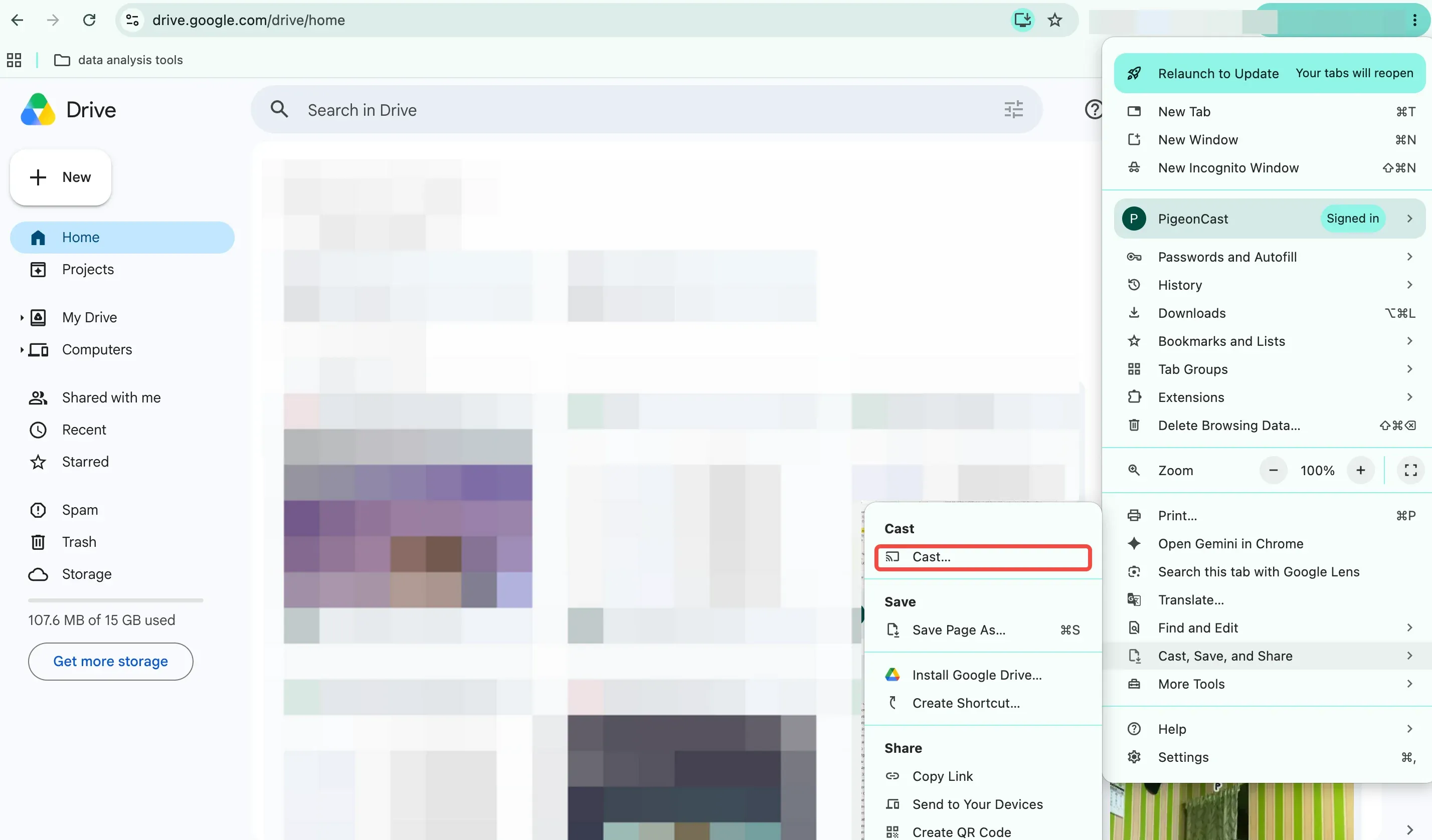
Step 5. Choose your TV or Chromecast from the available device list.
Step 6. Select Cast tab to display the Google Drive browser tab on the TV.
For a video, casting the browser tab is usually preferable to duplicating your entire desktop because you only send the content you actually want to watch.
If you need to switch between Google Drive, another browser tab, notes, or another app, use Cast screen instead.
From Android
Android devices often provide a built-in screen casting option, although the exact name can vary by phone manufacturer.
Step 1. Open the file you want to display in Google Drive.
Step 2. Swipe down to open Quick Settings.
Step 3. Look for Cast, Screen Cast, Smart View, or a similar screen sharing option.
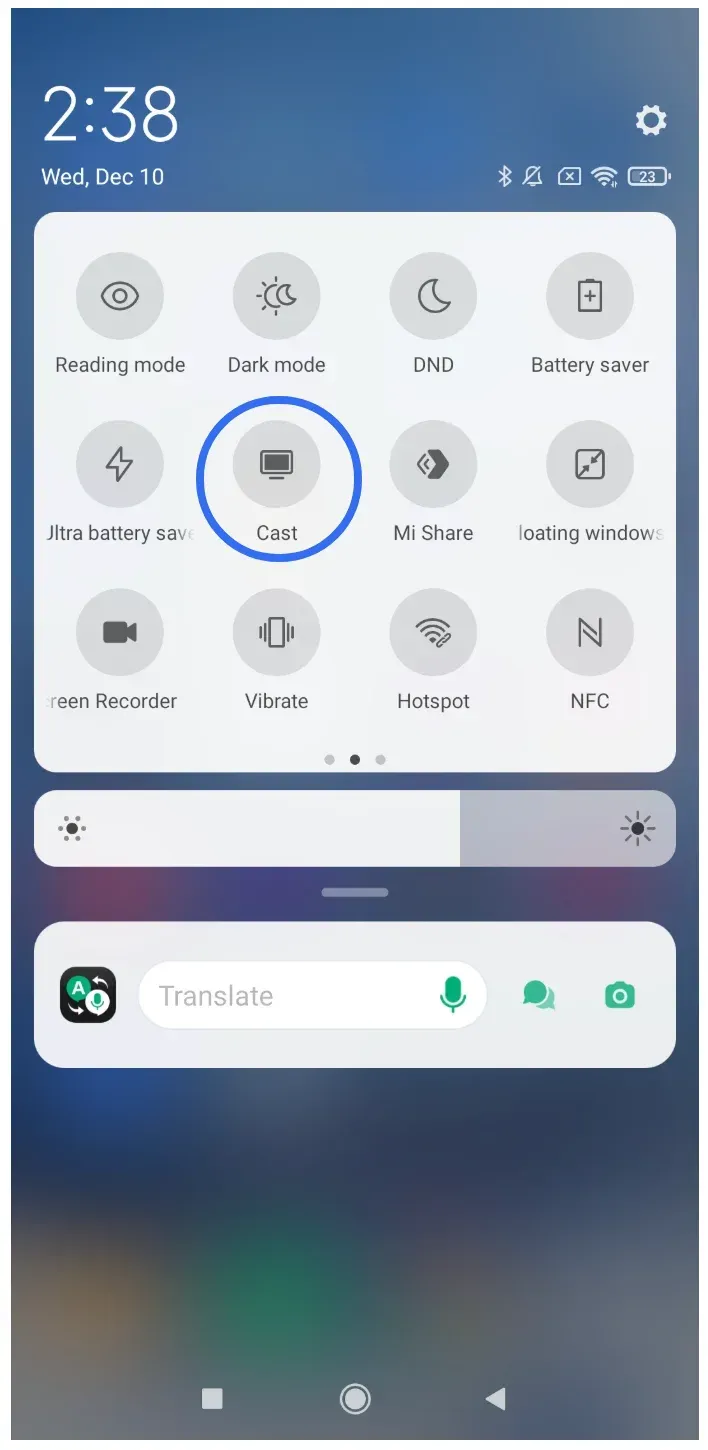
Step 4. Select your compatible TV or receiver.
Step 5. Return to Google Drive and open the file.
Your phone screen will remain the controller, making this method particularly useful for PDFs, documents, spreadsheets, lesson materials, and presentations.
If your TV does not appear in the device list, first make sure both devices are connected to the same local network.
From iPhone or iPad
Google Drive on iPhone does not provide the same system-level Google Cast workflow you may be familiar with on Android. If your TV supports AirPlay, screen mirroring is usually the simplest option.
Step 1. Open the Google Drive file on your iPhone or iPad.
Step 2. Connect your iPhone and TV to the same Wi-Fi network.
Step 3. Open Control Center.
Step 4. Tap Screen Mirroring.
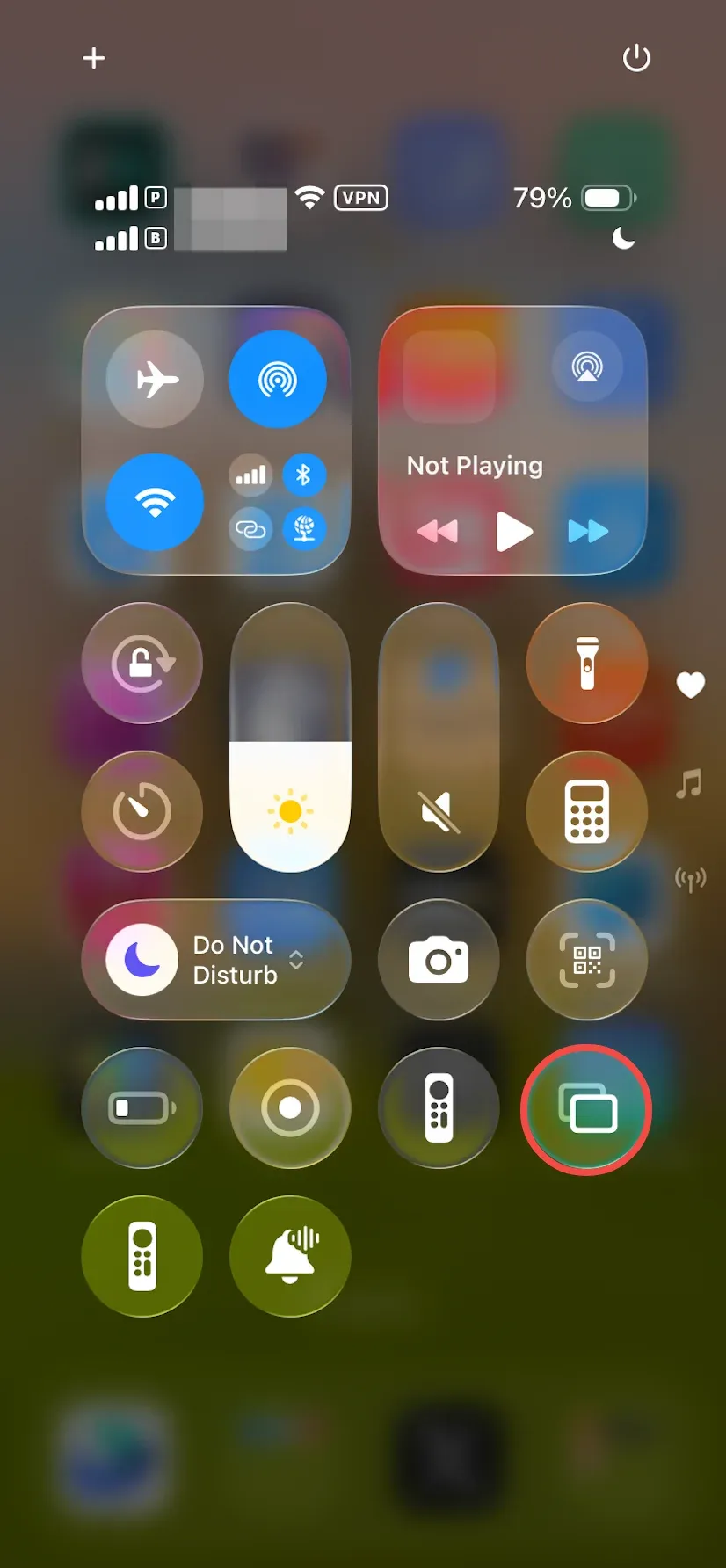
Step 5. Select your AirPlay-compatible TV or receiver.
Step 6. Return to Google Drive and control the file normally from your iPhone.
This works well for PDFs, photos, documents, and other files that require frequent interaction.
If your TV does not support AirPlay, or you are trying to show Google Drive content on a Chromecast, Google TV, or another device that does not fit the native AirPlay workflow, a third-party screen mirroring app can provide another route.
How to Mirror Google Drive to TV With PigeonCast
Native casting works well when all of your devices support the same ecosystem. It becomes less convenient when they do not.
For example, you may have:
- an iPhone but no AirPlay-compatible TV
- a Windows laptop and a smart TV
- several phones and computers using different operating systems
- Drive documents that are easier to show through full-screen mirroring than direct casting
In these situations, PigeonCast provides a cross-platform screen mirroring option.
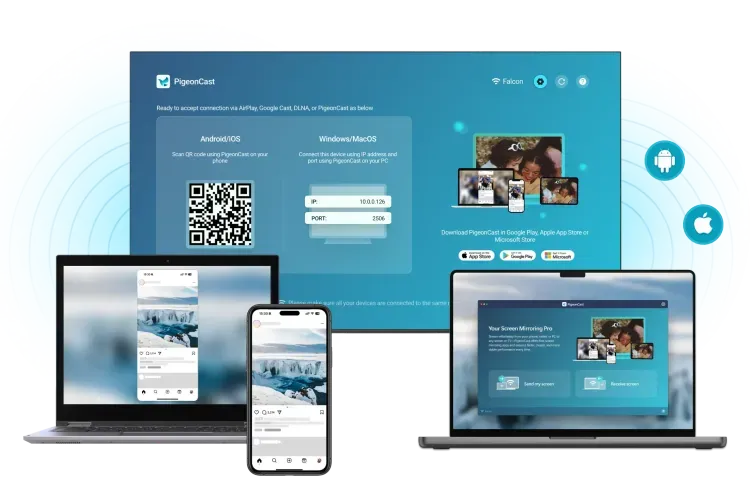
A typical setup looks like this:
Step 1. Open PigeonCast on the device you want to mirror and on the receiving device.


Overall Rating:



Step 2. Connect the two devices to the same Wi-Fi network.
Step 3. Start screen mirroring by choosing the TV from the list or scanning the QR code displayed on the TV
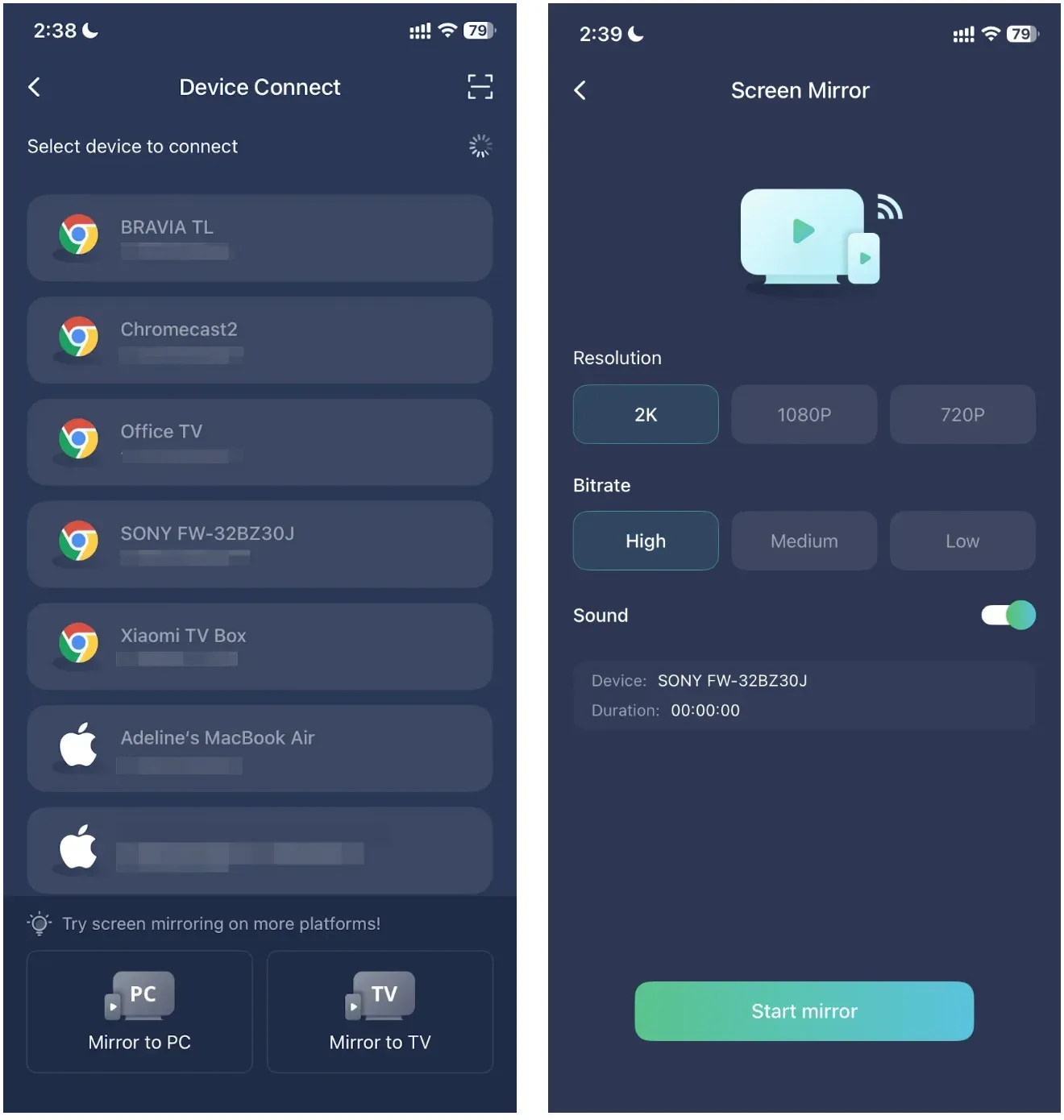
Step 4. Open Google Drive on your phone, tablet, or computer.
Step 5. Open the video, PDF, photo, spreadsheet, or presentation you want to display.
Because PigeonCast mirrors the screen rather than depending on Google Drive to provide its own Cast button, you can move between different Drive files and other apps without starting a new casting session each time.
This is especially useful for interactive files such as PDFs, spreadsheets, and presentations where you need to scroll, zoom, switch pages, or return to another app.
Which Method Is Best for Different Google Drive Files?
The best casting method also changes depending on what is stored in your Drive.
- Google Drive Videos
For videos opened from a Windows or Mac laptop, start with Chrome tab casting.
It keeps the TV focused on the video tab without showing everything else happening on your desktop.
If playback becomes unstable, check your Wi-Fi connection or try a different casting method.
- PDFs, Docs, and Spreadsheets
Screen mirroring is generally a better fit for documents.
Unlike a movie, documents require constant interaction. You may need to scroll through a long page, zoom into small text, move between spreadsheet cells, switch between different files, or compare information with another app.
Mirroring keeps all of those controls on your phone or computer while the TV acts as the larger display.
If you mainly need to show a PDF, you can also see our guide on how to display a PDF on TV.
- Photos
If you only want to display a few images on TV, screen mirroring is usually the simplest option.
Open the image on your device, start mirroring, and swipe between photos normally.
For photos already backed up to Google Photos, Google Photos casting may also provide a more media-focused viewing experience.
- Presentations
For presentations, choose between casting and mirroring based on how much control you need.
A simple slideshow can work over a wireless connection, but screen mirroring is more practical if you frequently switch between slides, notes, browser tabs, or supporting documents.
For an important meeting or class where connection reliability matters more than convenience, keeping an HDMI cable available as a fallback can save trouble.
What to Do If Google Drive Will Not Cast to TV
If your Drive file opens normally on your device but you cannot get it onto the TV, the problem is usually somewhere in the connection between the sender and receiver rather than Google Drive itself.
TV Does Not Appear in the Cast List
Start by checking the network.
Your phone or computer and TV normally need to be connected to the same local Wi-Fi network for device discovery to work.
Problems may occur if:
- one device is connected to mobile data
- one device is using guest Wi-Fi
- the TV is connected to a separate network
- network isolation prevents devices from seeing each other
- a VPN or local network permission interferes with discovery
Reconnect both devices to the same network and try again.
Google Drive Video Keeps Buffering or Lagging
Wireless video playback depends heavily on network stability.
If the video plays correctly on your laptop but becomes choppy on the TV:
- move the devices closer to the router
- reduce other heavy network activity
- reconnect the casting session
- try screen mirroring instead of tab casting, or vice versa
For an important presentation or long video where interruptions are unacceptable, a wired HDMI connection remains a useful fallback.
The File Opens but Does Not Display Correctly
Google Drive supports many different file types, but that does not mean every file will display equally well on a television.
Complex spreadsheets, unusual video formats, large documents, and scanned PDFs can be harder to work with.
If direct casting does not display the file correctly, switch to full-screen mirroring so the TV simply reproduces what already works on your phone or computer.
Screen Mirroring Looks Blurry or Laggy
Mirroring continuously sends your live screen to the TV, so it can require more network bandwidth than simple media casting.
If the image becomes blurry or delayed:
- Check the Wi-Fi connection.
- Reduce unnecessary network traffic.
- Keep the sender close to the router.
- Reconnect the mirroring session.
- Use HDMI if you need maximum stability.
For files containing very small text or detailed spreadsheet data, a wired connection may also give you more predictable display quality.
Conclusion
There is no single best button for casting everything stored in Google Drive.
The better approach is to choose the connection around what you are displaying and which devices you are using.
Chrome casting is convenient for Drive videos. Screen mirroring gives you more control over PDFs, documents, spreadsheets, and presentations. AirPlay works well within compatible Apple setups, while a cross-platform option such as PigeonCast can help when your phone, computer, and TV do not all use the same casting ecosystem.
Once the connection method fits the file and the devices, getting Google Drive onto a larger screen becomes much simpler.
Cast Google Drive to TV FAQ
Can I cast Google Drive to a smart TV without Chromecast?
Yes. Chromecast is only one way to display Google Drive content on a TV. Depending on your devices, you may also be able to use AirPlay, built-in screen mirroring, a third-party mirroring app, or HDMI.
Can I install Google Drive directly on my smart TV?
That depends on the TV platform and the apps available for that particular model. Even when there is no practical Google Drive TV app available, you can still open Drive on your phone or computer and cast or mirror the content to the TV.
Can I cast Google Drive to Roku or Fire TV?
The available method depends on the sender device and the receiving TV or streaming device. If there is no direct Google Drive casting path, screen mirroring or a cross-platform mirroring solution can be an easier way to display the file.
Can I cast Google Drive without Wi-Fi?
Most wireless casting and screen mirroring setups rely on a network connection between the sender and receiver. If Wi-Fi is unavailable or unreliable, HDMI is usually the simpler option.
Can I cast Google Drive from iPhone to Chromecast?
Google Drive on iPhone does not provide the same native Google Cast workflow as many Android setups. If you need to display Drive content from an iPhone on a Chromecast-based TV, a third-party screen mirroring solution can provide an alternative.
Why does my Google Drive video have no sound on the TV?
First confirm that the video has sound when played directly on your phone or computer. Then check the TV volume and the casting or mirroring method you are using. If video appears but audio does not, reconnect the session or try another playback method to determine whether the problem comes from the file or the wireless connection.
Mia Clarke is a technology editor specializing in screen mirroring and casting solutions across multiple platforms. Mia provides clear, practical guides and in-depth insights to help users seamlessly connect their devices. Passionate about enhancing digital experiences, Mia is dedicated to keeping readers updated on the latest trends and tools in cross-platform screen sharing. Whether you’re looking to mirror your smartphone, laptop, or smart TV, Mia’s content delivers reliable, user-friendly advice to simplify your tech setup.