
If you are trying to watch Netflix from your phone on a bigger screen, the answer can be surprisingly confusing. Casting may work while screen mirroring does not. Your TV may appear in the connection menu, but the Netflix video stays black. On an iPhone, AirPlay may work with other streaming apps but fail with Netflix.
So, does Netflix block screen mirroring?
Not completely. Netflix does not treat every phone-to-TV method the same way. Some casting methods are officially supported, while generic wireless screen mirroring may work only on certain devices and setups. On iPhone and iPad, Netflix does not support AirPlay.
The easiest way to understand the issue is to separate casting, screen mirroring, and AirPlay. They may look similar from the user's point of view, but technically they work in different ways—and Netflix supports them differently.
Does Netflix Block Screen Mirroring?
Netflix does not apply one universal block to every type of screen mirroring. Instead, compatibility depends on how you are sending the video to the TV.
Netflix officially supports playback on a large range of smart TVs, streaming devices, game consoles, and other compatible hardware. It also supports casting from mobile devices to certain receivers. Generic wireless mirroring, however, is less predictable. Netflix notes that some devices or mirroring apps may not be supported.
That distinction matters.
If Netflix does not play when you mirror your phone to a TV, it does not necessarily mean that Netflix has completely disabled all screen sharing. It may simply mean that the particular mirroring method you are using is not supported by Netflix on that combination of phone, TV, operating system, and receiving device.
The practical takeaway is simple:
- Netflix can work on a bigger screen without mirroring your entire phone.
- Casting and screen mirroring are not the same thing.
- AirPlay from an iPhone or iPad is not a supported Netflix playback method.
- Wireless mirroring may work in some setups, but it should not be assumed to work everywhere.
Before troubleshooting further, it helps to understand the difference between these connection methods.
Casting vs. Screen Mirroring vs. AirPlay: What's the Difference?
People often use the phrase "screen mirroring" for almost any situation where something on a phone appears on a TV. In practice, several different technologies can be involved.
Netflix behaves differently depending on which one you use.
Casting
Casting sends a playback request to another device rather than continuously copying everything on your phone screen.
For example, when you tap a Cast icon inside a supported app, your phone acts mainly as a controller. The receiving device then handles the Netflix stream itself.
This is why you may be able to cast Netflix to TV:
- Open Netflix on your phone.
- Choose a compatible casting device.
- Start a movie or show.
- Lock your phone or use another app while Netflix continues playing on the TV.
The TV or streaming receiver is doing the actual playback.
That makes casting fundamentally different from screen mirroring. It is also one reason Netflix can support casting on certain devices even when ordinary wireless mirroring does not work.
Screen Mirroring
Screen mirroring duplicates your phone's display on another screen.
Instead of telling the TV to stream Netflix independently, the phone continuously sends a representation of its screen to the receiver.
This is useful for photos, presentations, websites, home videos, and many other types of content. Streaming video can be more complicated because the app, operating system, receiving device, and video-protection system all need to cooperate.
As a result, you may see situations such as:
- the TV showing your phone's home screen normally;
- Netflix menus appearing on the TV;
- audio playing but video remaining black;
- playback stopping when a movie starts;
- the connection working in other apps but not Netflix.
Those symptoms do not necessarily mean your Wi-Fi or TV is malfunctioning. The mirroring connection itself may be working while Netflix playback through that method is unsupported.
AirPlay
AirPlay is Apple's wireless technology for sending video, audio, photos, or a mirrored screen from Apple devices to compatible receivers.
Normally, an iPhone or iPad can use AirPlay with an Apple TV or many AirPlay-enabled smart TVs. However, individual apps can decide whether they support AirPlay playback.
Netflix does not support AirPlay from iPhone and iPad.
This is an important distinction because owning an AirPlay-compatible TV does not automatically mean every streaming app on your iPhone can send video to it through AirPlay.
If other apps work through AirPlay but Netflix does not, the problem is not necessarily your TV. Netflix simply does not offer AirPlay as a supported playback option on iPhone and iPad.
Does Netflix Screen Mirroring Work on iPhone and Android?
The experience is different depending on the mobile platform you use.
Netflix Screen Mirroring on iPhone and iPad
For iPhone and iPad users, AirPlay is the most important limitation to understand.
Netflix does not support AirPlay playback from these devices. So the familiar workflow of opening a video on your iPhone, tapping AirPlay, and selecting an Apple TV or compatible smart TV is not a reliable Netflix solution.
That does not mean an iPhone cannot be part of a Netflix-to-TV setup.
Depending on your equipment, you may still be able to:
- use the Netflix app directly on the TV;
- control Netflix on a compatible casting receiver;
- use a supported wired video adapter;
- use another supported streaming device connected to the TV.
If your goal is simply to watch Netflix on a larger screen, trying to force AirPlay or full-screen mirroring is usually less efficient than choosing one of those methods.
Netflix Screen Mirroring on Android
Android is more varied because manufacturers use different wireless display technologies and software implementations. Some Android phones include built-in features with names such as Smart View, Screen Cast, Wireless Display, Screen Share, or Cast Screen. These features may successfully mirror the phone interface to a TV. However, that does not guarantee Netflix video will play through the same connection.
Netflix indicates that wireless mirroring may not be supported on certain devices or with some mirroring applications. In real-world use, that means two Android users can have very different results even if both devices offer a "screen cast" feature.
Compatibility can depend on factors such as the phone manufacturer, Android version, TV model, receiving device, the specific mirroring protocol being used, and whether the receiver is handling Netflix as a supported casting target or merely duplicating the phone screen.
If Android mirroring works for YouTube, photos, or your browser but not Netflix, that does not automatically mean something is wrong with the phone.
The more useful question is whether Netflix officially supports the particular playback method you are trying to use.
Why Netflix Won't Mirror to Your TV
One of the most confusing situations is when the phone clearly connects to the TV but Netflix still refuses to show video. This happens because device discovery and video playback are two separate things.
Your phone being able to see the TV only proves that the two devices can communicate through a compatible wireless feature. It does not prove that Netflix supports protected video playback through that connection.
The TV Appears, but Netflix Video Doesn't Play
Suppose you open your phone's screen-sharing menu and your TV appears immediately. You connect successfully. The phone's home screen appears on the television. You can open Settings, browse photos, and perhaps even navigate through the Netflix app.
Then you start a movie and the picture disappears. This can look like a connection problem, but the connection may actually be working perfectly. What has changed is the type of content being displayed.
Commercial streaming services use protected playback systems to control how copyrighted video is transmitted and displayed. A mirroring setup that is perfectly capable of showing ordinary interface content may not provide a supported path for Netflix video playback.
Common symptoms include a black video window, audio without picture, an error message, playback that pauses as soon as mirroring starts, and Netflix working on the phone but not on the mirrored display.
Restarting the router may help if you genuinely have a network problem, but it will not make an unsupported playback method become supported.
Why Casting Can Work When Mirroring Doesn't
Casting works differently because the receiving device becomes the Netflix playback device.
When Netflix supports a casting receiver, the mobile app can send playback instructions to that receiver, which then establishes its own stream.
With screen mirroring, the phone remains responsible for displaying the video while simultaneously duplicating its display elsewhere.
That difference explains a common experience:
"Netflix won't mirror from my phone, but the Cast button works."
Those two results are not contradictory. They are two separate playback methods with different compatibility rules.
If casting is available on your setup, it is usually a better choice than trying to mirror the entire phone screen.
What to Use Instead of Screen Mirroring
If your real goal is simply to get Netflix onto a TV, you do not need to make screen mirroring work at all costs.
There are usually better options.
1. Use the Netflix App on Your TV or Streaming Device
The simplest option is often to remove the phone from the playback process entirely.
If your TV or connected streaming device has a Netflix app, open Netflix there and sign in directly. This approach is usually the most straightforward because Netflix is running in an environment designed for TV playback.
Common examples include smart TVs with a Netflix app, Apple TV, Roku, Fire TV, Google TV devices, compatible game consoles, and other Netflix-supported streaming boxes.
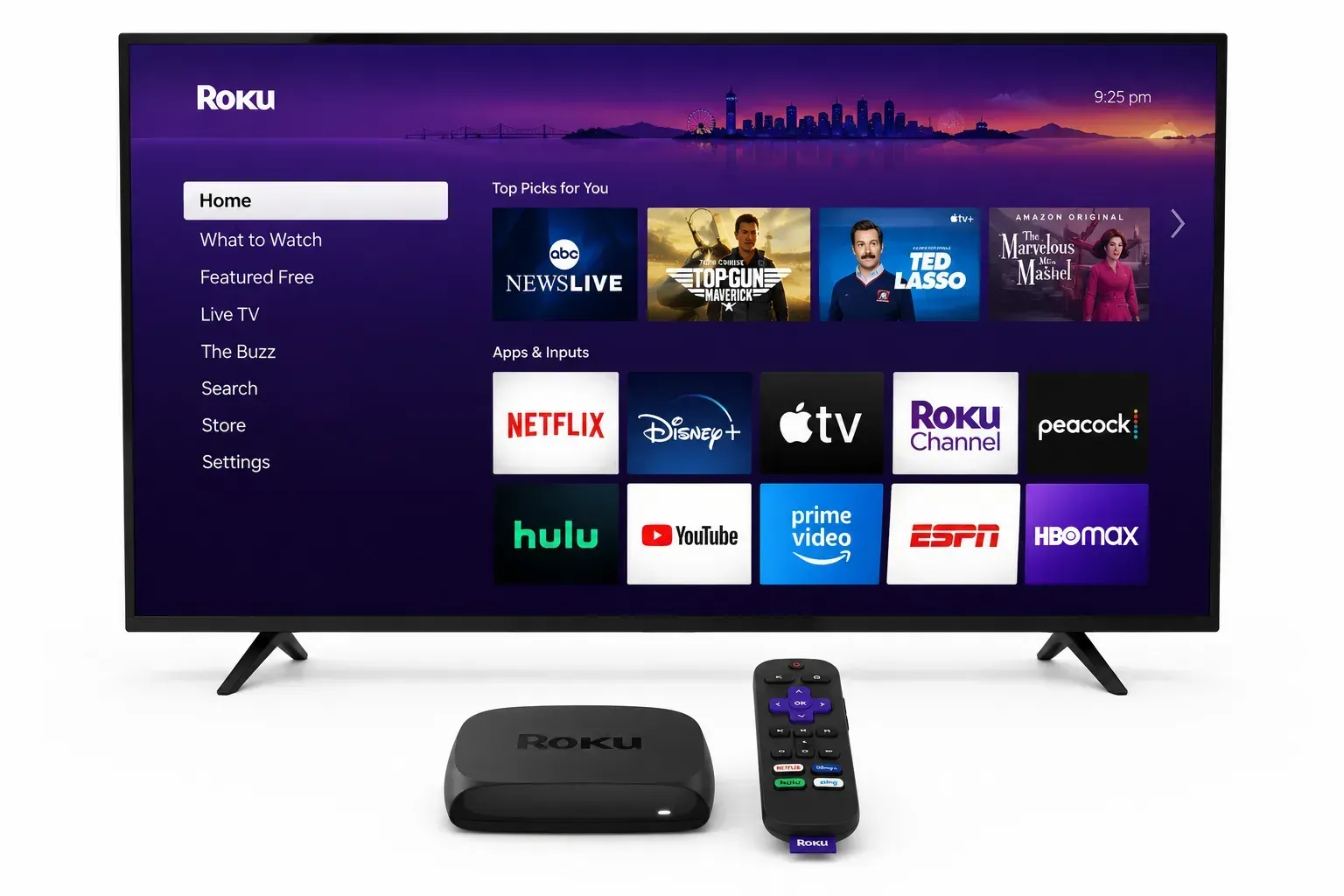
Using the native app also avoids many of the problems associated with wireless discovery, phone battery usage, incoming notifications, orientation changes, and unstable screen-mirroring sessions.
You can still use your phone separately while Netflix continues playing on the TV.
For most households, this should be the first option to try.
2. Cast Netflix to a Supported Device
If you prefer choosing content from your phone, supported casting can be a good alternative.
Instead of mirroring everything on your screen, you open Netflix on your mobile device and send playback to a compatible receiver.
A typical workflow looks like this:
- Connect the phone and receiving device as required by the setup.
- Open the Netflix mobile app.
- Look for the Cast icon.
- Choose an available supported device.
- Select the movie or show you want to watch.
Once playback begins, the receiving device handles the stream.
The important point is that not every device that supports some form of Google's casting technology will necessarily appear as a supported Netflix target. Compatibility can vary by hardware and software.
If the Cast button is missing or the TV does not appear, check whether the specific receiver is supported rather than assuming ordinary screen mirroring will work as a replacement.
3. Use a Wired Adapter or Cable
A wired connection can be useful when wireless options are unreliable or unavailable.
Depending on the phone or tablet, this may involve USB-C to HDMI, an appropriate Apple video adapter, another supported video-output accessory, or a compatible HDMI input on the television.
A wired setup is less convenient than tapping a wireless button, but it has several practical advantages.
You do not need to rely on wireless device discovery, and connection quality is not affected in the same way by congested Wi-Fi.
However, simply buying any inexpensive adapter does not guarantee success. Video output depends on the capabilities of the phone, operating system, adapter, and TV. Some phones do not support video output over their USB port at all.
If you plan to use a cable, make sure both the mobile device and adapter support video output rather than assuming every USB-C or Lightning accessory can send Netflix to a TV.
4. Try a Third-Party Mirroring App as a Fallback
Third-party screen-mirroring tools can be useful when your main goal is sharing general phone content across mixed devices.
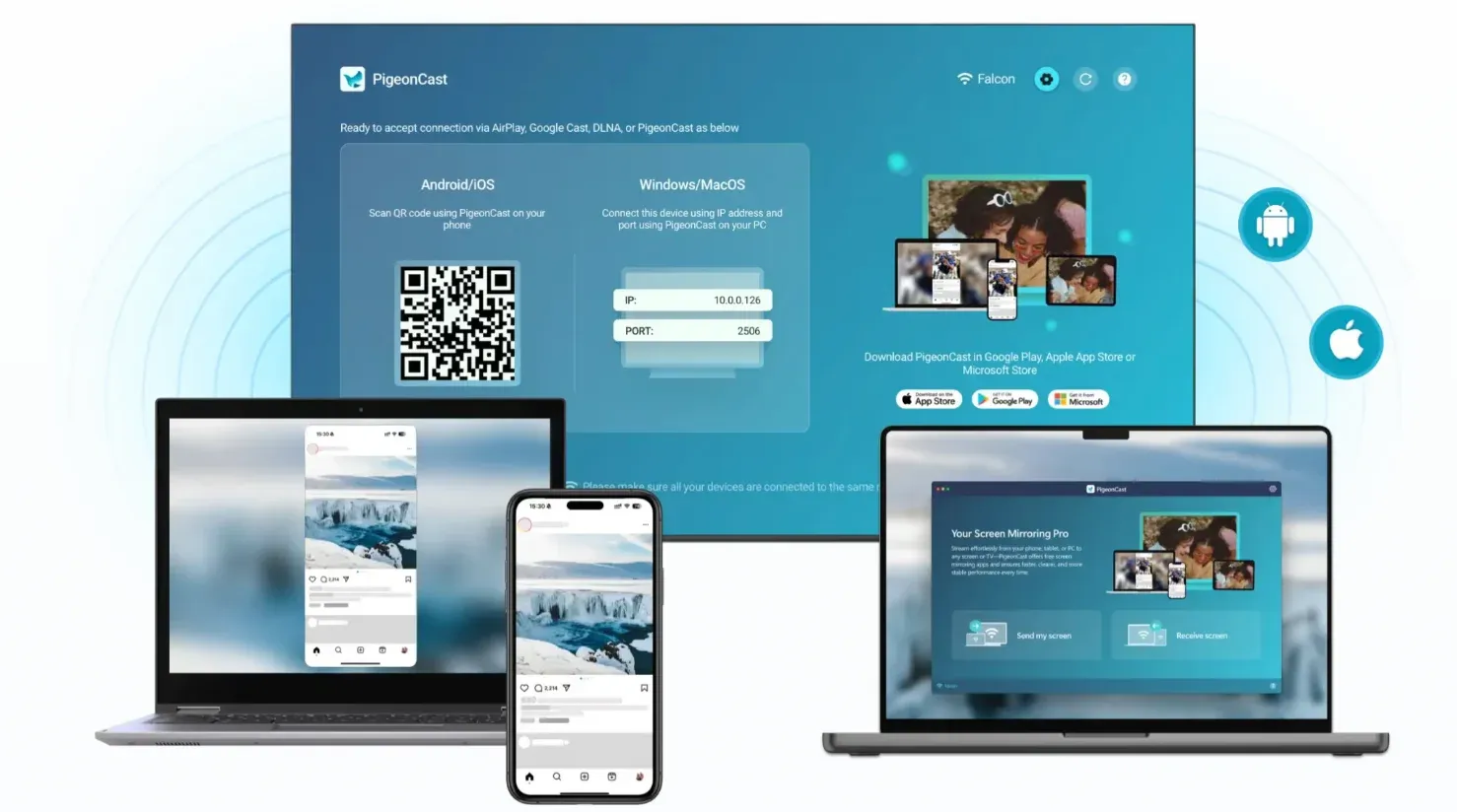
For example, a tool such as PigeonCast may be worth trying if the native options available on your phone and TV do not fit your setup.


Overall Rating:



However, third-party mirroring should remain a fallback for Netflix rather than your first solution.
A mirroring app can help establish communication between devices, but it cannot guarantee that Netflix will permit protected video to play through every mirroring configuration.
That distinction is important.
If Netflix playback is the main goal, try these options in this order:
- the Netflix app directly on the TV or streaming device;
- Netflix's supported casting options;
- a compatible wired video connection;
- third-party mirroring if you also need broader screen-sharing features.
This avoids spending time troubleshooting a mirroring method when a simpler supported option is already available.
Final Thoughts
Netflix does not universally block every form of screen mirroring, but it also does not support every phone-to-TV method equally.
Casting, AirPlay, and full-screen mirroring are different technologies. Netflix supports some casting setups, does not support AirPlay from iPhone and iPad, and warns that wireless mirroring may not work with every device or app.
If Netflix will not mirror to your TV, the most practical solution is usually to stop treating mirroring as a requirement. Use the Netflix app on the TV when possible, or use a supported casting or wired connection instead.
Does Netflix Block Screen Mirroring FAQ
Does Netflix Allow Screen Mirroring?
Sometimes, depending on the device and mirroring method. Netflix does not guarantee wireless mirroring support across every phone, TV, or mirroring app.
Can You AirPlay Netflix from an iPhone or iPad?
No. Netflix does not support AirPlay playback from iPhone and iPad. An AirPlay-compatible TV may still work with other apps, but that does not make AirPlay a supported Netflix playback method.
Can You Cast Netflix from Your Phone to a TV?
Yes, if you have a compatible casting receiver supported by Netflix. Casting is different from mirroring because the receiving device handles the Netflix stream rather than continuously duplicating your phone display.
Why Does Netflix Work on the TV App but Not Through Mirroring?
The TV app runs Netflix directly in a supported playback environment. Screen mirroring sends or duplicates the phone display through another connection method, which may not support Netflix video playback in the same way. That is why your phone and TV can connect successfully while Netflix itself still fails to display.
Is a Wired Connection Better Than Screen Mirroring for Netflix?
It can be. A compatible wired adapter avoids many of the uncertainties associated with wireless mirroring, especially when device discovery or mirroring compatibility is inconsistent. Just make sure your phone and adapter actually support video output before relying on a wired setup.
Mia Clarke is a technology editor specializing in screen mirroring and casting solutions across multiple platforms. Mia provides clear, practical guides and in-depth insights to help users seamlessly connect their devices. Passionate about enhancing digital experiences, Mia is dedicated to keeping readers updated on the latest trends and tools in cross-platform screen sharing. Whether you’re looking to mirror your smartphone, laptop, or smart TV, Mia’s content delivers reliable, user-friendly advice to simplify your tech setup.