
If you are asking does screen mirroring save history on tv, the short answer is usually no, not in the same way a Netflix app, YouTube app, or built-in TV browser saves viewing history. In most cases, screen mirroring simply shows what is happening on your phone, tablet, or computer in real time. The TV acts more like a display than a device building its own watch-history record.
That said, the privacy question is still real. Even when the TV does not keep a clean "mirroring history" page, other traces can still exist. Your phone may keep browser or app history, a streaming service may log what you watched through your account, and some smart TVs may still remember recent inputs, device connections, thumbnails, or app activity depending on how the content was played.
This guide separates those cases so you can tell the difference between screen mirroring, casting, AirPlay-style media handoff, and direct playback inside a TV app.
Quick Answer: Does Screen Mirroring Save History on TV?
Usually, no. Pure screen mirroring does not normally create a traditional watch-history record on the TV because the TV is only displaying a live copy of another device's screen.
The more important detail is this: history may still be saved somewhere else. The sender device may keep browser or app history. The streaming service account may log what was watched. If the content ends up playing inside a native TV app instead of a mirrored session, the TV app may also keep its own recent activity.
So if your concern is "will the TV remember what I mirrored," the answer is usually not in a clean, browsable history list. If your concern is "can evidence of this session still exist somewhere," the answer is often yes.
Screen Mirroring vs Casting vs AirPlay vs TV Apps
The confusion usually starts because people group very different playback methods under one idea.
Full Screen Mirroring
Full screen mirroring means the TV shows the live screen of your phone, tablet, or computer. If you open a browser tab, switch apps, scroll a page, or pause a video, the TV follows those actions in real time.
In this setup, the TV usually is not building a watch-history record for the mirrored content itself. It is mainly receiving a live display session.
App-Native Casting
Casting is different from screen mirroring. In many casting workflows, you choose a video or song on your phone, but the TV or streaming device handles playback more directly after the session starts.
That difference matters because a cast session can create more visible history on the receiving side than plain mirroring. A supported TV app or streaming device may show recently played content, continue-watching rows, or account-based recommendations.
AirPlay or Similar Media Handoff
AirPlay can behave in more than one way. Sometimes it mirrors the full screen to TV. Sometimes it sends selected media to the receiving device, for instance, AirPlay photos to TV, more like casting.
If AirPlay is being used as full-screen mirroring, the TV usually behaves more like a display. If AirPlay is handing off media playback to a compatible receiver or TV app, recent content may be easier for that receiving environment to remember.
Playing Directly in a TV App
This is the clearest case. If you open YouTube, Netflix, a browser, or another app directly on the TV, that app may save history, continue-watching data, recommendations, and account activity the same way it normally would.
This is why people sometimes think screen mirroring saved history on the TV when what really happened was native playback inside the TV environment.
What the TV May Still Retain After a Mirroring Session
Even when a TV does not keep a formal mirroring history, it may still keep small traces of the session.
Recent Input or Source State
Many TVs remember the last source or input you used. If you mirrored through HDMI, a wireless display menu, Apple TV, Chromecast, or another receiver, the TV may return to that source later or list it among recent inputs.
That is not the same as saving a content history, but it can still show that a mirroring-related session happened.
Device Discovery or Connection Prompts
Some smart TVs and receiver devices keep a recent device list, connection prompt history, or paired-device memory so reconnecting is easier later. That can reveal which phone, tablet, or computer connected, even when the actual mirrored content is not stored.
Thumbnails, App State, or Receiver Menus
On some setups, you may see a recent thumbnail, paused frame, connection tile, or receiver-home-screen state after a session ends. This varies by TV brand, receiver app, and streaming device.
The important point is that this still usually is not a true "screen mirroring watch history" page. It is more like leftover interface state or recent activity hints.
Not Usually a Browsable Mirroring History Page
In most consumer TV setups, there is no standard menu where you can open a dedicated list of everything you mirrored in the past. That kind of clean playback history is more common in streaming apps and account-based services than in full-screen mirroring workflows.
Where History Is More Likely to Be Saved Instead
If you want to know where your activity is more likely to be recorded, start with the sender device and the service you used.
Browser and App History on the Sender Device
If you mirrored a browser page, streaming website, search results, or a local app, the phone, tablet, or computer may still keep that activity in its own browser history, app history, recent files, or search suggestions.
For many users, this is the main place where evidence remains after screen mirroring.
Streaming Service Account History
If you watched content through a service such as YouTube, Netflix, or another streaming platform, the account itself may log what you watched regardless of whether the TV kept anything local.
That means deleting something from the TV alone may not matter if the real history lives in the service account.
TV App History During Native Playback
If the session turned into native playback on the TV, the TV app may save continue-watching status, recommendations, autoplay suggestions, or recently viewed content. This is much more likely in casting or direct TV-app playback than in basic full-screen mirroring.
Privacy Risks That Matter More Than “History”
For most people, the bigger risk is not a secret mirroring-history menu on the TV. It is what the TV shows while the session is live.
Notifications and Messages
If incoming texts, chat alerts, email previews, or app notifications appear on your phone or laptop during mirroring, the TV may show them to everyone in the room.
That is often the fastest way private information gets exposed during screen mirroring.
Browser Tabs, Searches, and Recommendations
A mirrored session can expose open tabs, recent searches, suggested results, and account-based recommendations even if the TV never saves a long-term history of them.
This matters especially when you are switching between media, browsing casually, or sharing a screen in front of other people.
Account Switching and Shared Household Visibility
Even without stored mirroring history, shared households may still notice which account is active, which profile is signed in, or which apps and services were open during the session.
In practice, that can feel more revealing than a saved TV history list.
Full-Screen Mirroring Is Less Private Than Direct Playback
When a supported app can cast or hand off playback directly, it often exposes less of your general device activity than full-screen mirroring does. The TV shows the content, not every tap, swipe, tab change, or notification.
That does not mean casting never creates history. It usually means it is cleaner for privacy during the live session.
How to Reduce Privacy Exposure While Screen Mirroring
If your goal is to mirror content without leaving unnecessary traces or exposing unrelated information, a few habits matter more than overthinking the TV itself.
Turn On Do Not Disturb First
Before you start mirroring, enable Do Not Disturb or another notification-suppression mode on the sender device. This is one of the easiest ways to stop private alerts from appearing on the TV.
Close Sensitive Tabs and Apps
Do not treat mirroring like video-only playback unless you are sure it works that way. Close unrelated tabs, private chats, emails, shopping carts, and recent searches before the session starts.
Prefer Direct Casting for Supported Media
If the app supports direct casting or native media handoff, use that instead of full-screen mirroring when privacy matters more than showing your full interface. It usually reduces exposure of background activity.
Disconnect Mirroring When You Finish
End the session completely instead of just walking away. Leaving a receiver connected or leaving the mirroring menu active can make accidental reconnects or visible device prompts more likely later.
Clear History in the Right Place
If you are trying to remove traces, start where the traces most likely exist:
- clear browser or app history on the sender device
- clear watch history in the streaming service account if needed
- clear recent activity inside the TV app only if native playback actually happened
That approach is more useful than assuming the TV saved a special mirroring log.
When a Cross-Device Mirroring App Makes More Sense
Sometimes the real problem is not saved history. It is wanting a more predictable mirroring workflow across different devices and TVs.
If your setup changes between iPhone, Android, Windows, Mac, browsers, and different receivers, a dedicated screen mirroring tool like PigeonCast can make the connection flow easier to manage. The value here is not that it erases history automatically. The value is that it gives you a more deliberate mirroring path when native options feel inconsistent or confusing.
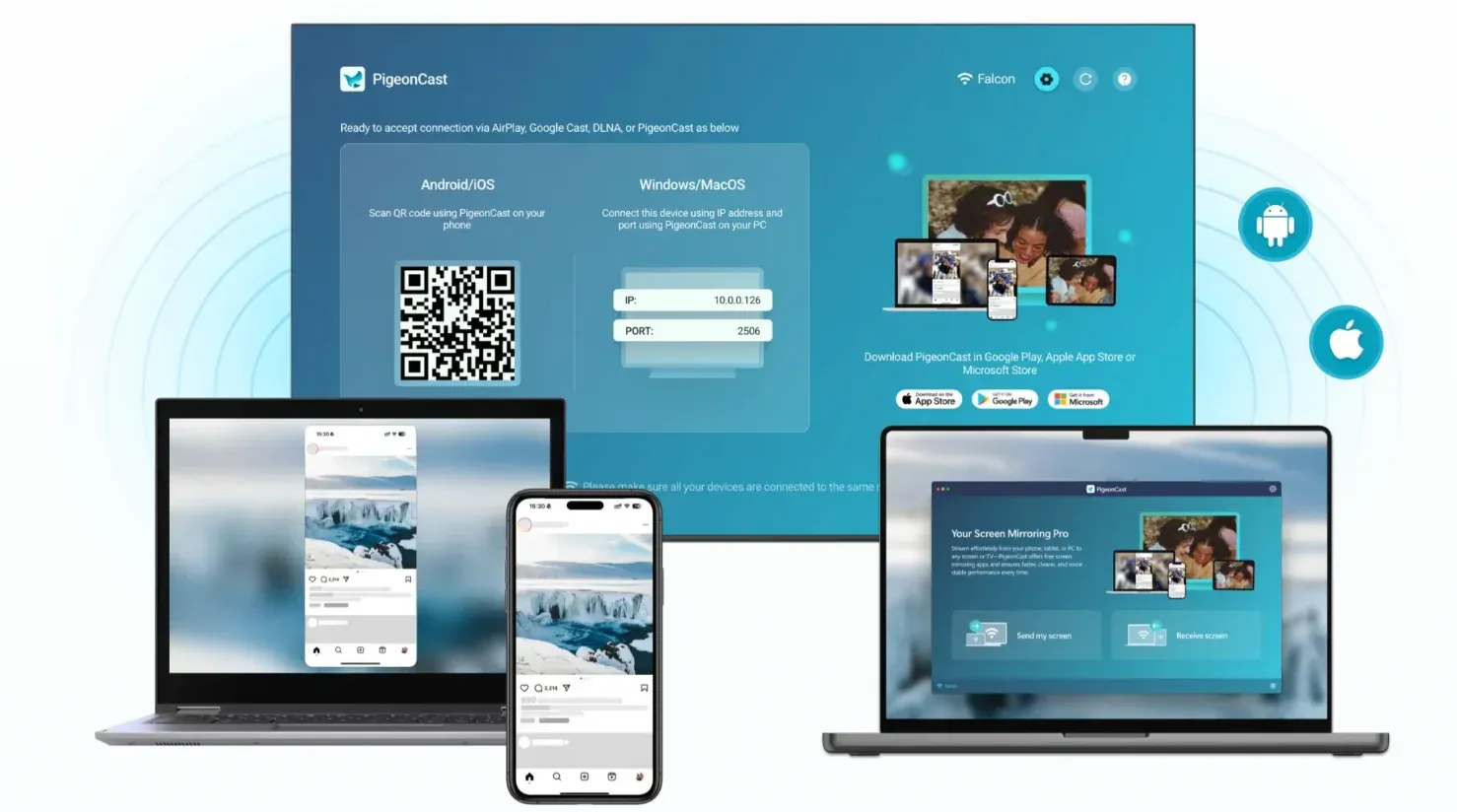
That matters most when you want clearer control over what gets shown on the larger screen and which device is acting as the sender.
If you want a simple example, the basic flow is usually short:
- Open PigeonCast on the sending device, such as the phone and computer.
- Open PigeonCast on the receiving device, such as the TV, computer, or browser receiver.
- Make sure the sender device and receiver are on the same local network.
- Choose the target receiver from the sender device and start mirroring only the screen or content you actually want to share.
- End the session as soon as you finish so the receiver does not stay visible or connected longer than necessary.


Overall Rating:



Conclusion
If you only want the direct answer to does screen mirroring save history on TV, the practical answer is usually no. In most cases, full screen mirroring does not create a normal TV watch-history record because the TV is only showing a live copy of another device.
But that does not mean the session leaves no traces anywhere. Browser history, app activity, streaming-account history, recent inputs, device lists, and native TV-app playback can all reveal something about what happened. If privacy matters, focus less on whether the TV secretly logged the mirrored content and more on what your sender device, account, or playback method is actually exposing.
Does Screen Mirroring Save History on TV FAQ
Can a smart TV see what I watched through screen mirroring?
A smart TV can usually show the mirrored session while it is happening, but it does not always save that session as a normal watch-history list. In most cases, the bigger record lives on the sender device, the streaming account, or the TV app if playback switched from mirroring to native playback.
Does casting save more history than screen mirroring?
Often, yes. Casting is more likely to involve native playback on the receiving side, which can create continue-watching rows, recently played items, or account-based recommendations. Plain screen mirroring usually works more like a live display session, so the TV itself often keeps less content-specific history.
Does AirPlay save history on TV?
It depends on how AirPlay is being used. If AirPlay is mirroring the full screen, the TV usually behaves more like a display. If AirPlay is handing off selected media to a compatible receiver or TV app, recent content may be easier for that receiving environment or account to remember.
Can screen mirroring show my notifications on TV?
Yes. That is one of the most common privacy issues with screen mirroring. If notifications, messages, or email previews appear on the sender device during the session, the TV may show them too. Turning on Do Not Disturb before mirroring is one of the simplest ways to reduce that risk.
How do I delete screen mirroring history from my TV?
In many cases, there is no dedicated screen mirroring history list to delete on the TV. If you are trying to remove traces, clear history from the sender device, the streaming-service account, or the TV app that handled playback. You may also want to remove paired devices or recent connections from the receiver settings.
Does mirroring from iPhone to TV save browsing history on the TV?
Usually, no. Mirroring an iPhone screen to a TV does not normally transfer Safari or app browsing history into a TV-side history log. But the iPhone itself may still keep that browsing history, and anyone watching the mirrored screen can still see tabs, searches, or on-screen suggestions during the live session.
Is direct TV playback more private than screen mirroring?
Not always. Direct TV playback often exposes less of your phone or laptop activity during the session because it does not show every tap or notification. But it may create more app-level history on the TV or in the streaming account. The privacy tradeoff depends on whether you care more about live screen exposure or saved playback records.
Mia Clarke is a technology editor specializing in screen mirroring and casting solutions across multiple platforms. Mia provides clear, practical guides and in-depth insights to help users seamlessly connect their devices. Passionate about enhancing digital experiences, Mia is dedicated to keeping readers updated on the latest trends and tools in cross-platform screen sharing. Whether you’re looking to mirror your smartphone, laptop, or smart TV, Mia’s content delivers reliable, user-friendly advice to simplify your tech setup.