

ASUS GlideX brings screen mirroring, display extension, file transfer, and device control into one app. But depending on how you use your devices, you may not need all of those features—or you may want something GlideX doesn't focus on, such as mirroring your phone to a smart TV.
The best GlideX alternative depends on what you want to accomplish. Some apps turn a tablet into a second monitor, others let you control an Android phone from your PC, and a few combine screen mirroring with file sharing.
Here are seven GlideX alternatives worth considering in 2026, including free and paid options for Windows, Mac, Android, and iPhone.
What Is ASUS GlideX?
ASUS GlideX is a cross-device connectivity app designed to help phones, tablets, and computers work together. It supports Windows, macOS, Android, and iOS, although the available features vary by device and operating system.
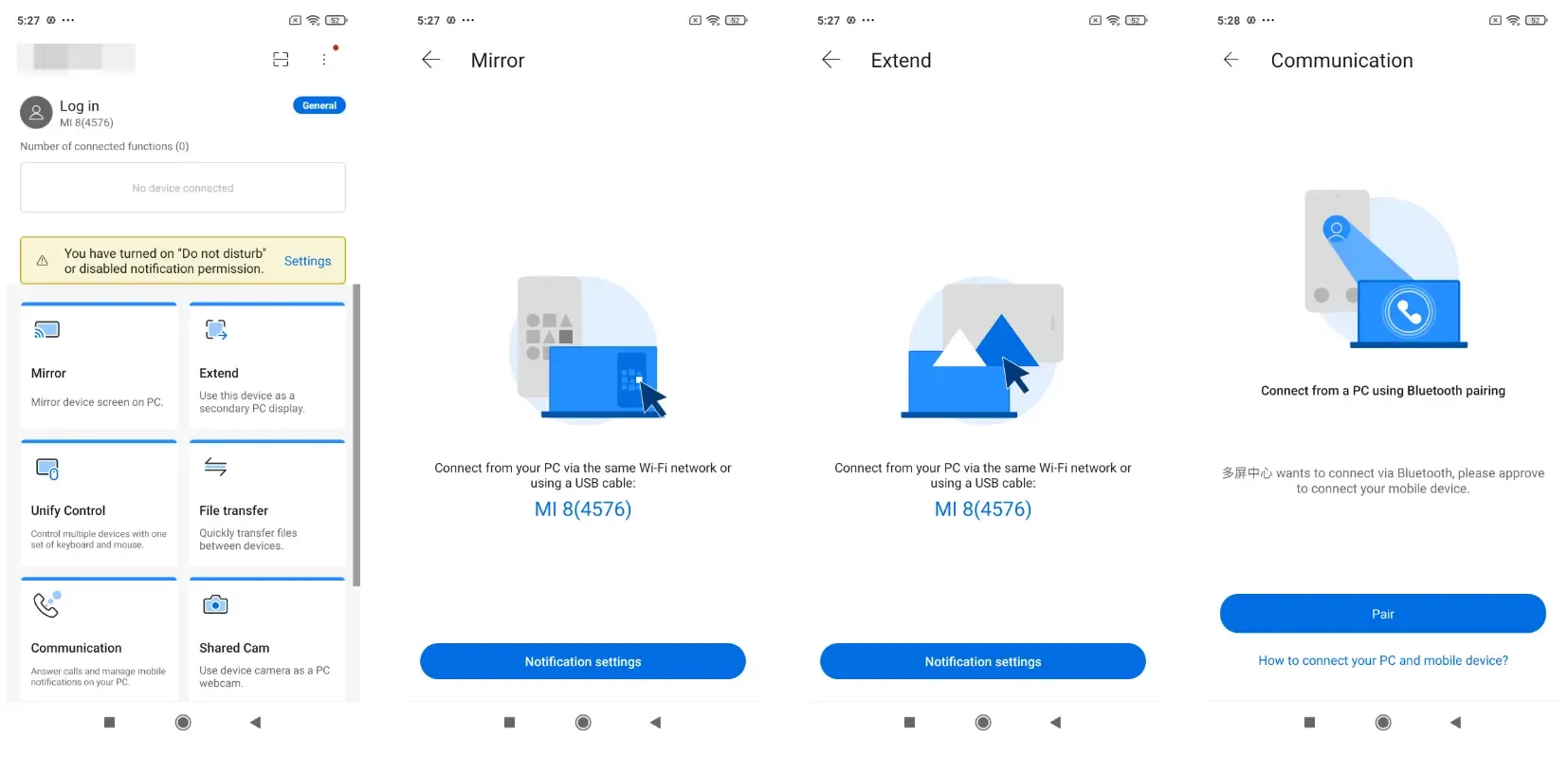
Its main features include:
- Screen Mirroring: Display your phone's screen on a computer.
- Screen Extension: Turn a compatible phone, tablet, or computer into an additional display.
- File Transfer: Send files between connected devices without manually moving them through cloud storage.
- Unify Control: Work across compatible devices using shared mouse and keyboard controls.
- Additional ASUS Features: Access functions such as remote access, shared camera, and communication tools on supported ASUS setups.
GlideX isn't limited to ASUS computers. However, ASUS-compatible devices receive additional features and optimizations. According to ASUS, the general version supports up to 1080p/60 video transmission, while the ASUS-exclusive version can support up to 2K/60 under suitable conditions.
Mac support is more restricted, with GlideX currently offering Extend and Unify Control rather than the full Windows feature set.
Why Look for a GlideX Alternative?
GlideX covers several everyday tasks, but those tasks don't always require the same kind of software.
If you mainly want to share your phone's display during meetings, a dedicated screen mirroring app may be more suitable. If you work with an iPad beside your laptop, a tool designed for extended displays could be a better fit.
There are also situations where GlideX isn't the most natural choice. For example, someone who wants to mirror a phone to a TV has different requirements from someone who wants a second computer monitor.
The important question is whether you need to mirror a screen, extend your desktop, transfer files, or control another device. These functions overlap in some apps, but they're not interchangeable.
7 Best GlideX Alternatives in 2026
The following GlideX alternatives serve different purposes, from wireless screen mirroring and file sharing to extended displays and remote device control. Some are better suited to everyday users who want quick connections between devices, while others offer specialized tools for multitasking or technical workflows. Each option has its own strengths and limitations, so the right choice depends on your devices and how you plan to use them.
1. PigeonCast – Best for Cross-Platform Screen Mirroring and File Transfer
Best for: People who want to mirror screens and share files across phones, computers, and TVs.
PigeonCast is a GlideX alternative focused on connecting devices across different platforms. It supports Android, iOS, Windows, macOS, and a range of TV platforms, making it particularly useful when your devices don't all belong to the same ecosystem.
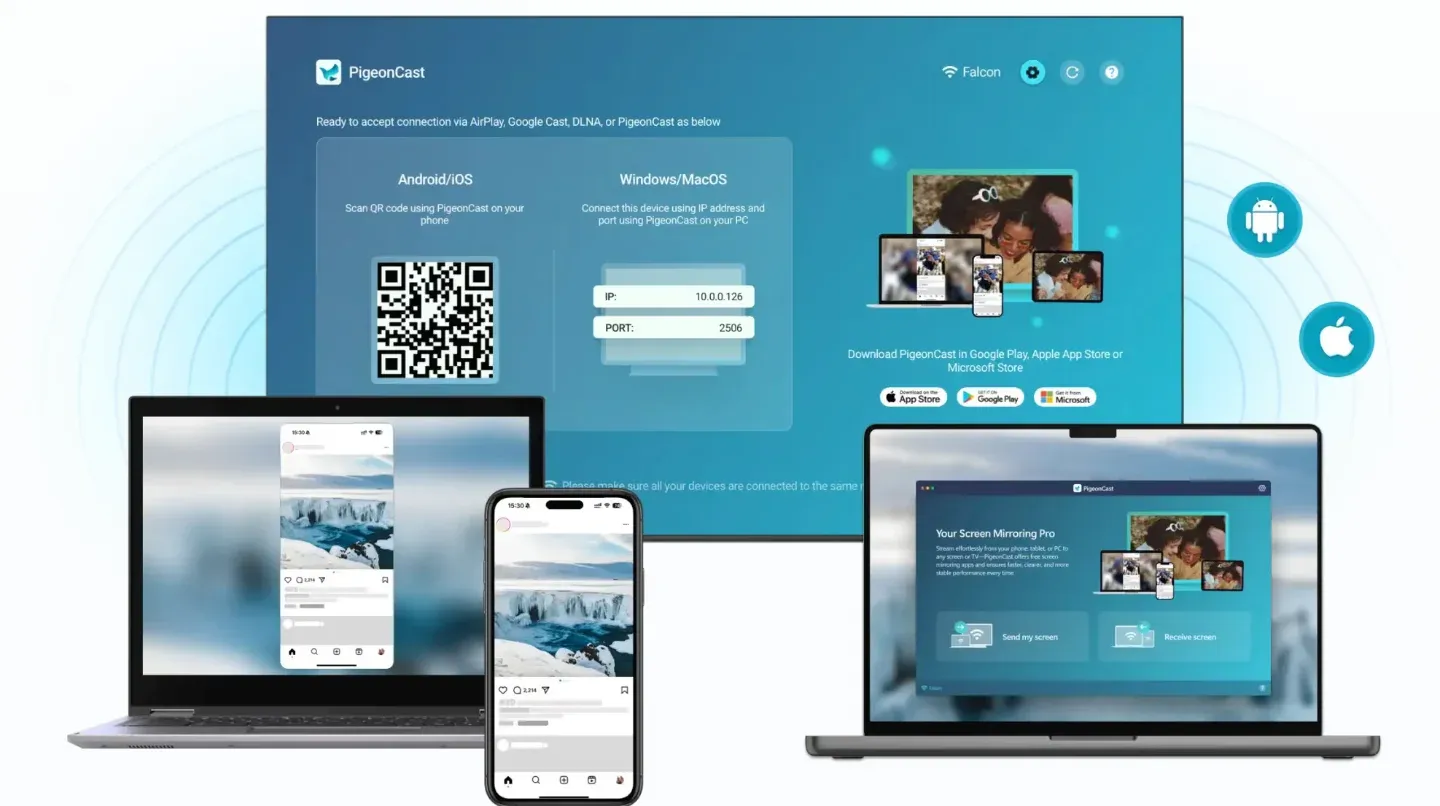
For example, you might want to show photos from an Android phone on a TV, mirror an iPhone during a presentation, or share a laptop screen on a larger display. PigeonCast supports wireless screen mirroring across compatible devices without requiring a matching phone and computer brand.
It also supports file transfer, allowing users to share photos, videos, audio, documents, and folders between supported devices. This makes it useful for more than displaying a live screen. You can move content to another device instead of keeping the original device connected whenever you need the file.
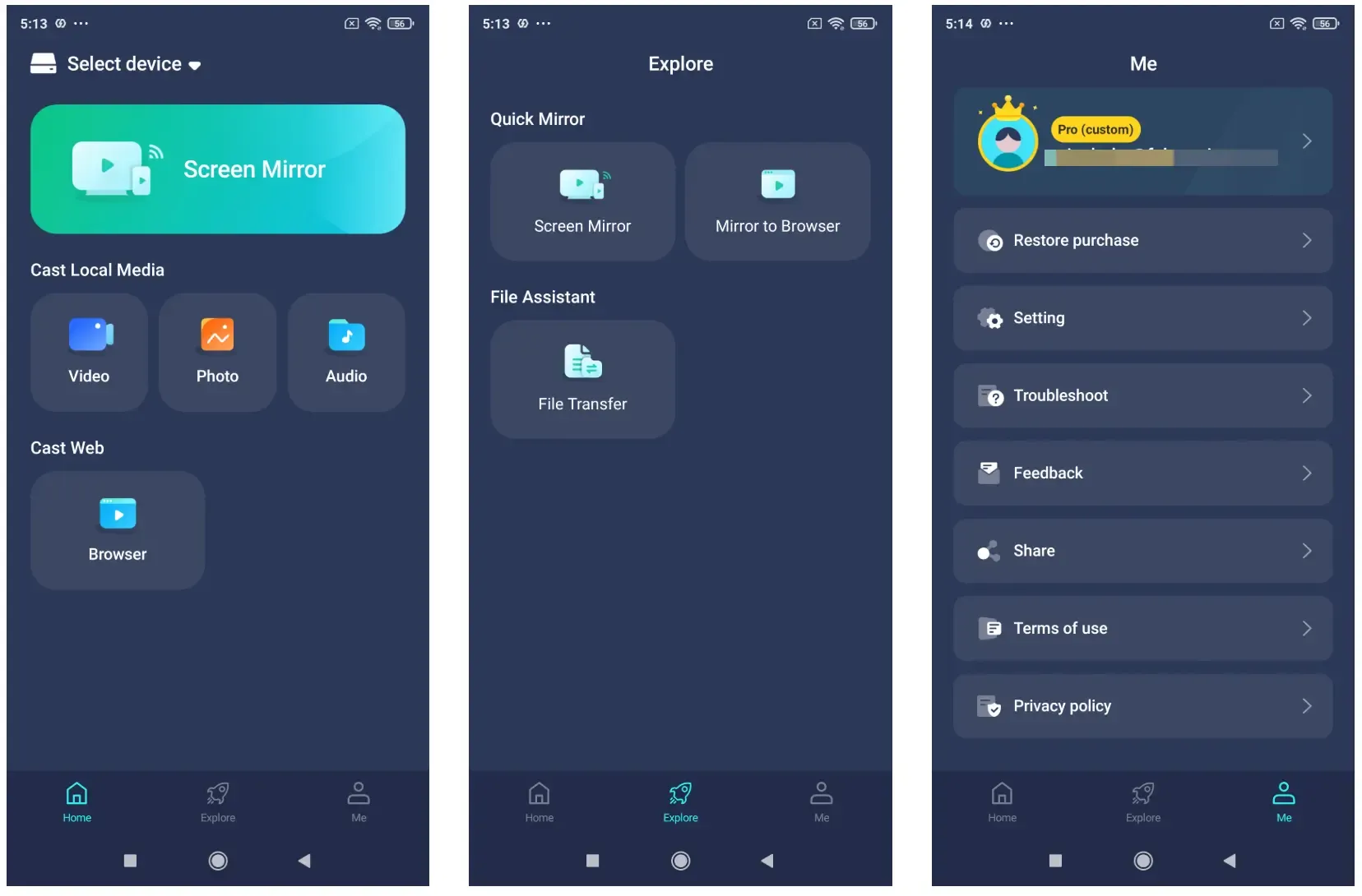
The distinction matters when working with TVs. If you want to display a PDF or presentation, screen mirroring may be enough. If you want the receiving device to keep a compatible file for later use, sending the file directly serves a different purpose.
PigeonCast supports several connection methods and casting protocols, including AirPlay, Google Cast, and DLNA where supported. QR codes and PIN-based connections also provide options for pairing devices.
Unlike GlideX, however, PigeonCast is not designed to turn a tablet into an independent extended desktop or provide unified keyboard and mouse control. Its strengths lie in screen sharing and file transfer rather than replicating every cross-device productivity feature.
Pros:
- Supports cross-platform screen mirroring.
- Combines screen mirroring with file transfer.
- Works with compatible TVs as well as phones and computers.
- Offers wireless connections and multiple pairing methods.
- Offers a 15-minute free trial of screen mirroring.
Cons:
- Does not provide true extended desktop functionality.
- Does not replace GlideX's unified device control.
- Some advanced mirroring features require Premium.
Verdict: PigeonCast is a strong option when your main goal is to display content or share files across different devices, especially when a TV is part of your setup.
2. Spacedesk – Best for Using a Tablet as a Second Monitor
Best for: Users who need additional desktop space without purchasing another monitor.
Spacedesk approaches cross-device connectivity from a different angle. Instead of primarily focusing on moving files or showing your phone screen, it lets you use another device as an additional computer display.
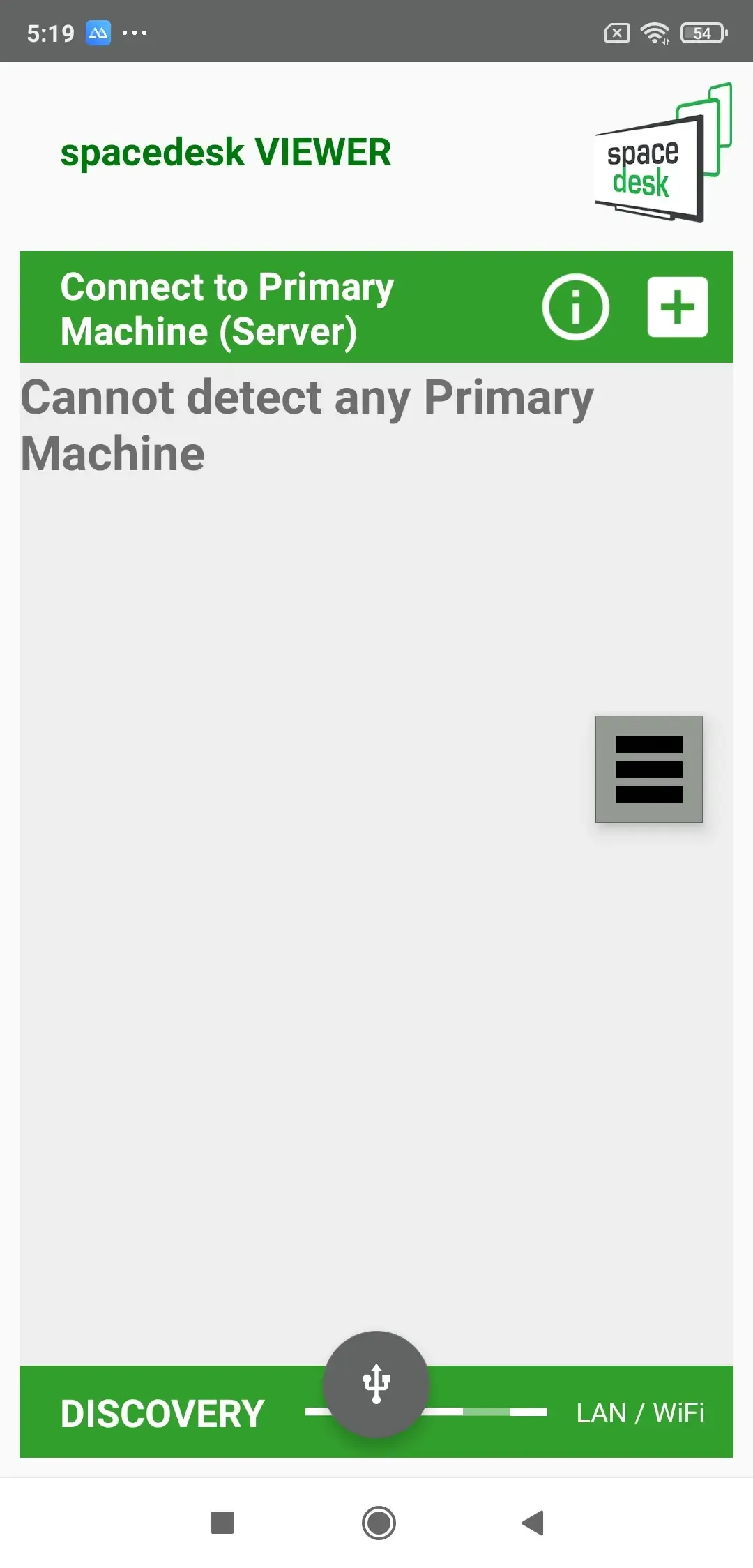
Imagine working on a laptop with a spreadsheet open while keeping your email or reference material on a tablet beside it. With Spacedesk, the tablet can function as an extended desktop rather than simply showing the same image as your laptop.
The software uses a driver on the primary computer and a viewer on the secondary device. Viewer options include Windows, Android, iOS, and browser-based devices. Windows is a well-established primary platform, and macOS primary-device support is also available in beta.
Connections can work over a local network, with certain wired connection options supported. The experience depends partly on your network conditions, so a stable connection matters when moving windows or interacting with content across displays.
Spacedesk is especially attractive if you already own a tablet that spends most of its time unused. It can provide more workspace without investing in another physical monitor.
However, it isn't a broad replacement for GlideX's entire toolkit. File sharing and mobile device management aren't its main purposes.
Pros:
- Turns compatible devices into additional displays.
- Supports both desktop extension and duplication.
- Offers a wide range of secondary-device options.
- Useful for multitasking and home office setups.
Cons:
- Not designed for general cross-device file transfer.
- Requires setup on the primary and secondary devices.
- Performance can vary with network quality.
Verdict: Choose Spacedesk if GlideX's Screen Extension feature is what you use most. It's less relevant if you're looking for a phone-to-TV mirroring or file-sharing app.
3. ApowerMirror – Best for Phone Mirroring and PC Control
Best for: Users who want to show a mobile screen on a computer and interact with supported Android devices.
ApowerMirror is a screen mirroring application that supports Android and iOS devices alongside Windows and Mac computers.
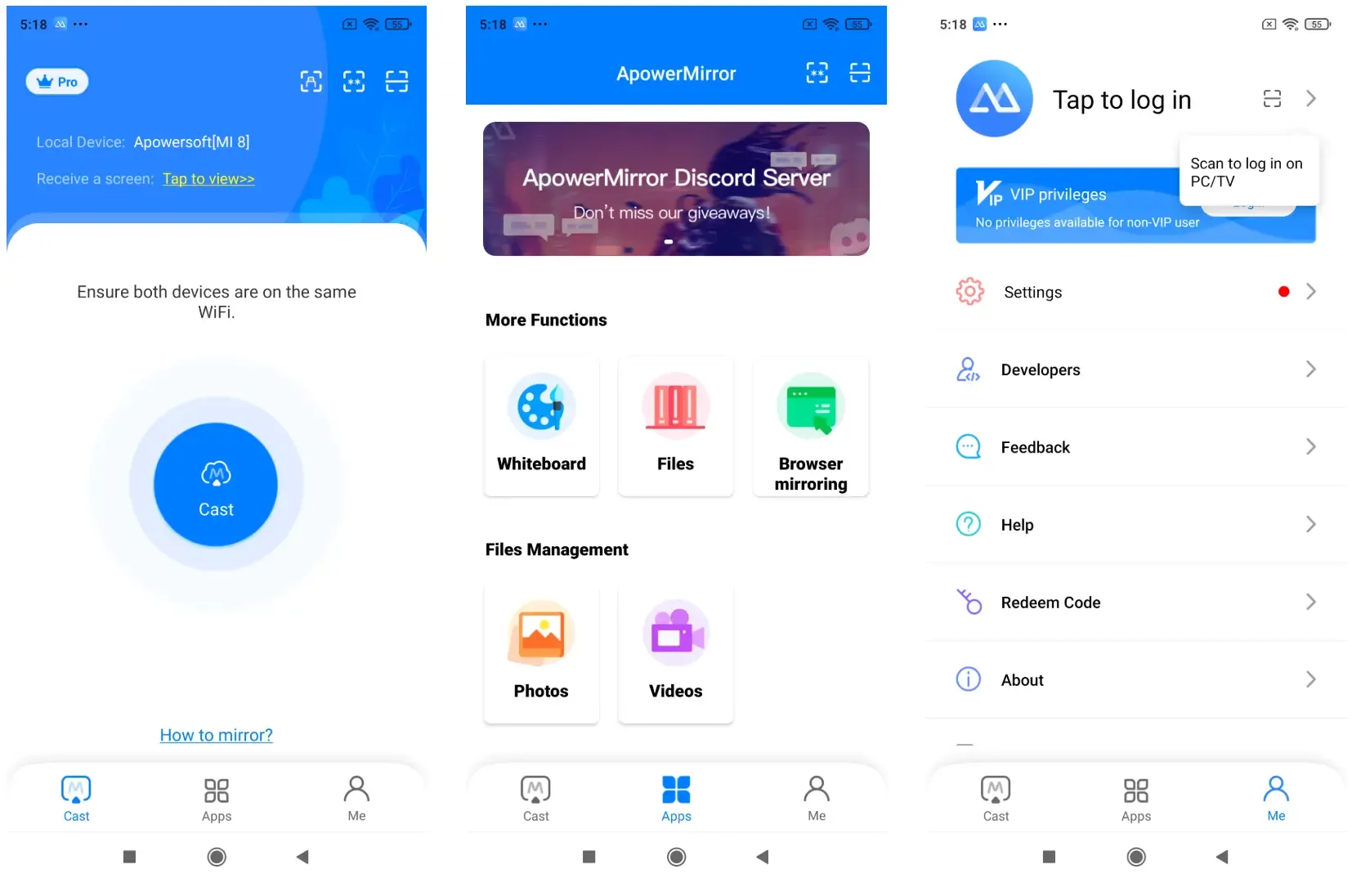
Its appeal goes beyond simply viewing a phone's screen. On supported Android setups, users can interact with mobile apps through computer controls, which can be convenient when demonstrating an application, responding to messages, or navigating phone content from a larger display.
For example, someone recording an Android app tutorial can mirror the phone to a PC, operate the app, and capture the demonstration without constantly looking down at the phone.
ApowerMirror also provides screen recording and annotation-related features, making it useful for demonstrations, teaching, and presentations. Wireless and USB connection options are available depending on the device and feature.
There are some important distinctions between platforms. Android control capabilities do not automatically mean that every iPhone function can be controlled in the same way. Apple's operating system restrictions affect what third-party software can do.
The app also emphasizes mirroring and interaction rather than providing the same complete file-transfer and desktop-extension workflow as GlideX.
Pros:
- Supports Android and iPhone screen mirroring.
- Offers computer-side Android control on supported setups.
- Includes tools useful for recording and demonstrations.
- Supports multiple connection methods.
Cons:
- Control capabilities vary between Android and iOS.
- Some features require a paid subscription.
- Not primarily designed for extended desktop productivity.
Verdict: ApowerMirror makes sense when screen mirroring is only part of the job and you also want to demonstrate or operate mobile apps from your computer.
4. Duet Display – Best for Extended Desktop Productivity
Best for: Professionals who want to use an iPad, Android tablet, or another compatible device as an additional display.
Duet Display focuses on turning existing devices into extra workspace. It is particularly useful for people who spend long hours switching between windows on a single laptop screen.
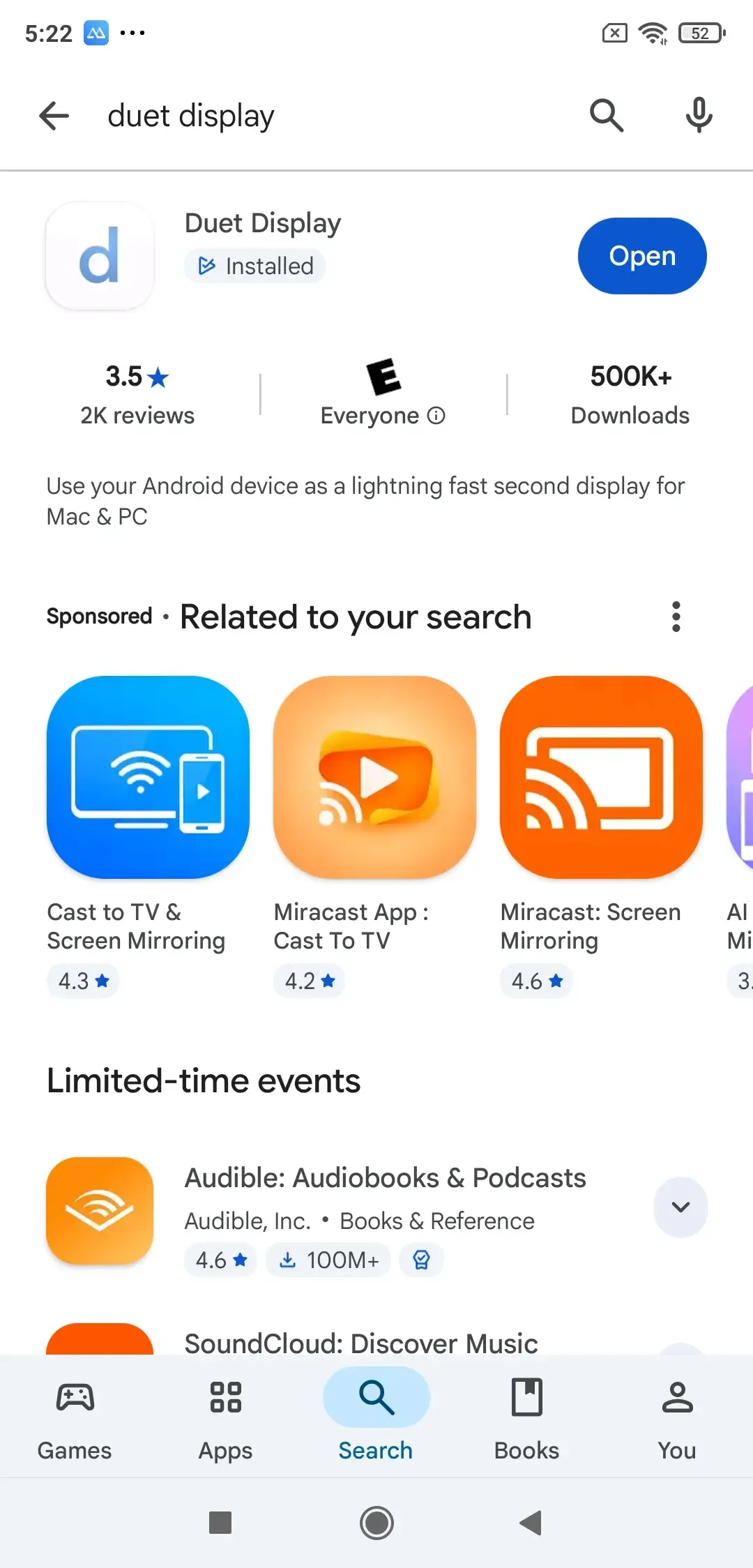
For instance, a designer might keep the main project open on a MacBook while placing reference images or editing tools on an iPad. A remote worker could use a tablet for meeting notes while keeping a document visible on the main display.
Duet supports extended-display workflows across compatible Windows, Mac, and mobile devices. Depending on the setup and subscription, users can connect through supported wired or wireless methods.
The ability to extend rather than duplicate a desktop is the important feature here. With an extended display, each screen can show different windows, and your workspace becomes larger.
That makes Duet more comparable to GlideX's Extend feature than to ordinary phone mirroring tools.
The trade-off is that Duet is designed around display productivity. It isn't primarily intended for transferring files between your phone and computer, or casting entertainment to a living room TV. Its paid plans are also worth considering if you only need a second display occasionally.
Pros:
- Provides true extended desktop functionality.
- Works across supported Apple, Windows, and Android devices.
- Useful for multitasking and portable workstations.
- Supports different connection options.
Cons:
- Paid features and subscription requirements may apply.
- File transfer is not its main purpose.
- Less suitable for general TV casting.
Verdict: Duet Display is better suited to people who want more screen space for everyday work than those who simply need to share or mirror content.
5. scrcpy – Best Free Open-Source Android Mirroring Tool
Best for: Android users who want free screen mirroring and device control without a conventional commercial app.
scrcpy is an open-source tool that displays and controls an Android device from a computer. It supports Windows, macOS, and Linux, making it appealing to developers and more technically comfortable users.
Unlike many screen mirroring applications, scrcpy does not require installing a dedicated companion app on the Android device. Instead, it uses Android debugging capabilities to establish the connection.
Once connected, you can view the Android screen and interact with it using your computer's mouse and keyboard. This is particularly helpful when testing an app, recording a demonstration, or typing extensively into an Android device.
USB connections are commonly used, although wireless operation is also supported after the necessary configuration.
scrcpy has a limited but useful file-sharing capability. For example, you can drag a file into its window to push it to a designated folder on the Android device, while dragging an APK file can initiate installation. However, this should not be confused with a full graphical file manager or a general-purpose file transfer system.
The main drawback is accessibility. Enabling debugging and understanding connection options can be more involved than opening a consumer mirroring app and selecting a receiver.
Pros:
- Free and open source.
- Supports Android screen mirroring and computer control.
- Available for Windows, Mac, and Linux.
- Includes basic file-push functionality.
Cons:
- Does not support iPhone screen mirroring.
- Initial setup may be unfamiliar to beginners.
- Not intended for extended desktops or general TV casting.
Verdict: scrcpy is an excellent choice if you're comfortable with Android debugging and primarily want a lightweight mirroring and control tool.
6. Deskreen – Best for Browser-Based Screen Sharing
Best for: Users who want to show a computer screen or application window on another device through a web browser.
Deskreen is an interesting GlideX alternative because the receiving device doesn't need a traditional desktop application. Instead, it can display shared content through a browser.
Suppose you're working on a laptop and want to keep a reference window visible on an older tablet. Deskreen lets you share your computer screen or a selected application window to a compatible browser on that device.
The connection process uses a QR code or a browser address, with approval on the sending computer. It is useful when the receiving device has a browser but installing new software would be inconvenient.
Deskreen also supports sharing content with multiple receiving devices. For example, you could display a computer screen on several nearby devices during a small demonstration, provided the setup and network can handle it.
There is an important limitation to understand: viewing a shared screen in a browser is not automatically the same as extending your desktop.
Deskreen can support a true secondary display, but that generally requires a virtual display adapter or an equivalent display configuration. Without it, you're mainly sharing an existing screen or application window.
Because of its browser-based approach, Deskreen is appealing for lightweight sharing. However, it doesn't offer GlideX's broader file transfer or device control features.
Pros:
- Browser-based viewing on receiving devices.
- Supports entire-screen and individual-window sharing.
- Can share a display with multiple receivers.
- Open-source software with local-network options.
Cons:
- True desktop extension may require additional setup.
- Not a dedicated file transfer solution.
- Viewing performance depends on the connection and receiving browser.
Verdict: Deskreen is worth trying when you want flexible computer screen sharing without installing a specialized viewer on every receiving device.
7. AirDroid – Best for Android File Transfer and Device Management
Best for: Android users who regularly move files between devices and want additional phone management features.
AirDroid Personal offers a broader device-management approach than a conventional screen mirroring app.
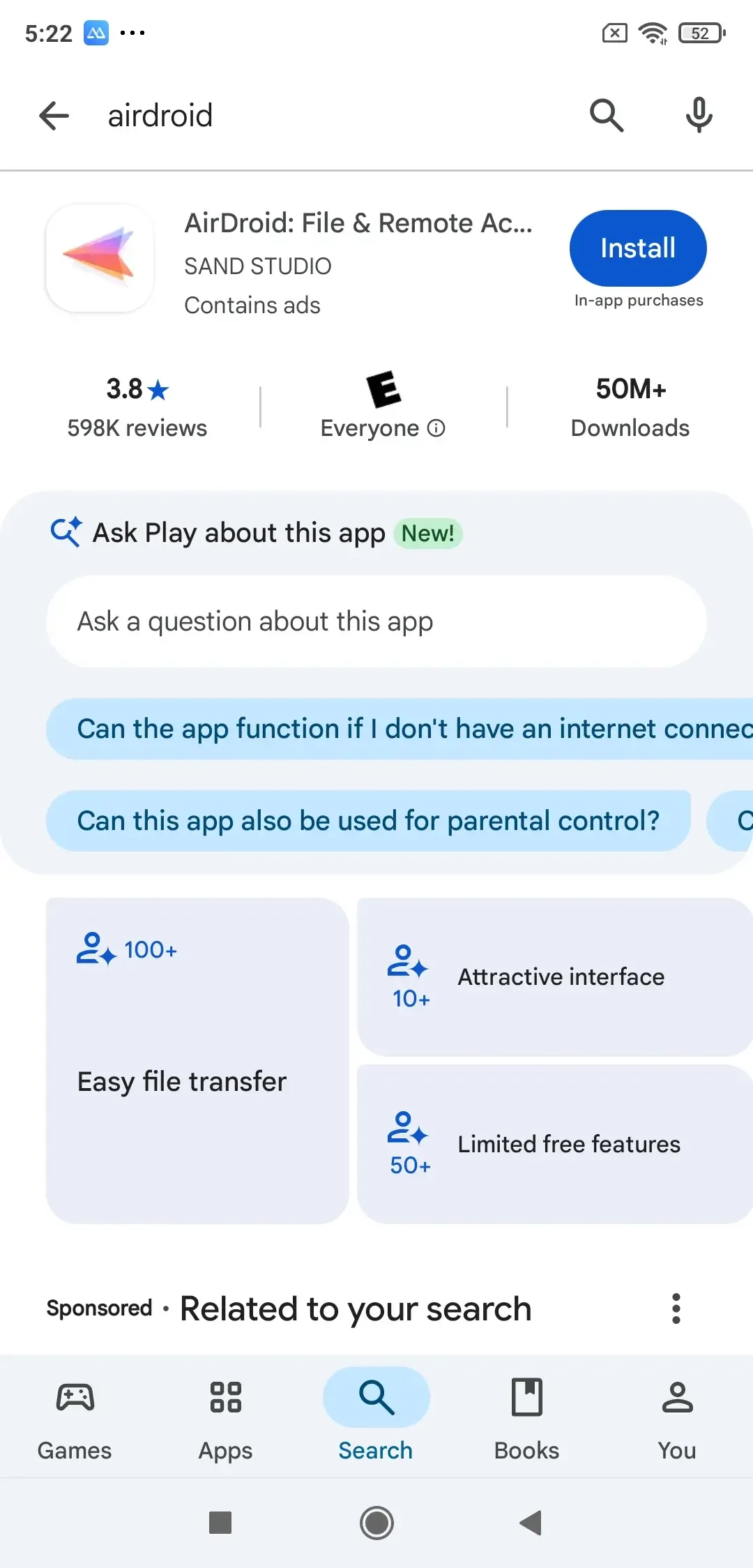
Its file transfer tools support sharing photos, videos, documents, and other files across major platforms, including Android, iOS, Windows, and macOS. Users can transfer files over a local network or use supported remote transfer features when devices aren't nearby.
For someone who takes photos on an Android phone and regularly moves them to a computer, this is particularly useful. AirDroid can also help organize phone files and access supported device-management features from a desktop.
On Android, additional functions include remote control, screen mirroring, and notification-related tools. This combination makes AirDroid especially relevant to users who rely on their phones for daily work.
However, transferring a file and displaying its contents are still different tasks. AirDroid is well suited to moving and managing files, while screen mirroring is more appropriate when you want to show a document or application immediately without copying it.
Its remote-transfer limits also matter. Free accounts have restrictions on transfers between devices outside the same local network, while paid plans provide additional allowances and capabilities.
Pros:
- Supports file transfer across major platforms.
- Offers local and remote file-sharing options.
- Includes Android device management features.
- Supports Android screen mirroring and remote control.
Cons:
- Some remote functions require a paid account.
- Advanced device control focuses primarily on Android.
- Not designed to turn a tablet into a second desktop monitor.
Verdict: AirDroid is a practical GlideX alternative when file management and Android device access matter more than display extension or TV mirroring.
GlideX Alternatives Comparison: Features and Compatibility
The seven apps above solve different parts of the GlideX experience. The comparison below focuses on their main purposes rather than treating every application as a direct feature-for-feature replacement.
| Software | Best For | Screen Mirroring | File Transfer | Extended Display |
|---|---|---|---|---|
| ASUS GlideX | Cross-device productivity | Yes | Yes | Yes |
| PigeonCast | Cross-platform mirroring and file sharing | Yes | Yes | No |
| Spacedesk | Using devices as additional monitors | Yes | No dedicated feature | Yes |
| ApowerMirror | Phone mirroring and supported device control | Yes | Not a core feature | No |
| Duet Display | Portable extended workspaces | Yes | Not a core feature | Yes |
| scrcpy | Android mirroring and control | Yes | Basic file push | No |
| Deskreen | Browser-based screen sharing | Yes | No dedicated feature | With additional setup |
| AirDroid | File management and Android remote access | Yes | Yes | No |
If you want to use a tablet as a second monitor, Spacedesk and Duet Display are more directly suited to the task. They let you work with different windows on different screens rather than simply reproducing the same display.
For Android screen control, scrcpy offers a free technical solution, while ApowerMirror provides a more conventional application interface with additional presentation tools.
PigeonCast and AirDroid are useful when file sharing matters alongside screen mirroring. However, they approach the task differently: PigeonCast emphasizes connecting displays across phones, computers, and TVs, while AirDroid provides broader file management and remote Android access.
How to Choose the Best GlideX Alternative
Start with the task you perform most often rather than the total number of features an app advertises.
For screen mirroring across different devices: PigeonCast is worth considering if you regularly switch between Android, iPhone, Windows, Mac, and compatible TVs. It also provides file transfer when you need to move content rather than simply display it.
For using a tablet as another monitor: Spacedesk and Duet Display are more suitable because they support actual desktop extension. The distinction matters when you want to keep separate apps visible on two screens.
For controlling an Android phone from a computer: scrcpy is a useful free option if you're comfortable with its setup process. ApowerMirror offers another approach for demonstrations and everyday screen interaction.
For sharing a computer screen through a browser: Deskreen works well when installing a receiver app isn't convenient, particularly for temporary screen-sharing setups.
For managing and transferring Android files: AirDroid offers a broader range of file management tools, including remote access features that go beyond simple local sharing.
You don't necessarily need the app with the longest feature list. A tool that handles your most frequent task consistently may be more useful than an all-in-one solution whose extra features you rarely touch.
Final Words
The best GlideX alternative depends on which part of GlideX you want to replace.
Spacedesk and Duet Display are well suited to extended desktop workflows, while scrcpy and ApowerMirror focus more on mobile screen mirroring and control. Deskreen offers flexible browser-based sharing, and AirDroid is useful for managing and transferring files across devices.
For users who mainly want cross-platform screen mirroring and file sharing, PigeonCast offers another option, particularly when phones, computers, and TVs need to work together.
You can try PigeonCast for free and see how it fits your devices.
GlideX Alternatives FAQs
Which Is Better, GlideX or Spacedesk?
GlideX is better if you want an all-in-one tool for screen mirroring, file transfer, and cross-device control. Spacedesk is more suitable if your main goal is to turn a tablet or another device into a second monitor for your computer. Neither is universally better: GlideX offers broader device collaboration features, while Spacedesk focuses more specifically on extending or duplicating your desktop.
Is ASUS GlideX Needed?
No, ASUS GlideX is optional software, not a requirement for your computer or phone to function normally. It's useful if you frequently connect devices for screen mirroring, file sharing, or extended displays. If you rarely use these features, you can simply skip it. You can also choose a dedicated alternative that better matches your needs instead of installing an all-in-one application.
Can I Use GlideX on a Non-ASUS Laptop?
Yes, GlideX works on compatible non-ASUS Windows laptops, although some features and performance options are reserved for eligible ASUS devices. The general version includes screen mirroring, screen extension, file transfer, and unified control. However, the number of simultaneous display connections and supported resolutions may differ. Check the official system requirements to confirm compatibility with your laptop and other connected devices.
Does GlideX Work on Mac?
Yes, GlideX supports macOS, but its features are more limited than those available on Windows. ASUS currently lists Extend and Unify Control as supported Mac functions, rather than the full set of GlideX capabilities. If you mainly want to mirror your iPhone to a Mac or transfer files between devices, a dedicated alternative may be more suitable for those specific tasks.
Why Is ASUS GlideX Not Connecting?
GlideX may fail to connect because of network restrictions, outdated software, missing permissions, or an incompatible connection method. First, make sure both devices are running supported versions of the app and have the necessary permissions enabled. If you're using Wi-Fi, check that your devices can communicate on the same network. Restarting the apps, disabling VPN interference, or trying a supported USB connection may also help.
Mia Clarke is a technology editor specializing in screen mirroring and casting solutions across multiple platforms. Mia provides clear, practical guides and in-depth insights to help users seamlessly connect their devices. Passionate about enhancing digital experiences, Mia is dedicated to keeping readers updated on the latest trends and tools in cross-platform screen sharing. Whether you’re looking to mirror your smartphone, laptop, or smart TV, Mia’s content delivers reliable, user-friendly advice to simplify your tech setup.