

If you own a Google Pixel phone, casting your screen to a TV is one of the easiest ways to enjoy videos, share photos, play games, or show presentations on a bigger display. However, many users are confused about the difference between casting and screen mirroring, or why their TV does not appear when they try to connect.
The good news is that casting from a Google Pixel to a TV does not require complicated setup in most cases. The right method mainly depends on what type of TV you have and what you want to do.
If you want to watch a movie from a streaming app, direct casting is usually the best option. If you want your entire phone screen to appear on the TV, screen mirroring is the better choice. And if your TV does not support Google Cast, you may need another receiver solution.
In this guide, we will show you how to cast from Google Pixel to TV using three practical methods.
Quick Answer: How to Cast From Google Pixel to TV
The easiest way to cast from a Google Pixel to a TV is:
- Use the built-in Cast button inside supported apps like video streaming apps when your TV supports Google Cast or Chromecast.
- Use Google Cast screen mirroring from your Pixel settings when you want to display your entire phone screen.
- Use a third-party casting receiver app when your TV does not support native Google Cast.
Before starting, make sure your Pixel phone and TV are connected to the same Wi-Fi network. Your TV should also support Chromecast, Google Cast, or another compatible casting technology.
What You Need Before Casting Google Pixel to TV
Before trying any casting method, check the basic requirements:
- A Google Pixel phone with Wi-Fi enabled
- A TV with Google Cast support, Google TV, Android TV, or a Chromecast device
- Both devices connected to the same Wi-Fi network
- The latest version of your streaming apps and TV software
One important thing to remember is that not every smart TV can receive a Pixel cast connection. A TV being “smart” does not automatically mean it supports Google Cast. Some smart TVs support their own apps but cannot appear as a Google Cast device.
Method 1: Cast Google Pixel to TV Using a Cast-Enabled App
This is the easiest and most reliable method when you want to watch videos.
Instead of sending your entire phone screen to the TV, supported apps send the content directly to the TV. Your Pixel phone simply works as a remote control.
This method usually provides better performance because the TV handles playback directly instead of relying on your phone continuously transmitting the screen.
How to cast from Pixel to Chromecast or Google TV:
Step 1. Make sure your Google Pixel and TV or Chromecast device are connected to the same wireless network.
Step 2. Launch the app (like YouTube, Netflix, Hulu, etc.) containing the video or content you want to watch.
Step 3. Look for the Cast icon, usually displayed as a small rectangle with Wi-Fi-like waves in the corner.
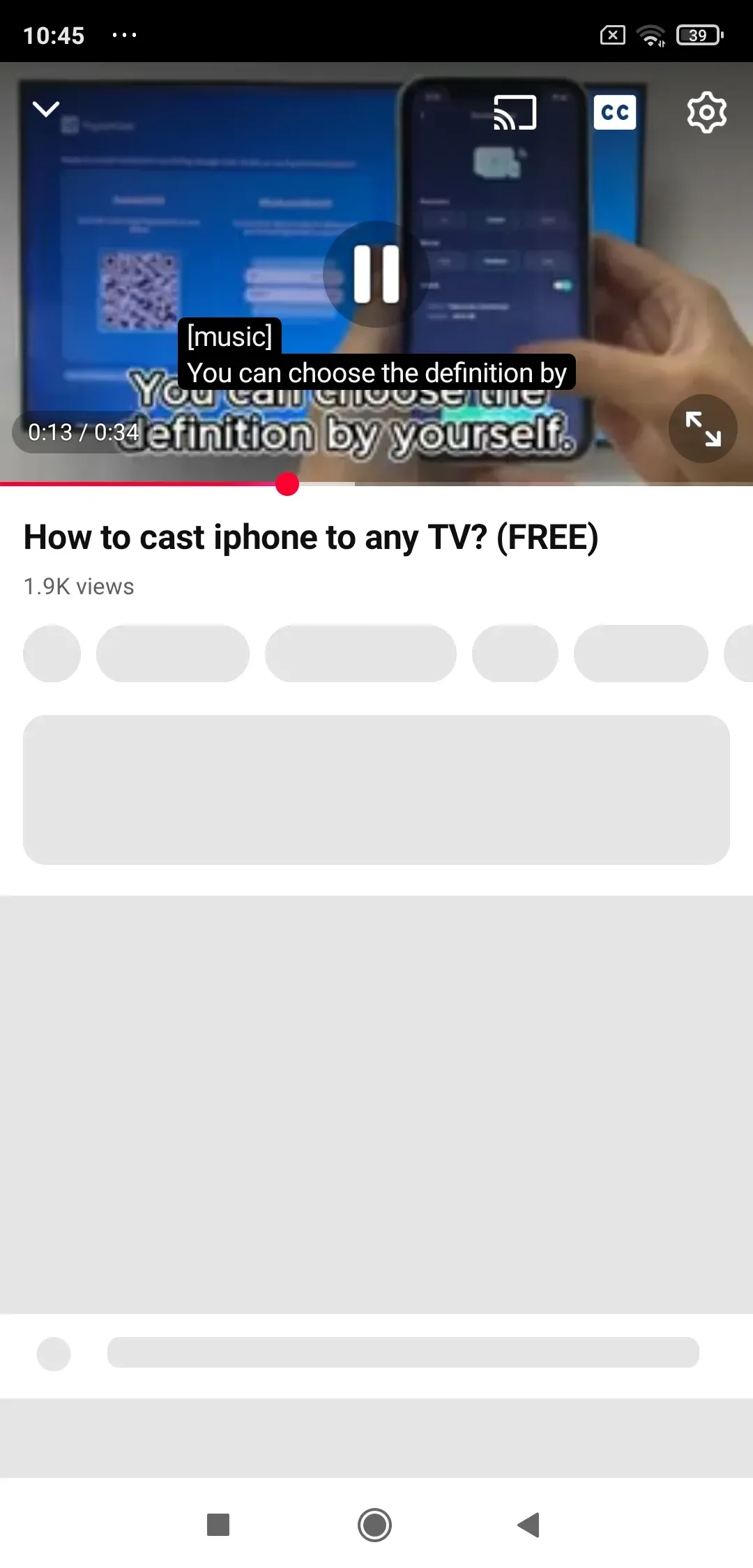
Step 4. Choose your Chromecast, Google TV, or compatible TV from the device list.
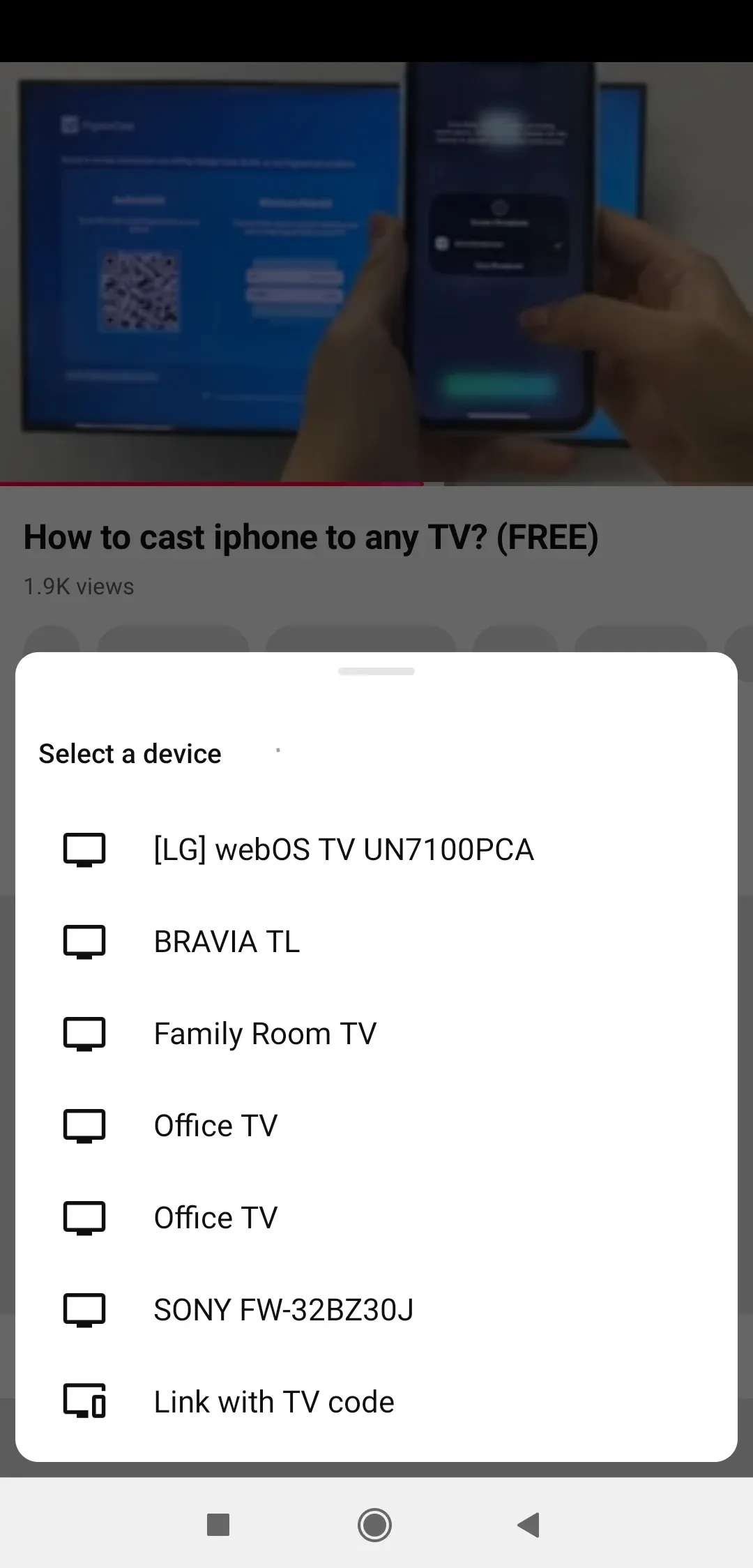
Step 5. The video will start playing on your TV, and you can control playback from your Pixel phone.
Method 2: Mirror Your Google Pixel Screen to TV With Google Cast
Sometimes you do not want to cast only a video. You may want to show your photos, presentations, websites, games, or apps that do not have a Cast button.
In this case, screen mirroring is the better option. Screen mirroring duplicates everything displayed on your Pixel phone and shows it on your TV.
How to screen mirror Pixel phone to TV:
Step 1. Connect your Pixel phone and TV to the same Wi-Fi network.
Step 2. Open Pixel Settings, go to Settings > Connected devices > Connection preferences > Google Cast or tap Cast from the Quick Settings menu.
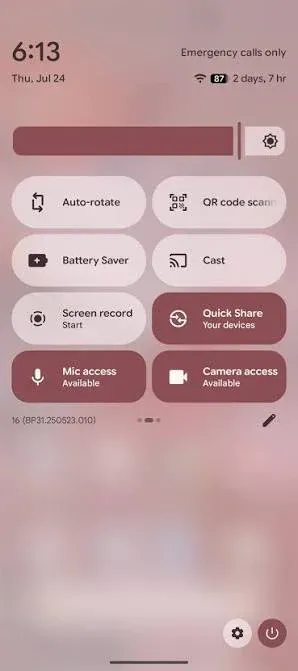
Step 3. Choose your Chromecast, Google TV, or compatible casting receiver.
Step 4. Accept the connection request if your TV asks for permission.
Your Pixel screen should now appear on your TV.
Screen mirroring is useful for sharing photos and videos stored on your phone, showing documents or presentations, using apps that do not support direct casting, or playing mobile games on a larger screen. However, for long video sessions, direct app casting is usually more stable because it does not require your phone to continuously send the entire display.
Method 3: Cast Google Pixel to TV Without Chromecast Using PigeonCast
Not every TV works with Google Cast. If your TV does not appear in the casting list, it does not always mean there is something wrong with your Google Pixel. In many cases, the limitation comes from the TV ecosystem itself.
For example, Samsung TVs and Apple TV devices use their own platforms and may not always appear as native Google Cast receivers. When you want to cast Pixel to Samsung TV, cast Pixel to Apple TV, or mirror your Pixel phone to other smart TV platforms, a cross-platform casting solution like PigeonCast can be a more flexible option.
Unlike traditional casting methods that depend on built-in Chromecast support, PigeonCast is designed to bridge compatibility gaps between different devices. It helps Google Pixel users connect with a wider range of smart TVs and streaming platforms without being limited to one ecosystem.
PigeonCast is especially useful when:
- Your TV does not have Chromecast built in
- You want to cast Pixel to Samsung TV or other non-Google TV platforms
- Your smart TV supports apps but does not reliably appear in Google Cast discovery
- You use multiple TV brands at home and want one flexible casting solution
How to cast Google Pixel to TV using PigeonCast:
Step 1. Download and install PigeonCast on your Google Pixel and on your TV platform or streaming device like Roku TV, Fire TV, and LG TV.


Overall Rating:



Step 2. Make sure your Google Pixel and the receiving device are connected to the same wireless network so they can communicate properly.
Step 3. Launch PigeonCast on your TV and your TV is ready for receiving connection from your phone.
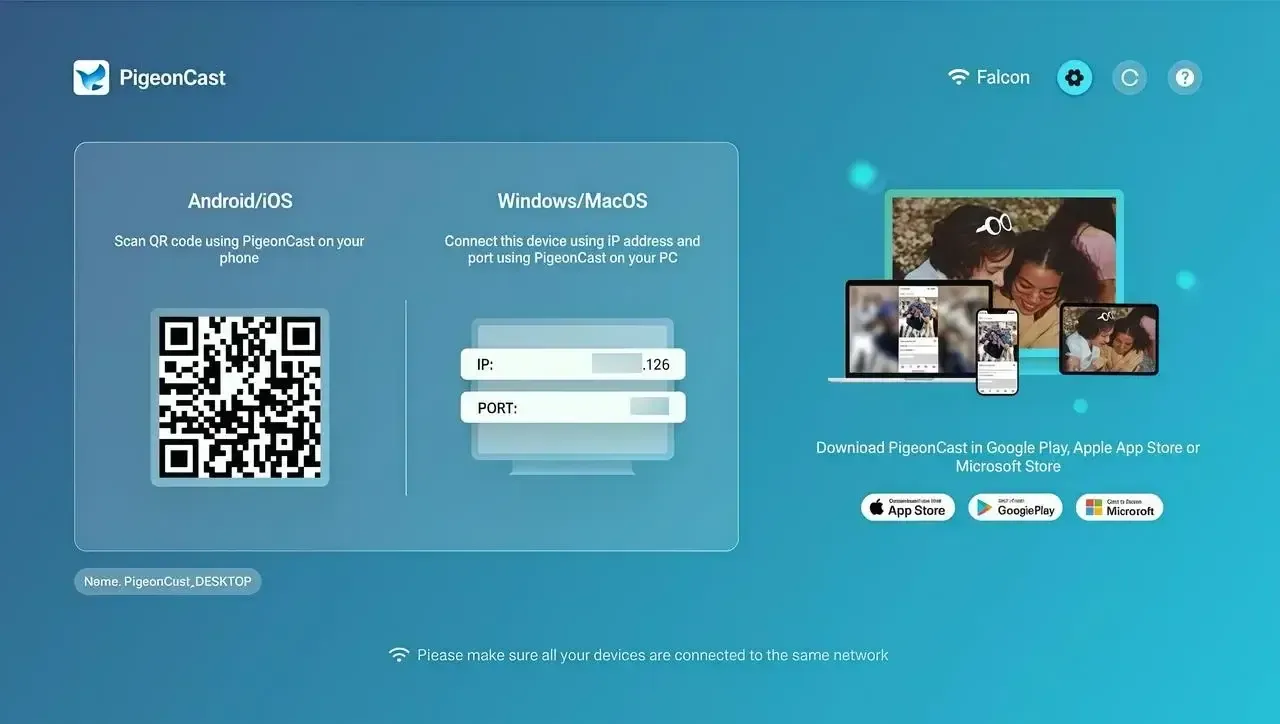
Step 4. On your Pixel, launch PigeonCast, and choose your TV from the device list or scan the QR code displayed on the TV.
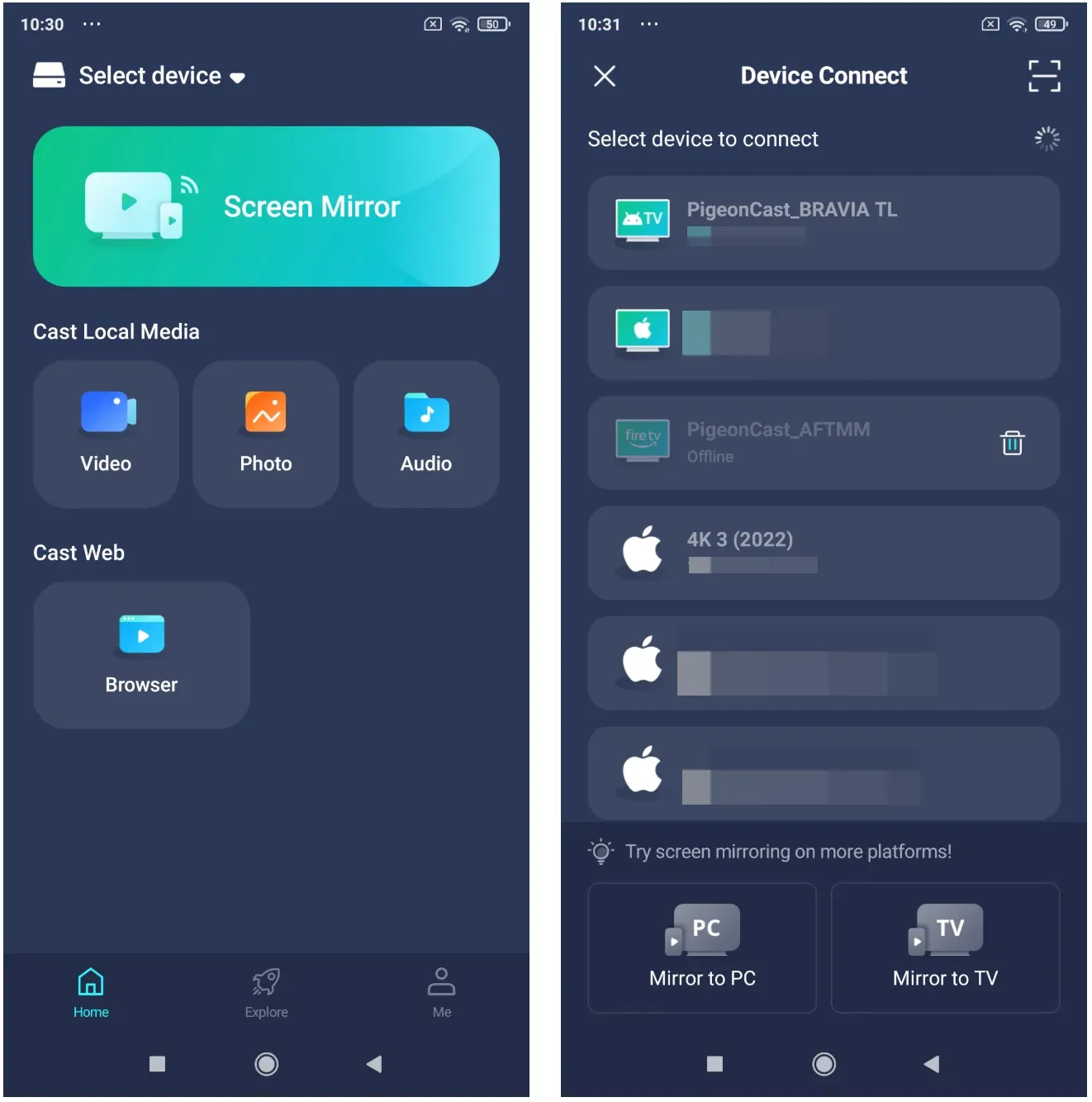
Step 5. Once connected, tap Screen Mirror, and start casting your Pixel screen or media content to your TV.
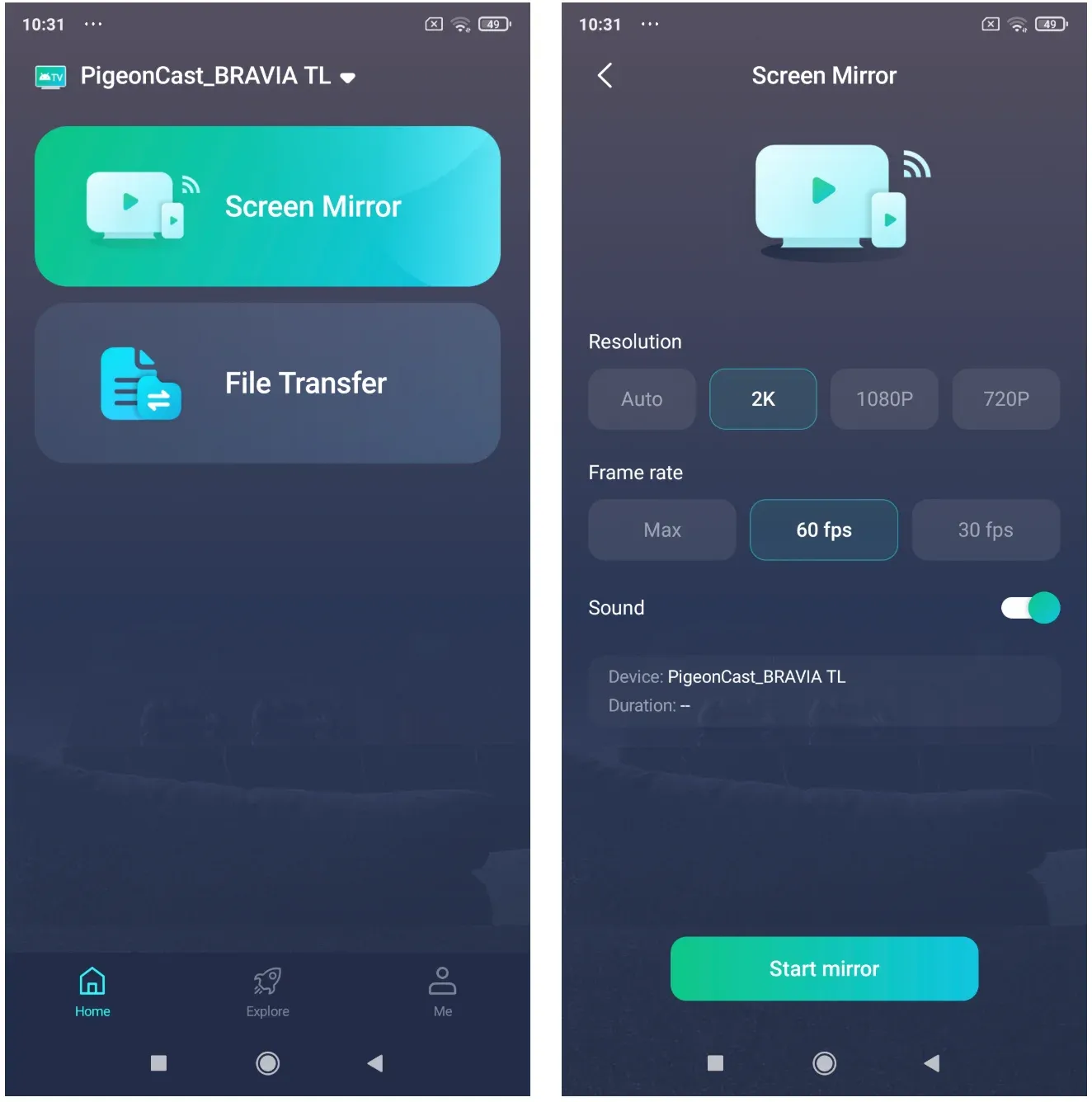
The biggest advantage of using PigeonCast is flexibility. Instead of choosing your casting method based on whether your TV belongs to the Google ecosystem, you can connect your Google Pixel with more platforms, including Samsung TV, Apple TV, and other compatible smart TV environments.
If your goal is simply watching videos on Chromecast or Google TV, native Google Cast is still the most direct option. However, for users who need broader device compatibility, PigeonCast provides a more convenient way to cast Pixel to different TV brands without switching ecosystems.
How to Fix Google Pixel Not Casting to TV
Sometimes, even after following the correct casting steps, your Google Pixel may still fail to connect to your TV. In most cases, the problem is not the phone itself but the connection between your Pixel and the TV.
Before trying advanced solutions, check the most common causes below.
1. Check Your Wi-Fi Connection First
Google Pixel casting depends on both devices being discoverable on the same local network. If your phone and TV are connected to different networks, casting will usually fail.
Make sure:
- Your Google Pixel and TV are connected to the same Wi-Fi network
- Your phone is not switching between Wi-Fi and mobile data
- Your TV is not connected to a guest network
Some routers also include features such as AP isolation or device isolation, which prevent devices on the same network from communicating with each other. If your Pixel can access the internet but cannot find your TV, this network setting is often the reason.
2. Confirm That Your TV Actually Supports Pixel Casting
A common misunderstanding is that every smart TV can receive a cast connection. However, being a smart TV does not automatically mean it supports Google Cast.
If your TV does not appear in the Cast device list, check:
- Whether your TV has Chromecast built in
- Whether Google Cast is enabled on your Google TV or Android TV
- Whether your TV supports another casting method
For TVs that are not compatible with Google Cast, a cross-platform casting solution like PigeonCast can help connect your Pixel phone with more devices, including different smart TV platforms.
3. Restart and Update Your Devices
Temporary software issues can also prevent casting from working properly.
Try restarting your Google Pixel phone, your TV, and your Chromecast or streaming device. You should also check for updates on Pixel system software, your streaming apps, and your TV operating system.
Casting relies on communication between multiple devices, so outdated software on any one of them can cause connection problems or unstable performance.
4. Reduce Network and Performance Issues
If your Pixel connects to the TV but the connection keeps dropping, the problem is usually related to network quality.
For a more stable casting experience:
- Move your router closer to your TV and phone
- Reduce the number of devices using bandwidth
- Use a stronger Wi-Fi connection when streaming high-quality video
If you are watching supported streaming content, direct app casting is usually more stable than full-screen mirroring because the TV handles playback directly.
Final Thoughts
Casting from a Google Pixel to a TV is not just about finding a button and starting a connection. The real challenge is choosing a casting method that matches your devices, your content, and the ecosystem your TV belongs to.
Google Cast remains the simplest option when you are using Chromecast, Google TV, or a TV with built-in Cast support. However, the modern TV market is more diverse than ever. Many households now use different brands of TVs and streaming devices, which means a single casting standard does not always cover every situation.
The best casting experience is the one that removes these compatibility barriers. Whether you are streaming a movie, sharing photos with family, presenting from your phone, or mirroring an app that does not support native casting, the goal is the same: making your Pixel phone work naturally with the screen you already own.
With the right casting solution, your Google Pixel is no longer limited by the brand of your TV. Instead of worrying about whether your devices belong to the same ecosystem, you can focus on enjoying a smoother and more flexible way to share content on a bigger screen.
How to Cast From Google Pixel to TV FAQ
Can I cast Google Pixel to TV without Chromecast?
Yes, but your TV must support Google Cast or another compatible receiving method. If your TV does not appear as a casting device, you may need an external Chromecast device or another a screen mirroring app like PigeonCast.
Is casting the same as screen mirroring on Google Pixel?
No. Casting usually sends content from a supported app directly to the TV, while screen mirroring duplicates everything on your Pixel display. For watching movies, casting is usually better. For photos, presentations, and apps, screen mirroring is often more useful.
Why is my Google Pixel not finding my TV?
The most common reasons are: your devices are connected to different Wi-Fi networks, your TV does not support Google Cast, Google Cast is disabled on the TV, and your software needs an update.
Can any smart TV work with Google Pixel casting?
No. A smart TV does not automatically support Google Cast. You need a TV with Chromecast built in, Google Cast support, or another compatible receiver method.
Do I need the Google Home app to cast from Pixel to TV?
Not always. Many apps allow direct casting through their built-in Cast button. Pixel phones also include Google Cast options in system settings for screen projection.
Can I connect Google Pixel to TV with a cable?
Yes, but compatibility depends on your Pixel model and the display hardware. A wired connection can be useful when you need a stable connection or wireless casting is unreliable.
What is the best way to watch videos from Pixel on TV?
For most users, the best option is casting directly from a Cast-enabled app to a Chromecast, Google TV, or Google Cast-compatible TV. It usually provides smoother playback than mirroring the entire phone screen.
Mia Clarke is a technology editor specializing in screen mirroring and casting solutions across multiple platforms. Mia provides clear, practical guides and in-depth insights to help users seamlessly connect their devices. Passionate about enhancing digital experiences, Mia is dedicated to keeping readers updated on the latest trends and tools in cross-platform screen sharing. Whether you’re looking to mirror your smartphone, laptop, or smart TV, Mia’s content delivers reliable, user-friendly advice to simplify your tech setup.