
Casting your Samsung phone to a Roku TV is easier than it sounds, but the best method depends on what you want to show and how smooth you want the experience to be. Whether you are mirroring your entire screen, sharing photos, or playing a video from YouTube, there are several reliable ways to get it done. This guide walks you through how to cast Samsung phone to Roku TV using built-in features and flexible third-party tools, with clear steps you can follow in minutes.
Method 1: Use Built-in Miracast
Smart View is the fastest way to mirror your Samsung screen to Roku when both devices are on the same Wi-Fi network. It mirrors everything on your phone, which makes it ideal for presentations, browsing, or showing apps that do not support casting.
What you need:
- A Samsung phone with Smart View: Most Samsung phones include Smart View by default. To confirm, swipe down to open Quick Settings and look for Smart View. If you see it there, your phone is ready.
- A Roku TV that supports screen mirroring: On your Roku TV, go to Settings > System > Screen Mirroring. If this menu exists, your Roku supports screen mirroring and can receive a Samsung screen.
- Both devices connected to the same Wi-Fi: Check the Wi-Fi name on your Samsung phone and compare it with the network shown under Settings > Network on your Roku TV. The names must match for the devices to discover each other.
How to cast from Samsung phone to Roku TV:
Step 1. On your Roku TV, go to Settings > System > Screen Mirroring.
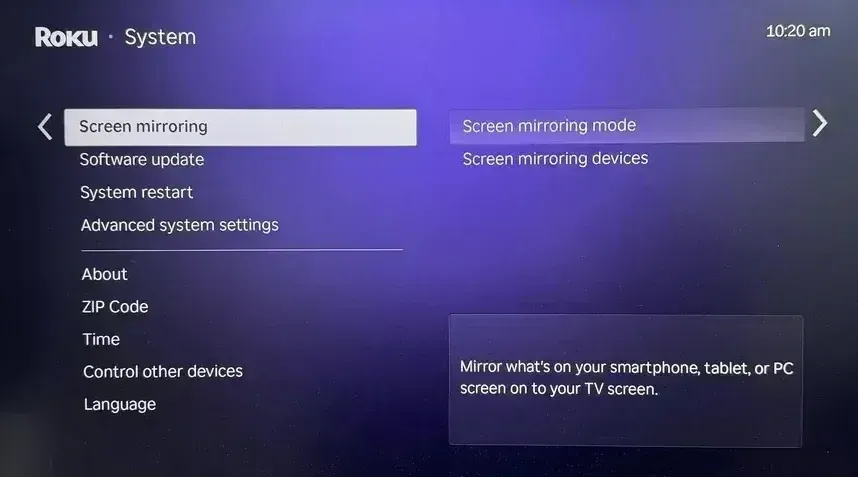
Step 2. Set Screen Mirroring mode to Prompt or Always allow.
Step 3. On your Samsung phone, swipe down to open Quick Settings.
Step 4. Tap Smart View.
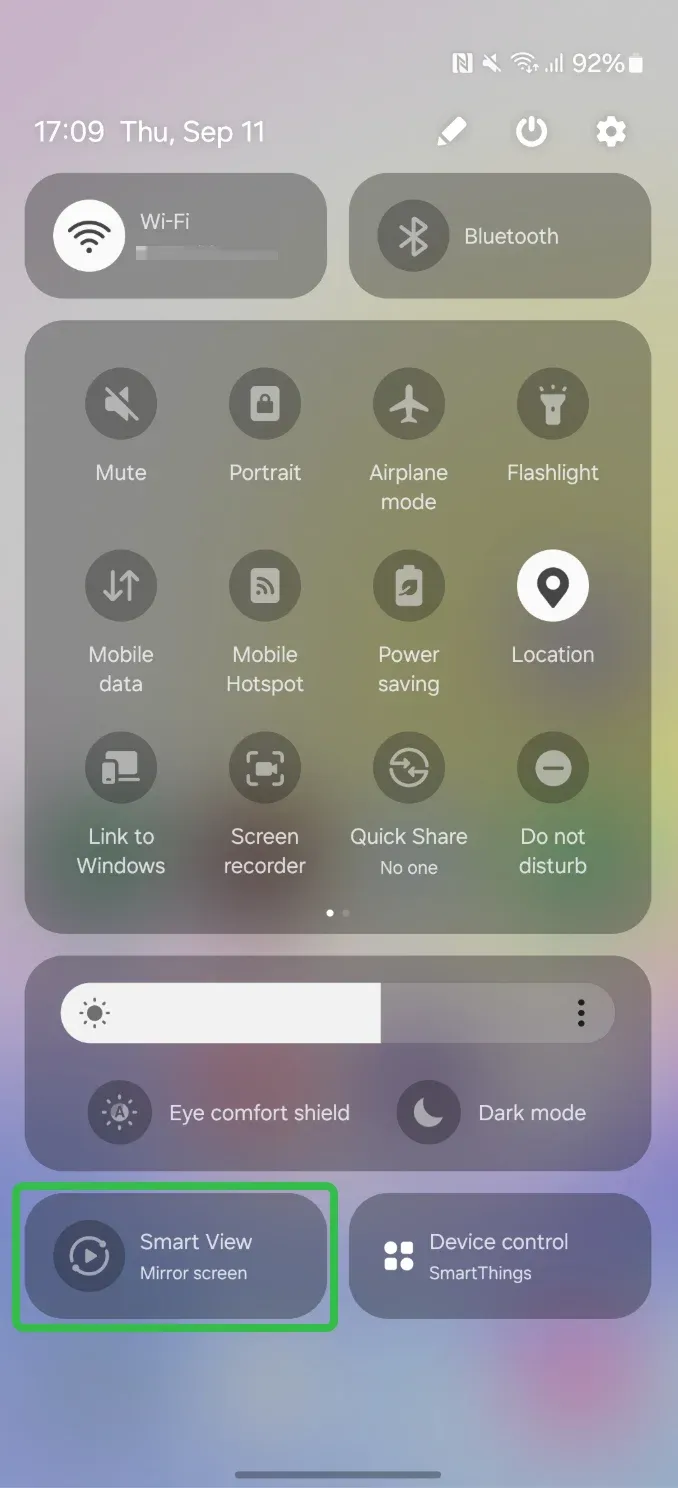
Step 5. Select your Roku TV from the device list.
Step 6. Confirm the connection on your TV if prompted.
When this Samsung-to-Roku mirroring works best:
- You want full screen mirroring, not just video
- You are sharing photos, web pages, or apps
- You prefer a built-in solution without extra installs
Keep in mind that Miracast mirrors your screen in real time, so performance depends on Wi-Fi quality.
Method 2: Use the PigeonCast App
If you are asking, how do I cast my Samsung phone to my Roku TV, my answer is using PigeonCast.

PigeonCast is a flexible screen mirroring solution when Smart View is unstable or unavailable. It works across different Android versions and focuses on smooth, app-level casting rather than raw screen mirroring.
Why consider using PigeonCast:
- Works well when Miracast fails to connect
- Useful for scross-platfrom setups, like casting Android to Apple TV
- Simple pairing without complex settings
How to cast to Roku TV from a Samsung phone with PigeonCast:
Step 1. Install PigeonCast from Google Play on Samsung phone.


Overall Rating:


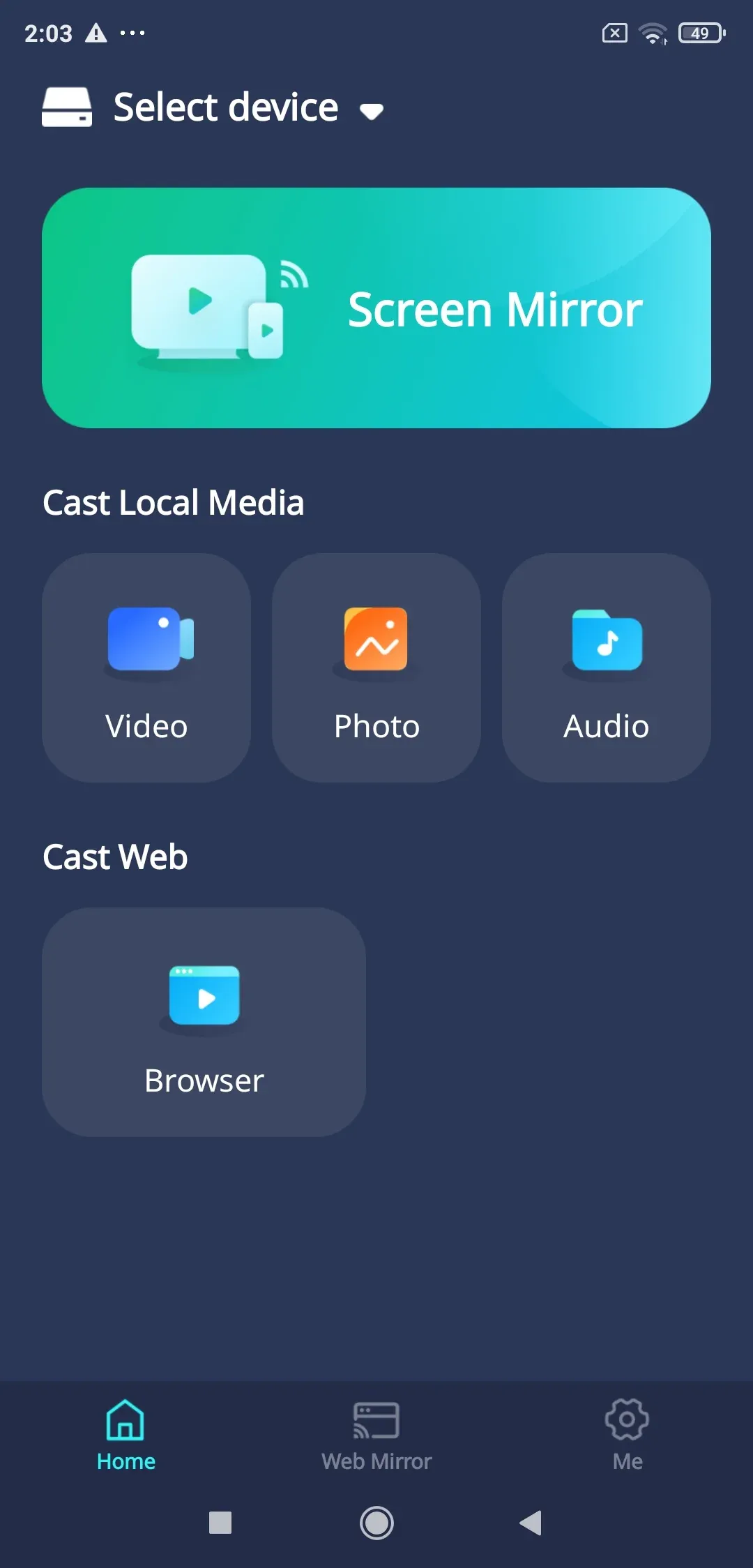
Step 2. Make sure your phone and TV are on the same Wi-Fi network.
Step 3. Open the app on your Samsung phone and select your Roku from the available list.
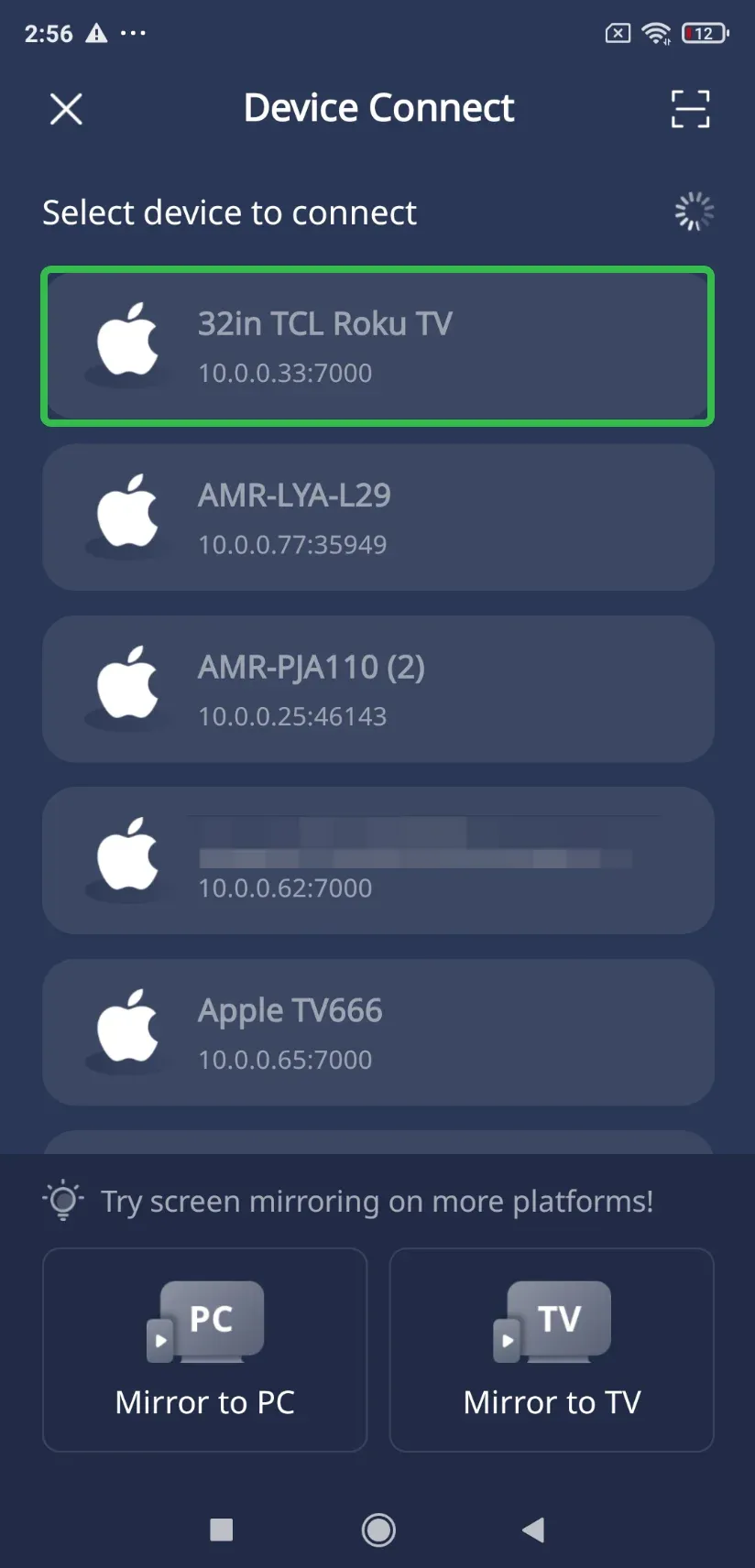
Step 4. Once connected, tap Screen Mirror or choose to cast to a video, audio, photo, or web page.
PigeonCast is practical if you often cast Samsung phone to Roku in different environments, such as offices or shared networks.
Method 3: Use a Streaming App
Streaming apps with built-in cast support offer the most stable experience for video playback. Instead of mirroring your phone, the TV streams the content directly.
How to cast Samsung to Roku TV using YouTube:
Step 1. Open the YouTube app on your Samsung phone.
Step 2. Make sure your phone and Roku TV are on the same Wi-Fi network.
Step 3. Tap the Cast icon in the video player.
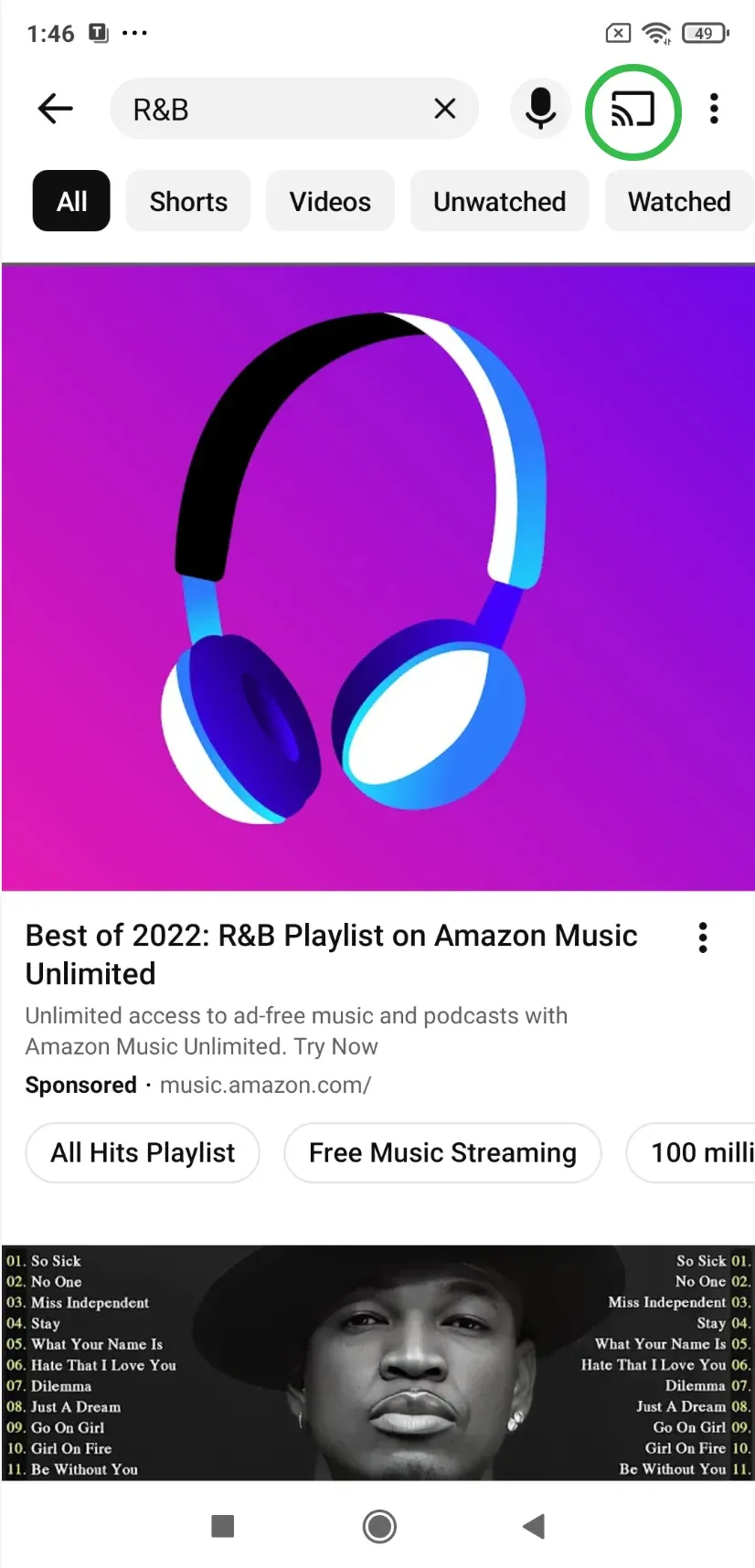
Step 4. Select your Roku TV from the list.
Why this feels smoother:
- No screen lag
- Better video quality
- Lower battery usage on your phone
If your main goal is entertainment, this is often the cleanest answer to how to cast Samsung phone to Roku TV.
Final Thoughts
There is no single best way to cast Samsung phone to Roku TV, because different situations call for different tools. Smart View is perfect for full screen sharing; streaming apps deliver the smoothest video playback. And when built-in options fall short, PigeonCast filss the gap without the process into a tech headache. Once you know your goal, choosing the right method becomes obvious.
How to Cast Samsung Phone to Roku TV FAQs
How do I cast my Samsung phone to my TV?
The easiest way is to use Smart View, which is built into most Samsung phones. Turn on screen mirroring on your TV, open Smart View from your phone's Quick Settings, and select your TV from the list. If Smart View is not available or unstable, using a supported streaming app or a third-party casting app like PigeonCast is another reliable option.
Why won't my Samsung phone connect to my Roku TV?
This usually comes down to connectivity settings. In most cases:
- The phone and TV are not on the same Wi-Fi network
- Screen mirroring is turned off or set to "Never allow" on Roku
- The connection was blocked during a previous pairing attempt
Restarting both devices and rechecking the screen mirroring setting on Roku often resolves the issue.
Why can't I cast to my TV from my Android phone?
Not all Android apps support casting by default. Some apps rely on Miracast-style screen mirroring, while others use app-level casting where the TV streams content directly. If casting does not appear in one app, try Smart View for full screen mirroring or switch to an app that includes built-in cast support.
Where is the cast button on Roku?
Roku does not have a system-wide cast button. Casting is initiated from your phone or app, not from the Roku interface itself. You will typically see a cast icon inside supported apps like YouTube, or you will connect through features such as Smart View on Samsung phones.
Why is my Roku not discoverable?
If your Roku does not appear as an available device, check the following:
- Screen mirroring is enabled under Roku system settings
- Both devices are on the same Wi-Fi network
- Your router is not using network isolation or guest mode
Once these are aligned, your Roku should become discoverable within a few seconds.
Mia Clarke is a technology editor specializing in screen mirroring and casting solutions across multiple platforms. Mia provides clear, practical guides and in-depth insights to help users seamlessly connect their devices. Passionate about enhancing digital experiences, Mia is dedicated to keeping readers updated on the latest trends and tools in cross-platform screen sharing. Whether you’re looking to mirror your smartphone, laptop, or smart TV, Mia’s content delivers reliable, user-friendly advice to simplify your tech setup.