
Many drivers want to know how to screen mirror on CarPlay when they need to show more than the apps Apple allows on the car screen. The tricky part is that CarPlay is not built as a full screen mirroring tool. It only shows supported iPhone apps in a driving friendly layout, so normal screen mirroring will not work on a standard CarPlay display. This guide explains what CarPlay can actually do, why full mirroring is limited, and what you can do if your car screen does not support direct mirroring.
Can You Screen Mirror on CarPlay
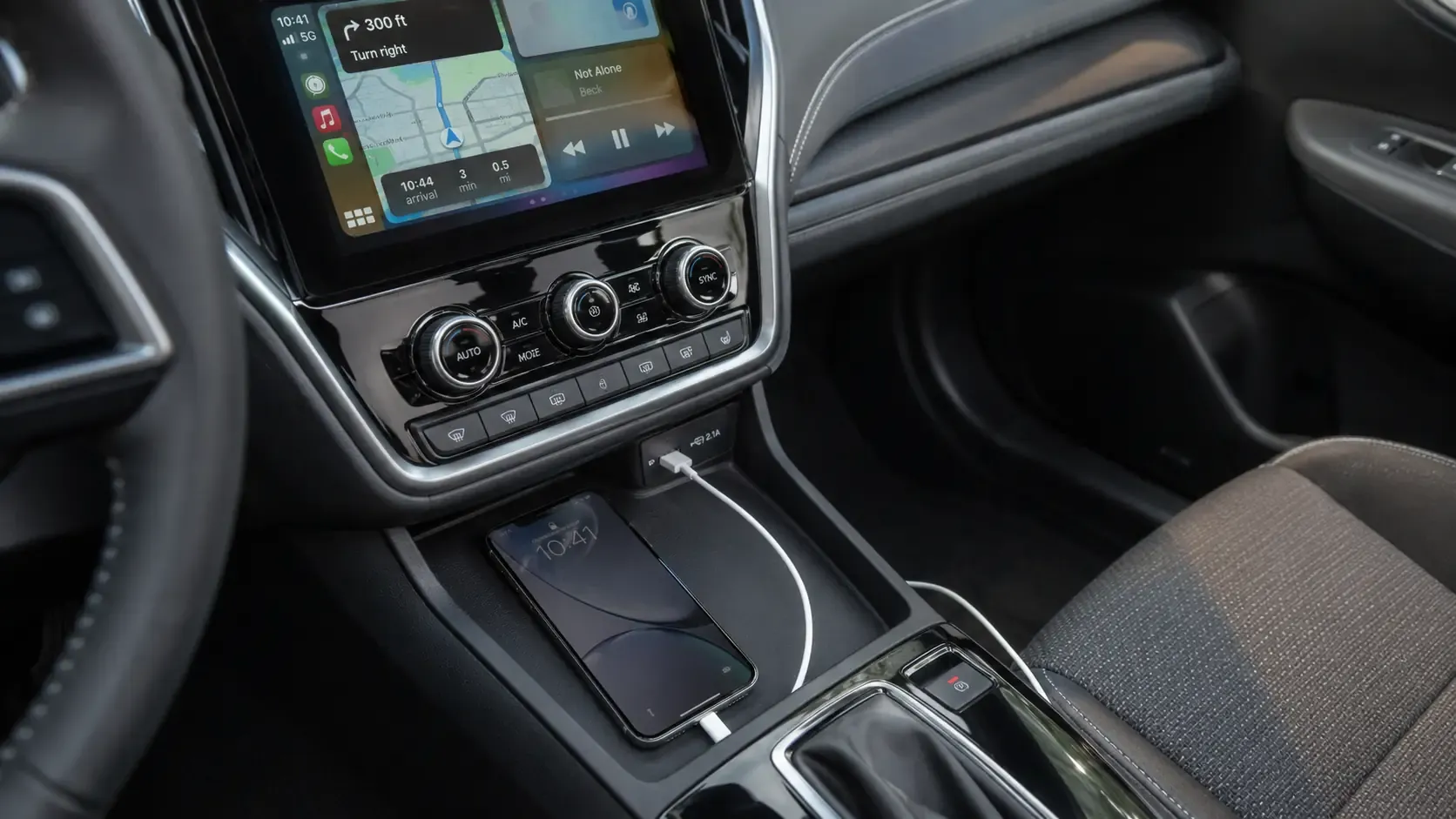
No. CarPlay is Apple’s in car system for iPhone, and standard CarPlay cannot mirror your full phone screen. It only shows supported iPhone apps in a car friendly layout, so normal Screen Mirroring from Control Center cannot send every app, video, photo, or webpage to the CarPlay display.
Why CarPlay Is Different from Screen Mirroring
CarPlay works more like a controlled car interface than a wireless mirror. Apple limits what appears on the screen to keep the system focused on driving. In simple terms:
- CarPlay supports selected iPhone apps, such as maps, music, calls, messages, podcasts, parking, and charging apps
- CarPlay is not an AirPlay receiver
- Wireless CarPlay only removes the cable. It does not add full screen mirroring
- Apps that are not made for CarPlay will not appear on the car display
If you want to show your full phone screen, you need a compatible receiving device outside the standard CarPlay system. For video, always check whether your car and the app support playback while parked. The right option depends on what you want to do:
| Your goal | Best option |
|---|---|
| Use maps, music, calls, or messages while driving | Use regular wired or wireless CarPlay |
| Watch supported video while parked | Check whether your car and app support parked video |
| Show your full phone screen | Use a compatible receiving device outside CarPlay |
How to Use CarPlay on Your Car Screen
CarPlay can connect to your car with a USB cable or wirelessly, depending on your vehicle. The steps below explain both options and help you choose the one your car supports.
Method 1. Connect CarPlay with a USB Cable
A wired connection works when your car supports USB CarPlay. Before connecting, make sure your car supports CarPlay, your iPhone is updated, and Siri is turned on. Use the USB port marked with a CarPlay logo or a smartphone icon.
Step 1. Start your car and make sure Siri is turned on.
Step 2. Connect your iPhone to the USB port marked with a CarPlay or smartphone icon. Use a USB cable that supports data transfer.
Step 3. Unlock your iPhone and allow CarPlay if a permission request appears.
Step 4. Select the CarPlay logo on your car display if CarPlay does not open automatically.
Step 5. Use supported apps such as Maps, Phone, Messages, Music, and Podcasts on the CarPlay screen.
If CarPlay does not appear, try another USB cable or a different USB port. If the problem continues, check whether CarPlay is enabled under Settings > General > CarPlay on your iPhone.
Method 2. Connect CarPlay Wirelessly
Wireless CarPlay lets you connect your iPhone without plugging in a cable. Your car must support wireless CarPlay for this method to work.
Step 1. Start your car and put the car stereo into wireless or Bluetooth pairing mode. On some vehicles, you can do this by pressing and holding the voice command button on the steering wheel. This button usually has a voice or speech icon. If you cannot find it, use the pairing option in your car’s infotainment menu instead.
Step 2. Make sure Bluetooth and WiFi are turned on, then put your car stereo in wireless or Bluetooth pairing mode.
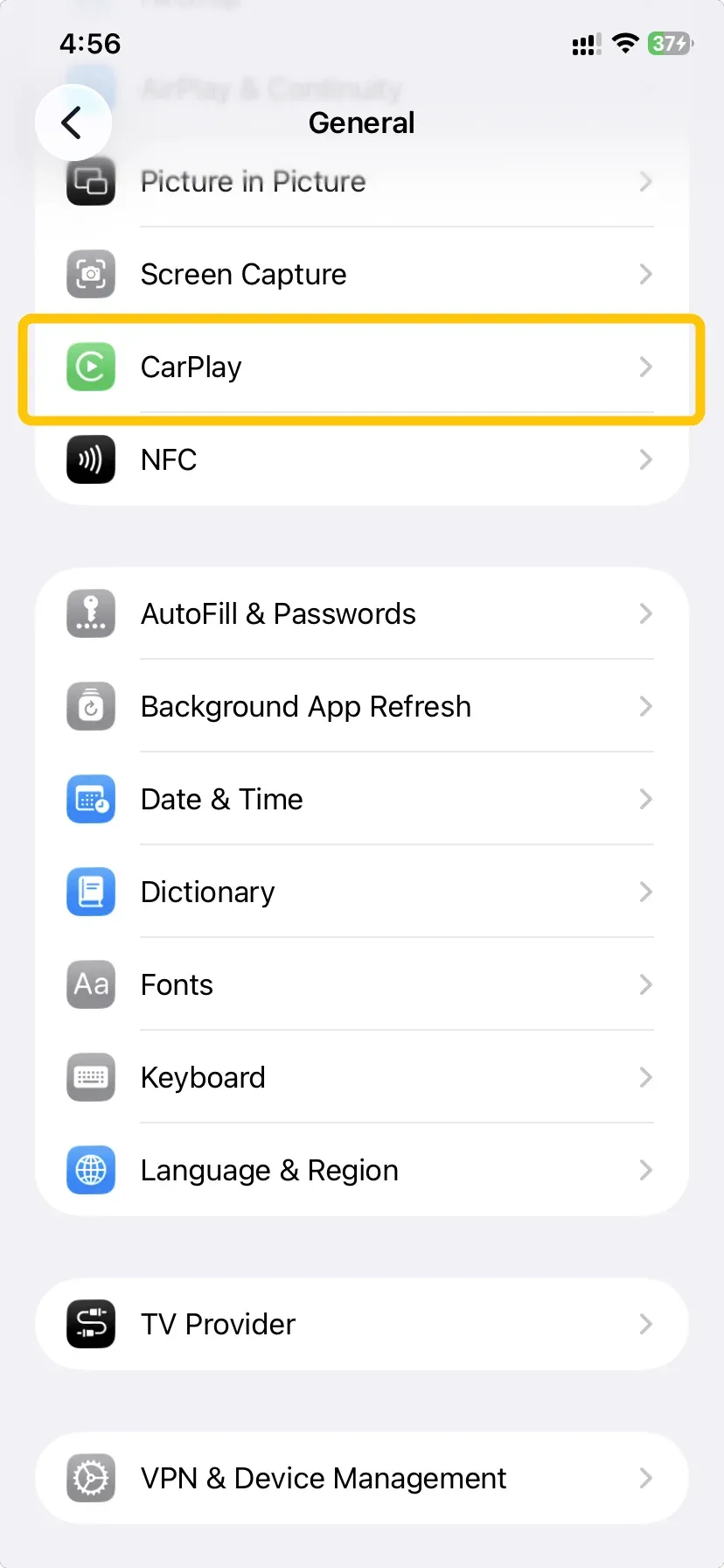
Step 3. On your iPhone, go to Settings > General > CarPlay and select your car under Available Cars.
Step 4. Confirm the pairing request on your iPhone and car display.
Step 5. Select the CarPlay logo on your car display if the CarPlay Home screen does not open automatically.
After the first setup, your iPhone may connect to CarPlay automatically when you start the car. If it does not connect, go to Settings > WiFi, select the CarPlay network, and make sure Auto Join is turned on. Also check that Bluetooth is enabled.
If You Need Full Screen Mirroring
CarPlay is designed to show supported iPhone apps, not your entire phone screen. If you want to display photos, webpages, videos, or apps that do not support CarPlay, you need a compatible screen mirroring receiver or a car display system with built in mirroring support.
| What you want to show | What you need |
|---|---|
| Photos or webpages | A screen mirroring adapter, such as a wireless HDMI adapter connected to the display’s HDMI input and powered through USB |
| Your full iPhone screen | An aftermarket car display with built in AirPlay support, or a display with an HDMI input used with a screen mirroring adapter |
| Video content | The same screen mirroring setup, used only while the car is parked |
Many mirroring setups require your phone and the receiving device to use the same WiFi network. Check the device instructions before connecting. Never watch videos or handle your phone while driving.
Use PigeonCast for Wireless Mirroring Beyond the Car
Full screen mirroring is not a good fit for driving. Videos, social media, and other visual content can distract the driver, even when the phone is connected to a car display. If you want a larger screen for entertainment, photos, or web content, it is better to mirror in a comfortable setting where you do not need to focus on the road.
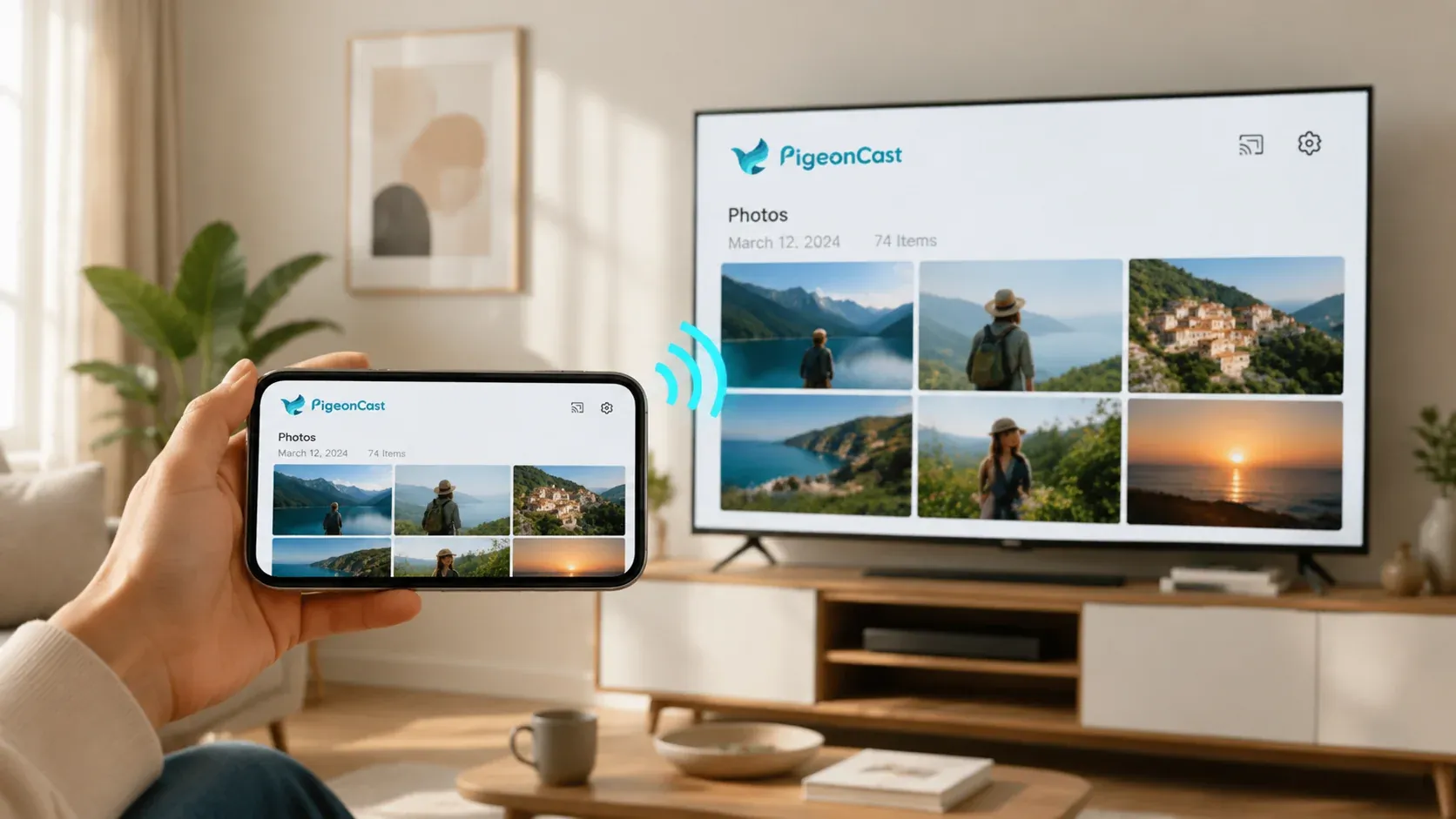
PigeonCast is wireless screen mirroring software that lets you share content across iPhone, Android, Windows, Mac, TVs, and supported streaming devices. It supports AirPlay, Chromecast, and DLNA, making it useful for a larger screen at home, in an office meeting, or in a classroom. It does not support CarPlay, so use it with a compatible screen outside the CarPlay system.
Step 1. Ensure your both devices are connected to the same wireless network.


Overall Rating:



Step 2. Install PigeonCast on the device you want to mirror from and the compatible screen you want to mirror to.
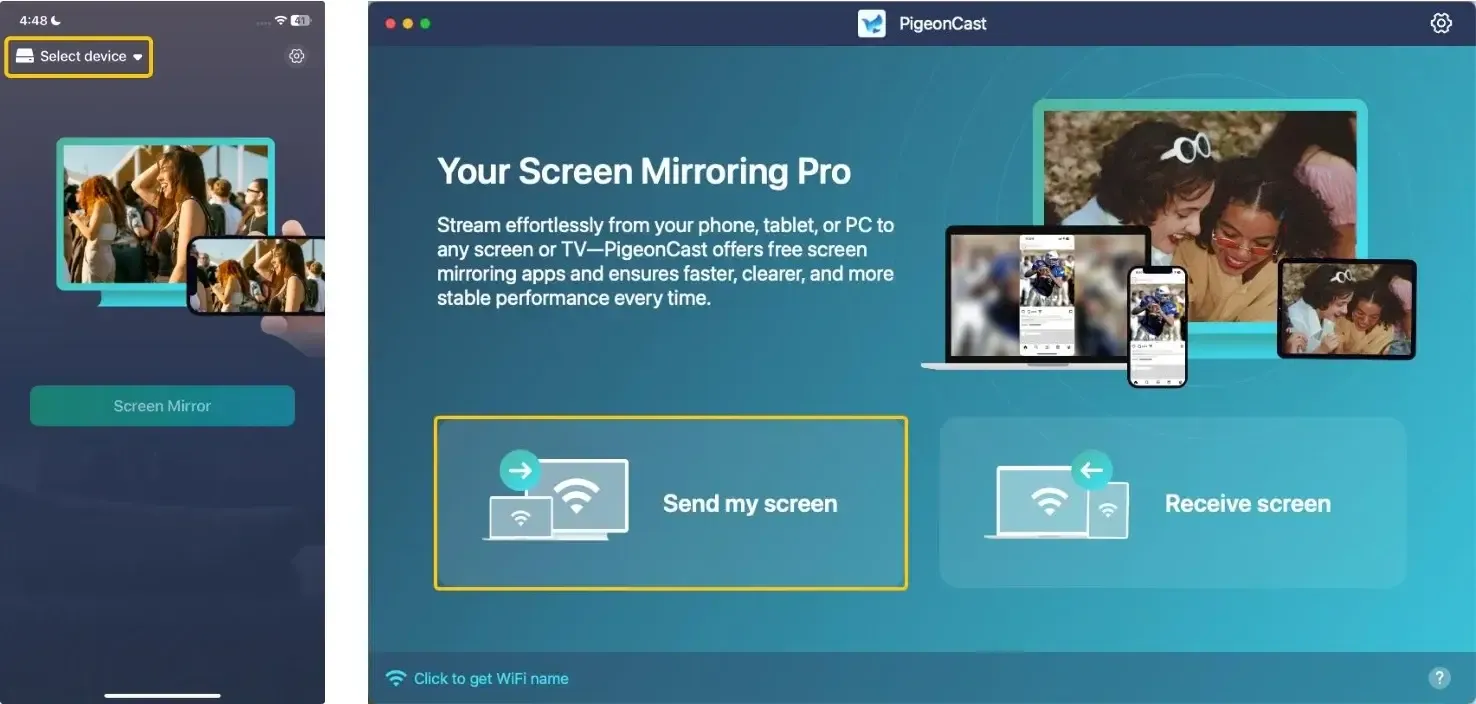
Step 2. Open PigeonCast, click Select device or Send my screen to choose the receiving screen from the available device list.
Step 3. Enter the onscreen PIN code to confirm the pairing request.
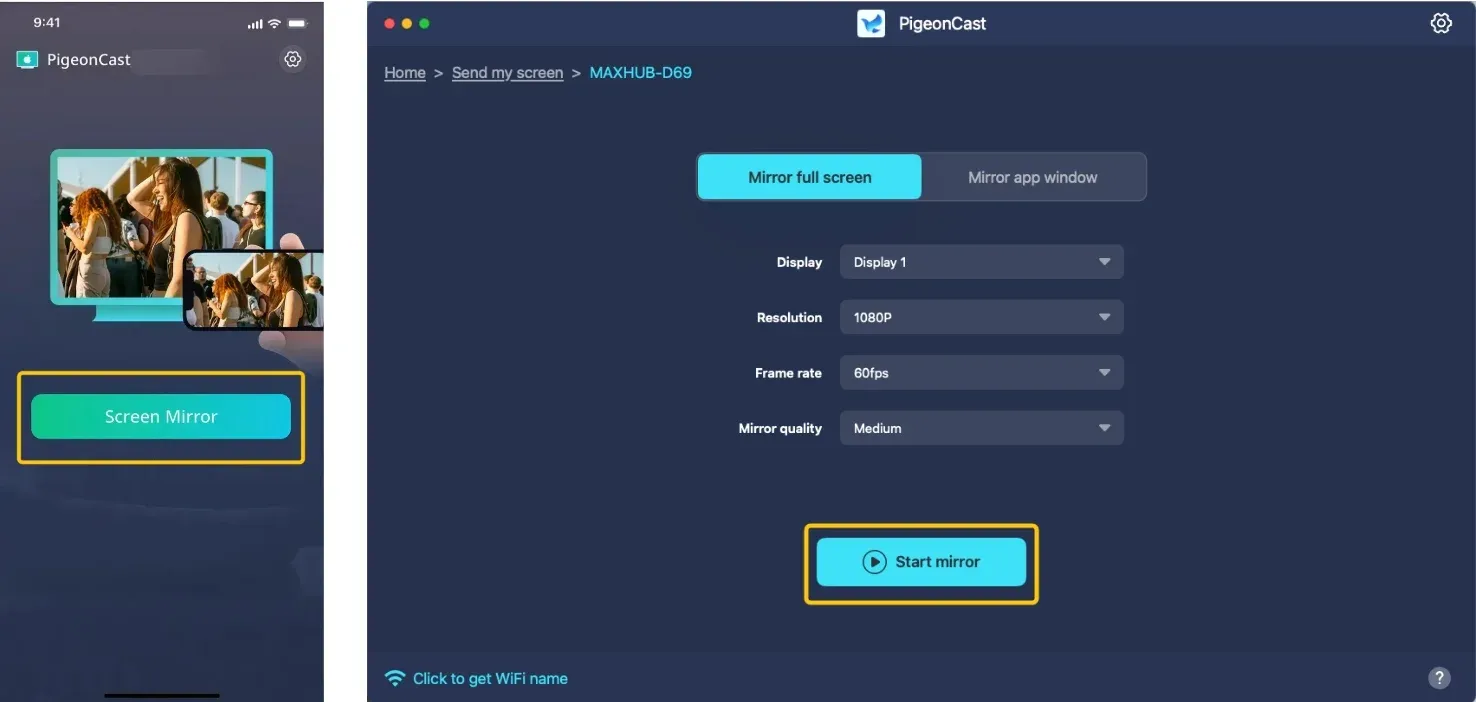
Step 4. When you finish the connection. Click Start mirror or Screen Mirror to begin mirroring to share photos, videos, webpages, presentations, or apps on the larger screen.
Why CarPlay Screen Mirroring Is Not Working
In most cases, nothing is broken. The issue is that CarPlay and iPhone screen mirroring are different features. Use the table below to identify what is happening and what to try next.
| What you see | Likely reason | What to do |
|---|---|---|
| Your car does not appear in iPhone Screen Mirroring | Standard CarPlay is not an AirPlay receiver | Use CarPlay for supported apps, or use a separate compatible mirroring setup outside CarPlay |
| CarPlay connects but an app is missing | The app does not support CarPlay | Check whether the app has CarPlay support. Unsupported apps cannot be added to the CarPlay screen |
| Your iPhone is not detected with a USB cable | The cable or USB port may not support the CarPlay connection | Try another data capable cable and another USB port marked for CarPlay |
| Wireless CarPlay does not connect | Bluetooth, WiFi, or Auto Join may be turned off | Turn on Bluetooth and WiFi. Then check the CarPlay network in Settings > WiFi and make sure Auto Join is enabled |
| CarPlay does not open after connecting | Your car display may not switch to CarPlay automatically | Select the CarPlay logo on your car display |
| CarPlay still does not connect | CarPlay may be restricted or the saved pairing may be faulty | Check Settings > Screen Time > Content & Privacy Restrictions > Allowed Apps. Then go to Settings > General > CarPlay, forget your car, and pair it again |
If the problem continues, restart your iPhone and car, then check whether your iPhone and car software are up to date.
To Sum Up
Choose the setup that fits the task. CarPlay is best for driving essentials, while full screen content belongs on a separate compatible display when you are parked or in another comfortable setting. If you need wireless sharing across phones, computers, and TVs, PigeonCast offers a simple way to move your content to a larger screen without relying on the CarPlay interface.
How to Screen Mirror on CarPlay FAQ
Does every car support CarPlay?
No. CarPlay support depends on the vehicle model, model year, trim level, and factory installed stereo system. Some cars support wired CarPlay only, while others support both wired and wireless connections. If your car does not have CarPlay, you may be able to add it with a compatible aftermarket stereo, but compatibility and installation requirements vary by vehicle.
Can I use an iPad with CarPlay?
No. Apple CarPlay is made for iPhone, not iPad or iPod touch. If you want to display an iPad screen, use a separate screen mirroring setup that supports iPad, such as an AirPlay compatible display or a compatible wireless mirroring app.
Does CarPlay need an internet connection?
CarPlay can connect to your car through USB or a local wireless connection without using mobile data. However, internet based features still need a connection. Live traffic, online search, streaming music, podcasts, and messages sent through online services can use your iPhone’s mobile data or a WiFi connection.
Can I use any USB port for CarPlay or screen mirroring?
No. In many cars, one USB port is designed for CarPlay while other ports only charge devices. Look for a CarPlay or smartphone icon near the port. A USB port also does not turn a car screen into a wireless display. For full screen mirroring, you need a display that supports AirPlay or another mirroring method, or a display with the correct video input for a screen mirroring adapter.
What should I check before buying a screen mirroring adapter?
First, check the input on your display. Many wireless screen mirroring adapters need an HDMI input for video and a USB port for power. Then confirm that the adapter supports iPhone screen mirroring through AirPlay. A USB flash drive is not a screen mirroring adapter and cannot display your iPhone screen.
Is PigeonCast a physical adapter for CarPlay?
No. PigeonCast is wireless screen mirroring software, not a CarPlay adapter or hardware device. You install it on compatible devices, connect them to the same WiFi network, and mirror content to a supported TV, computer, or streaming device. It does not work through the CarPlay interface.
Clara Rossi is an experienced technology editor and a seasoned expert in screen mirroring and casting technologies. With a keen eye for detail and a deep understanding of how to seamlessly connect devices, Clara excels at optimizing user experiences for effortless sharing and streaming. Whether you're seeking quick fixes or advanced tips, her expertise and responsiveness ensure that every query is met with a well-informed and efficient solution.