
Watching a video on your laptop is easy, but sometimes you want the sound on the TV too whether you're playing music, watching a downloaded movie, giving a presentation, or using an app on your computer.
The tricky part is that computer audio doesn't always follow the picture automatically when you cast. What works for a browser tab may behave differently from a desktop app, and the experience can also vary between Windows and Mac.
If you're trying to figure out how to send computer audio to Chromecast, this guide walks you through the practical ways to get both your content and sound onto the bigger screen.
How to Cast Computer Audio to Chromecast
There isn't one casting method that fits every type of computer audio. The best choice depends mainly on where the sound is coming from — a Chrome tab, your full desktop, or a specific desktop app.
Below are three ways to cast computer audio to Chromecast, starting with Chrome's built-in options and then a more flexible app-casting approach with PigeonCast.
Method 1: Cast Audio From a Chrome Tab
If the sound you want to play is already inside Chrome, casting the tab is usually the easiest and most reliable option. It works well for content such as YouTube, web-based music players, podcasts, and videos playing on websites.
Step 1. Make sure your computer and Chromecast are connected to the same Wi-Fi network.
Step 2. Open Chrome and go to the tab containing the audio or video you want to play.
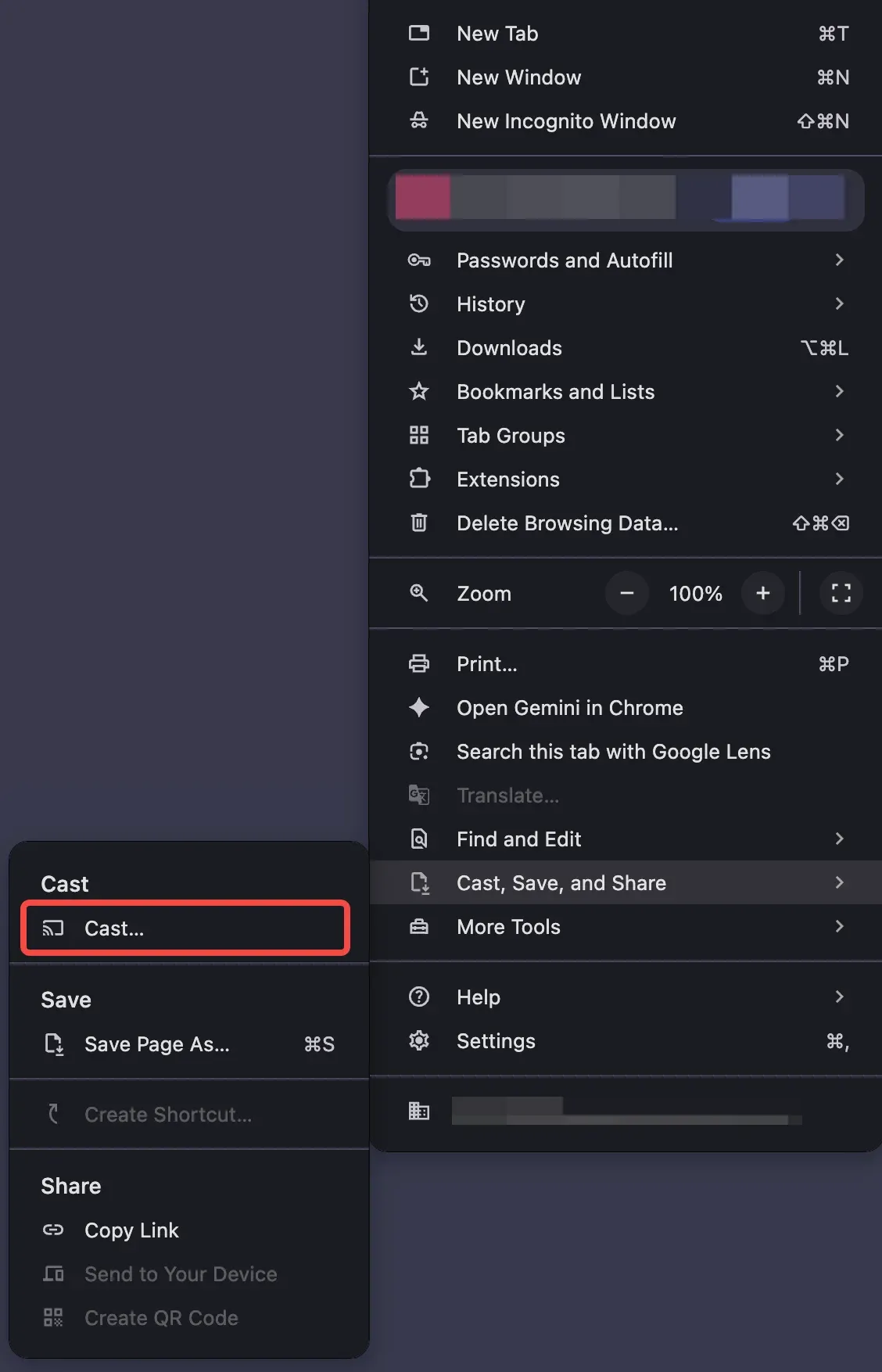
Step 3. Click the three-dot menu in the upper-right corner of Chrome.
Step 4. Select Cast, save, and share > Cast.
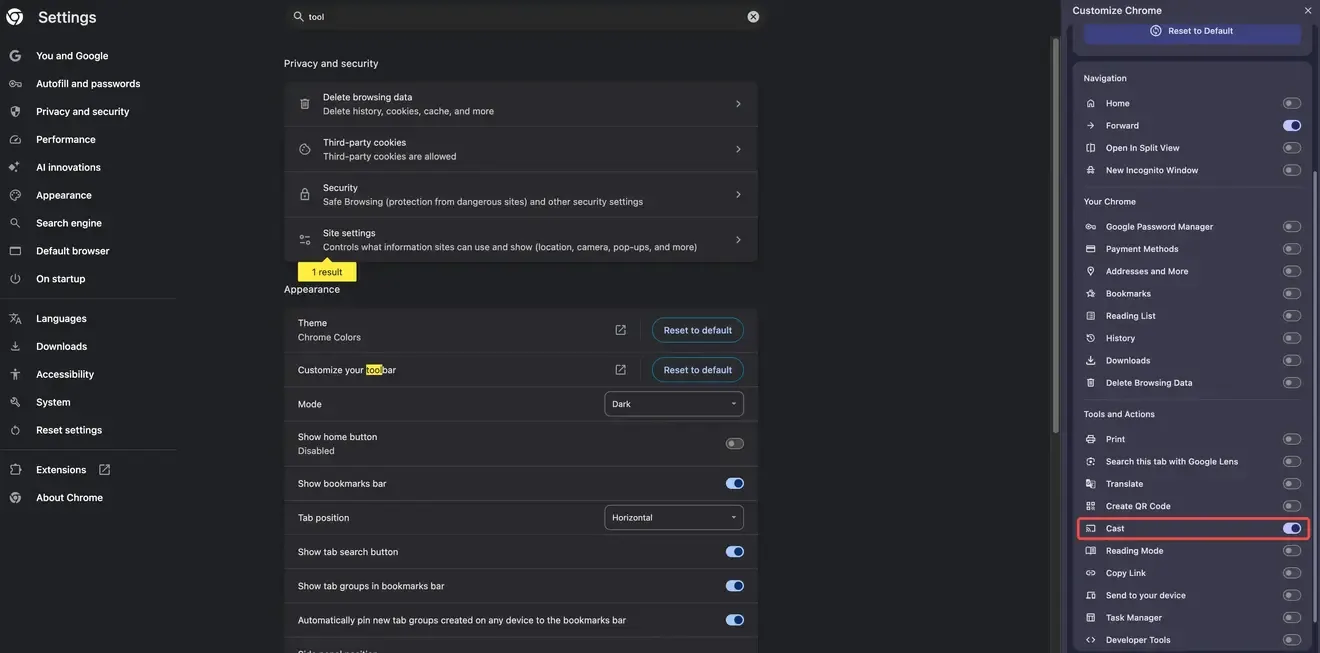
Tip: If you use Cast often, you can add it to the Chrome toolbar for quicker access. Open Settings, search for toolbar, choose Customize your toolbar, then turn on Cast.
Step 5. Select your Chromecast or Google Cast-enabled TV.
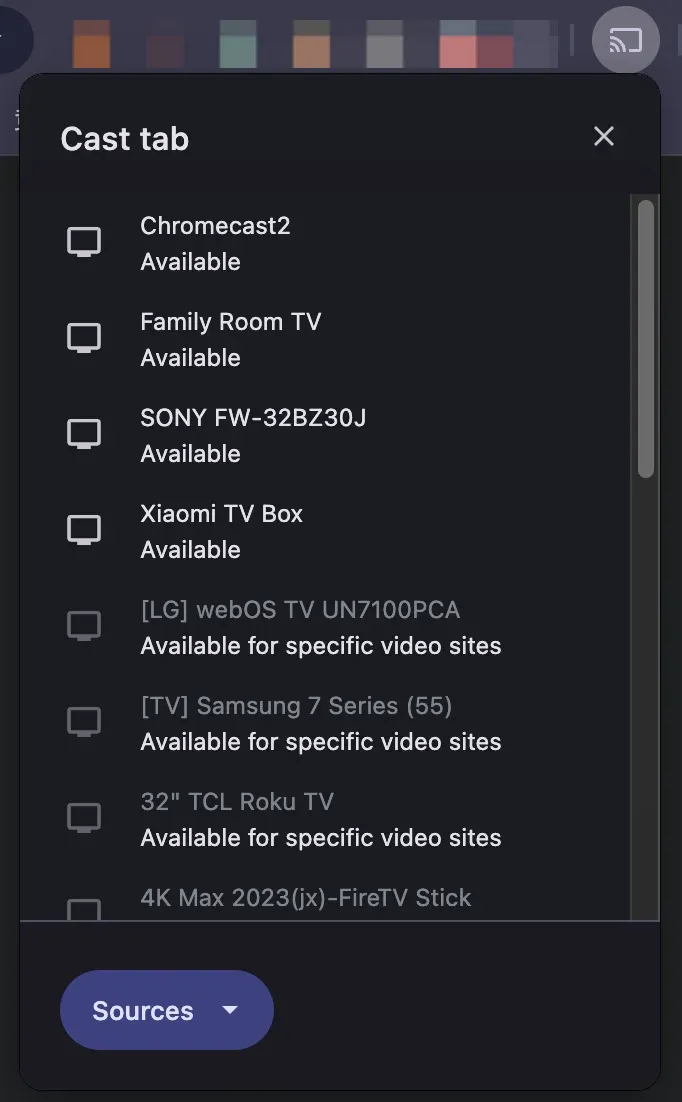
When you cast a Chrome tab, its audio plays on the TV while sounds from other tabs and desktop apps continue playing on your computer.
If the website itself has a built-in Cast button, such as YouTube, use that option when available. Google Cast-enabled websites can send the media directly to the receiver instead of mirroring the browser tab, which can provide better playback quality.
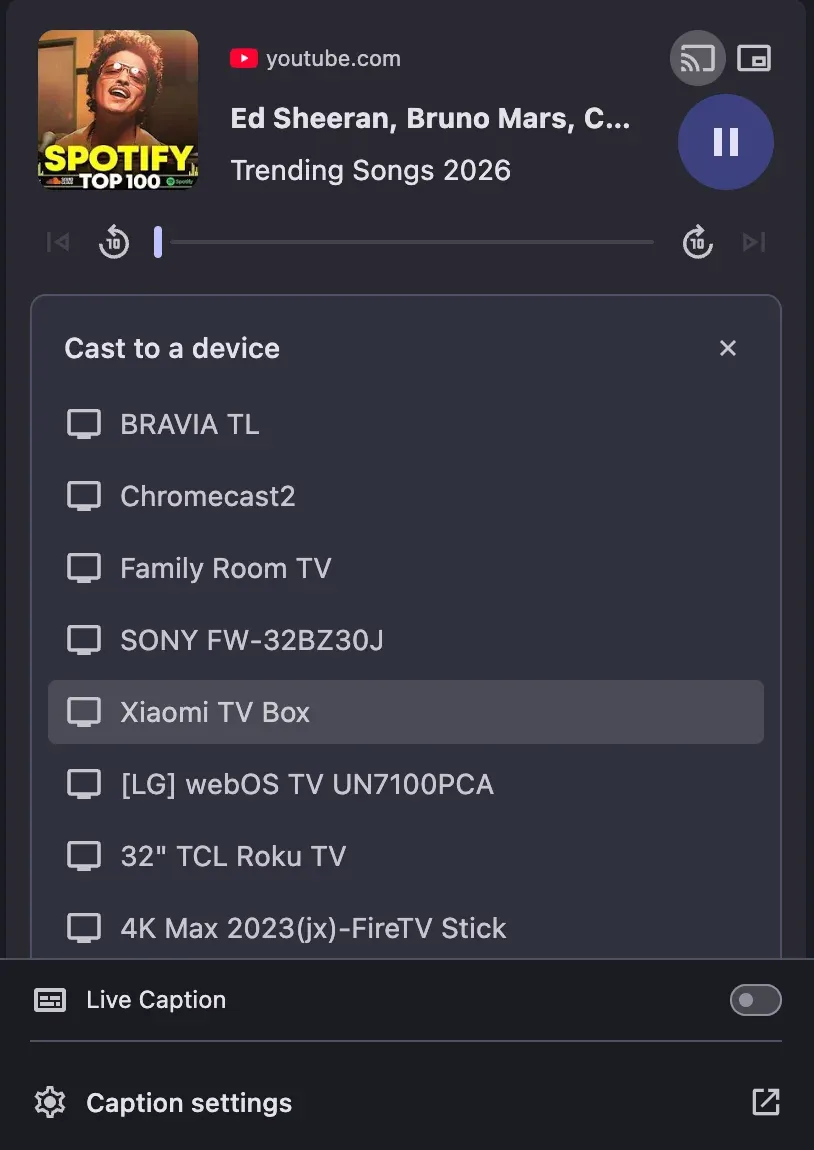
This same basic workflow can also be used when you want to stream from a PC to Chromecast with both video and audio.
Method 2: Cast Your Computer Screen With Chrome
Chrome can also cast your entire computer screen instead of a single browser tab. This is useful when you need to show your desktop, switch between windows, give a presentation, or display content that is not contained in one Chrome tab.
Step 1. Open Chrome on your computer.
Step 2. Click the three-dot menu and select Cast, save, and share > Cast.
Step 3. Open Sources and select Cast screen.
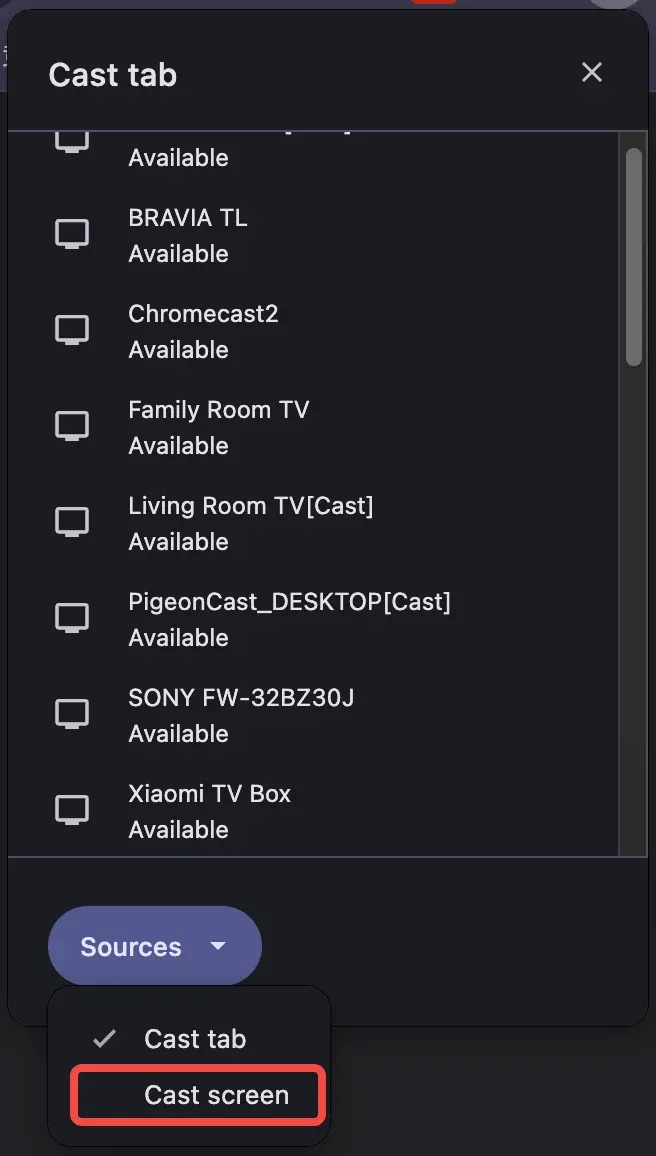
Step 4. Choose your Chromecast or Google Cast-enabled TV.
Step 5. Select the screen you want to share if your computer has multiple displays.
There is one important limitation if audio is your main goal: screen casting does not handle computer audio as consistently as tab casting. When you cast your screen, the picture may appear on the TV while the sound continues playing from your computer. This is especially worth noting on Mac, where desktop audio support is more limited, while Windows generally handles Chromecast from a laptop to a TV more consistently.
If the sound is already playing in Chrome, Cast tab is usually the more straightforward choice. For audio coming from a desktop app instead, the next method gives you more control over what you cast.
Method 3: Cast Computer Audio With PigeonCast
PigeonCast for Windows and Mac lets you cast either a specific app window or your entire computer screen.
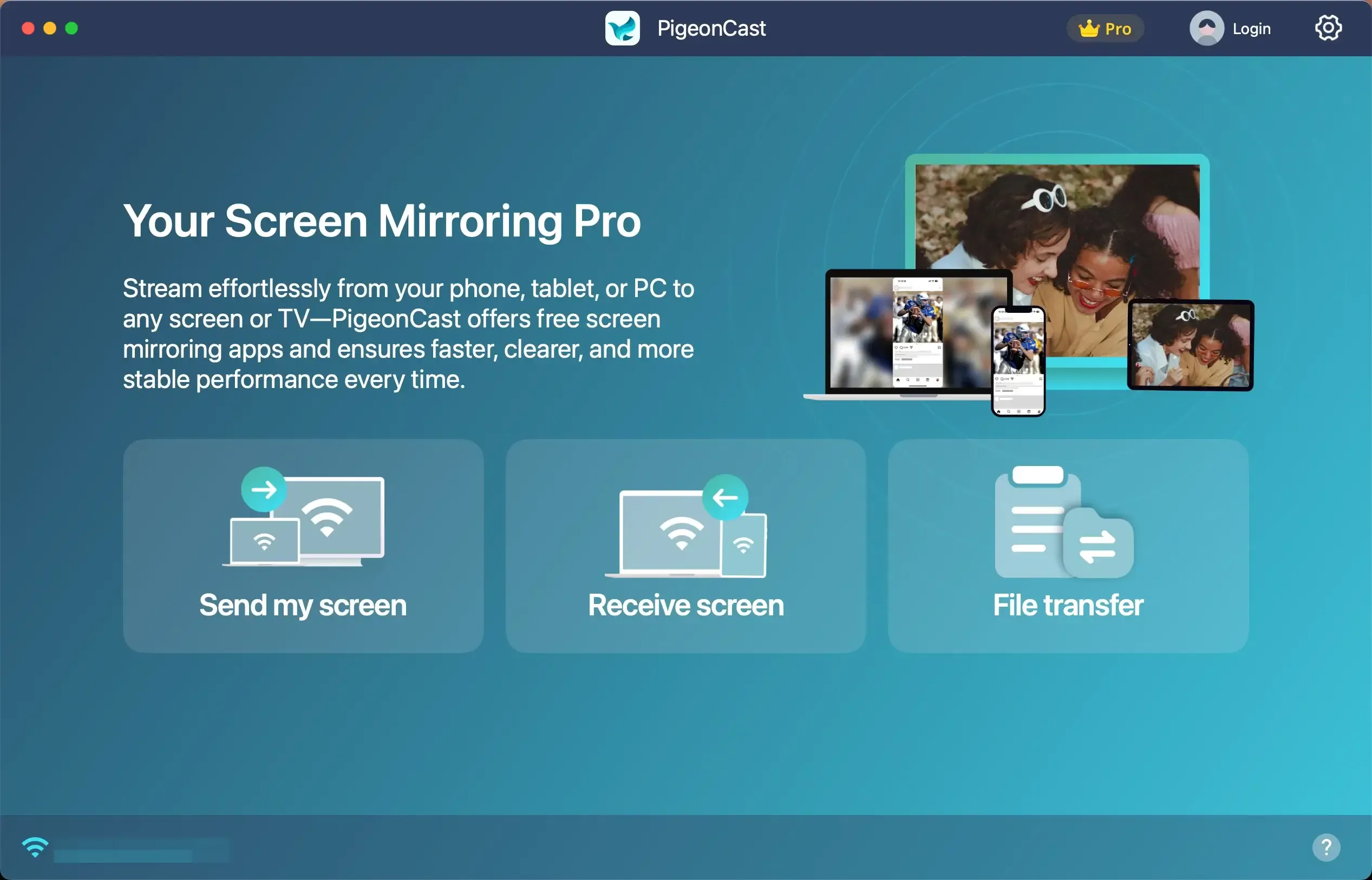
The app casting option is useful when the audio comes from a desktop program such as a music app, media player, or broadcast app, and you don't want to share the rest of your desktop.
How to cast audio from a specific app on computer with PigeonCast:
Step 1. Open the app you want to cast and keep its window visible. Do not minimize it.
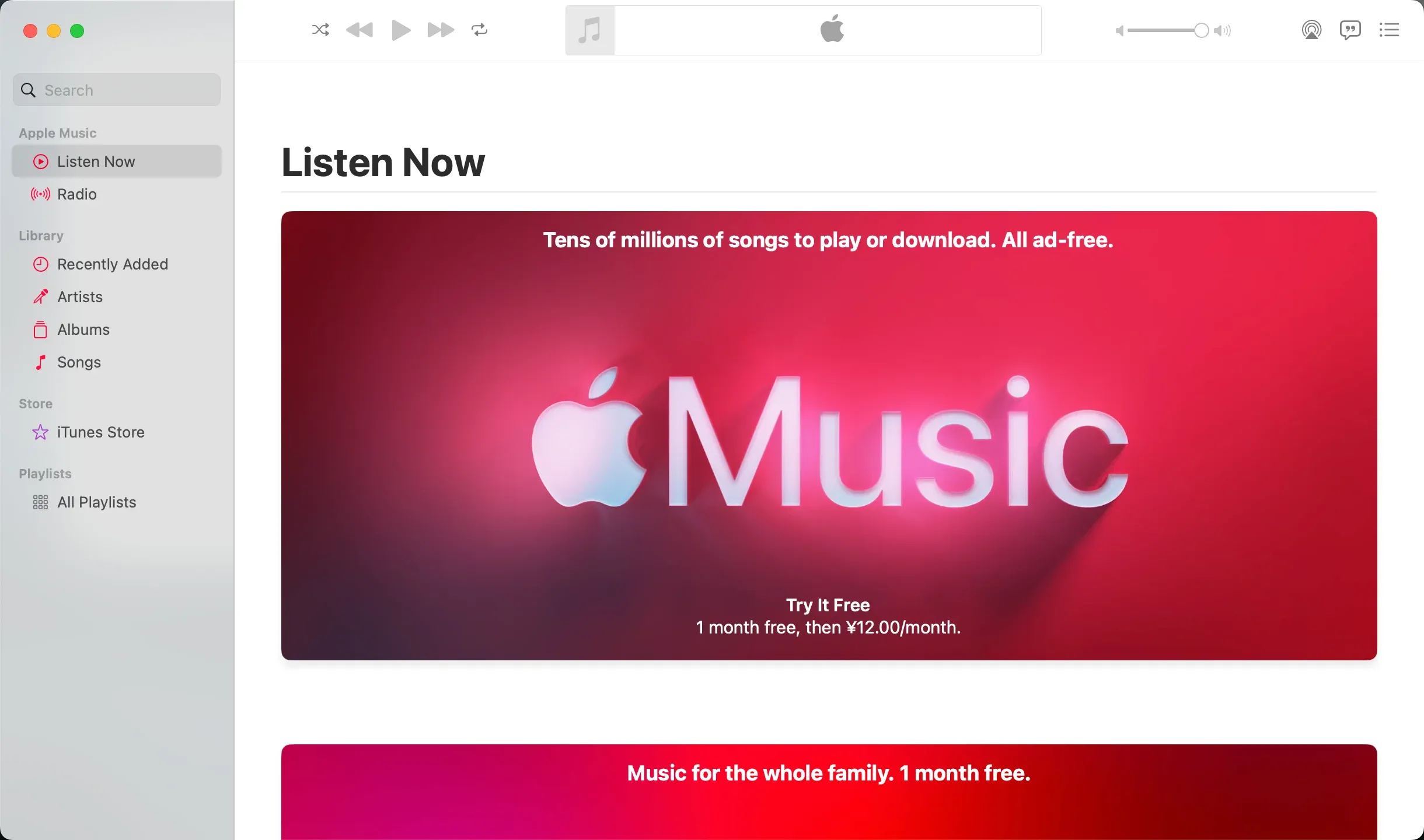
Step 2. Make sure your computer and receiving device are connected to the same network.
Step 3. Open PigeonCast on your Windows PC or Mac and click Send my screen.


Overall Rating:



Step 4. Choose the Chromecast-enabled devie from the list.
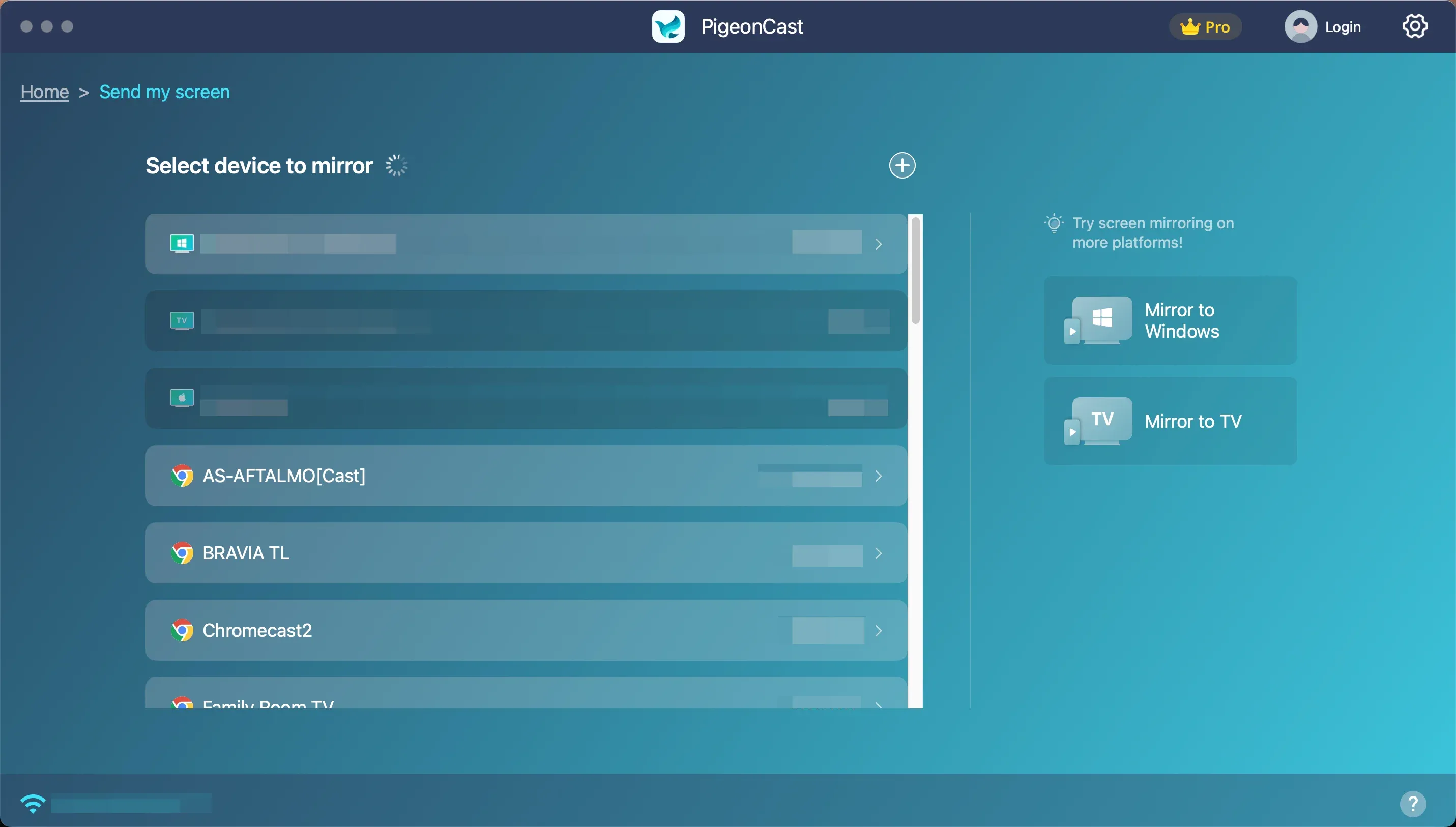
Step 5. Select Mirror App Window, choose the app you opened, and start casting.
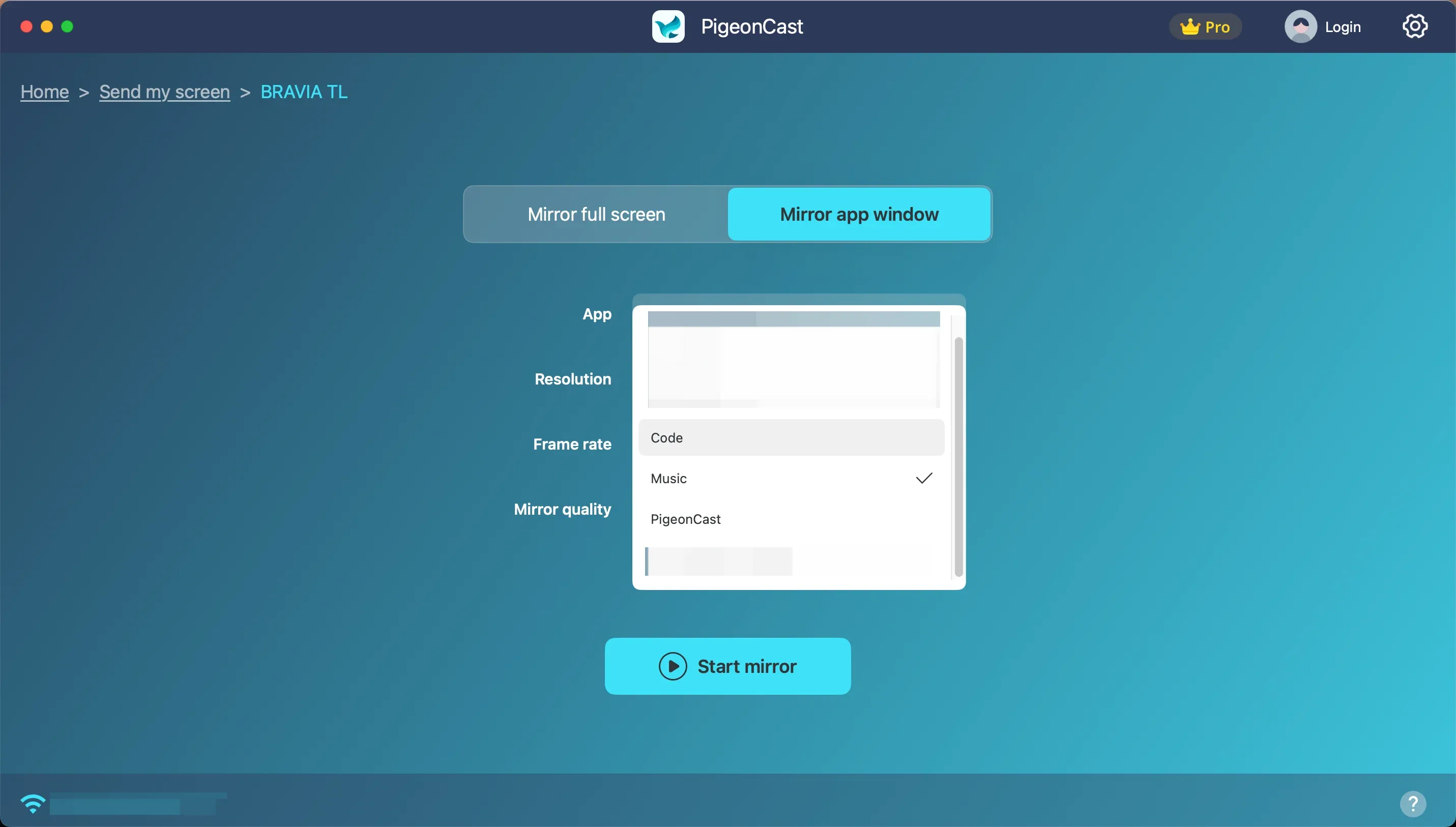
The selected app window and its audio will be shared without exposing the rest of your desktop.
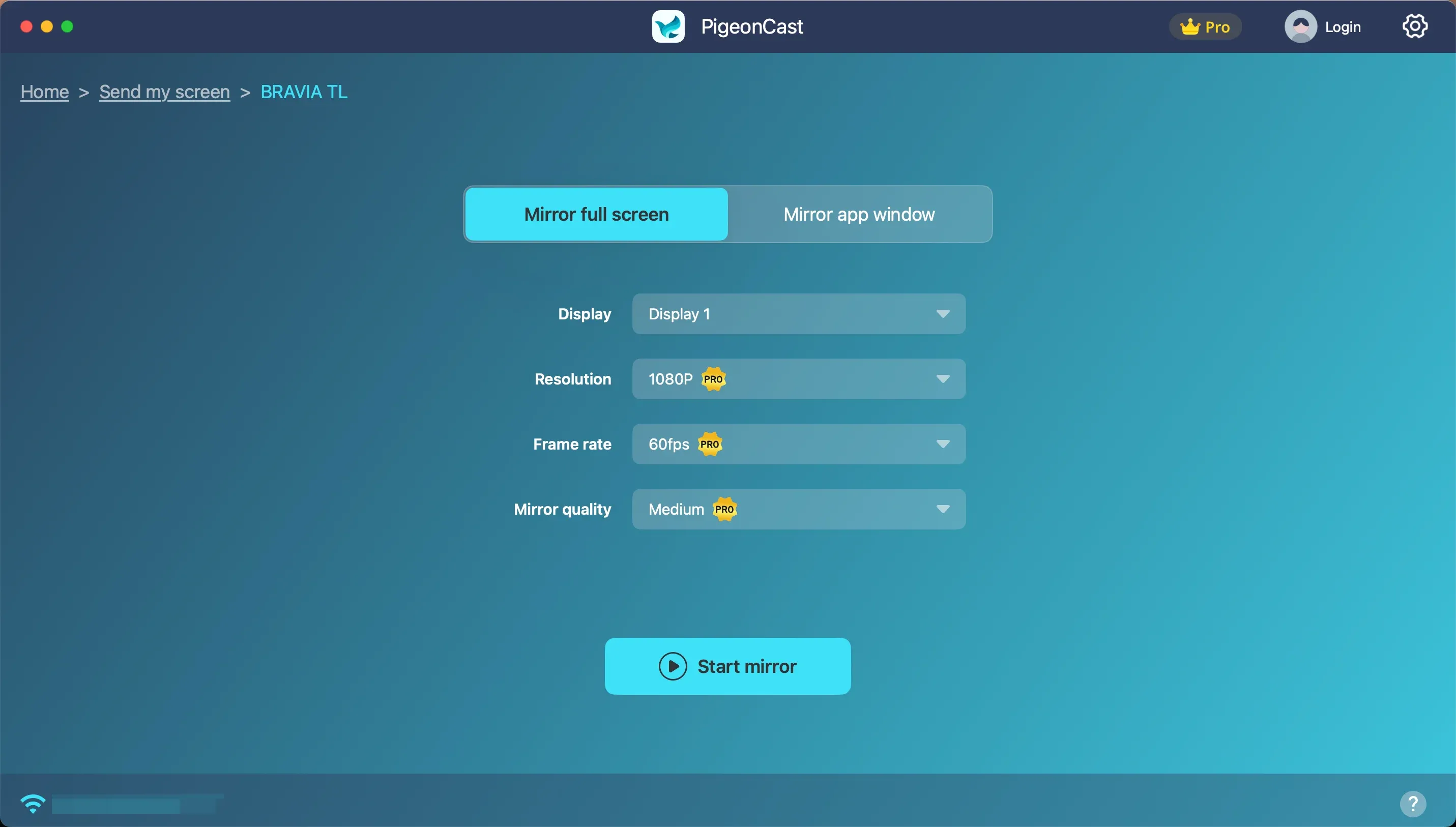
If you need to show multiple apps or your full desktop instead, choose the Mirror full screen option. PigeonCast also supports wireless file transfer from a computer to a TV when you want to send local files instead of casting them in real time.
Which Method Should You Use?
The best method depends on where the audio is playing and how much of your computer you want to share.
| What You Want to Cast | Best Option |
|---|---|
| Audio or video in a Chrome tab | Chrome Cast tab |
| A website with its own Cast button | Use the website's built-in Cast option |
| Your entire desktop | Chrome Cast screen or PigeonCast screen mirroring |
| One desktop app | PigeonCast app casting |
| Desktop audio on Mac | PigeonCast is usually the more practical option |
For browser content, Chrome is usually the simplest choice. For desktop apps or Mac audio, PigeonCast gives you more control over what you share.
What to Do If Chromecast Has No Audio
If the picture reaches your TV but you cannot hear anything, check a few basic settings before changing your setup.
-
Check the source audio. Make sure the Chrome tab or desktop app is actually playing sound and has not been muted.
-
Check your computer and TV volume. Verify that neither device is muted and that the TV is using the correct audio output.
-
Check the casting method. If you're using Chrome and the content is inside a browser tab, switch to Cast tab instead of Cast screen. Chrome specifically routes tab audio to the receiving device.
-
Check your Wi-Fi connection. Your computer and Chromecast should be connected to the same Wi-Fi network, and a stable connection helps prevent audio interruptions.
-
Restart the cast session. Stop casting, close and reopen the content, then reconnect to the Chromecast. Google also recommends restarting the cast session as an early troubleshooting step for audio and video synchronization issues.
If Chromecast connects normally but still produces no sound, see our dedicated guide on how to fix Chromecast no sound for additional troubleshooting.
Conclusion
Sending computer audio to Chromecast is less about finding one universal casting method and more about matching the method to what you're actually trying to share.
If the sound comes from a browser, keep the cast focused on that browser content. If it comes from a desktop app, sharing that app alone is usually cleaner than exposing the entire screen. Full-screen mirroring makes more sense when the experience itself depends on moving between multiple windows.
In other words, the smaller the sharing scope, the simpler the casting experience tends to be. Choosing between tab casting, app casting, and screen mirroring based on the source of your audio can help you get a more predictable result without sharing more of your desktop than necessary.
How to Send Computer Audio to Chromecast FAQ
Can I cast only audio from my computer to Chromecast?
Chrome usually casts the media associated with the selected browser tab rather than providing a general system-wide "audio only" output. If you're using a Google Cast-enabled music service, however, the service may send the media directly to the Chromecast or Cast-enabled speaker without mirroring your entire screen.
Can I cast computer audio to Chromecast without Chrome?
Yes. You can use a third-party casting application such as PigeonCast instead of Chrome. PigeonCast supports computer screen mirroring and app casting, allowing you to cast content from Windows or Mac without relying on a Chrome browser tab.
Can I cast Windows 11 audio to Chromecast?
Yes. For browser audio, open the content in Chrome and use Cast tab. Windows also has better support for desktop audio through Chrome screen casting than macOS, although if you only need content from one desktop application, app casting with PigeonCast can avoid sharing your entire screen.
Can I cast Mac audio to Chromecast?
You can cast audio from a Chrome tab on Mac, and Chrome can also cast the Mac screen. However, Google's documentation warns that screen casting may leave the audio playing on the computer rather than the TV. For audio coming from desktop applications, a casting app such as PigeonCast can provide an alternative through app casting or screen mirroring. On macOS 15 or later, Chrome also needs Local Network permission to discover Cast-enabled devices.
Why is there video but no sound when casting from my computer?
The most common reason is that the wrong casting source is being used. If the content is playing inside Chrome, use Cast tab, since Google specifically routes that tab's sound to the TV. Also check the tab volume, computer volume, TV volume, and current audio output device before reconnecting the cast.
Mia Clarke is a technology editor specializing in screen mirroring and casting solutions across multiple platforms. Mia provides clear, practical guides and in-depth insights to help users seamlessly connect their devices. Passionate about enhancing digital experiences, Mia is dedicated to keeping readers updated on the latest trends and tools in cross-platform screen sharing. Whether you’re looking to mirror your smartphone, laptop, or smart TV, Mia’s content delivers reliable, user-friendly advice to simplify your tech setup.