
What does cast mean on computer is the shift from physical HDMI cables to a wireless Wi-Fi stream that beams your screen to a larger display. This process uses local network protocols to transmit data packets from your PC directly to a receiver like a Smart TV or Chromecast. It allows for instant high definition sharing of your desktop or specific media files without any hardware clutter or wired limitations.
What Does Cast Mean on a Computer
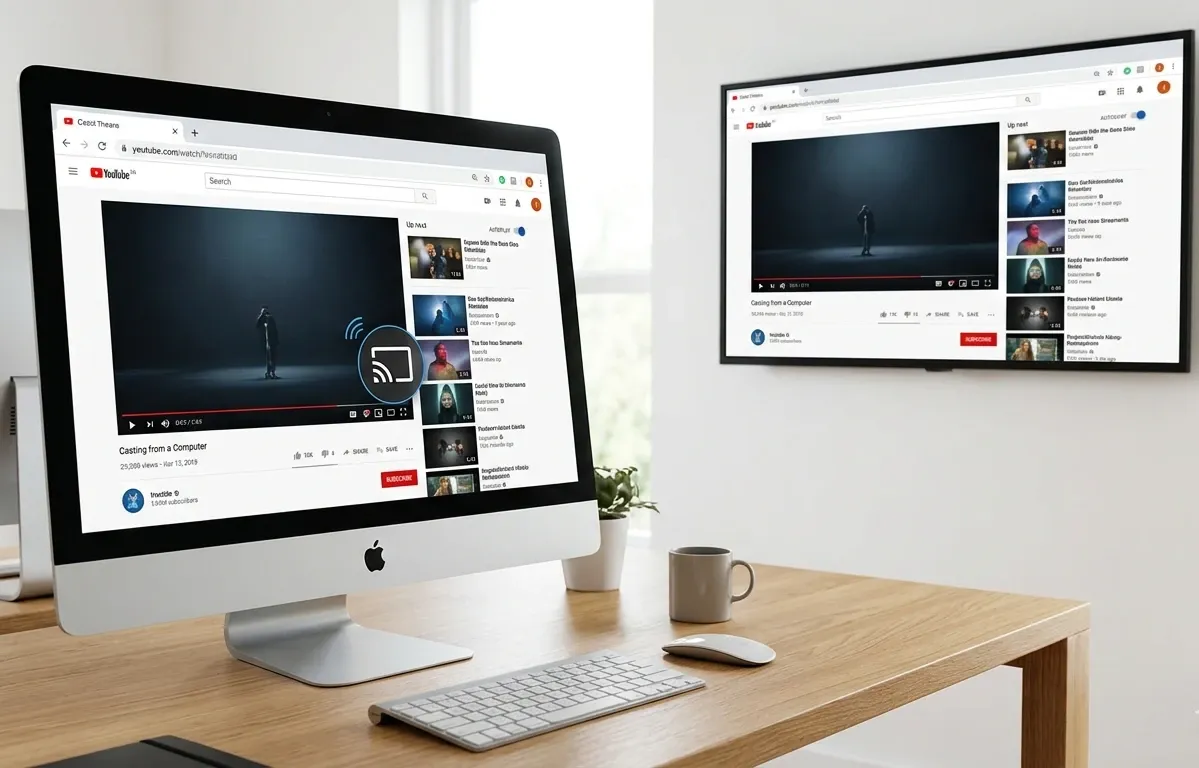
Casting functions through two primary methods that dictate your streaming quality and battery life.
-
Media Offloading: You can send a media link from computer to the TV so the display hardware handles the heavy decoding. This frees up your PC for other tasks and saves significant battery power while watching movies.
-
Screen Mirroring: Your PC captures every pixel on your screen in real time and beams it to the receiver. This is essential for presentations or apps without a native cast button but it requires a very strong Wi-Fi signal.
Choosing the right approach depends on whether you prioritize raw performance or the flexibility to share your entire workspace. The technical comparison below highlights the impact each method has on your computer resources and overall streaming stability.
| Feature | Media Offloading | Screen Mirroring |
|---|---|---|
| PC Performance | Low CPU usage | High battery drain |
| Best Use Case | YouTube and movies | PowerPoint and Zoom |
| Multitasking | Possible | Not possible |
How to Setup Casting on Your Computer
Connecting your PC to a larger screen has become a streamlined process integrated directly into your operating system. Whether you are using a PC or a Mac the primary goal is to trigger the wireless display menu which acts as the control hub for all nearby devices.
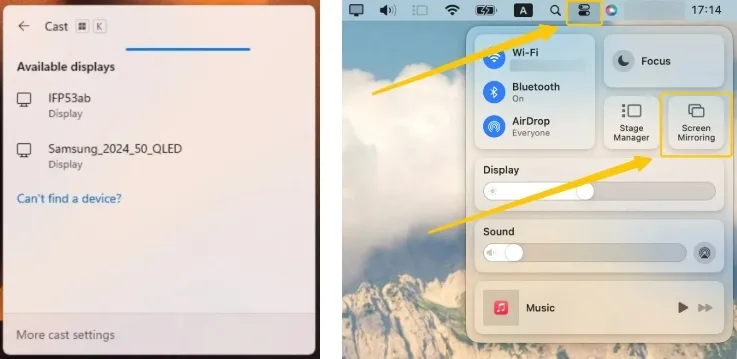
Step 1. Windows users press Windows + K, while Mac users open the Control Center to locate the mirroring toggle instantly.
Step 2. Ensure both your computer and the target display are on the same local network to allow the devices to discover each other.
Step 3. Choose your TV or monitor from the popup list and your desktop will appear on the larger screen within seconds.
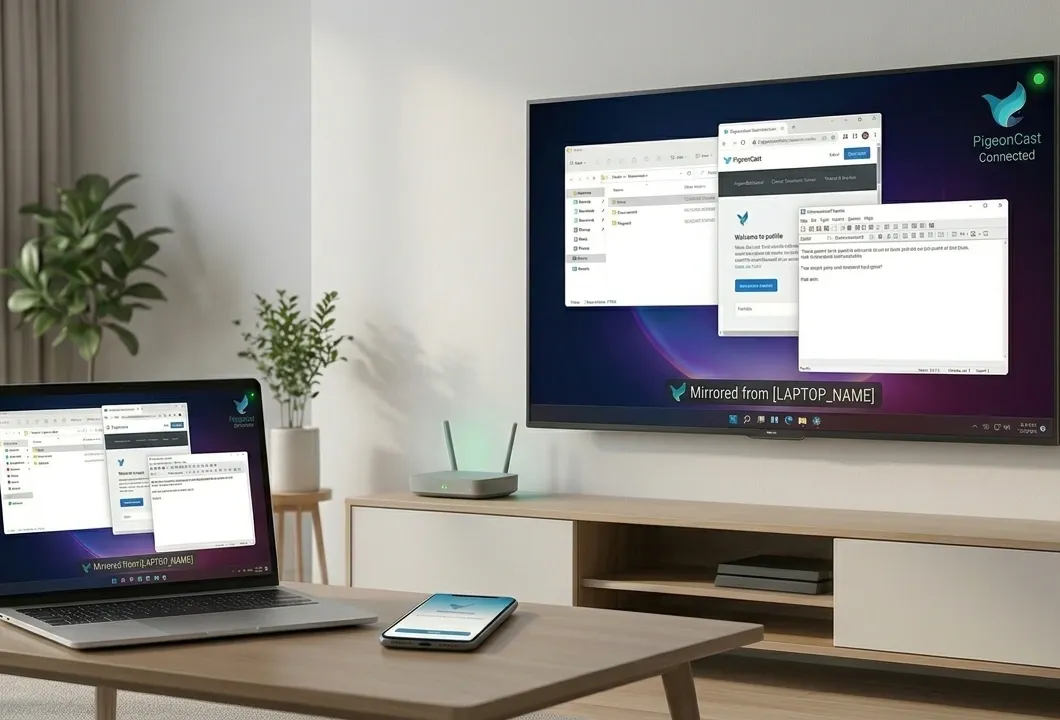
While native tools offer a basic bridge they often fail when connecting across different ecosystems like mirroring a Windows PC to an Apple TV. PigeonCast breaks these hardware barriers by providing a dual protocol solution that supports AirPlay, DLNA and Google Cast simultaneously. By installing the free app you get a professional grade connection that supports 4K resolution and low latency streaming for gaming or presentations.


Overall Rating:



| Platform | Native Feature | Best For |
|---|---|---|
| Windows | Miracast | Desktop Work |
| macOS | AirPlay | Creative Tasks |
| Chrome | Google Cast | Web Video |
Common Casting Issues and Professional Solutions
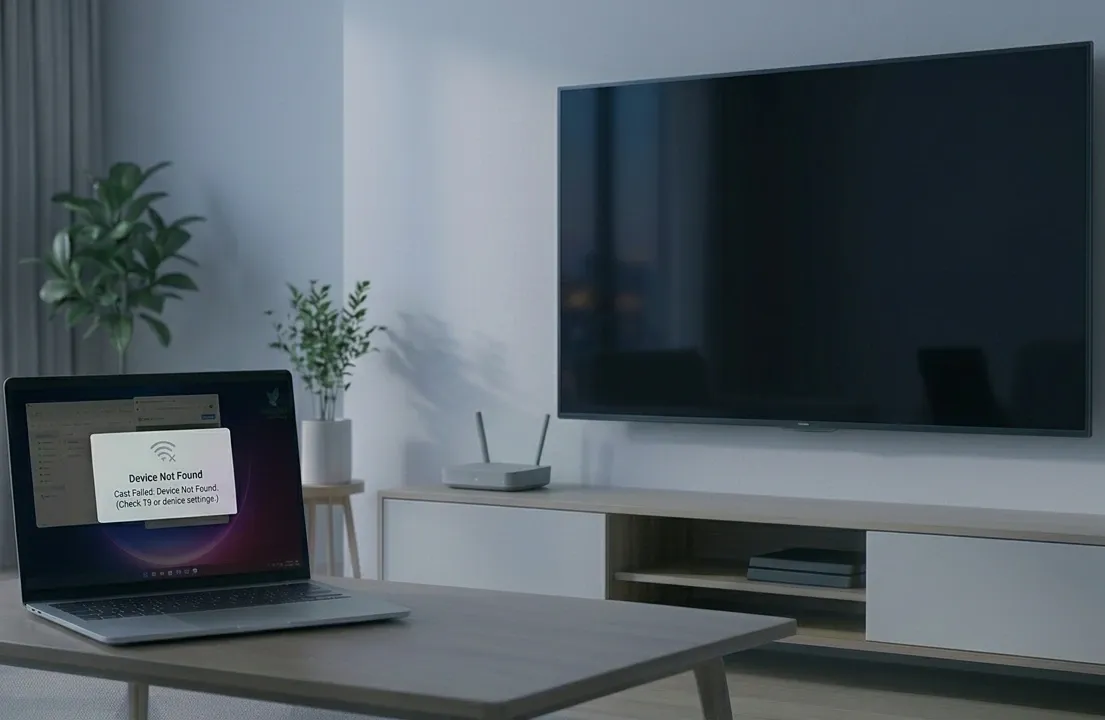
The most frequent frustration users encounter is lag or a complete failure to detect the receiving device on the network. These issues usually stem from local network congestion or hardware incompatibilities that standard system drivers cannot resolve on their own.
- Bandwidth Congestion (2.4GHz vs. 5GHz)
Standard 2.4GHz Wi-Fi is prone to interference from household appliances like microwaves. For a stable 4K or 60fps stream, both devices must be on the 5GHz band. This provides the higher throughput necessary to move large video packets without frame drops.
- Network Visibility (AP Isolation)
If your computer cannot "see" the TV, your router may have AP (Access Point) Isolation enabled. This security feature treats every device as a guest, preventing them from communicating locally. Disabling this in your router settings is essential for the "handshake" between devices to occur.
- Hardware Encoding Gaps
Casting is CPU-intensive. If your Graphic Drivers are outdated, your PC may struggle to encode your screen into a streamable format, leading to the cast menu crashing or the image freezing during high-motion scenes.
- Resolution Mismatch & Scaling
A blurry cast image is often caused by the PC trying to force a 1080p stream onto a 4K display. For the crispest text and visuals, manually set your PC’s output resolution to match the native resolution of the receiving display before initiating the connection.
The End
Mastering computer casting boils down to choosing between battery-efficient media offloading and flexible screen mirroring. By selecting the right platform tools and optimizing your network, you can eliminate technical lag and share your content with professional clarity on any display.
What Does Cast Mean on Computer FAQ
Does computer casting always need internet?
No, computer casting does not always need an active internet connection, but it typically requires a local network.
-
Offline Casting: If you are mirroring your desktop or playing a file stored locally on your hard drive, you only need a Wi-Fi or Ethernet connection between the two devices.
-
Online Casting: You only need internet access if the content itself is hosted online, such as a YouTube video or a cloud-based presentation.
Some technologies, like Miracast, create a direct wireless link between your computer and the screen, allowing you to cast even in environments with no router or internet at all.
Is casting the same as screen mirroring?
No, they are different in how they handle data:
-
Screen Mirroring is a 1-to-1 reflection. It duplicates everything on your computer screen in real-time, requiring the computer to stay active.
-
Casting (Media Offloading) sends only the video or file link to the TV. This allows you to close the app or use your computer for other tasks while the content plays independently on the big screen.
Essentially, mirroring copies your view, while casting hands off the content.
Can older computers still cast?
Yes, older computers can still cast, though they may lack the built-in hardware for native "one-click" mirroring.
-
Software Solutions: Using dedicated apps like Pigeoncast or the Chrome browser allows older hardware to bypass system limitations and stream to modern displays.
-
Wired Adapters: If the wireless hardware is too outdated, a simple HDMI-to-wireless dongle (like Chromecast) can bridge the gap.
-
Performance Note: While they can cast, older machines may experience slight lag when streaming high-definition 4K content due to slower processors.
Why does tab casting work when desktop casting fails?
Tab casting often succeeds where desktop casting fails because it is a lighter, application-level task rather than a system-wide one. Here are the primary reasons:
-
Reduced Processing Power
-
Browser-Based Protocols
-
Data Compression Efficiency
What does a cast button look like?
A cast button typically features a rectangle icon with three curved signal waves radiating from the bottom-left corner. It is designed to represent a screen receiving a wireless signal and is universally recognized across different platforms and apps.
What is Screen Cast in Android?
Screen Cast on Android is a built-in feature that allows you to wirelessly project your phone's screen, audio, and video to a compatible TV or monitor. It functions as a digital "mirror," showing exactly what is happening on your mobile device in real-time.
-
Technology: It primarily uses Google Cast (for Chromecasts and Android TVs) or Miracast (for many smart TVs), depending on your phone's manufacturer.
-
Access: You typically find it in the Quick Settings panel (swiping down from the top) under labels like "Screen Cast," "Smart View," or "Wireless Projection."
-
Function: Unlike "Media Casting" (where you send a YouTube link and can turn off your phone), Screen Cast requires your phone screen to stay on, as it is capturing your active display.
Clara Rossi is an experienced technology editor and a seasoned expert in screen mirroring and casting technologies. With a keen eye for detail and a deep understanding of how to seamlessly connect devices, Clara excels at optimizing user experiences for effortless sharing and streaming. Whether you're seeking quick fixes or advanced tips, her expertise and responsiveness ensure that every query is met with a well-informed and efficient solution.