
If you are using a Samsung Smart TV, the TV may already support wireless mirroring through built-in features. Some laptops connect best through Miracast on Windows or AirPlay on Mac, while others work more reliably with HDMI.
Whether you have a Windows PC or MacBook, screen mirroring laptop to Samsung TV is usually simple. This guide shows you how to mirror your laptop to a Samsung TV step by step, what to check before you start, and how to fix the most common problems if the connection does not work.
Screen Mirroring Laptop to Samsung TV: What You Need First
Before you open any cast menu, confirm the basic setup. Most connection problems come from small mismatches, not a broken device.
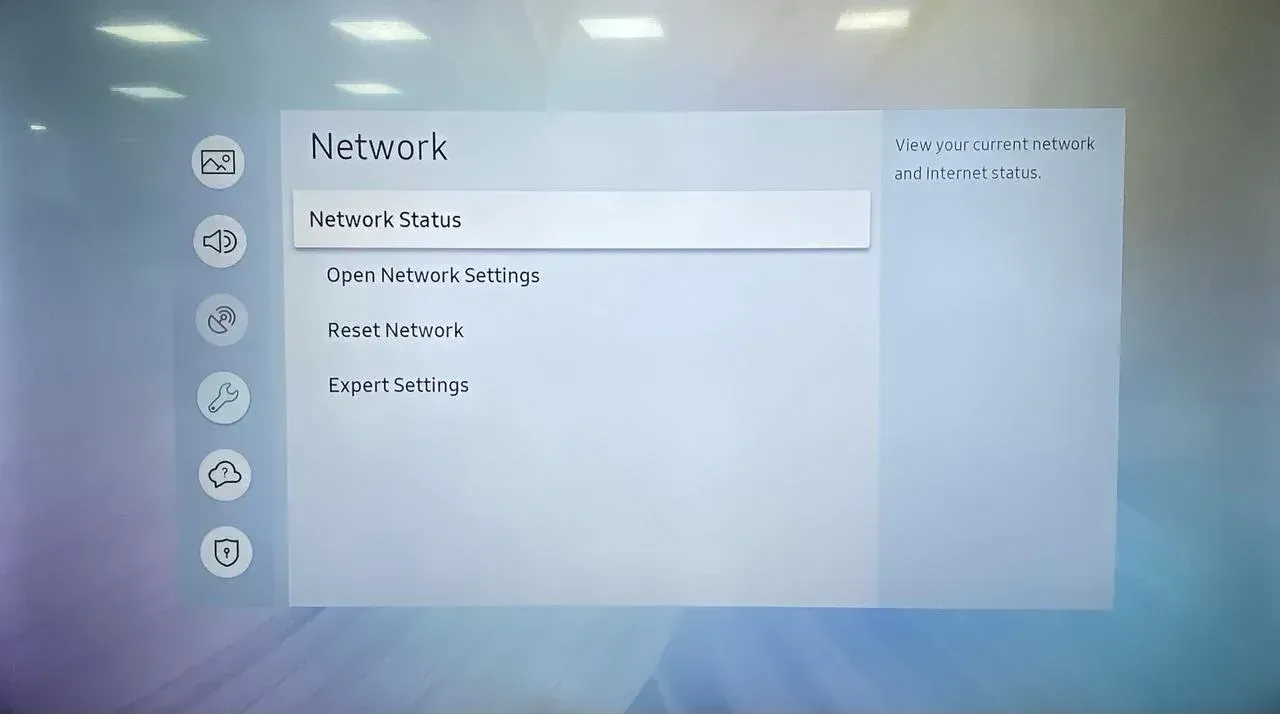
-
Put the laptop and Samsung TV on the same Wi-Fi network.
-
Keep both devices on the same Wi-Fi band during setup if possible.
-
Update the TV firmware.
-
Restart the laptop and TV once before pairing.
-
Turn off VPN or proxy software on the laptop during the first connection.
-
Make sure screen mirroring, wireless display, or AirPlay is enabled on the TV.
If the TV and laptop are not aligned on the same network path, discovery can fail even when both devices seem online.
How to Screen Mirror Laptop to Samsung TV on Windows
Windows laptops usually connect through Miracast or the wireless display panel. This is the best first option when you want to mirror the full desktop, not just one browser tab.
Get Windows to Samsung TV mirroring started:
Step 1. On the Samsung TV, open the screen mirroring or wireless display input if your model provides one.
Step 2. On the Windows laptop, press Win + K to open the Connect panel.
Step 3. Wait for the Samsung TV to appear in the list.
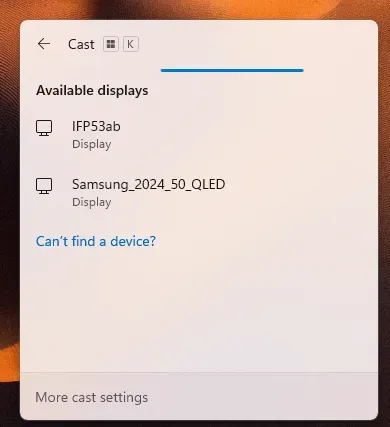
Step 4. Select the TV and approve any pairing prompt on the TV.
Step 5. Press Win + P and choose how you want to display the screen:
-
Duplicate to mirror the laptop display
-
Extend to use the TV as a second screen
-
Second screen only to send everything to the TV
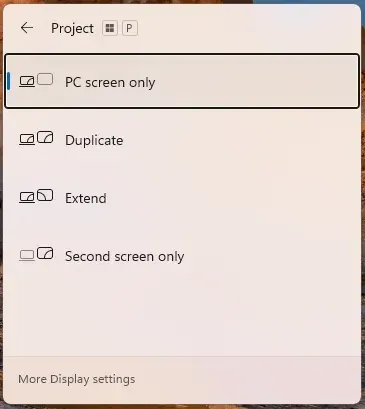
Step 6. Test audio and video with a short video or local file.
If the TV does not appear, update your display drivers and confirm that wireless display support is enabled on the TV.
How to Screen Mirror Laptop to Samsung TV on Mac
Mac users should use AirPlay when the Samsung TV supports it. That is usually the most direct way to mirror the screen without extra software. How to start Mac to Samsung TV screen mirroring? The simple path is:
Step 1. On the Samsung TV, turn on AirPlay in the TV settings.
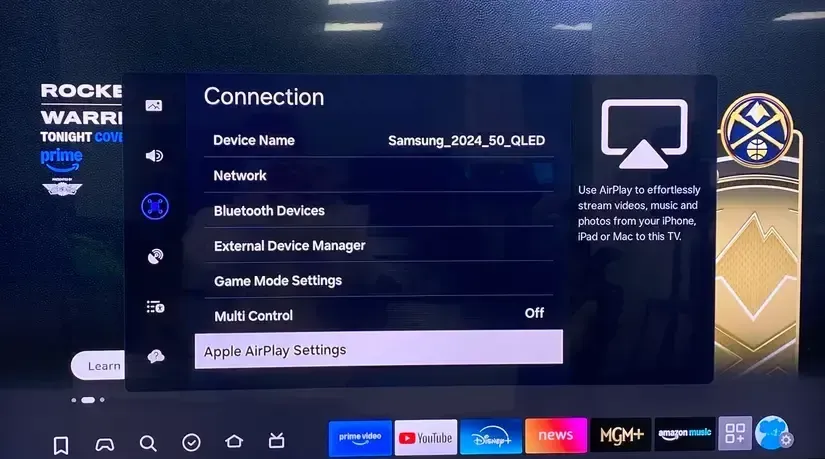
Step 2. On the Mac, open Control Center.
Step 3. Select Screen Mirroring.
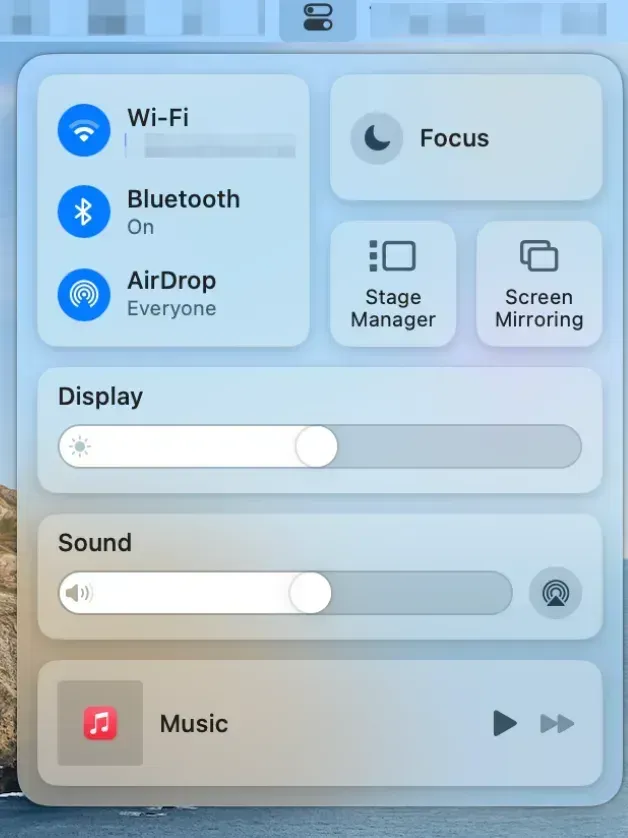
Step 4. Choose the Samsung TV from the available devices.
Step 5. Enter the code shown on the TV if prompted.
Step 6. Keep both devices awake for the first minute so the connection can stabilize.
If the TV appears but the connection does not complete, check the Wi-Fi network and the AirPlay settings before trying again.
How to Screen Mirror Laptop to Samsung TV with PigeonCast
Sometimes, screen mirroring not working issue is not the device itself. The problem can be mixed device support, unstable discovery, or a network that blocks native casting features.
That is where PigeonCast can help. It gives you a more consistent way to get a laptop screen onto a Samsung TV when built-in mirroring keeps failing.


Overall Rating:



This is how to connect laptop to Samsung TV wirelessly with PigeonCast:
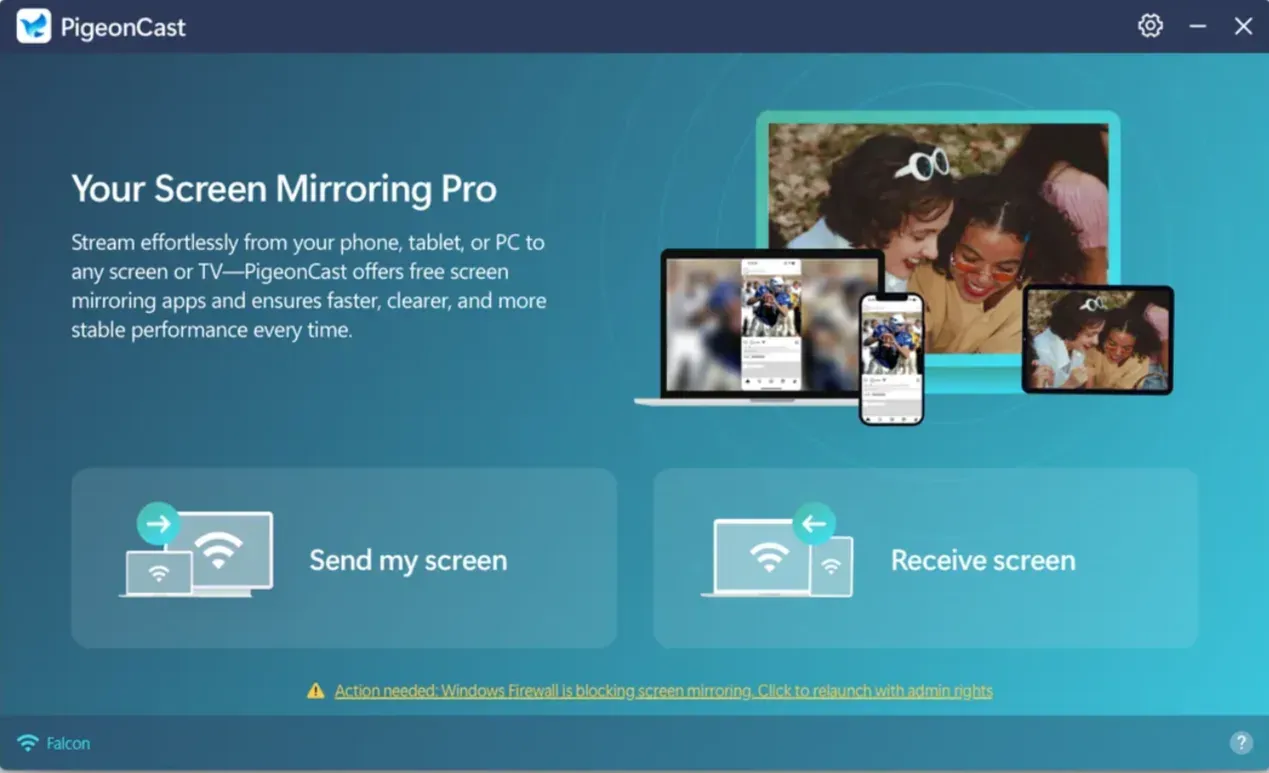
Step 1. Launch PigeonCast on your laptop and click Send my screen.
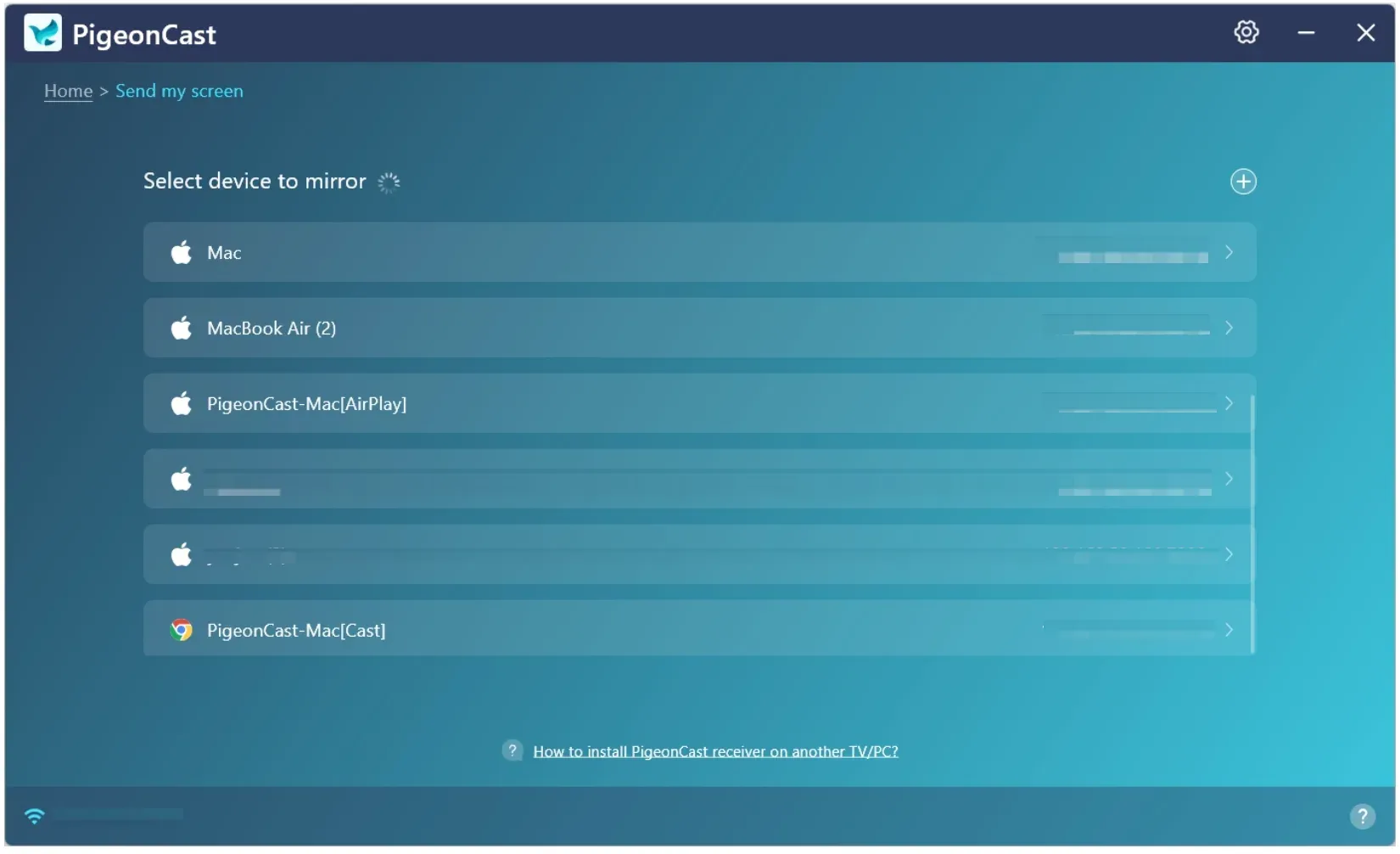
Step 2. PigeonCast will list the devices on the same Wi-Fi network as your laptop. When your Samsung TV appears, click it.
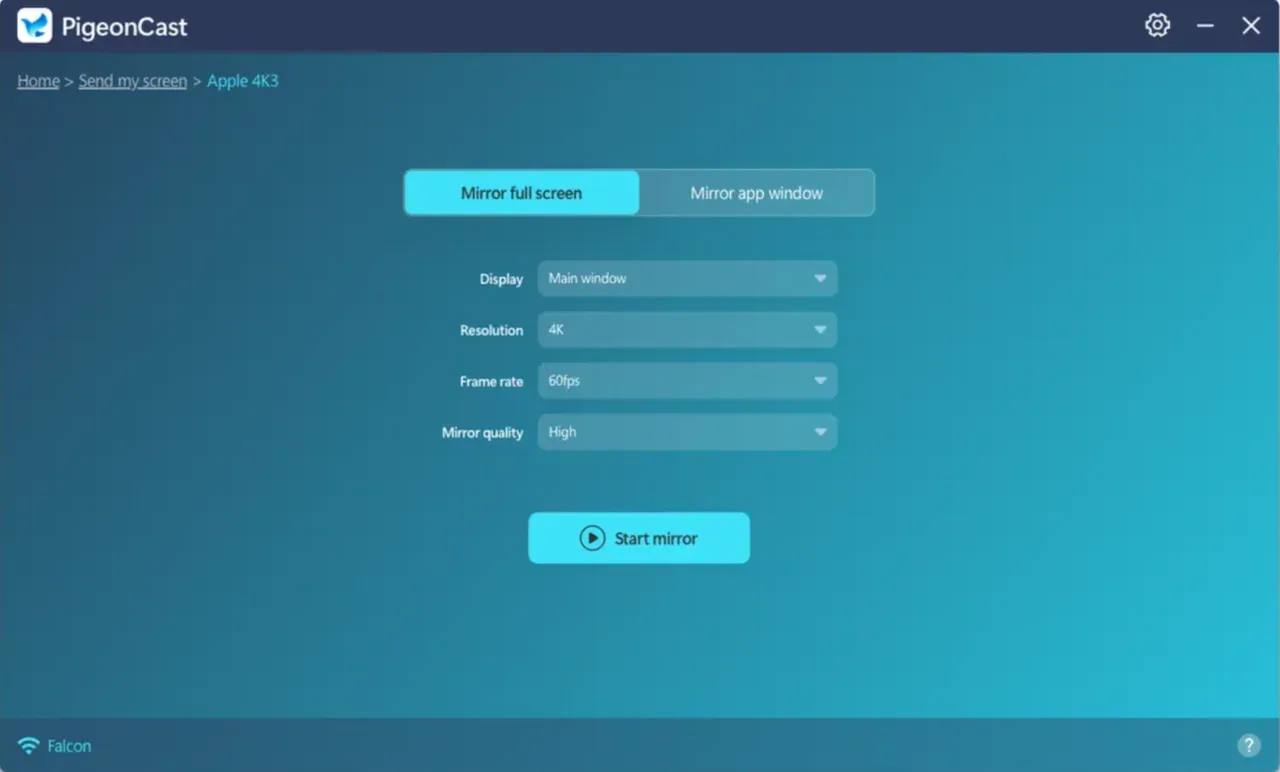
Step 3. Once connected, click Start mirror, and your laptop screen will appear on the TV.
How to Screen Mirror Laptop to Samsung TV with HDMI
If wireless mirroring is unstable, HDMI is the most reliable backup. It also helps when you need lower latency for video playback or presentations.
Step 1. Connect one end of the HDMI cable to your laptop.
Step 2. Connect the other end to an HDMI port on your Samsung TV.
Step 3. Press the Input button on the remote and switch to the correct HDMI input.
Step 4. On your laptop, press Windows + P on Windows or open display settings on Mac.
Step 5. Choose Duplicate or Extend, depending on how you want to use the screen.
Fixes for When Laptop Mirroring to Samsung TV Is Not Working
When mirroring fails, work through the problem in a fixed order. That makes it easier to tell whether the issue is network discovery, display settings, or a stale pairing.
-
Restart the TV, router, and laptop.
-
Reconnect both devices to the exact same Wi-Fi network.
-
Remove VPN, proxy, and guest network settings.
-
Clear old wireless display or AirPlay pairings.
-
Toggle the TV's mirroring feature off and on again.
-
Lower the laptop output to 1080p and test again.
-
If the video works but the sound does not, select the Samsung TV as the audio output device on the laptop.
Conclusion
Screen mirroring laptop to Samsung TV is a practical way to turn your TV into a large display for work, entertainment, or presentations. In most cases, the wireless setup is quick, especially if your laptop and Samsung TV are on the same network. If that fails, HDMI gives you a dependable backup with fewer connection issues.
Start with the wireless method, check your device compatibility, and keep HDMI ready as a fallback. With the right setup, you can mirror your laptop screen to your Samsung TV in just a few minutes.
Screen Mirroring Laptop to Samsung TV FAQ
Can I mirror any laptop to a Samsung TV?
Most modern Windows laptops and many MacBooks can mirror to a Samsung TV, but the method depends on compatibility. Windows often uses Miracast, while Mac often uses AirPlay or HDMI.
Do I need internet for screen mirroring?
Not always. Many wireless setups only need both devices on the same local Wi-Fi network. HDMI does not need internet at all.
Why is my screen mirroring lagging?
Screen mirroring lag usually comes from weak Wi-Fi, too many devices on the network, or high resolution. Move closer to the router or switch to HDMI.
Can I use a Samsung TV as a second monitor?
Yes. Many laptops let you extend the display instead of duplicating it, which is useful for work and multitasking.
What if my Samsung TV does not support wireless mirroring?
Use HDMI or a compatible streaming adapter. That is often the fastest way to solve the problem.
Why is my Samsung TV not showing up on my laptop?
This usually means the devices are not on the same network, the mirroring feature is disabled, or an old pairing is interfering with discovery. Start with the network check, then restart both devices and try again.
Is Miracast or AirPlay better for Samsung TV?
Use the native option that matches your laptop. Miracast is the usual choice for Windows, while AirPlay is the usual choice for Mac.
Why does the connection keep dropping?
Weak Wi-Fi, a VPN, or a background network change can interrupt the session. Move both devices closer to the router, remove VPN use, and test again on a stable network.
What should I do if the picture works but the sound does not?
Check the laptop's audio output settings and select the Samsung TV as the playback device. Then reconnect the mirror session and test with a short clip.
Mia Clarke is a technology editor specializing in screen mirroring and casting solutions across multiple platforms. Mia provides clear, practical guides and in-depth insights to help users seamlessly connect their devices. Passionate about enhancing digital experiences, Mia is dedicated to keeping readers updated on the latest trends and tools in cross-platform screen sharing. Whether you’re looking to mirror your smartphone, laptop, or smart TV, Mia’s content delivers reliable, user-friendly advice to simplify your tech setup.