
When people search how to share audio on MacBook, they usually mean one of two things: letting a single person listen or broadcasting audio to a room or audience. Headphones and Bluetooth are ideal for personal listening. Screen casting and AirPlay are better when you need both audio and visuals to reach multiple people.
This guide breaks down practical ways to share MacBook audio and explains when screen casting is the better choice.
How to Share Audio on MacBook Based on Your Situation
Can you share audio on MacBook? Yes, you can, and the method you choose depends on who needs to hear the sound and whether the audio should travel with the screen.
Sharing Mac Audio Through Headphones (for One Person)
This covers individual listening using headphones, AirPods, or Bluetooth headphones.
- Using Wired Headphones
Step 1. Plug the headphones into your MacBook.
Step 2. macOS automatically switches audio output.
Step 3. Play your media.
Wired headphones offer immediate playback with no latency; however, only one listener can hear the audio.
- Using Bluetooth Headphones or Speakers
Step 1. Open System Settings > Sound > Output & Input.
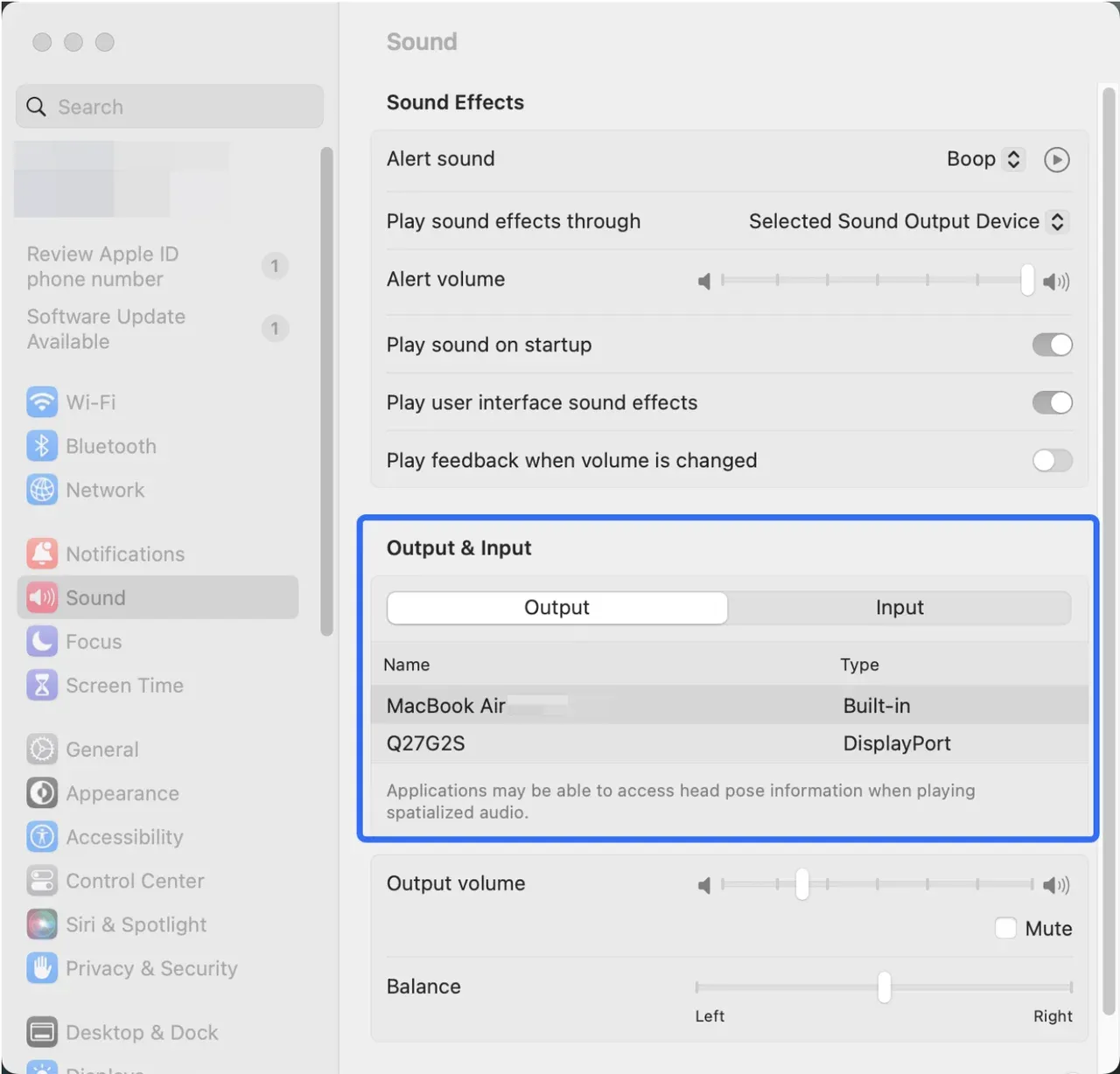
Step 2. Choose your Bluetooth devices.
Step 3. Start playback.
- Using AirPods
How to share audio on MacBook AirPods? AirPods connect just like any other Bluetooth device, but macOS handles them more smoothly:
Step 1. Put AirPods in pairing mode.
Step 2. Go to System Settings > Bluetooth.
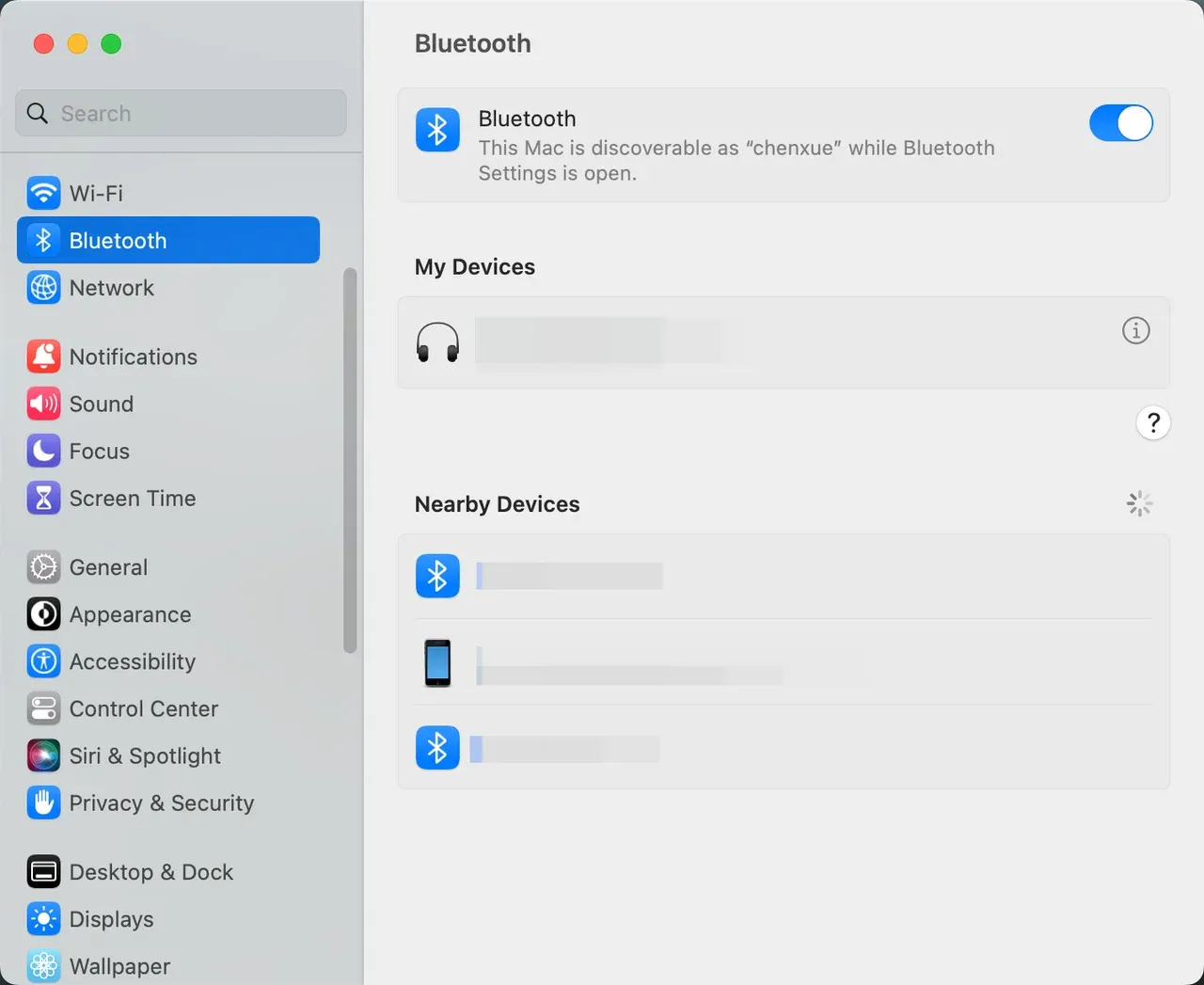
Step 3. Connect the AirPods and select them as the audio output.
However, macOS does not support native dual AirPods playback the way iPhones do. If you are wondering how to share audio on Mac with two AirPods, the short answer is that macOS does not offer a built-in solution for that scenario.
Share Mac Audio Through Speakers (for Multiple Listeners)
When you need audio to reach several people in the same space, headphones are not enough. You can use external speakers, either wired or Bluetooth. In this way, multiple listeners can hear clearly, but Bluetooth may introduce slight latency or occasional dropouts in crowded environments.
How to share audio on MacBook using a speaker:
- Using Wired Speakers
Step 1. Connect the speaker via cable.
Step 2. Open System Settings > Sound > Output.
Step 3. Select the speaker and play audio
- Using Bluetooth Speakers
Step 1. Put the speaker in pairing mode.
Step 2. Connect via System Settings > Bluetooth.
Step 3. Select the speaker as the output device and play audio.
- Enabling MacBook's AirPlay Function
Step 1. Make sure the MacBook and the AirPlay speaker are on the same Wi-Fi network.
Step 2. Open Control Center.
Step 3. Click AirPlay in the Sound bar.
Step 4. Select the AirPlay-enabled speaker.
Step 5. Start playback.
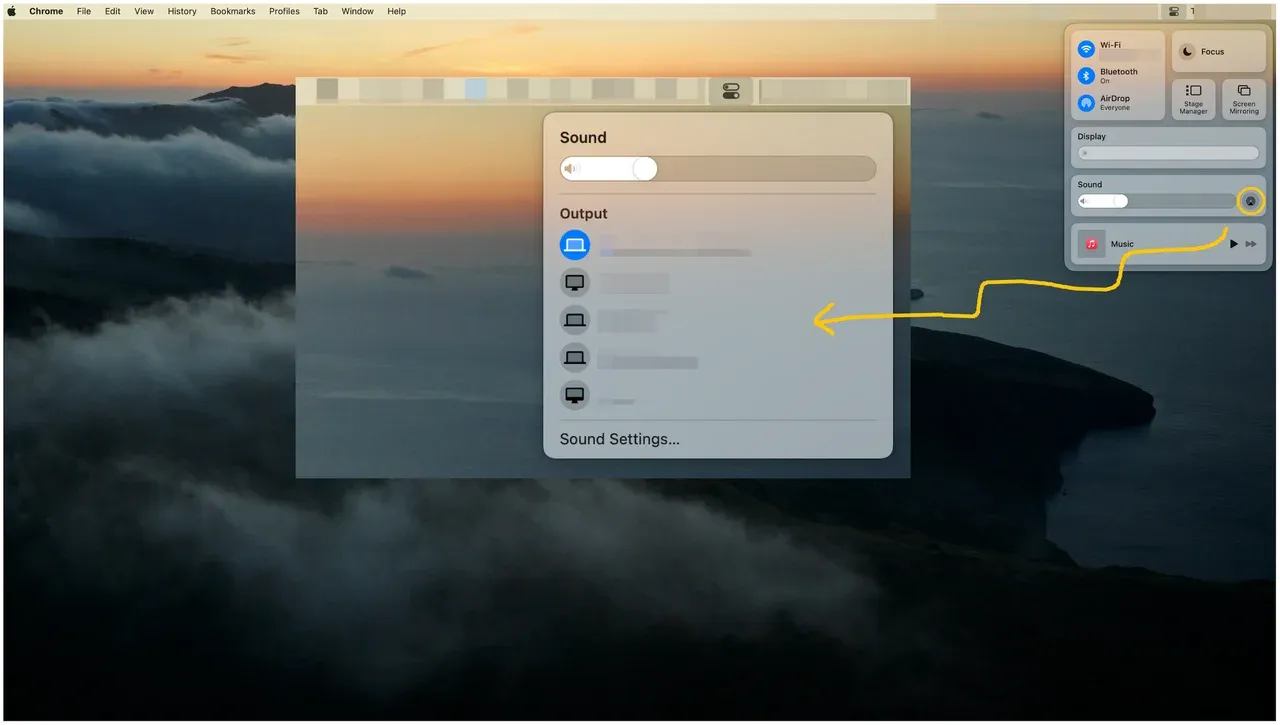
Compared to Bluetooth speakers, AirPlay uses Wi-Fi instead of short-range wireless connections, which often results in better audio stability and wider coverage in a room (check detailed comparison between AirPlay and Bluetooth). However, it focuses on audio output only. If you also need to share visuals, screen casting becomes necessary.
When Audio Needs to Travel with the Screen
In situations such as presentations, video demos, or teaching, simply outputting sound locally is not enough. At this point, sharing audio becomes a screen-mirroring problem.
Common Scenarios:
- Streaming video to a TV for a small audience
- Demonstrating software with narration
- Teaching or live demos
In those situations, screen casting does your help. Screen casting sends both your MacBook screen and system audio to another device, like a TV or computer.
Built-in Screen Casting Options on macOS
If you want to play your Mac's audio through an Apple TV or AirPlay-compatible TV, you can:
Step 1. Make sure your MacBook and the receiving device are on the same Wi-Fi network.
Step 2. Ensure AirPlay is enabled on the receiving device.
Step 3. Open Control Center on your MacBook.
Step 4. Click Screen Mirroring.
Step 5. Select your target device.
Step 6. Start playback.
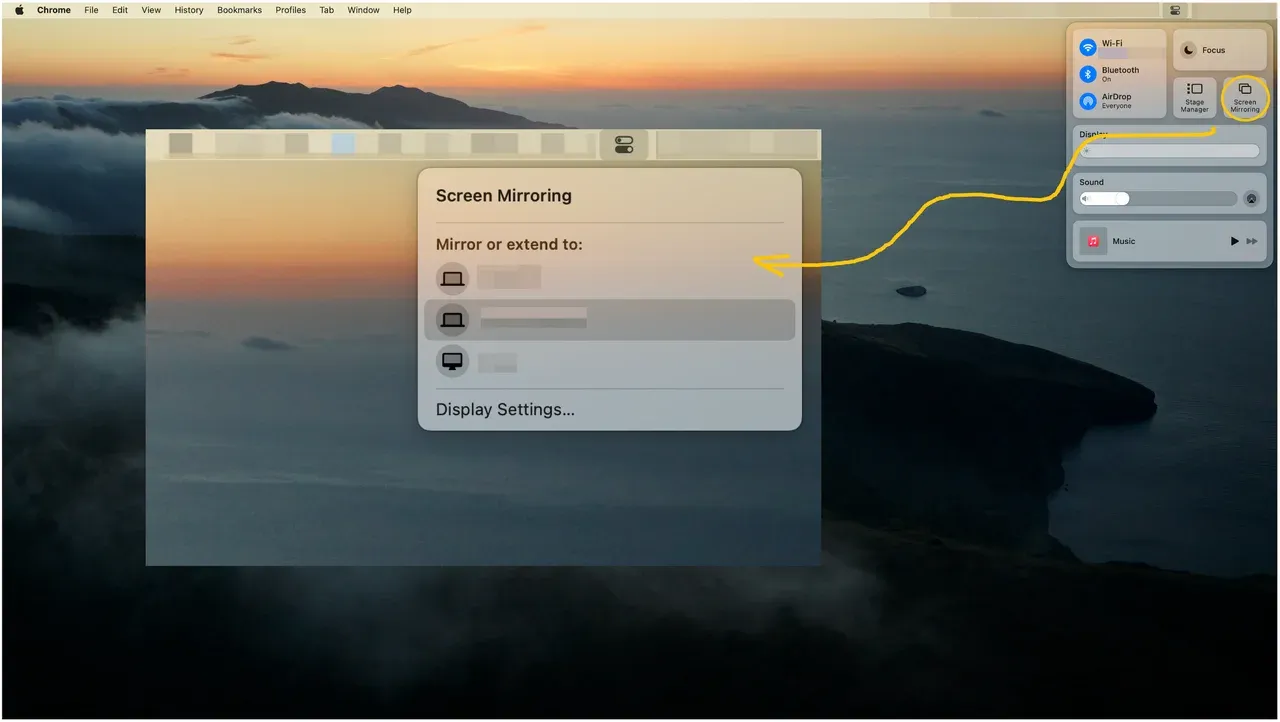
Note: If AirPlay doesn't stream audio, the receiver likely does not support full system audio.
Third-Party Tool for Mac Screen Casting
Receiver-based casting ensures both system audio and screen content are mirrored consistently across multiple devices. PigeonCast exemplifies this approach.
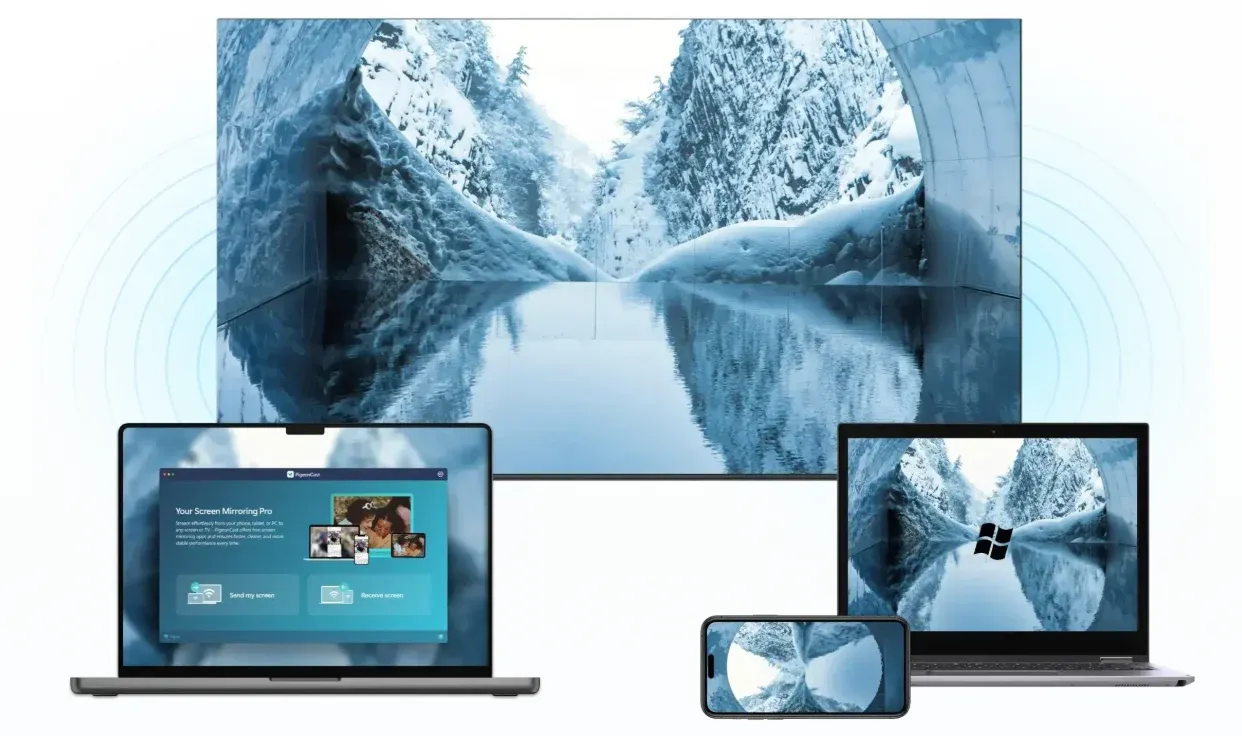
How to share audio on Mac using PigeonCast:
Step 1. Install PigeonCast on your TV or computer from the app store.


Overall Rating:



Step 2. Connect the MacBook and receiver to the same Wi-Fi network.
Step 3. Open Screen Mirroring on macOS, select the receiver, and audio and screen play together.
Tip: PigeonCast also runs on MacBook (check PigeonCast for Mac). Having it set up on both devices often makes device detection smoother and reduces audio or screen dropouts during mirroring.
Headphones vs Speakers vs Screen Casting: Which One Should You Use
Choosing the right way to share audio on a MacBook depends less on the device you own and more on who needs to hear the sound and whether visuals matter. The table below compares the three most common options.
| Situation | Headphones | Speakers | Screen Casting |
|---|---|---|---|
| Personal listening | ✅ Best choice | ❌ Not practical | ❌ Unnecessary |
| Two people nearby | ⚠️ Limited | ✅ Works well | ⚠️ Overkill |
| Room or group playback | ❌ Not suitable | ⚠️ Audio only | ✅ Ideal |
| Presentation or demo | ❌ No sharing | ⚠️ No visuals | ✅ Required |
| Teaching or guided walkthrough | ❌ Not effective | ⚠️ Audio only | ✅ Most reliable |
Final Thoughts
Sharing audio on a MacBook is not a single feature but a set of choices shaped by context. Headphones and AirPods solve quick, personal listening. Speakers help fill a room but stop short when visuals are needed. Screen casting steps in when audio needs to travel with the screen, such as during presentations, teaching, or shared viewing.
How to share Mac's audio effortlessly? Once you choose the right category, the tools and steps become much easier to decide.
How to Share Audio on MacBook FAQs
Can you share MacBook audio without headphones?
Yes. You can share MacBook audio through wired speakers, Bluetooth speakers, AirPlay devices, or screen casting, depending on whether you need audio only or both audio and screen.
Can you connect two pairs of headphones to a MacBook?
macOS does not natively support sending audio to two separate headphone outputs at the same time. Third-party audio routing tools may work, but stability varies.
Can I connect two pairs of AirPods to my MacBook?
No. macOS does not support sharing audio to two pairs of AirPods simultaneously. This feature is available on iPhone and iPad, but not on MacBook.
How to share audio between two Apple devices?
You can use AirPlay to send audio from a MacBook to Apple TV or compatible speakers. For sharing audio along with the screen, screen mirroring over the same Wi-Fi network is required.
How do I share MacBook audio to a TV?
You can use AirPlay if the TV supports it, or screen casting through a receiver-based solution like PigeonCast on the same network. The TV must support system audio for sound to play.
Is screen casting better than headphones for sharing audio?
For personal listening, headphones are more efficient. For group listening, presentations, or teaching, screen casting is usually the better option because audio and visuals stay in sync.
Why can't others hear audio when I mirror my screen?
Some receivers only mirror video and do not support system audio. In these cases, audio stays on the MacBook unless a full audio-supported receiver is used.
Does screen mirroring always include system audio on MacBook?
Not always. Whether system audio is shared depends on the receiving device and the casting method used.
Can I share MacBook audio over Wi-Fi without AirPlay?
Yes. Some screen mirroring setups allow audio sharing over Wi-Fi without relying on AirPlay, as long as the receiving device can be detected as a compatible receiver.
What is the easiest way to share audio on MacBook for a presentation?
Screen casting with audio support is the most reliable method for presentations, as it ensures both sound and visuals reach the audience together.
Mia Clarke is a technology editor specializing in screen mirroring and casting solutions across multiple platforms. Mia provides clear, practical guides and in-depth insights to help users seamlessly connect their devices. Passionate about enhancing digital experiences, Mia is dedicated to keeping readers updated on the latest trends and tools in cross-platform screen sharing. Whether you’re looking to mirror your smartphone, laptop, or smart TV, Mia’s content delivers reliable, user-friendly advice to simplify your tech setup.