

If you want to know how to watch GoPro videos on TV, the simplest answer is this: move the clips to the device that already talks to your TV well, then play them there. For most people, that means using a phone with AirPlay or Google Cast, or using a computer with HDMI if they want the most dependable result.
That matters because GoPro footage is not the same as a short phone clip. File sizes are larger, frame rates are higher, and some TVs are picky about what they can read from USB storage. If your real question is how to play GoPro videos on TV, the method matters almost as much as the file itself.
This article starts with the obvious choices first, then covers the setups that make more sense when wireless playback feels uneven or your TV does not like the file format.
How to Watch GoPro Videos on TV: Quick Answer
If you just want the short version, use the method that matches the device you already trust in your living room.
| Method | Best for | What to expect |
|---|---|---|
| AirPlay from iPhone or iPad | Apple TV or TVs with AirPlay support | Quick, clean playback when the clips are already on your phone |
| Chromecast / Google Cast from phone | Google TV, Chromecast, or TVs with Google Cast support | Easy for Android-heavy homes and casual viewing |
| PigeonCast | People who use both iPhone and Android | More flexible when you do not want to depend on one built-in standard |
| HDMI from a computer | The most reliable large-screen playback | Best choice for big files, long clips, or fewer surprises |
| USB drive plugged into the TV | TVs that play GoPro files correctly from storage | Convenient when it works, but less consistent than people expect |
If I had to rank these for most readers, I would start with phone-to-TV playback when the clips are already on your phone, then go straight to HDMI from a computer if the files are large or the TV keeps rejecting them.
Watch GoPro Videos on TV With AirPlay
AirPlay makes the most sense when you already moved your GoPro footage to an iPhone or iPad and your TV works well with Apple devices. It is a cleaner option than mirroring your whole screen because the TV can focus on playback instead of copying every tap and notification.
If your set already supports AirPlay, this is the first wireless method worth trying.
Step 1. Save the GoPro clips to your iPhone or iPad through the Photos app, Files app, or the GoPro app.
Step 2. Put the iPhone or iPad and the TV on the same Wi-Fi network.
Step 3. Open the video in Photos or the app where the clip is stored.
Step 4. Tap the AirPlay icon in the Share menu and choose your TV or Apple TV.
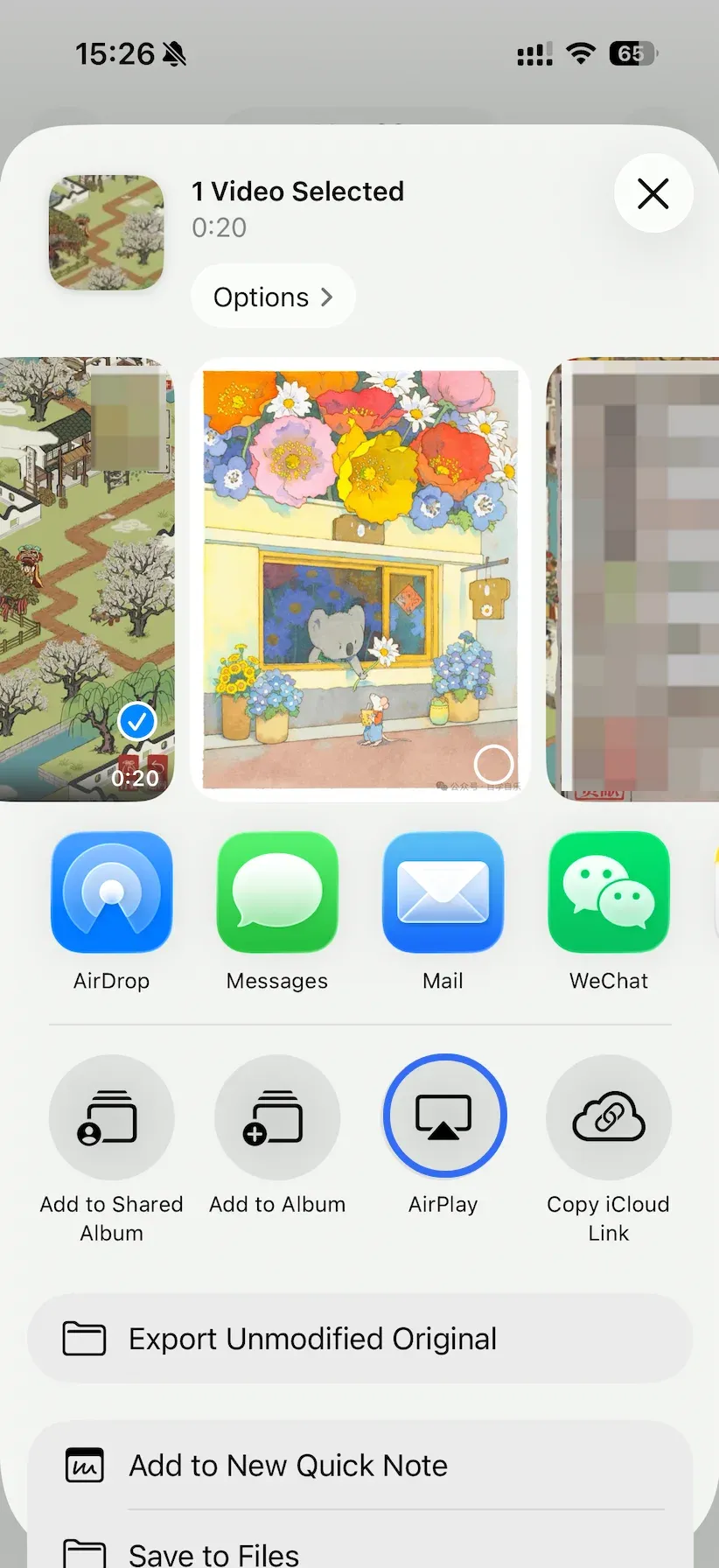
Step 5. Start playback and rotate the phone if you want a better full-screen view while controlling the clip.
AirPlay is usually a good fit for short edits, highlight reels, and family viewing. Where it starts to feel weaker is with very large clips, busy home Wi-Fi, or TVs that advertise AirPlay support but do not handle it especially well in real use.
Watch GoPro Videos on TV With Chromecast or Google Cast
If your clips are already on an Android phone, tablet, or a Google-friendly TV setup, Google Cast is often the quickest wireless option. It is especially practical when your TV already uses Google TV, Android TV, or a Chromecast device.
Step 1. Move the GoPro clips to your Android phone, tablet, or a supported media app.
Step 2. Connect the device and the TV or Chromecast to the same Wi-Fi network.
Step 3. Open the video in a casting-friendly app such as Google Photos or another media player that shows the Cast icon.
Step 4. Tap Cast and choose your TV or Chromecast from the list.
Step 5. Let the TV handle playback and keep the phone as the controller.
This is more convenient than plugging in a cable, but it still depends on app support and file handling. Some apps are great with ordinary phone video and much less graceful with larger action-camera files. If the clip stutters or the Cast button never appears where you expect it, do not keep forcing the same method.
Watch GoPro Videos on TV With PigeonCast
PigeonCast makes more sense if you use different devices around the house or if screen mirroring has been inconsistent on your TV. Instead of relying on whatever built-in option happens to be available, you get one solution that works the same way across your devices. It is a practical way to stream GoPro videos to TV when you do not want to keep changing methods from room to room.
Step 1. Install PigeonCast on the sending device you plan to use.


Overall Rating:



Step 2. Open the receiver on the TV or the device connected to the TV.
Tip: You can also install PigeonCast directly on your TV from the app store. While performance still depends on your network, installing the app on both devices can help simplify setup and improve connection reliability.
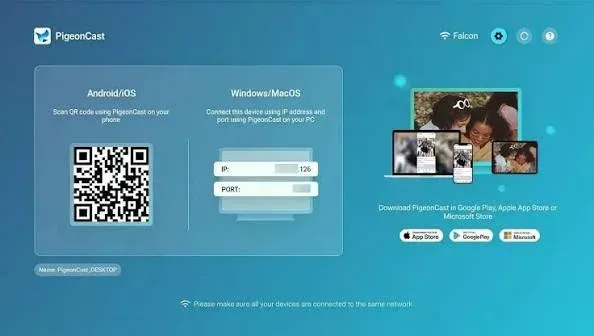
Step 3. Make sure both sides are on the same local network for the first test.
Step 4. Open the GoPro clip on your phone, tablet, or computer and start sharing it to the TV through PigeonCast.
- On your sending device, choose your receiver, device, or TV from the device list.
- Start screen mirroring.
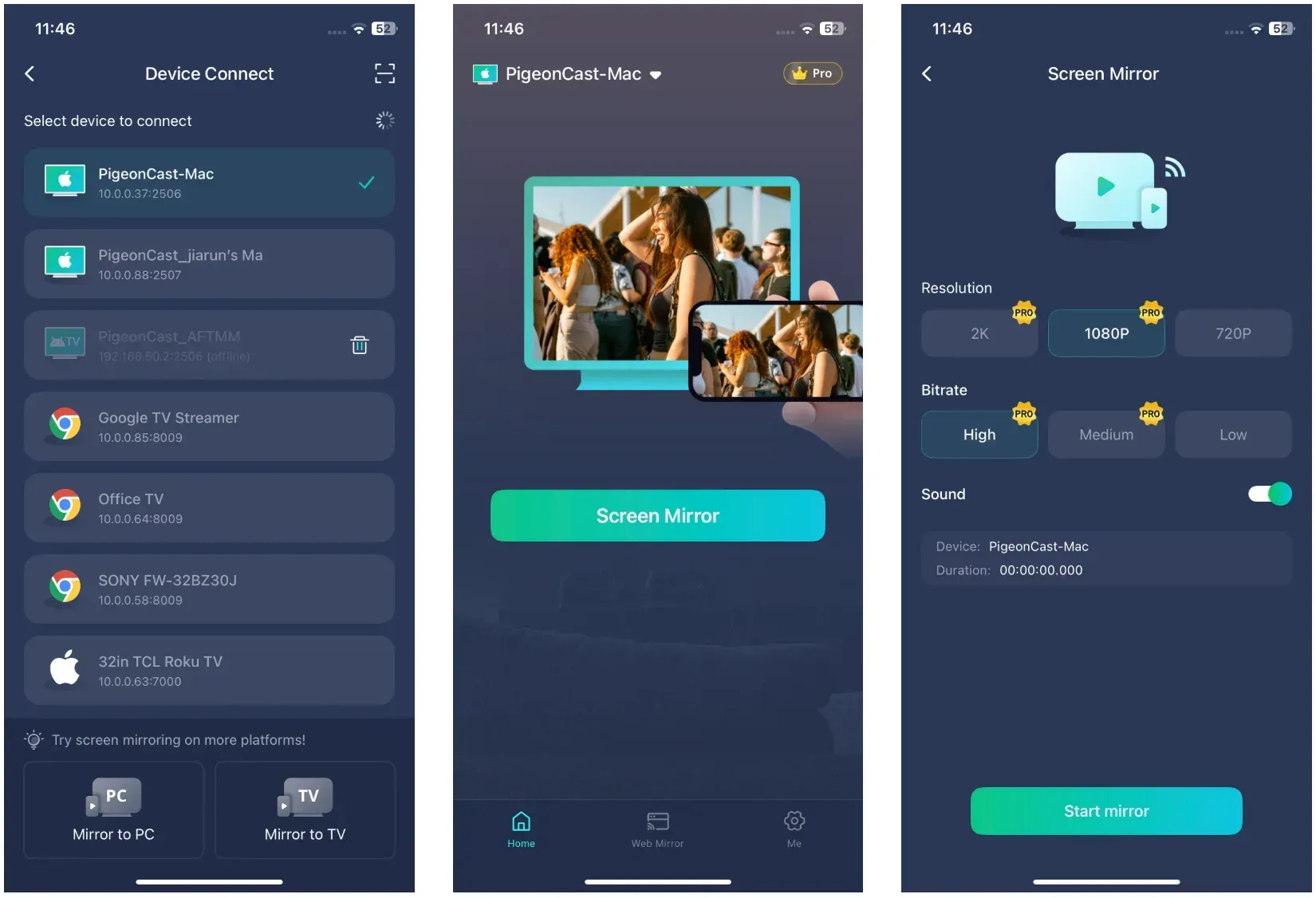
Step 5. Check the first few seconds of playback before you settle in, especially if the clip is long or shot at a high frame rate.
This option is especially useful when your household changes devices often. One day the clip is on an iPhone, the next day it is on a Windows laptop, and the TV in the room is not especially loyal to one ecosystem. That is where PigeonCast earns its place in the lineup.
Watch GoPro Videos on TV With HDMI From a Computer
If you want the most dependable answer, use a computer and an HDMI cable. It is less elegant than wireless playback, but it avoids many of the common problems that come with casting, including network instability, file compatibility issues, and TV-specific quirks.
For larger 4K files, long travel videos, or footage that a smart TV struggles to play directly, a wired connection is often the safer option. HDMI-based screen mirroring works differently from wireless casting and gives you much more predictable playback.
Step 1. Copy the GoPro videos to your laptop or desktop computer.
Step 2. Connect the computer to the TV with HDMI, or with the correct USB-C-to-HDMI adapter if your computer needs one.
Step 3. Switch the TV to the matching HDMI input.
Step 4. Open the clips in a reliable video player on the computer.
Step 5. Play the videos full screen on the TV.
The tradeoff is obvious: you need the cable and you are tied to the computer. The upside is just as obvious. If you mainly want the footage to play without drama, HDMI is hard to beat.
Watch GoPro Videos on TV From a USB Drive
Using a USB drive sounds like the most direct answer. Sometimes it is. Sometimes the TV sees the file and still refuses to play it properly. That is why I would treat USB playback as a convenience option, not the default recommendation. If you specifically want to play GoPro videos on smart TV storage-first, test one short clip before you copy over everything.
It can still be worth trying if your TV is known to handle large video files well and you do not want another device in the middle.
Step 1. Copy the GoPro clips to a USB drive that your TV can read.
Step 2. Plug the USB drive into the TV.
Step 3. Open the TV’s media browser or media player app.
Step 4. Find the video file and try playback.
Step 5. If the file appears but does not play correctly, stop there and move to HDMI or phone-to-TV playback instead of renaming files at random.
The main reason USB playback fails is compatibility. Some TVs dislike certain codecs, frame rates, file systems, or very high-bitrate footage. A TV that plays a normal MP4 from your phone may still struggle with GoPro footage that is heavier or encoded differently.
Why Your GoPro Videos Are Not Playing Well on TV
Most problems fall into four buckets: the TV does not like the file, the TV can see the file but not play it properly, wireless playback stutters, or audio and picture do not stay together. Once you identify which one you are dealing with, the fix usually gets simpler.
The TV does not support the file well
This is common with USB playback. GoPro clips can be larger, sharper, and more demanding than the average video people keep on a thumb drive. If the TV says the file is unsupported, or the file appears but never starts, the issue is often the file itself rather than the USB drive.
At that point, I would stop trying to make the TV’s built-in player behave and switch to HDMI from a computer or to playback from a phone that can handle the file cleanly.
The TV shows video but there is no audio
Audio-without-picture and picture-without-audio problems usually point to codec support or app handling. This shows up more often on TV media players than on computers or phones.
If you hit this problem, test the same clip on your computer first. If the computer plays it normally, the TV is the weak link, not the file.
Wireless playback is choppy
When AirPlay, Cast, or app-based sharing stutters, the cause is usually not mysterious. It is often a busy Wi-Fi network, a large file, or a TV that handles wireless video less smoothly than its marketing suggests.
If choppy playback happens only on the TV, move closer to the router for a quick retest or skip straight to HDMI. For large GoPro clips, a cable is often faster than repeated wireless troubleshooting.
The TV sees the drive but not the video
This usually means the drive format or the video format is not playing nicely with the TV. Many people assume that if the TV can read the USB stick, it should also play every file on it. That is not how many smart TVs behave.
If the file does not appear at all, or appears in some folders but not others, the simplest next move is to stop relying on the TV’s built-in media browser and use another device for playback.
Conclusion
If your GoPro clips are already on your phone, start with AirPlay on iPhone or Google Cast on Android. Those are the easiest wireless options when the TV and the app cooperate. They are usually the cleanest answer if your goal is simply to watch GoPro footage on TV with as little friction as possible.
If your home uses different devices or native casting is inconsistent, PigeonCast is the stronger practical choice because it gives you one repeatable way to get footage onto the TV. If the clips are large, important, or simply refuse to play nicely, connect a computer with HDMI and be done with it.
USB playback is worth trying only when you know your TV handles video files well. For many people, it looks simpler than it really is.
How to Watch GoPro Videos on TV FAQ
Can I watch GoPro videos on a smart TV directly?
Yes, sometimes. If your smart TV has a media player that supports the file correctly, you can play GoPro videos from a USB drive. The catch is that smart TVs vary a lot here, so direct playback is convenient only when your TV already handles those files well.
What is the easiest way to play GoPro videos on TV?
The easiest way is usually the device you already trust with video playback. If the clips are on your iPhone, start with AirPlay. If they are on Android, try Google Cast. If the clips are still on your computer, HDMI is often easier than experimenting with TV file support.
Why will my TV not play GoPro videos from USB?
The most common reason is file compatibility. GoPro videos can be large, high-bitrate, or encoded in a way that your TV’s media player does not handle well. When that happens, the TV may see the drive but still refuse to play the clip properly.
Is HDMI better than casting for GoPro footage?
Yes, if you care more about dependable playback than wireless convenience. HDMI avoids many of the issues that show up with large files, weak Wi-Fi, or picky TV media apps. It is less tidy than casting, but it is usually more predictable for action-camera footage.
Can I AirPlay GoPro videos from iPhone to TV?
Yes, if the clips are saved on your iPhone and your TV or Apple TV supports AirPlay. Open the clip in Photos or another app that exposes AirPlay, choose the TV from the device list, and let the TV handle playback from there.
Can I cast GoPro videos to Chromecast?
Yes, if the clips are in an app that supports Google Cast well. This is usually easier on Android than on iPhone because Google Cast support is more natural there. If the app does not expose the Cast button clearly, another playback method may be simpler.
Do I need the GoPro camera connected to the TV?
No. In most cases, it is easier to move the videos to a phone or computer first, then play them on the TV from there. That gives you better control and usually avoids the file-reading limits built into many televisions.
What should I do if GoPro videos lag on TV?
Start by figuring out whether the lag happens only during wireless playback or with every method. If the video is choppy over AirPlay or Cast, your network may be the issue. If it is still choppy over USB, the TV may simply be struggling with the file.
Mia Clarke is a technology editor specializing in screen mirroring and casting solutions across multiple platforms. Mia provides clear, practical guides and in-depth insights to help users seamlessly connect their devices. Passionate about enhancing digital experiences, Mia is dedicated to keeping readers updated on the latest trends and tools in cross-platform screen sharing. Whether you’re looking to mirror your smartphone, laptop, or smart TV, Mia’s content delivers reliable, user-friendly advice to simplify your tech setup.