

If you are asking is AnyMirror safe, you are probably not only worried about malware. You may also want to know why a screen mirroring app needs access to your phone screen, camera, microphone, audio, local network, or USB connection in the first place.
That matters because AnyMirror is not just a basic casting tool. It is mainly built around mirroring iPhone or Android to a computer, and it also supports features such as phone camera sharing, microphone mirroring, audio streaming, and session recording. Those features can be useful for meetings, teaching, live streaming, or demos, but they also make permission review more important.
So the real question is not only whether AnyMirror is a legitimate app. It is whether its phone-to-computer workflow, feature set, and permission requests match what you actually need. This guide explains how to evaluate AnyMirror’s safety, what privacy risks to watch for, and when a simpler screen mirroring alternative may fit better.
Quick Answer: Is AnyMirror Safe?
AnyMirror is generally safe to use if you download it from the official iMobie website or another trusted source, install the correct version for your device, and review the permissions it asks for. It is a real phone-to-computer screen mirroring tool from a known software company, not a random anonymous APK.
The part that deserves extra attention is its feature set. AnyMirror can be used for more than basic screen mirroring, including phone camera sharing, microphone mirroring, audio streaming, and session recording. Those features explain why it may request access that feels sensitive, but they also mean you should only enable what you actually plan to use.
So the practical answer is: AnyMirror itself is not the main concern for most users. The safer approach is to download it from a verified source, use a private network or USB connection when possible, turn off sensitive notifications before mirroring, and confirm whether camera, microphone, or recording features are active during the session.
Is It Safe to Download AnyMirror?
AnyMirror is safest to download from the official iMobie website or another trusted software source with a clear publisher identity. The app itself and the installer source should be judged separately, because even a legitimate product can become risky if it is downloaded from the wrong place.
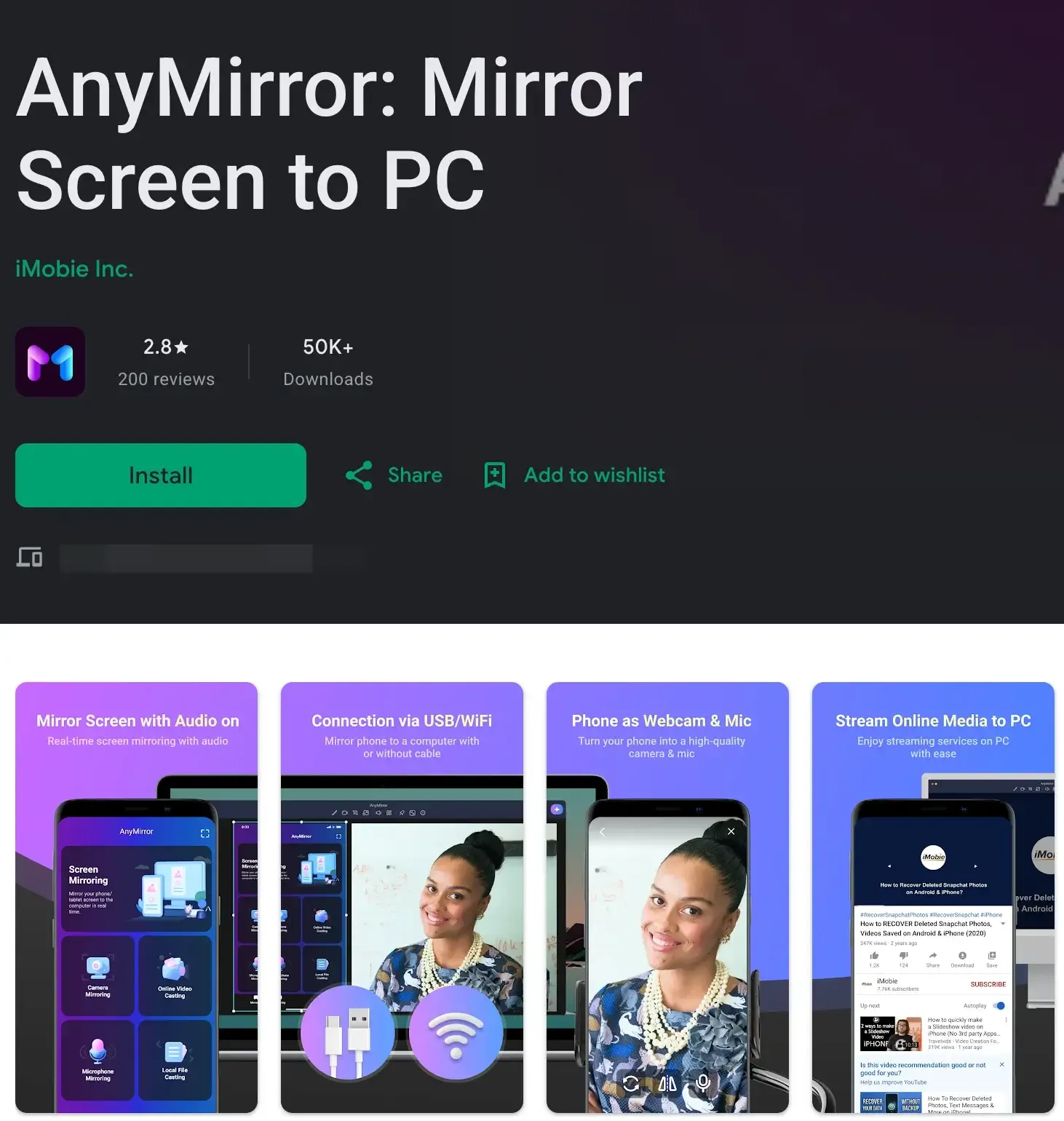
This is especially important for AnyMirror because users may search for desktop installers, older versions, cracked builds, or “premium unlocked” downloads. These unofficial packages can bundle unwanted software, include outdated files, or change the installation behavior in ways that have nothing to do with the original iMobie product.
Before downloading, check that the page clearly shows the developer name, supported systems, installation instructions, and the version that matches your device. If you are installing AnyMirror on a Windows PC or Mac, avoid random software portals that repackage desktop installers. If you are using Android, be especially careful with APK sites that offer modified versions.
A safer rule is simple: start with the official iMobie source, avoid cracked or repackaged installers, keep the app updated, and do not reuse old setup files from forums or file-sharing pages. If you are evaluating is AnyMirror safe to download, the download path matters as much as the app name.
What Permissions Does AnyMirror Need?
AnyMirror may ask for broader permissions than a basic TV casting app because it is built for more than simple screen mirroring. It can mirror a phone screen to a computer, share audio, use a phone camera as a webcam, mirror microphone input, and record sessions. The right question is not whether every permission sounds sensitive, but whether each permission matches the feature you plan to use.
Screen Recording or Screen Capture
Screen recording or screen capture permission is expected for AnyMirror’s core mirroring feature. The app cannot show your iPhone or Android screen on a computer unless it can capture what is currently displayed.
This permission becomes risky when you forget that mirroring is still active or when private content appears on screen during a session. Messages, passwords, personal apps, and work documents can all be exposed if they are visible while mirroring.
Local Network or USB Access
If you connect over Wi-Fi, AnyMirror may need local network access to find and connect your phone and computer. This is common for wireless mirroring tools because both devices need a way to discover each other.
AnyMirror may also support USB-based connection workflows. USB can reduce some network discovery concerns, but it still requires you to trust the computer you connect to and understand what the app is allowed to access during the session.
Microphone and Audio Access
AnyMirror’s feature set includes microphone mirroring and audio streaming, so microphone or audio permissions can make sense in meetings, teaching, live streaming, or phone-as-mic scenarios.
However, these permissions are not always necessary for basic screen mirroring. If your only goal is to show your phone screen on a computer, review whether microphone access is actually needed before allowing it.
Camera Access
Camera access is more specific to AnyMirror’s phone-as-webcam feature. If you want to use your phone camera as an HD webcam for a meeting, class, or stream, the permission is understandable.
If you are only mirroring your screen, camera access should be treated as optional. Do not grant it automatically unless the feature you are using clearly requires camera input.
Storage or File Access
Storage or media access may appear if you save screenshots, export recordings, cast local files, or manage captured content. This can be normal, but it deserves attention because saved mirroring files may contain private information.
A good rule is to grant only the access needed for the task. If you are not recording, exporting, or selecting local media, broad storage access may not be necessary.
What Privacy Risks Should You Watch For?
AnyMirror’s privacy risk is less about the app being unusual and more about how much it can include in one workflow. Because it can handle screen mirroring, audio, camera input, microphone input, and recording, you should always check what is active before starting a session.
Exposing More Than Your Screen
The most common risk is accidental exposure. Your mirrored screen may include message previews, emails, login pages, personal photos, browser tabs, or app activity you did not mean to share.
This matters especially when you use AnyMirror for meetings, teaching, demos, or live streaming, because the mirrored screen may be shown to other people or captured in a recording.
Turning on Camera or Microphone by Mistake
AnyMirror’s camera and microphone features can be useful, but they also create a broader sharing environment than simple screen mirroring. A session that starts as phone mirroring can become camera sharing, microphone input, or audio streaming if those features are enabled.
Before joining a meeting, class, or stream, check whether only the screen is being shared or whether camera, microphone, or audio features are also active.
Using Wi-Fi on Shared Networks
If you use AnyMirror over Wi-Fi, device discovery depends on the local network. On a private home or office network, that is usually easier to control. On hotel Wi-Fi, public Wi-Fi, school networks, or guest networks, you have less certainty about who else is connected.
When possible, use a private network or a USB connection for sensitive sessions. If you must use shared Wi-Fi, avoid displaying personal, work-related, or login-sensitive content.
Saving Recordings and Captures
Recording is one of the biggest differences between AnyMirror and a simple casting tool. Once you record a mirrored session or save screenshots, the privacy issue no longer ends when the live session stops.
Those files may contain messages, account details, meeting content, or private app screens. Store them carefully, delete unnecessary captures, and avoid recording sessions that include sensitive information unless you truly need them.
Safer Screen Mirroring Tips for AnyMirror
No screen mirroring app removes the need for basic privacy habits, especially when the app can involve screen capture, audio, camera, microphone, USB connection, or recording. If you use AnyMirror, check what is active before each session instead of assuming it is only sharing your screen.
- Download AnyMirror only from the official iMobie website or another trusted source.
- Avoid cracked installers, repackaged APKs, and “premium unlocked” versions.
- Use a private Wi-Fi network or a trusted USB connection whenever possible.
- Turn off lock-screen previews, message notifications, and sensitive app alerts before mirroring.
- Check whether camera, microphone, audio, or recording features are enabled before starting.
- Test with non-sensitive content first so you know exactly what appears on the computer.
- Close unrelated apps, browser tabs, documents, and login pages before sharing.
- Stop the mirroring or recording session as soon as you are done.
- Revoke camera, microphone, storage, or screen recording permissions you do not plan to keep using.
These habits matter because AnyMirror can do more than basic phone-to-computer screen mirroring. A session may involve your phone screen, audio, camera, microphone, or saved recordings, depending on which features you use. The safer approach is to enable only what you need for that session and turn off anything extra.
When a More Flexible AnyMirror Alternative May Fit Better
AnyMirror can make sense if your main goal is to mirror an iPhone or Android phone to a computer, use your phone as a webcam or microphone, record a mirrored session, or support a desktop-centered teaching, meeting, demo, or streaming workflow.
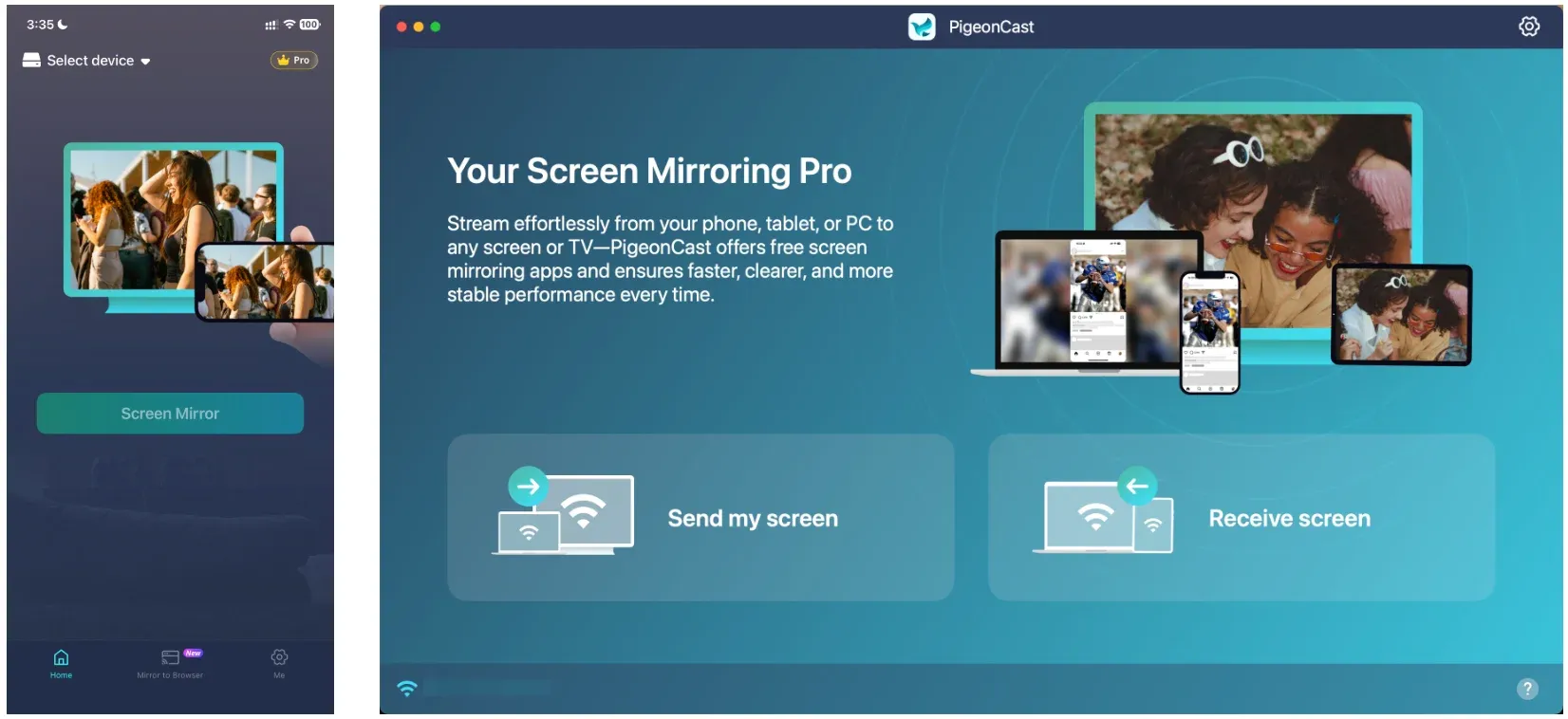
But it may not be the best fit if your screen mirroring needs go beyond phone-to-computer sharing. For example, you may want to mirror a phone to a TV, share a Windows PC to a TV, or mirror a Mac to a Windows PC. In those cases, PigeonCast may be a better fit because it supports more flexible everyday screen mirroring across phones, computers, TVs, and browser receivers.
| Need | AnyMirror may fit better | PigeonCast may fit better |
|---|---|---|
| Mirror iPhone or Android to a computer | Yes | Yes |
| Use phone as a webcam or microphone | Yes | Less central |
| Record mirrored sessions | Yes | Less central |
| Mirror phone to TV | Less direct | Strong fit |
| Mirror Windows or Mac to TV | Less central | Strong fit |
| Mirror one computer to another computer | Less central | Strong fit |
| Use a browser-based receiver | Less central | Strong fit |
The key difference is direction. AnyMirror is mainly useful when your phone or tablet needs to appear on a computer. PigeonCast is more flexible when you want to mirror to a computer and also mirror from a computer, such as iPhone to computer, Android to TV, Windows to TV, Mac to another screen, computer to computer, or phone to a browser receiver.
If you want a simpler way to mirror across phones, computers, TVs, and browsers, download and install PigeonCast, connect both devices to the same Wi-Fi network, choose the target receiver, and start screen mirroring.


Overall Rating:



Conclusion
So, is AnyMirror safe? For most users, it can be safe when downloaded from the official iMobie source and used with careful permission settings. The important thing is to understand what kind of tool it is before you use it.
AnyMirror is not just a basic casting app. It is built for phone-to-computer mirroring and can also involve audio, camera, microphone, USB connection, and recording features. That makes it useful for meetings, teaching, demos, and streaming, but it also means you should check what is active before each session.
If you need those broader features, use AnyMirror carefully and keep the session environment controlled. If your goal is everyday screen mirroring across phones, computers, TVs, or browser receivers, a more flexible mirroring app may give you a simpler path.
Is AnyMirror Safe FAQ
Is AnyMirror a legit app or a scam?
AnyMirror appears to be a legitimate product from iMobie rather than an anonymous scam app. That said, legitimacy does not mean you should ignore permissions or download source. You still want the official installer, current updates, and a quick check of what the app is allowed to access on your device.
Is AnyMirror safe for iPhone screen mirroring?
It can be reasonably safe for iPhone mirroring if you use the official version and understand that screen capture, local network access, and possibly audio-related permissions may be part of the workflow. The bigger privacy risk is usually what appears on your iPhone screen during the session, not the mirroring idea itself.
Is AnyMirror safe for Android devices?
Generally yes, but Android users should be extra careful about where they download it from. Third-party APK sites are a much bigger risk than the official build. You should also pay attention to microphone, camera, and storage permissions so the app only gets the access that matches the feature you actually need.
Can AnyMirror see my messages and notifications?
AnyMirror does not need to "read" your messages in the same way a messaging app does, but if your notifications or message previews appear on the mirrored screen, they can still be exposed during sharing or recording. That is why disabling previews before a session is one of the smartest privacy steps you can take.
Is USB mirroring safer than Wi-Fi mirroring?
In many cases, yes, USB can feel safer and more stable because it reduces reliance on local network discovery and shared Wi-Fi conditions. It is not automatically perfect, but if you are concerned about public networks, interference, or device visibility on shared Wi-Fi, a wired connection is usually the cleaner option.
Does AnyMirror need camera and microphone access?
Sometimes yes, but only for features that actually use them. Official product materials say AnyMirror can turn a phone into a webcam or microphone, so those permissions make sense in that context. If your workflow is only screen mirroring, treat those permissions as optional and grant them only when the feature clearly requires it.
Can AnyMirror mirror a computer screen to a TV?
AnyMirror is mainly known for mirroring mobile devices to a computer and supporting phone camera, microphone, and recording workflows. If your goal is to mirror a Windows PC or Mac to a TV, a screen mirroring app with stronger computer-to-TV support, such as PigeonCast, may be a more direct fit.
What is a simpler AnyMirror alternative for TV and computer mirroring?
PigeonCast is worth considering if you want more flexible screen mirroring across phones, computers, TVs, and browser receivers. It can help with everyday scenarios such as phone to computer, phone to TV, Windows to TV, Mac to TV, or computer to computer mirroring without focusing on webcam or microphone features.
Mia Clarke is a technology editor specializing in screen mirroring and casting solutions across multiple platforms. Mia provides clear, practical guides and in-depth insights to help users seamlessly connect their devices. Passionate about enhancing digital experiences, Mia is dedicated to keeping readers updated on the latest trends and tools in cross-platform screen sharing. Whether you’re looking to mirror your smartphone, laptop, or smart TV, Mia’s content delivers reliable, user-friendly advice to simplify your tech setup.