

If you searched is Mirroring360 safe, you probably want to know more than whether the app is a real screen mirroring tool. You may also want to know where it should be downloaded from, what permissions it may ask for, whether it is safe to use on your network, and what could be exposed during a live mirroring session.
That matters because screen mirroring apps are designed to access and display what is on your screen. Some may also need local network discovery, audio permissions, or presentation-related access depending on how you use them. These permissions can be normal, but they still deserve a closer look before you install or start sharing.
This guide explains how to evaluate Mirroring360’s safety, what risks to watch for, and when a simpler screen mirroring alternative may fit your setup better.
Quick Answer: Is Mirroring360 Safe?
Mirroring360 is generally safe to use when you download it from the official website or another trusted software source, install the correct version for your device, and use it on a private network. It is a known screen mirroring tool, so permissions related to screen capture, device discovery, or audio sharing can be normal depending on the feature you use.
The main risks usually come from how you download and use it. Unofficial installers, bundled third-party download pages, public Wi-Fi, and unreviewed permission prompts can all create unnecessary exposure.
So the practical answer is: Mirroring360 itself is not the main concern for most users. The safer approach is to download it from a legitimate source, review each permission request, and avoid mirroring private content in public or unmanaged network environments.
What Is Mirroring360 and What Does It Do?
Mirroring360 is a screen mirroring and screen sharing tool that lets one device display its screen on another device. For example, a phone, tablet, Chromebook, Windows PC, or Mac can be mirrored to a larger display or a host computer.
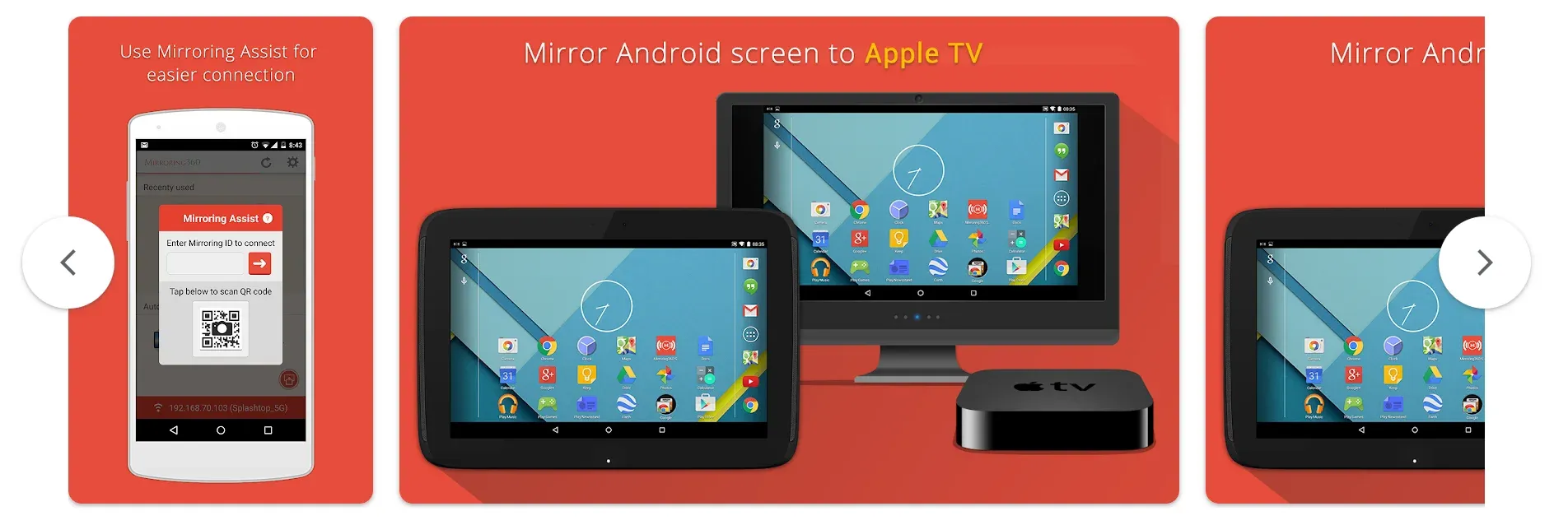
Its workflow is often used in schools, meetings, training sessions, and demos, where someone needs to show a device screen to a group. In that context, features like screen capture, device discovery, and controlled sharing are part of how the tool works.
This makes Mirroring360 slightly different from a simple TV casting app. If you need to present slides, teach a class, or demo an app, its presentation-style setup can make sense. If your main goal is casual TV mirroring at home, such as showing videos, photos, apps, or browser content on a larger screen, the workflow may feel more structured than necessary.
Is Mirroring360 Safe to Download?
Mirroring360 is safest to download from the official developer website or another trusted software source with a clear publisher identity. This matters because the safety of the original app and the safety of the installer are not always the same thing.
A legitimate screen mirroring tool can still become risky if you download it from a fake mirror site, a bundled software portal, or a page offering a “free unlocked” version. In those cases, you are no longer only trusting Mirroring360. You are also trusting the site that repackaged or distributed the installer.
Before downloading, check whether the page clearly shows the supported platforms, current version, developer information, and installation instructions. An older version is not automatically unsafe, but outdated or unclear download pages can create more friction around compatibility, permissions, and setup.
The safer choice is simple: download from a source you can verify, avoid modified installers, and make sure the version matches the device and operating system you plan to use.
What Permissions Does Mirroring360 Need?
Mirroring360 may ask for permissions that seem sensitive at first, but many of them are normal for a screen mirroring app. The key is whether each permission clearly supports the feature you are trying to use.
Screen recording or screen capture permission is the most common example. A mirroring app cannot display your screen on another device unless it can access what is currently shown on your screen. This permission may sound broad, but it is expected for screen sharing.
Local network access or device discovery permission can also be normal. Mirroring tools often need to find nearby receivers, host computers, or displays on the same network before a session can start.
Audio or microphone access depends on the feature. If you are sharing sound, joining a live presentation, or using a feature that includes voice input, the permission may make sense. Camera access should be treated more carefully. It is reasonable only when you are using a camera-related feature, not when you are simply mirroring your screen.
A good rule is to match each permission to the action you are taking. If Mirroring360 asks for screen, network, or audio access during a relevant mirroring workflow, that can be normal. If a permission request does not match the feature you are using, pause before allowing it.
When Mirroring360 May Not Be the Best Fit
Mirroring360 may be safe enough for many users, but safety does not always mean it is the right tool for the job. If your main goal is simply to mirror a phone, tablet, or laptop to a TV, its presentation-style workflow may feel heavier than necessary.
This is especially true in mixed-device homes where people switch between iPhone, Android, Mac, Windows, and different TV or receiver types. In that situation, the problem is often not whether the software is trustworthy. It is whether the setup feels simple enough to repeat every day.
Mirroring360 makes more sense for classrooms, meetings, demos, and managed screen sharing. For casual TV mirroring, such as watching videos, showing photos, sharing apps, or casting browser content at home, a more TV-focused mirroring workflow may be easier to use.
How to Screen Mirror Safely
Whether you use Mirroring360 or another screen mirroring app, safe use usually comes down to a few practical habits:
- Download the app from the official website or a trusted software source.
- Use a private Wi-Fi network instead of public or guest Wi-Fi whenever possible.
- Make sure the sending device and receiving device are connected to the correct network.
- Review screen recording, local network, audio, or camera permissions before allowing them.
- Close private messages, notifications, personal tabs, and sensitive documents before mirroring.
- Stop the mirroring session as soon as you are done.
- Keep the app and your device system updated to reduce compatibility and permission issues.
These steps matter because many screen mirroring privacy problems are simple mistakes, not complex security attacks. A private message appearing on the TV, a work document left open, the wrong receiver selected, or an installer downloaded from an untrusted page can create more risk than the mirroring tool itself.
A Simpler Alternative for Mixed-Device Screen Mirroring
If Mirroring360 feels more presentation-focused than your setup requires, PigeonCast is worth considering as a simpler alternative for everyday screen mirroring. The difference is not that one tool is “safe” and the other is not. The difference is the workflow each one is built around.
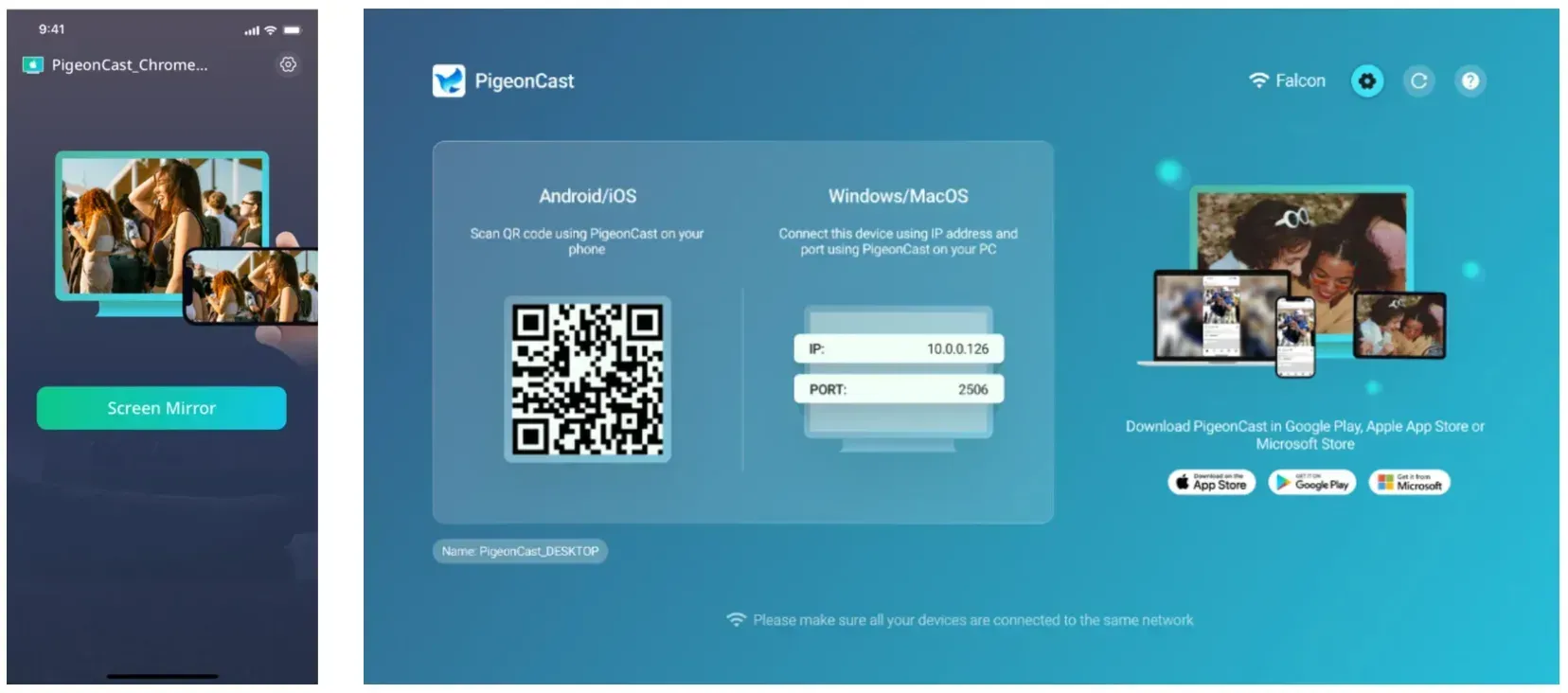
Mirroring360 makes more sense when you need structured screen sharing for classrooms, meetings, training sessions, or device demos. PigeonCast is a better fit when your main goal is to mirror a phone, computer, or tablet to a TV or another screen with less setup friction.
| Need | Mirroring360 may fit better | PigeonCast may fit better |
|---|---|---|
| Classroom or presentation sharing | Yes | Less central |
| Work meetings or training sessions | Yes | Less central |
| Everyday TV mirroring | Possible, but may feel heavier | Better fit |
| iPhone or Android to TV | Possible | Strong fit |
| Windows or Mac to a larger screen | Possible | Strong fit |
| Mixed-device home setup | Possible | Strong fit |
| Casual videos, photos, apps, or browser content | Possible | Better fit |
| A simple same-Wi-Fi mirroring routine | Not always the main focus | Main use case |
This matters if your real problem is not whether Mirroring360 is legitimate, but whether it feels too structured for ordinary home use. For example, you may simply want to mirror an iPhone to a TV, cast an Android screen to a larger display, share a Windows laptop screen, or use a Mac with another receiver. In that situation, a TV-first and cross-device workflow is usually easier to repeat.
To try PigeonCast for local screen mirroring, follow these steps:
Step 1. Download and install PigeonCast on the device you want to mirror from, such as your iPhone or Android phone. If your setup needs a receiver app, also open PigeonCast on the TV, computer, or receiver screen you want to mirror to.


Overall Rating:



Step 2. Connect your sending device and receiving device to the same Wi-Fi network. A private home or office network is usually better than public Wi-Fi for screen mirroring.
Step 3. Open PigeonCast, choose your TV, computer, or browser receiver from the device list, and start screen mirroring.
Conclusion
When choosing a screen mirroring app, do not only ask whether it is safe. Also ask whether it matches the way you actually plan to mirror your screen.
For school, work, training, or presentation-style sharing, a tool like Mirroring360 can make sense. For everyday TV mirroring, mixed-device homes, or quick sharing from a phone or computer to a larger screen, a simpler and more TV-focused workflow may be easier to use.
Before you install any screen mirroring app, check three things: where you are downloading it from, what permissions it asks for, and whether the setup fits your devices. During mirroring, use a private Wi-Fi network, close sensitive apps or notifications, and stop the session when you are done.
The best screen mirroring app is not just the one with the most features. It is the one that gives you a trusted download source, clear permissions, and a workflow you can repeat safely without extra friction.
Is Mirroring360 Safe FAQ
Is Mirroring360 safe for school or work use?
Yes, Mirroring360 can be safe for school or work use when it is installed from a legitimate source and used on a managed or trusted network. In those settings, the main thing to check is not only the app itself, but also how permissions, device discovery, and on-screen privacy are handled during live sharing.
Can Mirroring360 see my private files?
Mirroring360 should not need to browse your private files like a file manager. The bigger privacy issue is what appears on your screen while mirroring is active. If messages, personal tabs, documents, or notifications are visible, they may also appear on the receiving screen.
Does Mirroring360 need screen recording permission?
Yes, screen recording or screen capture permission can be normal for Mirroring360. A screen mirroring app needs access to your screen output in order to show it on another device. You should still review the permission prompt and make sure it matches the feature you are using.
Is Mirroring360 safe on public Wi-Fi?
Public Wi-Fi is not the best environment for screen mirroring, even if the app itself is legitimate. Device discovery can be less predictable, and you have less control over the network. For anything personal, work-related, or login-sensitive, use a private home, school, or office network instead.
Is Mirroring360 better for presentations than TV mirroring?
Mirroring360 is often better suited to presentations, classrooms, meetings, training sessions, and device demos. It can still be used for screen sharing in other situations, but if your main goal is casual TV mirroring at home, a TV-focused mirroring app may feel simpler and easier to repeat.
What is a simpler Mirroring360 alternative?
A simpler alternative depends on what you want to mirror and where you want to show it. If your priority is everyday TV mirroring, mixed-device use, or sharing from iPhone, Android, Windows, or Mac to a larger screen, PigeonCast is worth considering as a more TV-focused Mirroring360 alternative.
Mia Clarke is a technology editor specializing in screen mirroring and casting solutions across multiple platforms. Mia provides clear, practical guides and in-depth insights to help users seamlessly connect their devices. Passionate about enhancing digital experiences, Mia is dedicated to keeping readers updated on the latest trends and tools in cross-platform screen sharing. Whether you’re looking to mirror your smartphone, laptop, or smart TV, Mia’s content delivers reliable, user-friendly advice to simplify your tech setup.