

Most people who search for a screen share app are not looking for the same thing.
Some want to share a laptop screen in Zoom. Some need to help a client fix a computer remotely. Others want to record a short walkthrough and send a link later. A different group is just trying to get an iPhone, Android phone, or laptop onto a TV without turning the whole process into a small IT project.
If you open a generic “top 10 apps” list, it usually does not help much. A meeting app, a remote access tool, and a screen mirroring app may all show a screen, but they are built for different jobs. If you start with the wrong category, even a good app can feel frustrating.
You will get a better answer if you match the app to your situation first, then compare products inside that category.
Quick Answer: Which Screen Share App Should You Choose?
If you want the short version, start here:
| Need | Best app type | Recommended option |
|---|---|---|
| Online meetings | Video conferencing app | Zoom |
| Team collaboration | Work meeting app | Microsoft Teams or Google Meet |
| Remote tech support | Remote access app | TeamViewer or AnyDesk |
| Async walkthroughs | Screen recording app | Loom |
| Mirror Phone or PC to TV | Screen mirroring app | PigeonCast |
| Mixed-device local sharing | Cross-platform mirroring app | PigeonCast |
Use that table as a shortcut. If the person watching you is remote, start with a meeting or support tool. If the screen needs to appear on a nearby TV, projector, or computer, a mirroring app is usually the better path.
Screen Sharing vs Screen Mirroring vs Casting vs Remote Access
Before you choose an app, it helps to separate the terms that often get mixed together.
What is screen sharing?
Screen sharing usually means showing your screen to other people remotely during a video call, webinar, online class, or support session.
This is the category behind Zoom, Google Meet, Microsoft Teams, Webex, and Discord screen sharing. The main goal is live collaboration with remote viewers, not putting a device on a nearby TV.
What is screen mirroring?
Screen mirroring means showing the full screen of one device on another nearby display. That could mean iPhone to TV, Android to computer, Mac to TV, or Windows laptop to projector.
This is a better fit when the screen itself is the thing you want to show in the room. It is not built around a meeting link or remote participants.
What is casting?
Casting usually means sending media or app content to another screen instead of duplicating the whole display. Sending YouTube to a TV or handing off Netflix playback to a Chromecast is casting, not full mirroring.
What is remote access?
Remote access means another person can view or control your device from somewhere else. That is why tools like TeamViewer, AnyDesk, and Chrome Remote Desktop are common in IT support.
This is not the same job as showing your phone on a TV or sharing slides in a meeting. It is closer to remote troubleshooting and device control.
Best Screen Share Apps by Use Case
Start with your use case. Once you know whether you need meetings, remote support, recording, or local mirroring, the app choice gets much easier.
Best for Online Meetings: Zoom
Zoom is still one of the easiest answers when your main job is sharing a screen during a live meeting.
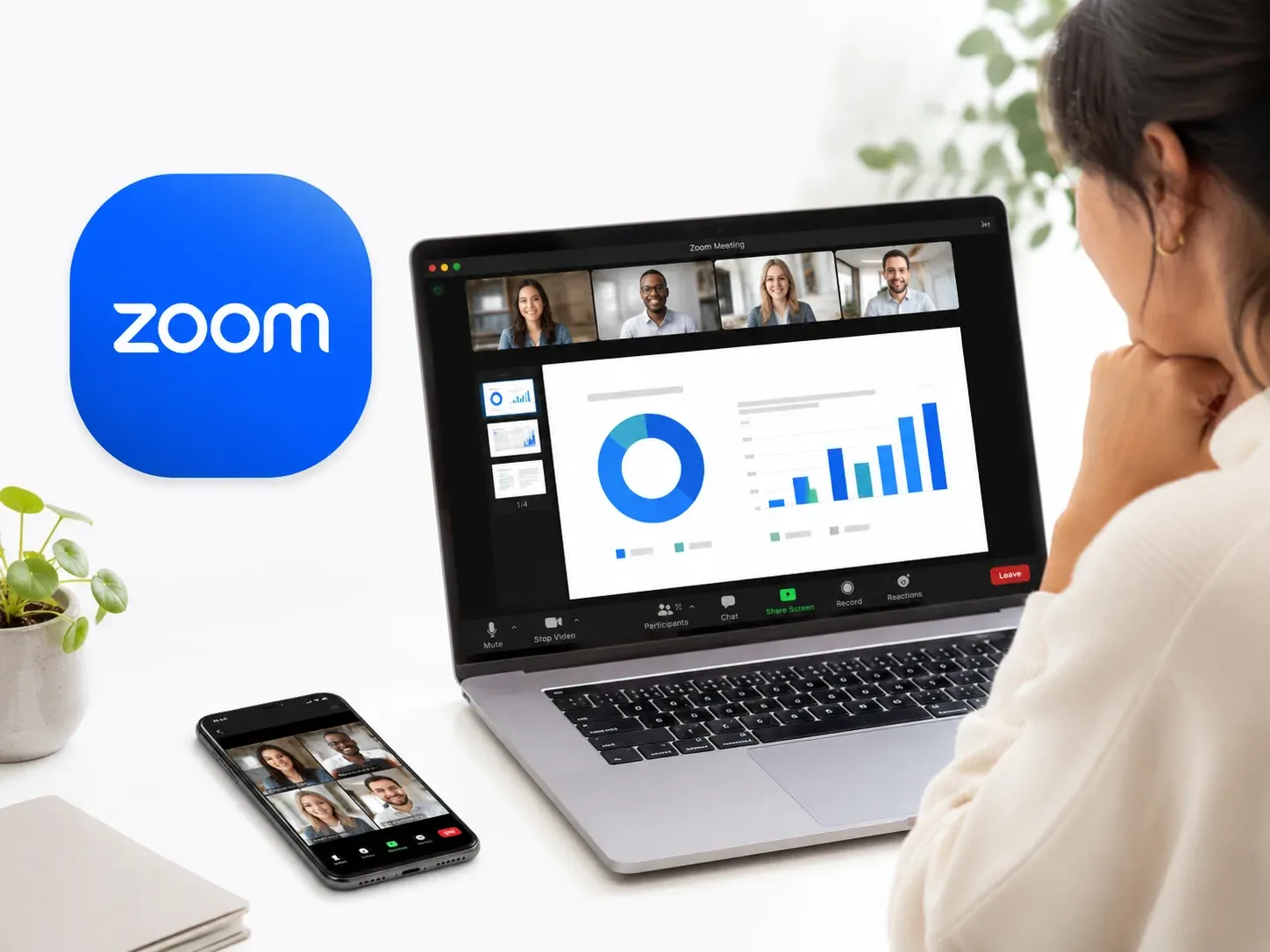
It works well for sales calls, internal discussions, client demos, webinars, and classes. Most people already know how to join a Zoom call, which removes friction before the meeting even starts.
Zoom is a strong fit when:
- your viewers are remote
- you need live voice and video along with screen sharing
- you want annotation, host controls, and meeting structure
Its limit is straightforward: Zoom is built for remote collaboration, not for local TV mirroring. If your real goal is showing Zoom on a nearby TV, a meeting app is usually more tool than you need.
Best for Google Workspace Users: Google Meet
Google Meet makes the most sense when your team already lives in Gmail, Calendar, Drive, and Docs.
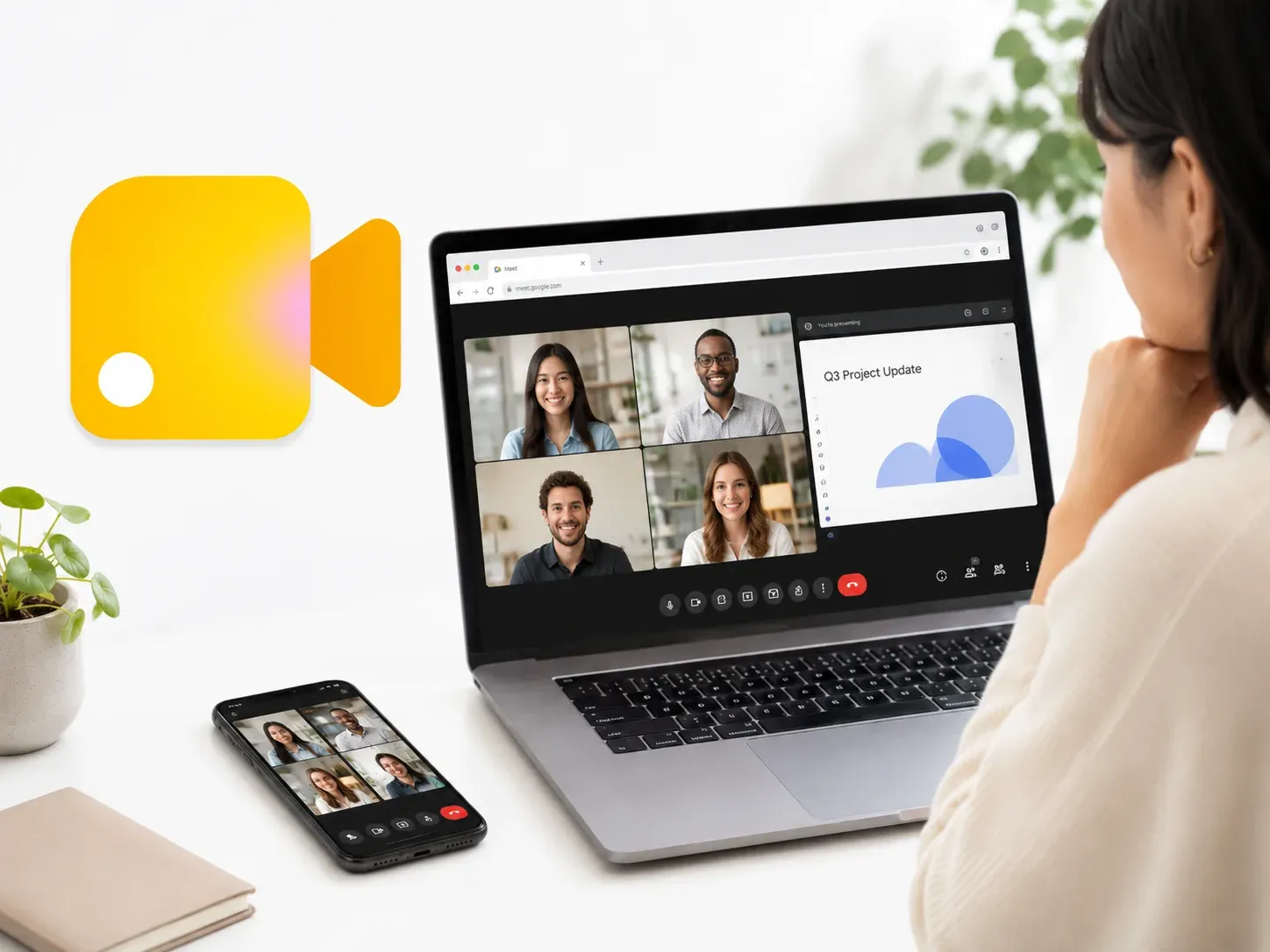
Its appeal is convenience. You can start or join quickly in the browser, and that matters for teams that want fewer moving parts.
Google Meet is a good fit when:
- your team already uses Google Workspace
- you want a lighter browser-based meeting workflow
- you do not need heavy remote support features
It is less useful when the main goal is sharing a phone screen to a TV or mirror a device around a room.
Best for Microsoft 365 Workflows: Microsoft Teams
Microsoft Teams works best when screen sharing is part of a larger company workflow rather than a standalone task.
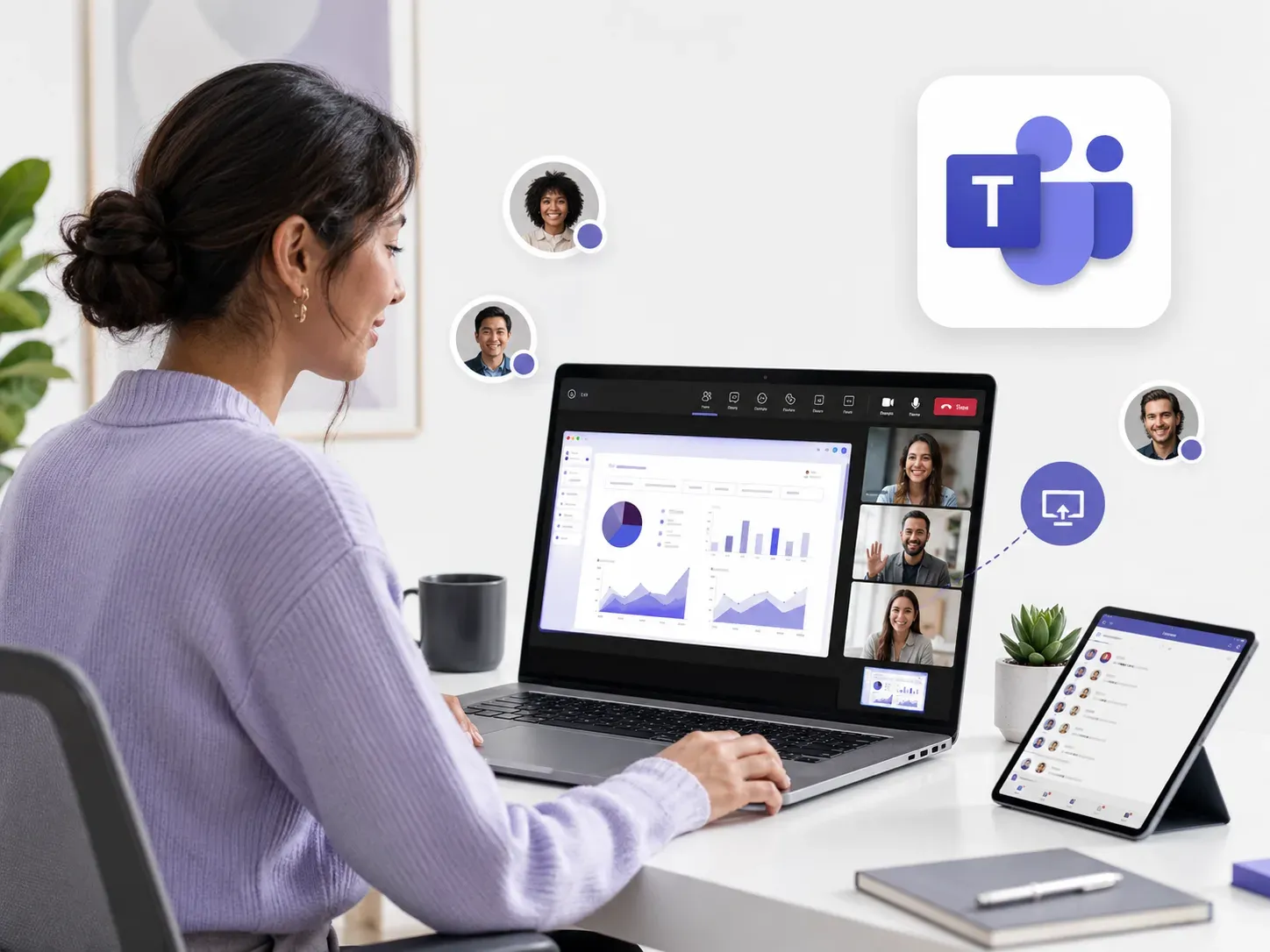
If your meetings revolve around Outlook, OneDrive, Word, Excel, and PowerPoint, Teams fits naturally. It is especially useful when sharing presentations during meetings, although you may prefer a simpler method when you only need to cast PowerPoint to a TV for a local presentation or display.
Teams is not the lightest option, but it is often the most practical one for companies already invested in Microsoft 365.
Teams is a strong fit when:
- your company already uses Microsoft 365
- screen sharing is tied to formal work collaboration
- you need chat, files, meetings, and permissions in one place
Its tradeoff is complexity. Teams is built for structured workplace collaboration, not for quickly putting one phone, laptop, or app screen onto a nearby TV. For quick local sharing, it is usually the wrong tool.
Best for Remote Support: TeamViewer or AnyDesk
When the goal is not just seeing a screen but helping someone operate a device remotely, TeamViewer and AnyDesk are more relevant than any meeting app.
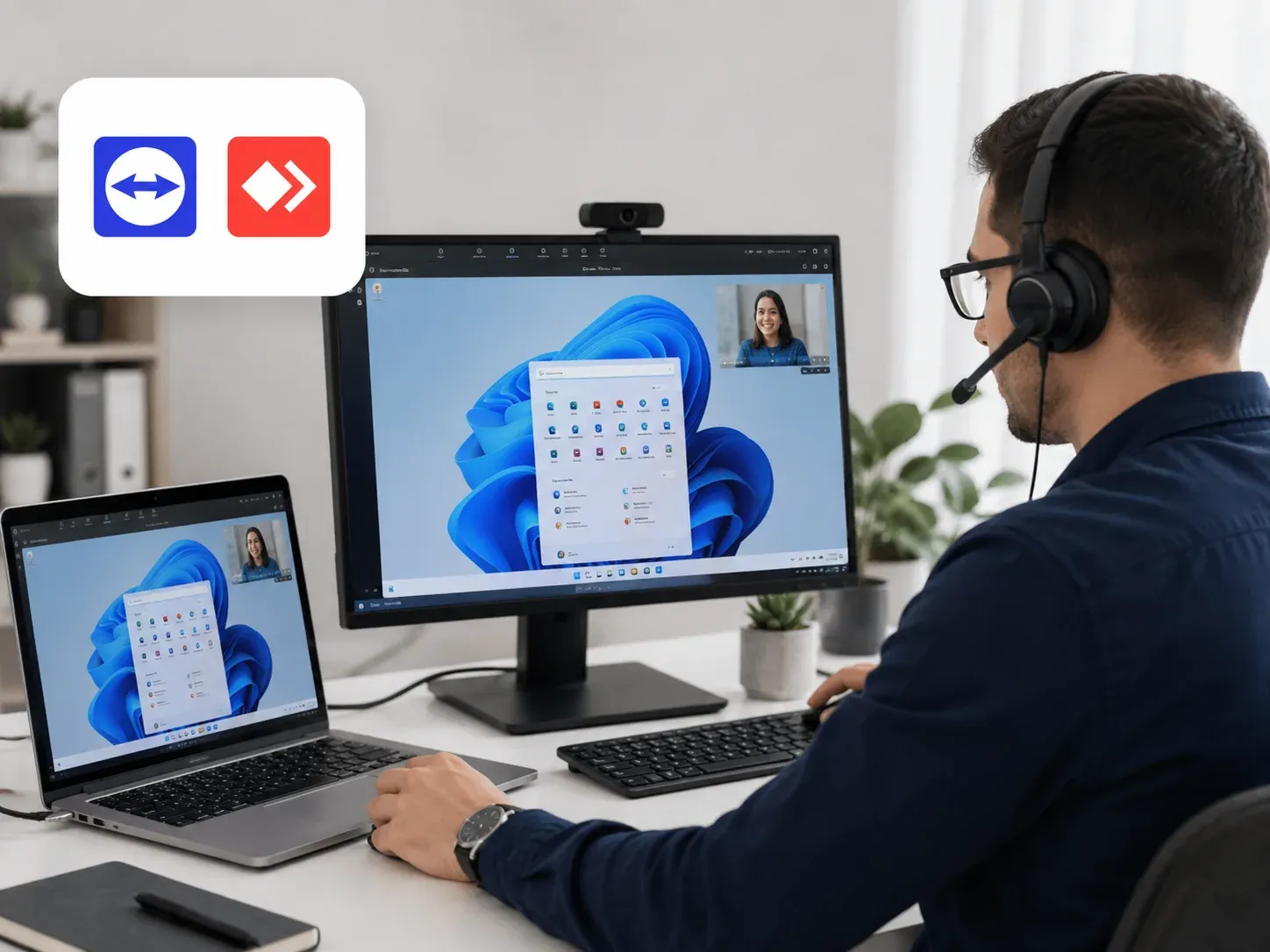
These tools are built for support sessions, admin work, and remote troubleshooting. That is why they belong in this article, but not in the same practical category as local mirroring tools.
Choose this type of app when:
- you need remote control, not just screen viewing
- you handle IT support, client setup, or guided troubleshooting
- the person on the other end is in another location
Use caution here: remote access requires trust, permissions, and clear security habits. It is not a casual replacement for screen sharing in a meeting.
Best for Async Screen Sharing: Loom
Loom is a better answer when the problem is timing, not connectivity.
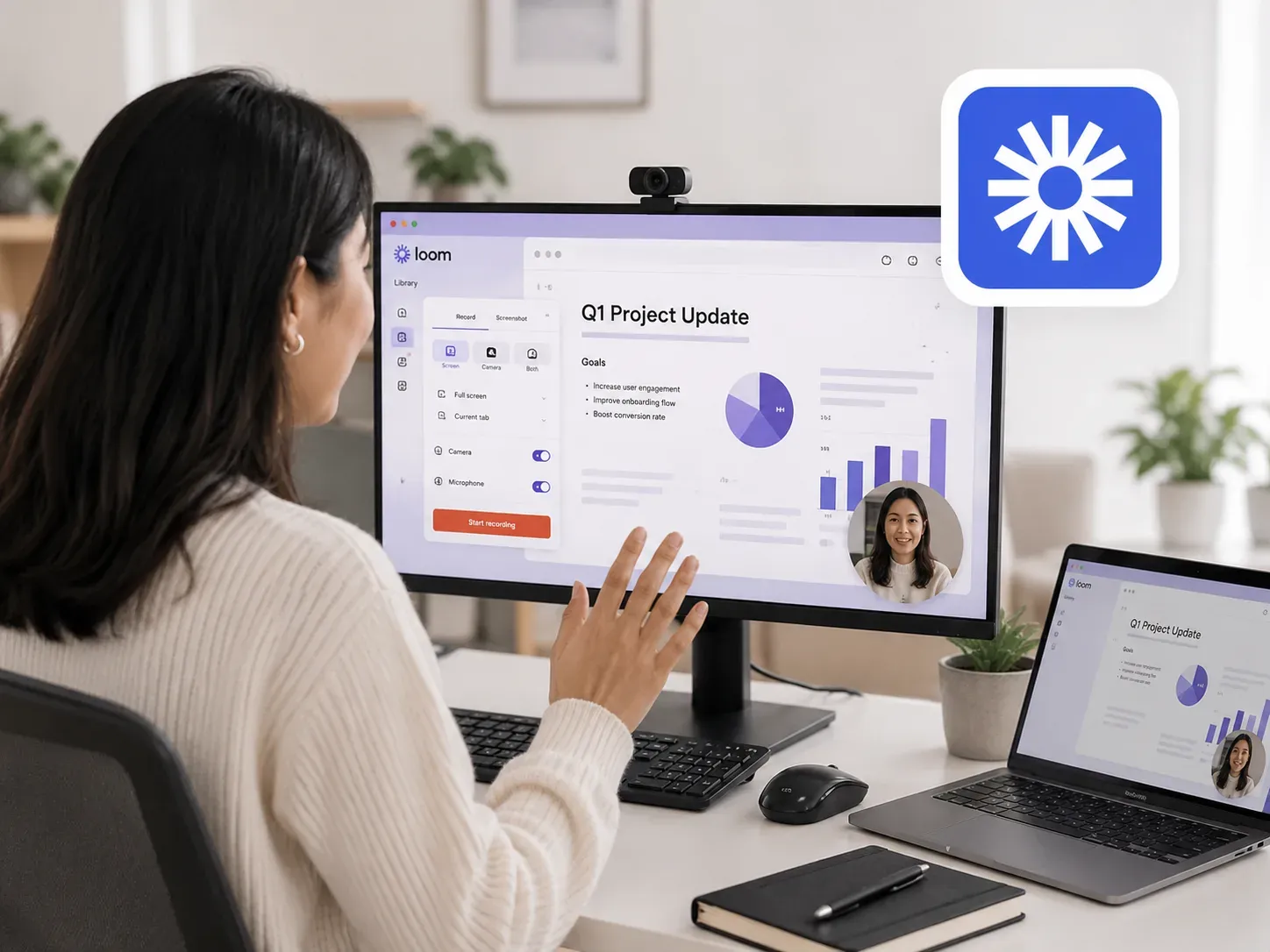
Instead of starting a live meeting, you record your screen, speak over it, and send the result as a link. That is useful for product walkthroughs, internal feedback, bug reports, handoffs, and customer explanations.
Loom makes sense when:
- you do not need everyone online at the same time
- you want to explain something once and share it clearly
- your workflow is more review-based than meeting-based
It does not solve local mirroring, and it does not replace a live meeting when back-and-forth discussion matters.
Best for Local Screen Mirroring: PigeonCast
PigeonCast fits a different problem from Zoom, Teams, or TeamViewer.
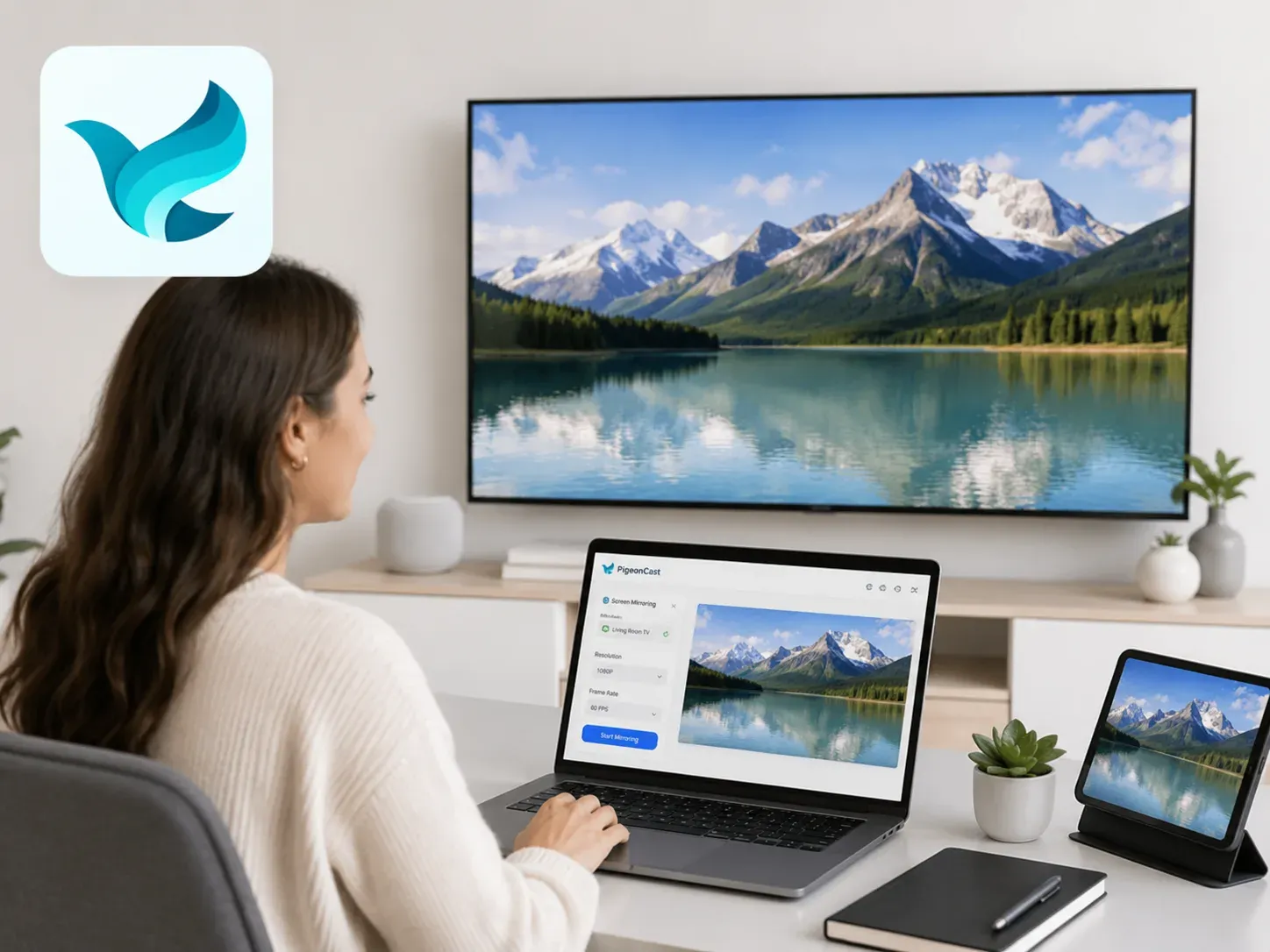
It is a better choice when your screen-sharing issue is local: getting a phone, tablet, or computer onto another nearby screen without depending entirely on one ecosystem. That can mean phone to TV, laptop to TV, phone to computer, or a mixed-device setup where AirPlay or Chromecast alone is not always enough.
This makes PigeonCast useful for everyday situations such as watching videos on a bigger screen, showing a mobile app in a meeting room, sharing photos with family, presenting from a laptop to a TV, or giving a quick in-room demo without sending everyone a meeting link.
PigeonCast makes the most sense when:
- you want to mirror your phone to a TV
- you need local sharing across iPhone, Android, Windows, Mac, and TVs
- you want a simpler option for mixed-device homes, classrooms, or small in-room demos
- you do not want to open a meeting app just to show one screen on another display
This is also the right category when your viewers are in the same room and the main job is display sharing, not remote collaboration.
For users who mainly need local mirroring, PigeonCast is available on major mobile platforms.


Overall Rating:



PigeonCast does not replace meeting apps like Zoom or Teams. It works better as a companion tool when you need local screen mirroring before, during, or outside a meeting.
Best for Casual Communities and Gaming: Discord
Discord makes sense here because you may want screen sharing for something much less formal than work.
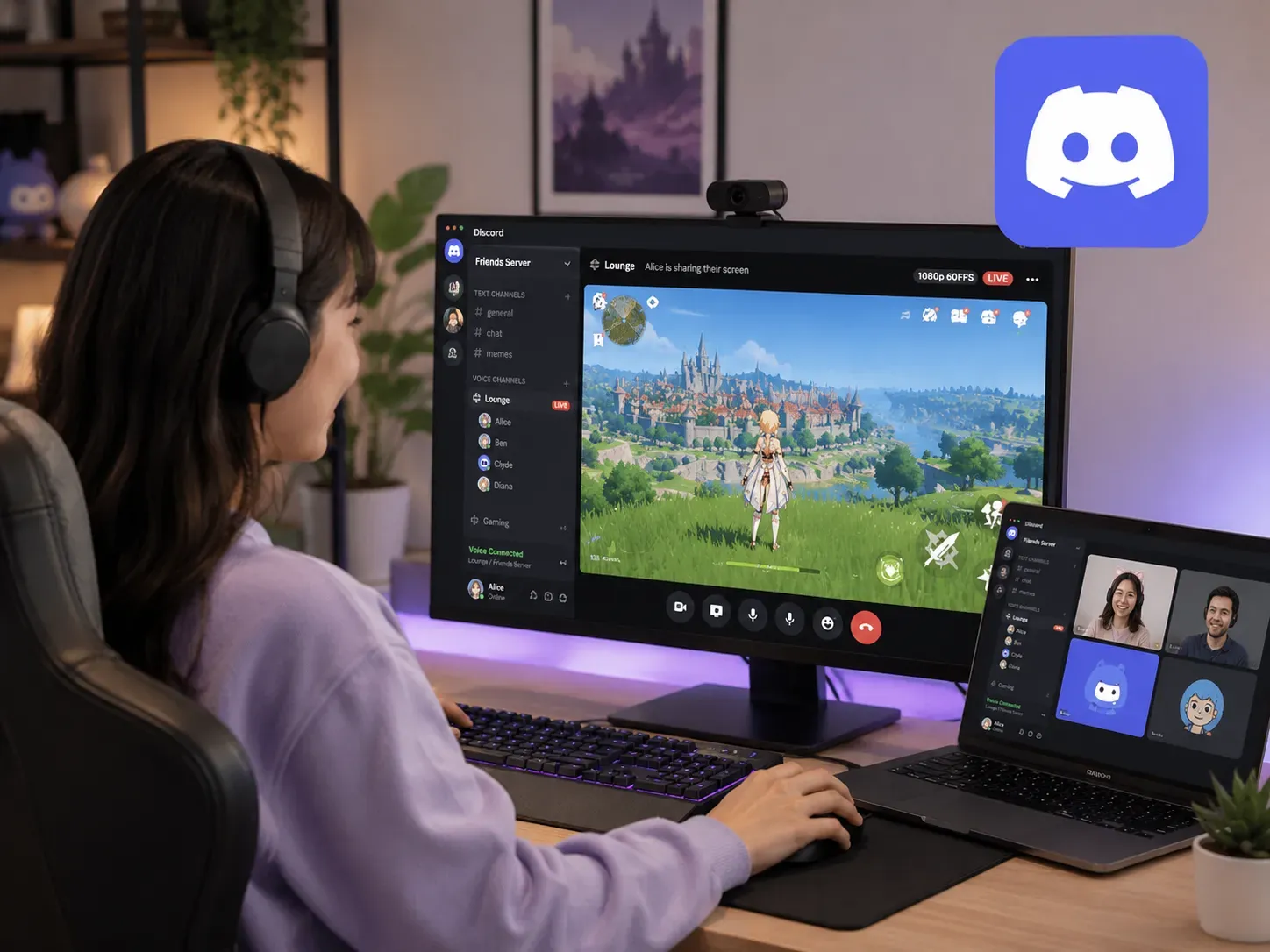
If the setting is a gaming group, a friend group, a community server, or a low-pressure live demo, Discord is often easier than trying to force a business meeting tool into a casual setting. It is also a familiar choice for people who want to screen share on Discord mobile during casual chats, game discussions, or quick app demos.
Discord works best when:
- the sharing session is informal
- voice chat and community presence matter more than business controls
- you are not trying to mirror to a TV or run a support session
It is useful, but it is not the best fit for structured work presentations or local device mirroring.
Screen Share App Comparison Table
Use this comparison to narrow the field faster. It shows where each app fits instead of pushing every tool into the same box.
| App | Best for | Remote meetings | Local mirroring | Remote control | Recording | Best device fit |
|---|---|---|---|---|---|---|
| Zoom | Online meetings | Yes | Limited | No | Yes | PC, Mac, mobile |
| Google Meet | Browser-based meetings | Yes | Limited | No | Limited | Browser, mobile |
| Microsoft Teams | Work collaboration | Yes | Limited | No | Yes | Microsoft 365 teams |
| TeamViewer | Remote support | Limited | No | Yes | Limited | IT support setups |
| AnyDesk | Fast remote access | Limited | No | Yes | Limited | Support and admin use |
| Loom | Async walkthroughs | No | No | No | Yes | PC, Mac, browser |
| Discord | Casual screen sharing | Yes | No | No | Limited | Gaming and communities |
| PigeonCast | Local screen mirroring | Only as local display support | Yes | No | No | iPhone, Android, PC, Mac, TV |
The key point is simple: you do not need one app to do everything well. Zoom is stronger for remote meetings, while PigeonCast is stronger when you need local screen mirroring.
How to Choose the Right Screen Sharing Software?
If you are still unsure, these questions will usually narrow the choice quickly.
Are your viewers remote or in the same room?
If the viewers are remote, start with Zoom, Google Meet, or Teams.
If the viewers are in the same room and you need a TV, projector, or nearby computer to show the screen, a local screen mirroring app usually makes more sense.
Do you need full control or only screen viewing?
If you only need people to see your screen, a meeting app or mirroring app is enough.
If someone needs to control the device remotely, move into TeamViewer or AnyDesk territory instead.
Are you sharing a phone, a laptop, or a TV screen?
Your device setup matters more than the app name.
- Laptop to remote team: Zoom, Meet, or Teams
- Phone to TV: PigeonCast, AirPlay, Chromecast, or a built-in mirroring feature
- Phone to computer: cross-platform mirroring or receiver workflow
- Laptop to TV: screen mirroring app, built-in casting, or HDMI depending on the setup
Do all devices use the same ecosystem?
If the setup is Apple-only, AirPlay may be enough.
If the setup leans heavily on Google TV or Chromecast-friendly hardware, Google Cast may already do the job.
If you use a mix of iPhone, Android, Windows, Mac, and TV hardware, an app-based mirroring setup is usually easier to repeat than relying on one platform’s built-in option.
Common Mistakes When Choosing a Screen Sharing App
Most wrong app choices start with a blurry definition of the problem.
-
Choosing a meeting app for a local display problem: If nobody is remote, a meeting app may just add steps you do not need.
-
Choosing a mirroring app for remote tech support: If someone needs to control the machine from another place, you need remote access, not just mirroring.
-
Assuming casting and mirroring are the same: They overlap, but they do not behave the same way. Casting often hands media to the TV. Mirroring duplicates the whole screen.
-
Ignoring audio, lag, or black-screen limits: A screen may appear successfully, but sound, delay, or protected video playback can still affect the experience.
-
Ignoring device ecosystem limits: An Apple-only shortcut may look great until one Windows laptop or Android phone enters the setup.
Final Takeaway
The easiest way to choose a screen share app is to start with the final screen.
When the final screen is another person’s laptop during a call, a meeting app is usually enough. When the final screen is someone else’s computer that needs fixing, remote access matters more than presentation quality. When the final screen is a TV, projector, shared monitor, or another device in the same room, a meeting tool can feel like the wrong shortcut.
That is where the decision changes. For local sharing, the real problem is not inviting people into a call. It is getting an iPhone, Android phone, Windows PC, or Mac onto the screen that everyone can actually see. In that situation, a screen mirroring app like PigeonCast is often the cleaner choice, especially when the devices do not all belong to the same ecosystem.
So the better rule is simple: choose a meeting app when people are remote, choose a remote access app when control matters, and choose a screen mirroring app when the screen itself is the destination.
Screen Share App FAQ
What is the best screen share app overall?
There is no single best screen share app for every use case. The right choice depends on whether you need remote meetings, remote control, screen recording, or local screen mirroring. Zoom is stronger for meetings, TeamViewer is better for remote support, Loom is better for async walkthroughs, and PigeonCast is the better fit for local screen mirroring.
Is screen sharing the same as screen mirroring?
No. Screen sharing usually refers to showing your screen to remote viewers during a meeting, webinar, online class, or support session. Screen mirroring usually means showing one device on another nearby display, such as a phone on a TV or a laptop on a projector.
What is the best app to share a phone screen to a TV?
For local sharing to a TV, a screen mirroring app or built-in casting method is usually the right path. PigeonCast is a good fit when you want a broader cross-device option instead of relying only on AirPlay, Chromecast, or one device ecosystem.
What is the best screen share app for remote work?
For most remote work teams, Zoom, Google Meet, and Microsoft Teams remain the main options because they combine live communication with screen sharing. The best choice usually depends on the tools your team already uses, such as Google Workspace or Microsoft 365.
Can I share my screen without Zoom?
Yes. Zoom is only one option. You can use Google Meet, Microsoft Teams, Discord, Loom, TeamViewer, AnyDesk, built-in casting tools, or a screen mirroring app, depending on whether you are sharing remotely, recording a walkthrough, offering support, or showing a device on a nearby screen.
Is screen sharing safe?
Screen sharing is generally safe when you use trusted apps and control what others can see or access. For meeting apps, close private tabs, messages, and files before sharing. For remote access tools, only allow control from people you trust, and end the session when the task is finished.
Why is my screen share showing a black screen?
A black screen can happen because of app permissions, graphics settings, protected video playback, DRM limits, or the wrong sharing mode. Streaming apps may block screen capture or mirroring for certain content, so the screen may appear black even when the screen share connection itself is working.
Can one app handle meetings and local TV mirroring equally well?
Usually not. Meeting apps and local mirroring apps are built for different jobs. You can use both in the same workflow, but one app rarely does both equally well. A meeting app is better for remote viewers, while a mirroring app is better when the screen itself is the destination.
Mia Clarke is a technology editor specializing in screen mirroring and casting solutions across multiple platforms. Mia provides clear, practical guides and in-depth insights to help users seamlessly connect their devices. Passionate about enhancing digital experiences, Mia is dedicated to keeping readers updated on the latest trends and tools in cross-platform screen sharing. Whether you’re looking to mirror your smartphone, laptop, or smart TV, Mia’s content delivers reliable, user-friendly advice to simplify your tech setup.