
Want to display your phone or laptop screen on a Grundig TV? If your television has a feature called Live Share, you may be able to mirror your screen wirelessly without installing another app or connecting an HDMI cable.
However, Grundig TVs don't all use the same operating system or casting technology. Some older models rely on Live Share, while newer Android TV and Google TV models may offer Google Cast instead.
This guide explains how Grundig Live Share works, how to connect Android and Windows devices, why iPhones behave differently, and what to try when screen mirroring fails.
What Is Live Share on Grundig TV?
Grundig Live Share is a wireless screen mirroring feature based on Miracast. It allows compatible smartphones and laptops to display their screens on a Grundig television, including photos, presentations, apps, and other on-screen content.
Unlike conventional media casting, which may send only a selected video to the TV, Miracast duplicates your device's display. It typically uses Wi-Fi Direct to establish a connection, so you don't necessarily need an internet connection or a Wi-Fi router.
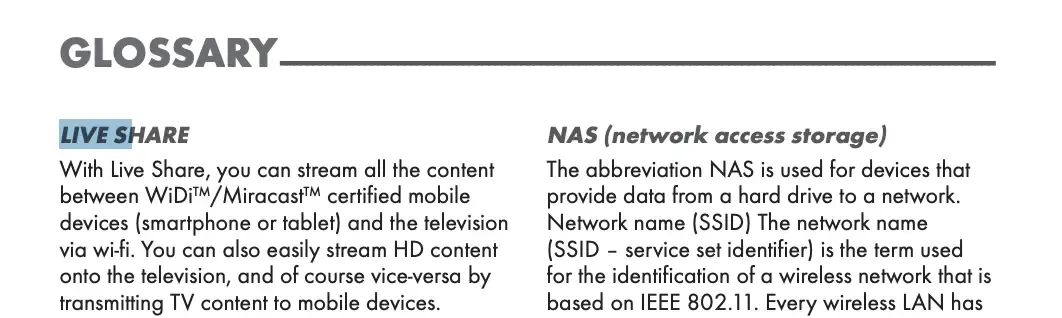
Grundig's official TV manual identifies Live Share as its implementation of Miracast. Some models also include Extended Live Share, with two different modes:
- Receive Screen: Display another device's screen on your Grundig TV.
- Share Screen: Transimit TV content to mobile devices. This feature is available only on certain models and software versions.
Live Share is especially relevant to older Grundig Smart TVs. Newer models running Android TV or Google TV may use Google Cast instead, so the available settings and connection steps can differ.
How to Use Live Share on Grundig TV
Before connecting, check whether your Grundig television actually supports Live Share. Look for Screen Share, Live Share, or Liveshare in the TV menu.
On some older models, the feature is accessed through the MENU button. Other models use HOME, and certain older televisions require a compatible Grundig Wi-Fi USB dongle.
The following steps are based on Grundig's documented Live Share interface. Menu names may vary depending on the model.
Step 1. Enable Live Share on Grundig TV
Step 1. Turn on your Grundig TV and press MENU or HOME on the remote.
Step 2. Navigate to Screen Share and press OK.
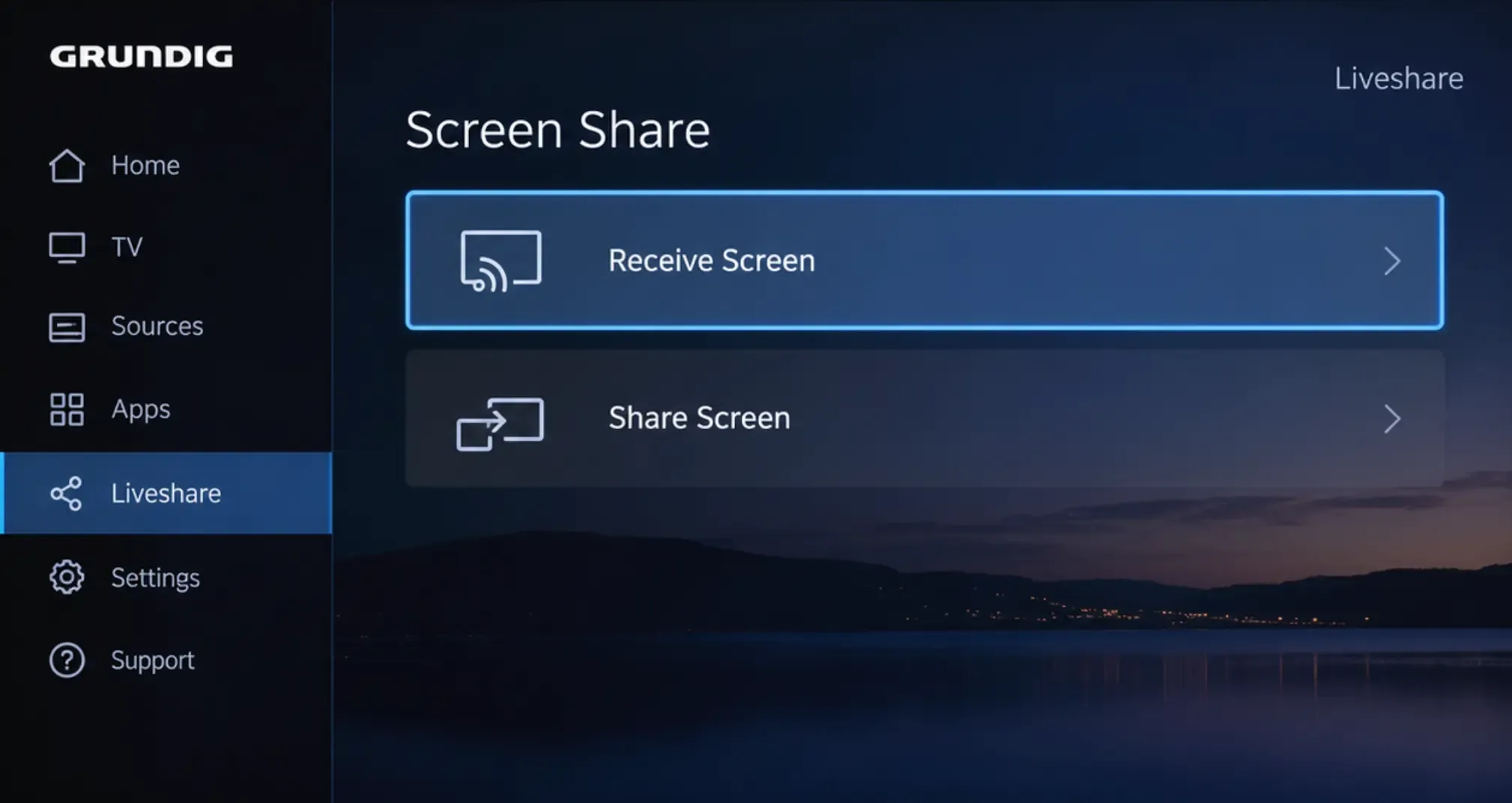
Step 3. If your television displays two options, select Receive Screen. This allows your TV to receive the screen from a smartphone or laptop.
Step 4. Keep the Live Share screen open while connecting your other device.
If you see Share Screen instead, remember that this option is designed to send the TV's picture to another compatible receiver, not receive your phone's display.
Some Grundig models open Live Share directly without asking you to choose a receiving mode.
Step 2. Connect an Android Phone to Grundig Live Share
Android phones that support Miracast can connect directly to compatible Grundig TVs. However, the feature name depends on your phone manufacturer.
For example, Samsung phones commonly use Smart View, while other manufacturers may label it Wireless Display, Screen Cast, or Screen Mirroring.
Step 1. Open Live Share on your Grundig TV and make sure it is ready to receive a screen.
Step 2. On your Android phone, swipe down to open Quick Settings.
Step 3. Tap Smart View, Screen Mirroring, or your phone's equivalent wireless display feature.
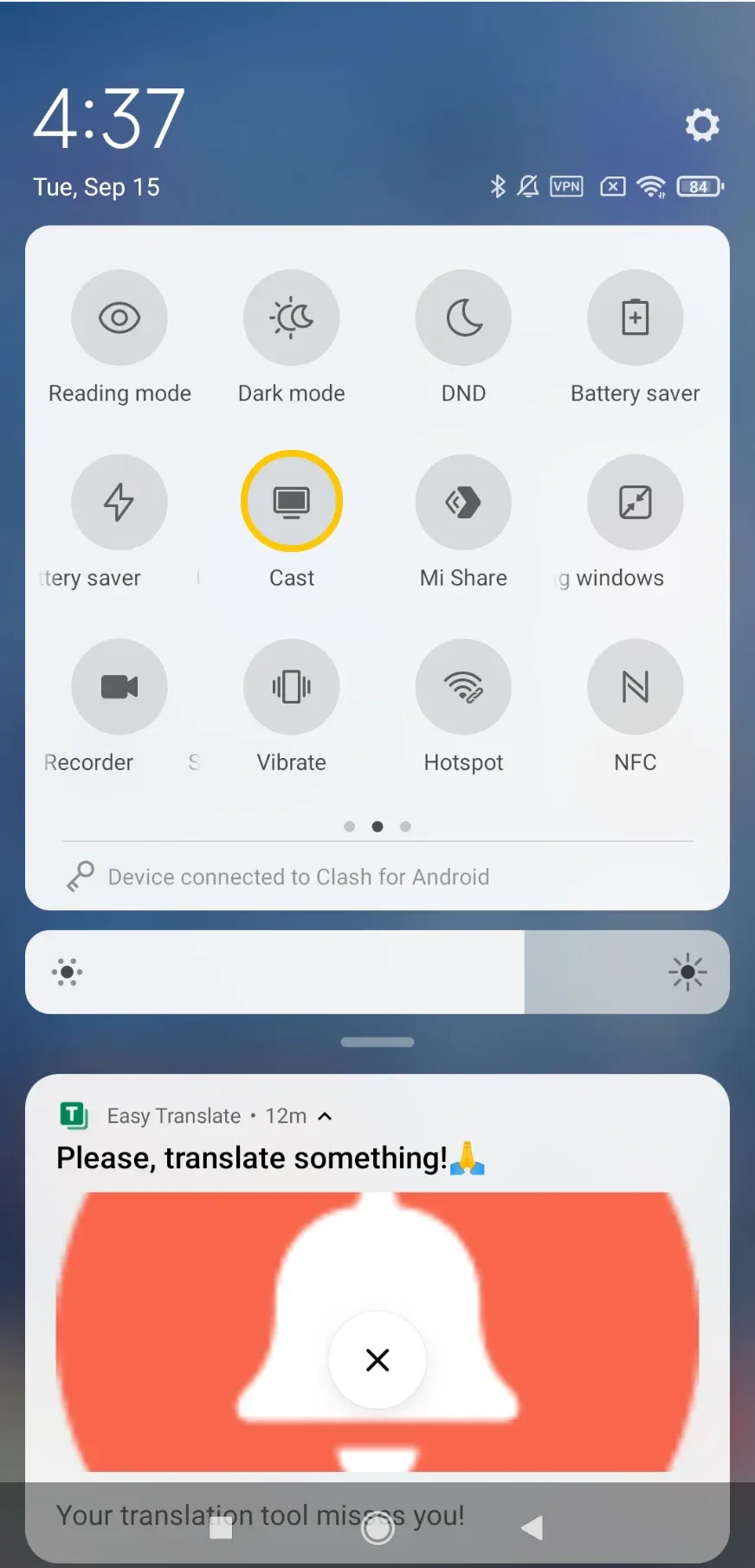
Step 4. Wait for your Grundig TV to appear in the available devices list.
Step 5. Select your TV and approve the connection if prompted.
Once connected, your phone's display should appear on the larger screen. You can open a photo gallery, show a presentation, or demonstrate an app without transferring files to the TV.
Important: Not every Android phone supports Miracast. Google Pixel phones, for example, generally rely on Google Cast for native wireless casting. If your Pixel cannot find an older Live Share television, the problem may be protocol incompatibility rather than a faulty Wi-Fi connection.
Step 3. Connect a Windows Laptop to Grundig Live Share
Windows 10 and Windows 11 include native wireless display support for compatible Miracast receivers. This makes Live Share useful for showing PowerPoint slides, sharing documents, or displaying your laptop desktop on a Grundig TV.
Step 1. Enable Live Share on your Grundig TV and select Receive Screen if that option appears.
Step 2. On your Windows laptop, press Windows + K to open the Cast panel.
Step 3. Wait for Windows to search for available wireless displays.
Step 4. Select your Grundig TV from the list and approve any connection request.
Step 5. Once connected, press Windows + P to choose a display mode, such as Duplicate or Extend, if supported.
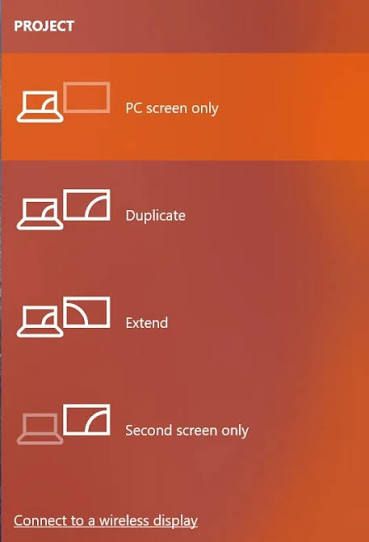
Duplicate displays the same content on both screens, which is useful for presentations. Extend treats the TV as an additional workspace.
If Windows reports that your device doesn't support Miracast, check your wireless adapter and graphics drivers. A Windows computer needs compatible hardware and drivers to establish the connection.
Can You Use Grundig Live Share with iPhone?
No, an iPhone cannot connect directly to a Miracast-only Grundig Live Share receiver using Apple's built-in Screen Mirroring feature. This is because iPhones use AirPlay to connect to TV, while Grundig Live Share uses Miracast.
Although both technologies transfer images wirelessly, they use different connection protocols.
For example, opening Control Center on your iPhone and tapping Screen Mirroring won't automatically reveal an older Grundig TV just because Live Share is enabled.
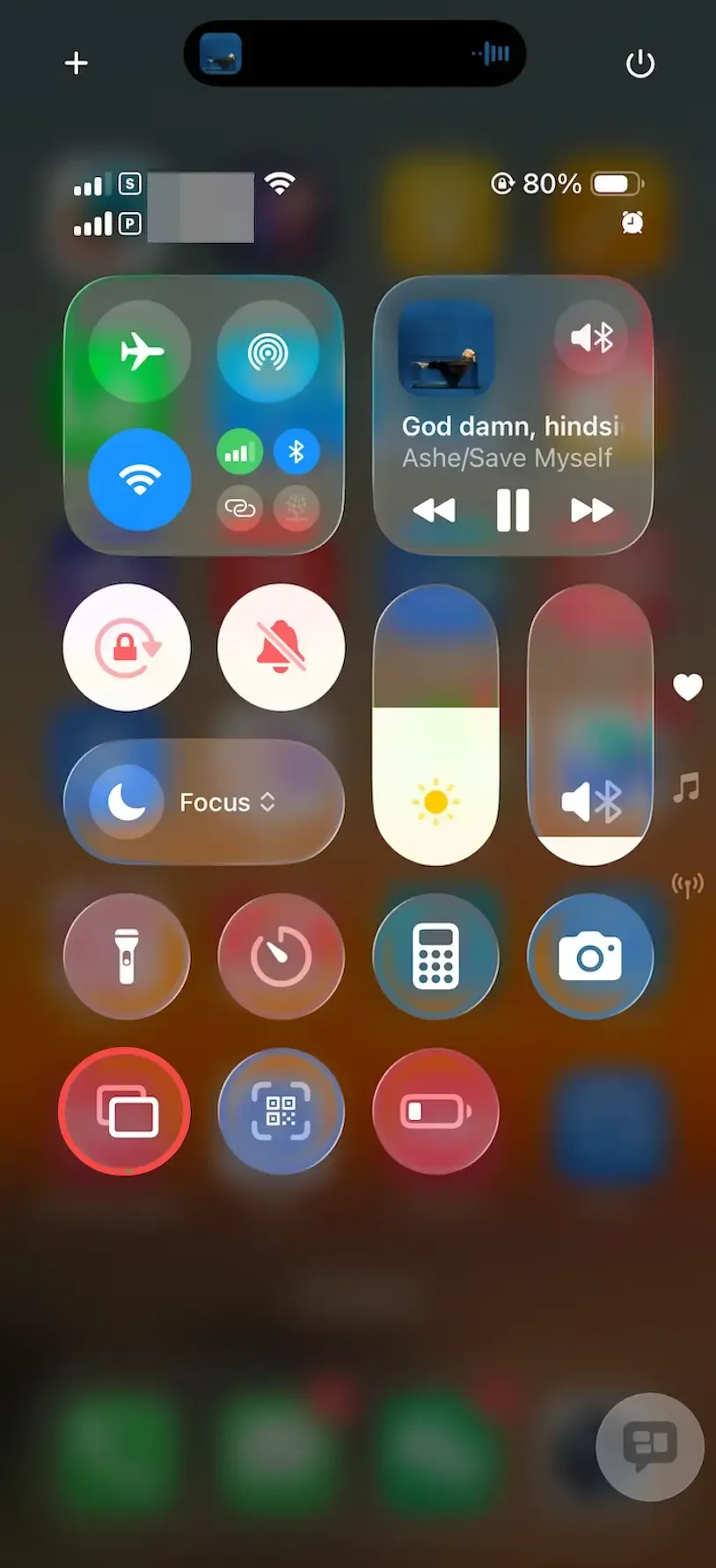
However, you still have several options depending on your television:
- AirPlay-compatible TV: If your particular Grundig model supports AirPlay, use the iPhone's native Screen Mirroring feature.
- Grundig Google TV or Android TV: Use a compatible app's Google Cast feature to send supported media, or install a suitable screen mirroring receiver for full-screen sharing.
- Older Miracast-only Grundig TV: Connect an external AirPlay-compatible receiver or use a supported wired video connection.
The same compatibility issue applies to MacBooks, which use AirPlay rather than native Miracast.
The distinction between these technologies matters because AirPlay, Google Cast, and Miracast don't automatically communicate with one another, even when all devices are connected to the same network.
Grundig Live Share Not Working? Common Fixes
If Live Share isn't connecting, the first step is to identify what happens during the connection attempt. A TV that never appears in the device list requires a different fix from one that connects but displays a black screen.
1. Grundig TV Not Showing Up on Your Phone or Laptop
Start by checking whether your sending device supports Miracast. A phone that offers only Google Cast or AirPlay won't necessarily detect a Live Share receiver.
Next, make sure your TV is in Receive Screen mode rather than Share Screen mode.
If your devices are compatible but the TV still doesn't appear, close Live Share, reopen it, and restart wireless display discovery on your phone or laptop.
For older Grundig models that require a dedicated Wi-Fi USB dongle, verify that the specified adapter is connected.
2. Live Share Connects but Disconnects Immediately
A connection that drops within a few seconds may indicate wireless interference, unstable device software, or a compatibility problem.
Try moving the phone or laptop closer to the television. Avoid placing the sending device behind large metal objects, and temporarily disconnect other wireless accessories if they appear to interfere.
Restart both devices and check for available firmware or driver updates.
If the same phone connects reliably to another Miracast display, but repeatedly disconnects from your Grundig TV, the issue may be specific to the TV's wireless display implementation.
3. Grundig Live Share Shows a Black Screen
First, test your connection by opening the phone's home screen or displaying a personal photo.
If normal content appears but a particular streaming app shows a black screen, that app may restrict screen mirroring through DRM or other content-protection measures.
Live Share cannot bypass these restrictions.
If everything remains black, disconnect and reconnect the devices. On Windows, try changing the projection mode through Windows + P and check whether graphics driver updates are available.
4. Live Share Is Lagging or Freezing
Wireless screen mirroring transmits a changing display in real time. Its performance depends on the sending device, wireless conditions, and the receiving TV's processing capabilities.
For better stability:
- Move the sending device closer to the television.
- Close unnecessary background applications.
- Pause large downloads or other demanding tasks.
- Reduce the screen resolution on your laptop if necessary.
Some delay is normal with wireless mirroring. For fast-paced gaming or activities requiring precise timing, HDMI is generally a more dependable option.
How to Screen Mirror to Grundig TV Without Live Share
Live Share isn't the only way to put content on a Grundig television. The best alternative depends on the TV's operating system and whether you want to cast a video or mirror your entire screen.
Method 1. Use Google Cast on Grundig Android TV or Google TV
Many newer Grundig televisions running Android TV or Google TV support Google Cast. Unlike Miracast-based Live Share, Google Cast is designed to work with compatible apps and receivers on a local network.
For example, if you want to play a YouTube video from your phone, you may not need full-screen mirroring at all.
Step 1. Connect your phone and Grundig Android TV or Google TV to the same Wi-Fi network.
Step 2. Open a Google Cast-compatible app, such as YouTube, on your phone.
Step 3. Tap the Cast icon and select your Grundig TV.
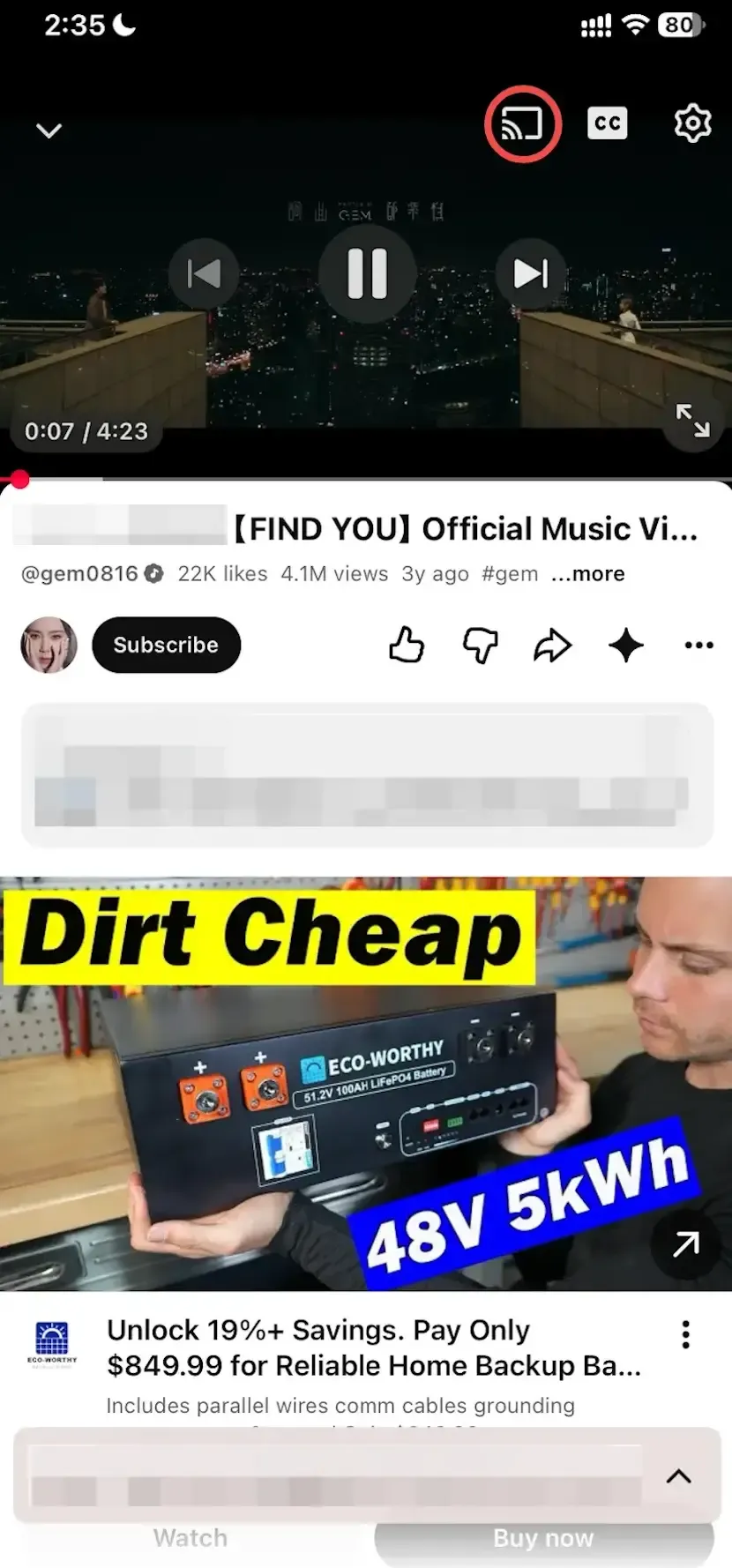
Step 4. Choose the video you want to watch. The TV should handle playback while your phone acts as a controller.
For Chrome users, the browser's Cast feature can also send supported tabs or desktop content to compatible receivers.
Method 2. Use PigeonCast for Cross-Platform Screen Mirroring
If you regularly switch between iPhone, Android, Windows, and Mac, relying on a single native casting protocol can be inconvenient.
PigeonCast provides a cross-platform screen mirroring option for compatible receiving devices, including supported Android TV and Google TV systems.
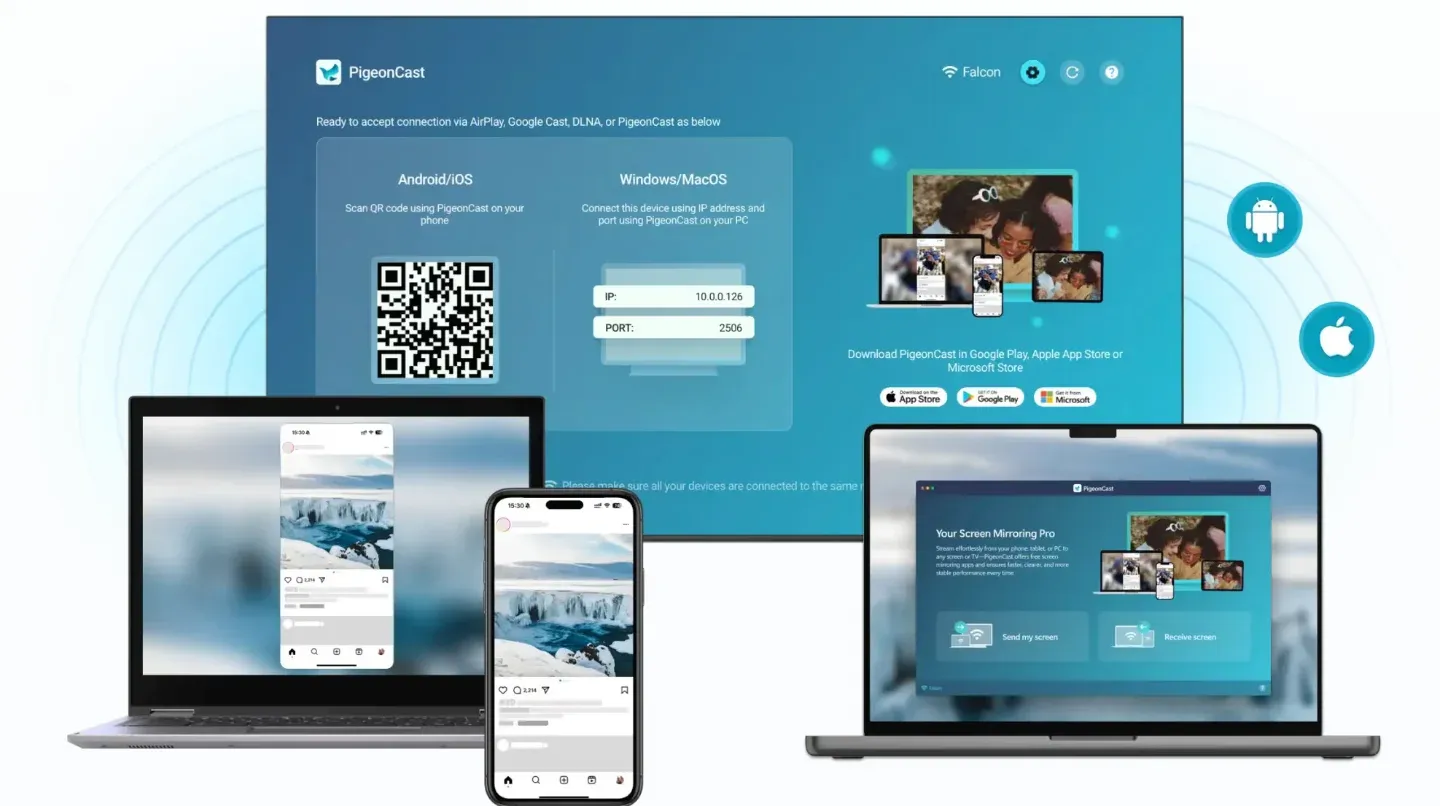
For example, an iPhone user with a Grundig Google TV may want to mirror photos, a webpage, or a demonstration rather than cast a video from an individual app.
On a compatible Grundig Android TV or Google TV, follow these steps:
Step 1. Open Google Play on your TV, search for PigeonCast, and install the compatible TV receiver if it is available for your model.
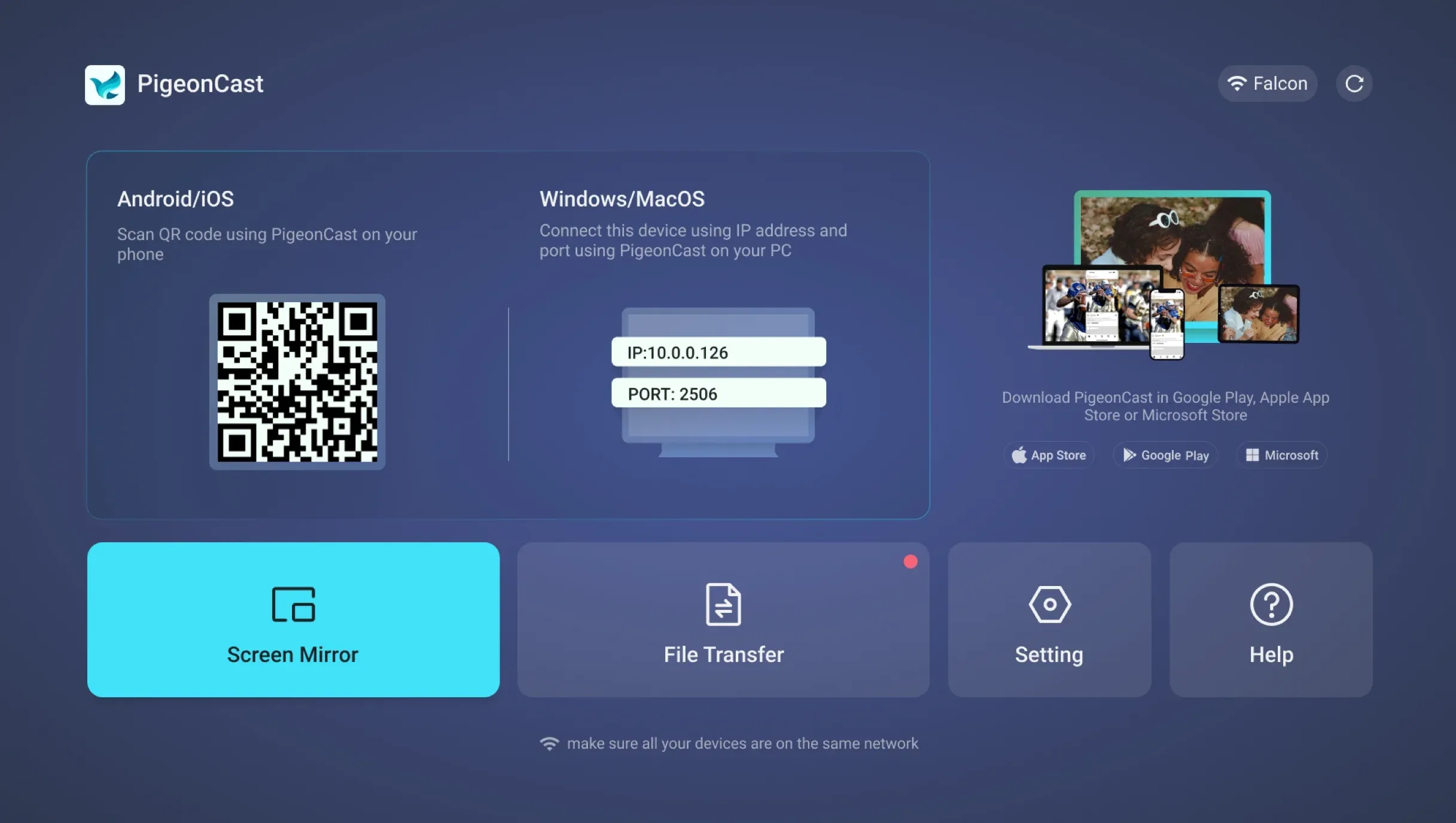
Step 2. Install PigeonCast on your phone or computer.


Overall Rating:



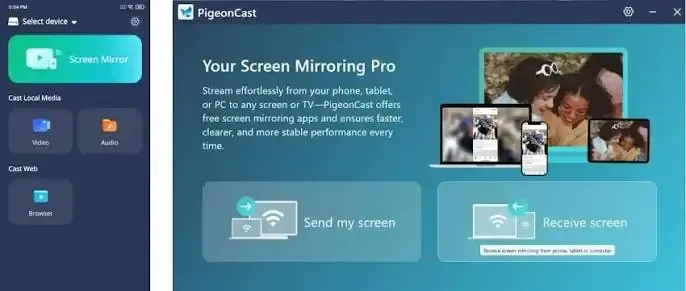
Step 3. Connect both devices to the same local network and launch the TV receiver.
Step 4. Open PigeonCast on your sending device and select the TV, or follow the QR code instructions shown on the receiver.
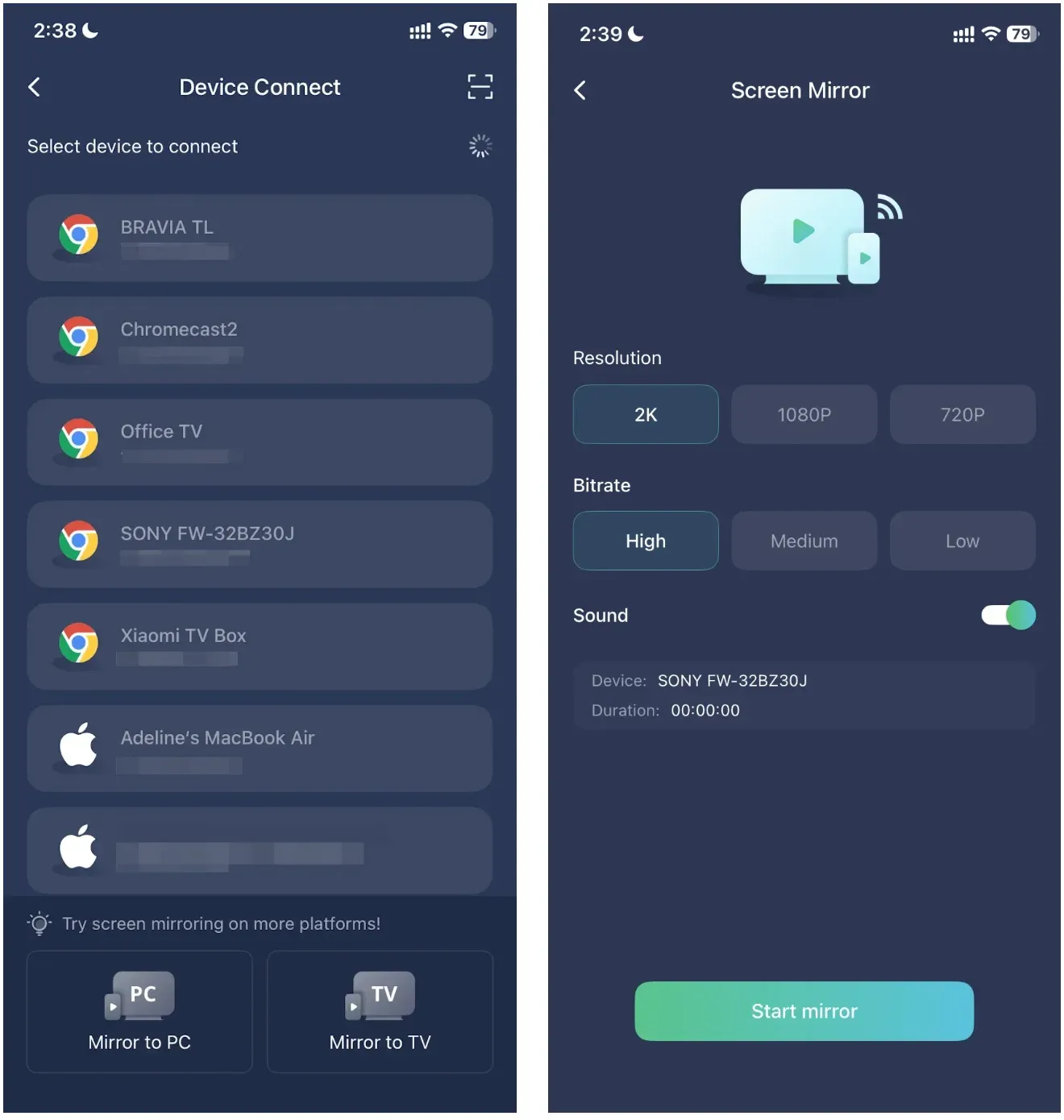
Step 5. Start screen mirroring and display your content on the television.
Note: Installing PigeonCast on your phone alone does not add a receiving app or Google Cast support to an older Miracast-only Grundig TV. The television must have a compatible receiving method.
Method 3. Connect Your Device with HDMI
If wireless casting isn't supported or remains unreliable, HDMI is a straightforward alternative.
Connect your laptop to the TV's HDMI input, using an appropriate adapter if necessary. Then select the correct input source on the Grundig remote.
On Windows, press Windows + P to choose Duplicate or Extend. On a Mac, adjust the external display settings under System Settings > Displays.
Compatible phones and tablets can also use video-output adapters, although not every USB-C port supports external display output.
HDMI is particularly useful for older Grundig televisions, presentations in rooms with unreliable wireless connections, and tasks where consistent performance matters more than convenience.
Final Words
Grundig Live Share is a practical way to mirror Android phones and Windows laptops to compatible Grundig televisions using Miracast. The key is knowing which technology your devices support.
If your TV has Live Share, start with its built-in Receive Screen mode. For newer Grundig Android TV or Google TV models, Google Cast or a compatible solution like PigeonCast may offer more flexibility, especially when connecting devices from different platforms.
Grundig Live Share FAQs
Does Grundig Live Share Need Wi-Fi or Internet?
Grundig Live Share can work without an internet connection because Miracast commonly uses Wi-Fi Direct to establish a wireless display connection. This means compatible devices may connect without using a home router. However, Wi-Fi hardware must still be enabled, and the exact connection behavior depends on the devices involved. Google Cast and many third-party mirroring solutions typically require both devices to share a local network.
Can You Share a Grundig TV Screen to Another Device?
Some Grundig televisions support this through Extended Live Share. On compatible models, the Share Screen option allows the television to search for another Miracast receiver and transmit its screen. This differs from Receive Screen, which displays a phone or laptop on the TV. Availability depends on the model and software version, so check your television's manual before attempting to use this feature.
Does Grundig Have an Official Screen Mirroring App?
Grundig offers an official mobile application called Grundig Smart Remote, but its primary purpose is controlling compatible televisions, entering text, and accessing TV guide functions. It isn't a universal Live Share mirroring app. On supported Grundig TVs, Live Share works through the device's built-in Miracast functionality. You can check the official Grundig Smart Remote app for supported models and remote-control features.
Can You Use Grundig Live Share to Play Games?
Yes. Because Live Share mirrors your device's display, you can show compatible mobile or PC games on a larger Grundig screen. However, Miracast introduces some transmission delay, which can affect games requiring fast reactions or precise controls. Casual games and turn-based titles are more suitable than competitive action games. If responsiveness is your priority, a supported HDMI connection is usually a better choice.
Why Is Live Share Missing from My Grundig TV Menu?
Not every Grundig television includes Live Share. Older models may display it under Screen Share, while newer Android TV or Google TV models may use Google Cast instead. Some early models also require a specific Wi-Fi USB adapter for wireless sharing. Check the exact model number on the TV's rear label or in its system information, then consult the corresponding Grundig manual for supported features.
Mia Clarke is a technology editor specializing in screen mirroring and casting solutions across multiple platforms. Mia provides clear, practical guides and in-depth insights to help users seamlessly connect their devices. Passionate about enhancing digital experiences, Mia is dedicated to keeping readers updated on the latest trends and tools in cross-platform screen sharing. Whether you’re looking to mirror your smartphone, laptop, or smart TV, Mia’s content delivers reliable, user-friendly advice to simplify your tech setup.