
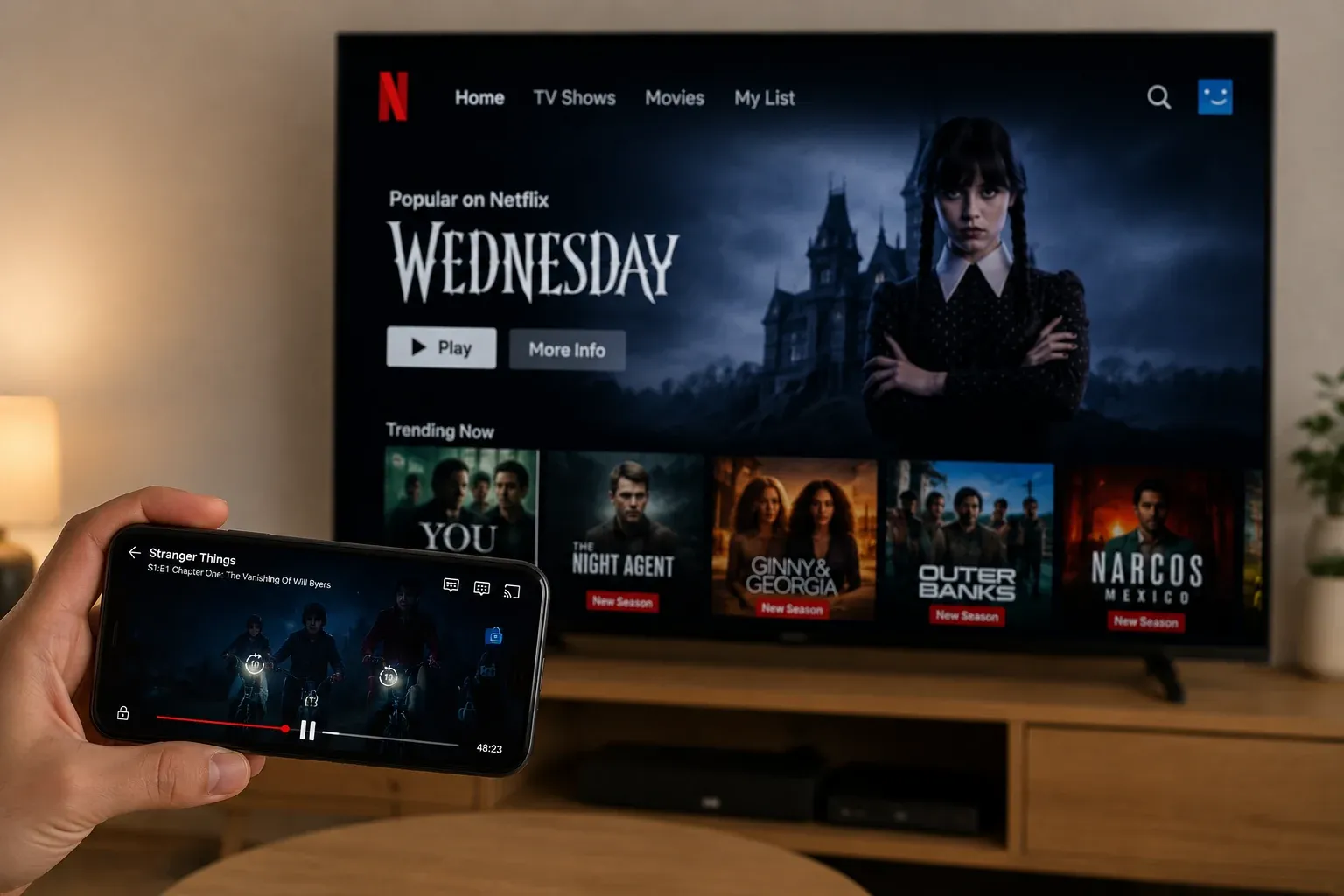
Netflix screen mirroring not working can stop you from watching videos on a bigger screen. The problem may show up as a black screen, no sound, a missing Cast icon, or a failed connection. It is usually related to WiFi, device compatibility, app settings, or Netflix playback limits. Below are 9 easy fixes you can try to get Netflix working on your TV again.
Why Is Netflix Screen Mirroring Not Working?
Netflix screen mirroring can fail for many reasons. Sometimes the problem is as simple as a weak WiFi signal. Other times, Netflix works on your phone but shows a black screen on the TV due to device support or playback limits. Before you try the fixes, it helps to know where the issue may come from. Common causes include:
- Your phone and TV are not using the same WiFi network.
- The WiFi signal is weak or unstable.
- The Netflix app is outdated.
- Your phone, computer, or TV system needs an update.
- Your TV or streaming device does not support Netflix casting.
- The Cast icon is missing due to network or device compatibility issues.
- A VPN, proxy, or private network setting is affecting Netflix playback.
- Bluetooth audio, TV audio settings, or output settings are causing no sound.
- Screen mirroring is not turned on or is not allowed on your device.
- Netflix video playback is blocked on some screen mirroring methods, which can cause a black screen.
How to Fix Netflix Casting Not Working
Once you know what may cause the problem, it is easier to narrow it down. Start with the connection and device settings, then try a different way to play Netflix if screen mirroring still fails.
##1. Check Your WiFi Connection
Netflix screen mirroring depends on the connection between your phone and TV. If the two devices are not on the same WiFi, or the network blocks device discovery, your phone may not find the TV at all. Even if it connects, a weak signal can cause lag, disconnection, or failed playback.
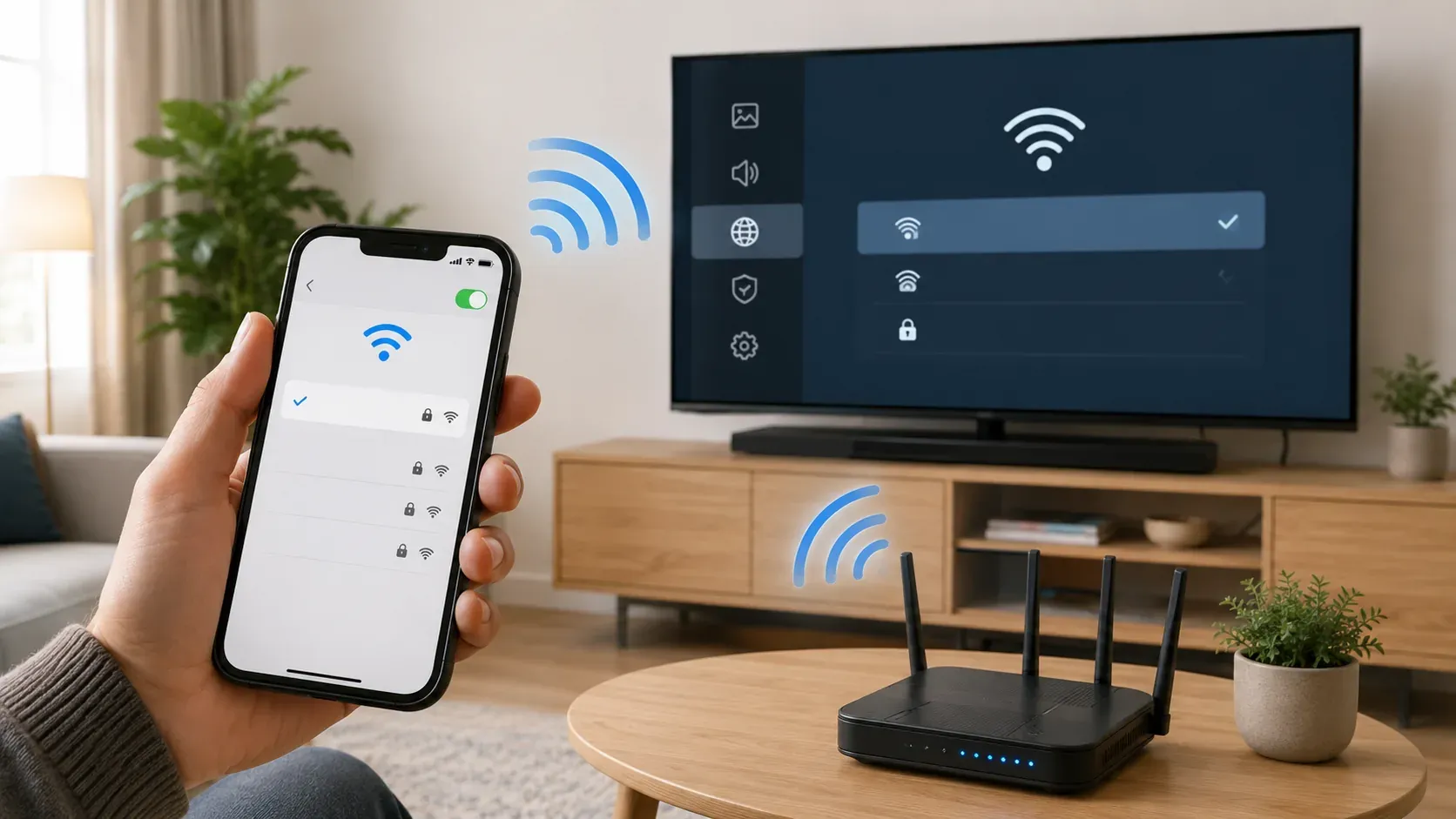
Step 1. Open the WiFi settings on your phone and check the network name. On iPhone, go to Settings > WiFi. On Android, go to Settings > Network & internet > WiFi or Settings > Connections > WiFi.
Step 2. Open the network settings on your TV and check the WiFi name there. Make sure it matches the WiFi name on your phone. If your phone is on mobile data or a different network, switch it to the same WiFi as your TV.
Step 3. Avoid guest WiFi, public WiFi, hotel WiFi, or school WiFi. These networks often block devices from finding each other. If possible, connect both your phone and TV to your main home WiFi.
Step 4. Move your phone and TV closer to the router. If the signal is weak, restart screen mirroring after the WiFi becomes stable.
Step 5. Try mirroring another app, such as Photos or YouTube. If other apps also fail, the issue is likely your WiFi or screen mirroring setup. If only Netflix fails, move on to the next fixes.
##2. Restart Your Phone, TV, and Router
If your WiFi settings look correct, restart the devices involved in the connection. This can clear small network errors and refresh the screen mirroring session.
Step 1. Close Netflix on your phone. If the app is still running in the background, swipe it away from the recent apps screen.
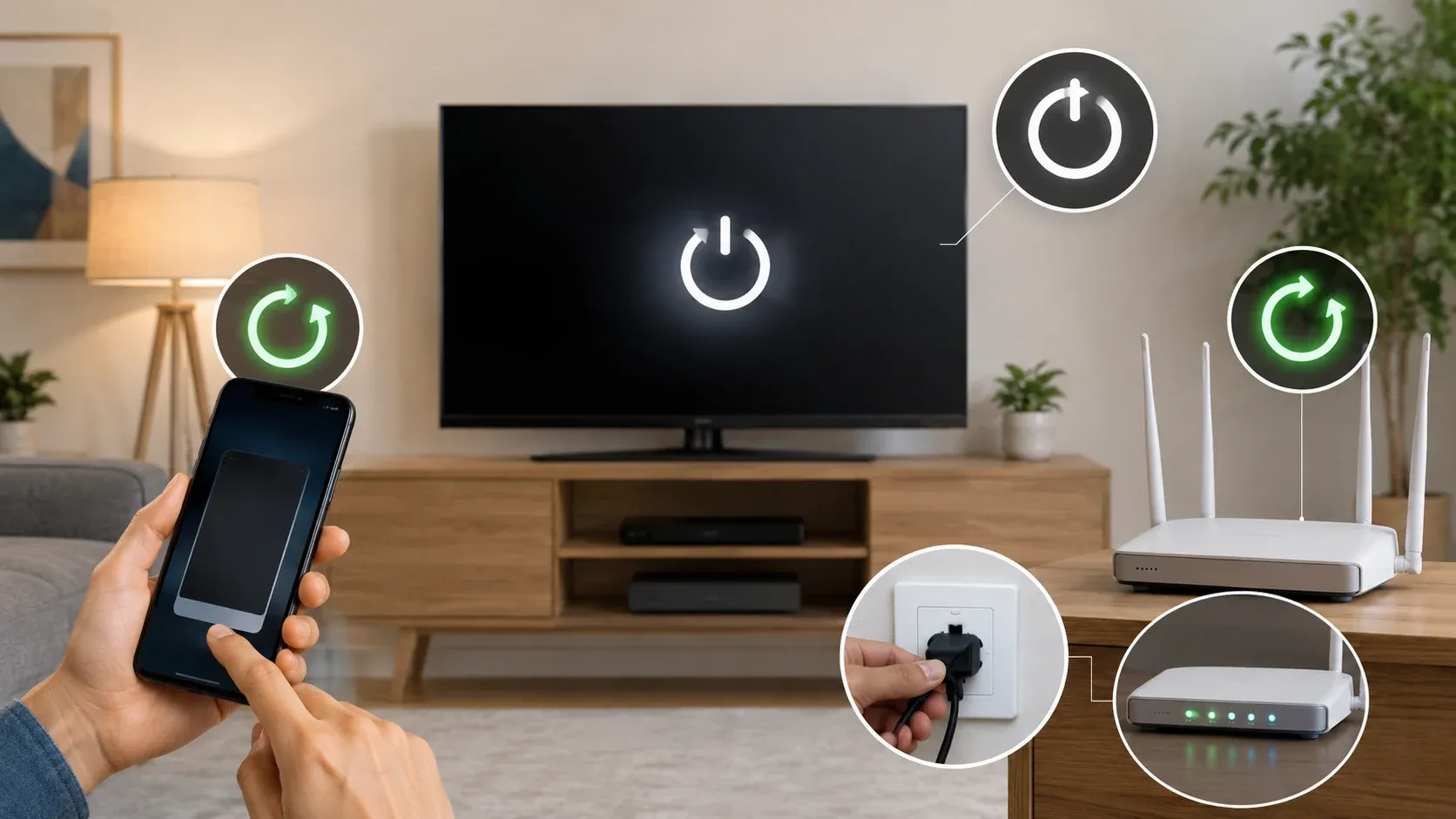
Step 2. Turn off your phone and TV. For a smart TV, unplug the power cable for about one minute instead of only pressing the power button on the remote.
Step 3. Unplug your router for about 30 seconds, then plug it back in. Wait until the WiFi light is stable and your devices reconnect to the network.
Step 4. Turn your phone and TV back on, open Netflix, and start screen mirroring again.
##3. Update Netflix and Your Device System
An outdated Netflix app or device system can cause casting errors, missing buttons, or unstable screen mirroring. Keep the app and your devices updated before trying other playback methods.
Step 1. Update Netflix on your phone. On iPhone, open the App Store, search for Netflix, and tap Update if it appears. On Android, open Google Play, search for Netflix, and tap Update.
Step 2. Check for system updates on your phone. On iPhone, go to Settings > General > Software Update. On Android, go to Settings > System > System update. The exact path may vary by device.
Step 3. Update your smart TV or streaming device. Open the TV Settings menu and look for System, Software Update, Device Preferences, or a similar option.
Step 4. Restart your phone and TV after the updates finish, then open Netflix and try screen mirroring again.
##4. Turn Off VPN, Proxy, or Private Relay
Netflix may not work properly if your connection is routed through a VPN, proxy, or privacy feature. These settings can affect playback, casting, or the way your phone finds the TV on the same network.
Step 1. Turn off any VPN app on your phone, computer, or router.
Step 2. Check whether a proxy is enabled. On iPhone, go to Settings > WiFi, tap your connected network, then check Configure Proxy. On Android, open your connected WiFi network and check the proxy settings.
Step 3. If you use iPhone, turn off iCloud Private Relay. Go to Settings > your Apple ID > iCloud > Private Relay, then turn it off.
Step 4. Reconnect your phone and TV to the same WiFi, open Netflix, and try screen mirroring again.
##5. Use the Netflix App on Your TV
If Netflix keeps failing through screen mirroring, play it directly on your TV instead. The Netflix TV app is usually more stable for streaming video, especially when mirroring shows a black screen, freezes, or loses sound.
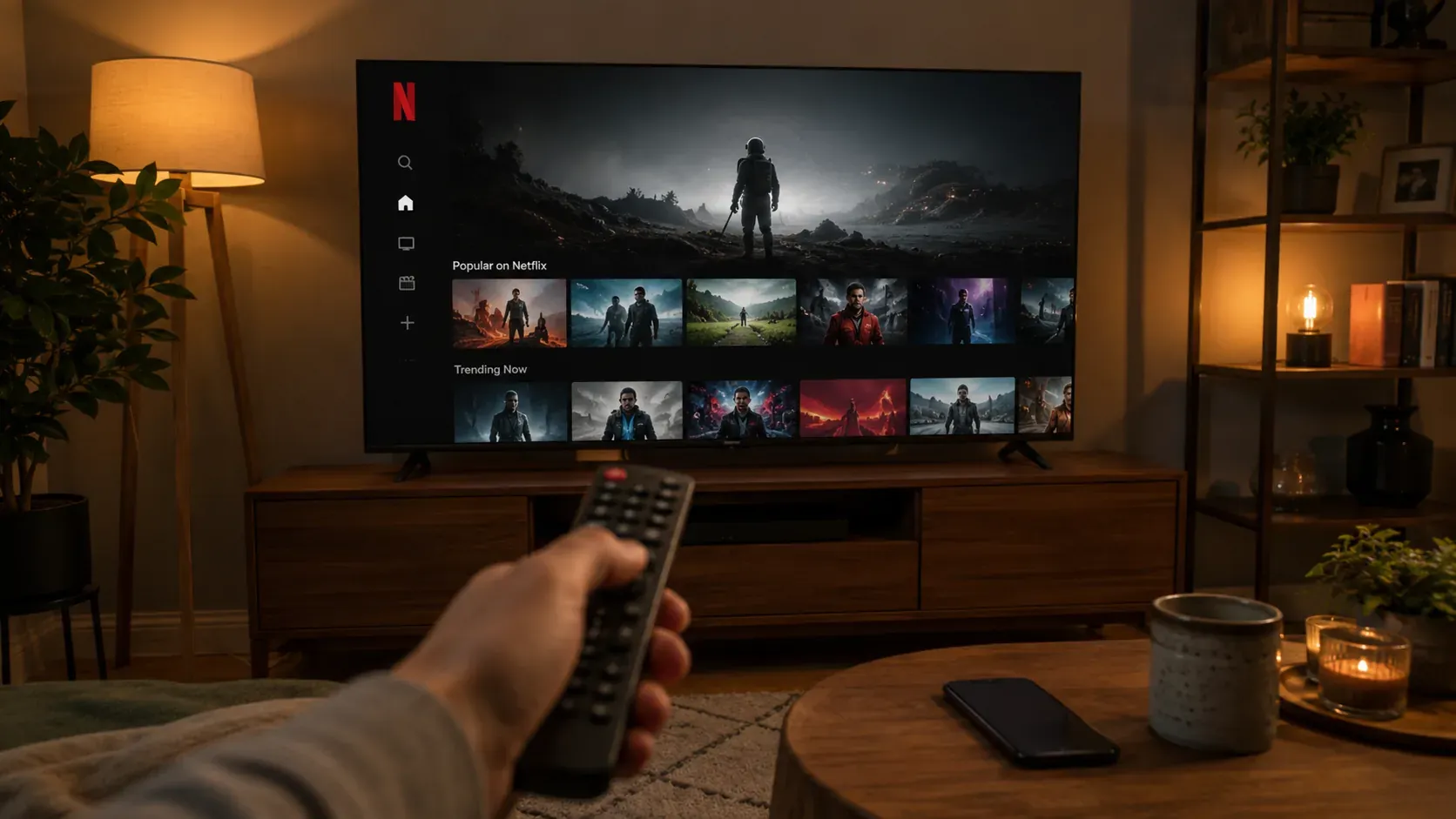
Step 1. Open Netflix on your smart TV, streaming stick, or TV box.
Step 2. Sign in with the same Netflix account you use on your phone.
Step 3. Search for the movie or show you want to watch, then play it from the TV app.
Step 4. If Netflix will not open or play on the TV, update the app from your TV app store. You can also uninstall and reinstall it if your TV allows that.
##6. Use the Cast Button Instead of Screen Mirroring
Screen mirroring copies your whole phone screen to the TV, while casting sends Netflix playback to a supported TV or streaming device. If the Cast button is available in Netflix, use it first.
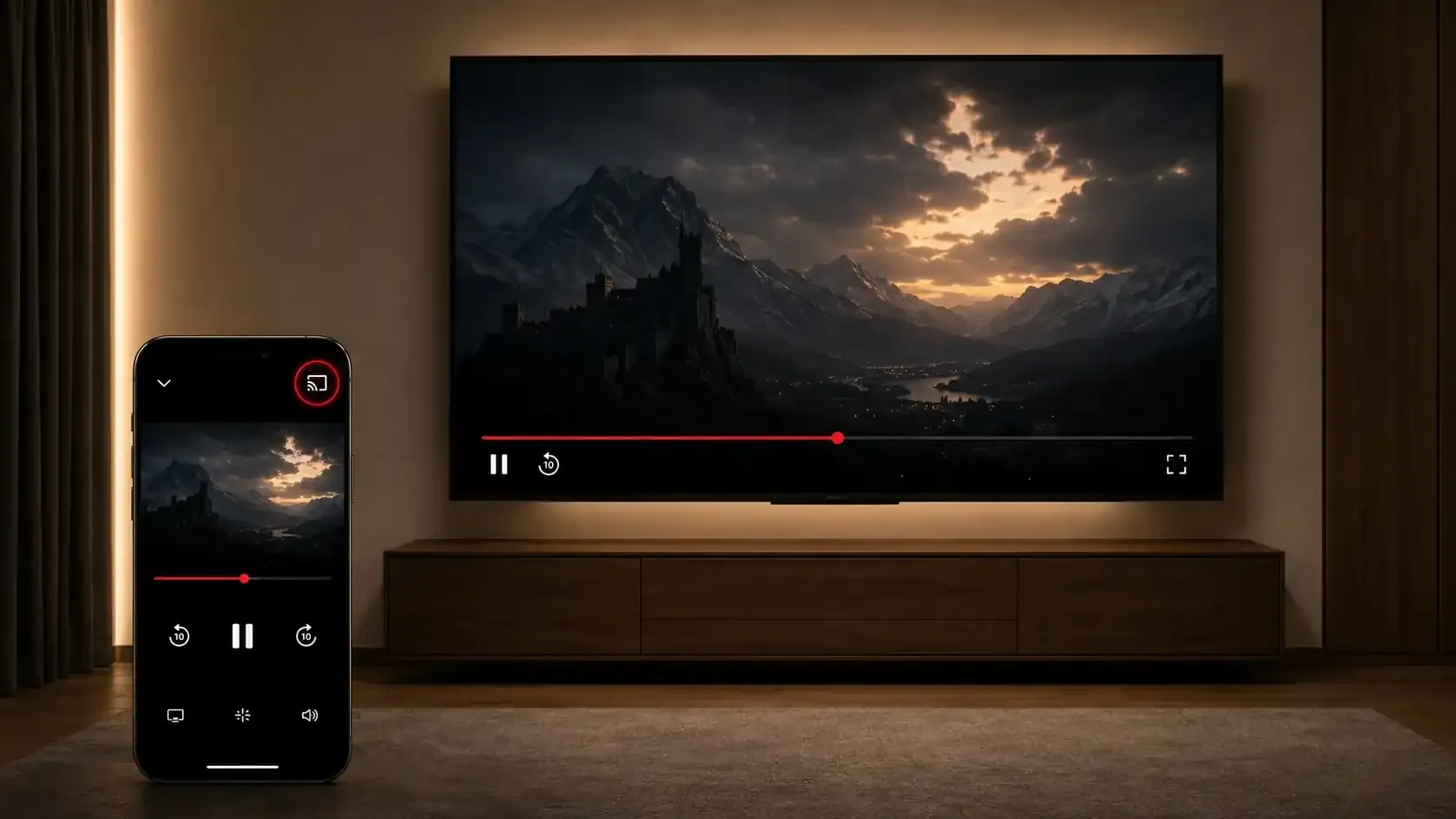
Step 1. Connect your phone and TV or streaming device to the same WiFi.
Step 2. Open Netflix on your phone and choose the movie or show you want to watch.
Step 3. Tap the Cast button in the Netflix app. It usually looks like a small screen with WiFi lines in the corner.
Step 4. Select your TV, Chromecast, streaming stick, or TV box from the device list.
Step 5. Wait for Netflix to start playing on the TV, then use your phone as the remote.
Tip: If you also want to mirror content beyond Netflix, try PigeonCast. It lets you share supported content from iPhone, Android, Windows, Mac, Android TV, and Apple TV through AirPlay, Chromecast, or DLNA. You can use it for photos, web pages, apps, presentations, meetings, YouTube, Vimeo, and local media. It is a simple option when you want to put your screen on a bigger display without extra cables.


Overall Rating:



##7. Fix Netflix Black Screen When Screen Mirroring
A black screen usually means the screen mirroring connection is working, but the Netflix video is not being displayed through that method. You may still hear sound or see Netflix controls on your phone, while the TV stays blank.
Step 1. Pause Netflix and stop screen mirroring.
Step 2. Mirror a non streaming app, such as Photos, Files, or a web page, to check whether your TV can show your phone screen normally.
Step 3. If other content appears on the TV, avoid regular screen mirroring for Netflix playback and use a supported playback method instead.
Step 4. If other content also shows a black screen, check the TV input, mirroring permission, and WiFi connection again.
8. Fix Netflix No Sound When Mirroring
If Netflix appears on the TV but the audio is missing, the sound may still be playing from your phone, a Bluetooth device, or the wrong TV output. Check the audio path before changing the screen mirroring setup.
Step 1. Turn up the volume on both your phone and TV, and make sure neither device is muted.
Step 2. Disconnect Bluetooth earbuds, headphones, or speakers from your phone.
Step 3. Open your TV Settings and check Sound, Audio Output, or Speaker settings. Choose the TV speaker unless you use an external sound system.
Step 4. Stop screen mirroring, close Netflix, then reconnect and play the video again.
Step 5. Try another app on the TV. If other apps have sound but Netflix does not, update or restart Netflix.
9. Try HDMI or Another Supported Device
If Netflix still does not work through wireless screen mirroring, use a more stable playback option. A wired HDMI mirroring connection or a supported streaming device can avoid many mirroring problems.
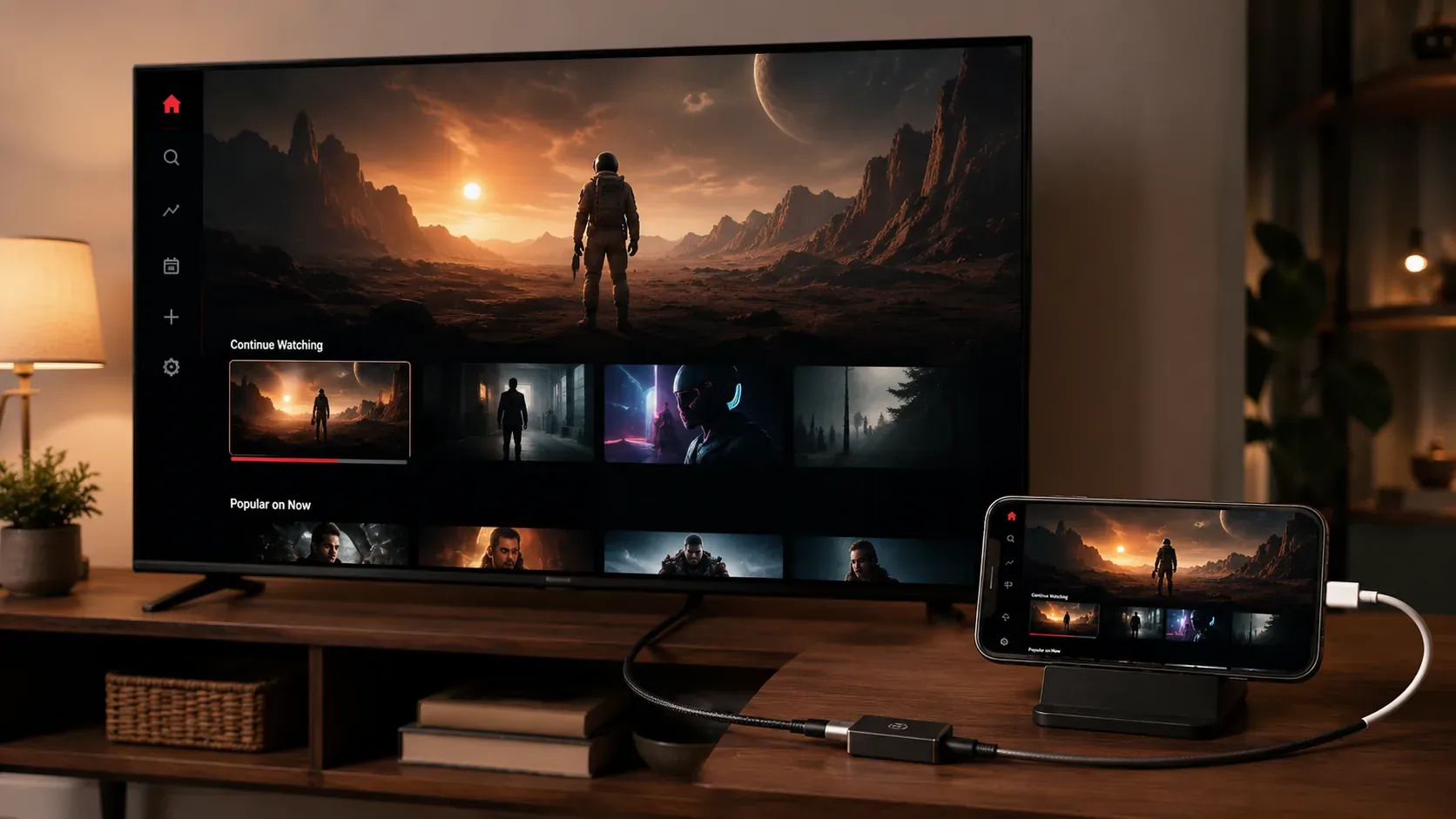
Step 1. Choose the right cable or adapter for your device:
- iPhone 15 or newer: use a USB-C to HDMI adapter or cable
- Older iPhone models: use a Lightning to HDMI adapter
- Android phone or tablet: use a USB-C to HDMI adapter if the device supports video output
- Windows PC, Mac, or laptop: use an HDMI cable, USB-C to HDMI adapter, or Mini DisplayPort to HDMI adapter, depending on the port
Step 2. Connect your phone, tablet, or computer to the TV. Plug the adapter into your device first, then connect the HDMI cable to the TV.
Step 3. Use your TV remote to open Input or Source, then choose the HDMI port you connected to, such as HDMI 1 or HDMI 2.
Step 4. Prepare your device for playback. Keep your phone or tablet unlocked and the screen on.
- On Windows, press Windows + P and choose Duplicate or Second screen only.
- On Mac, open System Settings > Displays and check whether the TV is detected.
Step 5. Open Netflix on the connected device and play the movie or show again. If the TV shows your device screen but Netflix still does not play correctly, switch to a device with the Netflix app built in, such as a smart TV, streaming stick, TV box, or game console.
Before buying an adapter, check whether your phone or tablet supports video output through its charging port. Some Android devices can charge and transfer files through USB-C but do not support HDMI video output.
Wrapping Up
When Netflix fails to mirror, the best fix depends on what you see on the TV. If the TV cannot be found, check the connection first. If the video turns black, switch to the Netflix TV app, Cast button, or HDMI. Once Netflix playback is handled, you can still use PigeonCast to mirror supported content like photos, web pages, meetings, presentations, and local media to a larger screen.
Netflix Screen Mirroring Not Working FAQ
Can Netflix be screen mirrored to any TV?
Not always. Netflix may work with some TVs, streaming devices, and casting methods, but it does not mean every screen mirroring setup will support Netflix video playback. If your TV supports the Netflix app or Netflix casting, those options are usually more reliable than basic screen mirroring.
Does Netflix screen mirroring not working mean my TV is broken?
No. In most cases, the TV is not broken. A missing device, black screen, or no sound usually points to a connection issue, app issue, audio setting, or unsupported playback method. You can test another app or open Netflix directly on the TV to confirm whether the TV itself works normally.
Is screen mirroring still useful if Netflix does not work?
Yes. Even if Netflix does not play well through regular screen mirroring, you can still use screen mirroring for many other tasks. PigeonCast can help you mirror supported content such as photos, web pages, documents, online meetings, presentations, YouTube, Vimeo, and local media to a bigger screen.
What should I do if Netflix shows a black screen but other apps work?
If other apps appear on the TV normally, your screen mirroring connection is likely working. In that case, the black screen is more likely related to Netflix playback through that mirroring method. Use a supported Netflix playback option instead of forcing the same mirror connection.
Is casting better than screen mirroring for Netflix?
Yes, in many cases. Casting sends Netflix playback to a supported TV or streaming device, while screen mirroring copies your whole phone screen. For Netflix movies and shows, casting or the TV app is usually more stable when your device supports it.
Can PigeonCast help with Netflix screen mirroring?
PigeonCast can help if the problem is the screen mirroring connection itself, such as device discovery, wireless connection, or mirroring supported content to a bigger screen. However, if Netflix shows a black screen due to playback restrictions, PigeonCast should not be treated as a way to bypass that limit.
Clara Rossi is an experienced technology editor and a seasoned expert in screen mirroring and casting technologies. With a keen eye for detail and a deep understanding of how to seamlessly connect devices, Clara excels at optimizing user experiences for effortless sharing and streaming. Whether you're seeking quick fixes or advanced tips, her expertise and responsiveness ensure that every query is met with a well-informed and efficient solution.