
If you are searching for Promethean screen share, chances are you want to mirror your computer to a Promethean ActivPanel for teaching, presentations, or collaboration. The short answer is that Promethean uses its own Screen Share system, not a single casting protocol. The panel runs the Screen Share app as a receiver, and your device connects through either a sender app, a browser extension, or native AirPlay where supported.
This guide explains how Promethean screen sharing actually works today, which options are most reliable on each platform, and what to do when screen share on a Promethean board is not working.
What Is a Promethean ActivPanel?
The Promethean ActivPanel is a large interactive flat panel designed for classrooms, training rooms, and collaborative environments. Unlike a standard display, it supports multi-touch input, on-screen annotation, and shared screen interaction for group use.
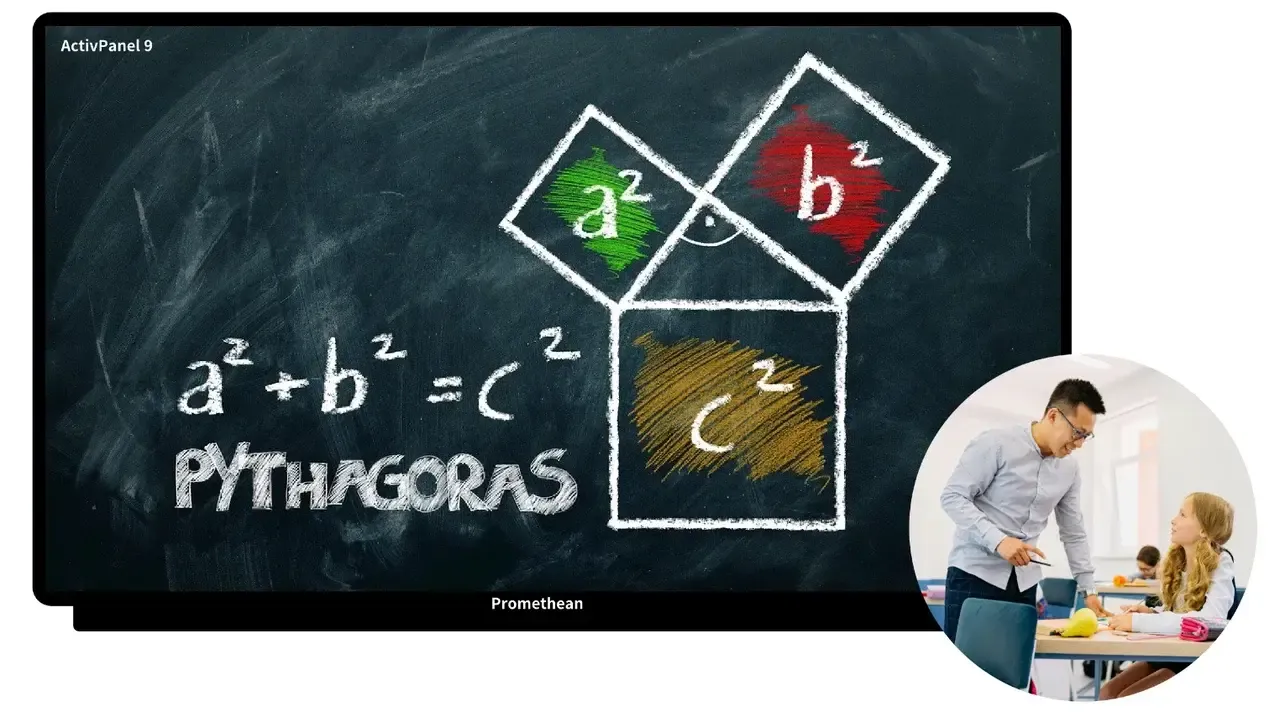
Core capabilities of Promethean ActivPanel include:
- Large touch-enabled interactive display
- Multi-user annotation and collaboration
- Wireless screen sharing through Promethean Screen Share
- Support for Mac, Windows, Chromebook, iPad, and mobile devices
How Promethean Screen Share Works
Promethean board screen share follows a receiver-based model.
- The ActivPanel runs the Screen Share app
- Your device connects using:
- A Promethean Screen Share sender app
- A Chrome extension on Chromebook
- Native AirPlay on macOS or Miracast on Windows and panel models
How to Share Mac/PC/Chromebook Screen to Promethean
Before you start any setup, make sure the Promethean ActivPanel and your device are connected to the same network. This is the single most important requirement for a successful screen share to Promethean board, no matter which method you choose. Once the panel can be discovered on the network, you can decide whether to use Promethean Screen Share or a built-in option based on your device and panel model.
Option 1: Using the Promethean Screen Share App and Extensions (Recommended)
If you've worked with Promethean boards before, you might remember ActivCast and ActivCast Sender. ActivCast Sender was Promethean's older solution, letting devices mirror screens to panels running the ActivCast app. On current Elements-series ActivPanels, this workflow has been fully replaced by Promethean Screen Share and its sender apps or browser extensions.
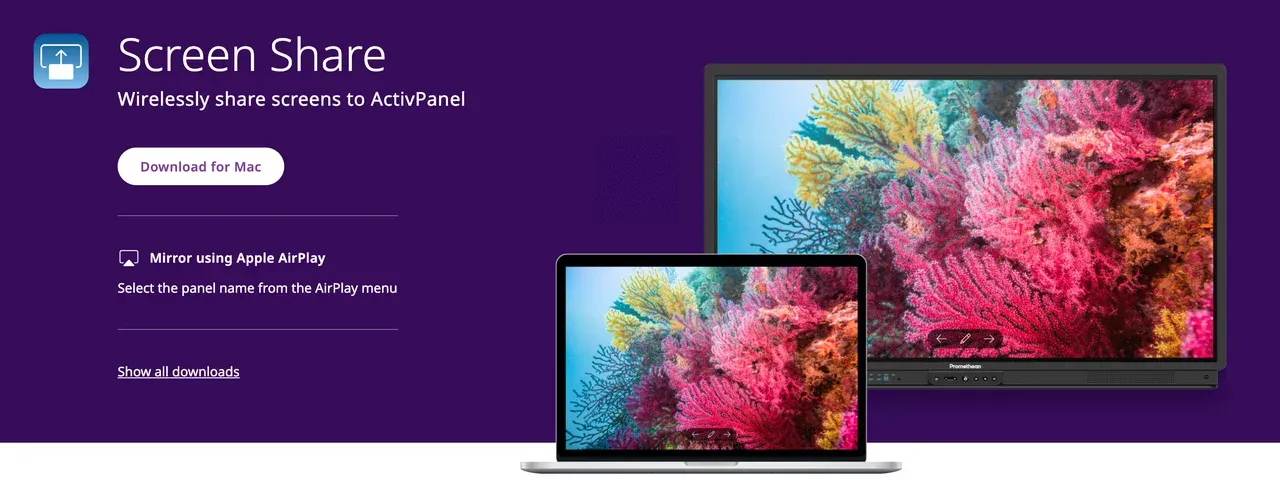
On modern ActivPanels, wireless screen sharing runs through the Promethean Screen Share app, installed directly on the panel. Unlike generic AirPlay, Miracast, or Chromecast receivers, the panel uses Screen Share as a centralized hub to handle incoming connections from Macs, PCs, Chromebooks, iPads, or mobile devices.
This setup gives you finer control over the session, including waiting rooms, touchback support, and device permissions.
Things to keep in mind:
- Features vary slightly between panel models
- Audio output may depend on the sender device and method
- Stable Wi-Fi is essential for smooth screen sharing and minimal latency
To complete "Promethean screen share Windows":
Step 1. On the ActivPanel, open the Screen Share app.
Step 2. On your Windows PC, visit share.one.prometheanworld.com.
Step 3. Download and install the Promethean Screen Share app for Windows.
Step 4. Launch the sender app on your Windows laptop.
Step 5. Enter the panel name or ID shown on the board.
Step 6. Choose what to share and enable audio if needed.
Step 7. On the panel, approve the device in the waiting room.
To complete "Promethean screen share Mac":
Step 1. Open Screen Share on the ActivPanel.
Step 2. Download the Mac sender from share.one.prometheanworld.com.
Step 3. Install and open the app on your Mac.
Step 4. Enter the panel ID.
Step 5. Join the waiting room and start sharing.
To complete "Promethean screen share Chromebook":
Different from Windows PC and Mac, Chromebooks require the Promethean Screen Share extension for Chromebook-to-Promethean screen sharing:
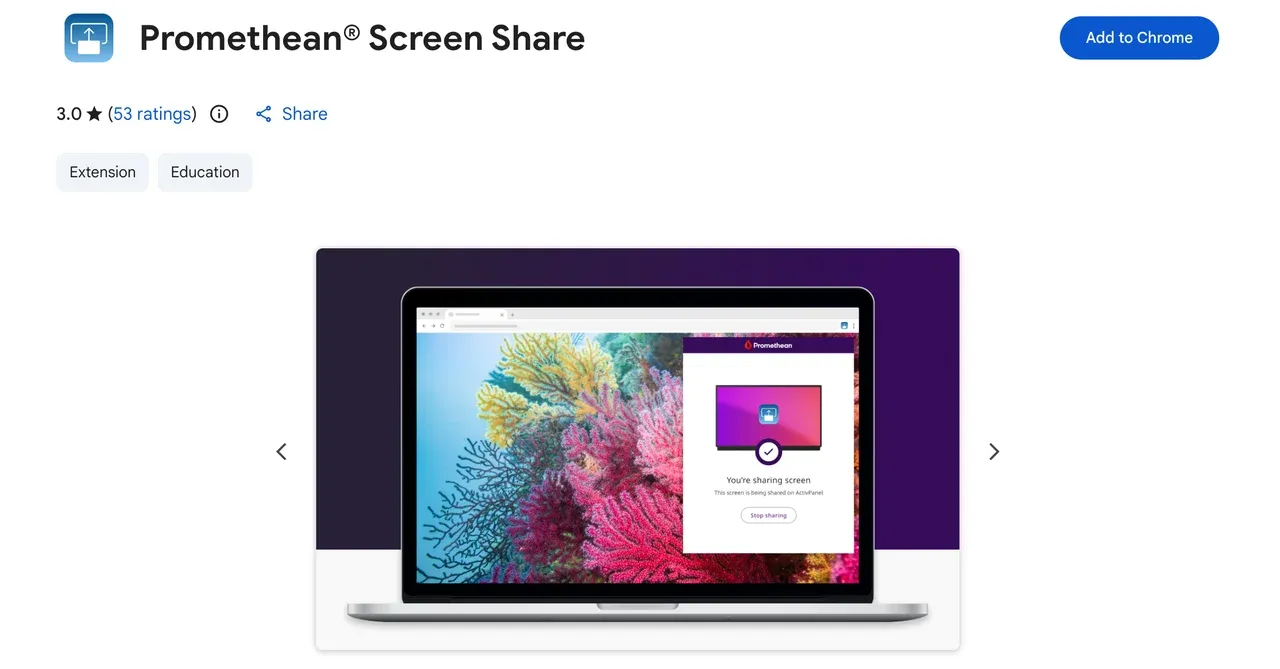
Step 1. Open Screen Share on the panel.
Step 2. Install the Promethean screen share extension from the Chrome Web Store.
Step 3. Click the extension icon.
Step 4. Enter the panel ID and your name.
Step 5. Choose what to share and enable audio if needed.
Step 6. Approve the connection on the panel.
Option 2: Using Built-in Protocols
When your panel model and firmware allow native wireless display, you may not need the Promethean Screen Share sender at all.
Mac users can mirror their MacBook screen via AirPlay, and some Windows devices can connect using Wireless Display. Screen share Chromebook to Promethean board works a bit differently. Promethean panels are not native Chromecast receivers, so ChromeOS's built-in Cast feature will not detect the board.
How to screen share on Promethean board from Mac:
Step 1. On the Promethean ActivPanel, open the Screen Share app and note the panel name or code.
Step 2. On your Mac, open Control Center from the menu bar.
Step 3. Select Screen Mirroring.
Step 4. Choose the ActivPanel from the list.
Step 5. Enter the on-screen code if prompted.
Step 6. On the panel, approve the connection from the waiting room.
Notes:
- AirPlay availability depends on panel model and firmware
- System audio support may vary
- Touchback is not supported via AirPlay
How to screen share on Promethean board from Windows PC:
Step 1. Open the Screen Share app on the ActivPanel.
Step 2. On Windows, press Windows + K.
Step 3. Select the ActivPanel name.
Step 4. Choose Duplicate or Extend display.
Limitations:
- Not as reliable as the sender app
- Audio and latency can vary
- Touchback is usually unavailable
How to Fix Promethean Screen Share Not Working: Quick Fixes
If Promethean share screen fails, check the following first:
- Confirm both devices are on the same network or that Wi-Fi Direct is enabled
- Restart the Screen Share app on the panel
- Reopen the sender app or extension
- Reduce resolution or close background apps
- Prefer a wired network for the panel if possible
Many screen share Promethean issues come down to network conditions rather than the panel itself.
Promethean Screen Share vs Cross-Platform Casting Tools
Promethean Screen Share works best inside the Promethean ecosystem. However, mixed device environments sometimes expose limitations.
Common challenges:
- Inconsistent audio across devices
- Network restrictions
- Compatibility issues with older laptops
In those cases, cross-platform receiver-based tools such as PigeonCast can act as an alternative when Promethean Screen Share is not working as expected. Instead of relying on panel-specific senders, the receiver handles audio and screen synchronization consistently across devices.


Overall Rating:



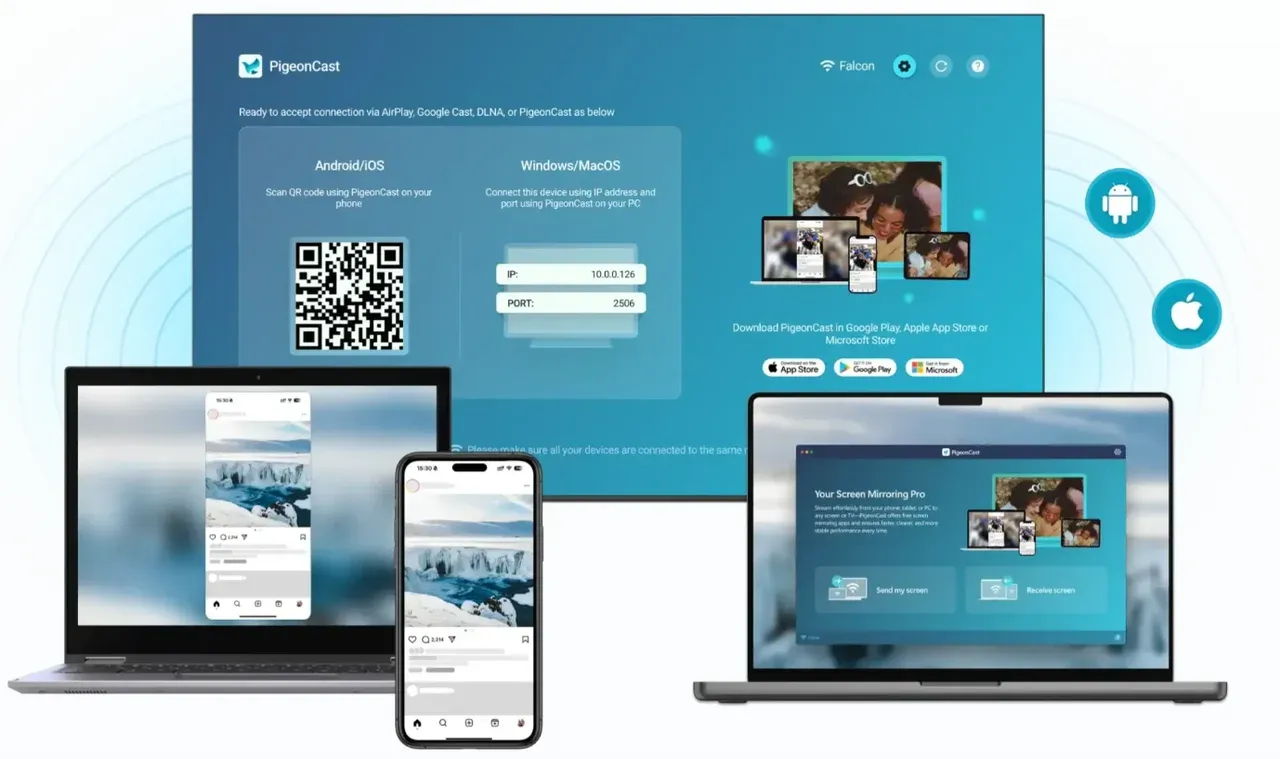
This can be useful in training rooms or mixed hardware environments, without replacing Promethean's native tools.
Final Thoughts
Promethean screen share is not about choosing the right protocol. It is about using the right connection method for your device and panel model.
For most classrooms, the Screen Share app combined with Promethean sender tools offers the best balance of reliability and control. Native options like AirPlay can work well, but they are not universal.
Once you understand how Promethean board screen share is designed, setup becomes predictable, and troubleshooting gets much easier.
Promethean Screen Share FAQs
How do I get my Promethean board to display my computer?
Open the Screen Share app on the ActivPanel, then use the appropriate sender app or extension for your device (Windows, Mac, or Chromebook). Enter the panel ID or name and join the waiting room to start sharing your screen.
How to connect to Promethean board wirelessly?
Ensure both your device and the Promethean ActivPanel are on the same network. Use the Promethean Screen Share sender app for Windows/Mac, the Chrome extension for Chromebook, or AirPlay on Mac where supported. Approve the connection on the panel to begin screen sharing.
Can I connect my phone to the Promethean board?
Yes. iOS and Android devices can connect via the Promethean Screen Share mobile app, entering the panel code or joining the waiting room. This allows screen and audio mirroring from your phone to the board.
Is ActivCast Sender still supported?
ActivCast Sender is an older Promethean solution for legacy panels. On modern Elements-series ActivPanels, it has been replaced by the Promethean Screen Share sender apps and Chrome extensions. Use ActivCast only if you're working with an older ActivCast-based panel.
What is the Waiting Room?
The Waiting Room is a feature in the Screen Share app where incoming devices appear before sharing starts. It ensures you can approve, manage, and control which device gets displayed on the Promethean board.
Does Screen Share support touchback?
Touchback allows the board to control the connected device. It is supported only when using the Promethean Screen Share sender app on Windows or Mac. Touchback is not available via AirPlay or the Chromebook extension.
How do I install the sender apps?
Download the sender app from share.one.prometheanworld.com for Windows or Mac. Chromebook users install the Promethean Screen Share Chrome extension from the Chrome Web Store. Follow the on-screen instructions to install and connect.
Why can't my device see the panel?
- Device and ActivPanel are not on the same Wi-Fi network
- Wi-Fi Direct / AirPlay / Wireless Display not enabled on the panel
- Network firewall or restrictions blocking discovery
- Panel is not running the Screen Share app or is busy with another session
Mia Clarke is a technology editor specializing in screen mirroring and casting solutions across multiple platforms. Mia provides clear, practical guides and in-depth insights to help users seamlessly connect their devices. Passionate about enhancing digital experiences, Mia is dedicated to keeping readers updated on the latest trends and tools in cross-platform screen sharing. Whether you’re looking to mirror your smartphone, laptop, or smart TV, Mia’s content delivers reliable, user-friendly advice to simplify your tech setup.