
If you've ever tried streaming from your iPhone to an Amazon Fire TV Stick, you know the struggle. Unlike Android devices, iPhones don't have a simple, built-in way to mirror directly. But don't worry, after thorough research, this guide provides a clear, step-by-step process to screen mirror iPhone to FireStick free as easily as possible.
Can You Screen Mirror iPhone to FireStick
Yes, you can mirror your iPhone to a Fire TV Stick, but it's not as simple as a built-in feature. iPhones use Apple's AirPlay for screen mirroring, while the Fire TV Stick was designed with Android-based casting (Miracast) in mind. This creates a compatibility gap that requires third-party apps to bridge.
AirPlay Confusion: Fire TV vs. FireStick
It's important to understand the differences between Amazon's devices, as their capabilities can vary significantly. While some Amazon devices, like Fire TV Edition Smart TVs and newer Fire TV Cubes, are equipped with native AirPlay 2 support, others, like the FireStick, lack this feature.
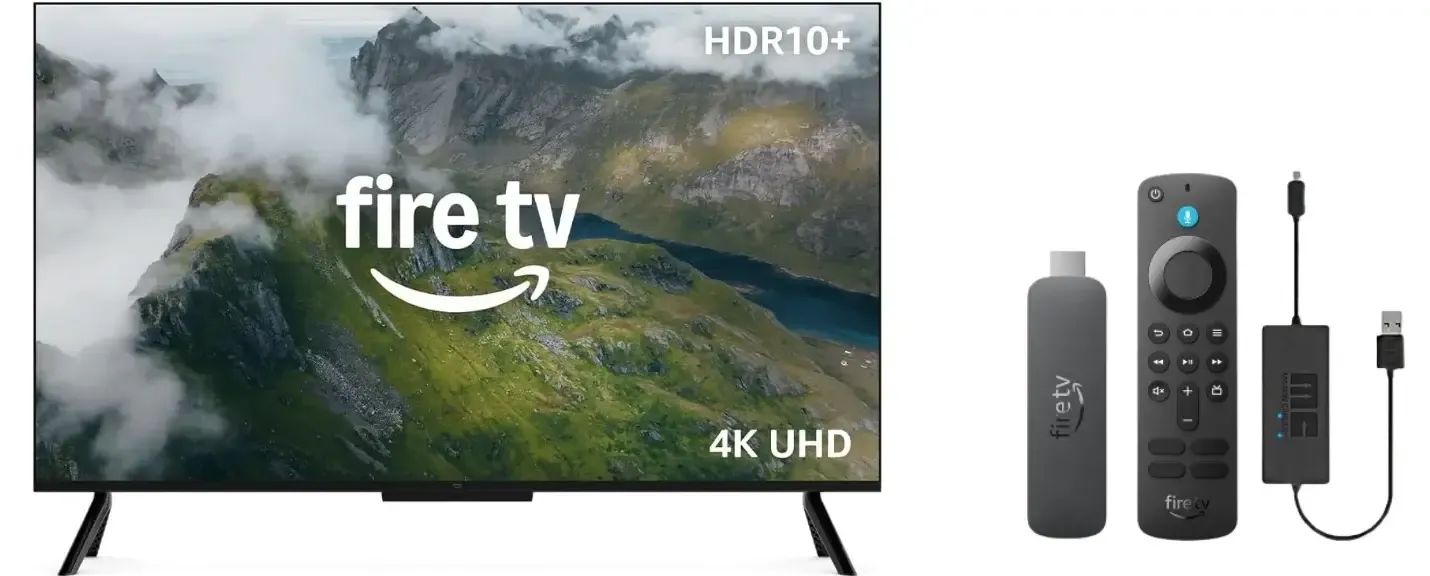
- Fire TV Edition Smart TVs and Recent Fire TV Cubes:
- Have built-in AirPlay 2 support starting with models from 2019 onward.
- Can receive screen mirroring directly from iPhones without additional apps.
- Support both video/audio streaming and screen mirroring via AirPlay.
- FireStick (All Generations: Lite, Standard, 4K, 4K Max):
- Do NOT have native AirPlay support.
- Cannot receive direct AirPlay streams from iPhones.
- Require third-party apps or workarounds for iOS screen mirroring.
How to Screen Mirror iPhone to FireStick via PigeonCast
While the built-in pathways are limited, free PigeonCast offers a seamless, professional-grade solution that not only bridges the iPhone screen mirror to FireStick gap but does so with superior reliability and mirroring options. This free app works effortlessly across multiple platforms, including Android, iOS, Windows, Mac, and various TVs like tvOS and Android TV, with no restrictions. Here's how to screen mirror on FireStick with iPhone:
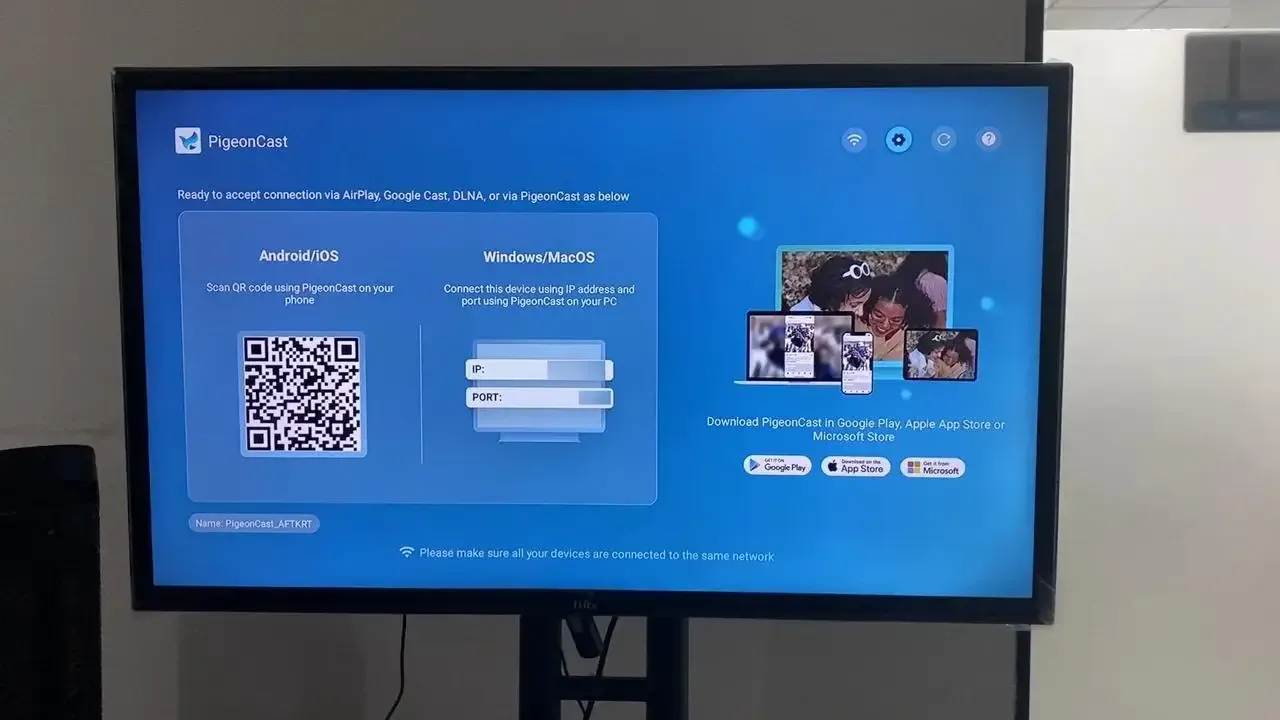
Step 1. Ensure your iPhone and FireStick are covered by the same wireless network.
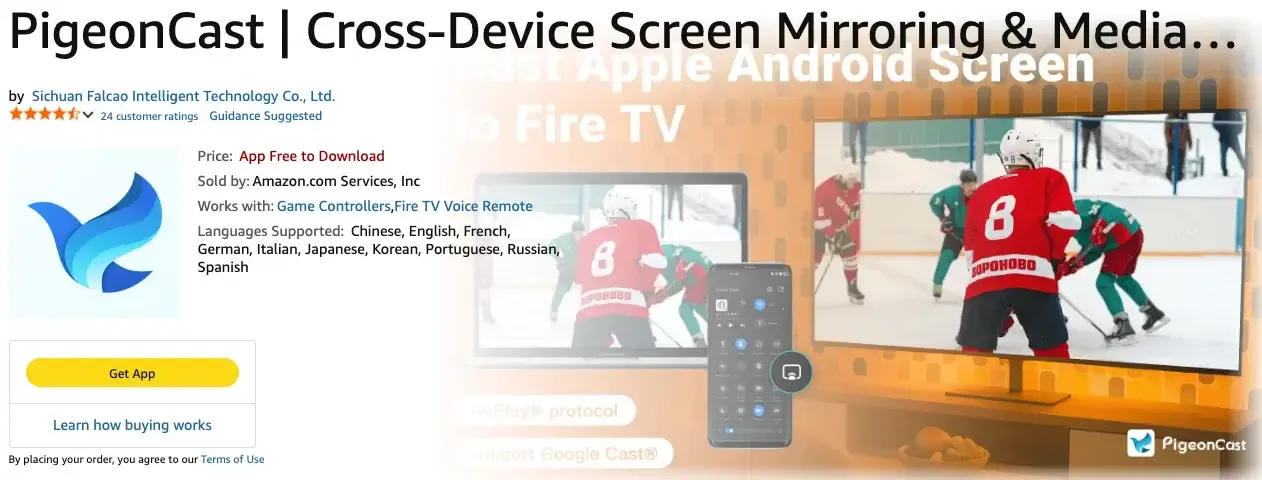
Step 2. Install PigeonCast on FireStick from the Amazon Store, then launch the app on your TV.


Overall Rating:


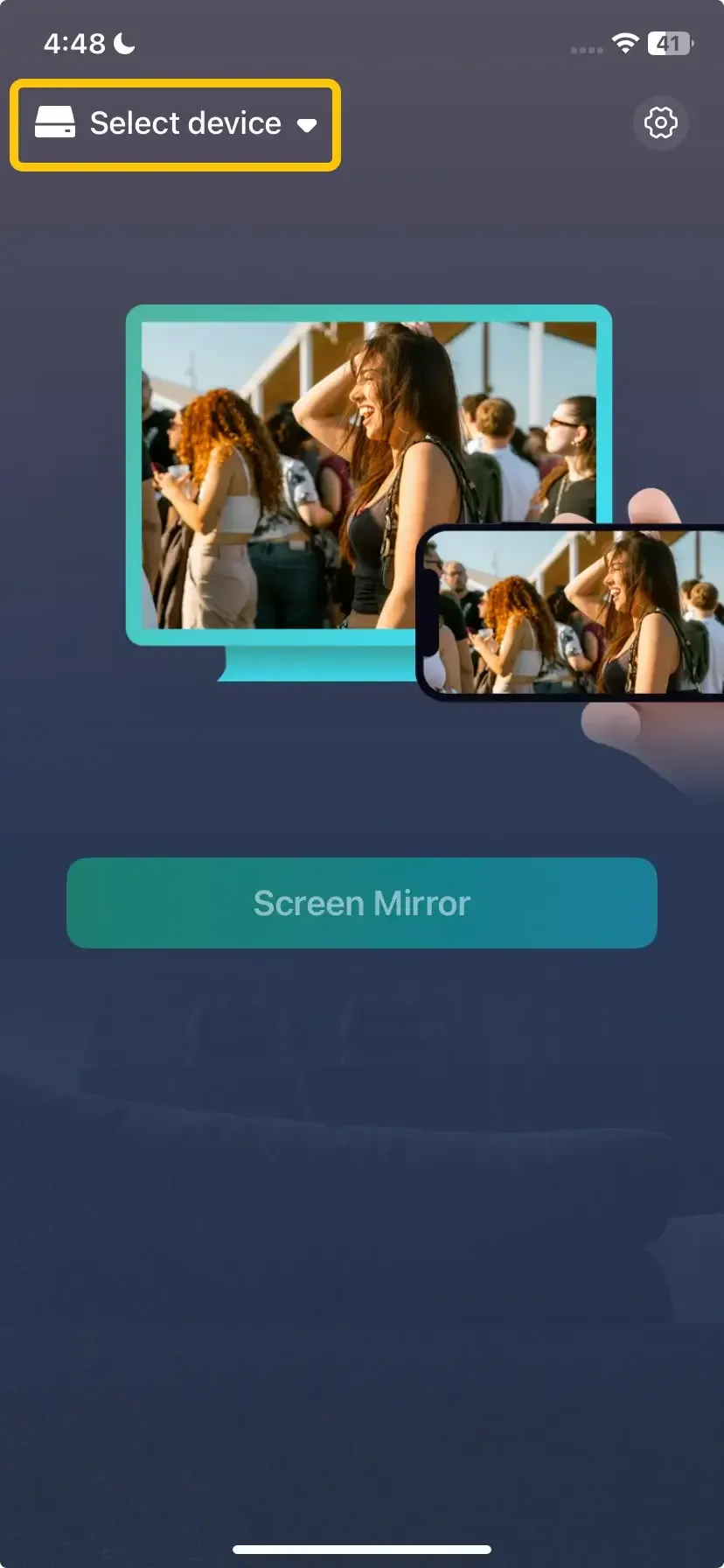
Step 3. Install PigeonCast on iPhone from the App Store, and launch it to scan the on-screen QR code. Or you can tap Select device to choose your FireStick from the device list.
Step 4. If prompted, enter the PIN code to finish the connection.
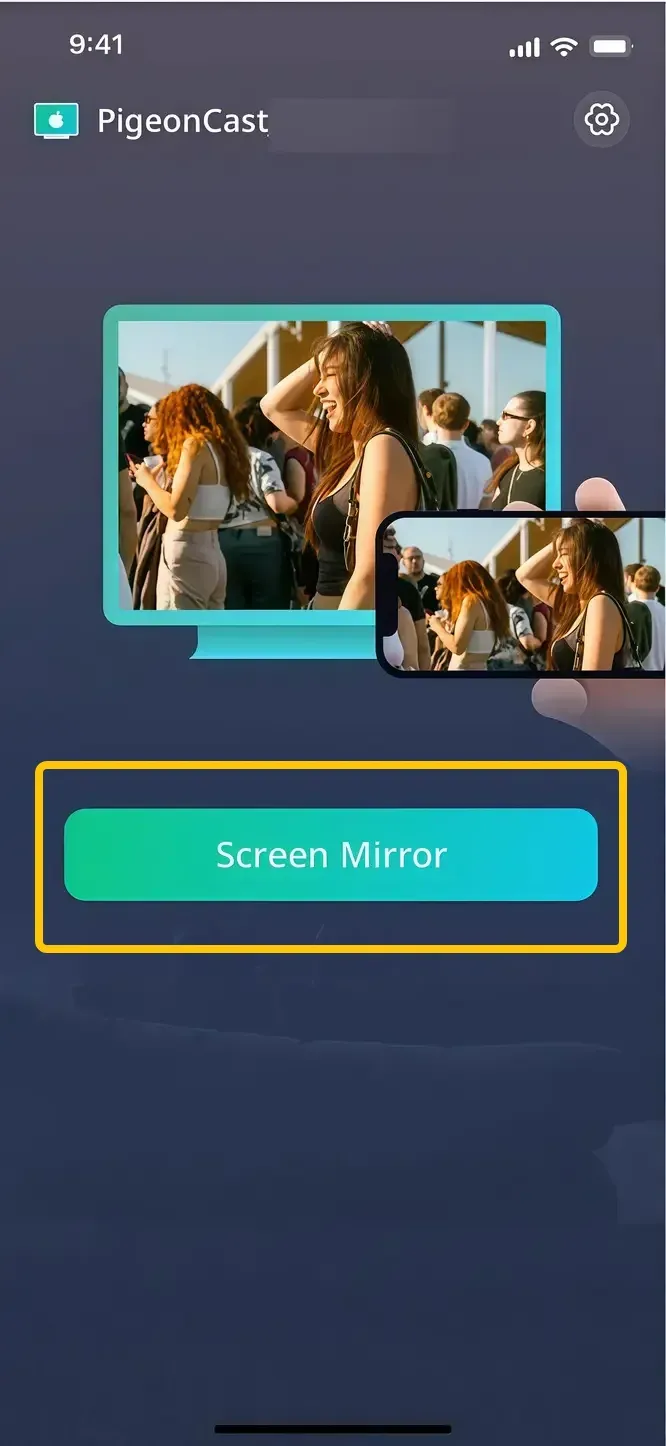
Step 5. When the pairing succeeds, you can tap Screen Mirror to start screen mirroring iPhone to Fire TV Stick.
Conclusion
If you're wondering how to screen mirror from iPhone to FireStick, it's possible with a third-party solution like PigeonCast. Since FireStick doesn't support AirPlay natively, PigeonCast bridges the gap with a simple, reliable method. This free app allows you to easily mirror your iPhone's screen to the Fire TV Stick, offering seamless compatibility across multiple devices.
Screen Mirror iPhone to FireStick Free FAQ
How to screen mirror iPhone to TV with FireStick?
To screen mirror your iPhone to any TV using a Fire TV Stick:
- Install a compatible receiver app on your FireStick (like PigeonCast Receiver).
- (Optional) Install the corresponding sender app on your iPhone.
- Connect both devices to the same Wi-Fi network.
- Open the app on your iPhone and select your FireStick.
- Your iPhone screen will appear on your TV through the Fire TV Stick.
Why won't my iPhone screen mirror to my FireStick?
The primary reason is technological incompatibility: iPhones use AirPlay while standard Fire Sticks don't support it natively. Additional reasons include:
- Different Wi-Fi networks (the most common practical issue)
- Outdated software on either device
- Router settings are blocking device communication
- Insufficient bandwidth for stable streaming
- Using incompatible or outdated mirroring apps
How to screen mirror iPhone to FireStick without WiFi?
True wireless screen mirroring without WiFi is extremely challenging between iPhone and FireStick because:
- iPhones lack Miracast/Wi-Fi Direct support for direct connections.
- Both devices need a network pathway to communicate.
Fortunately, there are some workaround options:
- Create a mobile hotspot on your iPhone and connect the FireStick to it.
- Use a travel router to create a local network.
- Utilize a wired HDMI adapter (not wireless, but doesn't need WiFi).
- Use PigeonCast to build the device connection.
Which best app to mirror iPhone to FireStick?
PigeonCast stands out as the best overall app for iPhone-to-FireStick mirroring:
- Reliability: More stable connections than basic AirPlay receiver apps.
- Feature-rich: Includes annotation, recording, and presentation tools.
- Cross-platform: Works beyond just iPhone-to-FireStick scenarios.
- Free tier: Robust functionality available without cost.
- Regular updates: Actively maintained with compatibility improvements.
How to connect iPhone to FireStick Bluetooth?
iPhones can't directly mirror to FireStick over Bluetooth, but you can connect them via Bluetooth for audio. If you're looking to use Bluetooth to pair your iPhone with FireStick, here's how to do it:
- From the FireStick Home screen, go to Settings > Controllers & Bluetooth Devices > Other Bluetooth Devices. Make sure your FireStick is in pairing mode.
- On your iPhone, go to Settings > Bluetooth and make sure Bluetooth is turned on.
- Look for your FireStick (it may appear as "Fire TV" or a similar name) in the list of available devices.
- Tap on it to pair the devices. Once connected, you should be able to hear sound from your Firestick through your iPhone's Bluetooth speakers or headphones.
Clara Rossi is an experienced technology editor and a seasoned expert in screen mirroring and casting technologies. With a keen eye for detail and a deep understanding of how to seamlessly connect devices, Clara excels at optimizing user experiences for effortless sharing and streaming. Whether you're seeking quick fixes or advanced tips, her expertise and responsiveness ensure that every query is met with a well-informed and efficient solution.