

Samsung SideSync made it possible to view a Galaxy phone on a computer, control parts of the phone with a keyboard and mouse, transfer files, and check mobile notifications without constantly switching devices.
However, SideSync was built mainly for older Samsung phone-to-computer workflows. If you now use a newer Galaxy phone, a non-Samsung Android device, an iPhone, a Mac, or a browser-based receiving screen, you may need a more suitable SideSync alternative.
The closest replacement depends on what you want to do on the computer. Samsung Flow and Phone Link focus on phone-to-PC continuity. scrcpy and Vysor are stronger for viewing and controlling Android from a computer. PigeonCast, AirDroid Cast, and ApowerMirror are more suitable when your priority is displaying a phone screen on a Windows PC, Mac, or browser.
Quick Answer: Best SideSync Alternatives
| What you want to do | Best option |
|---|---|
| Replace SideSync on a Samsung phone and Windows PC | Samsung Flow |
| View notifications, messages, calls, and photos on Windows | Phone Link |
| View and control Android on a computer for free | scrcpy |
| Control Android through an easier visual interface | Vysor |
| View Android or iPhone on a computer or browser | PigeonCast |
| Cast a phone screen to a computer for presentations | AirDroid Cast |
| Mirror and record a phone screen on a computer | ApowerMirror |
| Manage Android files and phone functions from a computer | AirDroid Personal |
No single alternative reproduces every SideSync feature. Some tools focus on displaying the phone screen, while others focus on notifications, file transfer, phone control, or Windows continuity.
What Was Samsung SideSync Used For?
Samsung SideSync was a phone-to-computer utility for selected Samsung Galaxy phones and tablets.
Its main functions included:
- Viewing a Samsung phone screen on a computer
- Interacting with the phone using a keyboard and mouse
- Moving files between the phone and computer
- Checking phone notifications from the desktop
- Opening mobile content on a larger screen
- Reducing the need to switch repeatedly between phone and PC
SideSync was therefore more than a basic screen mirroring app. Its main purpose was to create a connected Samsung phone-to-computer experience.
This distinction matters when choosing a replacement. A tool that only displays a phone screen may replace one part of SideSync, but it will not necessarily replace file transfer, notification sync, phone control, or device continuity.
Why You May Need a SideSync Alternative
You may need a modern SideSync replacement if:
- Your current Samsung phone no longer works well with SideSync.
- You use a non-Samsung Android phone.
- You want to view your phone on a Mac.
- You need to display an iPhone screen on a computer.
- You prefer a browser-based receiver.
- You want lower-latency Android control through USB.
- You mainly need notifications, messages, calls, or photos on Windows.
- You need presentation or recording features that SideSync did not prioritize.
Before choosing an alternative, identify which part of the original SideSync experience matters most.
The main categories are:
- Phone-to-PC continuity: notifications, messages, calls, photos, and app access.
- Phone screen viewing: displaying the full mobile screen on a computer.
- Phone control: using the computer keyboard and mouse to interact with Android.
- File management: transferring or managing phone files from the desktop.
- Presentation and recording: showing or recording a mobile screen on a computer.
SideSync Features and Their Best Replacements
| Original SideSync function | Relevant alternatives |
|---|---|
| Samsung phone-to-Windows connection | Samsung Flow, Phone Link |
| View Android screen on computer | scrcpy, Vysor, PigeonCast, AirDroid Cast, ApowerMirror |
| View iPhone screen on computer | PigeonCast, AirDroid Cast, ApowerMirror |
| Control Android from computer | scrcpy, Vysor, Samsung Flow, ApowerMirror |
| Check notifications and messages on PC | Samsung Flow, Phone Link, AirDroid Personal |
| Transfer phone files | Samsung Flow, Phone Link, AirDroid Personal |
| Use a browser as the receiving screen | PigeonCast |
| Record or annotate a mirrored phone screen | ApowerMirror |
| Present a phone screen remotely | AirDroid Cast |
The best replacement is not necessarily the tool with the most features. It is the one that covers the specific SideSync function you still use.
Best SideSync Alternatives for Viewing Phone on Computer
1. Samsung Flow: Closest SideSync Replacement for Samsung Users
Samsung Flow is the most direct alternative for users who want to continue connecting a Samsung Galaxy phone with a Windows computer or tablet.
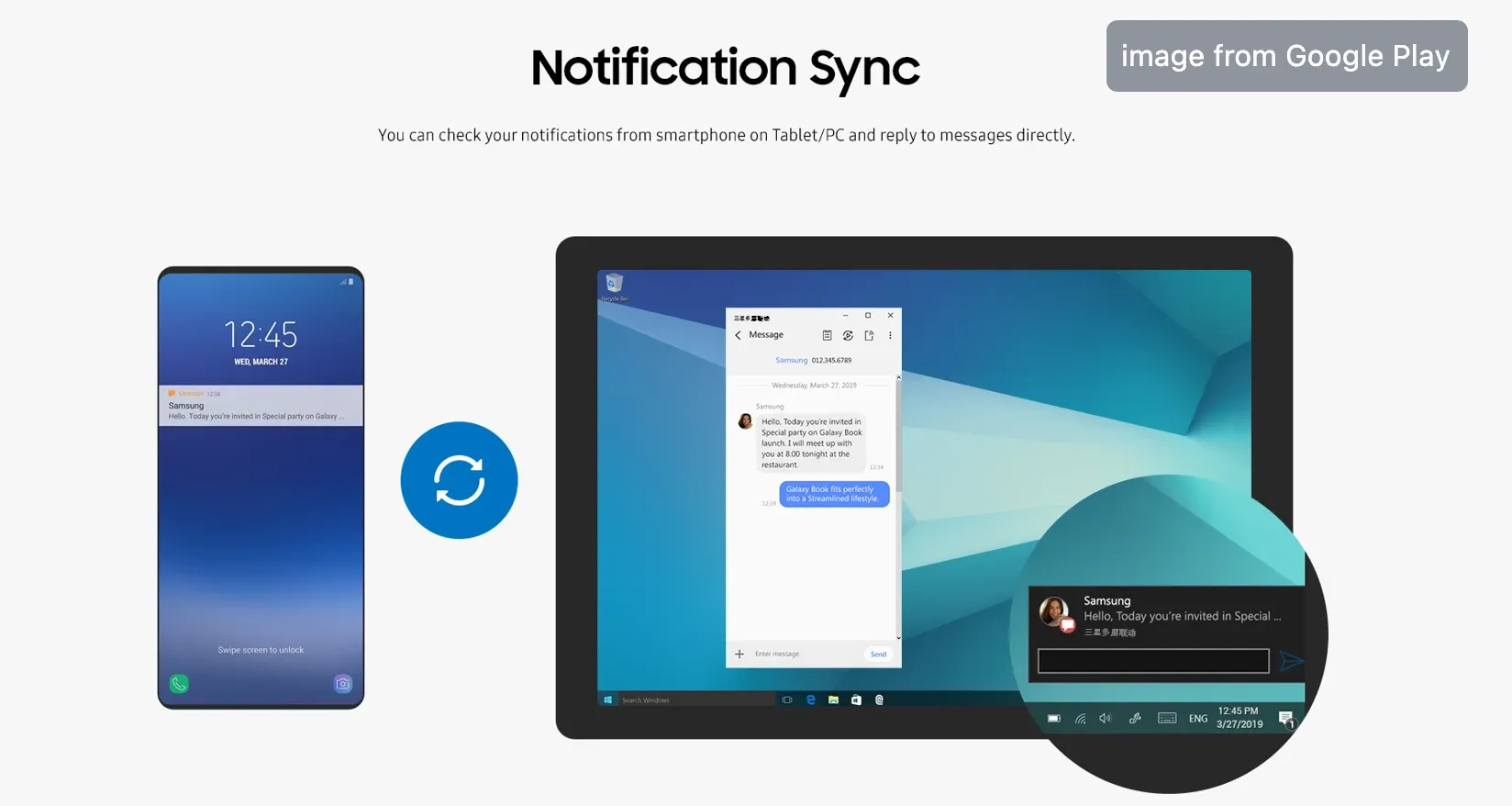
It is closer to SideSync than a standard mirroring app because it focuses on connected Samsung workflows rather than only displaying the phone screen. Depending on the supported devices and setup, it can help users share content, check notifications, authenticate devices, and view phone content on a larger screen.
Best for:
- Samsung Galaxy users
- Samsung phone-to-Windows workflows
- Viewing phone content on a PC or tablet
- Sharing files between supported devices
- Checking mobile notifications from a computer
- Users seeking an official Samsung replacement
Limitations:
- Mainly intended for Samsung devices, less useful for non-Samsung Android phones
- Mac support is not its main focus
- Available functions can depend on the specific devices
Samsung Flow should be the first option considered when the goal is to replace the original Samsung-to-Windows SideSync experience as closely as possible.
2. Phone Link: Best for Android and Windows Continuity
Microsoft Phone Link is suitable for users who want to access phone information from a Windows computer throughout the day.
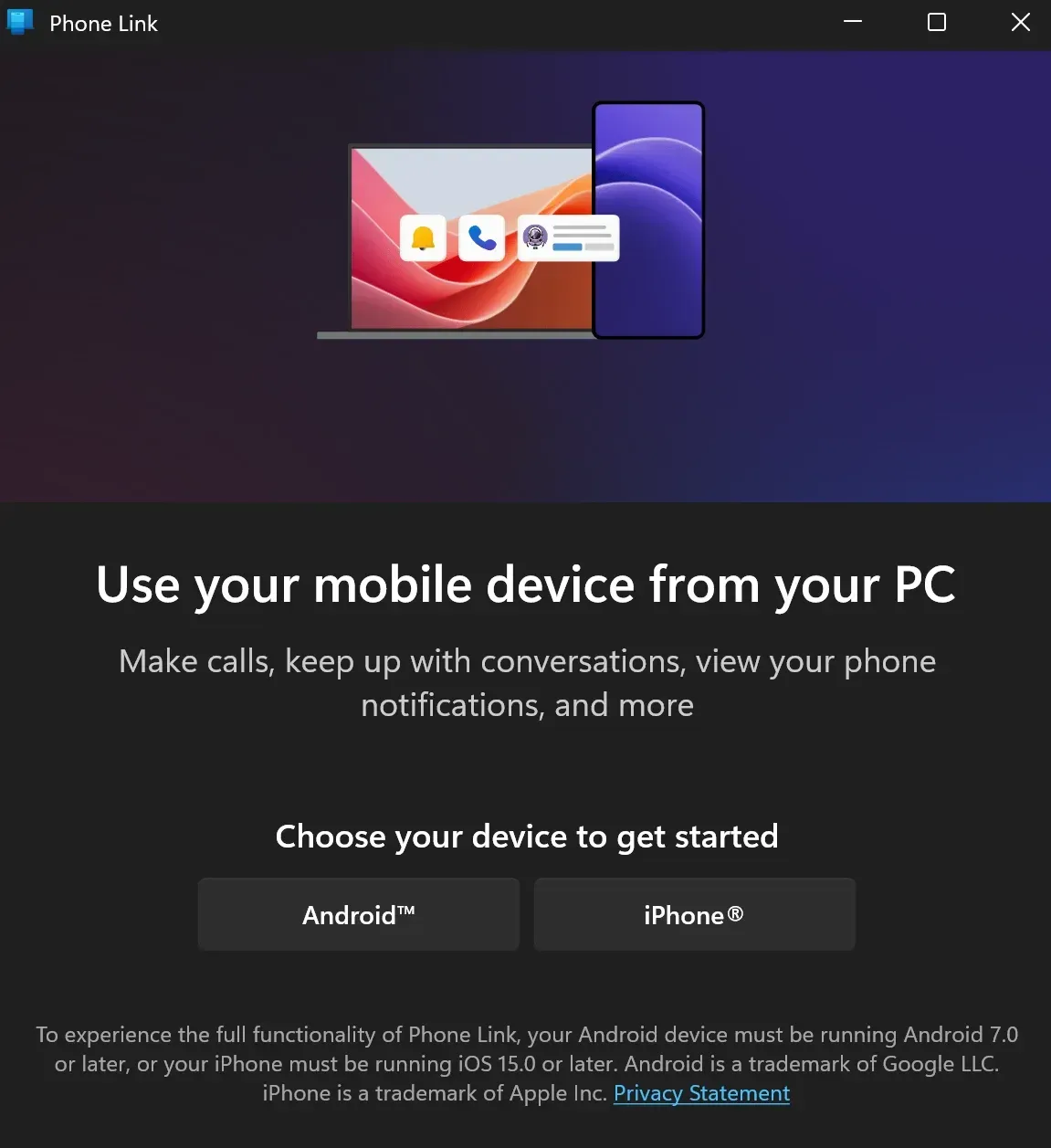
Rather than focusing only on full-screen mirroring, Phone Link emphasizes continuity between phone and PC. It can provide access to functions such as notifications, messages, calls, recent photos, and selected mobile app experiences, depending on the connected phone.
This makes it relevant for users who previously used SideSync to reduce the amount of time spent switching between their phone and computer.
Best for:
- Android and Windows users
- Checking phone notifications on a PC
- Reading and sending messages from Windows
- Accessing recent phone photos
- Handling calls through a computer
- Samsung phones using Link to Windows
Limitations:
- Windows-focused, Mac is not supported as the main computer platform
- Screen-viewing and app features vary by phone
- It is not designed primarily for presentations or browser receiving
Phone Link is a better SideSync replacement when desktop continuity matters more than unrestricted full-screen mirroring.
3. scrcpy: Best Free Alternative for Viewing and Controlling Android
scrcpy is a free, lightweight tool for displaying and controlling an Android device from a computer.
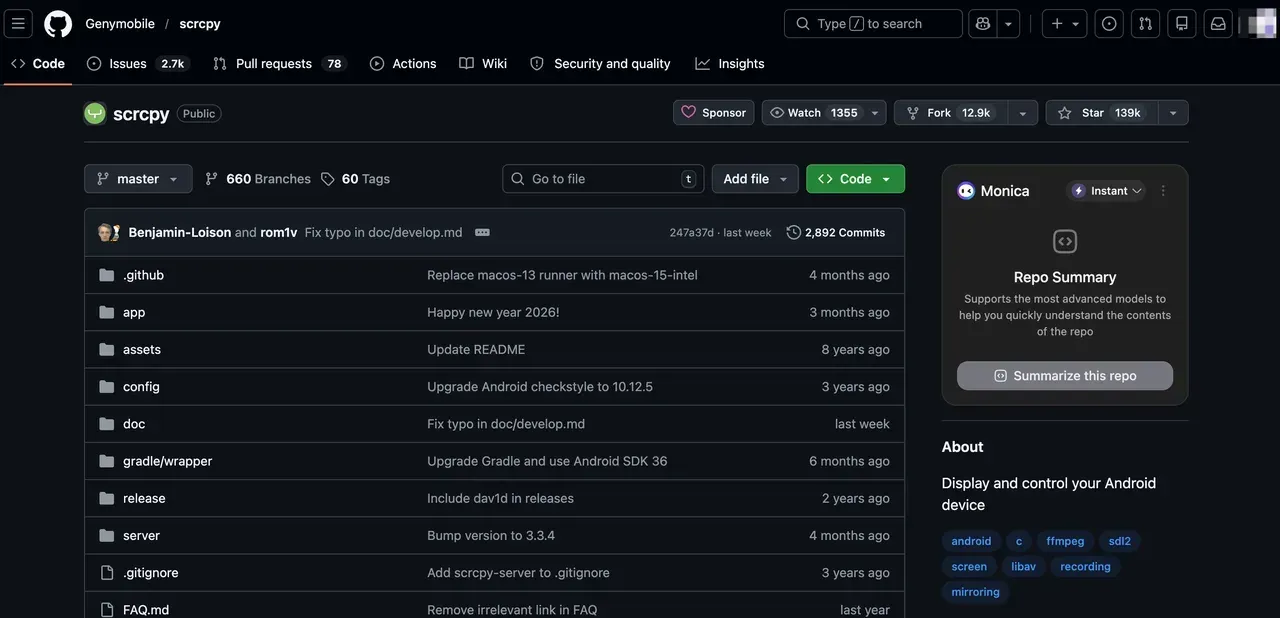
It is especially popular for USB-based use because it can provide responsive screen viewing with keyboard and mouse control. It is not limited to Samsung phones and can work with many Android devices when the required developer settings are enabled.
Unlike Samsung Flow or Phone Link, scrcpy does not focus on notification management or general phone continuity. Its strength is direct Android screen access and control.
Best for:
- Viewing Android on Windows, Mac, or Linux
- Controlling Android with a keyboard and mouse
- Low-latency USB connections
- App testing and demonstrations
- Technical users
- Users who want a free solution
Limitations:
- Android only
- No iPhone support
- USB debugging is commonly required
- Initial setup can be technical
- It does not replace SideSync file and notification features
scrcpy is one of the strongest choices when the main requirement is to see and control an Android phone from a computer without paying for additional features.
4. Vysor: Easier Android Control from a Computer
Vysor also allows users to view and control an Android phone from a Windows PC, Mac, or other supported computer.
Its main advantage over more technical tools is its visual app-based interface. It may be easier for users who want Android screen control but do not want to work with a command-line-oriented setup.
Vysor is suitable for app demonstrations, phone control, testing, and everyday Android-to-computer viewing.
Best for:
- Viewing Android on a computer
- Keyboard and mouse phone control
- Windows and Mac users
- App demonstrations
- Mobile app testing
- Users who prefer a graphical interface
Limitations:
- Primarily Android-focused
- Some connection or quality options may require payment
- It does not focus on notification sync
- It is not a complete file-management replacement
Choose Vysor when you need functionality similar to scrcpy but prefer a more conventional consumer interface.
5. PigeonCast: Best for Viewing Different Phones on a Computer or Browser
PigeonCast is a relevant SideSync alternative when the main goal is to display a phone screen on a larger computer screen.
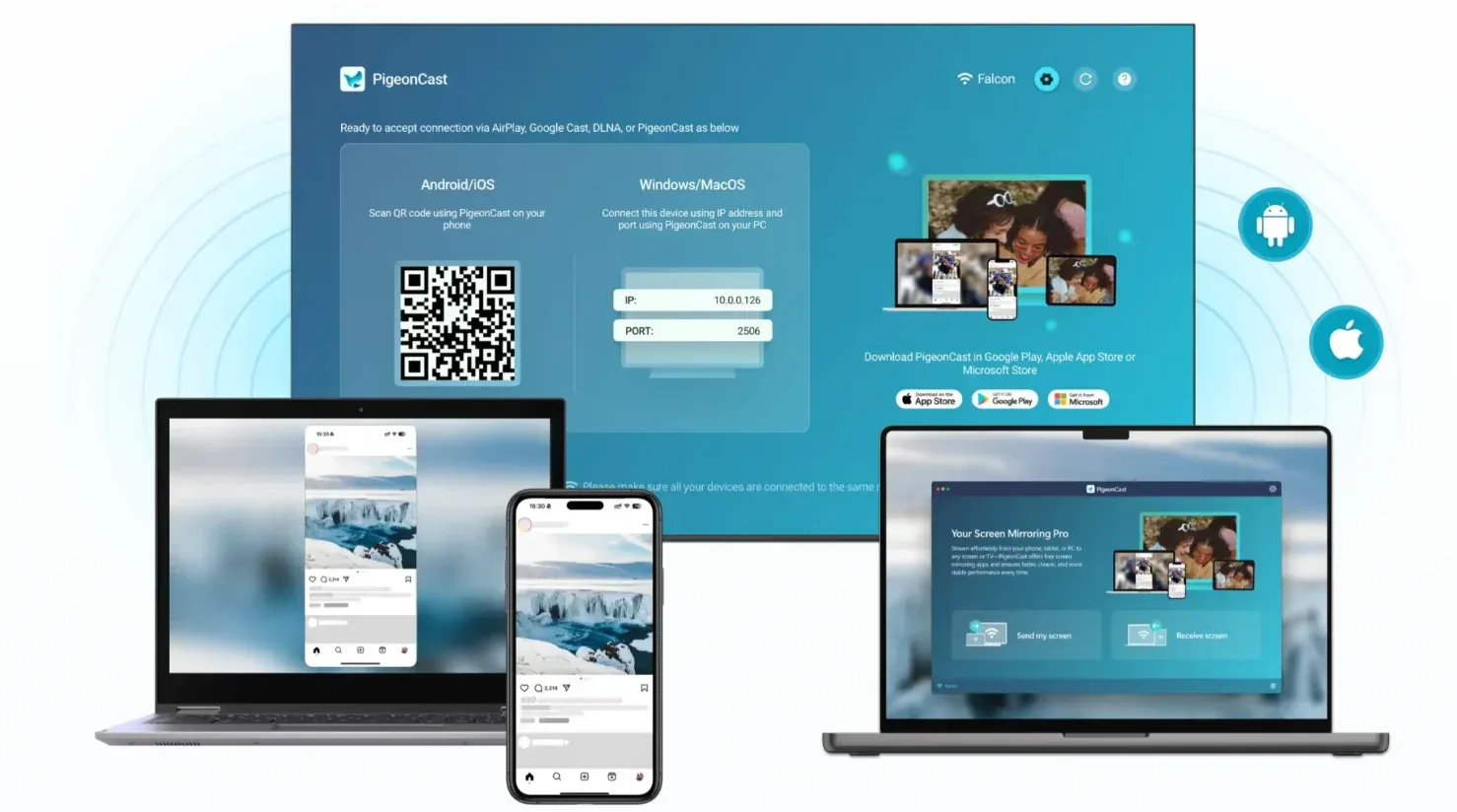
Unlike Samsung-only phone-to-PC tools, it supports screen viewing across a broader range of devices. It can be used when the sender is an Android phone or iPhone and the receiving screen is a Windows computer, Mac, or supported browser.
This makes it useful for users who have moved beyond a Samsung-only setup but still want the core SideSync experience of seeing mobile content on a computer.
Common use cases include:
- Viewing Android on a Windows PC
- Viewing Android on a Mac
- Displaying an iPhone screen on a Windows PC or Mac
- Using a browser as the receiving screen
- Showing phone apps, photos, documents, or games on a larger display
- Presenting a mobile screen without relying on a Samsung ecosystem
Best for:
- Android-to-computer screen viewing
- iPhone-to-computer screen viewing
- Windows and Mac receivers
- Browser-based receiving
- Mixed phone and computer environments
- Wireless mobile presentations
Limitations:
- It is not a SideSync-style notification manager
- It does not focus on phone file management
- It does not provide full remote Android control
- Setup depends on the sender and receiver combination
PigeonCast is best positioned as a replacement for SideSync’s screen-viewing function, particularly when the phone and computer do not belong to the same brand or operating system.


Overall Rating:



6. AirDroid Cast: Best for Presenting a Phone Screen on a Computer
AirDroid Cast focuses on displaying a phone screen on a computer for presentations, online teaching, demonstrations, and screen sharing.
It supports phone-to-computer casting and may include different local or remote connection methods depending on the device and plan.
Compared with SideSync, its purpose is less about creating a continuous Samsung phone-and-PC environment and more about making the phone screen visible to other people through a computer.
Best for:
- Presenting a mobile screen on a computer
- Online teaching
- Product demonstrations
- Remote phone-screen sharing
- Android and iPhone casting
- Meetings and training sessions
Limitations:
- Some connection methods may require payment
- Remote quality depends on the network
- It does not replace SideSync notification sync
- It is not primarily a desktop file-management tool
AirDroid Cast is more suitable for presentation and communication scenarios than for everyday phone-to-PC productivity.
7. ApowerMirror: Best for Viewing and Recording Phone Screens
ApowerMirror combines phone-to-computer mirroring with additional presentation and recording tools.
Depending on the device and connection method, you may be able to display a phone screen, record the mirrored content, take screenshots, annotate presentations, or control supported Android devices from the computer.
These extra functions make it useful for users creating tutorials, recording app demonstrations, or presenting mobile content.
Best for:
- Viewing Android or iPhone on a computer
- Recording a phone screen from the desktop
- Taking screenshots
- Annotating presentations
- Demonstrating mobile apps
- Controlling supported Android devices
Limitations:
- More complex than a basic screen-viewing tool
- Some advanced functions may require payment
- Device control may vary by platform
- It does not provide the same notification workflow as SideSync
ApowerMirror is most relevant when screen recording and presentation tools are part of the reason for viewing the phone on a computer.
8. AirDroid Personal: Best for Android File and Device Management
AirDroid Personal is different from AirDroid Cast. While AirDroid Cast focuses on displaying a phone screen, AirDroid Personal provides a broader set of Android device-management functions.
Depending on the setup, it may help users access files, messages, notifications, device information, and remote phone features from a computer or web interface.
This makes it more relevant to users who valued SideSync as a phone-management tool rather than only as a screen viewer.
Best for:
- Managing Android files from a computer
- Accessing phone notifications
- Viewing selected phone information from the desktop
- Browser-based device management
- Users who need more than screen mirroring
- Remote access to supported Android functions
Limitations:
- Some features depend on the plan and permissions
- Full phone control may require additional setup
- The interface includes more functions than users needing simple mirroring require
- iPhone functionality is more limited than Android management
AirDroid Personal is worth considering when file access and desktop phone management are more important than displaying the full mobile screen.
SideSync Alternatives Comparison
| Tool | Primary use | Android | iPhone | Windows receiver | Mac receiver | Browser receiver | Phone control | File transfer | Notification access |
|---|---|---|---|---|---|---|---|---|---|
| Samsung Flow | Samsung phone-to-PC continuity | Yes | No | Yes | No | No | Limited | Yes | Yes |
| Phone Link | Android and Windows continuity | Yes | Limited | Yes | No | No | Limited | Yes | Yes |
| scrcpy | Android screen viewing and control | Yes | No | Yes | Yes | No | Yes | Limited | No |
| Vysor | App-based Android control | Yes | Limited | Yes | Yes | Limited | Yes | Limited | No |
| PigeonCast | Phone screen viewing on computer or browser | Yes | Yes | Yes | Yes | Yes | No | Coming soon | No |
| AirDroid Cast | Phone-to-computer presentation | Yes | Yes | Yes | Yes | Yes | Some features | No | No |
| ApowerMirror | Mirroring, control, and recording | Yes | Yes | Yes | Yes | Limited | Some devices | Limited | No |
| AirDroid Personal | Android device and file management | Yes | Limited | Yes | Yes | Yes | Some features | Yes | Yes |
What to Check Before Choosing a SideSync Alternative
A tool may appear to support the right platforms but still fail to match the way you used SideSync. Before choosing, check the exact phone-to-computer connection, whether you need viewing or control, and which features remain available on your device combination.
Supported Phone and Computer
Confirm the exact sending phone and receiving computer.
Check whether the tool supports:
- Samsung Galaxy phones
- Other Android phones
- iPhone
- Windows
- Mac
- Linux
- Browser-based receiving
Support for Android or Windows does not guarantee that every feature works on every device.
Screen Viewing or Full Control
Screen viewing only displays the mobile interface. Phone control also lets you use the computer keyboard and mouse.
Full Android control may require:
- A USB connection
- USB debugging
- Accessibility permissions
- A desktop companion app
- Additional device authorization
iPhone tools usually provide screen viewing rather than full desktop control.
USB or Wireless Connection
USB is usually more suitable for responsive Android control and longer sessions.
Wireless connections are more convenient for:
- Presentations
- Browser receiving
- Quick everyday access
- Users who do not want to keep the phone connected by cable
The available connection method varies by tool and device.
Screen Viewing or Phone Continuity
Choose a screen-viewing tool when you need to display:
- Mobile apps
- Games
- Photos
- Documents
- Tutorials
- Presentations
- The complete phone interface
Choose a continuity tool when you mainly need:
- Notifications
- Messages
- Calls
- Recent photos
- File access
- Selected mobile apps on Windows
This is one of the most important differences between SideSync alternatives.
Performance and Ease of Use
Before paying, test:
- Connection speed
- Image clarity
- Stability
- Delay
- Audio support
- Keyboard and mouse input
- Screen rotation
- Reconnection steps
- Free-plan limitations
A tool that works well for presentations may not be responsive enough for direct phone control.
Security Tips
Viewing or controlling a phone from a computer may expose notifications, messages, photos, passwords, and verification codes.
Before connecting:
- Install software from official sources.
- Confirm the correct receiving computer.
- Review screen-recording and accessibility permissions.
- Close sensitive apps.
- Disable notification previews during presentations.
- Avoid granting control unless necessary.
- Disconnect after use.
- Remove access from computers you no longer trust.
Tools with remote access, file management, or full phone control require more sensitive permissions than simple screen viewing.
Conclusion
The best SideSync alternative depends on which part of the original phone-to-computer experience you want to keep.
Choose Samsung Flow for the closest Samsung-to-Windows replacement. Choose Phone Link for notifications, messages, calls, photos, and everyday Windows continuity. Choose scrcpy or Vysor when Android screen control is the priority.
Choose PigeonCast when you need to view Android or iPhone on a Windows PC, Mac, or browser without relying on a Samsung-only setup. AirDroid Cast is more suitable for presentations, while ApowerMirror adds recording and demonstration features. AirDroid Personal is more relevant when file and device management matter most.
Instead of looking for an exact SideSync clone, choose the tool that matches the phone, computer, and specific desktop function you need.
SideSync Alternatives FAQ
What is the closest replacement for Samsung SideSync?
Samsung Flow is the closest alternative for users who want to continue connecting a Samsung phone with a Windows PC or tablet. It focuses on Samsung device continuity, content sharing, notifications, and phone-to-computer interaction. Phone Link is another strong option when Windows notifications, messages, calls, and photo access are more important than full Samsung-specific integration.
How can I view my Samsung phone on my computer?
Start with Samsung Flow or Phone Link for supported Samsung and Windows devices. For direct screen viewing or control, consider scrcpy, Vysor, PigeonCast, AirDroid Cast, or ApowerMirror. The best option depends on whether you need phone control, Mac support, browser receiving, or wireless use.
What is the best free SideSync alternative?
scrcpy is one of the best free alternatives for viewing and controlling an Android phone from a computer. It is lightweight and responsive, but its setup is more technical and commonly requires USB debugging. Samsung Flow and Phone Link may also be available without an additional subscription for supported phone-to-Windows functions.
Can I use a SideSync alternative on Mac?
Yes, but Samsung Flow and Phone Link are mainly Windows-oriented. For Android screen viewing on Mac, consider scrcpy, Vysor, PigeonCast, AirDroid Cast, or ApowerMirror. The right option depends on whether you need basic screen viewing, Android control, wireless connection, screen recording, or browser-based access.
Can I view an iPhone on a computer with a SideSync alternative?
Yes. Although SideSync was designed for Samsung devices, tools such as PigeonCast, AirDroid Cast, and ApowerMirror can help display an iPhone screen on a Windows PC, Mac, or supported browser. These tools replace SideSync’s larger-screen viewing function but do not reproduce Samsung-specific notification, file-sharing, or Android-control features.
Can I control my phone from my computer?
Android phones can be controlled from a computer with tools such as scrcpy, Vysor, and some features of Samsung Flow or ApowerMirror. The exact setup may require USB debugging, accessibility access, or device-specific permissions. iPhone mirroring generally provides screen viewing rather than the same level of keyboard and mouse control.
Mia Clarke is a technology editor specializing in screen mirroring and casting solutions across multiple platforms. Mia provides clear, practical guides and in-depth insights to help users seamlessly connect their devices. Passionate about enhancing digital experiences, Mia is dedicated to keeping readers updated on the latest trends and tools in cross-platform screen sharing. Whether you’re looking to mirror your smartphone, laptop, or smart TV, Mia’s content delivers reliable, user-friendly advice to simplify your tech setup.