
Want to know how to cast from Samsung phone to TV without trying random settings? Start with the method that fits your TV. This guide covers 5 easy ways to connect your Samsung phone to a bigger screen, including Smart View, a casting app, Chromecast, HDMI, and local media casting.
Quick Answer
The easiest way to cast a Samsung phone to a TV depends on your TV type. Use this quick rule before trying each method.
-
Use Smart View if you have a Samsung TV.
-
Use a casting app if Smart View cannot find your TV or the connection keeps failing.
-
Use Chromecast if your TV has Google TV or a Chromecast device.
-
Use HDMI if you want a stable wired connection.
-
Use local media casting if you only want to play saved photos, videos, or music on TV.
For most Samsung TV users, Smart View is the first option to try. For other TVs, a casting app is often the faster choice because it gives you more ways to connect your phone to a big screen.
Casting Requirements and Compatibility Check
Before you try any method, check a few basics first. These steps can save you from the most common connection problems.
-
Make sure your Samsung phone and TV are connected to the same WiFi network. If your router has both 2.4 GHz and 5 GHz networks, try to keep both devices on the same one.
-
Check if your TV supports screen mirroring, Google Cast, AirPlay, or a receiver app. The best way to cast Samsung phone to TV depends on which of these options your TV supports.
-
Turn on mirroring or casting mode on your TV. You may find it in network settings, input settings, or a built in casting app.
-
Turn off VPN on your phone. Also avoid guest WiFi, since it may stop your phone from finding the TV.
-
Update your phone and TV to the latest version available for your model.
If your TV never appears in the cast list, the problem is usually your TV support or network settings, not your Samsung phone.
How to Cast from Samsung Phone to TV
There are several ways to connect a Samsung phone to a TV. The right one depends on your TV model, network setup, and what you want to show on the screen. Start with the built in option first, then move to other methods if it does not work.
Method 1. Use Smart View
Smart View is Samsung's built in screen mirroring feature. It is available on many Galaxy S, Galaxy Note, Galaxy Z, and Galaxy A phones. It works best with Samsung Smart TVs that support screen mirroring. Some older TVs may need you to turn on Screen Mirroring from the TV menu first. Follow these steps:
Step 1. Turn on your Samsung TV and connect it to the same WiFi network as your phone.
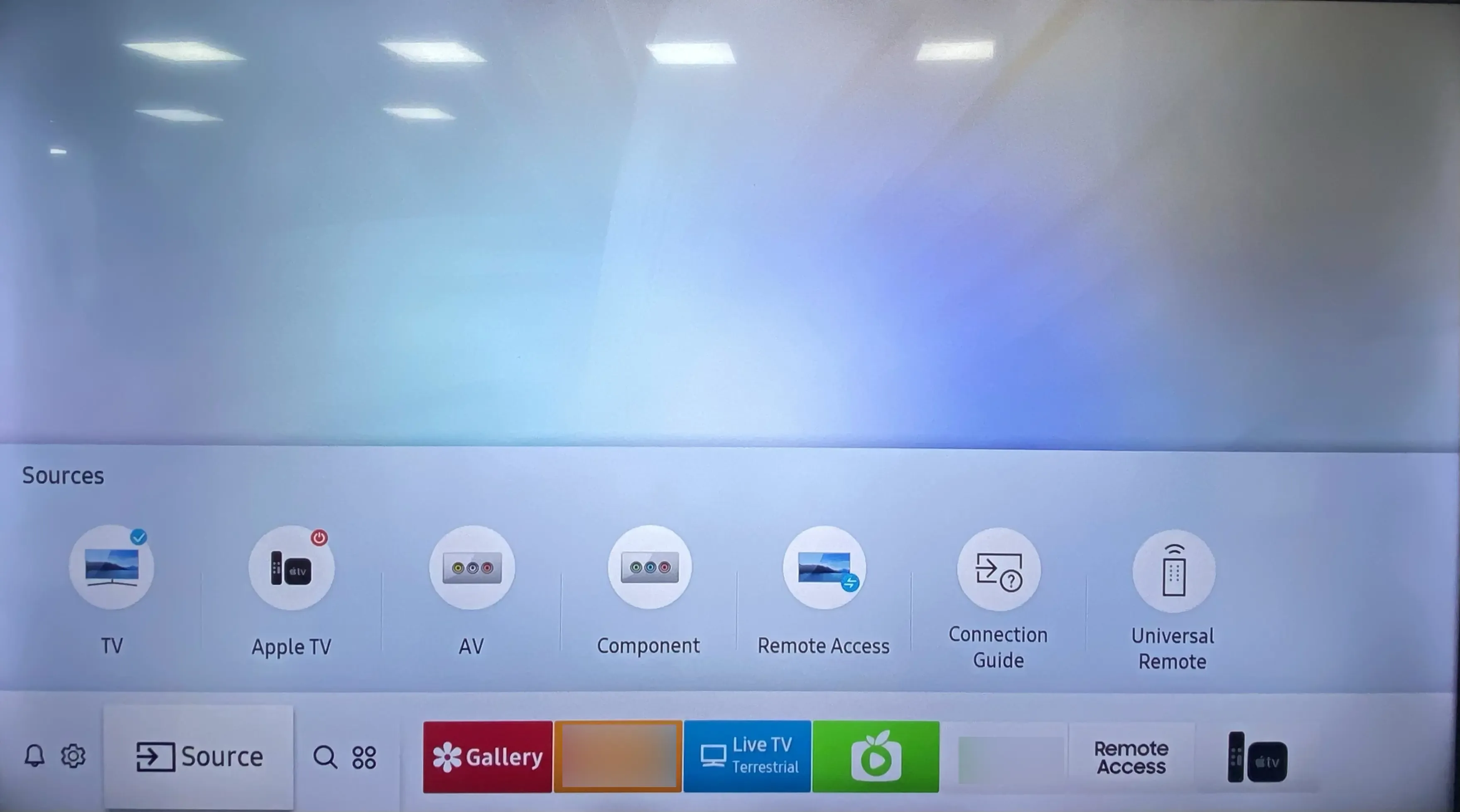
Step 2. If you use an older Samsung TV, open the Input or Network menu and turn on Screen Mirroring.
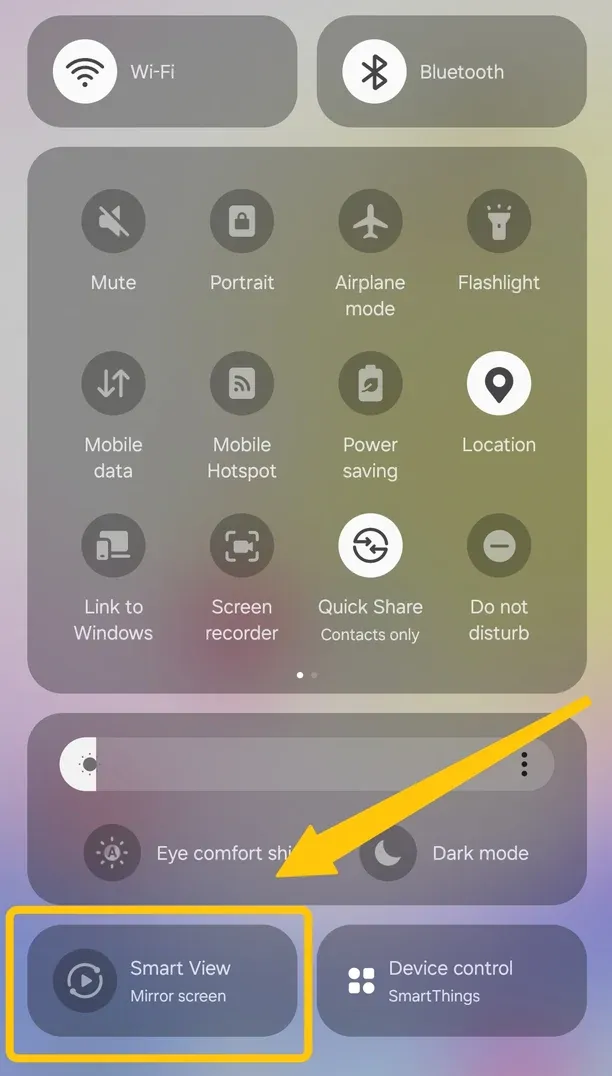
Step 3. On your Samsung phone, swipe down from the top of the screen to open Quick Panel > Smart View.
Step 4. If you cannot see it, swipe left or tap the edit button to add it.
Step 5. Tap and wait for your phone to search for nearby devices.
Step 6. Choose your TV from the list, then tap Start now on your phone.
Step 7. Choose Allow on your TV if a permission message appears. Then, your Samsung phone screen should now show on the TV.
To stop mirroring, tap the Smart View icon on your phone, then choose Disconnect.
Method 2. Use a Casting App
If Smart View cannot find your TV, or your TV does not support Samsung screen mirroring, a casting app is the next option to try. It can help your Samsung phone connect to more TVs without changing cables or TV settings again and again.
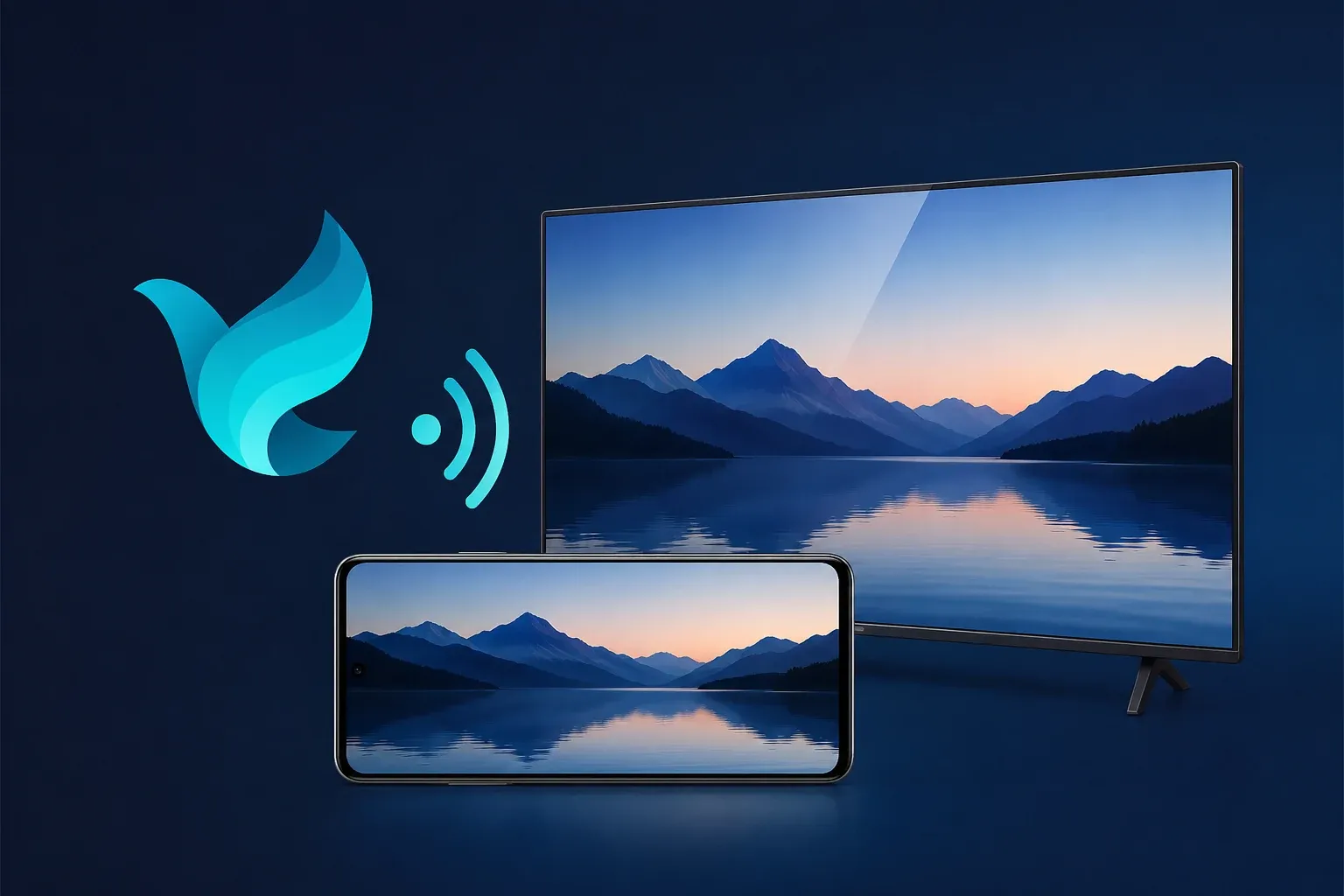
PigeonCast is a practical choice when Smart View cannot find your TV or built in casting is limited. It turns your TV into a wireless receiver and lets you mirror your Samsung phone, cast videos, share photos, or open web content on a larger screen. It also supports common casting options like Google Cast, DLNA, and AirPlay, so it can work with more smart TVs and streaming devices.


Overall Rating:


Step 1. Connect your Samsung phone and TV to the same WiFi network.
Step 2. Install PigeonCast on your Samsung phone from the app store.
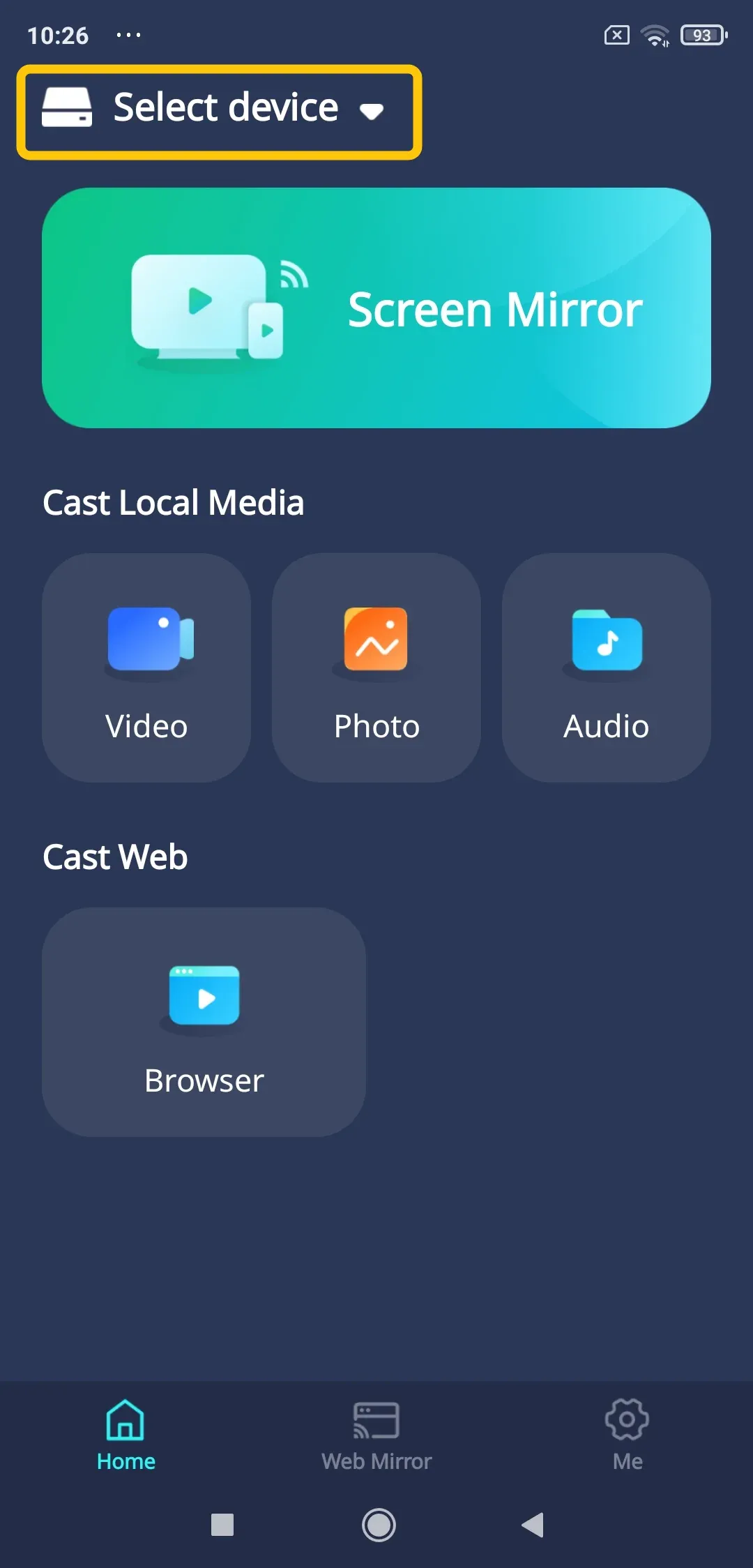
Step 3. Launch the app, tap Select device to choose your TV from the available list.
Step 4. Enter the onscreen PIN code to confrim your connection requisition.
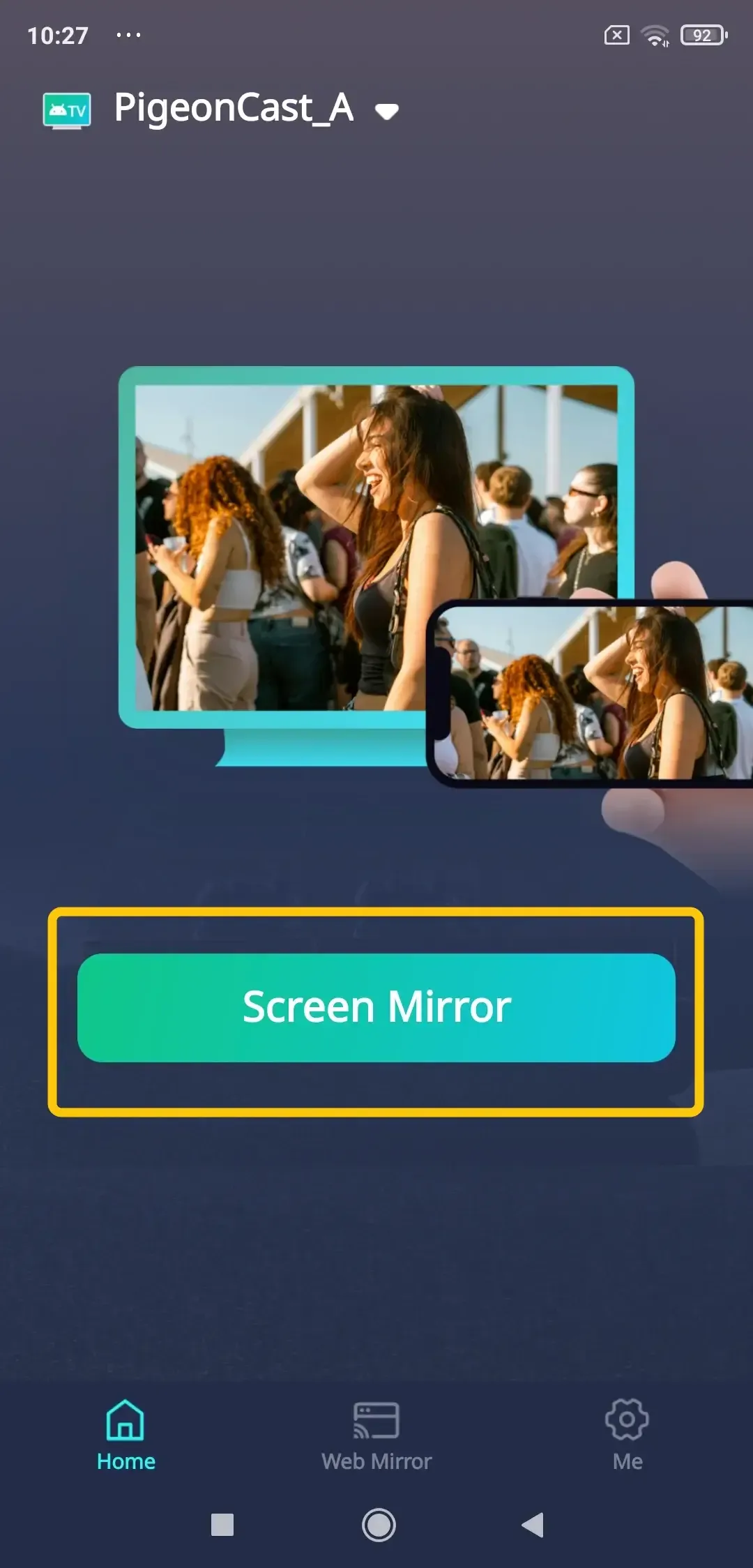
Step 5. Once the pairing succeeds, tap Screen Mirror to share the content you want to watch on TV.
Method 3. Use Chromecast or Google TV
If your TV has Chromecast built in, or you use a Google TV or Chromecast device, you can cast from supported apps on your Samsung phone. This method works well for video apps, music apps, and streaming platforms with a Cast button. It is not always the best choice for full screen mirroring.
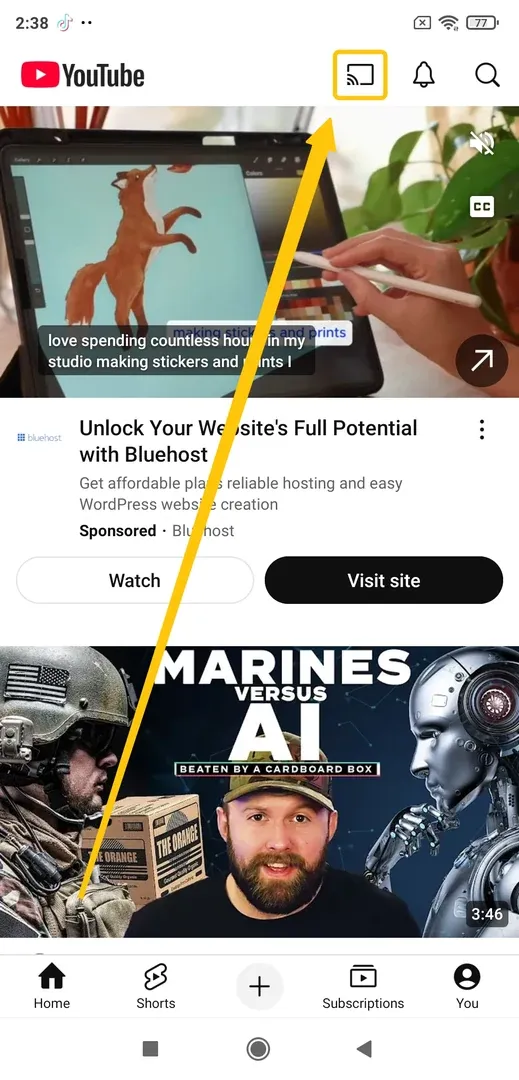
Step 1. Connect your Samsung phone and Chromecast device or Google TV to the same wireless network.
Step 2. Open an app that supports casting, such as YouTube or Netflix.
Step 3. Tap the Cast icon in the app.
Step 4. Choose your TV or Chromecast device from the list.
Step 5. Pick the video, music, or show you want to play.
Step 6. Use your Samsung phone as the remote to pause, play, or change the content.
To stop casting, tap the Cast icon again, then choose Disconnect or Stop casting.
Method 4. Use an HDMI Adapter
If wireless casting keeps lagging or dropping, use an HDMI adapter. This method sends your Samsung phone screen to the TV through a cable, so it does not depend on WiFi. It is useful for meetings, games, travel, or rooms with a weak network.
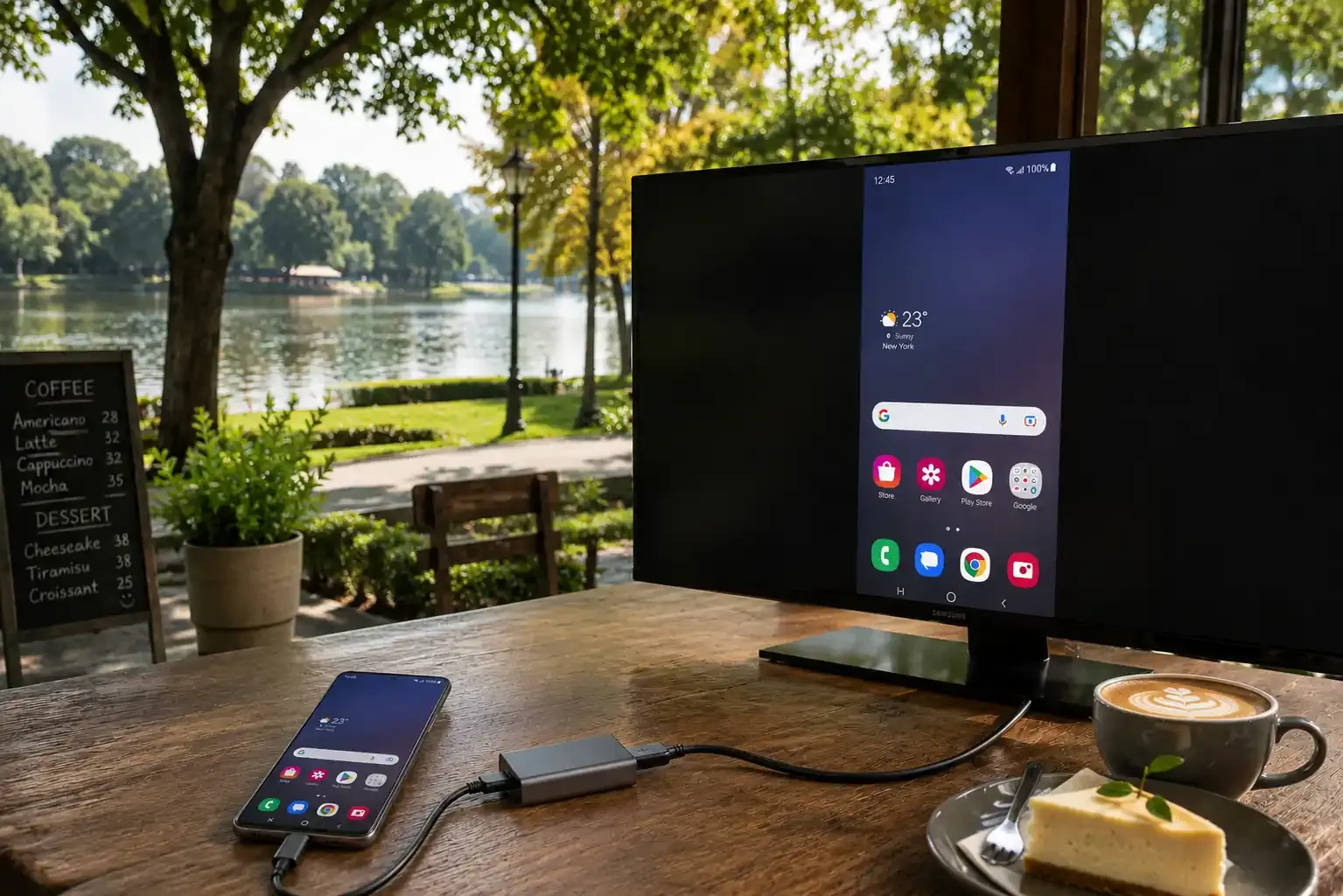
Step 1. Prepare a USB C to HDMI adapter that works with your Samsung phone.
Step 2. Plug the adapter into your phone.
Step 3. Connect an HDMI cable from the adapter to your TV.
Step 4. Turn on your TV and switch to the correct HDMI input.
Step 5. Wait for your phone screen to appear on the TV.
If nothing shows up, check whether your Samsung phone supports video output through USB C. Some budget models may not support this feature.
Method 5. Use Local Media Casting
If you only want to play saved photos, videos, or music from your Samsung phone, local media casting is enough. It does not mirror your whole phone screen. It only sends the selected file to the TV, which is useful for family photos, downloaded videos, and music playback.
Step 1. Connect your Samsung phone and TV to the same WiFi network.
Step 2. Open a media casting app or a DLNA supported app on your phone.
Step 3. Choose the photo, video, or music file you want to play.
Step 4. Tap the casting option in the app.
Step 5. Choose your TV from the device list.
Step 6. Wait for the file to start playing on the TV.
If the file does not play, the format may not be supported by your TV. Try another file or use screen mirroring instead.
Not sure which method to use? Pick by your TV type and what you want to cast.
| Method | Use it when | Best for | Main limit |
|---|---|---|---|
| Smart View | You have a Samsung Smart TV that appears in Smart View | Full screen mirroring from Samsung phone to Samsung TV | May fail on older TVs or non Samsung TVs |
| PigeonCast | Smart View cannot find your TV or you want a wireless receiver on TV | Screen mirroring, videos, photos, and web casting on more TV types | Needs both devices on the same WiFi |
| Chromecast or Google TV | Your TV has Chromecast built in or you use a Chromecast device | YouTube, Netflix, Spotify, and other apps with a Cast button | Does not work for every app or full screen mirroring need |
| HDMI adapter | WiFi is weak or the wireless connection keeps dropping | Stable screen mirroring with a cable | Requires a USB C to HDMI adapter and phone video output support |
| Local media casting | You only want to play saved files from your phone | Photos, videos, and music stored on your Samsung phone | Does not show your full phone screen |
Why Your Samsung Phone Is Not Casting to TV
If your Samsung phone cannot cast to TV, do not rush to change the method. Most problems come from WiFi, TV settings, app support, or device compatibility. Try the fixes below first.
- The TV Does Not Show Up:
Make sure your phone and TV are on the same WiFi network. If your router has 2.4 GHz and 5 GHz networks, connect both devices to the same one. You should also turn off VPN and avoid guest WiFi because they can block local device discovery.
- Smart View Cannot Find the TV:
Check whether your TV supports screen mirroring. On some Samsung TVs, you need to open the Input or Network menu and turn on Screen Mirroring before your phone can find it. If the TV still does not appear, try PigeonCast, Chromecast, or HDMI instead.
- Casting Keeps Lagging:
Move your phone and TV closer to the router. Close apps running in the background on your phone. If many devices are using the same network, pause large downloads or streaming on other devices. For the most stable result, use an HDMI adapter.
- The Video Plays but There Is No Sound:
Check the TV volume first, then check whether your phone is connected to Bluetooth earbuds or speakers. If sound still comes from the phone, disconnect Bluetooth and start casting again.
- The App Does Not Cast:
Some apps block screen mirroring or only allow casting through their own Cast button. If one app does not work, test another app like YouTube or try screen mirroring from the phone home screen.
Closing Words
There is no single casting method that fits every Samsung phone and TV. The key is to match the method with your TV support, WiFi condition, and what you want to show on the screen. If one option does not work, do not assume your phone is broken. Try another connection path and you can usually get the screen or media playing on TV in a few minutes.
How to Cast from Samsung Phone FAQ
How to cast to Samsung TV from Android?
Most Android phones can cast to a Samsung TV if the TV supports screen mirroring, Google Cast, or a receiver app. Connect both devices to the same WiFi, open the casting or screen sharing option on your Android phone, then choose your Samsung TV from the device list.
How do I turn on screen mirroring in Samsung TV?
On many Samsung TVs, screen mirroring is found in the Input, Source, Network, or Connection menu. The name may be Screen Mirroring, Device Connection, Mobile Device Manager, or Tap View depending on your TV model.
Is Smart View the same as Chromecast?
No. Smart View is Samsung's native mirror route, while Chromecast uses Google Cast protocol. They can overlap in outcomes but are not identical transport paths.
How to cast from Samsung phone to PC?
To cast a Samsung phone to a PC, your computer needs to work as a wireless display or receiver. On Windows, you can try the built in wireless display feature if your PC supports it. You can also use a receiver app that allows your phone screen or media to appear on the computer.
How to cast from Samsung phone to LG TV?
If your LG TV supports screen sharing, Miracast, AirPlay, or a receiver app, connect both devices to the same WiFi and choose the TV from your phone’s casting menu. If Smart View does not find your LG TV, use a casting app or Chromecast if your TV supports it.
Can I still use my phone while casting?
It depends on the method. With app based casting, you can often use your phone for other things while the video keeps playing on TV. With screen mirroring, anything you open on your phone may also appear on the TV.
Clara Rossi is an experienced technology editor and a seasoned expert in screen mirroring and casting technologies. With a keen eye for detail and a deep understanding of how to seamlessly connect devices, Clara excels at optimizing user experiences for effortless sharing and streaming. Whether you're seeking quick fixes or advanced tips, her expertise and responsiveness ensure that every query is met with a well-informed and efficient solution.