
Watching Twitch on Samsung TV is easy if your TV supports the official app, but app availability can vary by model and region. If Twitch does not appear in the Samsung App Store, you can still watch your favorite streams through screen mirroring or an HDMI connection. This guide explains each option so you can choose the right method for your TV and device.
Can You Get Twitch on Samsung Smart TV
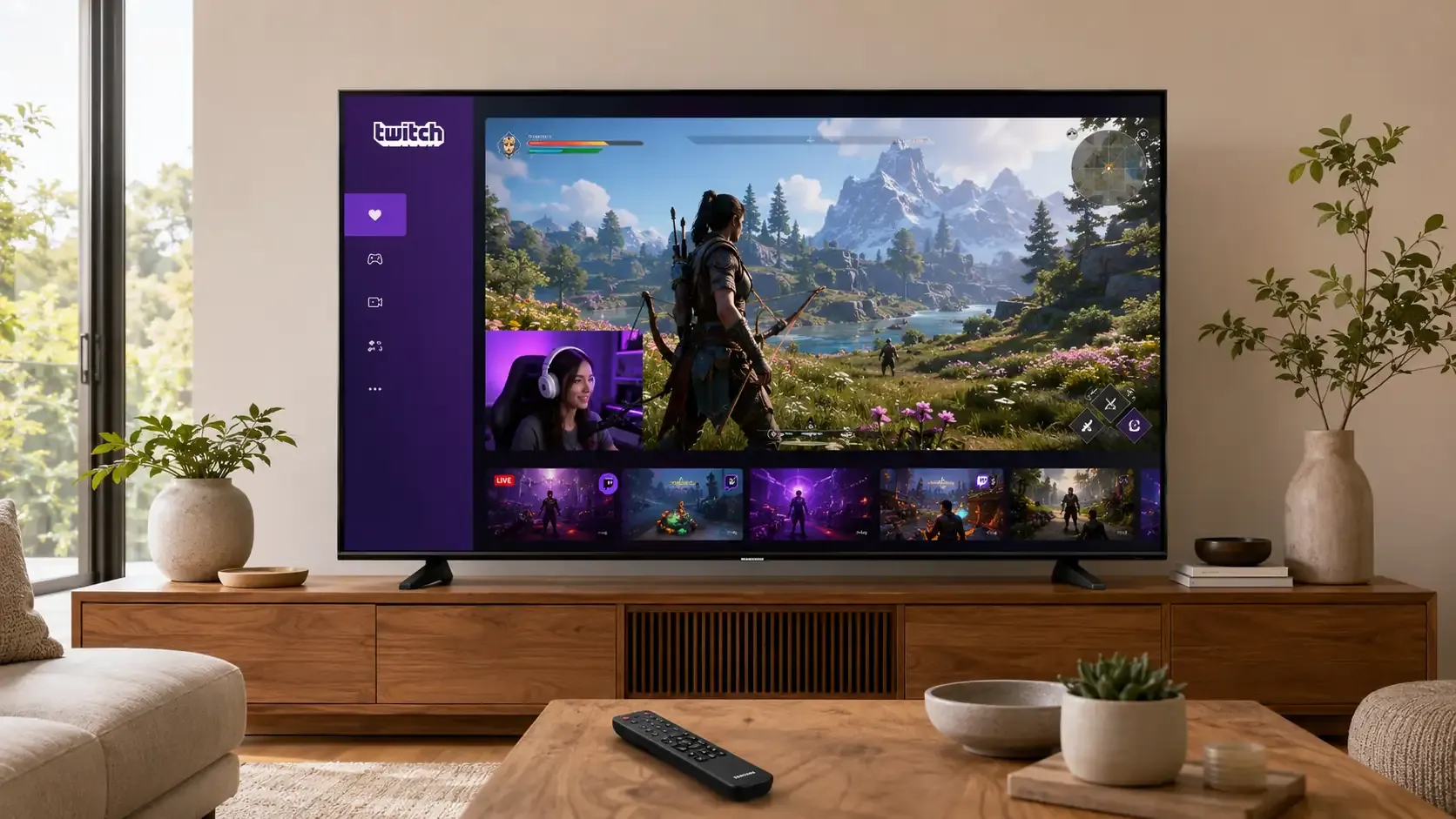
Yes. Twitch is available directly on compatible Samsung Smart TVs through the Samsung App Store or Gaming Hub. Availability varies by TV model and region, so you may not find the app on every Samsung TV. If Twitch does not appear in either location, you can still watch it by mirroring a phone or computer or using an HDMI connection.
| Method | What You Need | Best For |
|---|---|---|
| Twitch App | Compatible Samsung Smart TV | Watching directly with the TV remote |
| AirPlay | iPhone, iPad, or Mac | Apple devices |
| Smart View | Samsung phone or tablet | Samsung mobile devices |
| PigeonCast | PigeonCast app and the same Wi-Fi | Cross-platform wireless mirroring |
| HDMI | Compatible cable or adapter | Stable viewing on older TVs |
How to Install Twitch on Samsung TV
Samsung provides two ways to access Twitch on compatible TVs. You can install the Twitch app from the Samsung App Store, while supported models also provide direct access through Gaming Hub, where Samsung officially lists Twitch as an available streaming service. Availability depends on your TV model and region, so check both locations before moving to another method.
Install Twitch from the Samsung App Store
This method works only when the official Twitch app is available in your TV’s regional Samsung App Store. Samsung has confirmed Twitch access through its TV platform in markets including the United States, United Kingdom, Germany, France, and Spain. Availability still varies by TV model and may change over time, so search for Twitch directly on your TV before continuing.
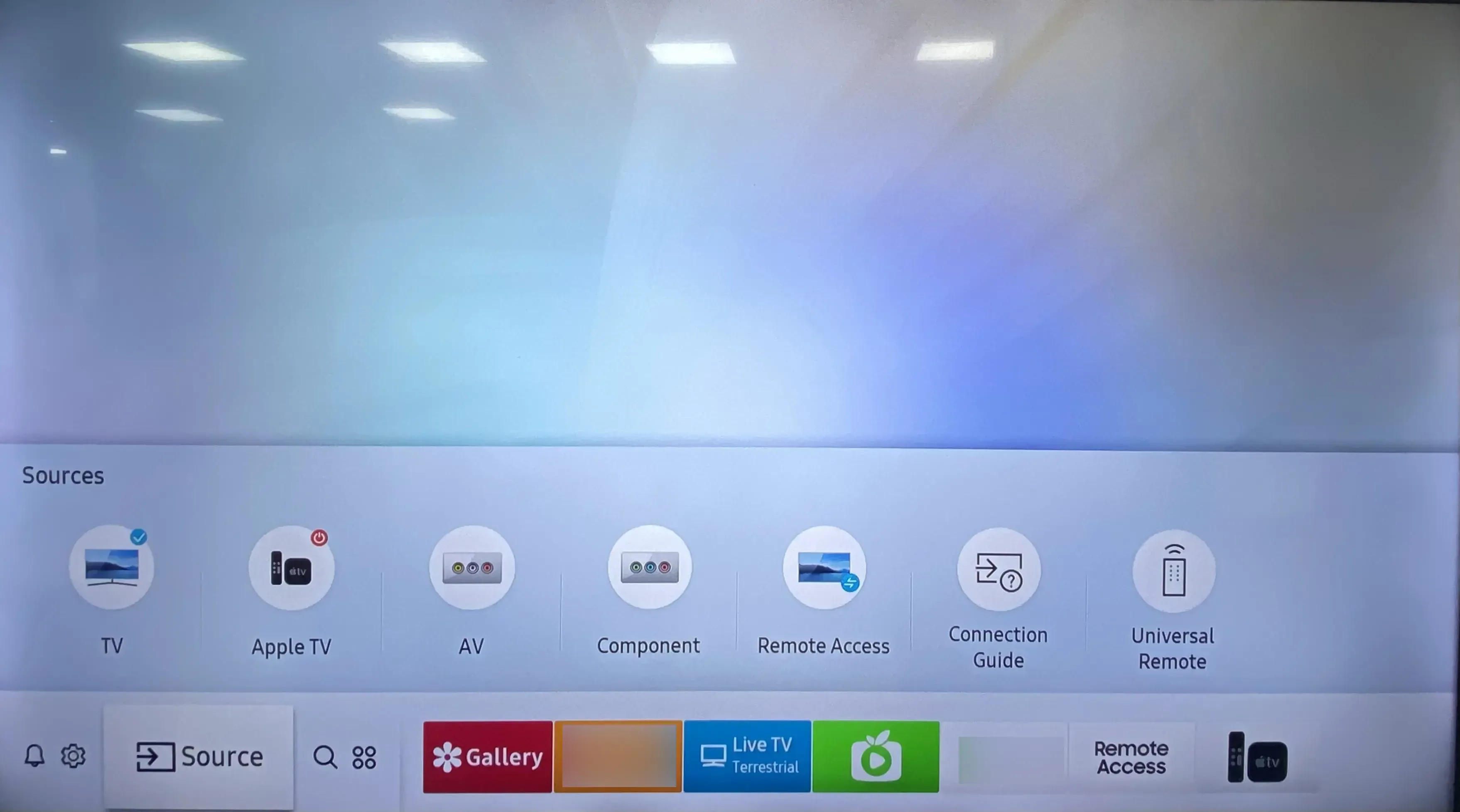
Step 1. Connect your Samsung TV to the internet and sign in to your Samsung Account. A Samsung Account is required to download apps.
Step 2. Press the Home button on the remote and select Apps. On newer Samsung TV menus, press the left directional button and select Search.
Step 3. Enter Twitch using the onscreen keyboard and select the official Twitch app from the results.
Step 4. Select Install and wait for the app to download.
Step 5. Select Add to Home if you want a shortcut, then select Open to launch Twitch.
Step 6. Select Sign In if you want to access your followed channels and account features, then complete the activation instructions shown on the TV.
Open Twitch Through Samsung Gaming Hub
Samsung Gaming Hub provides direct access to Twitch on supported Samsung Smart TVs and Smart Monitors from 2022 onward. Model and regional availability vary, and the list of services may change over time. Unlike the App Store method, you normally open Twitch from Gaming Hub without installing it separately.
Step 1. Connect your Samsung TV to the internet and make sure its software is up to date.
Step 2. Press the Home button and open the Game tab or Gaming Hub.
Step 3. Browse the available apps and streaming services to find Twitch. The location may vary slightly with the TV model and software version.
Step 4. Select Twitch to open it.
Step 5. Choose Sign In if you want to access your Twitch account, then follow the activation instructions displayed on the TV.
How to Watch Twitch on Samsung TV with Mirroring or HDMI
If the Twitch TV app is unavailable, you can play Twitch on another device and display it on your Samsung TV. AirPlay, Smart View, and PigeonCast provide wireless options for different devices, while HDMI offers a wired connection when you want greater stability or cannot use screen mirroring.
Mirror Twitch with AirPlay
This method works with iPhone, iPad, and Mac when your Samsung TV supports AirPlay 2. Many Samsung Smart TVs released from 2018 onward include AirPlay, but support still varies by series and model.
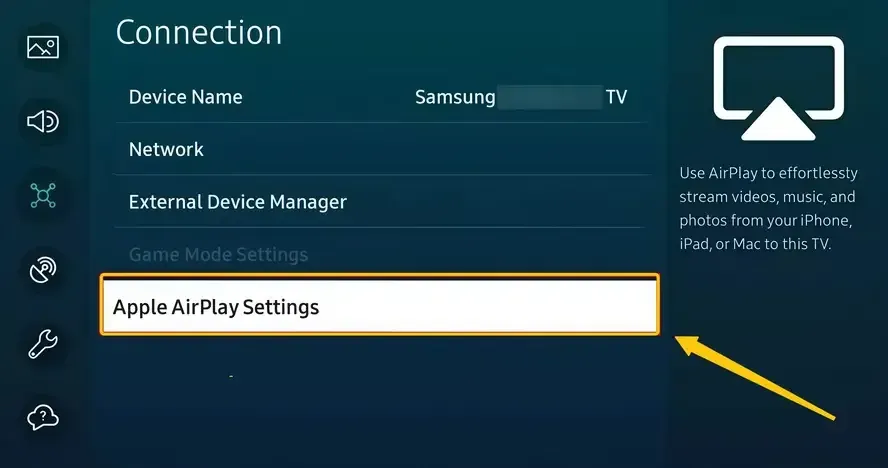
Step 1. Connect the Apple device and Samsung TV to the same Wi-Fi network.
Step 2. On the TV, open Settings > General or Connection > Apple AirPlay Settings, then turn AirPlay on.
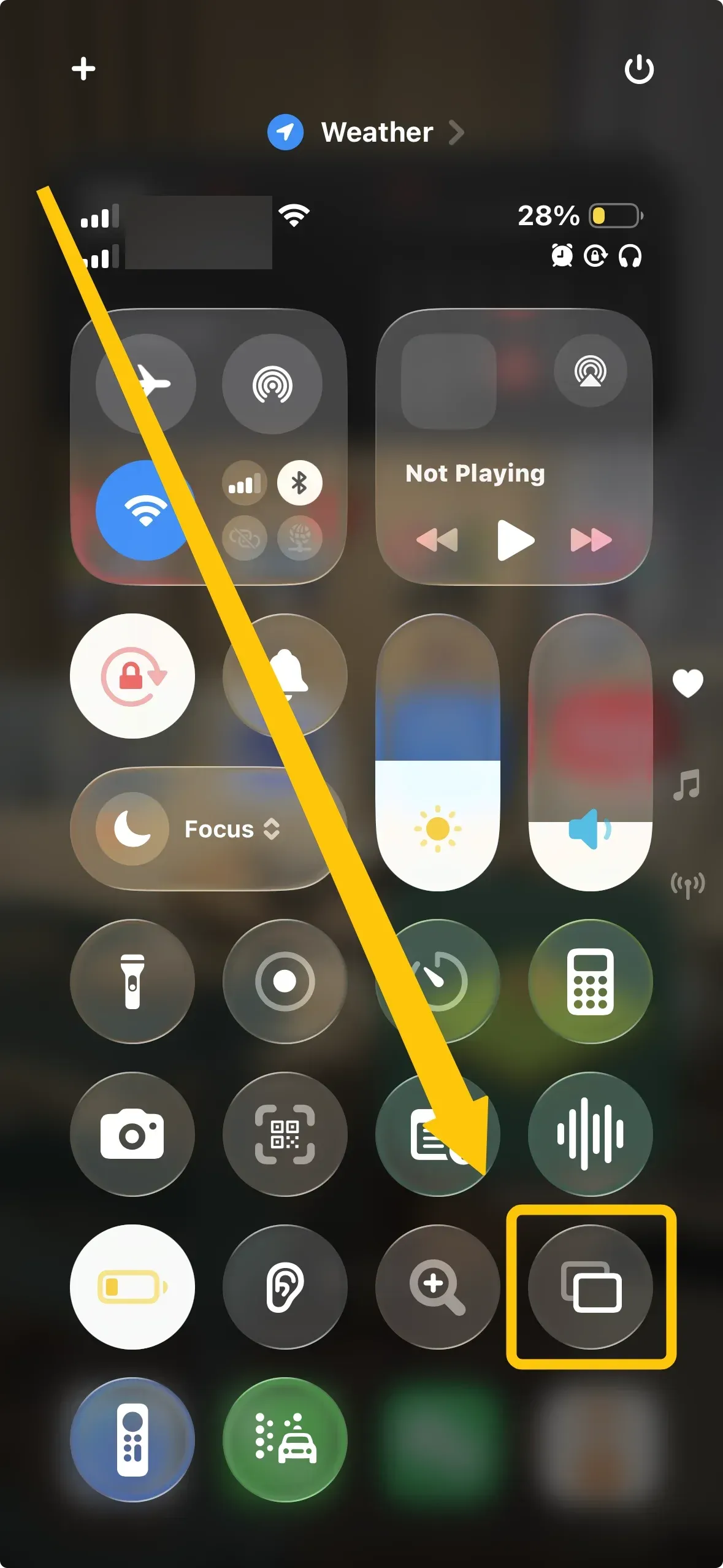
Step 3. Open the screen mirroring controls on your Apple device.
- On iPhone or iPad, open Control Center and tap Screen Mirroring.
- On Mac, open Control Center from the menu bar and select Screen Mirroring.
Step 4. Select your Samsung TV and enter the AirPlay code displayed on the TV if prompted.
Step 5. Open Twitch on your device, choose a stream, and switch the video to full screen.
Mirror Twitch with Smart View
Smart View is built into most Samsung Galaxy phones and tablets and does not require a separate download. This method requires a compatible Samsung TV, and both devices must use the same Wi-Fi network. If Smart View is missing from Quick Settings, your Galaxy device may not support it.
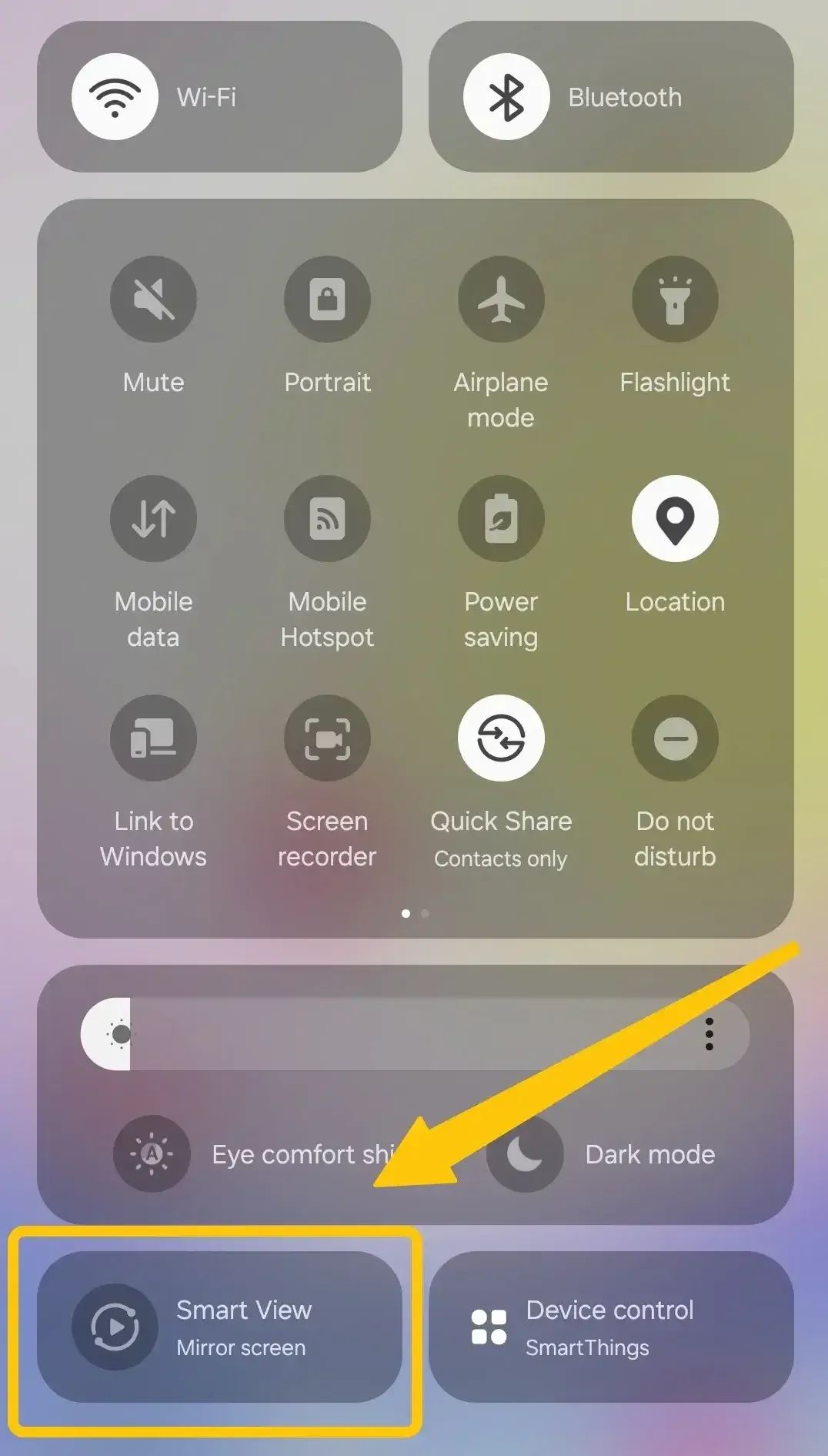
Step 1. Turn on the Samsung TV and connect it and your Galaxy device to the same Wi-Fi network.
Step 2. Swipe down from the top of the Galaxy screen to open Quick Settings, then tap Smart View. If it is not visible, tap Edit and add it to the panel.
Step 3. Select your Samsung TV from the list and tap Start now.
Step 4. Select Allow on the TV or enter the displayed PIN if prompted.
Step 5. Open Twitch on the Galaxy device, play a stream, and switch it to full screen.
Cast Twitch to Samsung TV with PigeonCast
PigeonCast runs on the sending device rather than the Samsung TV. It supports Google Cast, AirPlay, and DLNA, so the available connection depends on what your TV setup can receive.
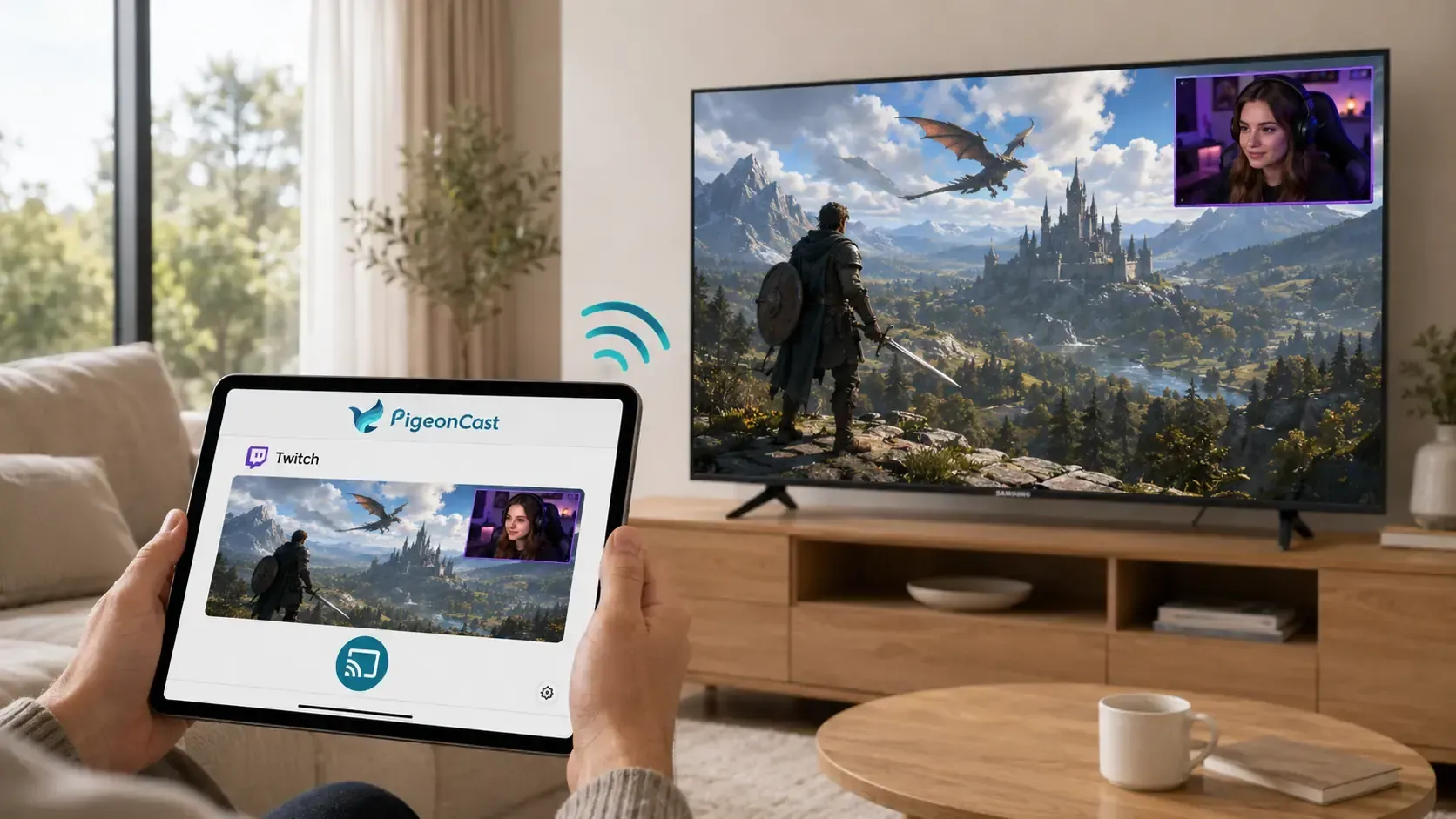
- With Chromecast: Connect a Chromecast device to the Samsung TV and use Google Cast in PigeonCast. This provides the most straightforward option for sending Twitch from a supported phone or computer.
- With AirPlay 2: If your Samsung TV supports AirPlay, PigeonCast lets an Android phone or tablet use that AirPlay receiver even though Android does not provide native AirPlay screen mirroring.
- With DLNA: If the TV only appears as a DLNA device, PigeonCast can send a detected Twitch video to the TV, but it will not mirror the entire device screen.


Overall Rating:



No PigeonCast app needs to be installed on the Samsung TV. The TV or connected Chromecast only needs to support one of these receiving methods.
Connect Twitch to Samsung TV with HDMI
HDMI provides a stable wired option and works with Samsung TVs that do not support the Twitch app or wireless mirroring. The cable or adapter you need depends on the device playing Twitch:
- Laptop with an HDMI port: Use a standard HDMI cable.
- USB-C phone, tablet, or laptop: Use a USB-C to HDMI cable or adapter, provided the device supports video output through USB-C.
- iPhone or iPad with a Lightning port: Use a Lightning Digital AV Adapter and an HDMI cable.
Step 1. Connect the source device to an available HDMI IN port on the Samsung TV.
Step 2. Press Home on the TV remote, open Connected Devices or Source, and select the corresponding HDMI input.
Step 3. Approve the connection or choose the screen display option on your phone, tablet, or computer if prompted.
Step 4. Open Twitch on the connected device, play a stream, and switch it to full screen. Video and audio should now play through the TV.
Why Twitch Is Not Working on Samsung TV
Before changing any settings, open Twitch on another device using the same network. If it works there, the problem is likely with the Samsung TV app or connection method. If it also fails, check the network or Twitch service before troubleshooting the TV.
- Twitch is missing: Confirm that your TV model and region support the app. Update the TV software and search the Samsung App Store again. If it still does not appear, use mirroring or HDMI instead.
- The app freezes or closes: Restart the TV, check for software and app updates, and reinstall Twitch if the TV provides that option.
- Streams keep buffering: Restart the router, reduce the Twitch video quality, or connect the TV through Ethernet for a more stable connection.
- The TV does not appear for mirroring: Place both devices on the same Wi-Fi network, turn off any VPN, and confirm that AirPlay or Smart View access is enabled.
- HDMI shows no picture or sound: Select the correct HDMI input, reconnect the cable or adapter, and confirm that the source device supports video output.
To Sum Up
Choose the setup that matches the features already available on your devices. The native Twitch app offers the easiest TV controls, wireless mirroring avoids extra cables, and HDMI is better when connection stability matters most. Before buying an adapter or streaming device, check the Samsung TV model, available ports, and video output support of the source device.
Twitch on Samsung TV FAQ
Can you use Twitch chat on a Samsung TV?
The available chat controls depend on the Twitch app version. If the TV app only displays chat or makes typing difficult, open the same stream on your phone and use it to send messages.
Does Twitch play in 4K on a Samsung 4K TV?
A 4K television does not make the Twitch stream itself 4K. Playback quality is limited to the resolutions supplied by the broadcaster and made available in the Twitch player. The TV can upscale a lower-resolution stream to fill its 4K screen, but it cannot restore detail missing from the original video.
Can you control Twitch on Samsung TV with your phone?
You can use the SmartThings app as a replacement for the Samsung remote. Add the TV to SmartThings, select it under Devices, and use the onscreen arrows, select button, volume controls, Home, and Back to navigate Twitch. It controls the TV interface but does not turn the phone into a Twitch chat keyboard.
Why is Twitch on the TV behind the stream on a phone?
TV apps and wireless mirroring usually maintain a larger playback buffer, so the television may run several seconds behind another device. This is normal and does not necessarily indicate a slow connection. If timing with live chat matters, use chat on the same device that is playing the video.
Does your phone need to stay awake while mirroring Twitch?
Yes. Screen mirroring continuously sends the phone display to the TV, so locking the phone will normally pause or end the mirrored picture. Google Cast can behave differently because the receiver may load the video separately, allowing the phone to act mainly as a controller.
Can you switch between Twitch accounts on a Samsung TV?
The Twitch TV app does not normally provide separate household profiles. To change accounts, sign out of the current Twitch account, select Sign In, and activate the TV again with the other account. Followed channels, subscriptions, and recommendations will then update to match that account.
Clara Rossi is an experienced technology editor and a seasoned expert in screen mirroring and casting technologies. With a keen eye for detail and a deep understanding of how to seamlessly connect devices, Clara excels at optimizing user experiences for effortless sharing and streaming. Whether you're seeking quick fixes or advanced tips, her expertise and responsiveness ensure that every query is met with a well-informed and efficient solution.