
Xbox One is built for gaming and entertainment, but it can also be useful when you want to put content from another device onto a bigger screen. Whether you're trying to share your phone, show something from a laptop, or simply avoid crowding around a small display, there are a few ways to make it work.
The setup isn't always obvious, though, because Xbox One handles different devices in different ways. This guide breaks down what the console can actually support and the most practical ways to screen mirror to Xbox One.
Does Xbox One Support Screen Mirroring?
Yes, Xbox One can be used for screen mirroring, but support depends on the device you're trying to mirror.
The console is not a universal screen mirroring receiver, so iPhone, Android, Windows, and Mac devices do not all connect in the same way. Some devices can use built-in wireless display features, while others need a browser-based or third-party receiver.
The sections below cover the most practical ways to screen mirror to Xbox One from different devices.
Method 1: Screen Mirror iPhone or Android to Xbox One with PigeonCast
PigeonCast can mirror the screen of an iPhone or Android phone to a browser. Since Xbox One has a built-in browser, you can use it as the receiving screen and show your phone on the TV connected to the console.
To screen mirror iPhone to Xbox One:
Step 1. Open the browser on your Xbox One.
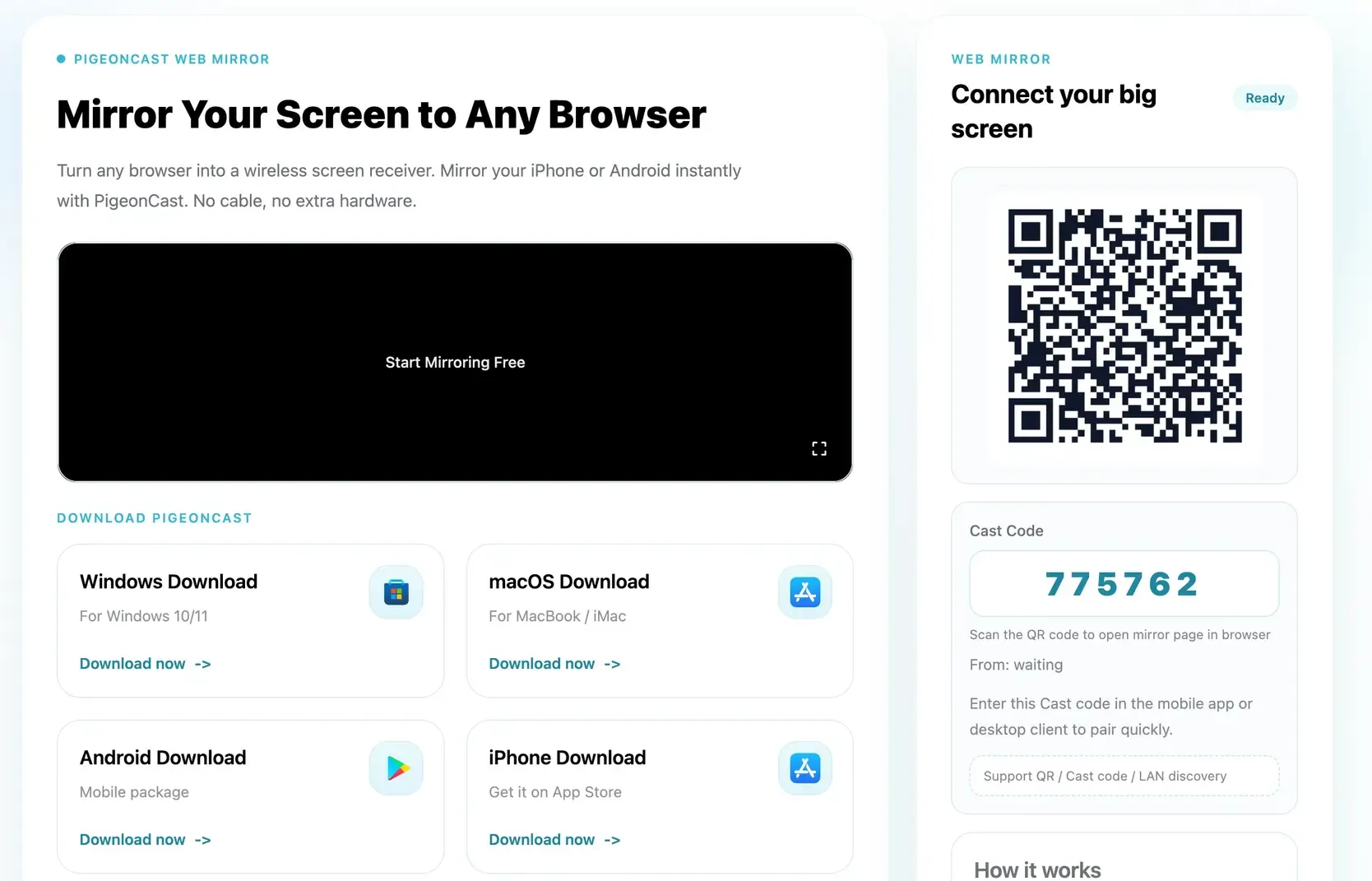
Step 2. Go to the PigeonCast Web Mirror page and keep it open.


Overall Rating:


Step 3. Install and Open PigeonCast on your iPhone, go to Explore > Mirror to Browser.
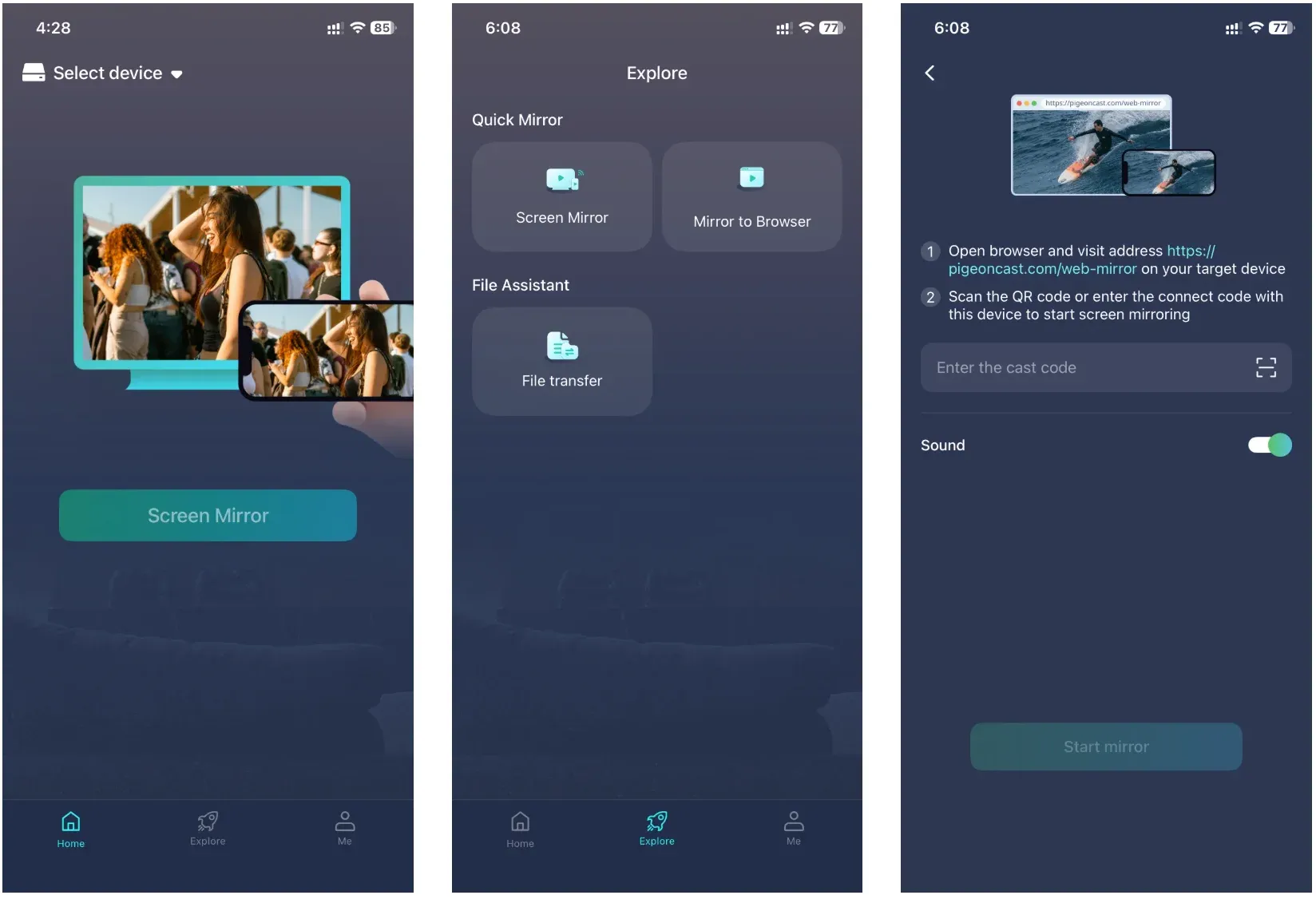
Step 4. Scan the QR code or enter the PIN shown in the Xbox browser.
Step 5. Start screen mirroring.
Step 6. Your iPhone screen will appear on the TV connected to the Xbox.
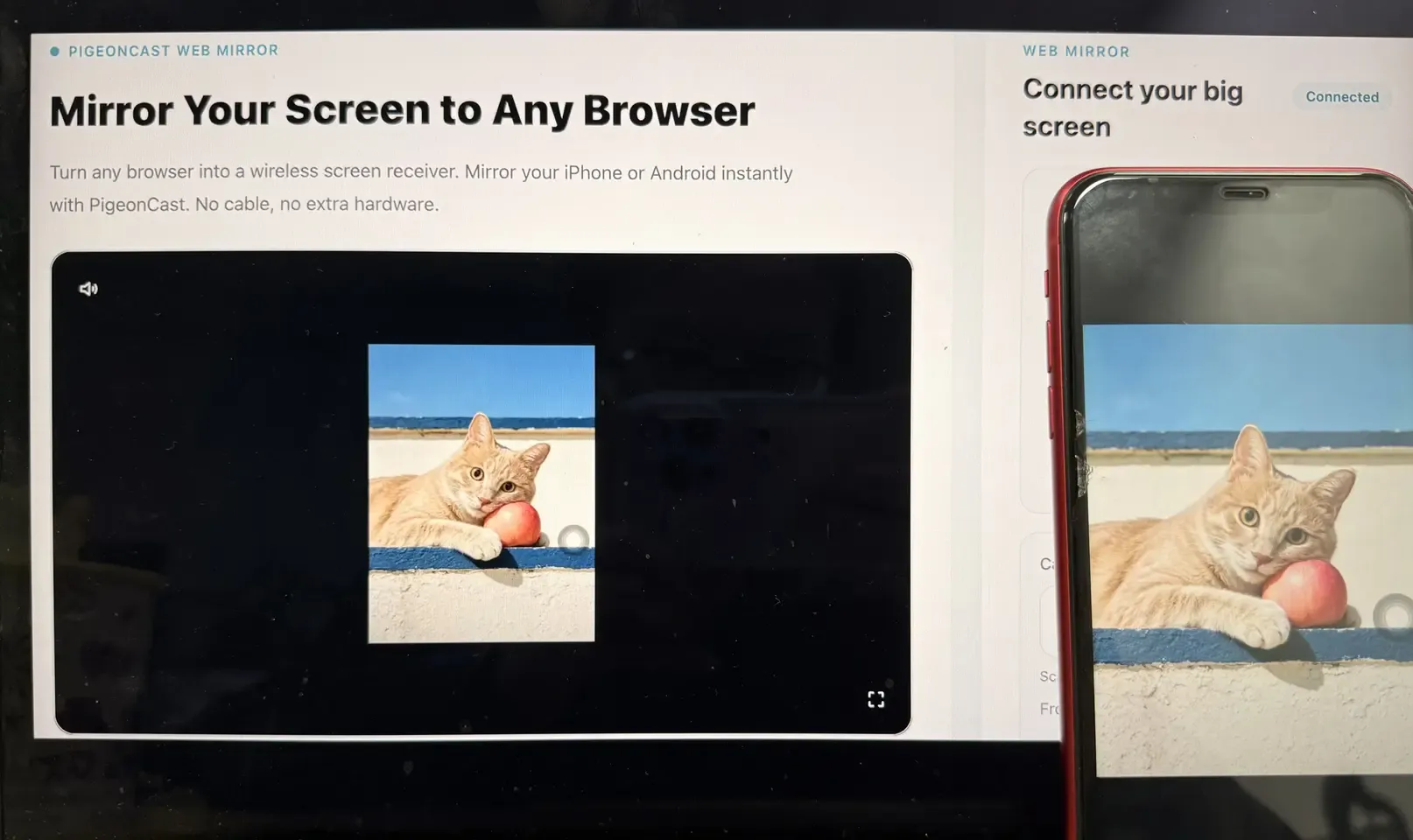
The same process also works with Android phones that have PigeonCast installed. Because the phone is sending its screen to the browser, Xbox One does not need to support AirPlay or Miracast directly for this setup.
Overall Rating:

This is especially useful for iPhone users, since Xbox One does not normally appear as a native AirPlay receiver in Apple's Screen Mirroring list.
Method 2: AirPlay iPhone, iPad, or Mac to Xbox One with AirServer
If you want Xbox One to behave more like a conventional AirPlay receiver, AirServer is another option.
AirServer Xbox Edition is designed to turn Xbox One into a wireless receiver for protocols including AirPlay, Google Cast, and Miracast. This means Apple devices can discover the Xbox through the same Screen Mirroring controls they normally use with an AirPlay-compatible display.
For iPhone and iPad users, the process is familiar once AirServer is running on the console.
To AirPlay an iPhone or iPad to Xbox One:
Step 1. Install and open AirServer on your Xbox One.
Step 2. Make sure the Xbox and your Apple device can communicate over the same network.
Step 3. Open Control Center on your iPhone or iPad.
Step 4. Tap Screen Mirroring.
Step 5. Select the AirServer receiver associated with your Xbox One.
Step 6. Enter the on-screen code if prompted.
Once connected, your iPhone or iPad display is mirrored through AirPlay to AirServer running on Xbox One.
Mac users can use the same general setup. Open AirServer on the Xbox, then open Control Center > Screen Mirroring on the Mac and select the AirServer receiver.
Method 3: Use Wireless Display on Xbox One If It Is Already Available
Microsoft's Wireless Display app can turn Xbox One into a Miracast receiver, allowing compatible Windows PCs and some Android phones to mirror their screens wirelessly to the console.
The main limitation is availability. The Xbox version is no longer easy to find through the current Microsoft Store, so this method is most useful if Wireless Display is already installed on your Xbox One or still appears in your console's library.
For a Windows PC:
Step 1. Open Wireless Display on your Xbox One.
Step 2. On Windows 10 or Windows 11, press Windows + K.
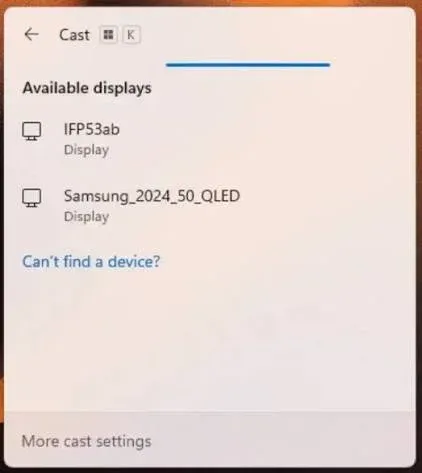
Step 3. Wait for the Xbox One receiver to appear.
Step 4. Select it to connect.
Step 5. Use Windows + P and choose Duplicate if you want the TV and PC to show the same screen.
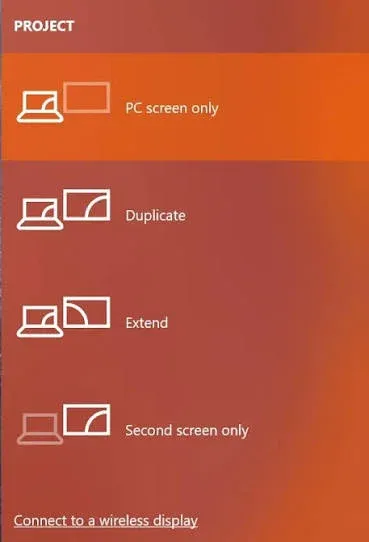
Windows uses Miracast for this type of connection, so the PC also needs compatible wireless display hardware and drivers.
Android can work in a similar way if the phone supports Miracast. Depending on the manufacturer, the feature may appear as Smart View, Wireless Display, Screen Mirroring, Screen Cast, or a similar setting. Samsung phones, for example, may expose compatible Miracast receivers through Smart View.
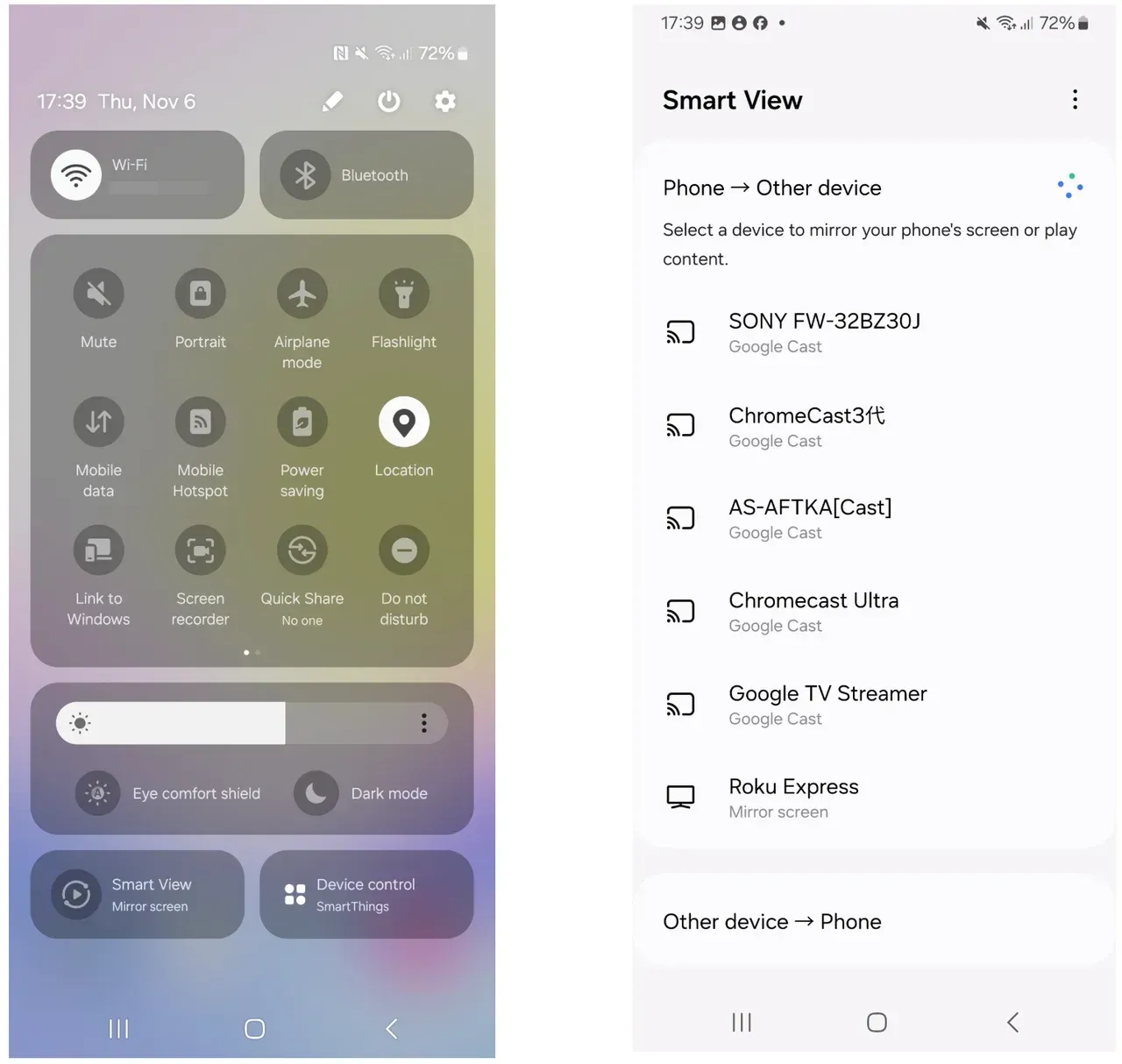
Because both the Xbox app and Miracast support on Android can vary by device, this method is better treated as an availability-dependent option rather than the most universal way to screen mirror to Xbox One.
What to Do If Screen Mirroring to Xbox One Isn't Working
If screen mirroring to Xbox One is not working, start by checking the receiving side. Make sure the app or browser page you are using on the Xbox is still open and ready for a connection. If you are using AirServer, it should be running and discoverable. If you are using PigeonCast, keep the browser page open while connecting from your phone.
Next, check whether the sending device actually supports the method you are trying to use. Windows PCs need Miracast support for Wireless Display, and some Android phones no longer include Miracast at all. iPhone and iPad do not connect to Wireless Display through Miracast, so they need another receiving method.
Network settings can also cause connection problems. Devices may fail to find each other on guest Wi-Fi, restricted school or office networks, or networks with client isolation enabled. VPNs and certain router settings can also interfere with local device discovery.
If the connection succeeds but the picture stutters or feels delayed, try reducing network traffic, moving closer to the router, and closing unnecessary apps on the sending device. Some delay is normal with wireless screen mirroring because the image has to be captured, encoded, transmitted, and displayed in real time.
For Miracast specifically, the connection can use Wi-Fi Direct between compatible devices, so it does not always behave like normal internet-based casting. AirPlay, browser-based mirroring, and other methods may have different network requirements.
Final Words
Screen mirroring to Xbox One is possible, but the right setup depends on what you're sending from and which receiving option is available on the console. For most users, the main choice is between a browser-based method, an AirPlay receiver, or Miracast when Wireless Display is already available.
If you only mirror occasionally, using the Xbox you already have can be perfectly practical. If screen sharing is something you do often across different phones, computers, or TVs, a dedicated casting device may be easier to manage in the long run.
Screen Mirroring to Xbox One FAQs
Can You Screen Mirror to Xbox One for Gaming?
You can, but wireless screen mirroring is not ideal for fast-paced or competitive games because it adds latency between your phone or computer and the TV. Casual games may feel fine, but shooters, rhythm games, and fighting games are more sensitive to delay. For gaming where responsiveness matters, a direct HDMI connection is usually the better choice.
Can You Watch Netflix or Other Streaming Apps Through Screen Mirroring?
Not always. Services such as Netflix, Disney+, Prime Video, and other DRM-protected platforms may block mirrored video or show a black screen while audio continues to play. In those cases, it is better to use the official Xbox app for the streaming service rather than trying to mirror the content from another device.
Does Screen Mirroring to Xbox One Support Full Screen?
The mirrored image can fill most or all of the TV, but the final layout depends on the aspect ratio of the sending device, the Xbox receiver method, and the TV. A portrait phone screen, for example, will normally leave space on the sides when displayed on a landscape TV.
What Resolution Can You Screen Mirror to Xbox One?
Resolution depends on the method you use, the sending device, and network conditions. AirServer advertises AirPlay mirroring up to 1080p at 60 FPS on supported setups, while browser-based and Miracast connections can vary. The source device's own screen resolution does not guarantee the same output resolution on the TV.
Can You Use an Xbox Controller While Screen Mirroring?
Usually, the Xbox controller continues to control the Xbox rather than the phone or computer being mirrored. Screen mirroring sends the display to the console, but it does not automatically turn the Xbox controller into an input device for the source phone or PC. Controller support depends on the app or game running on the original device.
Does This Also Work on Xbox Series X or Series S?
Some of the same concepts apply, but app availability and receiver support can differ between Xbox One and newer Xbox consoles. If you're using Xbox Series X or Series S, check whether the specific receiver app or browser-based method you want to use is currently available on that console before following the same steps.
Mia Clarke is a technology editor specializing in screen mirroring and casting solutions across multiple platforms. Mia provides clear, practical guides and in-depth insights to help users seamlessly connect their devices. Passionate about enhancing digital experiences, Mia is dedicated to keeping readers updated on the latest trends and tools in cross-platform screen sharing. Whether you’re looking to mirror your smartphone, laptop, or smart TV, Mia’s content delivers reliable, user-friendly advice to simplify your tech setup.