
Screen mirroring for gaming lets you play mobile or PC games on a larger TV or monitor without staying tied to a small screen. The setup is usually simple, but gaming is more demanding than video playback because even small delays, frame drops, or audio sync issues can affect how the game feels.
The actual experience depends on more than the mirroring protocol. Latency, frame rate, image compression, sound output, controller setup, and the type of game all matter.
Below, we break down what really affects screen mirroring for gaming and when it works well — or starts to feel limiting.
Screen Mirroring Latency for Gaming
Latency is the first thing most players notice when a mirrored game does not feel right.
Press a button on your controller and the game does not appear to respond quite as quickly as it does on the phone or laptop screen. Turn a car and the TV seems to follow your steering rather than move with it. Swipe the camera in a third-person game and the image feels slightly "heavy."
The important thing to understand is that there is no single piece of "screen mirroring lag." Several small delays are added together.
A simplified path looks like this: Input → Game Rendering → Video Encoding → Wireless Transfer → Video Decoding → TV Processing → Display.
Where Gaming Latency Comes From
The first part of the delay exists before screen mirroring is involved.
When you tap a touchscreen or press a controller button, the game has to process that input and render a new frame. The display on your phone, tablet, or computer then has to refresh.
Mirroring adds another path on top of that. Your device needs to take the newly rendered image and prepare it for transmission. In most wireless mirroring systems, this means encoding or compressing the video rather than simply sending the original display signal untouched.
The receiving device then has to:
- Receive the data.
- Buffer enough of the stream to play it reliably.
- Decode the video.
- Pass the image to the TV.
- Let the TV perform its own image processing before displaying it.
Microsoft describes wireless projection in similar terms: the stream needs to be created, transmitted wirelessly, and rendered in real time, with the graphics hardware, Wi-Fi hardware, and receiver all affecting the final experience.
Each individual step may be short. Added together, however, they can become noticeable in a game.
Network Latency vs Display Latency
It is easy to blame Wi-Fi for every delay, but a perfect wireless connection does not make wireless mirroring instantaneous.
A better Wi-Fi connection can reduce packet loss, retransmissions, congestion, and unstable frame delivery. It cannot remove the time required to encode and decode the picture.
The TV itself can also add delay. Many TVs normally apply processing such as motion smoothing, noise reduction, sharpness enhancement, dynamic contrast, frame interpolation, and picture scaling. Those features can make movies look better, but they take time.
That is why Game Mode matters. On many TVs, Game Mode bypasses part of the normal video-processing pipeline so that an incoming frame reaches the panel faster.
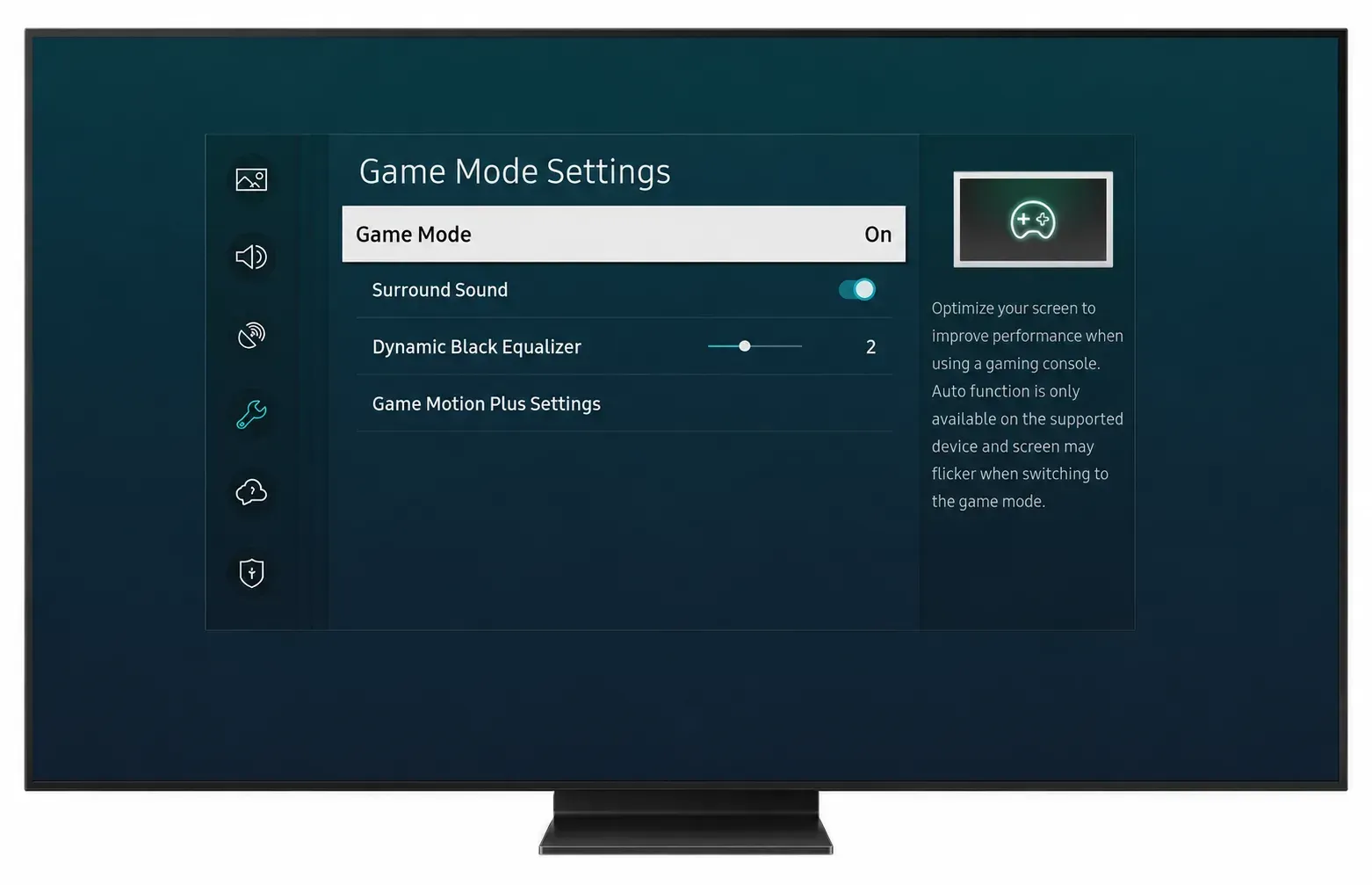
If your mirrored game feels delayed even though the connection is stable, switching the TV into Game Mode is one of the first changes worth testing.
Protocol and Device Differences
AirPlay, Miracast, and other screen mirroring methods do not all move the picture through exactly the same path.
For example, Windows Miracast can establish a Wi-Fi Direct connection between sender and receiver. AirPlay screen mirroring typically operates between Apple devices and compatible receivers on the local network; Apple currently instructs users to keep the devices on the same Wi-Fi network for standard iPhone-to-TV mirroring.
But the protocol name alone does not tell you how much gaming latency you will get. Two AirPlay televisions can behave differently. So can two Miracast receivers.
The result depends on the complete combination of source device, hardware encoder, wireless environment, receiver, decoder, TV, and TV picture mode.
For gaming, it is more useful to test the complete setup than to assume one protocol is automatically "low latency."
Screen Mirroring Performance by Game Type
The same amount of mirroring delay can be almost irrelevant in one game and frustrating in another.
A turn-based strategy game may give you several seconds to make a decision. A fighting game may expect you to respond within a handful of frames.
That difference matters more than the word "gaming" itself.
| Game Type | Typical Mirroring Experience | Main Concern |
|---|---|---|
| Card and board games | Usually very good | Very little timing pressure |
| Puzzle games | Usually very good | Low input sensitivity |
| Turn-based strategy | Usually good | Slow-paced interaction |
| Simulation games | Usually good | Depends on control complexity |
| Party games | Often good | Control setup matters more than perfect latency |
| Adventure games | Often acceptable | Occasional timing-sensitive actions |
| Racing games | Mixed | Steering response |
| Action RPGs | Mixed | Dodging, parrying, fast camera movement |
| Sports games | Mixed | Timing and controller response |
| FPS / battle royale | Often poor | Aim and reaction latency |
| Fighting games | Poorer | Frame-sensitive inputs |
| Rhythm games | Poorer | Input and audio timing |
A card game is therefore a very different screen-mirroring workload from a competitive shooter.
Consider a racing game. You turn the analog stick, but the car begins changing direction slightly later on the television than on the source device. Even if the delay is small, you naturally start correcting your steering late. That can lead to overcorrection, which makes the game feel less precise.
In an RPG where you mostly explore, talk to characters, and fight slower enemies, you may barely notice the same delay.
Rhythm games are particularly unforgiving because several things need to line up at once:
input + animation + music + sound effect
Even a relatively small mismatch can make a game feel off-beat.
This is why there is no useful universal answer to "Is screen mirroring good for gaming?"
A better question is: How sensitive is this particular game to delayed visual, audio, and controller feedback?
Screen Mirroring Video Quality for Gaming
Latency is only one part of the experience. Wireless mirroring also changes the way the game image reaches the display.
A direct HDMI signal can send display output to the screen without first treating the picture like a compressed wireless video stream.
Screen mirroring usually has to work within limited wireless bandwidth, which creates trade-offs between resolution, frame rate, bitrate, compression, and stability.
Frame Rate
A game running at 60 FPS produces a new frame roughly every 16.7 milliseconds. At 30 FPS, that interval doubles to roughly 33.3 milliseconds. That difference is easy to see in motion.
Try slowly rotating the camera in a game at 30 FPS and then at 60 FPS. At 60 FPS, scenery moves across the screen in smaller visual steps, so camera movement feels smoother.
This matters especially in racing games, shooters, sports games, platformers, and fast action games.
A phone may be rendering a game at 60 FPS while the mirrored output does not maintain the same frame rate consistently. If frames are dropped or the receiving path falls back to a lower frame rate, the TV can look noticeably less smooth than the device in your hand.
That is why the resolution number alone tells you very little about gaming quality.
Resolution
4K sounds automatically better than 1080p, but gaming makes the trade-off more complicated.
Higher resolution means more image data has to be encoded, transmitted, decoded, and displayed.
A system that can maintain 1080p + 60 FPS + consistent delivery can easily feel better to play than one attempting 4K + 30 FPS + occasional dropped frames.
The second image may look sharper while standing still, yet worse as soon as the camera starts moving.
For games, smoothness and consistency often matter more than maximum pixel count.
Compression During Fast Motion
Compression is easiest to hide when an image changes slowly.
Imagine a turn-based card game. Large areas of the screen remain almost unchanged between frames. The encoder can represent that type of image efficiently.
Now imagine a racing game:
- the road is moving toward you
- scenery passes quickly on both sides
- reflections change
- trees and grass contain fine detail
- the camera shakes
- particle effects appear
- the entire background changes continuously
The encoder has much more work to do.
If bandwidth or encoding performance becomes a bottleneck, you may notice softer textures, blocky areas, blurred grass or foliage, smearing during fast camera movement, reduced detail in shadows, and temporary drops in image quality.
This explains a common experience where a mirrored game looks extremely sharp while paused but noticeably softer as soon as gameplay resumes.
Frame Drops and Stutter
Low frame rate and stutter are not the same thing.
A stable 30 FPS game can still look consistent.
Stutter happens when frames arrive unevenly.
For example, a mirrored stream might deliver several frames normally, hesitate briefly, then catch up. Even if the average frame rate still looks reasonable on paper, uneven frame pacing can make movement feel rough.
The cause may be unstable Wi-Fi, encoder overload, thermal throttling, receiver performance, background network traffic, and a demanding game already pushing the source device hard.
Gaming creates a particularly difficult case because the device has to run the game and encode the screen at the same time.
Screen Mirroring Audio for Gaming
Audio delay is less obvious when you first start mirroring, but once you notice it, it can be difficult to ignore.
A simple example is firing a weapon. You expect three events to feel like one action: button press → muzzle flash → gunshot.
If the flash appears and the gunshot arrives noticeably later, the game feels disconnected.
TV Speakers
Using the TV's built-in speakers is usually the simplest audio path.
The mirrored video and audio travel toward the same receiving device, which gives the system a better chance of keeping them synchronized.
That does not guarantee zero delay, but it avoids adding another independent wireless link.
Bluetooth Headphones
Bluetooth can make the signal path more complicated.
Imagine this setup:
- Video: Phone → screen mirroring → TV
- Audio: Phone → Bluetooth headphones
The picture and sound are now travelling through different systems.
If those two paths have different delays, the audio may appear early or late relative to the television image.
This does not mean Bluetooth headphones can never be used. It simply means that when synchronization matters, they add another variable.
If a game suddenly feels strange after connecting Bluetooth earbuds, compare it with the TV speakers before changing anything else.
Soundbars and External Speakers
A soundbar can introduce yet another processing stage.
Your chain may become Phone → Receiver/TV → HDMI ARC/eARC or optical output → Soundbar.
Some televisions and sound systems offer AV-sync or audio-delay settings specifically because video and audio processing do not always take the same amount of time.
For normal adventure games, a slight mismatch may not bother you. For rhythm games, music games, shooters, or games that rely heavily on audio cues, it can matter much more.
Screen Mirroring Controls for Gaming
Putting a game on a TV changes where you look, but it does not automatically change how you control it.
That creates one of the least-discussed problems with gaming through screen mirroring.
Touch Controls
Touchscreen games are designed around the assumption that you can see your fingers and the controls at the same time.
Once you start watching the television instead, that changes.
Simple controls can still work well:
- swipe left or right
- tap anywhere
- drag an object
- make occasional menu selections
Complex virtual controls are harder.
A mobile shooter may have separate areas for movement, aiming, firing, crouching, jumping, reloading, switching weapons, and using items.
If you keep looking down at the phone to find those controls, you lose much of the benefit of playing on the bigger screen.
This is one reason a slow puzzle game often feels much better mirrored than a touch-heavy action game, even if both have similar display latency.
Bluetooth Controllers
A physical controller changes the setup considerably.
Once you can keep your eyes on the TV and control the game by feel, the phone or tablet can behave more like a small game console.
The controller still connects to the source device rather than the mirrored TV in most setups: Controller → Phone/PC → Game → Mirroring → TV.
That means the controller itself does not bypass mirroring latency, but it removes the need to look back at the source screen.
For games with proper controller support, this often makes a bigger practical difference than simply increasing resolution.
Keyboard and Mouse
PC gaming creates a slightly different situation because you may already be sitting at a keyboard and mouse.
For slower PC games, wireless mirroring can work as a convenient way to move gameplay to a TV without changing your normal controls.
Fast mouse movement exposes latency much more clearly, however.
A mouse cursor or first-person camera gives immediate visual feedback for very small hand movements. Even modest display delay can therefore feel more obvious with a mouse than with slower controller input.
Competitive mouse-and-keyboard games are among the hardest use cases for wireless screen mirroring.
Screen Mirroring Setup for Gaming
The actual setup is usually the easy part. The important thing is to choose the correct receiver for the device you are using.
Mirror Android Game to TV
On many Android phones:
- Connect the phone and TV or receiver as required by your mirroring method.
- Open Quick Settings.
- Look for Cast, Screen Cast, Smart View, Wireless Display, or the manufacturer's equivalent.
- Select the receiving TV or device.
- Wait until the phone screen appears on the TV.
- Open the game.
- Rotate the phone to landscape if the game supports it.
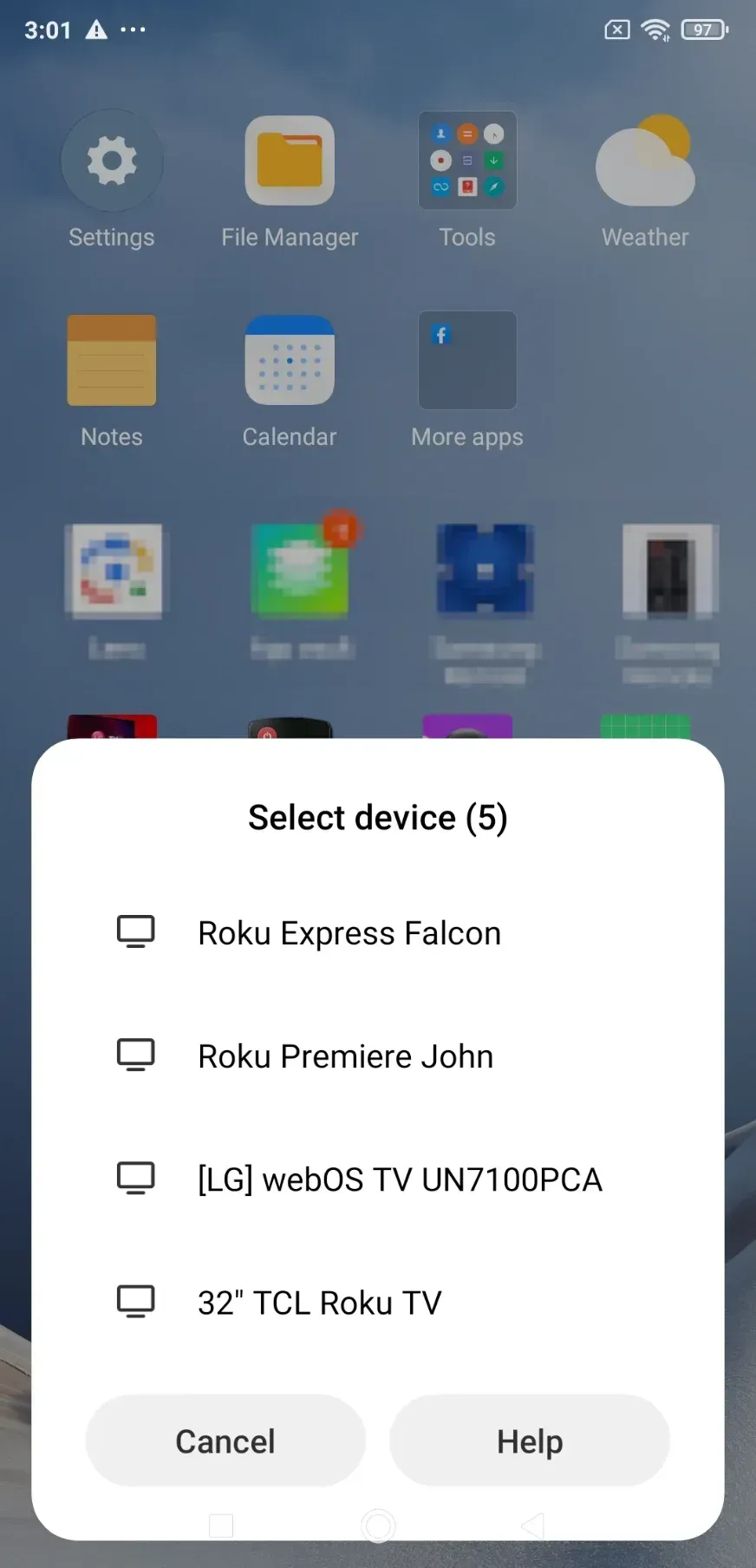
Android terminology varies significantly between Samsung, Pixel, Xiaomi, OnePlus, and other manufacturers, so the mirroring option may not have the same name on every device.
If a game supports a Bluetooth controller, pair the controller with the phone before launching the game so you can confirm that the controls work correctly before moving your attention to the TV.
Mirror iPhone Game to TV
For a compatible AirPlay setup:
- Connect the iPhone or iPad and receiving device to the same Wi-Fi network.
- Open Control Center.
- Tap Screen Mirroring.
- Select the Apple TV, Mac, or compatible AirPlay television.
- Enter the AirPlay code if one appears.
- Launch the game.
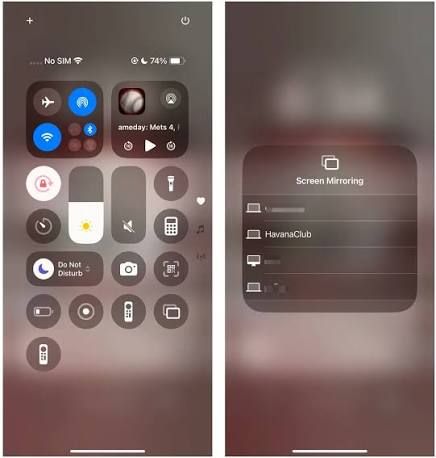
Apple officially supports mirroring an iPhone screen to Apple TV 4K, compatible AirPlay-enabled televisions, and supported Macs.
If you use a controller, connect it to the iPhone or iPad rather than expecting the TV to control the mobile game.
Mirror Windows PC Game to TV
For a compatible wireless display:
- Press Windows + P on your keyword.
- Duplicate and Extend serve different purposes.
- Select the wireless receiver or compatible display.
- Choose the appropriate display mode.
- Launch the game.
- Switch the TV to Game Mode if available.
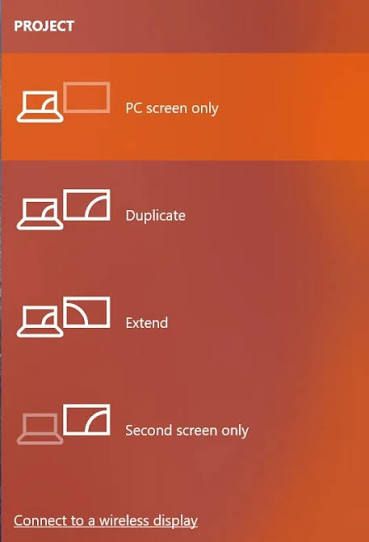
Be aware that wireless display support depends on the PC's graphics, Wi-Fi hardware, drivers, and receiving device. Microsoft specifically notes that hardware video encoding and wireless hardware contribute to Miracast performance.
Mirror Mac Game to TV
On a compatible AirPlay setup:
- Make sure the Mac and receiving display are connected appropriately.
- Open Control Center on the Mac.
- Choose Screen Mirroring.
- Select the receiving display.
- Choose whether to mirror or extend the desktop where supported.
- Move or launch the game on the TV display.
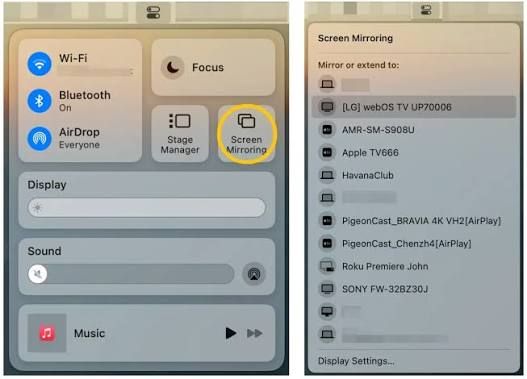
For games that need fast mouse response, compare the mirrored display with the Mac's own screen before committing to a long session. The difference is often easier to feel during quick camera movement than while looking at menus.
Using PigeonCast for Cross-Platform Mirroring
If your phone, computer, and receiving screen do not share the same native mirroring protocol, a cross-platform solution such as PigeonCast can make the setup much easier. It supports screen mirroring across supported phones, computers, TVs, and other receiving devices without requiring you to stay within one ecosystem.
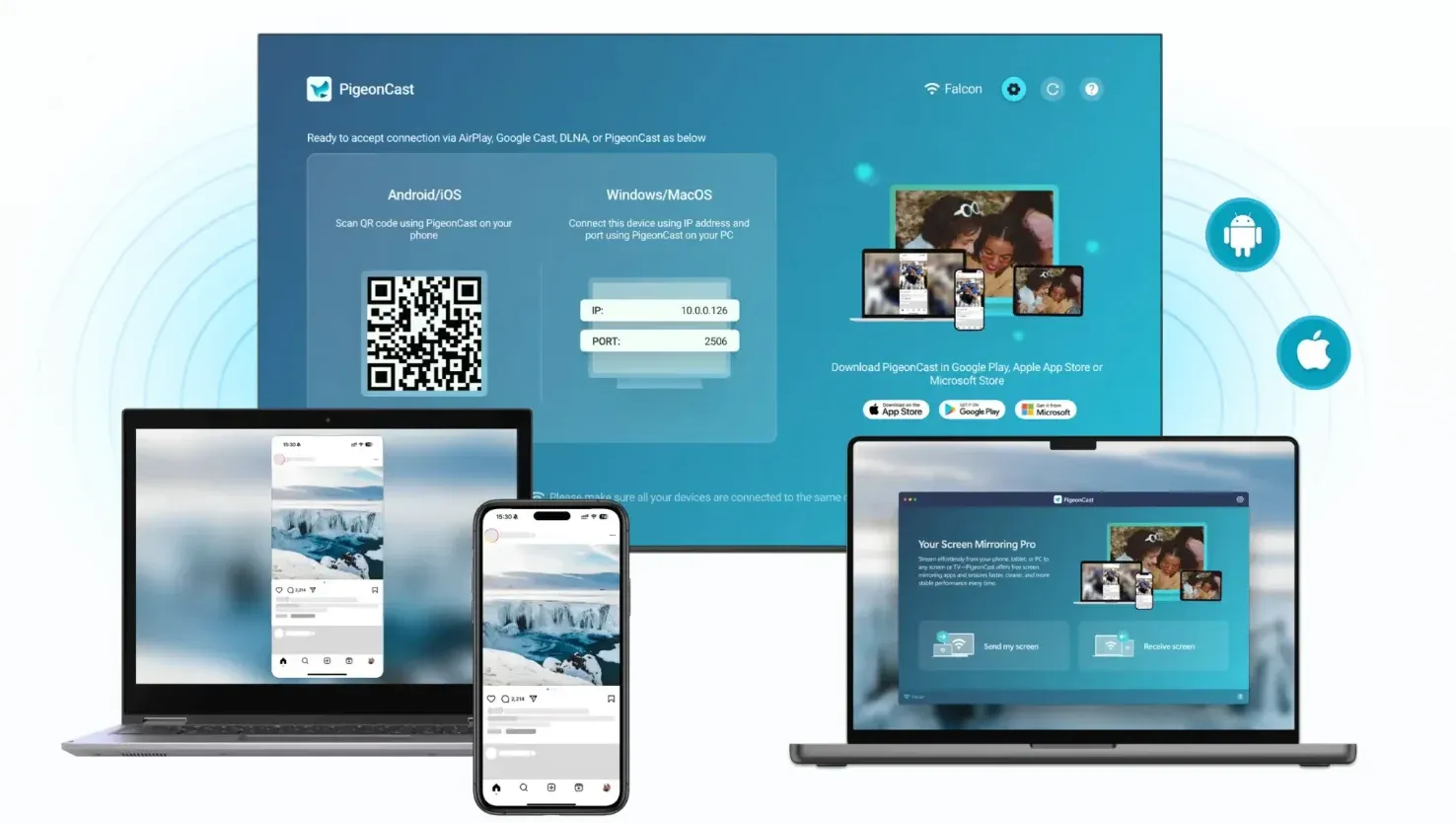
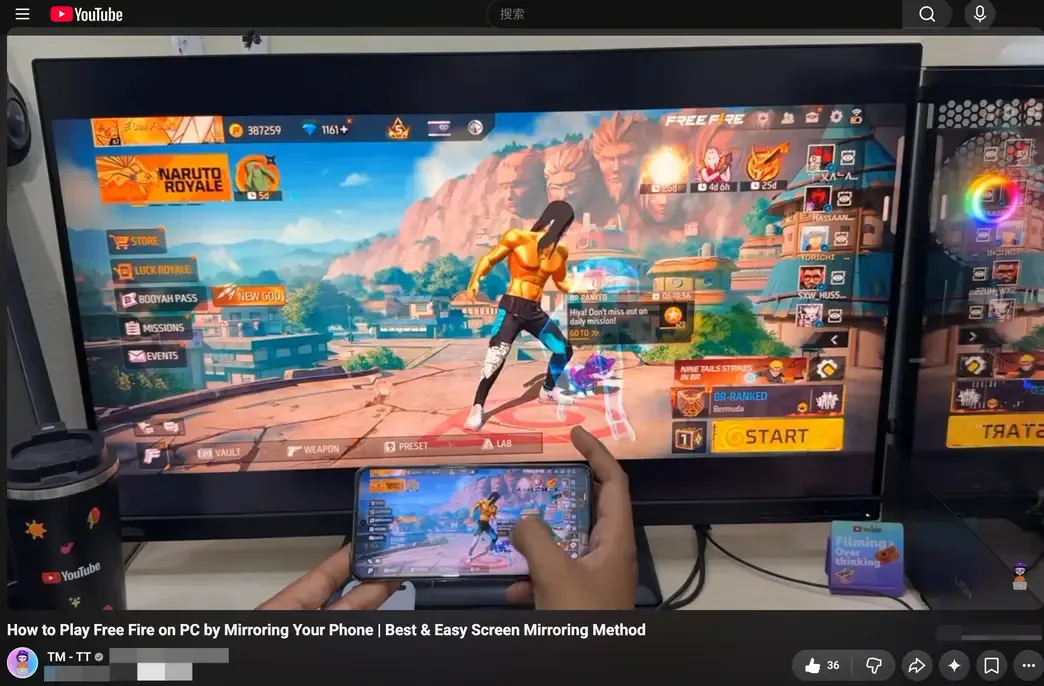
Gaming is one practical use case. In a recent real-world demonstration, a gaming creator used PigeonCast to mirror Free Fire from a phone to a PC while continuing to play the game. The mirrored gameplay remained smooth in the video, with no obvious delay interfering with normal movement or combat.


Overall Rating:



This makes PigeonCast particularly useful when you want a larger screen but do not have a convenient native connection between the two devices. The final experience can still vary with your device performance, network conditions, frame rate, and receiving hardware, so highly competitive players should test their own setup before relying on wireless mirroring for latency-sensitive play.
Screen Mirroring Optimization for Gaming
Once the connection works, do not start by changing everything at once.
Play the same game for a minute or two and identify what actually feels wrong.
Is the picture delayed? Is it blurry only during movement? Does it stutter? Is the sound late? Different problems need different fixes.
Enable Game Mode on the TV
This is one of the most important settings to test.
Game Mode typically reduces the amount of picture processing performed before each frame appears on screen.
If your TV normally uses motion interpolation or heavy picture enhancement, the difference can be noticeable even though nothing about the wireless connection has changed.
Prefer a Cleaner Wi-Fi Band
If your setup uses the local network, 5GHz is often preferable to a crowded 2.4GHz network because it generally offers more available bandwidth and more channels with less interference. Microsoft likewise recommends multi-band support for higher-quality wireless projection.
Do not interpret this as "5GHz removes screen mirroring lag." It can improve the network portion of the connection. Encoding, decoding, buffering, and TV processing still remain.
Keep the Wireless Path Short and Clean
A speed test showing a fast internet connection does not necessarily tell you whether local mirroring will be stable. Your game stream is moving between devices inside your home.
Problems can come from several walls between devices and router, crowded apartment Wi-Fi, weak receiver antennas, large downloads on the same network, and another device streaming high-bitrate video.
If the game stutters, test the devices closer together before changing resolution or replacing hardware.
Reduce Background Load on the Source Device
Running a demanding game already uses the CPU and GPU heavily. Screen mirroring adds video capture and encoding.
If the device is also downloading updates, recording the screen, running a video call, syncing cloud files, or keeping many heavy apps active, the system has less headroom.
Closing unnecessary tasks is particularly useful when the game itself runs smoothly but the mirrored stream does not.
Watch for Heat
Long gaming sessions generate heat. So does real-time video encoding.
Phones and thin laptops may reduce processor or graphics performance when temperatures rise. A setup that feels smooth during the first five minutes can therefore become less consistent later.
If performance gradually deteriorates rather than failing immediately, heat is worth checking.
Remove thick phone cases if appropriate, avoid placing the device in direct sunlight, and do not cover laptop ventilation.
Prioritize Stability Over Maximum Resolution
If the mirroring software or receiving device lets you choose between quality modes, do not automatically select the highest resolution.
For gaming, try to preserve stable frame delivery, usable latency, frame rate, and resolution in roughly that order.
A stable image that feels responsive is more useful than a sharper image that regularly stutters.
Test Audio Separately
If gameplay feels fine but sound effects feel late:
- Try the TV's built-in speakers.
- Disconnect Bluetooth earbuds temporarily.
- Disable unnecessary sound processing.
- Check AV-sync settings if using a soundbar.
Changing Wi-Fi settings will not fix every audio problem.
Screen Mirroring vs Wireless HDMI vs Wired HDMI for Gaming
Screen mirroring is only one way to put a game on a larger screen.
The right choice depends on whether you value convenience, mobility, or response time most.
| Feature | Screen Mirroring | Wireless HDMI | Wired HDMI |
|---|---|---|---|
| Extra hardware | Often none if devices already support mirroring | Transmitter and receiver required | Cable and possibly an adapter |
| Mobility | Excellent | Good | Limited by cable |
| Setup | Usually simple | Requires hardware setup | Usually straightforward |
| Latency | Variable | Usually more consistent | Usually lowest |
| Image consistency | Depends on network and encoding | Generally more predictable | Most predictable |
| Network dependency | Often yes | Usually uses its own link | No |
| Best fit | Casual and convenient gaming | Wireless living-room setups | Latency-sensitive gaming |
Screen Mirroring
Choose screen mirroring when convenience is the main reason for using the TV.
It works particularly well when you already own compatible devices, you only play occasionally, the game is not highly timing-sensitive, you want to move between rooms easily, or running a cable is inconvenient.
The biggest advantage is that there may be nothing else to buy.
Wireless HDMI
Wireless HDMI sits between software mirroring and a normal HDMI cable.
A transmitter takes the display output from the source device and sends it to a dedicated receiver attached to the display.
Because the system is designed specifically to transport a display signal rather than operate as a general screen-mirroring platform, performance can be more predictable.
It is useful when you want the physical freedom of a wireless setup but are willing to buy dedicated hardware.
That still does not mean every wireless HDMI kit is suitable for fast gaming. Latency varies considerably between products, so the manufacturer's actual latency specifications and independent testing matter.
Wired HDMI
A cable is the least exciting option, but it remains the reference point when response time matters.
You remove the wireless transmission stage and much of the encoding/decoding complexity found in general-purpose wireless mirroring.
For competitive shooters, fighting games, rhythm games, and high-refresh-rate PC gaming, wired HDMI is generally the more sensible choice when the device supports it.
Screen mirroring solves a convenience problem. HDMI solves a performance problem. Those are not always the same problem.
Screen Mirroring for Cloud Gaming
Cloud gaming adds an important complication because the game is already travelling across a network before screen mirroring begins.
With a locally installed game, the basic path is: Controller → Device → Game → Mirroring → TV.
With cloud gaming, it becomes closer to: Controller → Device → Internet → Cloud Server → Internet → Device → Mirroring → TV.
The server runs the game remotely, encodes the video, and sends it back to your device. Your device then decodes that cloud stream.
If you mirror the device to a TV, the picture may need to go through another capture, encoding, wireless transmission, and decoding stage before you see it on the big screen.
That does not automatically make cloud gaming through screen mirroring unusable.
A slower single-player title may still feel perfectly playable. But it means you are combining two latency-sensitive systems: cloud streaming + screen mirroring.
If your TV supports the cloud gaming service natively, using the TV app can shorten the chain.
Likewise, connecting a laptop or other supported device directly to the display can avoid the additional mirroring stage.
For cloud gaming, every extra hop deserves more scrutiny than it would with a local puzzle game.
Final Words
Screen mirroring for gaming works best when the connection matches the game you want to play. A turn-based game can tolerate a little delay, while racing, rhythm, and competitive games make latency, frame rate, and audio sync much easier to notice.
That does not mean wireless mirroring is limited to slow or casual games. With a stable network and capable devices, even faster-paced titles can deliver a smooth big-screen experience. The key is to look beyond resolution alone and pay attention to responsiveness, frame consistency, sound, and controls.
If you want an easier way to mirror games across different devices, PigeonCast provides a cross-platform option for sending your phone or computer screen to supported PCs, TVs, and other displays. It can be especially useful when your devices do not share the same built-in mirroring system and you simply want to get the game onto a bigger screen without adding another cable.
For games where every frame matters, a wired connection may still be worth considering. For everything else, a well-configured wireless setup can make playing on a bigger screen much more convenient without giving up a good gameplay experience.
Screen Mirroring for Gaming FAQ
Can You Screen Mirror Mobile Games to a TV?
Yes. If your phone and TV support a compatible mirroring method, you can display the entire game screen from mobile on the TV while continuing to run and control the game from your phone. The exact setup depends on your device, TV, and the mirroring method you use.
Can You Play Games on a TV Without a Console?
Yes. A phone, tablet, or computer can act as the gaming device while the TV serves as the larger display. Screen mirroring is one way to do this without a console, especially for mobile games and controller-supported titles.
Can You Screen Mirror Games to a PC?
Yes, as long as the PC can act as a receiving device. Some third-party mirroring tools, including PigeonCast, support phone-to-PC mirroring, which can be useful if you want to play a mobile game on a larger computer screen.
Does Screen Mirroring Use Internet Data While Gaming?
Not necessarily. Local screen mirroring usually sends the display between devices over the same local network or a direct wireless connection, so the mirroring itself does not require internet data. However, online and cloud games still need an internet connection for gameplay.
Can You Keep Playing on Your Phone While Mirroring to a TV?
Yes. Screen mirroring duplicates the phone's display rather than moving the game to the TV. The game continues running on the phone, and your taps, swipes, or controller input are reflected on the larger screen.
Does Screen Mirroring Drain the Phone Battery Faster?
Usually, yes. The phone is running the game while also capturing, encoding, and transmitting the screen, which increases processor and wireless activity. Long gaming sessions can therefore use more battery and generate more heat than playing on the phone alone.
Can You Screen Mirror a Game Without Wi-Fi?
Sometimes. Miracast and some dedicated wireless display solutions can create a direct connection without using a traditional Wi-Fi router. AirPlay and many other mirroring setups usually rely on both devices being connected to the same local network.
Why Does My Game Stay in Portrait Mode on the TV?
Screen mirroring usually follows the orientation and aspect ratio of the source device. If the game only supports portrait mode, the TV may show unused space on both sides. If it supports landscape but still does not fill the screen properly, adjusting the TV display settings or the mirroring setup can help make screen mirroring full screen on TV.
Mia Clarke is a technology editor specializing in screen mirroring and casting solutions across multiple platforms. Mia provides clear, practical guides and in-depth insights to help users seamlessly connect their devices. Passionate about enhancing digital experiences, Mia is dedicated to keeping readers updated on the latest trends and tools in cross-platform screen sharing. Whether you’re looking to mirror your smartphone, laptop, or smart TV, Mia’s content delivers reliable, user-friendly advice to simplify your tech setup.