
Want to watch live sports, news, and shows on a bigger screen? YouTube TV on FireStick makes it possible, but the best way to connect is not always obvious. Should you install the official app, cast from your phone, or mirror your screen? This guide explains how each option works, when to use it, and how to fix common issues so you can start watching with less trial and error.
Can You Watch YouTube TV on FireStick
Yes. You can download the official YouTube TV app on supported FireStick and Fire TV devices. Keep in mind that YouTube TV is a separate live TV service from the regular YouTube app. You need an active subscription, a Google account, and access from a supported location to watch it. You can use YouTube TV on FireStick in three ways, but they do not offer the same experience:
| Method | Best for | What to expect |
|---|---|---|
| Install the official app | Watching live channels, recordings, and on-demand programs | The most reliable option with full playback and remote controls |
| Cast from a phone | Finding programs and controlling playback from your phone | Availability depends on whether the YouTube TV app can detect or link to your FireStick |
| Mirror your screen | Displaying your phone or computer when direct casting is unavailable | Compatibility varies, and protected videos may show a black screen |
How to Watch YouTube TV on FireStick
The official app is the easiest place to start. It keeps playback on the FireStick and gives you direct access to live channels, recordings, and on-demand programs with the Fire TV remote.
Method 1. Install the YouTube TV App on FireStick
If your FireStick supports the YouTube TV app, this method gives you the full TV interface and keeps playback on the streaming device, so your phone does not need to stay connected. Before you begin, connect the FireStick to the internet and prepare the Google account linked to your active YouTube TV membership.
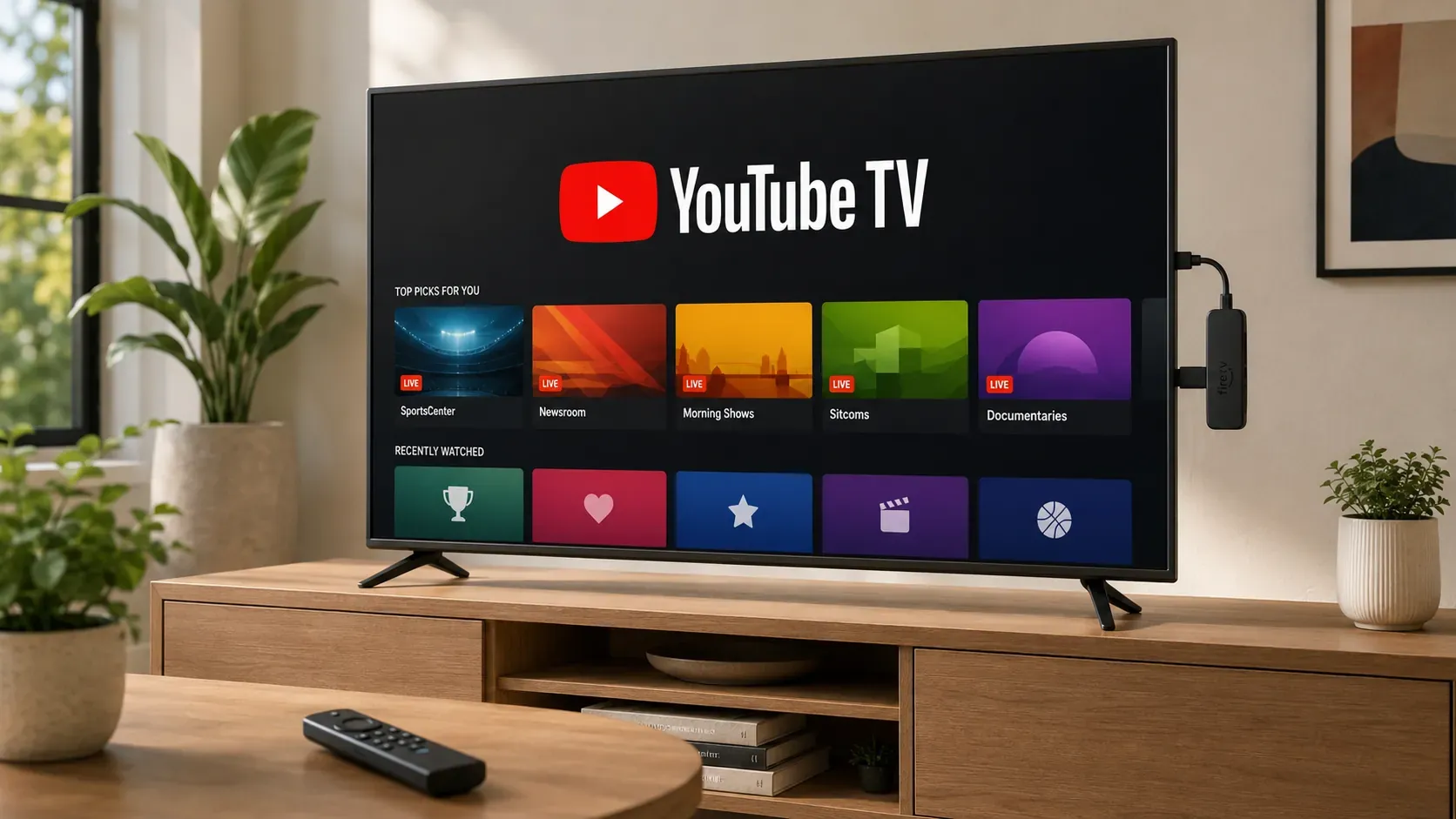
Step 1. Go to the Fire TV home screen and select Search. You can also press the Alexa button on your remote and say “YouTube TV”.
Step 2. Search for YouTube TV and select the correct app from the results.
Step 3. Select Get or Download, depending on the button shown on your Fire TV. Wait for the installation to finish, and then select Open.
Step 4. Select Sign In and follow the instructions displayed on the TV. If the app shows a QR code or activation address, open it on your phone or computer and sign in with the Google account linked to your YouTube TV membership.
Step 5. If YouTube TV asks you to confirm your location, follow the on-screen prompt. Once signed in, use the Fire TV remote to browse the program guide, play a channel, or open your library.
Method 2. Cast YouTube TV from Your Phone
Casting lets you choose a program on your phone and control its playback without mirroring the entire screen. However, a FireStick does not provide the same built-in Google Cast support as a Chromecast. Your phone may detect a compatible smart TV or another receiver connected to the TV, but the FireStick itself may not appear.
Step 1. Connect your phone or computer and the compatible receiving device to the same Wi-Fi network.
Step 2. Open YouTube TV on your phone, tablet, or computer and sign in to your account.
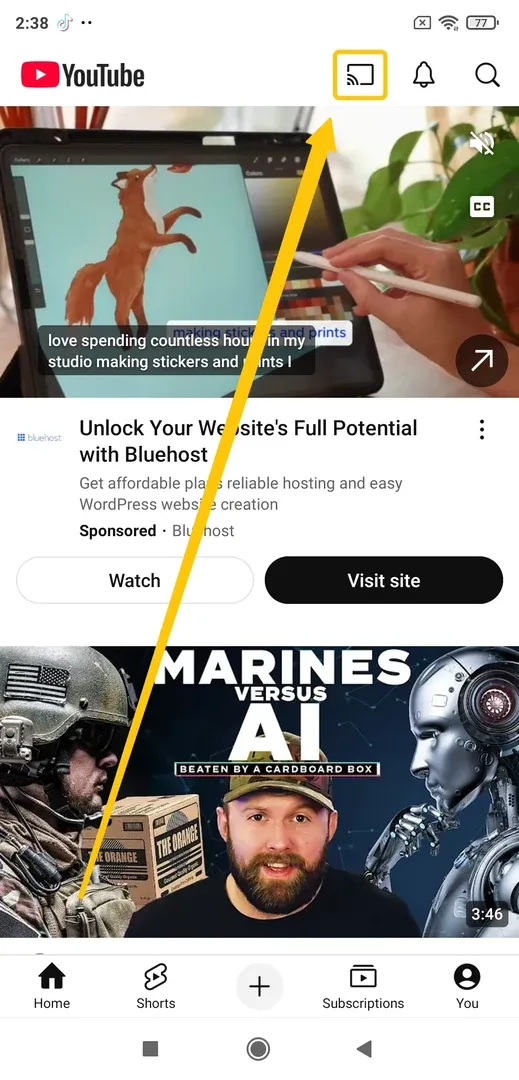
Step 3. Select the Cast or AirPlay icon in the upper-right corner.
Step 4. Choose a compatible device from the list. YouTube TV should open on that device, and the selected program will begin playing.
Step 5. Use your phone or computer to browse channels, pause playback, or choose another program.
Method 3. Mirror Your Device to FireStick
Screen mirroring copies the entire phone or computer display to the FireStick. Unlike casting, playback remains on the sending device, which must stay connected and awake. Some YouTube TV programs use content protection and may show a black screen during mirroring, so this method cannot replace the official app for every channel. For native mirroring, first check whether your FireStick provides the feature:
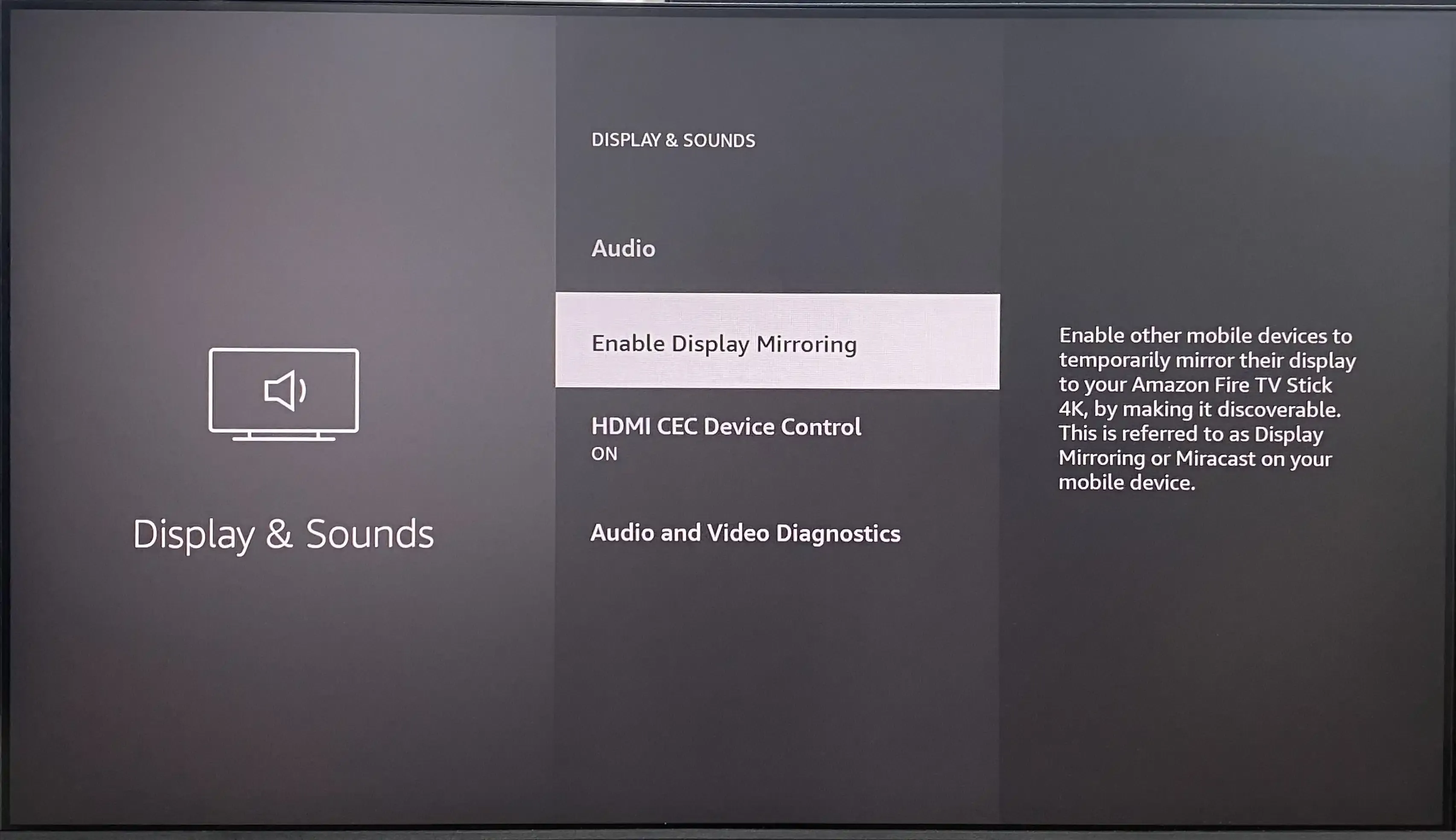
Step 1. Hold the Home button on the Fire TV remote and look for Mirroring. On some models, you can also go to Settings > Display & Sounds > Enable Display Mirroring.
Step 2. Open Smart View, Screen Cast, or Wireless Display on a compatible Android phone. On Windows, press Windows + K to open the available display list.
Step 3. Select your FireStick and wait for the screen to appear on the TV. Keep the sending device in landscape mode when watching YouTube TV.
For homes that use different types of devices, PigeonCast provides a cross-platform way to mirror iPhone, Android, Windows, or Mac to a FireStick. It supports AirPlay, Google Cast, DLNA, and app-based connections, so you do not need to rely on the FireStick’s native Miracast support or add an Apple TV, Chromecast, or HDMI adapter.
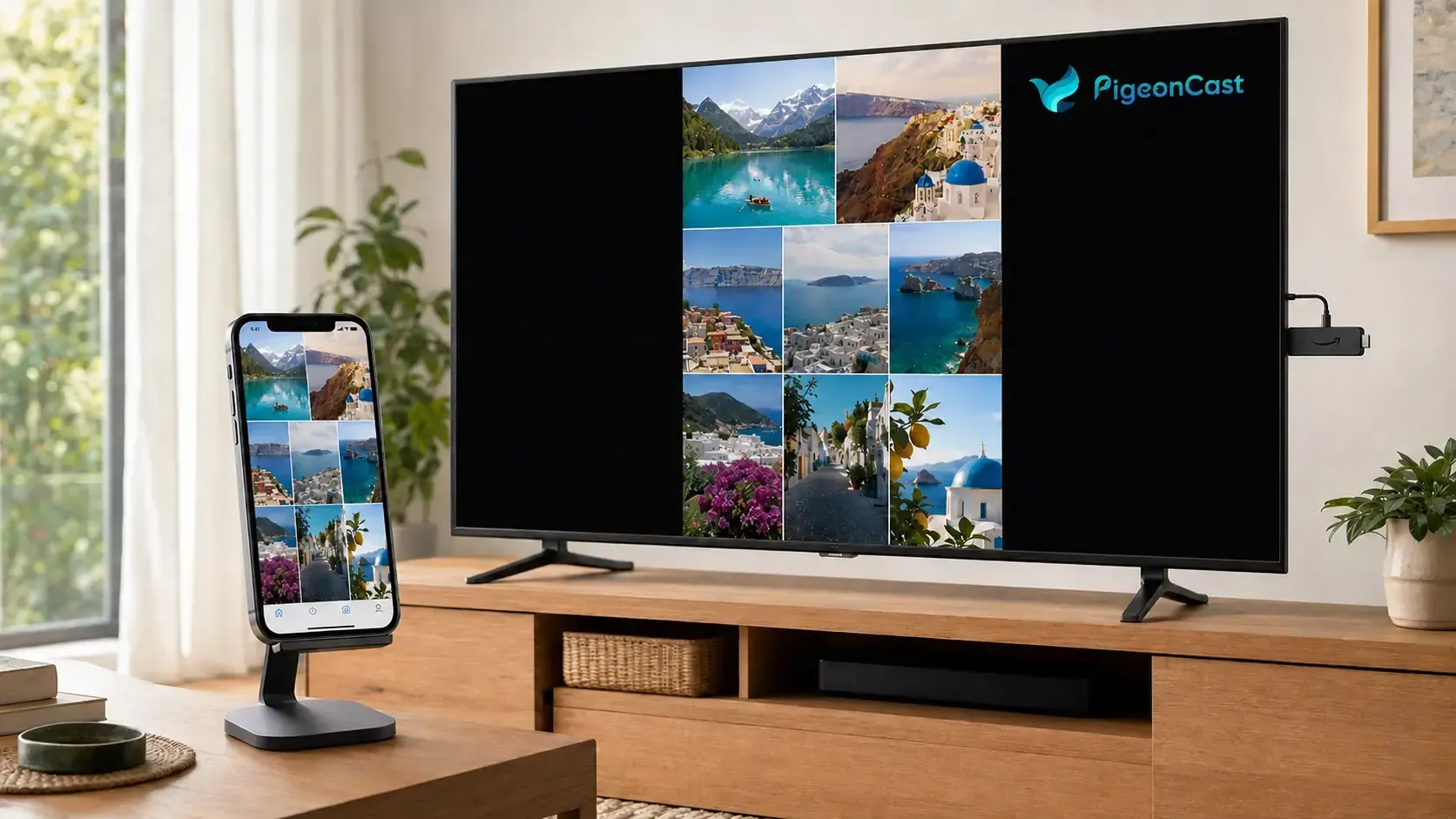
Step 1. Connect both devices to the same Wi-Fi network and open PigeonCast on each device.


Overall Rating:



Step 2. Install PigeonCast on the FireStick and the phone or computer you want to mirror from the app store.
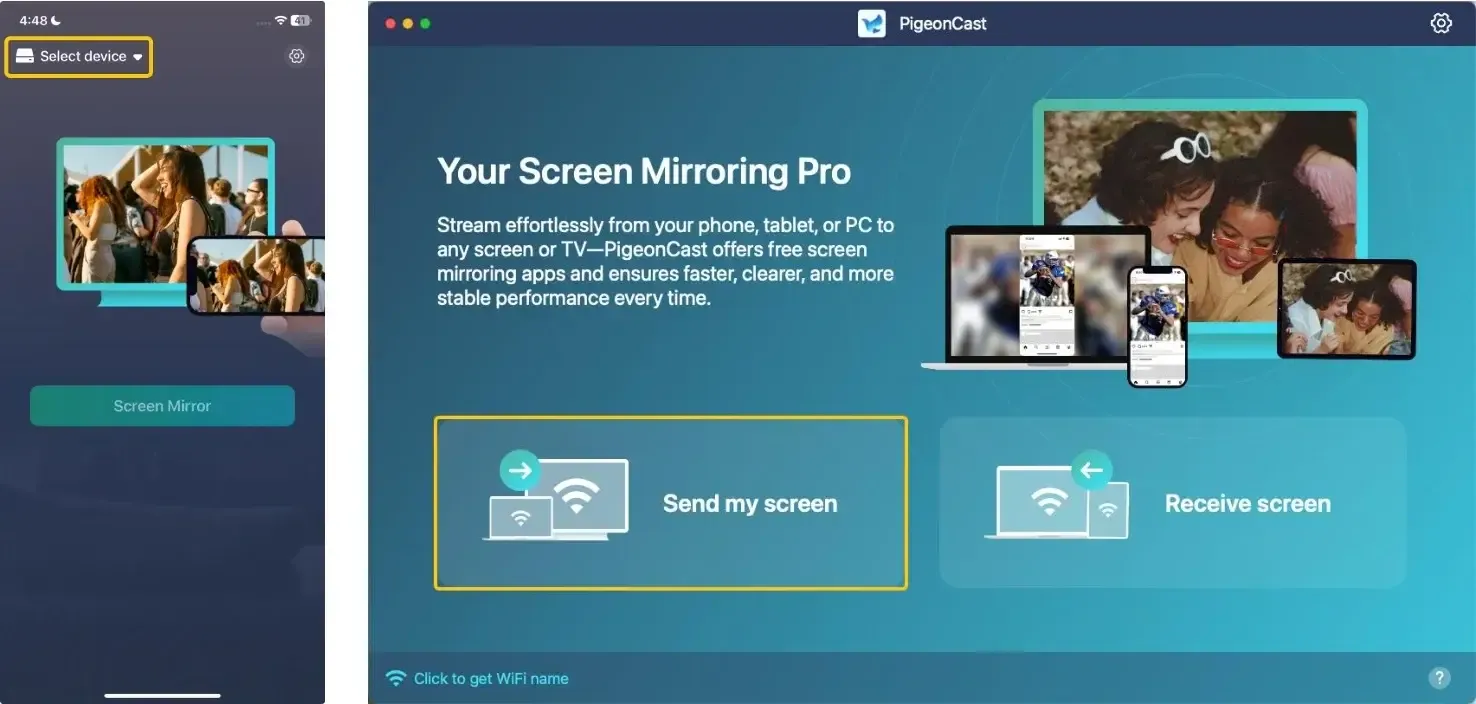
Step 3. Launch the app, tap Send my screen or Select device to choose your FireStick from the device list. You can also scan the QR code shown on the TV.
Step 4. Enter the PIN displayed on the TV to complete the connection.
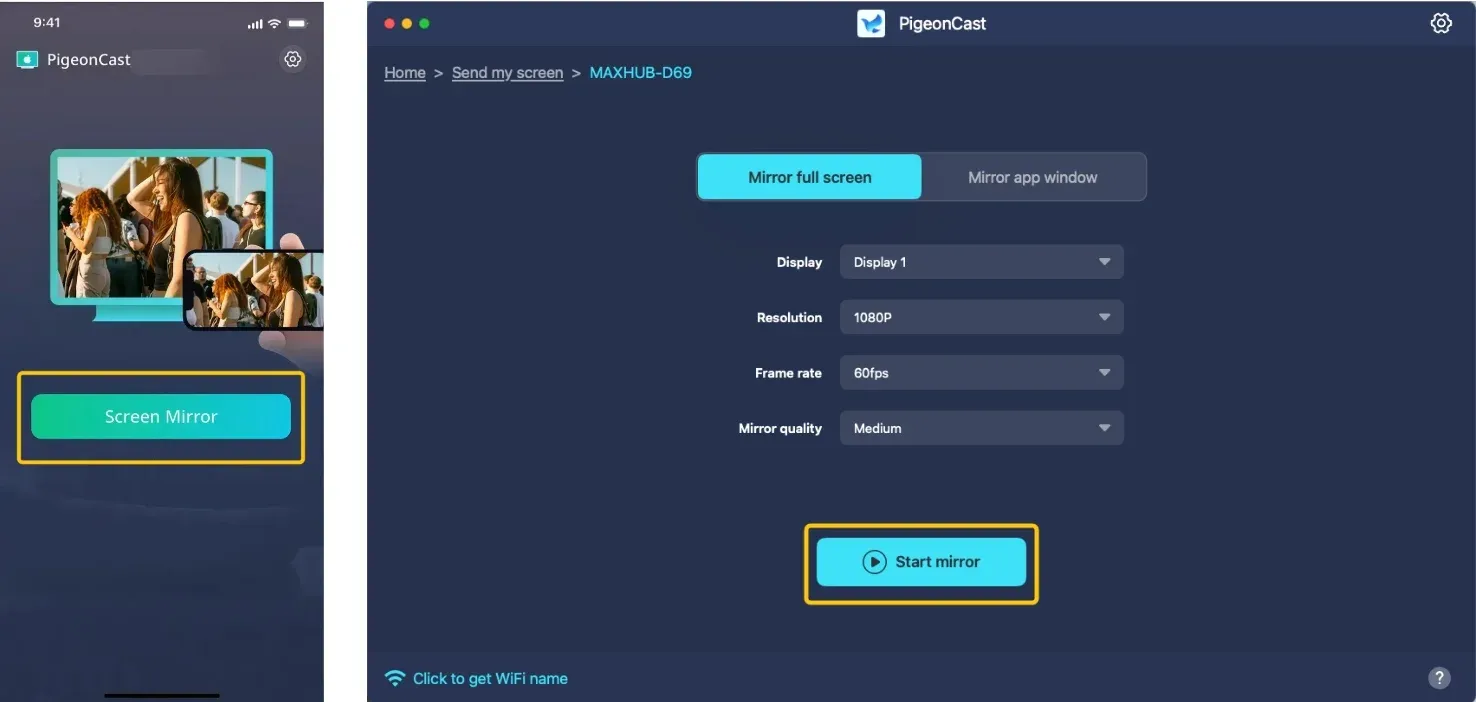
Step 5. Select Screen Mirror or Start mirror to display your device on the FireStick, and then open YouTube TV on the sending device.
How to Fix YouTube TV on FireStick Not Working
A missing app usually points to device compatibility or account region settings, while crashes and buffering are more often related to stored app data, outdated software, or network performance. Location verification and content protection can also interrupt playback even when YouTube TV opens normally. Find the symptom that matches your situation below and apply the corresponding fix.
-
YouTube TV is not in the Amazon Appstore: Confirm that your FireStick is a supported model, update Fire OS through Settings > My Fire TV > About > Check for Updates, and check the country or region of your Amazon account. YouTube TV is officially available in the United States.
-
The app will not open or keeps crashing: Go to Settings > Applications > Manage Installed Applications > YouTube TV, select Force Stop, and then clear the cache. Restart the FireStick or reinstall the app if it still does not open.
-
Live TV keeps buffering: Restart the FireStick and router, reduce other downloads or streams on the same network, and move the FireStick or router closer if the Wi-Fi signal is weak.
-
YouTube TV shows a location error: Open your profile photo in YouTube TV and go to Location > Current Playback Area. Follow the prompt to verify the location with your phone and allow location access when requested.
-
The screen is black during mirroring: Stop mirroring and open the program in the official YouTube TV app on the FireStick. Some channels use content protection that prevents their video from appearing through screen mirroring.
These fixes focus specifically on YouTube TV and FireStick. When the regular YouTube app also crashes, buffers, refuses to open, or displays a black screen, the issue may involve the television, streaming device, account, or network rather than the YouTube TV service alone. The same checks used to diagnose broader YouTube problems on a TV can help identify whether the failure affects both apps.
Final Verdict
Once YouTube TV is installed and signed in, you can manage the program guide, live channels, and recordings with the Fire TV remote. Keep the app and Fire OS updated, and verify the current playback area if local channels disappear or a location error appears. If licensed video turns black during screen mirroring, return to the official app instead of repeatedly reconnecting the devices.
YouTube TV on FireStick FAQ
Is YouTube TV the Same as YouTube on FireStick?
No. YouTube is a general video platform for creator content, music, Shorts, and live streams, while YouTube TV is a separate live TV service with television channels, on-demand programs, and cloud DVR. A YouTube Premium subscription also does not include YouTube TV.
Do I Need Amazon Prime to Watch YouTube TV on FireStick?
No. An Amazon account is used to set up the FireStick and access the Amazon Appstore, but an Amazon Prime membership is not required. Your YouTube TV membership is purchased and managed separately, so changes to Amazon Prime do not affect it.
Can Family Members Have Separate YouTube TV Profiles on One FireStick?
Yes. A family manager can invite up to five other members from the same household, and each person signs in with a separate Google account. Their recommendations, watch history, library, and DVR recordings remain separate instead of being combined under one shared profile.
Can I Use YouTube TV on More Than One FireStick?
Yes. You can install the app and sign in on multiple FireSticks, but the standard membership allows up to three devices to stream at the same time. The limit applies across all phones, computers, TVs, and streaming devices using the membership, not only FireSticks.
Will I Lose My YouTube TV Recordings If I Replace My FireStick?
No. YouTube TV stores DVR recordings in the cloud under your Google account rather than on the FireStick. After signing in on a replacement device, the same library should appear without transferring files from the old FireStick.
Can I Watch Downloaded YouTube TV Programs Offline on FireStick?
No. FireStick playback requires an internet connection, even when you are opening a DVR recording. Offline downloads are available only for eligible recordings in the YouTube TV mobile app on a phone or tablet with the 4K Plus add-on.
Clara Rossi is an experienced technology editor and a seasoned expert in screen mirroring and casting technologies. With a keen eye for detail and a deep understanding of how to seamlessly connect devices, Clara excels at optimizing user experiences for effortless sharing and streaming. Whether you're seeking quick fixes or advanced tips, her expertise and responsiveness ensure that every query is met with a well-informed and efficient solution.