
Can you AirPlay to multiple devices? Yes, but it depends on what you want to AirPlay.
If you're playing audio, AirPlay 2 can send the same music, podcast, or other audio to multiple compatible speakers and devices at the same time. If you're streaming video or mirroring your screen, AirPlay normally works with one receiving device at a time.
So, if you want music playing around the house, AirPlay can handle that well. If you want the same iPhone screen or video showing on two TVs at once, you'll need a different setup.
Can You AirPlay Audio to Multiple Devices?
Yes. This is one of the main benefits of AirPlay 2.
You can play audio from your iPhone or iPad on multiple AirPlay 2-compatible devices at the same time. These can include HomePod speakers, Apple TVs, supported smart TVs, and compatible speakers.
For example, you could play the same playlist on speakers in your living room and kitchen while also sending it to an Apple TV in another room.
You can also control the volume of each device separately, so every room does not have to play at the same level.
For normal home use, keeping your Apple device and AirPlay receivers on the same Wi-Fi network is the simplest setup.
AirPlay vs AirPlay 2: What's the Difference?
For this topic, the main difference is simple: AirPlay 2 added support for playing audio across multiple compatible devices.
Older AirPlay devices may still receive audio or video, but they may not support the same multi-room features. So if you cannot select several speakers together, it is worth checking whether all of your receivers support AirPlay 2.
If you want a more detailed comparison, see our guide to AirPlay vs AirPlay 2.
AirPlay works especially well when your devices already support Apple's wireless ecosystem. But compatibility can become more limited when you're moving between iPhone, Android, Windows, Mac, TVs, and browsers. In those cases, PigeonCast can provide a more flexible cross-platform screen mirroring option without depending entirely on AirPlay support.


Overall Rating:



How to AirPlay Audio to Multiple Devices
On an iPhone or iPad:
Step 1. Start playing music, a podcast, or other audio.
Step 2. Open Control Center.
Step 3. Tap the AirPlay icon in the audio controls.
Step 4. Select each speaker or compatible device you want to use.
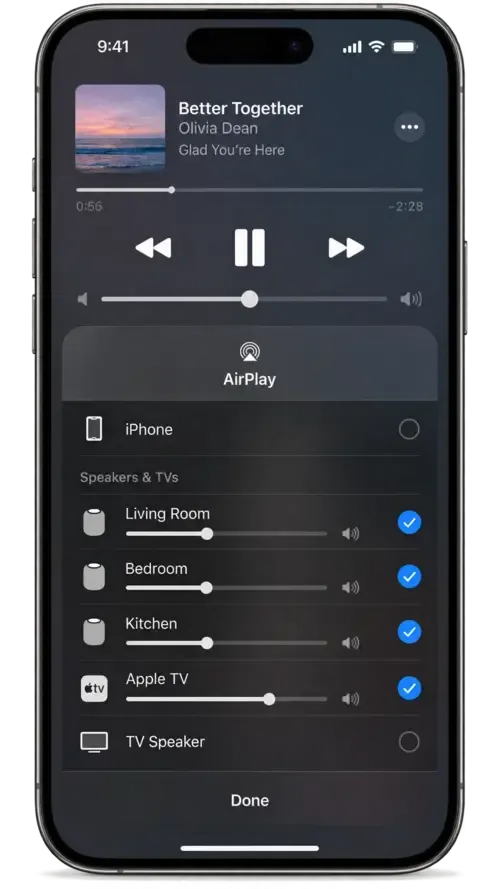
Step 5. Adjust the volume for each device if needed.
You can add or remove speakers while the audio is playing.
On a Mac, Apple Music also lets you select multiple AirPlay speakers from its playback controls. Multi-device selection from Control Center can be more limited, so using the Music app is often the simpler option.
Why Can't I Select Multiple AirPlay Devices?
If you are trying to play audio on several devices but can only select one, there are a few common reasons.
One of the Devices Does Not Support AirPlay 2
An older speaker or receiver may support basic AirPlay but not the multi-room features needed to join several devices together.
If one device cannot be selected with the others, check whether it supports AirPlay 2.
The Devices Are Not Available on the Same Network
If a speaker or TV is not showing up, check the network connection first.
For most home setups, your iPhone, iPad, speakers, and TVs should be connected to the same Wi-Fi network. Guest networks can sometimes prevent devices from seeing each other.
You're Trying to AirPlay Video
If you can select several speakers for music but only one TV for a video, that does not necessarily mean anything is wrong.
AirPlay handles audio and video differently. Multiple audio destinations are supported with AirPlay 2, while video normally uses one destination.
A Device Needs an Update
Older software can sometimes cause AirPlay devices not to appear or connect correctly.
If a device is missing from the AirPlay list, check for available updates on your iPhone, iPad, Mac, Apple TV, HomePod, smart TV, or speaker.
Your Speakers Are Already Paired
Some speakers, such as two HomePods set up as a stereo pair, may appear as one audio destination instead of two separate devices.
That is normal because the pair is designed to work together as one speaker setup.
Can You AirPlay Video to Multiple Devices?
Not in the same way.
When you AirPlay a video from an iPhone, iPad, or Mac, you normally choose one Apple TV or AirPlay-compatible TV as the destination.
The same applies to screen mirroring. When you open Screen Mirroring on an iPhone or iPad, AirPlay asks you to select one receiving device. It does not normally provide a way to select several TVs and mirror the same screen to all of them at once.
For example, if you are watching a video on your iPhone and want to show it on your living-room TV, AirPlay works well. But if you want that same video to appear on both the living-room TV and bedroom TV at the same time, standard AirPlay is not designed for that.
The difference is straightforward:
- Audio: multiple compatible devices can be selected.
- Video: usually one receiving screen at a time.
- Screen mirroring: usually one receiving screen at a time.
What Can You Do If You Need the Same Content on Multiple Screens?
If your goal is to show the same video or screen on several TVs, AirPlay alone may not be the best solution.
Use a Multi-Screen Display Setup
For offices, classrooms, stores, events, or other places where several screens need to show the same content, a dedicated multi-screen setup is usually more suitable.
Depending on the setup, this could include an HDMI splitter, a video distribution system, or digital signage equipment.
These solutions are designed specifically to send one video source to several displays.
Use Separate Source Devices
If the screens do not need to stay perfectly synchronized, another simple option is to use a separate phone, computer, or streaming device for each TV.
This works better when each screen is playing its own content or when exact timing between screens is not important.
Use Another Casting Method When AirPlay Compatibility Is the Problem
Sometimes the problem is not actually the number of screens. One of your devices may simply not support AirPlay.
In that case, a cross-platform casting or screen mirroring solution can be more useful, especially when you're working with a mix of Apple, Android, Windows, or TV devices.
Audio vs Video: What AirPlay Supports
| What You Want to Do | Can You Use Multiple Devices? |
|---|---|
| Play the same music on multiple speakers | Yes, with compatible AirPlay 2 devices |
| Adjust the volume of individual speakers | Yes |
| Play audio on HomePod and Apple TV together | Yes, with compatible devices |
| AirPlay one video to multiple TVs | No, not with standard AirPlay |
| Mirror one iPhone screen to multiple TVs | No, generally one receiver at a time |
| Switch AirPlay from one TV to another | Yes |
The easiest way to remember it is: AirPlay supports multiple devices mainly for audio, not for video or screen mirroring.
Conclusion
AirPlay can work across multiple devices, but mainly when you're using AirPlay 2 for audio. For video and screen mirroring, it is still designed around one receiving screen at a time.
So before trying to connect several devices, first decide whether you're sending audio or something that needs to appear on a screen. That one difference usually tells you whether AirPlay can handle the setup on its own or whether you'll need another solution.
AirPlay Multiple Devices FAQ
Can I AirPlay to Two Apple TVs at the Same Time?
You can use multiple Apple TVs as audio destinations if they support AirPlay 2. But for video or screen mirroring, AirPlay normally works with one Apple TV at a time.
Can I Mirror My iPhone to Two TVs at Once?
Not with standard AirPlay screen mirroring. Your iPhone normally connects to one AirPlay receiver at a time. If you need the same screen on several TVs, you will need a separate multi-display setup.
Can I AirPlay to a TV and Speaker at the Same Time?
Yes, for audio, if both devices support AirPlay 2. You can select multiple compatible destinations and play the same audio through them together.
Can I AirPlay Different Audio to Different Rooms?
AirPlay 2 supports multi-room audio, but playing completely different audio in different rooms usually depends on the devices, apps, and how your home audio setup is configured. It is not the same as simply selecting multiple speakers for one shared audio stream.
Why Does Only One AirPlay Device Show Up?
The missing device may not support AirPlay 2, may be on a different network, or may need a software update. If you are trying to send video, seeing only one destination can also be normal because AirPlay video usually works with one receiver at a time.
Can I AirPlay to Multiple Devices From a Mac?
Yes, mainly for audio. Apps such as Apple Music can let you select multiple AirPlay 2-compatible speakers or devices. Video streaming and screen mirroring from a Mac still generally use one receiving display at a time.
Mia Clarke is a technology editor specializing in screen mirroring and casting solutions across multiple platforms. Mia provides clear, practical guides and in-depth insights to help users seamlessly connect their devices. Passionate about enhancing digital experiences, Mia is dedicated to keeping readers updated on the latest trends and tools in cross-platform screen sharing. Whether you’re looking to mirror your smartphone, laptop, or smart TV, Mia’s content delivers reliable, user-friendly advice to simplify your tech setup.