

If you want to cast Google Pixel to Fire TV, the first thing to understand is that Fire TV does not work exactly like Chromecast or Google TV.
Google Pixel phones are designed around Google Cast, while Amazon Fire TV uses its own ecosystem and does not always appear as a native casting receiver in the Pixel Cast menu.
That does not mean Pixel and Fire TV cannot work together. It simply means the best method depends on what you want to do.
If you only want to watch a supported video, direct app casting may be enough. If you want to mirror your entire Pixel screen, an app-based receiver is usually the more practical wireless solution. And if you need maximum stability, a wired connection can avoid wireless compatibility issues completely.
Quick Answer: Can Google Pixel Cast to Fire TV?
Yes, but the experience depends on the type of casting you need.
| Your goal | Best method |
|---|---|
| Watch videos from supported apps | Use the app's built-in casting option |
| Mirror your entire Pixel screen | Use an app-based receiver such as PigeonCast |
| Need the most stable connection | Use USB-C to HDMI when supported |
The main thing to remember is that Fire TV is not a universal Google Cast receiver. A Fire TV device may work with certain casting methods while not appearing in the Pixel system Cast menu.
Why Google Pixel Does Not Cast to Fire TV Natively
The main reason Google Pixel does not always connect directly to Fire TV is the difference between their wireless display technologies.
Google Pixel phones are designed around Google Cast, Google's own casting protocol used by Chromecast, Google TV, and supported smart TVs. When you open the Cast menu on a Pixel phone, it is primarily looking for devices that support Google Cast.
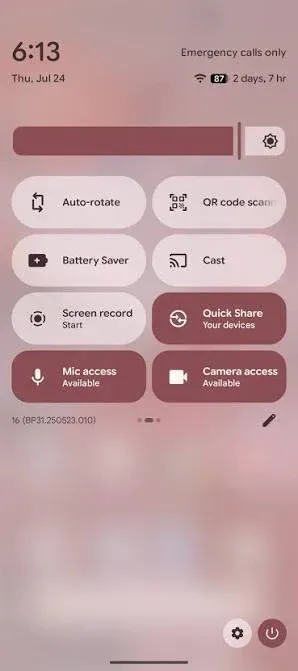
Fire TV, however, is built around Amazon's ecosystem and does not work as a universal Google Cast receiver. Many Fire TV devices rely on Amazon-specific casting solutions or other wireless display technologies instead of the Google Cast protocol used by Pixel phones. Understanding the difference between Miracast and Chromecast helps explain why some devices support wireless screen sharing but still cannot appear in the Pixel Cast menu.
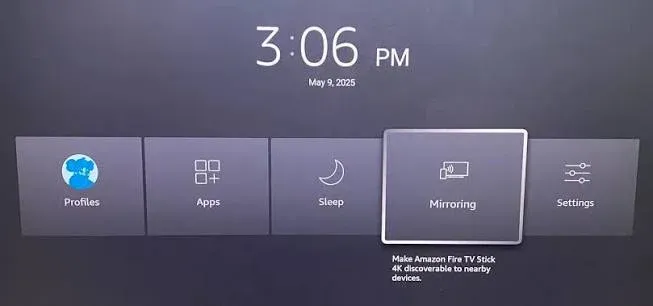
This difference is why a device can support wireless screen sharing but still not appear in the Google Cast menu on a Pixel phone. The same situation can happen with other smart TV platforms, including Roku devices and some LG TVs that rely on their own screen-sharing systems instead of Google Cast.
LG TVs are a good example of how compatibility can vary by model. Some LG TVs support Google Cast and can work directly with Pixel phones, while others mainly use LG Screen Share. If you are trying to connect a Pixel phone to an LG TV, the available casting method depends on which receiver technology your TV supports.
The key point is that a missing Fire TV device in the Pixel Cast menu is usually not caused by a broken phone or Wi-Fi problem. It is often a protocol mismatch between the sender (Google Pixel) and the receiver (Fire TV).
Method 1: Cast Google Pixel to Fire TV From Supported Apps
If your goal is simply watching videos, start with the app itself.
Direct app casting is usually the smoothest experience because the Fire TV handles playback while your Pixel works as a controller.
How to cast Pixel to Fire TV from an app
Step 1. Make sure your Google Pixel and Fire TV are connected to the same network.
Step 2. Launch the streaming app that contains the video you want to watch.
Step 3. If the app supports Fire TV casting, you may see a device selection option.
Step 4. Choose your Fire TV device and start playback.
This method works best for supported content because it sends the media stream directly instead of continuously mirroring your phone screen.
However, app casting depends on support from both the app and Fire TV. Not every video app will provide the same casting experience.
Method 2: Cast Google Pixel to Fire TV Using PigeonCast
The reason Google Pixel cannot always connect directly to Fire TV is not because either device lacks casting capability. The challenge is that Pixel and Fire TV are built around different wireless ecosystems.
Google Pixel uses Google Cast, while Fire TV does not always provide a native Google Cast receiver. PigeonCast helps bridge this compatibility gap by giving Fire TV a casting path that works better with Pixel devices.
Instead of depending on whether Fire TV appears in the Pixel Cast menu, PigeonCast creates a more flexible connection between your Google Pixel and Fire TV. Depending on your setup, you can use PigeonCast by installing it on your Fire TV to add broader casting compatibility, or use the app on both devices for a more direct screen-sharing experience.
PigeonCast is especially useful when you want to:
- Cast Google Pixel to Fire TV even when Fire TV is not detected as a native Cast device
- Add Google Cast compatibility to Fire TV without replacing your existing setup
- Mirror your Pixel screen, including photos, apps, websites, and presentations
- Connect devices across different ecosystems without being limited by built-in casting protocols


Overall Rating:



How to cast Pixel to Fire TV using PigeonCast:
Step 1. Install PigeonCast on your Fire TV or Fire TV Stick and open the receiver screen.
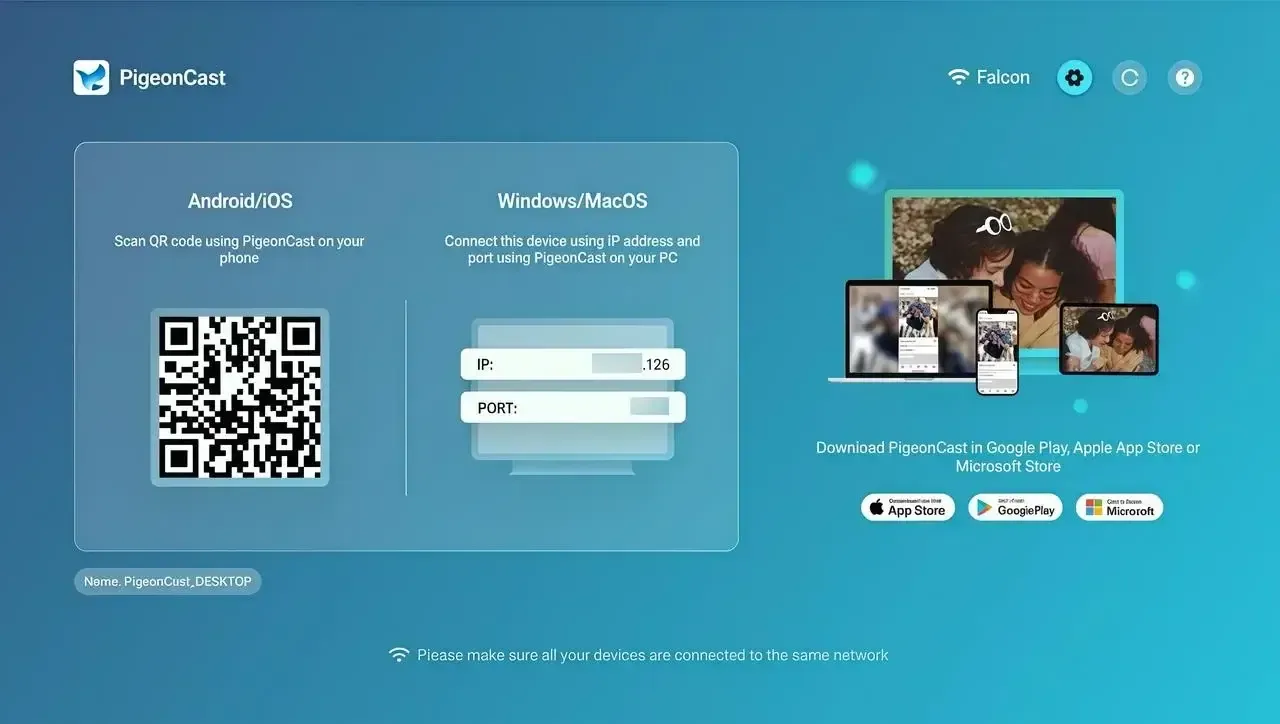
Step 2. Connect your Google Pixel and Fire TV to the same Wi-Fi network.
Step 3. Start the connection from your Pixel phone.
- If you only install PigeonCast on Fire TV, open Quick Settings, tap Cast, and select your Fire TV from the device list.
- If you install PigeonCast on both Fire TV and Pixel, open PigeonCast on your phone, select your Fire TV, and start screen mirroring.
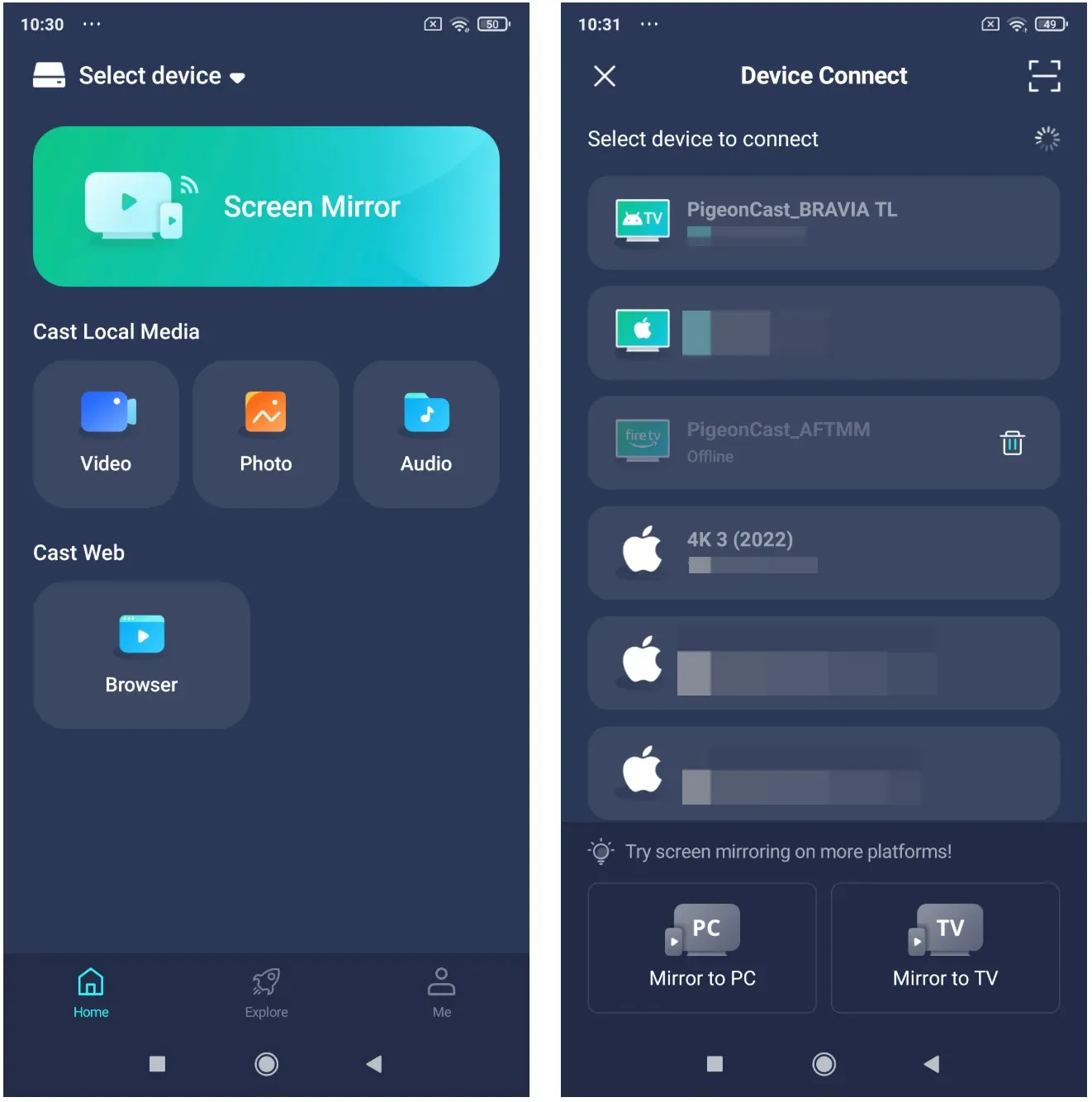
Step 4. Start casting your Pixel screen to Fire TV and share your photos, videos, apps, websites, or other content on a larger display.
By bridging the gap between Google Cast and Fire TV's native ecosystem, PigeonCast makes it easier to use a Google Pixel with Fire TV without changing your TV hardware or switching to a different device ecosystem.
Method 3: Connect Google Pixel to TV With HDMI
Wireless casting is convenient for everyday use, but it depends on network stability and device compatibility. If you experience connection delays, unstable Wi-Fi, or repeated casting failures, a wired connection can provide a more reliable alternative.
A USB-C to HDMI connection sends the display signal directly from your Pixel to the TV, avoiding wireless discovery issues. However, this method only works with Pixel models that support wired display output, so check compatibility before using an adapter.
How to use a wired Pixel connection:
Step 1. Check that your Google Pixel model supports USB-C video output.
Step 2. Connect your Pixel to the TV using a compatible USB-C to HDMI adapter or cable.
Step 3. Switch your TV to the HDMI input connected to your Pixel.
Step 4. Start using your Pixel screen on the TV for presentations, browsing, or sharing media.
This method bypasses wireless casting completely, making it a practical fallback when Wi-Fi performance or casting compatibility affects your connection.
Google Pixel Not Casting to Fire TV? Fix Common Problems
When Pixel does not connect to Fire TV, the problem is usually related to compatibility, network discovery, or the type of content you are trying to cast.
Fire TV Does Not Appear in Pixel Cast
If your Fire TV does not appear in the Pixel Cast menu, the issue is usually that Fire TV is not detected as a native Google Cast receiver.
In this case, make sure both devices are connected to the same Wi-Fi network and that your Fire TV is ready to receive connections. If the device still does not appear, using a receiver solution like PigeonCast is often more effective than repeatedly trying the native Cast menu.
Pixel Connects but Casting Is Unstable
If your Pixel connects to Fire TV but the screen freezes, delays, or disconnects, the issue is usually related to network conditions.
A weak Wi-Fi signal, crowded network, or router restrictions can affect wireless mirroring. Moving devices closer to the router or switching to a wired connection can provide a more stable experience.
Some Videos Cannot Be Mirrored
Some streaming services use DRM protection, which may prevent certain content from being displayed through screen mirroring.
When this happens, use the app's built-in playback or casting option if available instead of mirroring the entire Pixel screen.
Final Thoughts
Casting Google Pixel to Fire TV is a good example of why "casting" is not one universal technology.
The challenge is not whether a Pixel phone or Fire TV is capable of displaying content. The challenge is whether the sending device and receiving device use the same connection method.
For supported apps, direct casting provides the simplest experience. For full-screen sharing, a cross-platform screen mirroring app like PigeonCast offers a more flexible approach. And when wireless connections become unreliable, a wired connection remains the most predictable solution.
Once you understand the difference between media casting, screen mirroring, and receiver-based connections, choosing the right method becomes much easier.
Cast Google Pixel to Fire TV FAQ
Can Google Pixel cast directly to Fire TV?
Sometimes. Some apps support direct casting to Fire TV, but Fire TV does not work like a Chromecast receiver for all Pixel casting scenarios.
Why does Fire TV not appear in my Pixel Cast menu?
Usually because Fire TV is not acting as a native Google Cast receiver. Your Pixel is searching for compatible Cast targets, while Fire TV may require another casting method.
Do I need Chromecast to cast Pixel to Fire TV?
No. Chromecast is not required. Depending on your goal, you can use supported apps, PigeonCast, or a wired connection.
What is the most reliable way to connect Pixel to a TV?
A wired USB-C to HDMI connection is usually the most stable when supported. Wireless casting is more convenient but depends on network quality and device compatibility.
Mia Clarke is a technology editor specializing in screen mirroring and casting solutions across multiple platforms. Mia provides clear, practical guides and in-depth insights to help users seamlessly connect their devices. Passionate about enhancing digital experiences, Mia is dedicated to keeping readers updated on the latest trends and tools in cross-platform screen sharing. Whether you’re looking to mirror your smartphone, laptop, or smart TV, Mia’s content delivers reliable, user-friendly advice to simplify your tech setup.