

If you want to cast Google Pixel to LG TV, the first thing to understand is that your Pixel phone and LG TV need to support a compatible casting method.
Google Pixel phones are built around Google Cast, while LG TVs may use different wireless connection systems depending on the model. This is why some LG TVs appear immediately in the Pixel Cast menu, while others may not show up at all.
The good news is that you still have several ways to connect your Pixel phone to an LG TV. If your LG TV supports Google Cast, you can use the built-in casting feature. If it does not, you can add a Chromecast or Google TV device, or use a casting solution like PigeonCast to create a direct connection between your Pixel phone and LG TV.
This guide explains the best ways to cast Google Pixel to LG TV and helps you choose the right method based on your setup.
Quick Answer: Best Way to Cast Google Pixel to LG TV
The best method depends on what your LG TV supports:
| Your setup | Best method | When to use it |
|---|---|---|
| LG TV with built-in Google Cast | Native Pixel Cast | Best option when your TV appears in the Pixel Cast list |
| LG TV without Google Cast | Chromecast or Google TV | Best way to add reliable Google Cast support |
| Pixel and LG TV compatibility issues | PigeonCast | Best when native casting does not work smoothly |
Before casting, make sure:
- Your Google Pixel and LG TV are connected to the same Wi-Fi network
- Your LG TV is powered on and ready to receive a connection
- Your TV supports Google Cast, Chromecast, or another compatible casting method
One common mistake is assuming that every smart TV can receive Pixel casting. A smart TV may support apps and wireless features but still not work as a Google Cast receiver.
Method 1: Cast Google Pixel to LG TV With Built-in Google Cast
If your LG TV supports Google Cast, this is the easiest and most direct way to connect your Pixel phone.
With native Google Cast, your Pixel can send supported content to the TV or mirror the phone screen depending on the app and casting workflow.
Check the steps to cast Pixel to LG TV:
Step 1. Swipe down from the top of your Pixel screen to open Quick Settings.
Step 2. Tap Cast. If you do not see the option, you can find it through Settings → Connected devices → Connection preferences → Cast
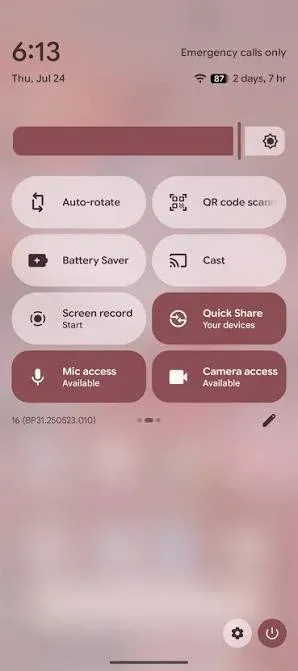
Step 3. Wait for available Cast devices to appear, then choose your LG TV.
Step 4. Accept the connection request on your TV if prompted.
Step 5. Once connected, your Pixel screen or supported media content will appear on your LG TV.
This method is the best choice when your LG TV already works as a Google Cast receiver. If your TV does not appear, the problem is usually compatibility rather than a problem with your Pixel phone.
Method 2: Use Chromecast or Google TV to Cast Pixel to LG TV
If your LG TV does not support Google Cast natively, adding a Chromecast or Google TV device is usually the most reliable solution.
Instead of depending on the LG TV's built-in system, a Chromecast or Google TV device provides a dedicated Google Cast receiver that works naturally with Pixel phones.
This method is useful when:
- Your LG TV does not appear in the Pixel Cast menu
- Your TV only supports other wireless display features
- You want a more stable Google Cast experience
- Your LG TV is older but has an available HDMI port
How to use Chromecast With LG TV
Step 1. Plug the Chromecast or Google TV device into an HDMI port on your LG TV.
Step 2. Connect the Chromecast or Google TV device to the same Wi-Fi network as your Pixel phone.
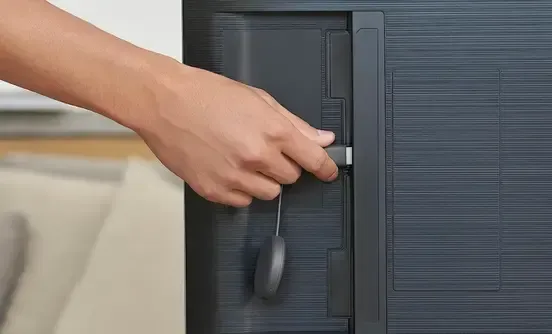
Step 3. Use your LG TV remote to select the HDMI input connected to your casting device.
Step 4. Start Casting From Your Pixel:
- Open: Quick Settings → Cast
- Then select your Chromecast or Google TV device.
This is often the best long-term solution if your LG TV itself is the compatibility limitation.
Method 3: Cast Google Pixel to LG TV Using PigeonCast
If your LG TV does not appear in the Pixel Cast list, the problem is usually compatibility between the phone and the TV rather than your Google Pixel itself.
Google Pixel relies on Google Cast, while LG TVs may use different built-in casting systems depending on the model. When native casting is unavailable or unreliable, PigeonCast provides another way to connect your Pixel phone with your LG TV without replacing your TV or adding extra hardware.
PigeonCast is designed for users who want to cast Google Pixel to LG TV directly, especially when the default Google Cast feature does not provide a smooth connection.


Overall Rating:



How to cast Google Pixel to LG TV using PigeonCast:
Step 1. Install PigeonCast on your supported LG TV and open the app.
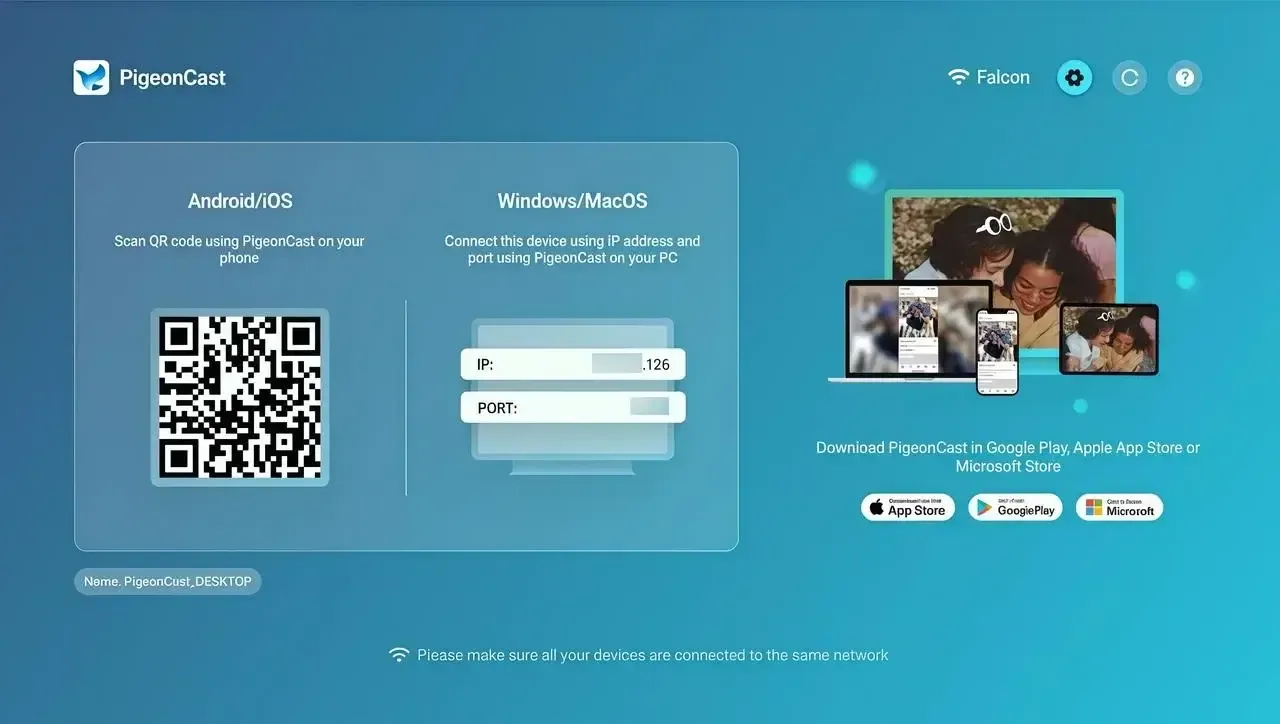
Step 2. Make sure both devices are connected to the same wireless network.
Step 3. Launch PigeonCast on your Google Pixel phone and choose your LG TV from the device list.
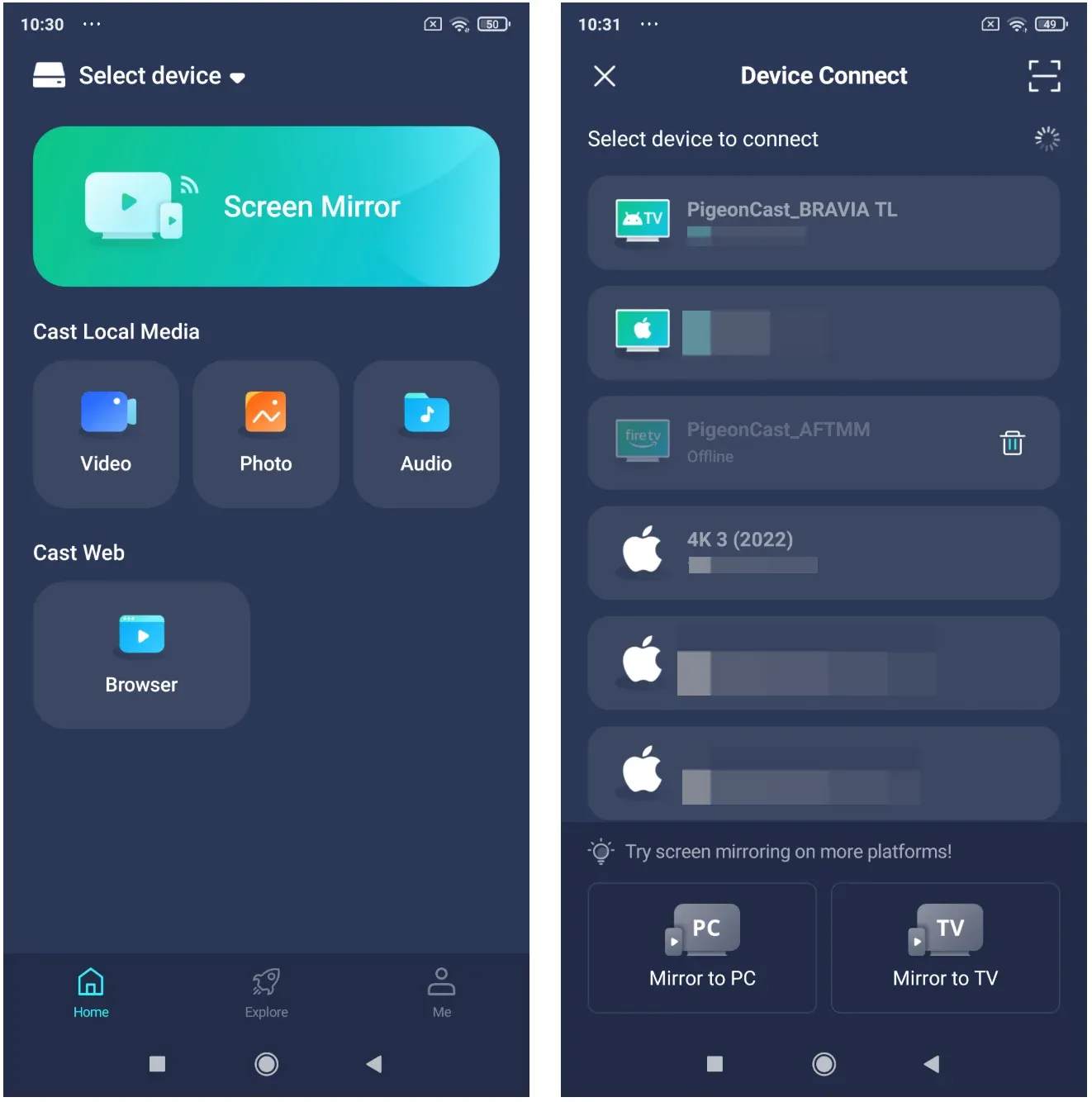
Step 4. Once connected, tap Screen Mirror, then you can mirror your Pixel display and enjoy your content on the LG TV.
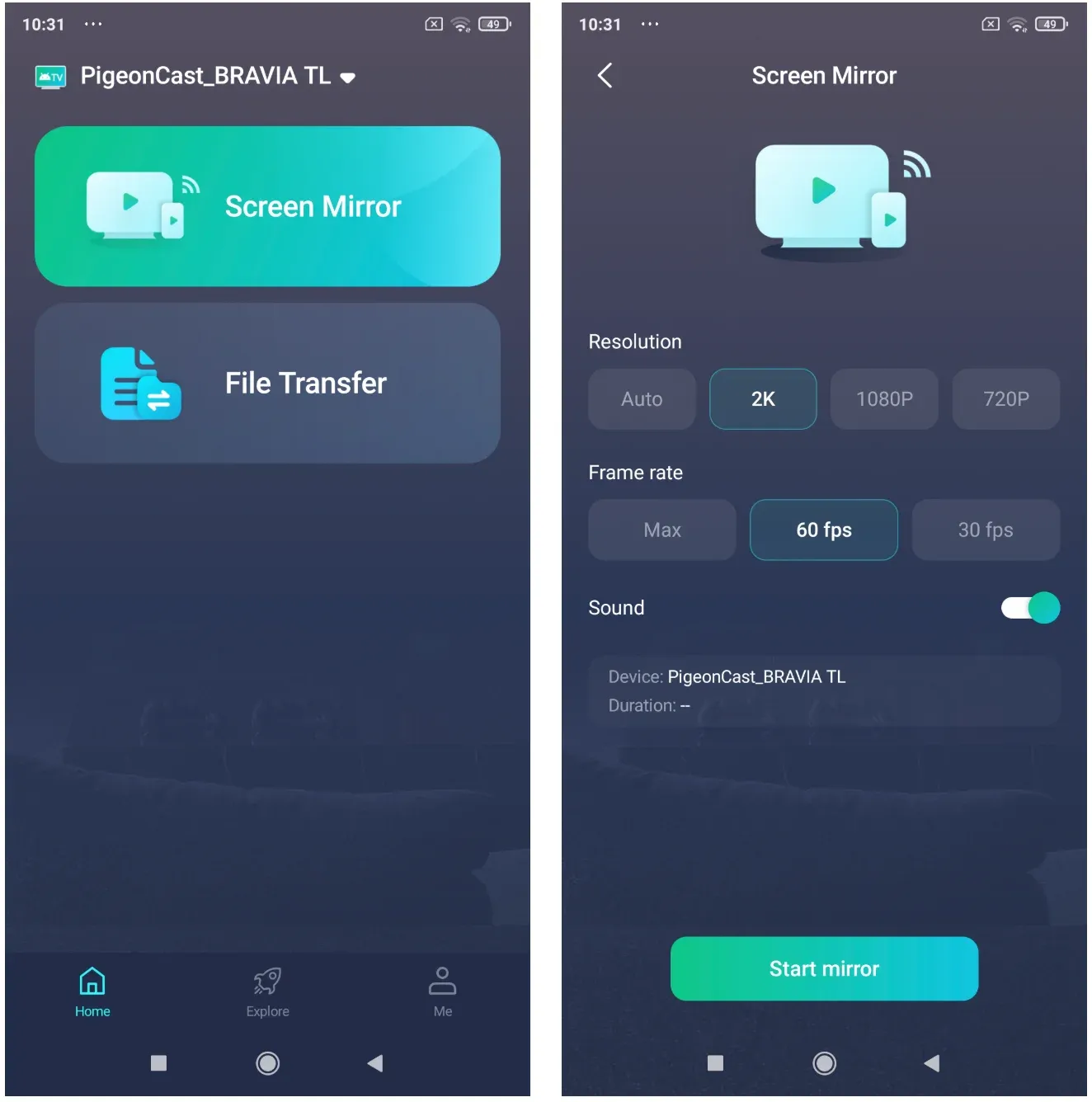
PigeonCast is a practical solution when the main challenge is getting a Google Pixel phone and an LG TV to work together. Instead of changing your TV setup, it provides a direct way to bridge the connection between your Pixel device and LG screen.
Google Pixel Not Casting to LG TV? Fix Common Problems
When your Google Pixel cannot connect to an LG TV, the problem is usually not caused by the phone itself. In most cases, the connection fails because the TV and Pixel are not using the same casting standard, the devices cannot discover each other on the network, or one of the devices needs a software update.
Instead of repeatedly trying to reconnect, it is better to identify where the connection is failing and choose the right solution.
Check the Network Connection Between Your Pixel and LG TV
Google Pixel casting depends on local network communication. Your phone and LG TV do not just need internet access — they need to be able to discover and communicate with each other through the same Wi-Fi network.
If your Pixel cannot find your LG TV, start by checking the connection environment. Make sure both devices are connected to the same Wi-Fi network and that your Pixel is not switching between Wi-Fi and mobile data during the connection process.
Network restrictions can also prevent casting from working. For example, guest Wi-Fi networks often separate connected devices from each other, and some routers enable features such as AP isolation or client isolation that block device discovery. In these situations, your Pixel may still browse the internet normally, but it will not be able to find your LG TV as a casting target.
If casting works at home but fails in places such as hotels, offices, or public networks, network restrictions are often the reason.
Make Sure Your LG TV Supports the Same Casting Method as Your Pixel
One of the most common reasons a Pixel cannot find an LG TV is a compatibility mismatch.
A smart TV does not automatically support every type of wireless casting. Google Pixel phones are designed around Google Cast, while some LG TVs may rely on Screen Share, Google Cast, or AirPlay depending on the model and software version.
If your LG TV does not appear in the Pixel Cast menu, check whether the TV supports Google Cast or whether it requires another connection method. Reopening LG Screen Share repeatedly will not solve the problem if the TV is not exposing a compatible Google Cast receiver.
In this situation, you have several options. You can add a Chromecast or Google TV device to provide a dedicated Google Cast receiver, or use a solution like PigeonCast when you want to connect your Pixel phone directly with your LG TV without changing your current setup.
The important point is that the issue is usually not that your Pixel cannot cast — it is that the TV may not support the casting method your Pixel is trying to use.
Restart and Update Your Devices
Casting involves multiple devices working together, including your Pixel phone, LG TV, casting receiver, and the app you are using. A temporary software issue on any one of these devices can interrupt the connection.
If your Pixel was able to cast before but suddenly stopped working, restarting both devices is a good first step. Turn off your LG TV completely, restart your Pixel, and reconnect after both devices are back online.
Software updates are also important because casting features often depend on system-level services. An outdated Pixel system, LG TV firmware, or casting app version may cause problems such as missing devices, failed connections, or unstable playback.
Keeping both your phone and TV software updated can prevent many compatibility issues before they happen.
Consider a Wired Connection When Wireless Casting Is Unstable
Wireless casting is the most convenient way to connect a Google Pixel to an LG TV, but it is not always the most reliable option in every situation.
If your Wi-Fi network is unstable, if you are presenting important content, or if you are using a temporary display setup, a wired connection can provide a more predictable experience.
A USB-C to HDMI connection can bypass wireless discovery completely by sending the display signal directly from your Pixel to the TV. However, compatibility depends on your Pixel model and whether your adapter supports video output.
For everyday streaming and casual screen sharing, wireless casting remains the better choice. But when stability matters more than convenience, a wired connection can be a useful alternative.
Final Thoughts
Casting Google Pixel to an LG TV is not just about finding the right button or opening the right menu. The real challenge is that modern TVs and smartphones often rely on different connection standards, and compatibility matters more than the device brand itself.
A Google Pixel phone works best with Google Cast-compatible receivers, while LG TVs may vary depending on the model and the casting technology they support. Understanding this difference helps you avoid wasting time searching through TV settings that may never create a compatible connection.
For users with a Google Cast-supported LG TV, the native Pixel casting experience is usually the simplest choice. For older or incompatible models, adding a Chromecast device or using a solution like PigeonCast can provide a more practical way to connect your phone and TV.
The same principle applies beyond LG TVs. If you want to learn more about the general methods for connecting Google Pixel phones with different types of TVs, check out our complete guide on how to cast from Google Pixel to TV.
As smart devices continue to evolve, the future of casting is not about choosing one ecosystem over another. It is about making different devices work together more easily, so your phone and TV can focus on what matters most — sharing and enjoying content on a bigger screen.
Google Pixel Cast to LG TV FAQ
Can a Google Pixel cast to any LG TV?
No. A Google Pixel can cast natively only when the LG TV supports a compatible Google Cast receiver. Some LG TVs support Google Cast, while others may require Chromecast, Google TV, or another casting solution.
Why is my Pixel not finding my LG TV?
The most common reasons are:
- Your Pixel and LG TV are connected to different Wi-Fi networks
- Your LG TV does not support Google Cast
- Google Cast is disabled on the TV
- Network settings prevent device discovery
Can I cast Pixel to LG TV without Chromecast?
Yes. If your LG TV supports Google Cast, you can cast directly from your Pixel. If it does not, you can use solutions like PigeonCast or add a Chromecast/Google TV device.
Is LG Screen Share the same as Google Cast?
No. LG Screen Share and Google Cast are different wireless technologies. A Pixel phone may not detect an LG TV that only provides Screen Share because Pixel casting relies on Google Cast compatibility.
Should I use Chromecast or PigeonCast for LG TV?
Choose Chromecast if you want a dedicated Google Cast receiver for your LG TV. Choose PigeonCast if you want a direct way to connect your Google Pixel with your LG TV without adding extra hardware.
Can I connect Google Pixel to LG TV with a cable?
Yes, if your Pixel model and adapter support video output. A USB-C to HDMI connection can be useful when wireless casting is unreliable or when you need a stable display connection.
Mia Clarke is a technology editor specializing in screen mirroring and casting solutions across multiple platforms. Mia provides clear, practical guides and in-depth insights to help users seamlessly connect their devices. Passionate about enhancing digital experiences, Mia is dedicated to keeping readers updated on the latest trends and tools in cross-platform screen sharing. Whether you’re looking to mirror your smartphone, laptop, or smart TV, Mia’s content delivers reliable, user-friendly advice to simplify your tech setup.