

How to Cast Video from Phone to TV
Watching a video on your phone is convenient, but sometimes a larger screen simply makes more sense. Maybe you want to show vacation clips to the family, play a YouTube video without passing your phone around, or move a movie from a small screen to the TV.
In most cases, the easiest way to do this is to cast the video directly from the app. Look for a Cast or AirPlay icon, select your TV, and let the TV handle playback while your phone works as the remote.
The exact steps depend on whether you're using an iPhone or Android phone—and what your TV supports. If direct casting isn't available, screen mirroring gives you another route.
Follow the guide on how to cast video from phone to TV to start casting.
How to Cast Video from iPhone to TV
An iPhone can cast video in more than one way. Some apps use AirPlay, while others may include Google Cast support.
The icon you see depends more on the app and receiving device than on the iPhone itself, so don't worry if every video app doesn't look exactly the same.
Use AirPlay from the Video App
If your TV or streaming device supports AirPlay, check the video player before opening Control Center.
Here's how to AirPlay video from iPhone to TV:
Step 1. Connect your iPhone and TV to the same Wi-Fi network.
Step 2. Open the app containing the video you want to watch.
This could be a video app, media player, or another app that supports AirPlay playback.
Step 3. Start the video and look for the AirPlay icon in or around the playback controls.
Note: In some apps, you may need to tap the Share or playback menu first before AirPlay appears.
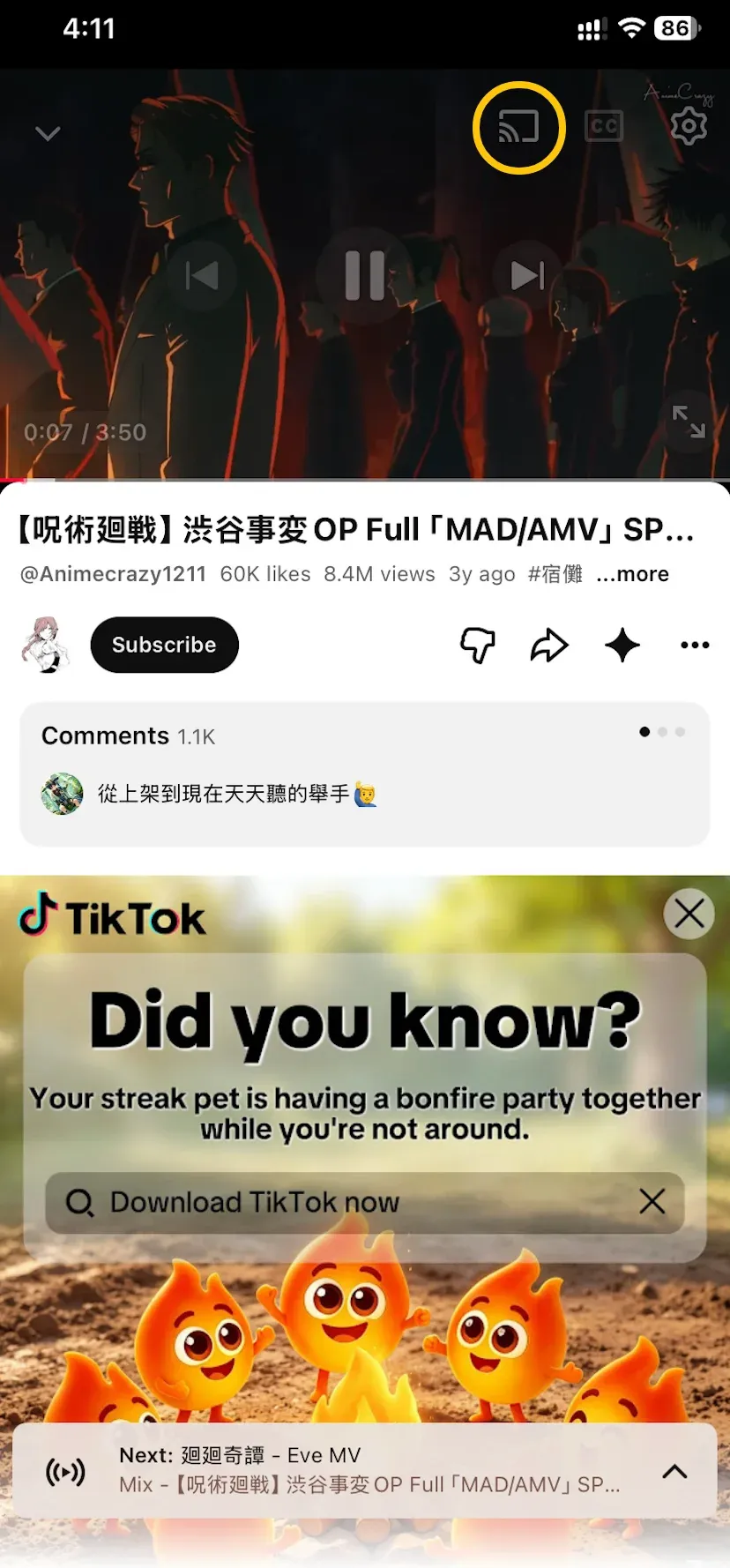
Step 4. Tap AirPlay and select your TV or Apple TV from the list.
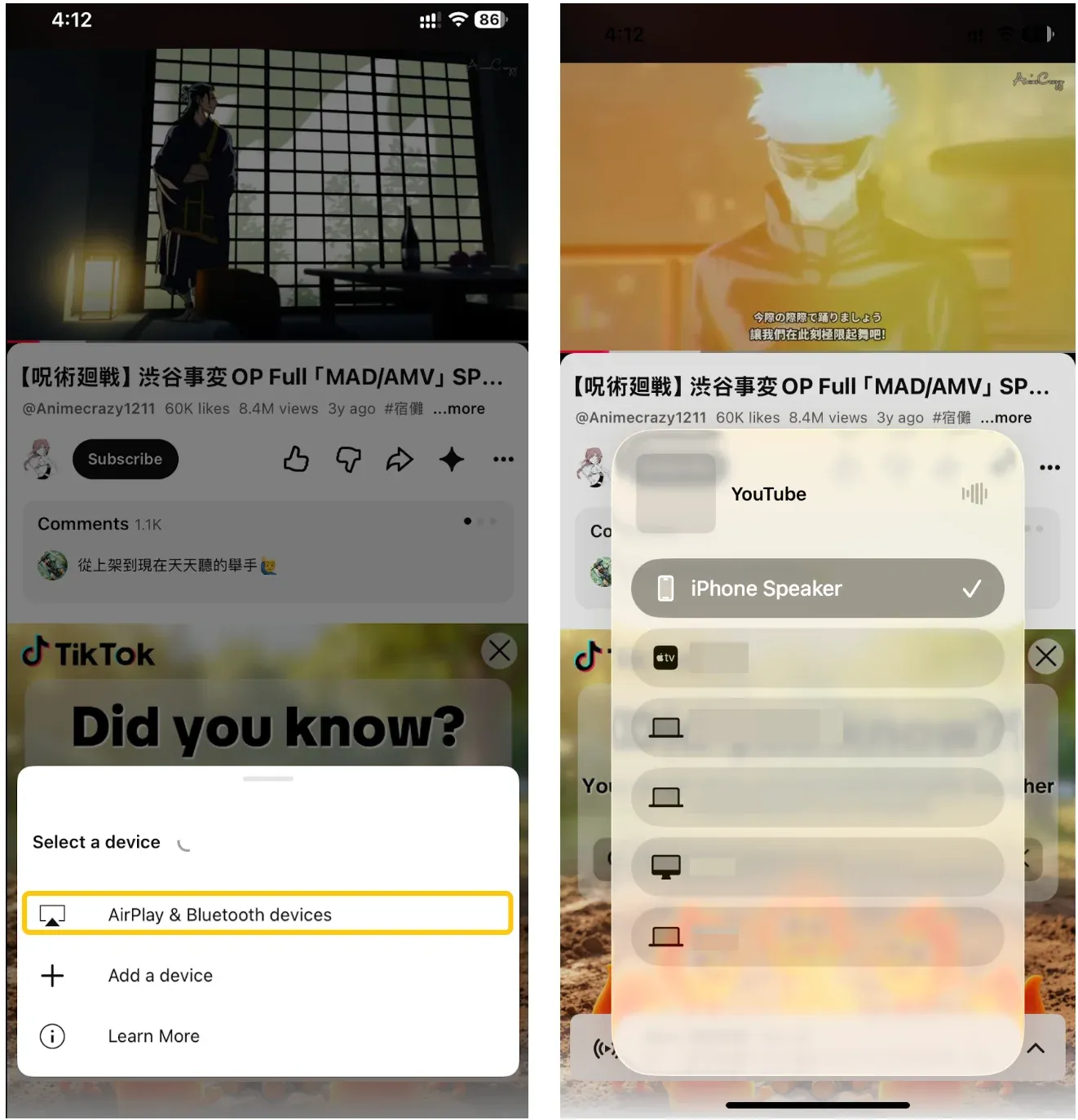
Step 5. If the TV displays a code the first time you connect, enter it on your iPhone.
Step 6. Start watching on the TV.
Once connected, your iPhone becomes the controller. You can pause, skip forward, switch videos, or stop AirPlay without keeping the entire phone screen visible on the TV.
Use the Cast Button on iPhone
AirPlay isn't the only option on an iPhone. Some apps include a Cast button and can send video to a Google Cast-compatible TV or streaming device.
How to play videos from phone to TV using the cast button:
Step 1. Put your iPhone and TV on the same Wi-Fi network.
Step 2. Open the video app and start or select the video.
Step 3. Tap the Cast icon.
Step 4. Choose the TV or receiving device.
Step 5. Use your iPhone to control playback after the video appears on the TV.
If your app shows both AirPlay and Cast, either may work depending on your TV. You don't need to force AirPlay simply because you're using an iPhone.
The more useful question is: which receiver does your TV support?
How to Cast Video from Android to TV
On Android, Google Cast is usually the first option worth checking when you want to stream video from phone to TV.
You may already have everything you need. A separate Chromecast dongle isn't always necessary if the TV or connected streaming device already includes Google Cast support.
How to play video from phone on Smart TV:
Step 1. Make sure the Android phone and TV are connected to the same Wi-Fi network.
Step 2. Open the video you want to watch.
Step 3. Look for the Cast icon in the app. It usually looks like a small screen with wireless waves in one corner.
Step 4. Tap the Cast icon. Your phone should search for available compatible receivers.
Step 5. Select your TV from the device list.
After a short connection period, the video should begin playing on the television.
Step 6. Keep using your phone as the remote.
You can normally pause the video, move through the timeline, change the volume, or select another video without mirroring everything else you do on your phone.
What to Do If You Can't Cast Video to Your TV
A failed cast doesn't always mean the same thing.
Sometimes the app doesn't offer casting at all. Sometimes the phone can cast, but it can't find the TV. In other cases, the phone and TV simply rely on different receiving technologies.
Instead of changing several settings at once, start with the symptom you're seeing.
The Cast or AirPlay Button Is Missing
If the video app doesn't show a Cast or AirPlay button, direct casting may not be supported for that particular content or app.
In that case, screen mirroring is the most practical next step.
On an iPhone:
- Open Control Center.
- Tap Screen Mirroring.
- Select your compatible TV or receiver.
- Enter the onscreen code if prompted.
- Return to the video and play it normally.
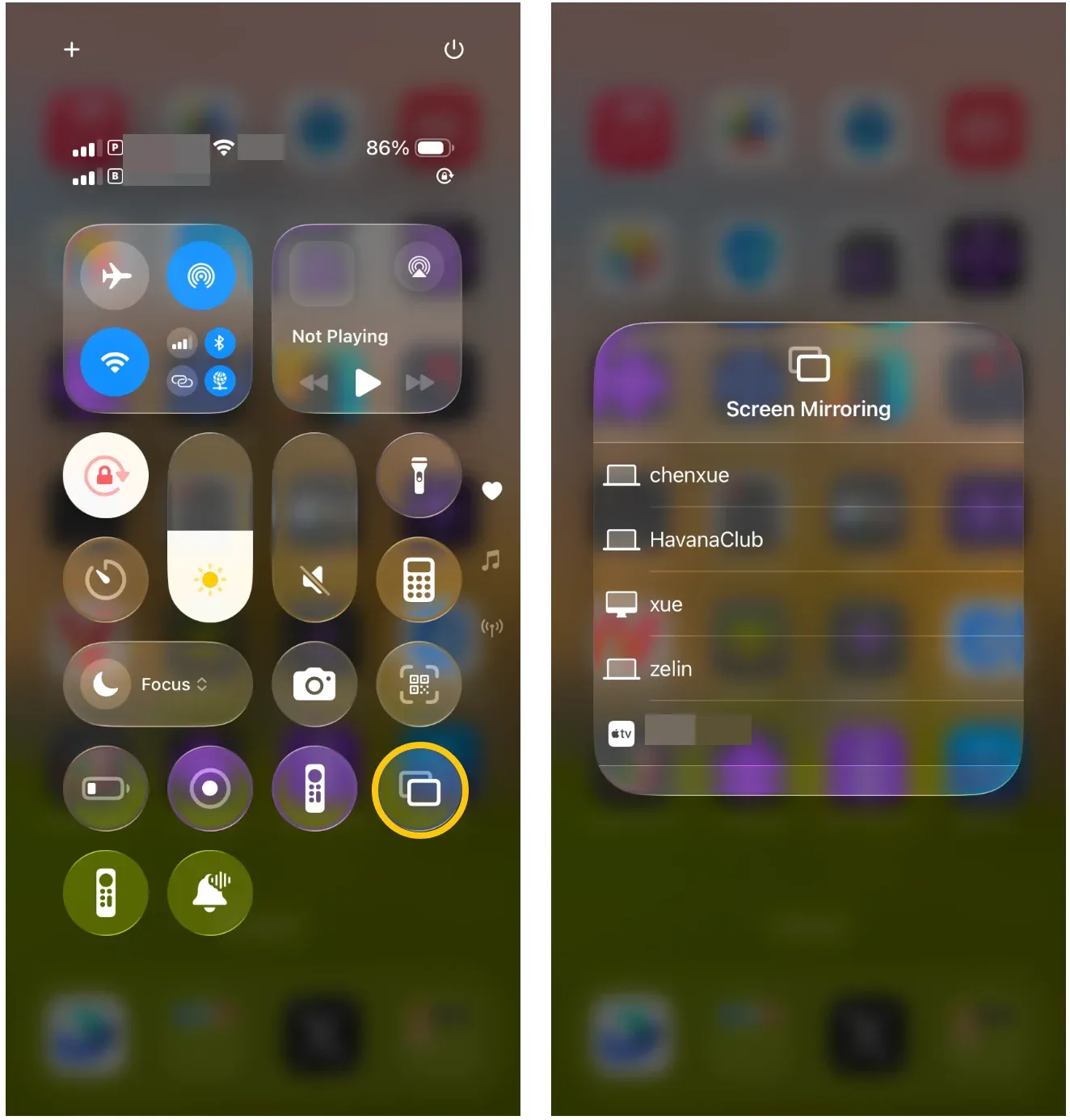
Your TV will now show the iPhone screen rather than receiving only the video.
On Android, the wording varies by phone brand. Open Quick Settings and look for an option such as Cast, Smart View, Screen Mirroring, OR Wireless Display. Then, tap the appropriate option, select the TV, and then open the video.
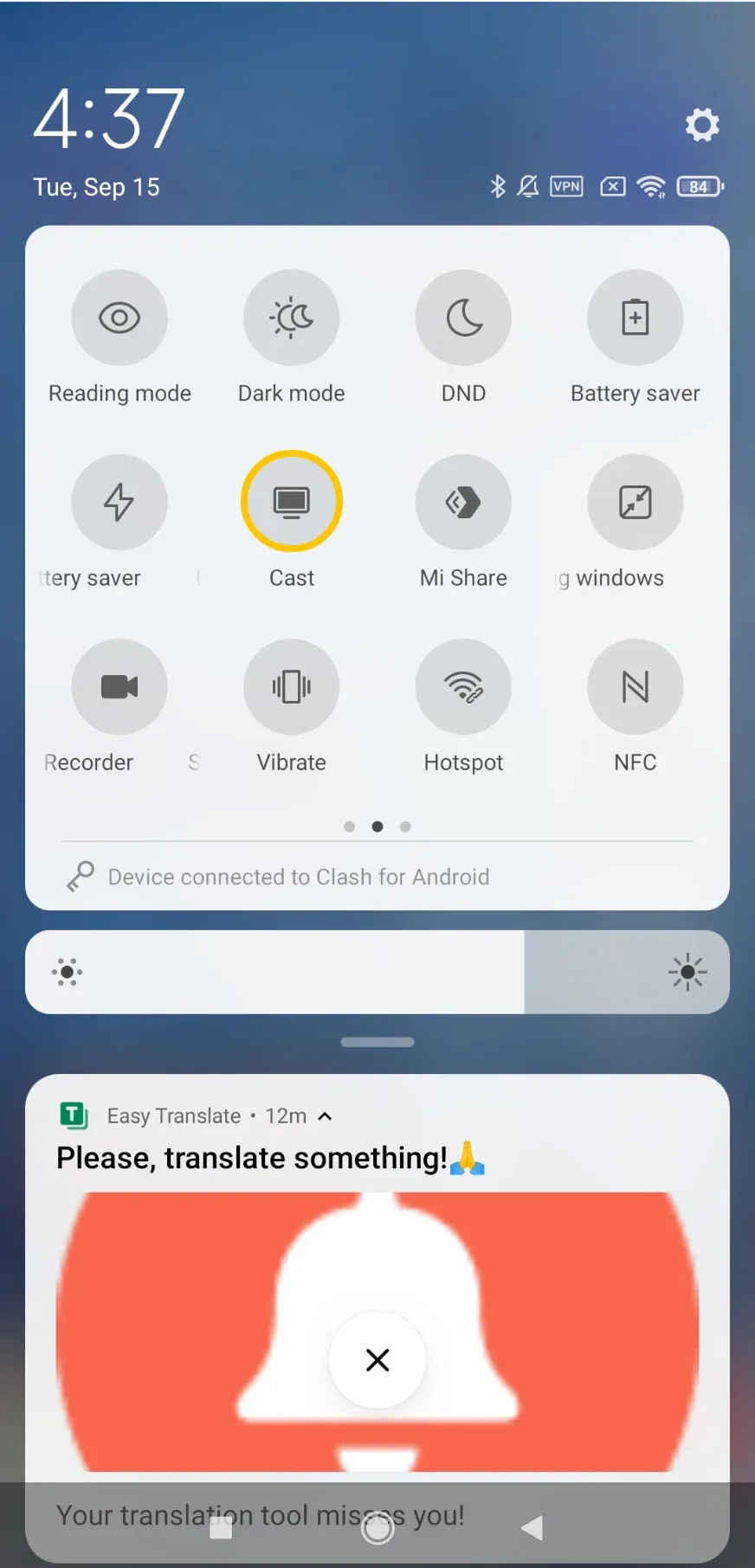
Don't be confused if some Android phone like Google Pixel use the word Cast for whole-screen sharing as well. Android manufacturers don't always use identical labels. The key difference is what happens after you connect: if the entire phone interface appears on the TV, you're screen mirroring rather than directly casting the video.
Your TV Doesn't Appear
If the Cast or AirPlay button is available but the TV is missing from the list, check the connection before changing apps.
Start with the basics:
Make sure both devices are on the same Wi-Fi network. A phone connected to one Wi-Fi network and a TV connected to another may not discover each other, even if both have internet access.
Check that casting or receiving is enabled on the TV. Some televisions require AirPlay, screen mirroring, or a similar receiving function to be enabled in Settings before the TV becomes visible.
Wait a few seconds and reopen the device list. Discovery isn't always instant. Closing the Cast menu and opening it again can be enough.
Restart the app before restarting everything else. If the TV normally appears but suddenly disappears, completely close the video app and reopen it.
If that doesn't help, restart the phone and receiving device.
Avoid changing several network or TV settings at once. If you make five changes and casting suddenly works, you won't know which one actually fixed the problem.
Your Phone and TV Don't Support the Same Casting Method
This is where casting can become confusing.
Your phone may support AirPlay, Google Cast, or screen mirroring, but the television still needs a compatible way to receive that connection.
For example, seeing AirPlay on your iPhone doesn't automatically mean every smart TV will appear in the AirPlay list. Likewise, tapping a Google Cast button doesn't make a television a Google Cast receiver.
If the built-in options on the two devices don't line up, a cross-platform receiver such as PigeonCast can provide another route.
How to use PigeonCast for screen mirroring:
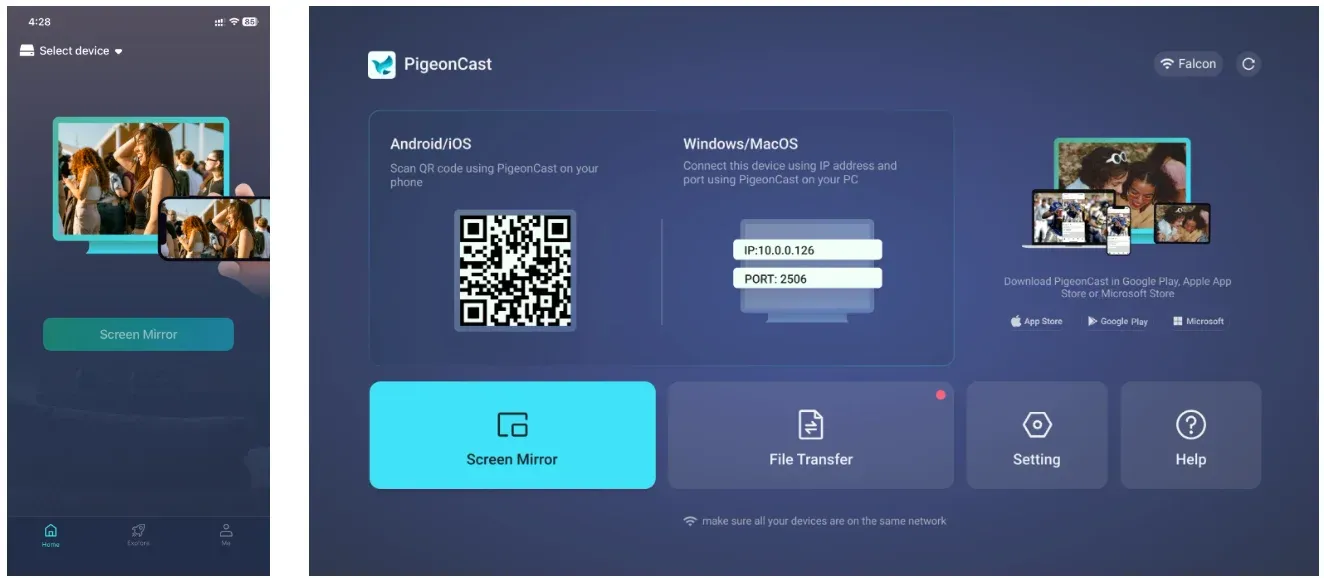
Step 1. Install PigeonCast on your phone and TV and launch the app.


Overall Rating:



Step 2. Ensure your phone and TV are on the same Wi-Fi network.
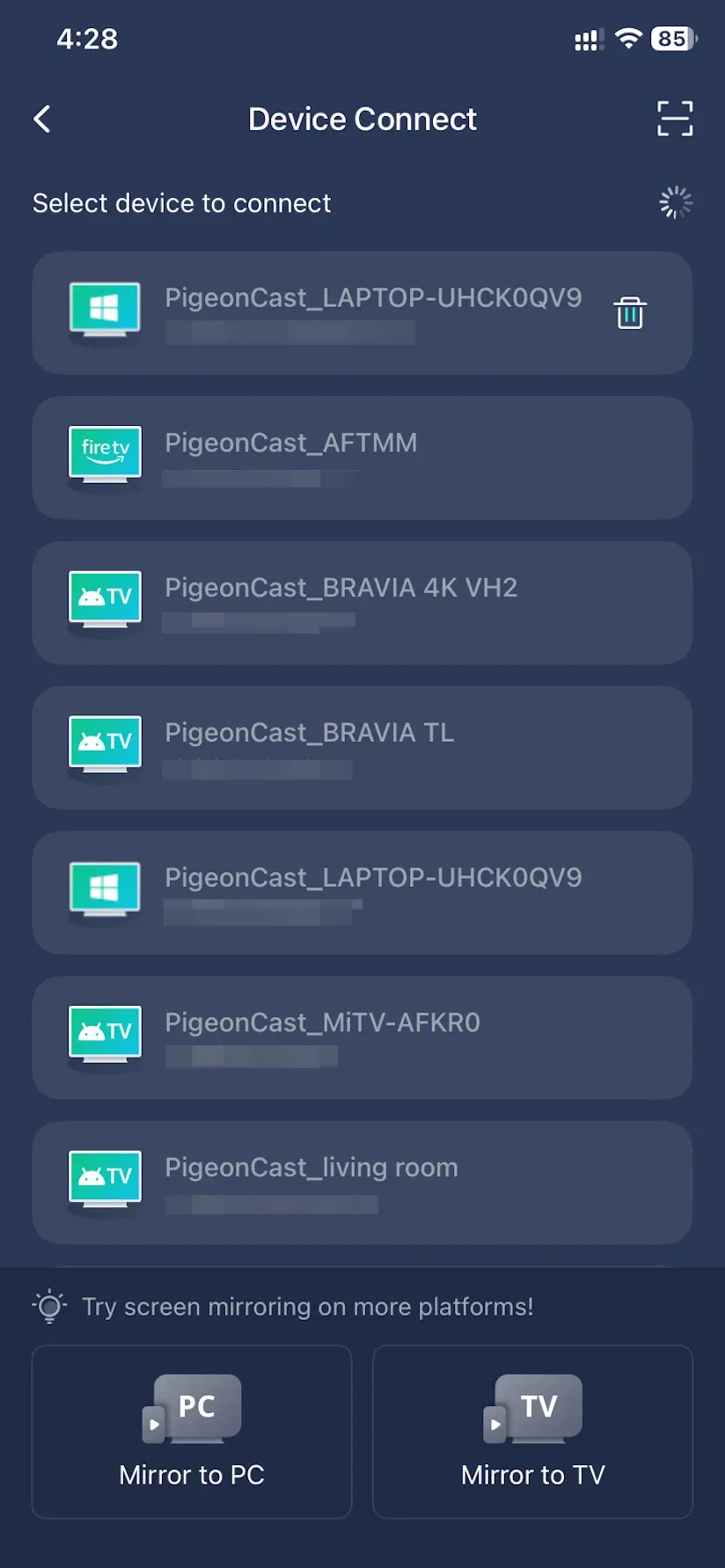
Step 3. Choose your TV from the list or scan the QR code on the TV.
Step 4. Once connected, start screen mirroring.
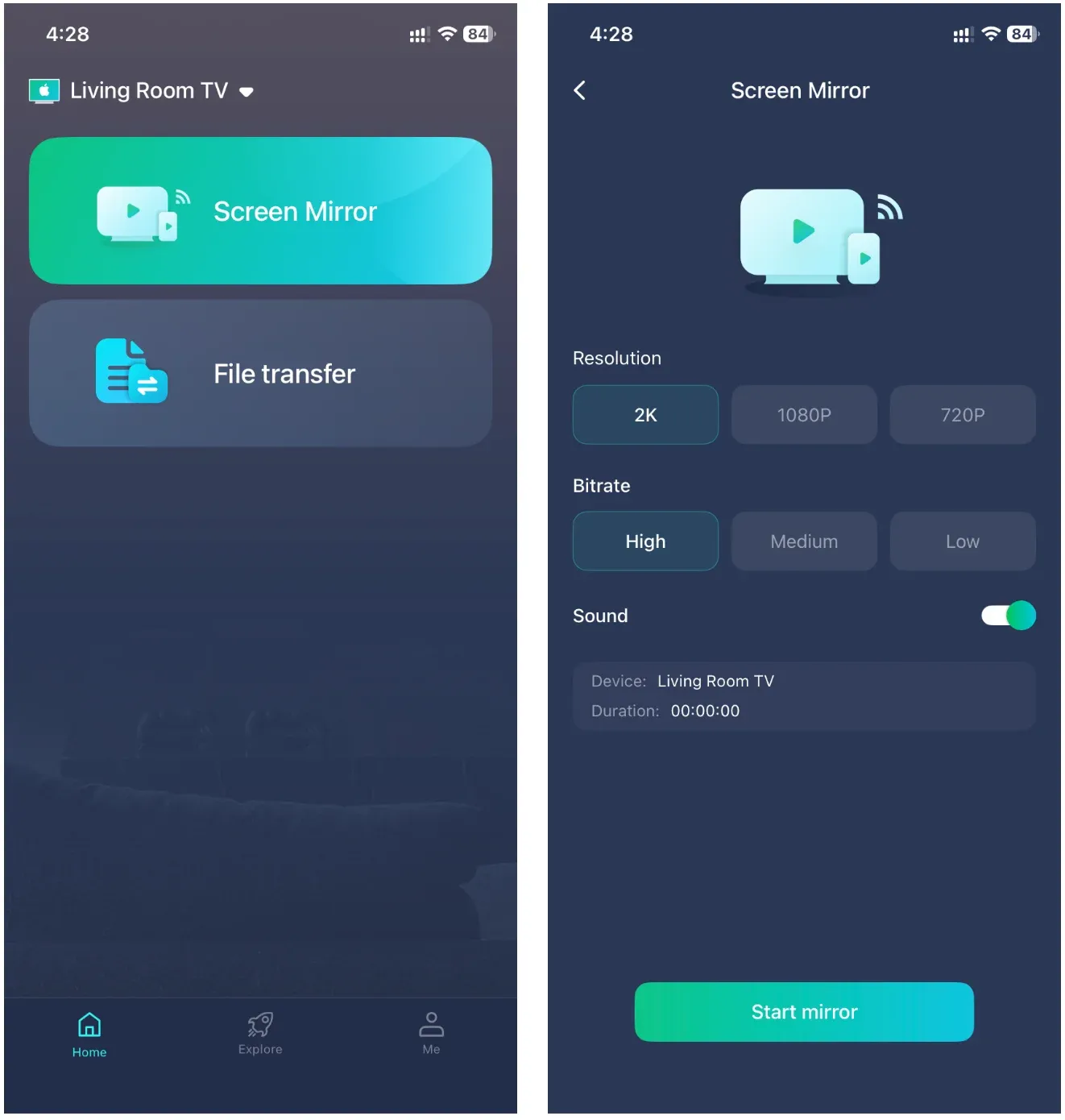
Step 5. Play the video on your phone and it appears on the big screen.
This is particularly useful when the real problem isn't the video itself—it's that the sender and receiver don't naturally speak the same casting language.
Casting Still Doesn't Work
If you've checked the app, network, and receiver compatibility and still can't establish a wireless connection, you have two straightforward fallbacks.
The first is an external streaming receiver. Depending on the ecosystem you use, connecting a compatible receiver to an HDMI port can add the casting capability the TV itself is missing.
The second is a wired HDMI connection.
For a phone that supports video output, connect the appropriate USB-C or Lightning adapter to the phone, run an HDMI cable to the television, and switch the TV to the correct HDMI input.
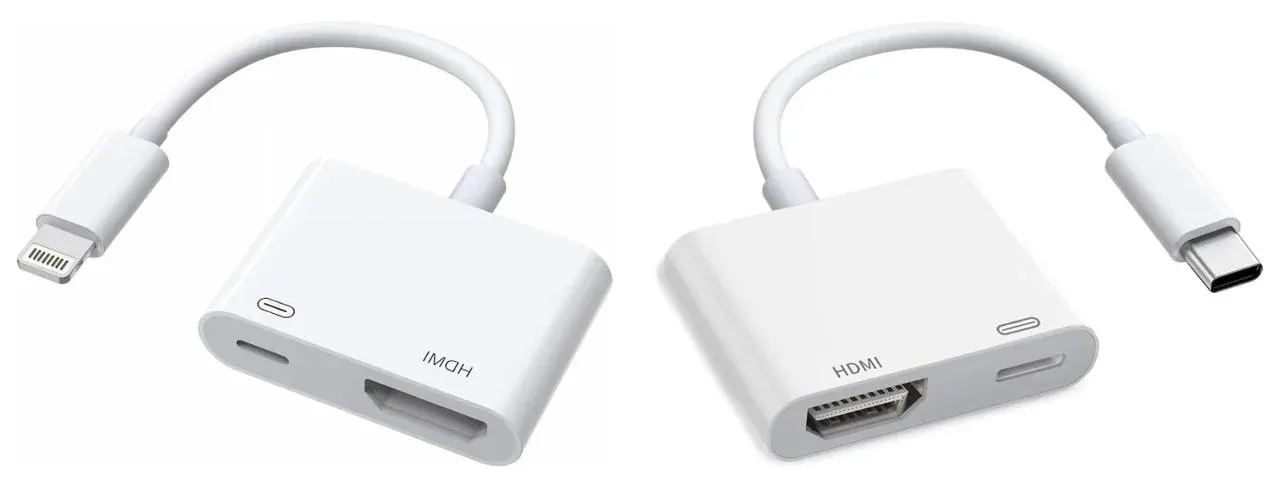
This isn't really "casting" in the wireless sense, but it is a useful fallback when the goal is simply to get the video onto the larger screen.
A wired connection is also worth considering when Wi-Fi is unavailable or unreliable. Instead of spending time troubleshooting device discovery, HDMI bypasses the wireless connection entirely.
Conclusion
When you want to watch a phone video on a TV, start as close to the video as possible.
If the app gives you a Cast or AirPlay butto*, use it. Direct casting is designed specifically for sending media to another screen, and it usually keeps playback cleaner while leaving the phone free for controls.
Screen mirroring becomes useful when the app can't cast on its own. And if the phone and TV don't share a compatible receiving method, tools such as PigeonCast, a browser receiver, an external streaming device, or HDMI can bridge the remaining gap.
The useful distinction isn't simply "wireless versus wired" or "iPhone versus Android." It's direct cast first, screen mirror when necessary, then change the receiving setup only if the first two paths aren't available.
How to Cast Video from Phone to TV FAQ
How do I cast a video from my Samsung phone to my TV?
First, open the video app and look for the Cast icon. If your TV supports Google Cast, tap the icon and select the TV. If direct casting isn't available, Samsung phones also offer Smart View for screen mirroring. Open Quick Settings, tap Smart View, and choose your TV or compatible receiver.
Can I cast video from an iPhone to a TV without AirPlay?
Yes. AirPlay is not the only casting option available on an iPhone. Some iPhone apps include Google Cast support, allowing you to send video to a compatible Google Cast receiver. If neither AirPlay nor direct Cast is available, you can use screen mirroring through a compatible receiver such as PigeonCast or connect the phone through HDMI.
Why is there no Cast button on my video?
The app or video player may not support direct casting. Try checking the playback menu or Share menu first, since some apps don't place the Cast or AirPlay icon directly on the main player. If there is still no casting option, use screen mirroring instead.
Can I cast video from my phone to my TV without Chromecast?
Yes. You don't specifically need a Chromecast device. Depending on your phone and TV, you may be able to use AirPlay, built-in Google Cast support, screen mirroring, PigeonCast, another external receiver, or HDMI. The best option depends on what the receiving TV supports.
How can I cast video from my phone to my TV without Wi-Fi?
Normal wireless casting generally relies on a network connection between the phone and receiver. If you don't have usable Wi-Fi, a wired HDMI connection is usually the simplest alternative. Connect the appropriate phone-to-HDMI adapter, select the corresponding HDMI input on the TV, and play the video from the phone.
Will subtitles appear when I cast a video to my TV?
Usually, subtitles are handled by the app or video service performing the cast. If you're casting from an app with built-in subtitle support, enable subtitles in that app before or during playback. For locally stored videos, subtitle behavior depends on the media player and casting method you use. If subtitles aren't being transferred correctly through direct casting, screen mirroring may be a practical alternative because the TV displays what is already visible on the phone.
Clara Rossi is an experienced technology editor and a seasoned expert in screen mirroring and casting technologies. With a keen eye for detail and a deep understanding of how to seamlessly connect devices, Clara excels at optimizing user experiences for effortless sharing and streaming. Whether you're seeking quick fixes or advanced tips, her expertise and responsiveness ensure that every query is met with a well-informed and efficient solution.