
Watching Netflix on your phone is fine for a short clip, but a TV is better for movies, shows, and family viewing. The good news is that how to connect Netflix to TV from phone can be simple when your devices support the right method. This guide covers Cast, the Netflix TV app, HDMI, streaming devices, and supported screen mirroring when direct casting is not available.
Can You Connect Netflix to TV From Phone?
Yes, you can connect Netflix to TV from phone, but the right method depends on your TV, phone, and the Netflix setup you have. The simplest path is the Cast button inside Netflix. If Cast is not available, you can still use the Netflix TV app, HDMI, a streaming device, or a supported screen mirroring setup.
| Situation | Best Option |
|---|---|
| Cast button appears in Netflix | Cast from your phone |
| TV has the Netflix app | Play Netflix on the TV app |
| Cast button is missing | Use the TV app, HDMI, or a streaming device |
| WiFi is weak | Try HDMI |
| You also want to show other phone content | Use supported screen mirroring |
How to Stream Netflix from Phone to TV
Before you start, update Netflix on your phone, turn on your TV, and keep both devices nearby. If you plan to use a wireless method, connect your phone and TV or streaming device to the same WiFi network. Once the setup is ready, follow the method that matches your device.
Way 1. Use the Cast Button in the Netflix App
The Cast button is the quickest way to play Netflix from your phone on a TV when your devices support it. Instead of copying your whole phone screen, Netflix sends the video to the selected TV or streaming device, while your phone works like a remote.
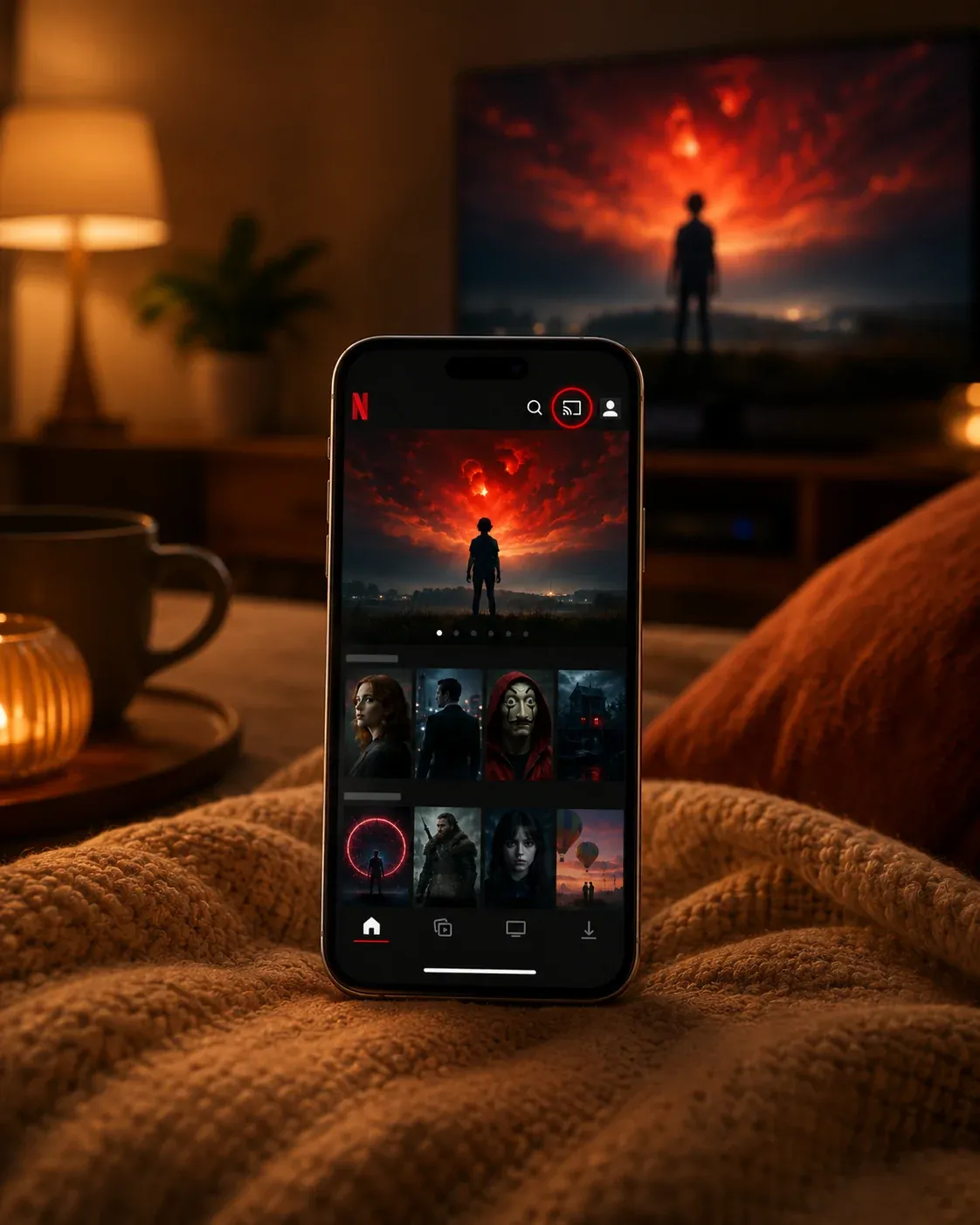
Step 1. Connect your phone and TV or streaming device to the same WiFi network.
Step 2. Open the Netflix app on your phone and sign in to your account.
Step 3. Choose the movie or show you want to watch.
Step 4. Tap the Cast button in the Netflix app. It usually looks like a small screen with WiFi lines in the corner.
Step 5. Select your TV, Chromecast, Google TV, Android TV, or another supported device from the list.
Step 6. Wait for Netflix to start playing on your TV, then use your phone to pause, rewind, change episodes, or choose another title.
Way 2. Open Netflix Directly on Your Smart TV
If your TV already has the Netflix app, you do not have to stream from your phone. Playing Netflix directly on the TV is often more stable, and it avoids extra steps between your phone and the screen.
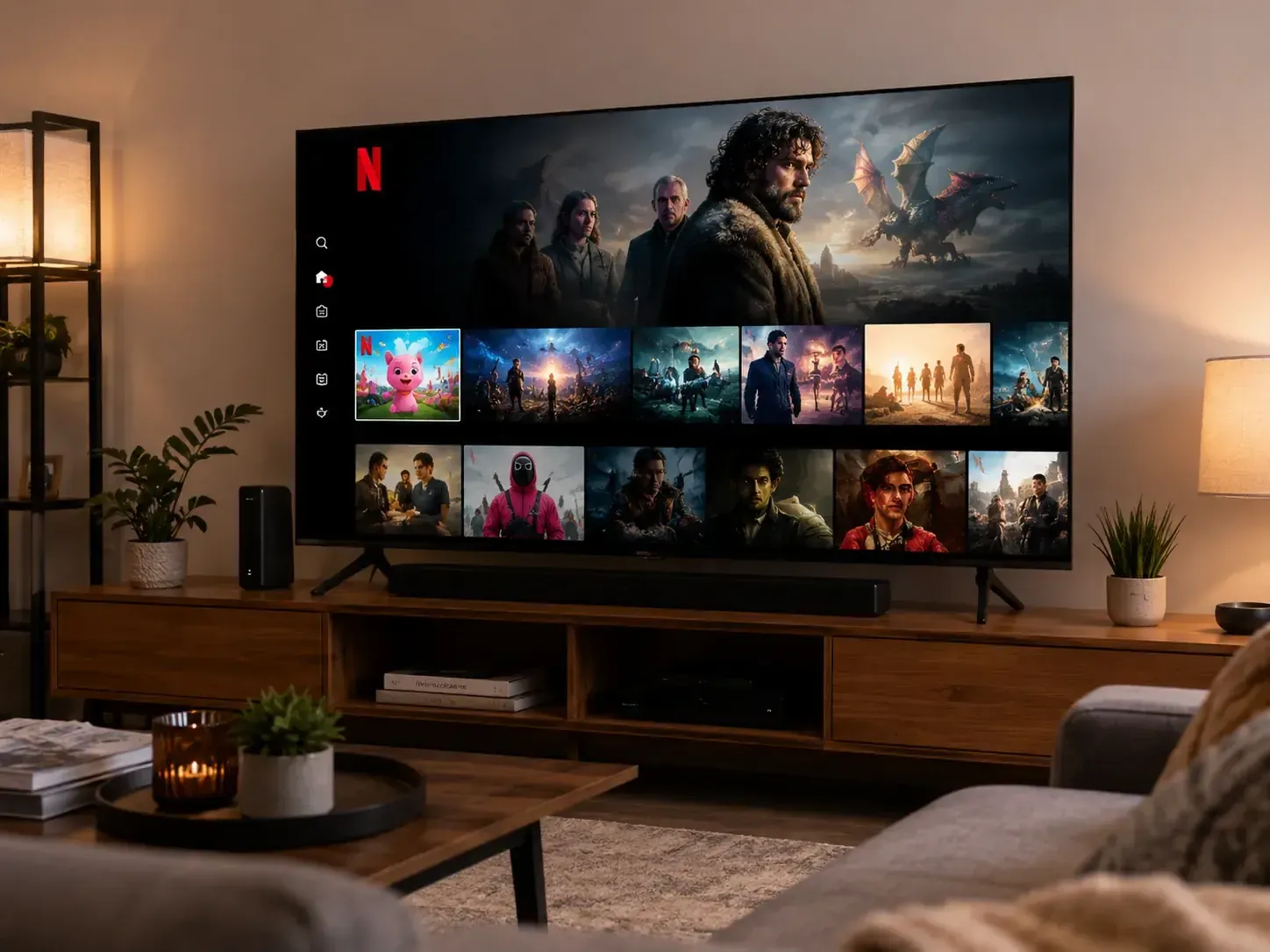
Step 1. Press the Home button on your TV remote.
Step 2. Find and open the Netflix app on your TV.
Step 3. Sign in to the same Netflix account you use on your phone.
Step 4. Choose the movie or show you want to watch.
Step 5. Press Play and watch Netflix on your TV.
Way 3. Connect Your Phone to TV with HDMI
HDMI is a practical choice when wireless casting is not available or your WiFi is unstable. The key is choosing the right adapter for your phone.
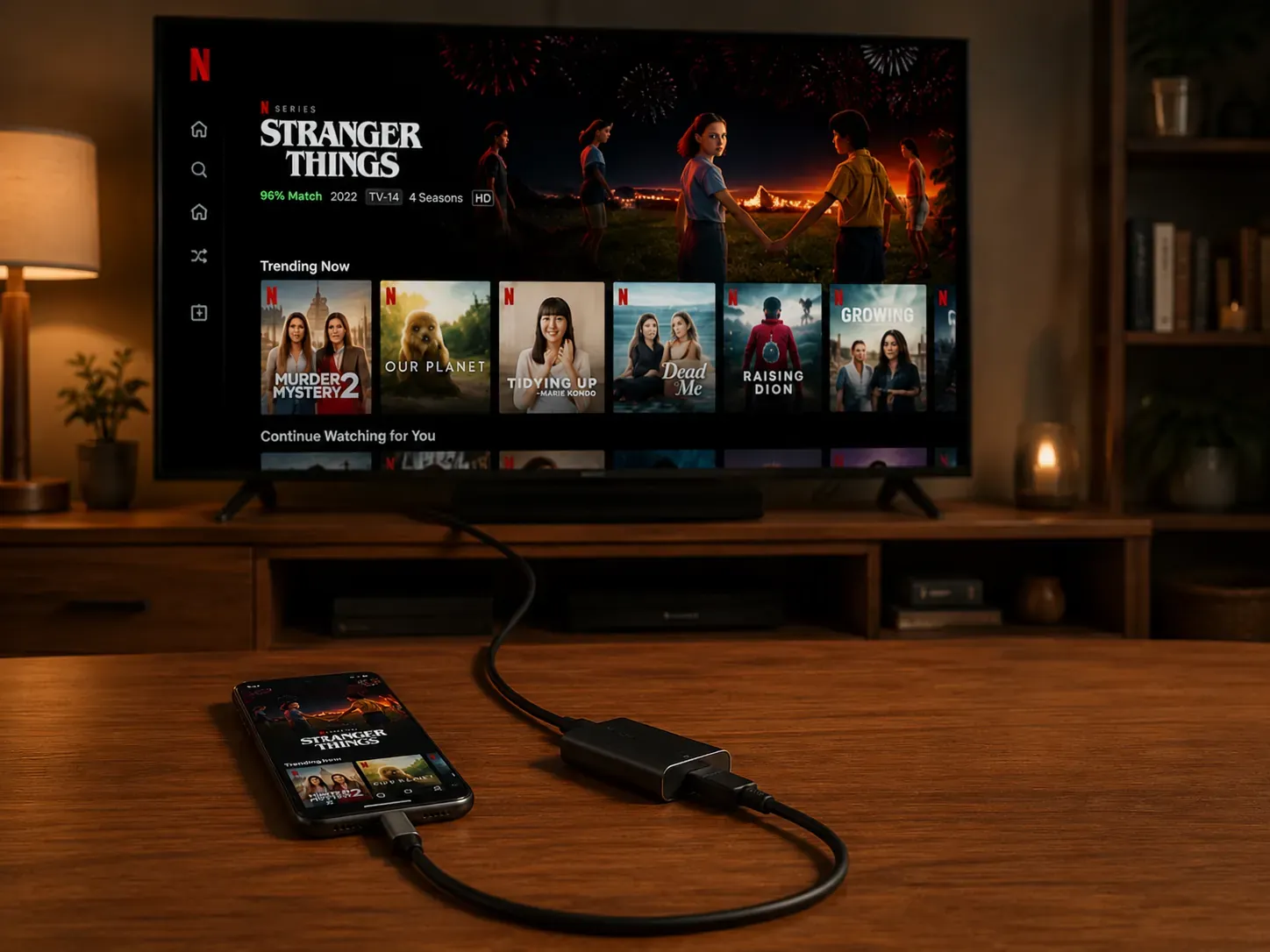
- iPhone with Lightning: Use a Lightning Digital AV Adapter and an HDMI cable.
- iPhone with USB-C: Use a USB-C to HDMI adapter or cable.
- Android with USB-C: Use a USB-C to HDMI adapter, but make sure your phone supports video output.
Step 1. Connect your phone to the adapter, then plug the HDMI cable into the adapter and your TV.
Step 2. Switch your TV to the correct HDMI input.
Step 3. Open Netflix on your phone, choose a movie or show, and test playback on the TV.
Way 4. Use a Streaming Device That Supports Netflix
A streaming device is useful when your TV is old, the Netflix app is missing, or the Cast button does not appear on your phone. Common options include Chromecast, Google TV, Roku, Fire TV Stick, Apple TV, Android TV box, and game consoles with Netflix support.
Step 1. Connect the streaming device to your TV and finish the basic setup.
Step 2. Open or install the Netflix app on the streaming device.
Step 3. Sign in to your Netflix account, choose a title, and play it on your TV.
Way 5. Use Screen Mirroring for Supported Phone Content
Screen mirroring is useful when you want to show your phone screen on a TV, such as photos, browser pages, short videos, presentations, and apps that support screen sharing. For Netflix, use this method only when your device setup allows playback through mirroring.
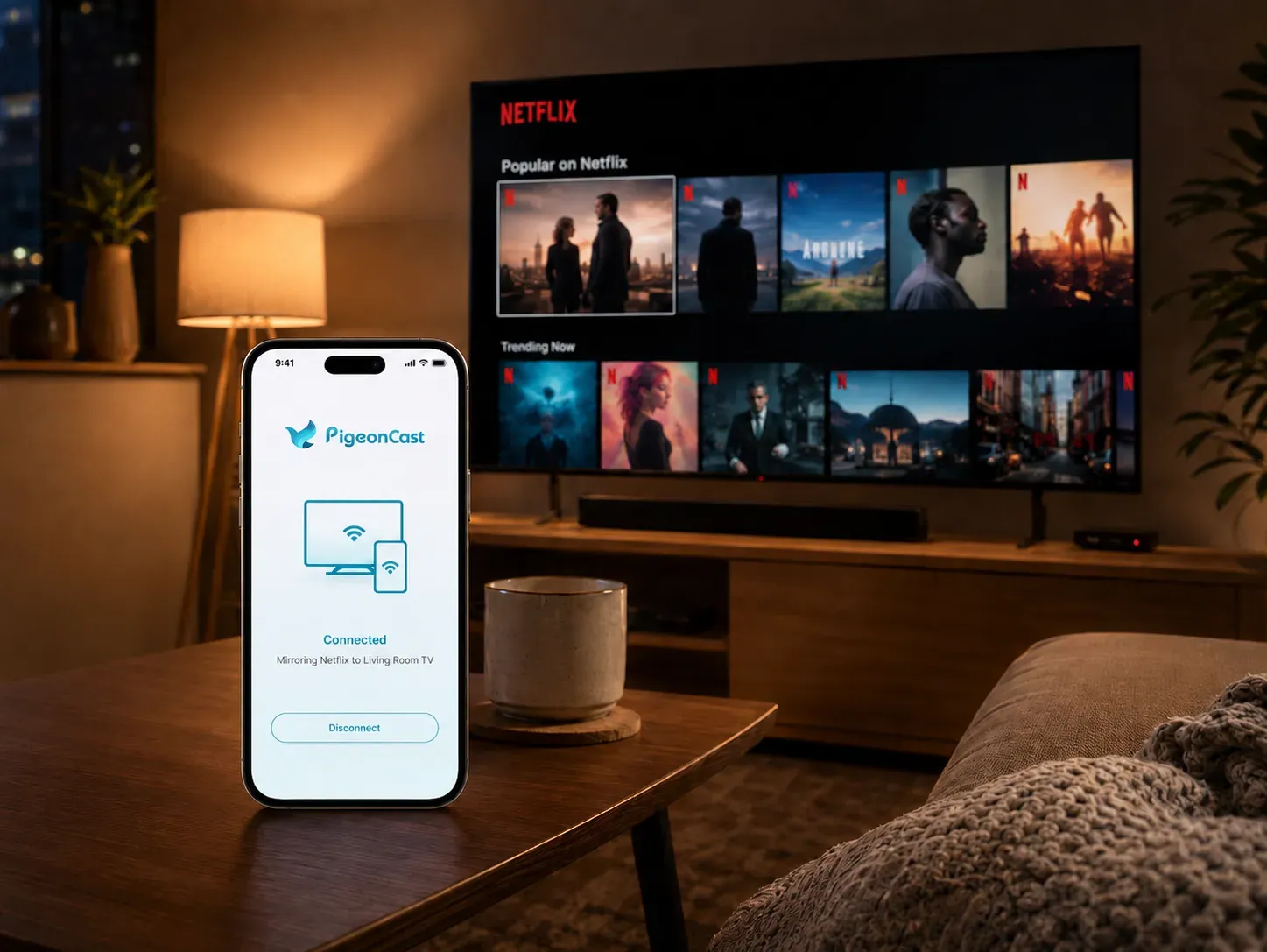
If you also need a general phone-to-TV mirroring tool, PigeonCast can help you mirror content across iPhone, Android, Windows, Mac, Apple TV, Android TV, AirPlay, DLNA, and Google Cast environments. It is useful when you want one screen mirroring solution for different devices at home.


Overall Rating:



Step 1. Connect your devices to the same Wi-Fi network.
Step 2. Install PigeonCast on the phone, computer, or receiving device you want to use from the app store. You can also download PigeonCast on the TV from app shop if available.
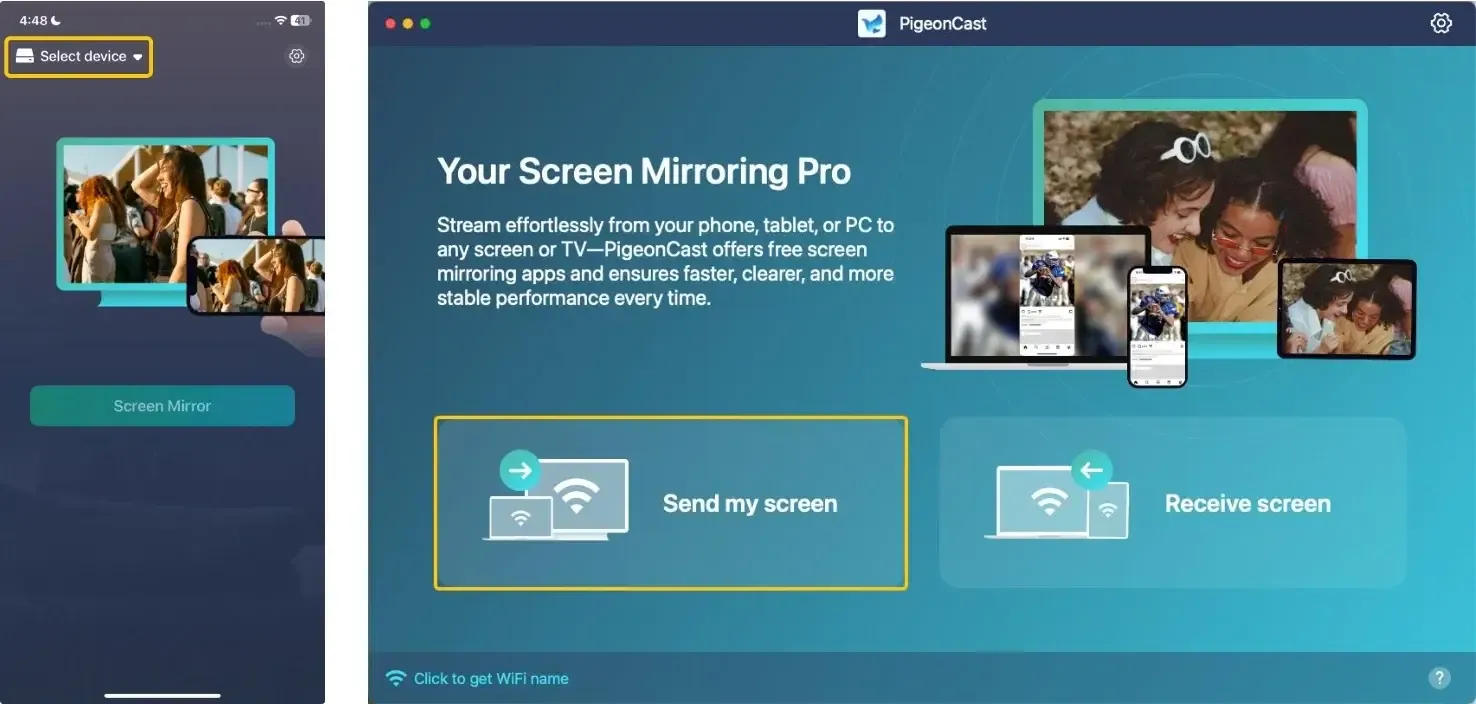
Step 3. Launch PigeonCast, tap Select device or Send my screen to choose the TV or receiver from the device list.
Step 4. Enter the PIN code to confirm your pairing process.
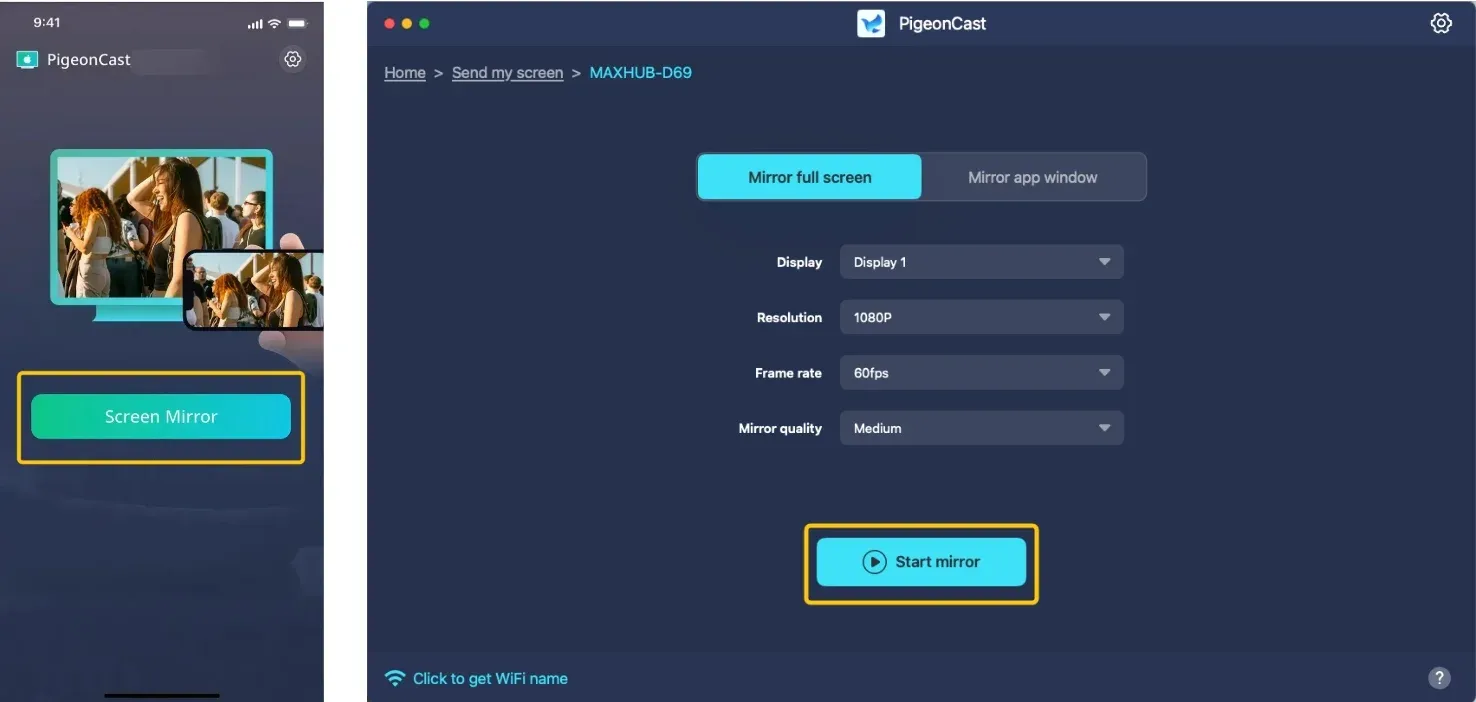
Step 5. Once finish the connection, tap Screen Mirror or Start mirror to screen mirror the content you want to show on the TV.
What to Do If the Netflix Cast Button Is Missing
If the Cast button does not appear in Netflix, the issue is usually related to network setup, app version, or device support. Try these checks before switching to another method:
- Make sure your phone and TV or streaming device are connected to the same WiFi network.
- Update Netflix on your phone, TV, or streaming device.
- Restart your phone, TV, streaming device, and router.
- Check whether your TV or streaming device supports Netflix casting.
- Open Netflix directly on the TV if the TV app is available.
- Use HDMI or a Netflix-ready streaming device if your TV does not support casting.
Final Verdict
Netflix works best on TV when the playback method matches your device setup. If one route does not appear or respond, switch to a method your TV already supports instead of spending extra time on the same connection path. For daily watching, the goal is simple: get Netflix running on the TV screen with the fewest steps and the most stable playback.
How to Connect Netflix to TV from Phone FAQ
Why does Netflix show my TV in other apps but not inside Netflix?
Different apps do not always use the same casting rules. A TV may appear in YouTube, Photos, or a browser app, but that does not guarantee it will appear inside Netflix. Netflix needs a supported playback path, so the Cast button may only show when the app recognizes a compatible TV or streaming device.
Do I need the same Netflix account on my phone and TV?
If you use the Netflix TV app or a streaming device, you need to sign in to a Netflix account on that device. It does not have to be a different account from your phone. Using the same account is usually easier, since your watch history, profiles, and recommendations stay in sync.
Can I connect Netflix from phone to TV without a smart TV?
Yes. A non-smart TV can still play Netflix if you add a compatible device, such as a streaming stick, TV box, game console, or HDMI setup. The TV only needs a working HDMI port in most cases. The Netflix app or playback support comes from the connected device, not from the TV itself.
Does Netflix use phone battery when casting to TV?
Casting usually uses less battery than full screen mirroring, since the TV or streaming device handles the video playback. Your phone mainly works as a controller. Battery use can still increase if you keep the screen on, browse Netflix for a long time, or use your phone for other apps while watching.
Why is Netflix quality better on the TV app than from my phone?
The TV app or streaming device may have a more stable connection, better video support, and direct playback from Netflix. Phone-based casting depends on device compatibility and network conditions. If you want the best picture and fewer interruptions, the built-in TV app or a dedicated streaming device is often the better choice.
Why does Netflix stop casting when I lock my phone?
Netflix casting should normally keep playing after you lock your phone, since the TV or streaming device handles playback. If it stops, the connection may not be a true Cast session, the app may be restricted in the background, or your device may have a power-saving setting that interrupts the connection. Update Netflix and disable strict battery-saving settings for the app.
Clara Rossi is an experienced technology editor and a seasoned expert in screen mirroring and casting technologies. With a keen eye for detail and a deep understanding of how to seamlessly connect devices, Clara excels at optimizing user experiences for effortless sharing and streaming. Whether you're seeking quick fixes or advanced tips, her expertise and responsiveness ensure that every query is met with a well-informed and efficient solution.