
Streaming your favorite content to the big screen should be a seamless experience. If you are trying to figure out how to do AirPlay on TV quickly, the best approach is to verify your device compatibility and sync your Wi-Fi settings before you start. This guide walks you through the entire process for iPhone, iPad, and Mac while offering a professional troubleshooting path to fix connection drops or discovery issues instantly.
What Is AirPlay and How Does It Work
AirPlay is Apple’s proprietary wireless technology designed to stream video, audio, and photos from your iPhone, iPad, or Mac to an AirPlay-comptible TV. It acts as a high-performance digital bridge, allowing you to share content without the clutter of cables. To get the best experience, choose the mode that matches your content:
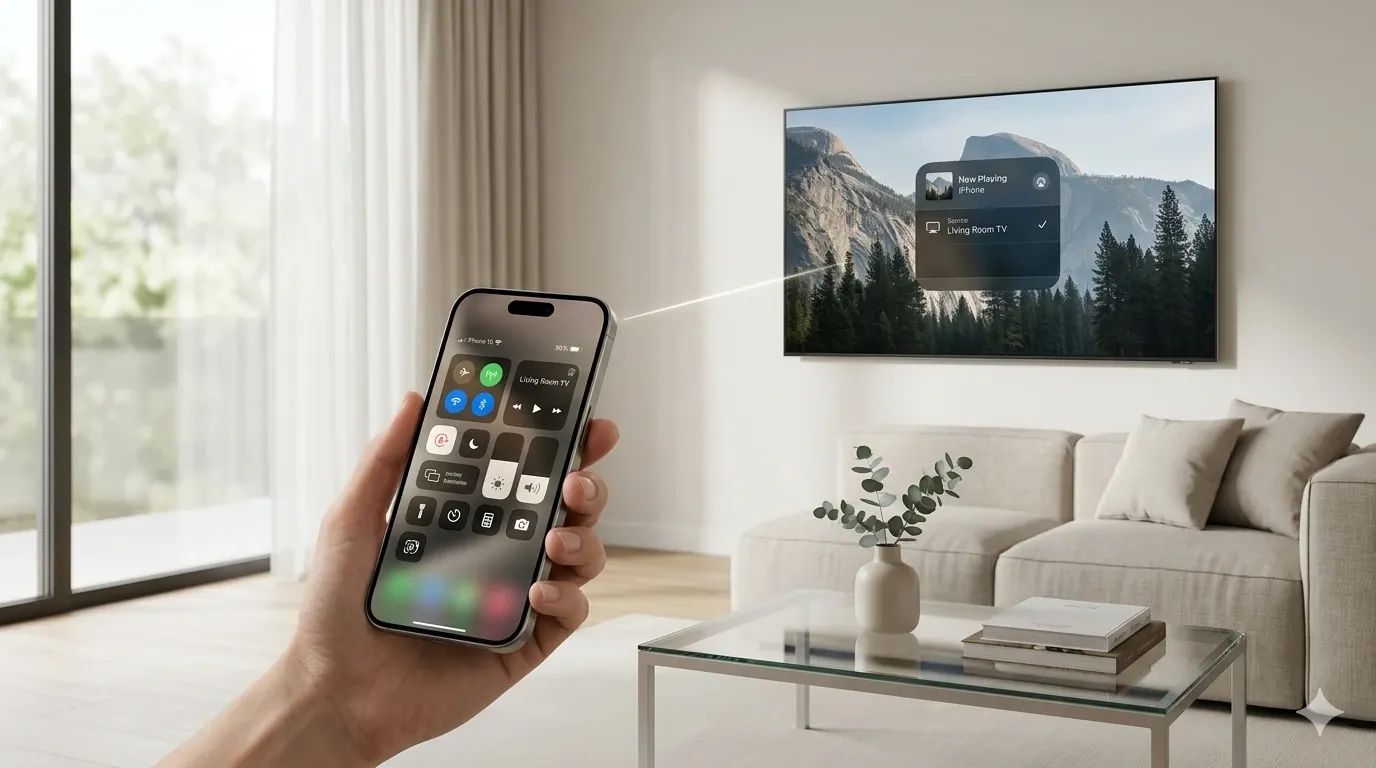
- Media Streaming: Sends a specific file, such as a movie, to your TV. This mode typically gives you the best quality while using less battery on your device.
- Screen Mirroring: Duplicates your entire device display in real time. This is ideal for slides, web pages, and apps that do not offer a native AirPlay button.
What Are the Prerequisites to Prevent Failures
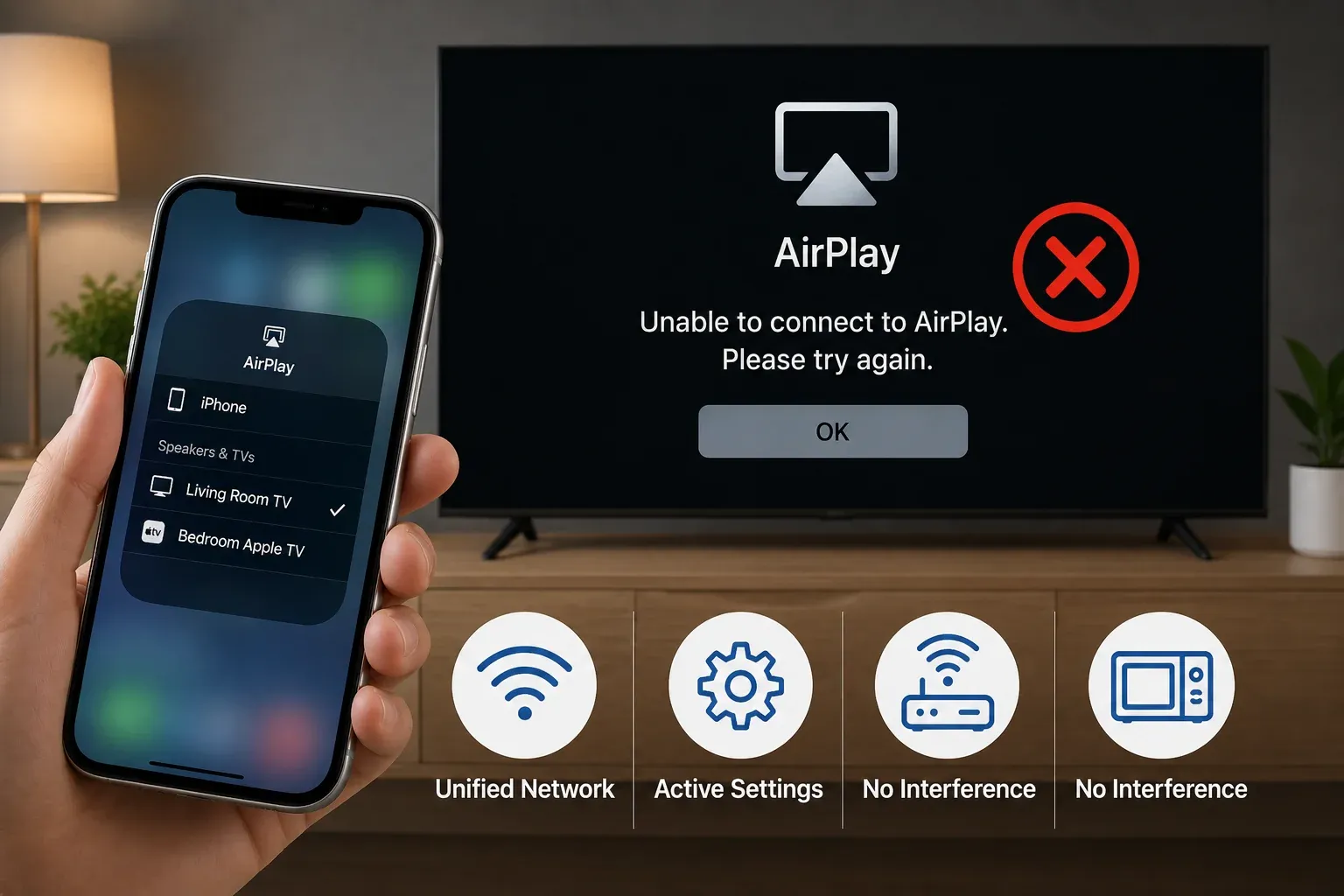
Most AirPlay errors occur because of simple setup oversights. Verifying these core requirements first will prevent most discovery and connection issues:
-
Unified Network: Both your Apple device and your TV must be connected to the same Wi-Fi router.
-
Active Settings: You must manually toggle AirPlay to On within your TV's connection or settings menu.
-
No Interference: Disable VPNs and avoid using Guest Wi-Fi, as these settings often block devices from "seeing" each other.
-
Signal Strength: For the best stability, use a 5 GHz Wi-Fi band or connect your TV directly via an Ethernet cable to eliminate lag.
Is Your TV Model Compatible with AirPlay
AirPlay support is determined by your TV's specific model and manufacturing year, not just the brand name.
-
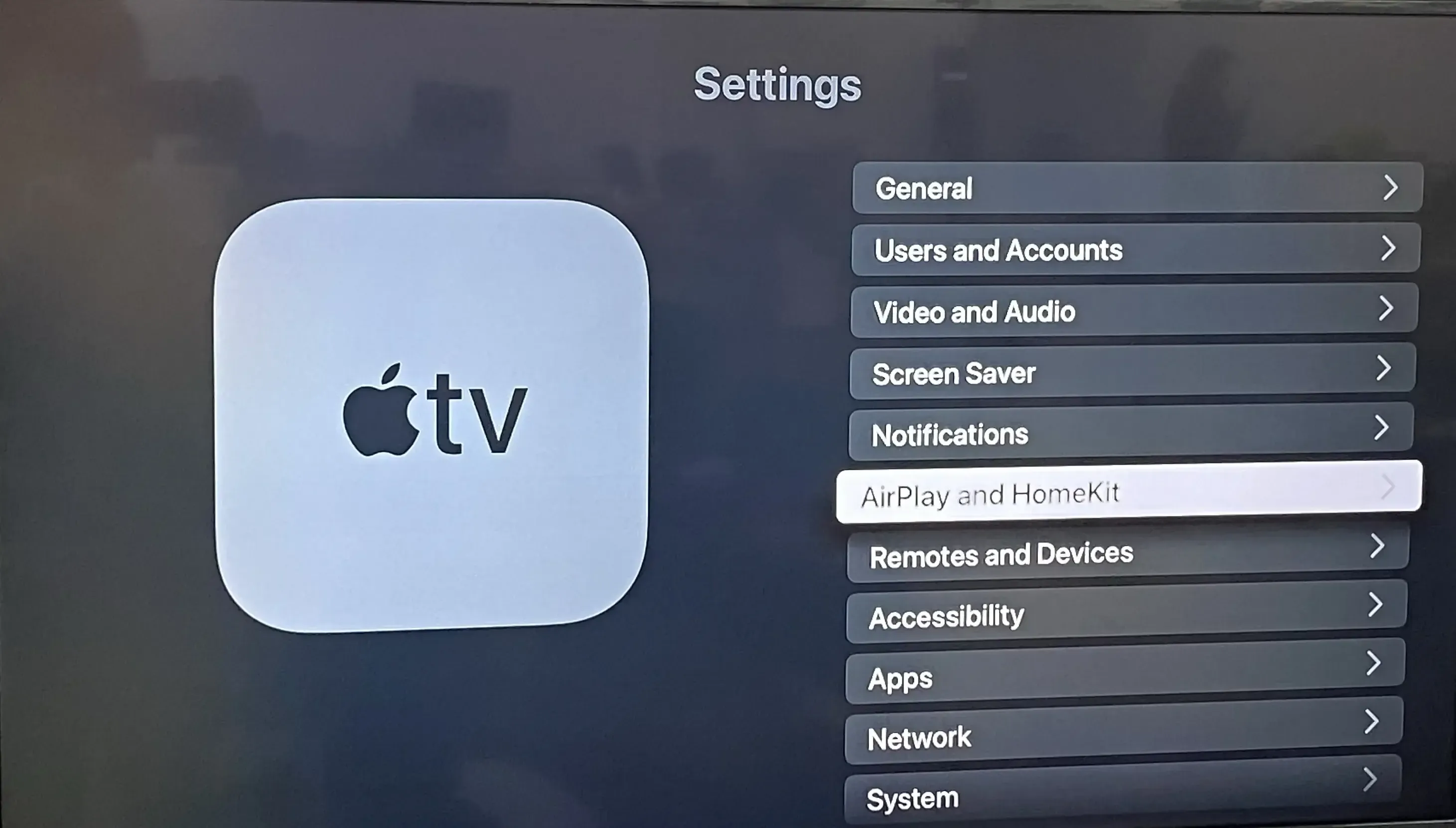
Check the Menu: Look for the Apple AirPlay and HomeKit icon in your TV settings. If it appears, your TV is ready for AirPlay.
-
Update Firmware: Many manufacturers add AirPlay support through software updates. Make sure your TV is running the latest firmware before ruling out compatibility.
-
Verify the Model: If you do not see the AirPlay option, check your exact TV model number on the manufacturer’s official support website.
-
External Solutions: If your TV is not natively compatible, add AirPlay by connecting an Apple TV 4K or a compatible Roku streaming stick via HDMI.
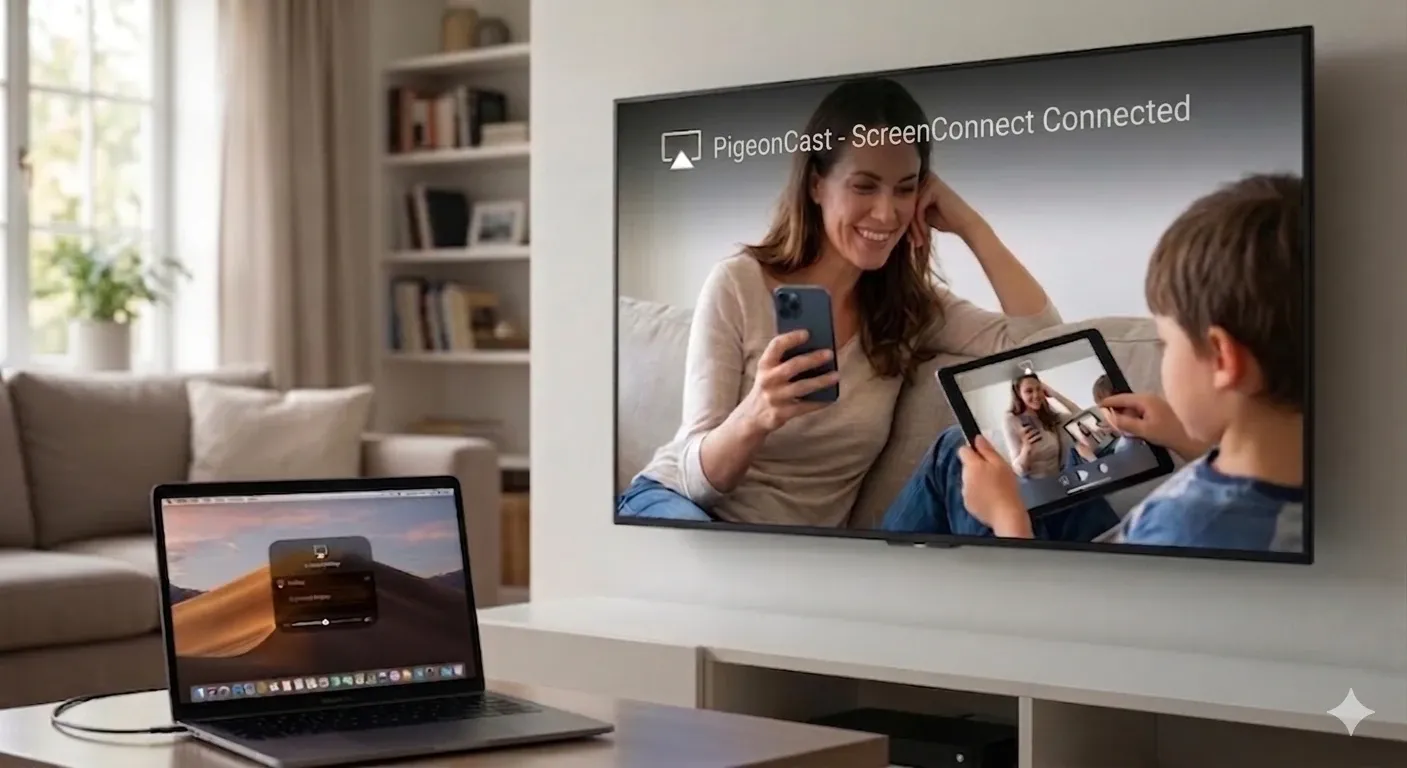
For a more versatile solution without buying extra hardware, PigeonCast transforms your existing smart TV into a universal AirPlay receiver. Unlike standard built-in software, it uses a self-developed protocol specifically optimized for high-bitrate streaming. It supports up to 4K resolution at 60fps, ensuring that your connection is not only stable but also delivers professional-grade visual clarity that outperforms most native TV interfaces.


Overall Rating:



How to Turn on AirPlay and Start Casting
Once you have verified your compatibility, the next step is to activate the feature and initiate the connection. AirPlay is often disabled by default on many smart TVs, so you must ensure the "handshake" is ready on both sides.
How to Activate AirPlay on Your TV Settings
Before you can find your TV on your iPhone or Mac, you need to open the gateway:
- Locate the Menu: Open your TV settings and look for General, Connection, or Apple AirPlay & HomeKit.
- Toggle to On: Ensure AirPlay status is set to On.
- Set Permissions: Set Require Code to First Time Only for a balance of security and convenience.
- Check the Network: Confirm your TV is connected to the same Wi-Fi name as your Apple device.
How to Do AirPlay on TV from iPhone or iPad
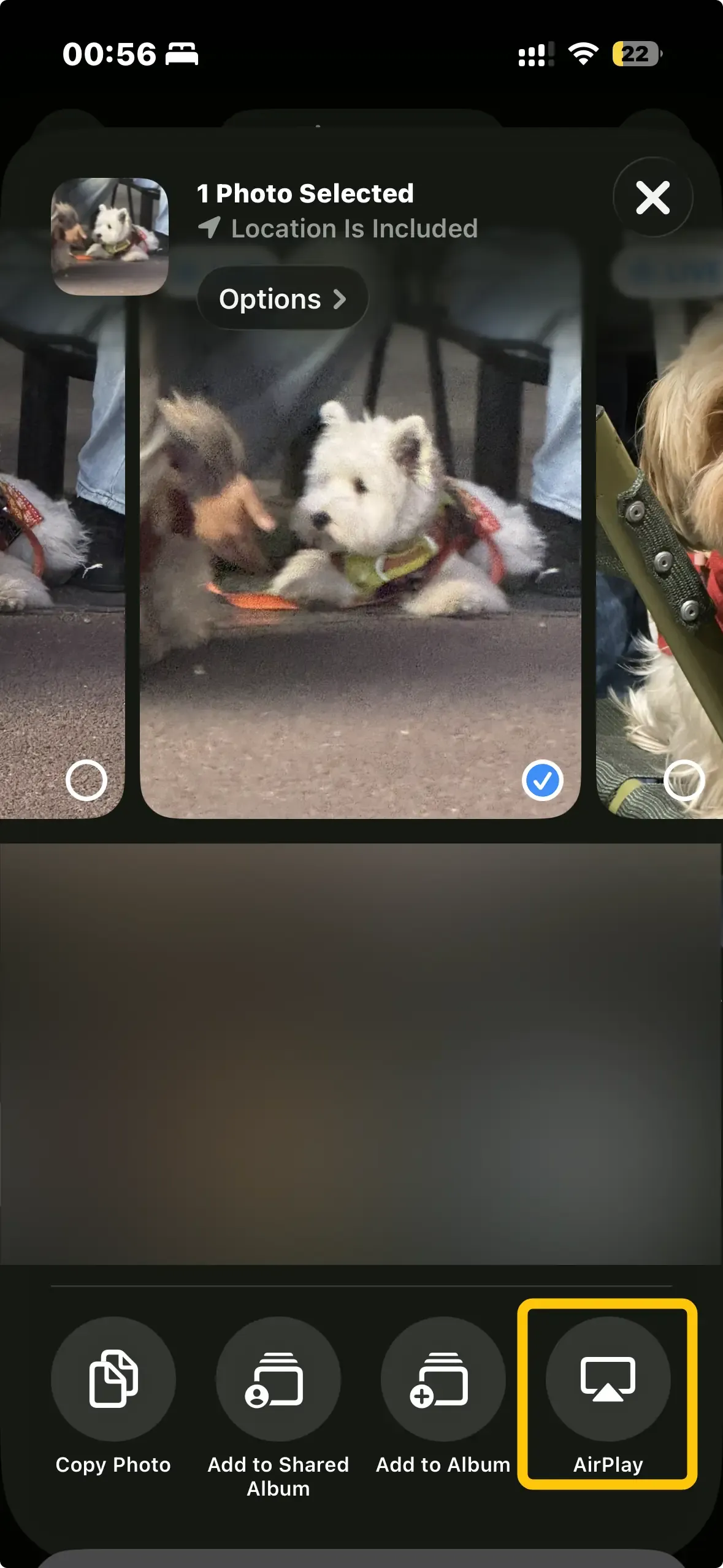
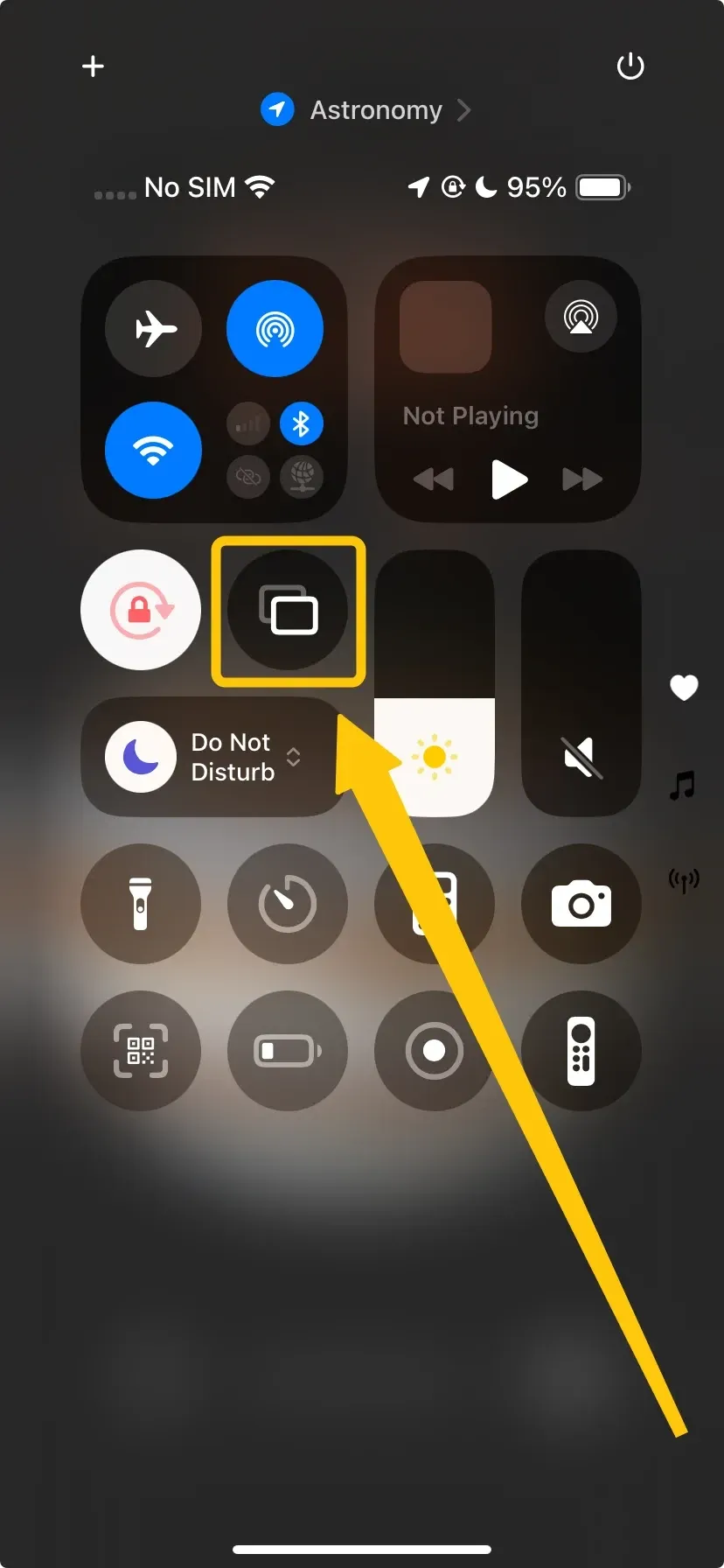
Streaming from a mobile device is handled through the Control Center, which you can access by swiping down from the top-right corner of your screen:
-
For Video: Open the video you want to watch, tap the AirPlay icon (a triangle pushing into a rectangle), and select your TV from the list.
-
For Entire Screen: Tap Screen Mirroring (two overlapping rectangles) in the Control Center to mirror exactly what you see on your phone.
-
Stop Casting: To end the session, tap the AirPlay icon again and select Stop Mirroring or Turn Off AirPlay.
How to Do AirPlay on TV from a Mac
The Mac offers more flexibility, allowing you to use your TV as either a mirror or a separate second monitor:
Step 1. Click the Control Center icon in the top-right menu bar of your macOS desktop.
Step 2. Select Screen Mirroring to choose your TV from the list of available devices.
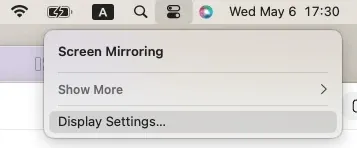
Step 3. Once connected, click the Screen Mirroring icon again to choose between Mirror Built-in Display (same content) or Use As Separate Display (extended desktop). Step 4. If you only want to stream music or a podcast, click the Sound icon in the menu bar and select your TV as the output device.
Quick Fix: AirPlay Is Not Showing on TV
If your devices fail to connect, do not change random settings. Follow this logical diagnosis tree to isolate the root cause and restore your connection.
Step-by-step Diagnosis
Run through these checks in order to find why your TV is missing from the AirPlay list:
- Confirm Network SSID: Ensure both devices are on the exact same Wi-Fi name, not a guest network or a different band.
- Disable VPNs: Temporarily turn off any VPN on your iPhone or Mac, as these often hide your device from the local network.
- Power Cycle Everything: Restart your source device, the TV, and your Wi-Fi router to clear temporary software glitches.
- Isolate the Device: Try connecting from a different iPhone or Mac. If one works and the other doesn't, the issue is with the device settings rather than the TV.
- Check Firmware: Ensure both your Apple OS and the TV firmware are fully updated to the latest versions.
Lag or Connection Drops
If AirPlay connects but remains unstable or lags, the issue is usually related to network bandwidth or interference:
- Reduce Network Load: Close high-bandwidth apps like game downloads or 4K streams on other devices.
- Reposition Devices: Move your router closer to the TV or switch to a 5 GHz Wi-Fi band for less interference.
- Clear Pairings: Remove previous AirPlay pairings from your TV settings and reconnect from scratch to refresh the security handshake.
Security and Privacy Settings
Correct security defaults protect your TV from unauthorized or accidental casting:
- First-Time Passcode: This is the best balance for home use, requiring a code only when a new device connects.
- Always Require Code: Use this setting in shared environments like offices or dorms to ensure you only cast when intended.
- Periodic Cleanup: Occasionally reset the list of "Known Devices" in your TV's AirPlay settings to maintain a clean and secure connection history.
Wrapping Up
A seamless AirPlay experience depends on a simple sequence of verifying TV compatibility, enabling the feature in your settings, and ensuring both devices share the same Wi-Fi network. Always choose media streaming for videos to save battery and use screen mirroring only for sharing app interfaces or documents. If you encounter any connection issues, simply follow a logical fix path by disabling VPNs and restarting your hardware rather than changing random settings.
How to Do AirPlay on TV FAQ
Do I need a streaming box to do AirPlay on TV?
You only need a streaming box when your TV does not support AirPlay on its own. If native AirPlay is unavailable, an HDMI receiver is the fastest way to add reliable casting without replacing the TV.
Can I AirPlay without Wi-Fi?
In most cases, AirPlay requires both devices to be on the same local Wi-Fi so they can discover each other. If they are on different networks, Guest Wi-Fi, or isolated bands, the TV may not appear.
Why does my TV ask for a code every time I connect?
This usually means your TV is set to require verification on every connection. Switch the permission setting to First Time Only if you want fewer prompts while keeping basic protection.
Does internet speed decide AirPlay quality?
Not directly. AirPlay inside your home relies more on local network stability than internet download speed. Strong signal, low interference, and low network congestion usually improve quality more than upgrading internet bandwidth.
Does JVC TV support screen mirroring?
It depends on the exact model and system. Some JVC smart TVs support wireless screen mirroring features, while others do not support AirPlay directly. Check your TV settings for casting options, confirm the model on the official support page, and keep firmware updated before testing.
Do Sonos work with AirPlay?
Yes. Sonos speakers that support AirPlay 2 can receive audio directly from your iPhone, iPad, or Mac. If you do not see your speaker in the AirPlay list, make sure both devices are on the same Wi-Fi network, update the Sonos system, and confirm AirPlay is enabled in the Sonos app settings.
Clara Rossi is an experienced technology editor and a seasoned expert in screen mirroring and casting technologies. With a keen eye for detail and a deep understanding of how to seamlessly connect devices, Clara excels at optimizing user experiences for effortless sharing and streaming. Whether you're seeking quick fixes or advanced tips, her expertise and responsiveness ensure that every query is met with a well-informed and efficient solution.