
If iPhone mirroring timed out, check the network, receiver settings, software version, and permissions on both devices. The fixes below apply when you are connecting to a Mac, Apple TV, smart TV, or another compatible receiver.
Why Does iPhone Mirroring Time Out
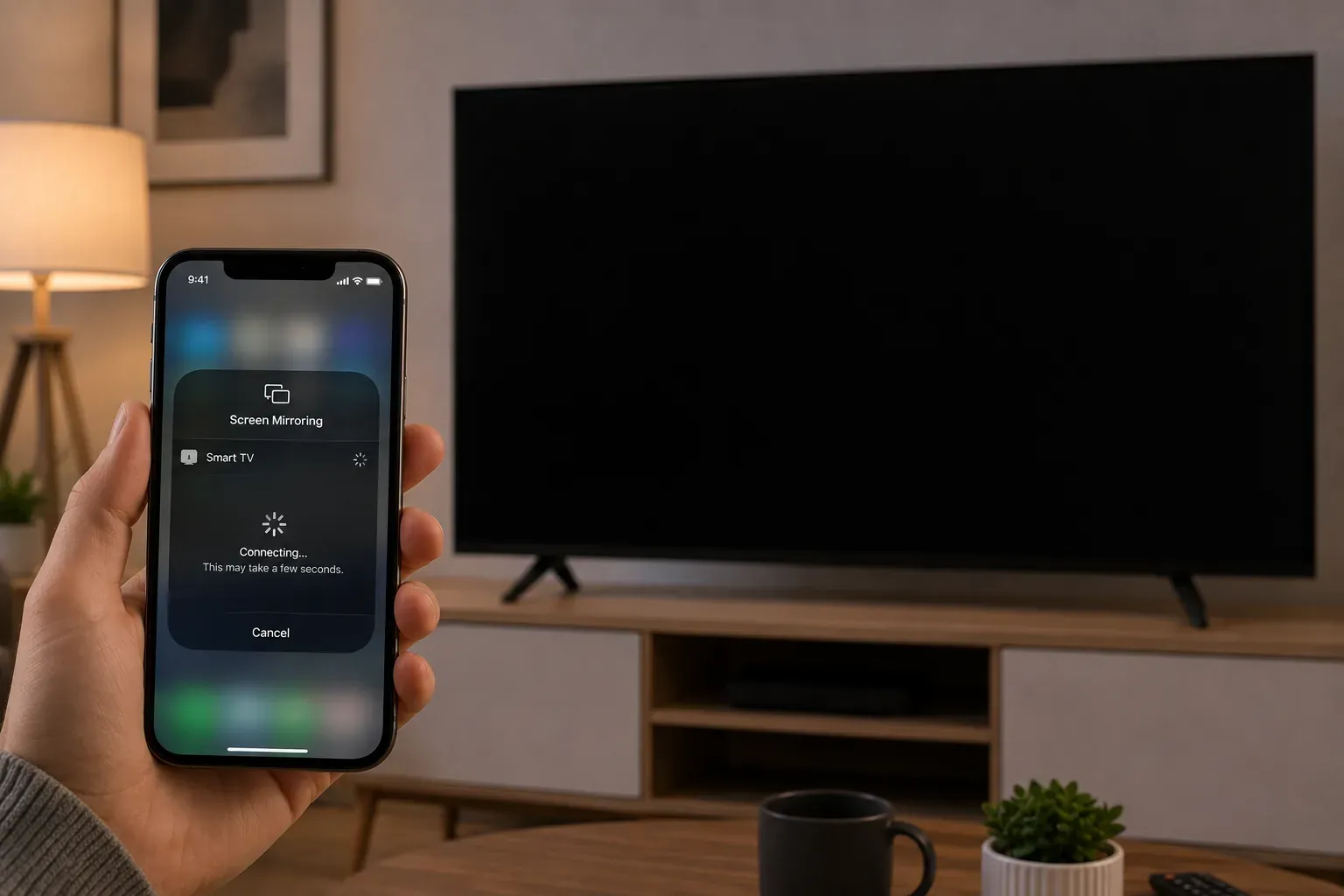
An iPhone mirroring connection usually times out when the iPhone can detect the receiver but cannot complete the connection. The most common causes include:
- The iPhone and receiver are connected to different Wi-Fi networks.
- AirPlay or the receiving feature is turned off.
- The target device does not support iPhone mirroring.
- The receiver is asleep, busy, or no longer responding.
- The iPhone or receiving device is running outdated software.
- A VPN, guest network, firewall, or network restriction is blocking communication.
- Local network or AirPlay permissions are limited.
- A previous mirroring session did not close correctly.
How to Fix iPhone Mirroring Timed Out
Try each fix in order, and reconnect your iPhone after every step to see whether the timeout has been resolved. Start with the basic network and receiver checks before changing or resetting any settings.
Fix 1. Check That Both Devices Use the Same Wi-Fi
Connect your iPhone and the receiving device to the same Wi-Fi network. A receiver may still appear in the device list even when it is connected to a different network, but the mirroring request can time out before the connection is completed.
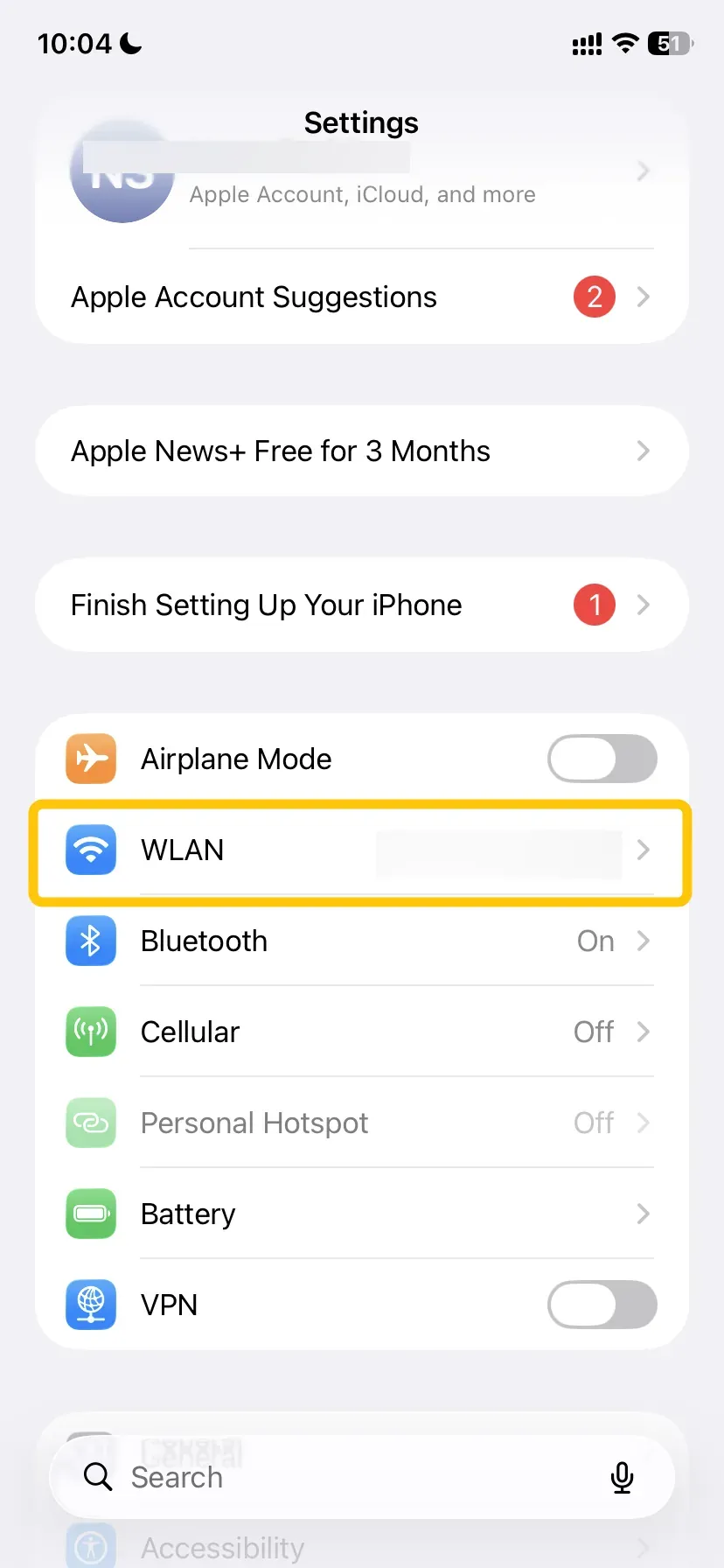
Step 1. On your iPhone, open Settings > WLAN and check the network name.
Step 2. Open the network settings on your Mac, Apple TV, or smart TV and confirm that it shows the same network.
Step 3. If either device is using a guest network, switch it to the main Wi-Fi network and try mirroring again.
Fix 2. Restart the AirPlay Connection
A previous AirPlay connection may not have ended properly, causing the next attempt to time out. Restart AirPlay on both your iPhone and the receiving device before reconnecting.
Step 1. On your iPhone, open Control Center and tap Screen Mirroring.
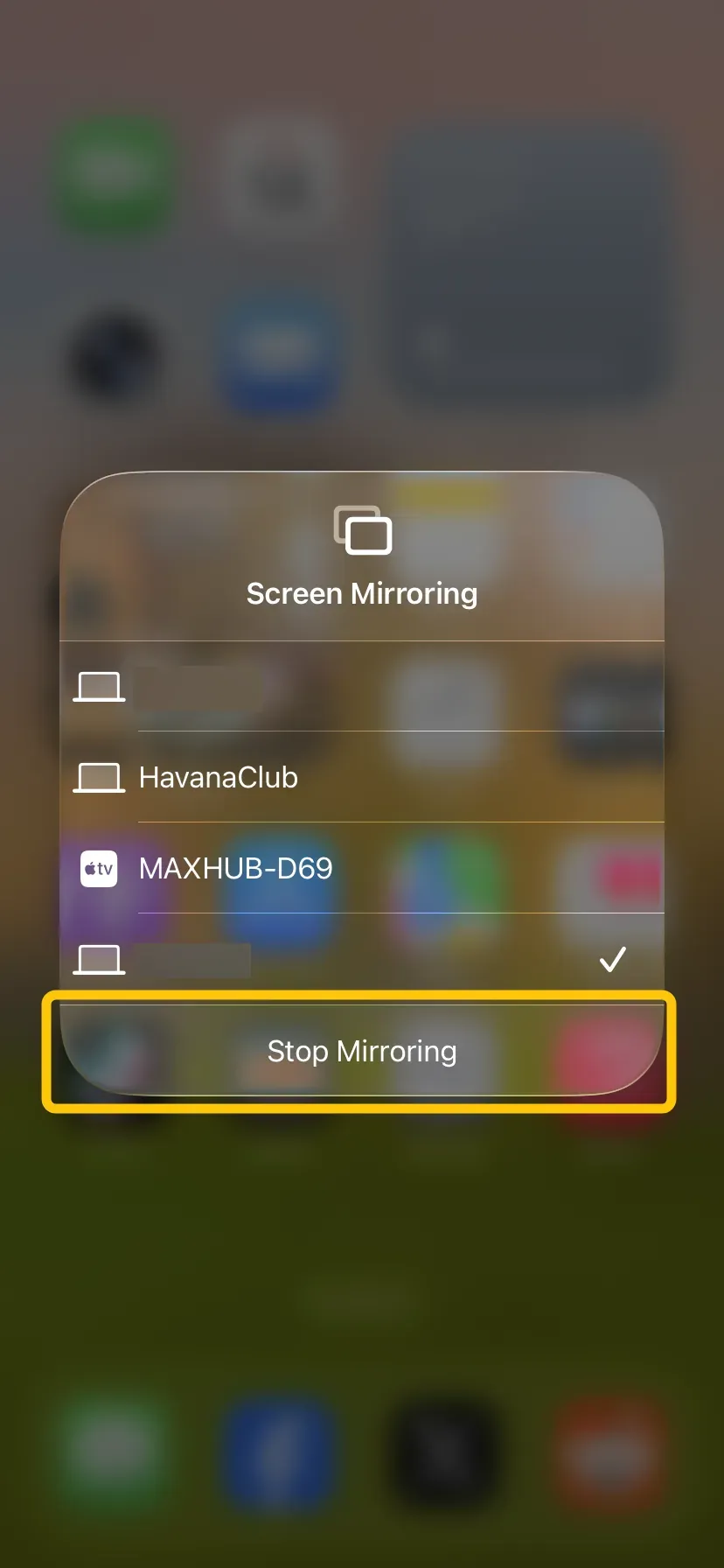
Step 2. If the target device is still selected or shows as connecting, tap Stop Mirroring. If no active connection appears, close Control Center and continue.
Step 3. On the receiving device, close any video, casting, or screen mirroring session that is currently open.
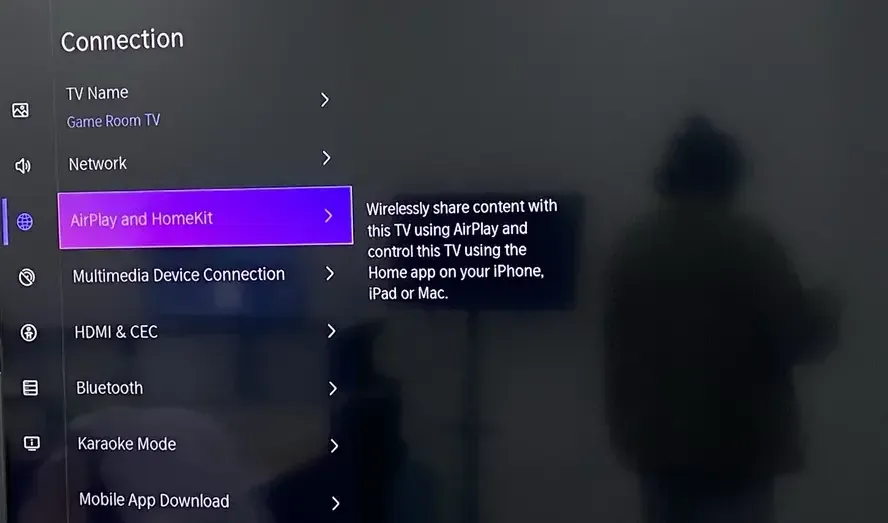
Step 4. Open the AirPlay settings on the receiver:
- Apple TV: Go to Settings > AirPlay and HomeKit.
- Mac: Go to System Settings > General > AirDrop & Handoff.
- Smart TV: Open Settings and look for Apple AirPlay, AirPlay Settings, or a similar option.
Step 5. Turn AirPlay or AirPlay Receiver off, wait a few seconds, and turn it back on.
Step 6. Make sure the receiver is awake and remains on the AirPlay or home screen. Do not open another casting app while reconnecting.
Step 7. Return to your iPhone, open Control Center > Screen Mirroring, and select the receiver again.
Step 8. If an AirPlay code appears on the receiving screen, enter it on your iPhone before the request expires.
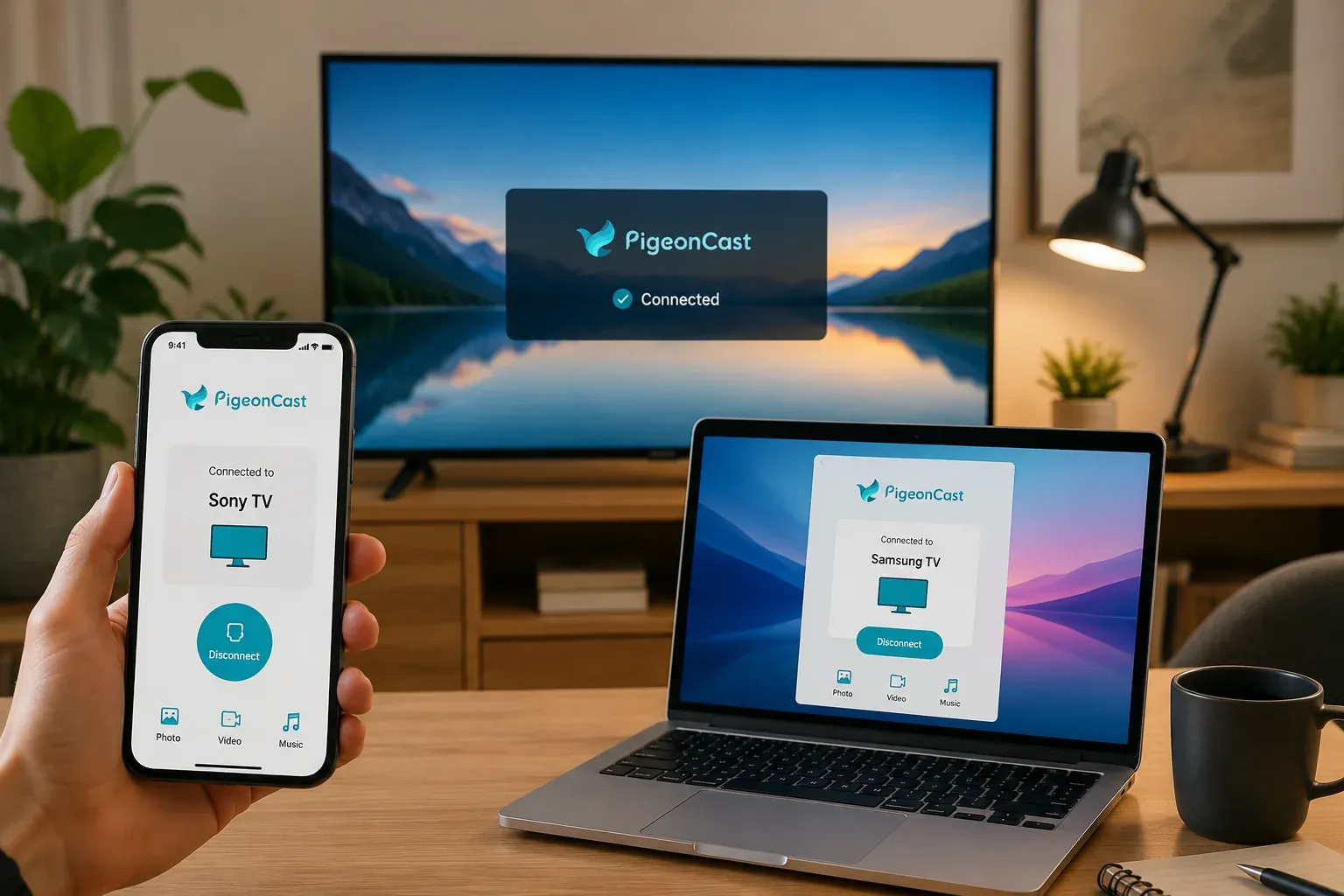
Tip: If the built-in AirPlay receiver keeps timing out, try PigeonCast on the target device. It lets you mirror an iPhone to Windows, Mac, Apple TV, Android TV, and other supported screens over Wi-Fi, so you can use the same app across different platforms instead of relying on each device’s native receiver. This free mirroring app also supports AirPlay, Google Cast, and DLNA, which makes it useful in homes or workplaces with mixed devices.


Overall Rating:



Fix 3. Restart the iPhone and Receiving Device
If restarting AirPlay does not help, restart both devices to clear temporary connection problems before trying again.
Step 1. Stop the current mirroring attempt and close Control Center on your iPhone.
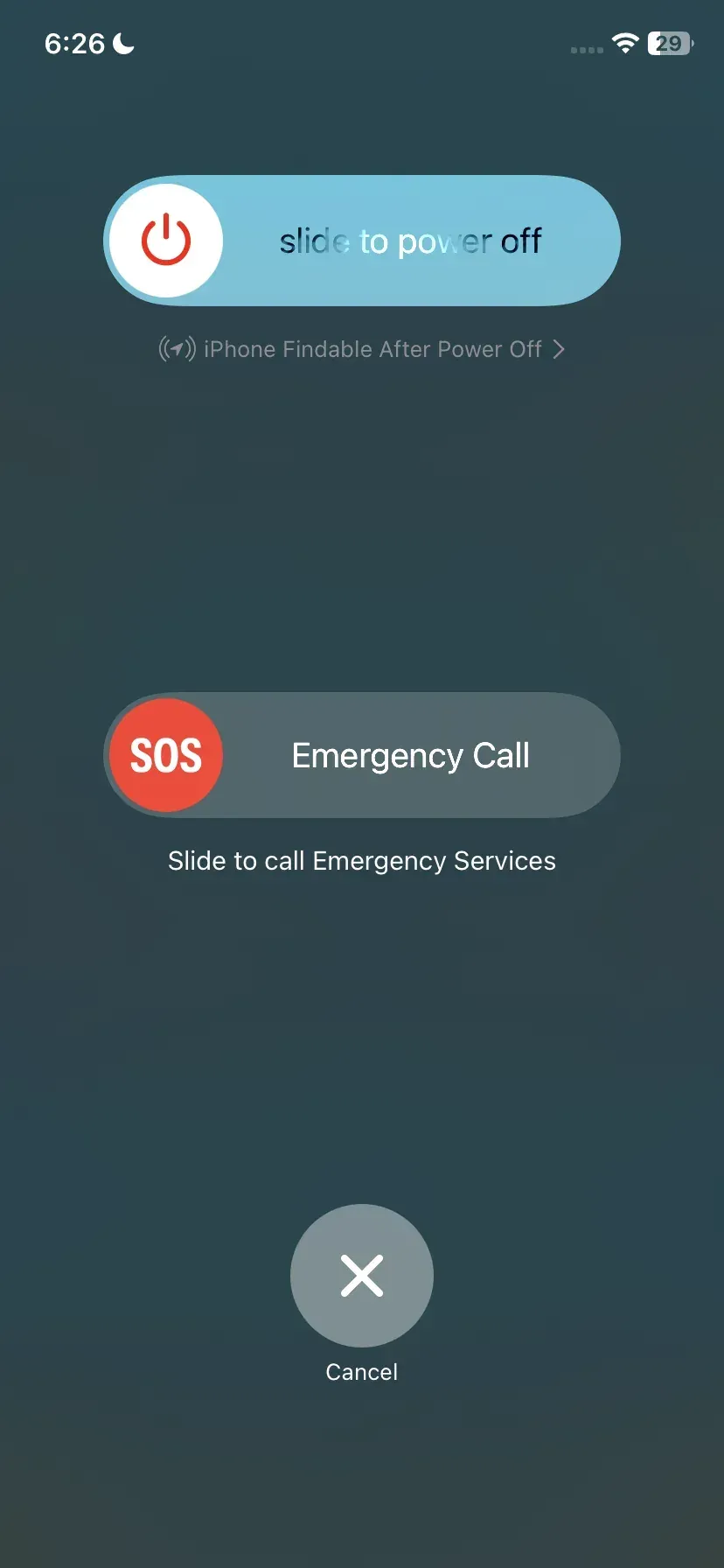
Step 2. Restart your iPhone:
- iPhone with Face ID: Press and hold the side button and either volume button until the power-off slider appears.
- iPhone with a Home button: Press and hold the side or top button until the power-off slider appears.
Drag the slider, wait for the iPhone to turn off, then press and hold the side or top button to turn it back on.
Step 3. Restart the receiving device:
- Apple TV: Open Settings > System > Restart.
- Mac: Open the Apple menu > Restart.
- Smart TV: Use the TV’s restart option if available. If not, turn it off, unplug it from power for about 30 seconds, then plug it back in.
Step 4. Wait until both devices have fully restarted and reconnected to Wi-Fi.
Step 5. Keep the receiving device awake, then open Control Center > Screen Mirroring on your iPhone and try again.
Fix 4. Turn Off VPN, Personal Hotspot, and Network Sharing
A VPN, hotspot, or shared network can change how your iPhone communicates with nearby devices and may cause the mirroring request to time out.
Step 1. On your iPhone, open Settings and turn off any active VPN connection.
Step 2. Go to Settings > Personal Hotspot and turn off Allow Others to Join.
Step 3. If you are connecting to a Mac, open System Settings > General > Sharing and make sure Internet Sharing is turned off.
Step 4. Temporarily pause third-party firewall, network filter, or security software on the Mac if it may be blocking local device connections.
Step 5. Confirm that both devices are still connected to the same Wi-Fi network, then try Control Center > Screen Mirroring again.
Fix 5. Check the Receiver’s AirPlay Access Settings
Your iPhone may discover the receiver but still fail to connect when AirPlay access is limited to specific users or accounts. Review the access settings on the receiving device before trying again.
-
Mac: Open System Settings > General > AirDrop & Handoff. Make sure AirPlay Receiver is on, then check Allow AirPlay for. Select an option that includes your iPhone, such as Anyone on the Same Network.
-
Apple TV: Open Settings > AirPlay and HomeKit > Allow Access. Make sure the selected option does not exclude your iPhone.
-
Smart TV: Open Apple AirPlay Settings and check for options such as access restrictions, required codes, paired devices, or blocked devices. Menu names vary by TV brand.
-
Third-party receiver app: On the iPhone or receiving device, open Settings > Privacy & Security > Local Network and allow access for the app if it needs to discover devices on your network.
After changing the access setting, reopen Control Center > Screen Mirroring on your iPhone and select the receiver again. If a new AirPlay code appears, enter it to complete the connection.
Fix 6. Update the iPhone and Receiving Device
Outdated software can affect AirPlay compatibility or leave known connection problems unresolved. Check both devices instead of updating only the iPhone. Apple also recommends installing the latest available software when AirPlay or screen mirroring is not working.
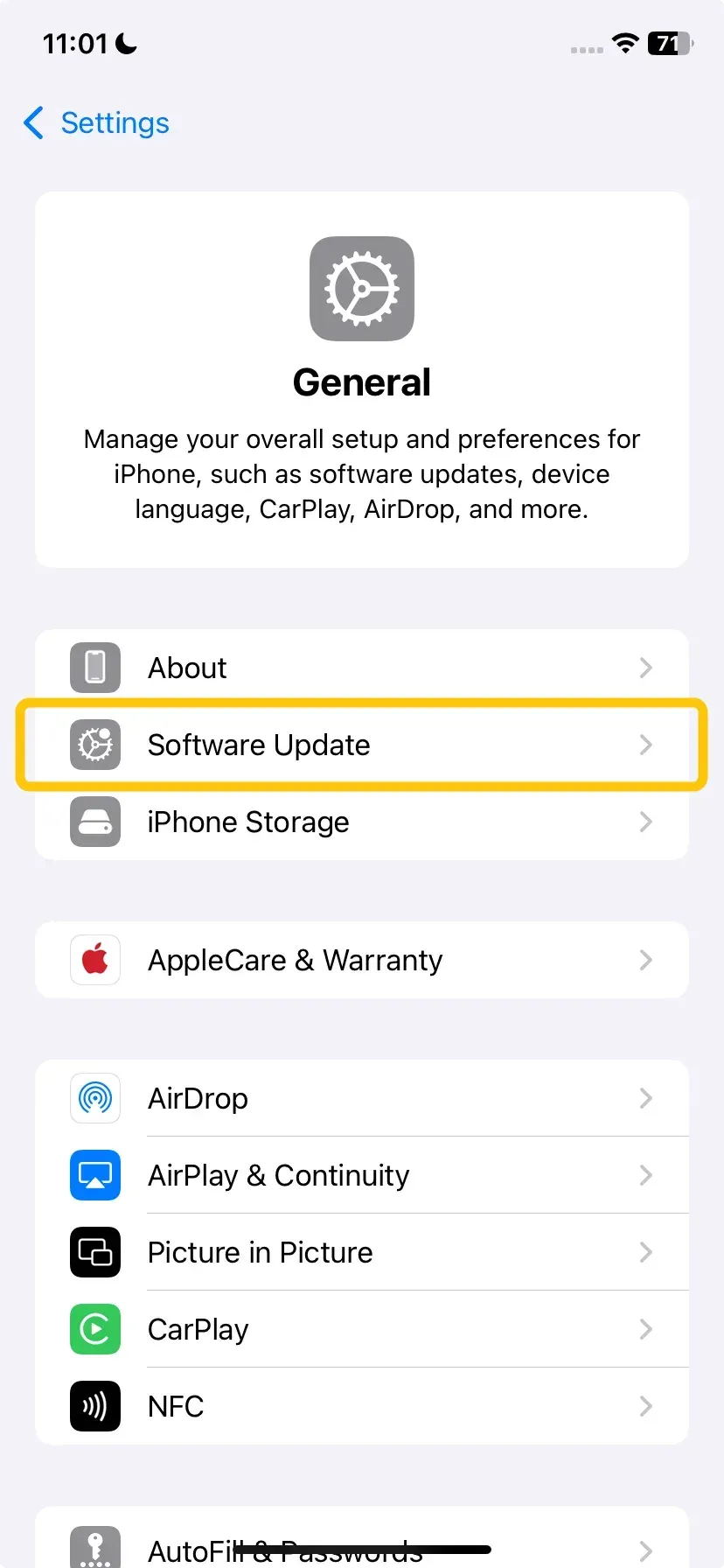
- iPhone: Open Settings > General > Software Update, then install any available iOS update.
- Mac: Open System Settings > General > Software Update. Apple recommends using the latest macOS version compatible with your Mac.
- Apple TV: Open Settings > System > Software Updates > Update Software.
- Smart TV: Open the TV’s Settings, Support, System, or About menu and check for a firmware update. The exact path varies by brand.
Keep both devices connected to power while the updates install. After they restart, confirm that they are connected to the same Wi-Fi network, then try Control Center > Screen Mirroring again.
Fix 7. Reset the AirPlay Pairing on the Receiver
If the receiver worked before but now keeps timing out, its saved AirPlay pairing or access record may be stuck. Reset the receiver-side connection before changing broader network settings.
-
Apple TV: Open Settings > AirPlay and HomeKit and review Allow Access. If the issue continues, reset paired devices or HomeKit-related AirPlay access where available.
-
Mac: Open System Settings > General > AirDrop & Handoff, turn AirPlay Receiver off, restart the Mac, and turn it back on.
-
Smart TV: Open Apple AirPlay Settings and look for options such as Reset Paired Devices, Require Code, or Reset AirPlay. The wording varies by TV brand.
After clearing the saved connection, open Control Center > Screen Mirroring on your iPhone, select the receiver again, and enter the new code if prompted.
Fix 8. Check AirPlay Access in the Home App
If the receiving device has been added to the Home app, its AirPlay access may be limited to specific people. Your iPhone may still find the device, but the connection can fail if your account is not included.
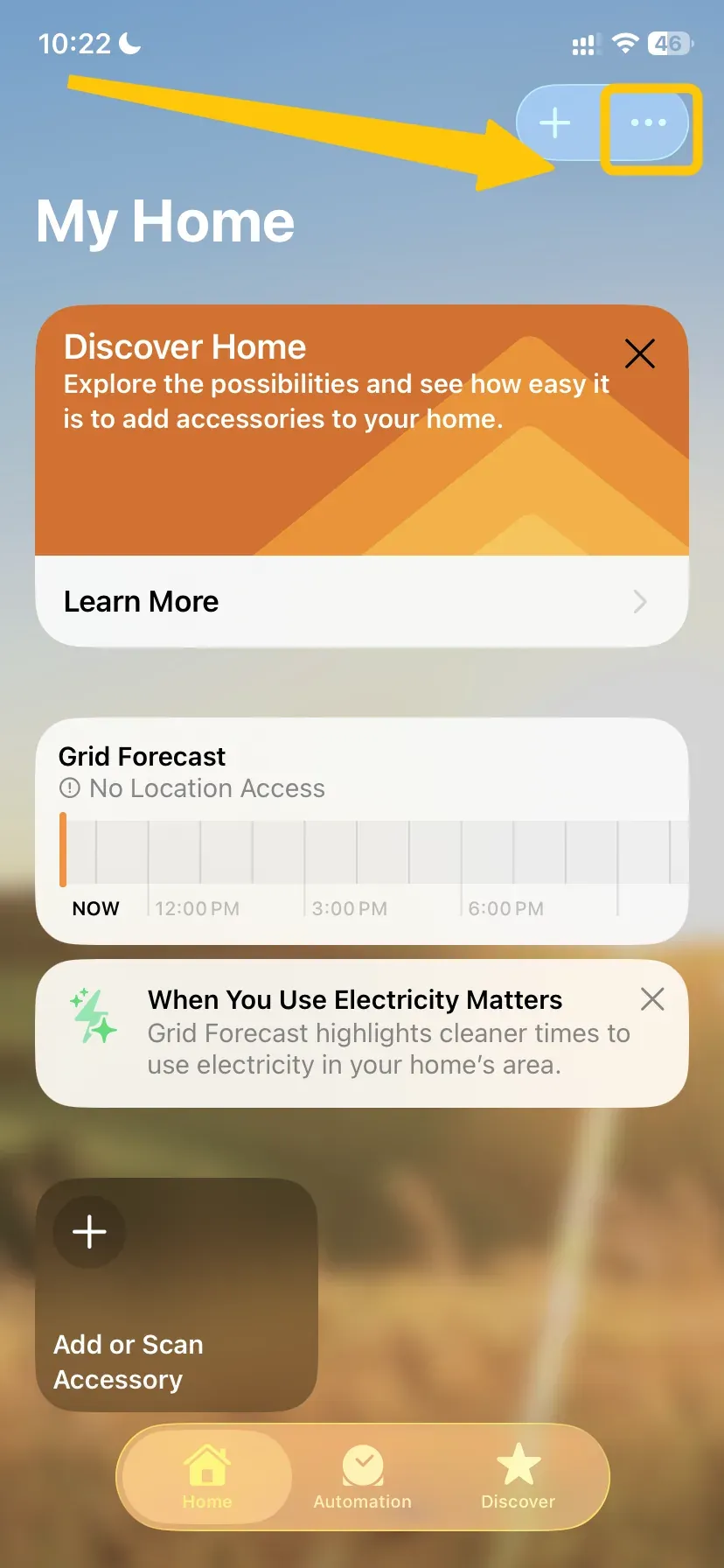
Step 1. Open the Home app on your iPhone.
Step 2. Tap the More button, then select Home Settings.
Step 3. Open Speakers & TV or Allow Speaker & TV Access.
Step 4. Choose Anyone on the Same Network, or make sure your Apple Account is included in the people who share the home.
Step 5. Return to Control Center > Screen Mirroring and try connecting again.
Fix 9. Check the AirPlay Code or Password
If the receiver asks for an AirPlay code or AirPlay password, the connection cannot finish until the correct information is entered. An expired code, an old saved password, or restrictive access settings may cause the request to time out.
Step 1. Start a new connection from Control Center > Screen Mirroring on your iPhone.
Step 2. Check the receiving screen for a new AirPlay code and enter it immediately on your iPhone.
Step 3. If you are connecting to an Apple TV, open Settings > AirPlay and HomeKit and review its password and access settings.
Step 4. If a password is enabled, confirm that you are entering the current password rather than one used for an earlier connection.
Step 5. Start the mirroring request again and complete the verification before the prompt closes.
Bottom Line
When your iPhone can find the receiver but the connection still times out, restart AirPlay, check the receiver’s access and verification settings, update both devices, and remove old pairing records if necessary. If the built-in receiver remains unstable, PigeonCast offers another way to mirror your iPhone to Windows, Mac, Apple TV, Android TV, and other supported devices.
iPhone Mirroring Timed Out FAQ
What does “iPhone Mirroring timed out connecting” mean?
This message means your iPhone found the receiving device but could not finish the connection within the allowed time. The failure may occur during device verification, AirPlay code confirmation, permission checks, or session setup. Restart the current mirroring request, confirm the receiver is ready to accept connections, and enter any new code shown on the screen.
How long should iPhone screen mirroring take to connect?
The receiver should normally respond within a few seconds. A short delay can occur while the devices verify the connection or display an AirPlay code, but a request that keeps loading and then closes is not a normal connection. Waiting longer usually does not solve it; cancel the attempt and start a new session instead.
Can cellular data be used for iPhone screen mirroring?
Cellular data alone cannot replace the local connection required by standard AirPlay screen mirroring. The iPhone and receiver still need a supported way to communicate directly, usually through the same Wi-Fi network. Cellular data may continue to load online content, but it does not create the mirroring connection by itself.
Will an HDMI cable avoid iPhone mirroring timeout errors?
Yes. A compatible Lightning-to-HDMI or USB-C-to-HDMI adapter sends the screen through a wired connection, so it does not depend on AirPlay discovery, receiver permissions, or Wi-Fi stability. It is a practical alternative when wireless mirroring repeatedly fails, though some streaming apps may still restrict protected video output.
Can an iPhone mirror to a TV that only supports Chromecast?
Not through standard AirPlay screen mirroring. Chromecast and AirPlay use different connection methods. You would need an app or receiver that supports iPhone mirroring, or use a video app with its own Google Cast button when available.
Can screen mirroring time out when the iPhone storage is full?
Low storage is not a common direct cause of an AirPlay timeout, but it can make the iPhone slow, delay system processes, or affect app performance. Freeing some storage may help if the phone is also lagging, freezing, or closing apps unexpectedly.
Clara Rossi is an experienced technology editor and a seasoned expert in screen mirroring and casting technologies. With a keen eye for detail and a deep understanding of how to seamlessly connect devices, Clara excels at optimizing user experiences for effortless sharing and streaming. Whether you're seeking quick fixes or advanced tips, her expertise and responsiveness ensure that every query is met with a well-informed and efficient solution.