
If you want to screen mirror Android to TV wirelessly, the easiest method is usually to use your phone's built-in casting feature with a compatible TV. However, not every smart TV supports the same type of wireless mirroring, and some TVs only support app casting instead of full-screen mirroring.
The key is matching your Android phone with the right receiver. In this guide, we will explain what works, how to set it up, and what to do when Android wireless screen mirroring does not connect properly.
Can You Mirror Android to TV Wirelessly?
Yes, most modern Android phones can mirror their screen to a TV wirelessly, but the experience depends on whether your TV supports a compatible wireless receiving method.
For wireless Android screen mirroring to work, you usually need:
- An Android phone with a built-in casting or wireless display feature
- A TV or receiver that supports Android-compatible mirroring
- Both devices connected to the same Wi-Fi network
Keep in mind that having a smart TV does not always mean it supports Android screen mirroring. Some TVs support streaming apps but do not work as a full-screen mirroring receiver.
For example, a TV may allow you to cast YouTube videos but may not appear when you try to mirror your entire Android screen.
Before trying to connect, check your TV settings for options such as Screen Mirroring, Wireless Display, Cast, Smart View, or Device Connection.
The exact name depends on your TV brand and Android phone model.
How to Mirror Android to TV Wirelessly
There are several ways to mirror an Android phone to a TV wirelessly. Start with the option your devices already support, then move to other solutions if the connection does not work.
Method 1. Use Your Android Phone's Built-in Screen Mirroring Feature
Where is screen mirroring feature on your Android phone? Most Android phones include a wireless display shortcut in Quick Settings, although the name may be different depending on the manufacturer.
Common names include Cast, Screen Cast, Screen Mirroring, Smart View, and Wireless Display.
Follow these steps:
Step 1. Connect your Android phone and TV to the same Wi-Fi network.
Step 2. Open Quick Settings on your Android phone.
Step 3. Tap Cast, Screen Mirroring, or a similar option.
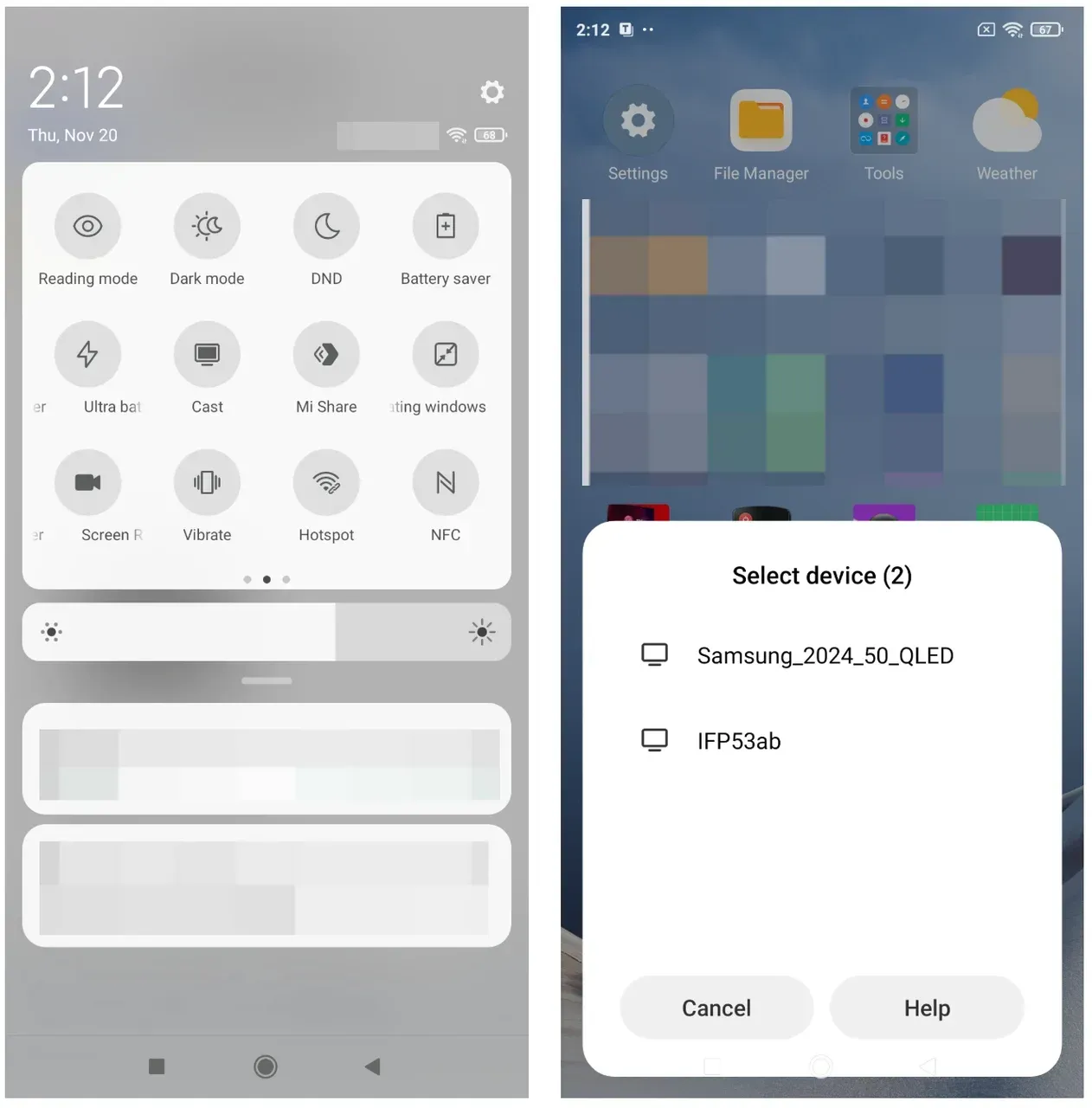
Step 4. Select your TV when it appears.
Step 5. Accept the connection request on your TV if required.
Once connected, your Android screen should appear on the TV.
If you cannot find the option, open your phone's Settings app and search for keywords like cast, screen mirror, or wireless display. Different Android brands often place this feature in different locations.
Method 2. Use a Third-Party Screen Mirroring App
A third-party screen mirroring app is a convenient option when your Android phone and TV do not work well together through built-in features.
Unlike built-in casting, which depends on the TV's own wireless support, a mirroring app provides its own connection method to help different devices communicate with each other.
For example, PigeonCast is a cross-platform screen mirroring app for Android, iPhone, Windows, Mac, and TV devices. It allows you to mirror your Android phone to smart TVs, Android TV, Apple TV, computers, and other supported displays.
The general process is simple:
Step 1. Install PigeonCast on your Android phone and the receiving device.


Overall Rating:


Step 2. Make sure both devices are connected to the same Wi-Fi network and the screen mirroring app is launched.
Step 3. On your Android phone, select your TV or scan the QR code to pair the devices.
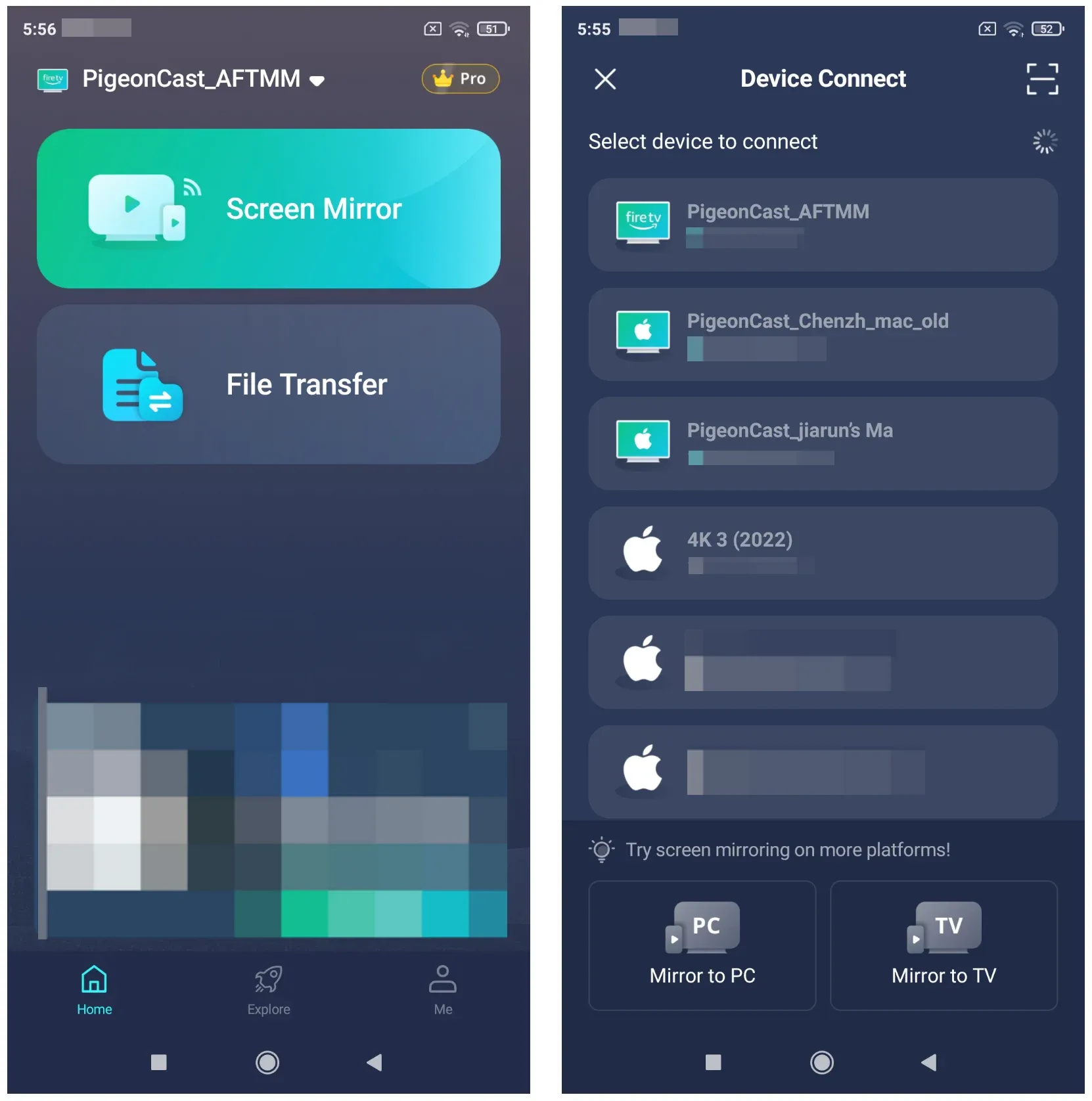
Step 4. Adjust the mirroring options and start screen mirroring.
A third-party app is especially useful for mixed-device homes where Android phones, different TV brands, computers, or streaming platforms need to work together.
Method 3. Use a Streaming Device or Wireless Receiver
If your TV does not support Android screen mirroring directly, adding a streaming device or wireless receiver can make the connection easier and more reliable.
A receiver works as an additional device between your Android phone and TV. Instead of sending the screen directly to the TV's built-in system, your phone connects to the receiver, and the receiver displays the content on your TV through HDMI.
Common examples include streaming devices such as Chromecast, Fire TV, and Apple TV, which can add modern streaming and casting features to older TVs. Our guide to the best streaming devices to replace cable covers the most popular options and what each device is best suited for.
This method is useful when:
- Your TV does not appear in the cast list
- Your TV is older but has an available HDMI port
- Built-in mirroring disconnects frequently
- Your TV supports limited casting features but not full-screen mirroring
The advantage of using a receiver is that it gives your TV a more consistent wireless target. This can be helpful when the TV's built-in software is outdated or does not support the Android mirroring method your phone uses.
However, it requires additional hardware, so it may not be the best choice if you only need occasional screen mirroring.
Android Wireless Screen Mirroring Not Working? Try These Fixes
When Android wireless screen mirroring fails, the problem is usually related to device discovery, compatibility, or network conditions.
Your TV Does Not Appear on Your Android Phone
If your TV does not show up in the cast list, check:
- Both devices are connected to the same Wi-Fi network
- The TV's screen mirroring feature is enabled
- Your TV supports the type of mirroring your phone uses
Guest Wi-Fi and some public networks can also prevent devices from finding each other because they block communication between connected devices.
If everything looks correct, restart both your phone and TV. A simple restart can refresh the wireless connection and fix temporary discovery issues.
Android Connects but Keeps Disconnecting
A connection that starts but drops repeatedly usually points to unstable wireless conditions.
Common causes include Weak Wi-Fi signal, router congestion, outdated TV software, and limited receiver compatibility.
Try moving your devices closer to the router and removing unnecessary devices from the network.
If the problem continues, the TV's built-in receiver may not provide a stable mirroring experience. In that case, using a dedicated receiver or mirroring app may work better.
Wireless Mirroring Has Lag or Poor Quality
Some delay is normal because wireless mirroring depends on network performance.
You may notice more lag when playing fast-paced games, using a crowded Wi-Fi network, or the router is far away from the devices.
For watching videos, app casting is often smoother because the TV receives the media directly instead of displaying everything from your phone screen.
For games or interactive apps, a stronger network connection or wired connection may provide better results.
When Wireless Android Mirroring Is Not the Best Option
Wireless screen mirroring is convenient, but it is not always the best solution.
You may want another option when:
- Your Wi-Fi connection is unstable
- You need extremely low latency for gaming
- You are presenting in an environment with restricted networks
- You need a connection that works without troubleshooting
In these situations, an HDMI connection can provide a more stable experience because it does not depend on wireless discovery or network quality.
However, for everyday activities such as sharing photos, watching videos, browsing websites, or showing apps on a larger screen, wireless Android mirroring is usually the more convenient choice.
Final Thoughts
Screen mirroring is no longer just about putting a phone screen on a TV. It is about removing the barriers between the devices you already use every day.
The challenge is not whether Android can mirror to a TV. The real challenge is finding a connection method that works across different phones, TVs, operating systems, and network environments.
Built-in features are often the simplest starting point, but they are only one part of the bigger picture. As homes become more connected and devices come from different brands, flexible solutions that work across platforms become increasingly important.
Whether you are sharing photos with family, watching videos on a larger screen, showing a presentation, or playing mobile games, wireless screen mirroring gives your content a bigger space without adding unnecessary complexity.
Screen Mirroring Android to TV Wirelessly FAQ
Can I mirror Android to TV wirelessly without internet?
Yes, in some cases. Wireless mirroring usually requires a Wi-Fi connection between your phone and TV, but it does not always require an active internet connection. However, the exact behavior depends on the TV, phone, and mirroring technology being used.
Why does my Android phone not have a screen mirroring option?
Different Android brands use different names for the same feature. Samsung may use Smart View, while other phones may use Cast, Wireless Display, or Screen Mirroring. Try searching your phone settings for "cast" or "wireless display."
Can I mirror Android to Apple TV wirelessly?
Android phones do not natively support Apple's AirPlay system in the same way iPhones do. To mirror Android to Apple TV, you typically need a compatible third-party app or receiver solution.
Can I use mobile hotspot for Android screen mirroring?
It depends on the devices and the mirroring method. Some wireless connections work through local networks, while others require both devices to be connected to the same Wi-Fi environment.
Why is wireless screen mirroring delayed when playing games?
Gaming requires faster response times than watching videos. Wireless mirroring may introduce delay because the phone screen has to be transmitted and displayed on the TV. A stronger network connection or a wired connection usually provides lower latency.
Mia Clarke is a technology editor specializing in screen mirroring and casting solutions across multiple platforms. Mia provides clear, practical guides and in-depth insights to help users seamlessly connect their devices. Passionate about enhancing digital experiences, Mia is dedicated to keeping readers updated on the latest trends and tools in cross-platform screen sharing. Whether you’re looking to mirror your smartphone, laptop, or smart TV, Mia’s content delivers reliable, user-friendly advice to simplify your tech setup.