
Sling TV works with Chromecast, so if you want to send a live channel, recording, or on-demand program from your phone or tablet to a bigger screen, the built-in Cast button is usually the easiest place to start.
When it does not work, the symptom matters. A missing Cast icon points to a different problem than a Chromecast that appears normally but refuses to play a particular program.
This guide starts with the standard Sling TV Chromecast setup, then helps you troubleshoot based on what you are actually seeing. If the native Cast feature continues to fail, you will also find another way to get your screen onto the TV.
Sling TV Chromecast: Quick Fix Picker
Start with the situation that best matches yours instead of changing multiple settings at once.
| What you see | What it usually means | What to do first |
|---|---|---|
| You want to cast Sling TV normally | Chromecast is available and ready | Use the Cast button in the Sling app |
| The Cast icon is missing | Sling cannot discover a compatible receiver | Check Wi-Fi, receiver status, and app permissions |
| Chromecast appears but Sling will not play | Playback or content-specific restriction | Test another Sling program and check for an error code |
| Sling used to cast but suddenly stopped | Temporary app, receiver, or network issue | Restart the app and devices in order |
| Chromecast continues to be unreliable | The native Cast workflow is getting in the way | Use the Sling TV app on the TV or another receiving method |
How to Cast Sling TV to Chromecast
If your Chromecast is already set up, casting Sling TV only takes a few steps.
Step 1. Turn on your TV and make sure the Chromecast or Cast-enabled TV is ready.
Step 2. Connect your phone or tablet and Chromecast to the same usable Wi-Fi network.
Step 3. Open the Sling app and sign in to your account.
Step 4. Choose the live channel, recording, or on-demand program you want to watch.
Step 5. Tap the Cast icon and select your Chromecast or Cast-enabled TV.
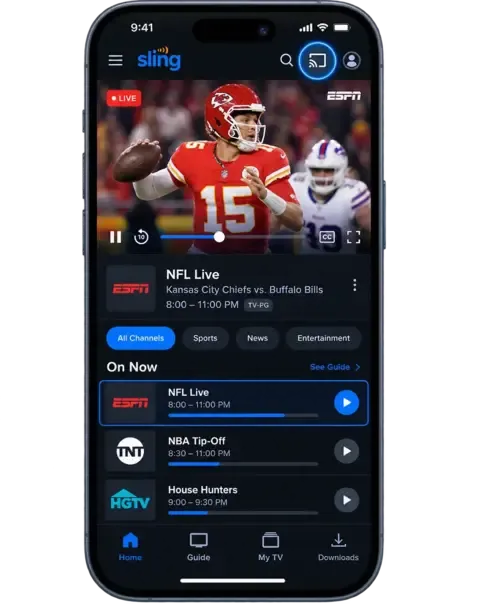
Once playback starts on the TV, your phone acts primarily as the controller. You can use it to browse Sling, change programs, pause playback, or adjust other controls without continuously mirroring your entire phone screen.
The basic process is the same on iPhone and Android as long as the Sling app can discover the Chromecast on your local network.
You May Not Need Chromecast on Google TV
If you use Google TV or another streaming device that supports Sling directly, casting from your phone is not always necessary.
Instead, open the app store on your TV or streaming device, install the Sling app, sign in, and start watching directly on the television.
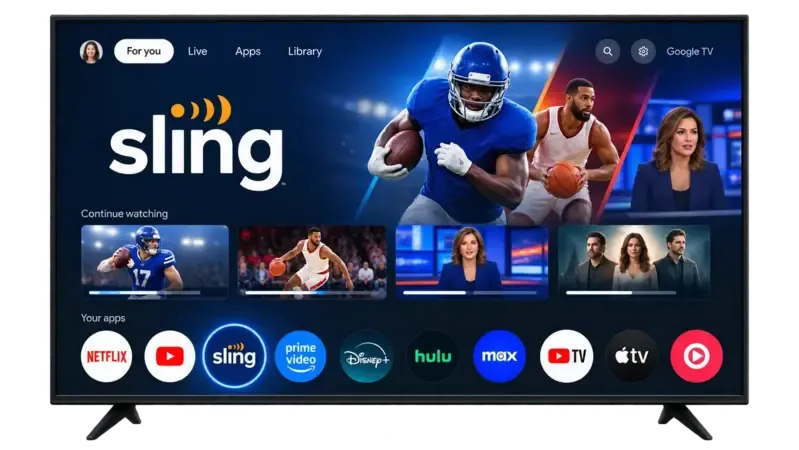
This approach can be simpler if you normally watch Sling on the same TV. It removes the phone-to-Chromecast discovery step and lets the TV handle the entire viewing session.
Chromecast still makes sense when you prefer finding programs and controlling playback from your phone. The better option is simply the one that adds fewer steps to the way you already watch.
Sling TV Cast Not Working
If Sling TV does not cast correctly, avoid treating every failure as the same Wi-Fi problem. Start with the exact symptom.
Cast Icon Is Missing
If you open Sling and cannot find the Cast icon, first confirm that your phone or tablet and Chromecast are connected to the same local network.
Then make sure the Chromecast or Cast-enabled TV is powered on and fully connected. If the receiver is offline, Sling will have nothing to discover even though the app itself is working normally.
It is also worth checking that Sling is up to date. On iPhone or iPad, confirm that the app has permission to discover devices on the local network.
Finally, make sure the device you are trying to reach actually supports Google Cast. A smart TV being connected to Wi-Fi does not automatically make it a Chromecast receiver.
Sling Connects but Won't Play
If Sling can see your Chromecast and establish a connection but playback does not start, test another channel or program before changing your router settings.
This is important because some failures can be content-specific.
For example, Sling documents Chromecast error 4-416 for content that is not licensed to be streamed through casting. If one program fails while other Sling content casts normally, your Chromecast and Wi-Fi connection may not be the actual problem.
In that situation, repeatedly restarting the router or resetting Chromecast is unlikely to fix the affected program. Try watching it directly in the Sling app on a supported TV device instead.
Sling Worked Before but Suddenly Stopped
If Sling TV cast worked normally before and suddenly stopped, start with a simple restart sequence rather than changing advanced network settings.
Restart the Sling app first, then your phone or tablet, followed by the Chromecast or TV receiver. If Sling still cannot cast, restart the router and test again after all devices reconnect.
This helps separate a temporary app or receiver problem from a larger network issue.
If Chromecast itself is also disappearing from other Cast-enabled apps, the problem is probably broader than Sling. In that case, follow these steps to troubleshoot a Chromecast that can't connect to Wi-Fi rather than repeatedly reinstalling Sling.
Sling TV Still Won't Cast? Try PigeonCast Instead
If Sling works normally on your phone or computer but the built-in Cast option keeps disappearing, failing to find your TV, or refusing to connect reliably, you do not necessarily have to keep troubleshooting Chromecast.
Another option is to mirror the device you are already watching Sling on directly to the TV.
PigeonCast is a cross-platform screen mirroring app that works across iPhone, Android, Windows, and Mac, making it useful when your devices do not all fit neatly into the same casting ecosystem. Instead of depending on the Cast button inside Sling, you connect your device to the TV through PigeonCast and mirror the screen you are already using.
This is especially useful when Sling plays correctly on your device but the Chromecast connection itself is the unreliable part of the setup.
How to Mirror Sling TV With PigeonCast
Step 1. Open PigeonCast on the phone or computer where you use Sling.


Overall Rating:



Step 2. Open PigeonCast on the supported TV or receiving screen and connect the two devices.
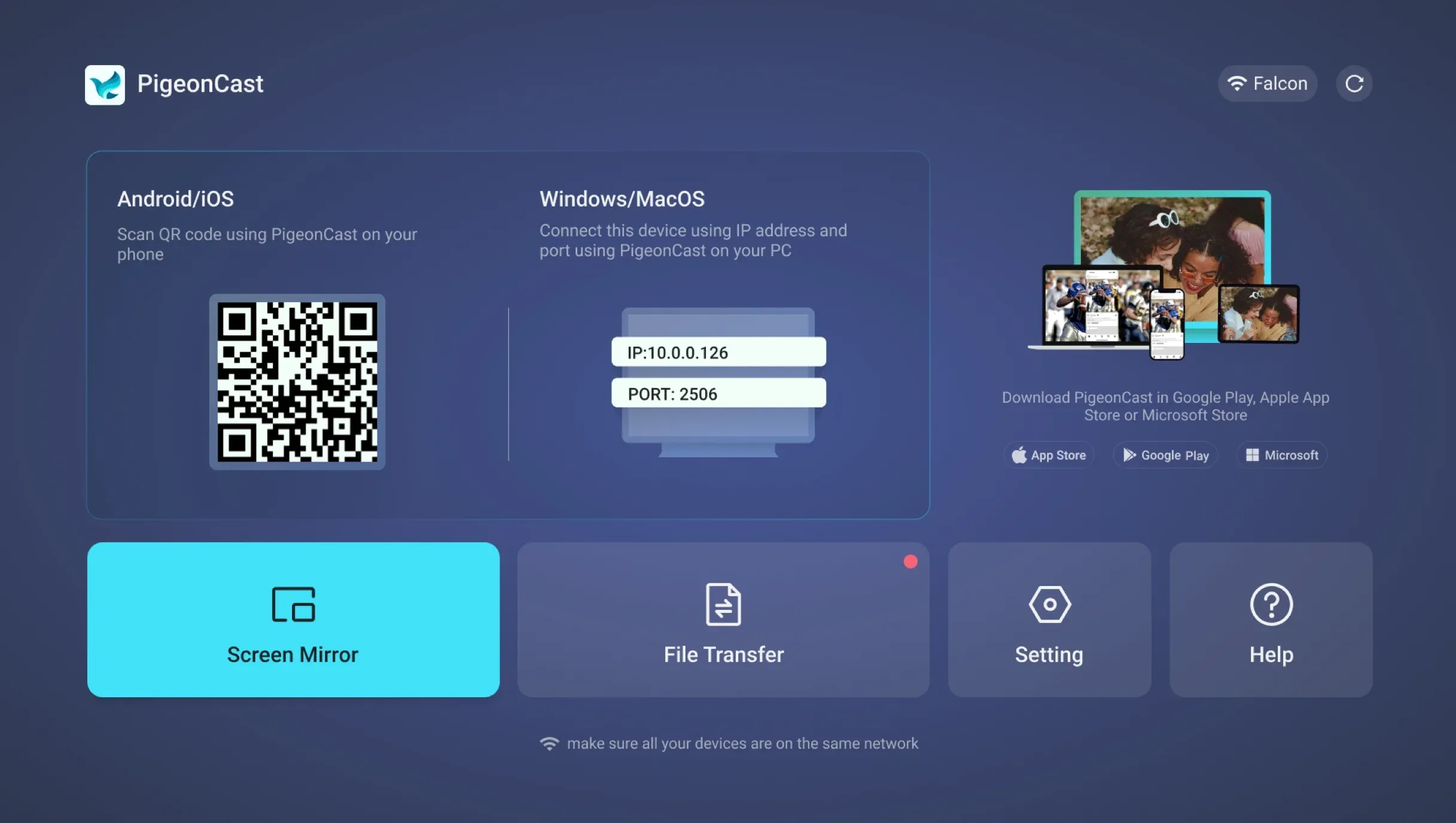
Step 3. Use the QR code to complete the connection.
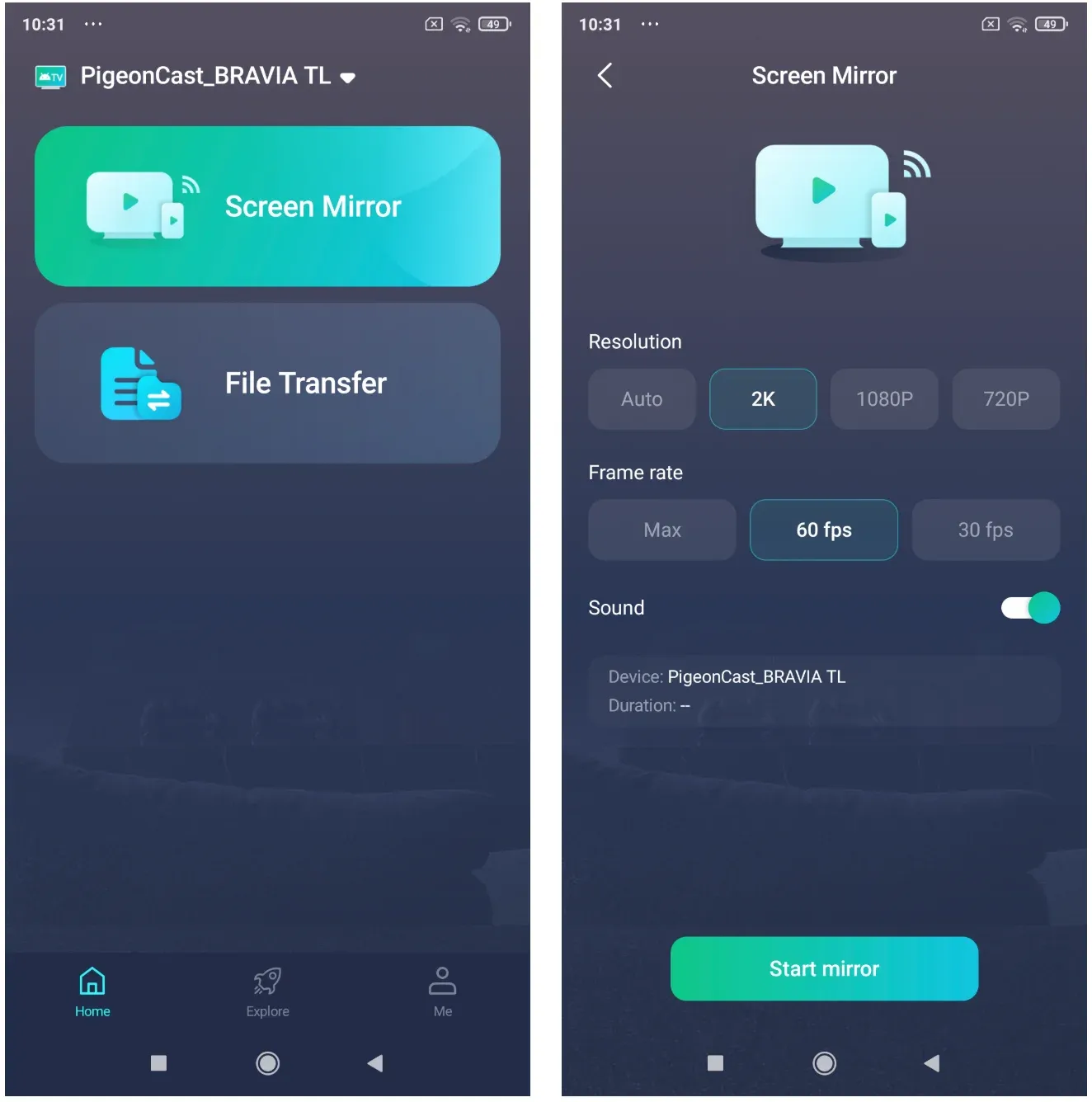
Step 4. Start screen mirroring, then open Sling and play the content you want to watch.
Because PigeonCast uses the same mirroring workflow across different sending devices, you do not need a separate method for iPhone, Android, Windows, or Mac each time you change devices.
However, screen mirroring does not bypass Sling's own content-protection rules. If a particular channel or program blocks external playback or protected video output, changing the mirroring app may not make that content available on the TV.
Final Words
Sling TV works with Chromecast, and when the Cast button appears and the connection is stable, it is usually the simplest way to move playback from your phone to the TV.
But not every casting problem is worth turning into a long Chromecast troubleshooting session. If Sling plays normally on your device while the Cast icon, device discovery, or connection itself keeps failing, the problem may be the casting path rather than Sling.
In that situation, the better solution is often to focus on the result instead of the protocol. Whether you use Sling directly on the TV or mirror it from an iPhone, Android phone, Windows PC, or Mac, the goal is the same: getting the content onto the bigger screen with as little friction as possible.
That is also where a cross-platform mirroring tool such as PigeonCast can make more sense, especially in homes where different devices do not all fit neatly into the same casting ecosystem.
Sling TV Chromecast FAQ
Can I cast Sling TV from a computer to Chromecast?
The mobile Sling app provides the most straightforward Chromecast workflow. If you are watching from a computer, available casting options can depend on the browser, operating system, and receiver you are using. When direct casting is unavailable, using Sling on the TV itself may be simpler.
Can I use my phone while Sling TV is casting?
Yes. Direct Chromecast casting is different from full-screen mirroring. Once the stream has been handed off to the Chromecast, you can normally continue using your phone while the TV handles playback.
Your phone can still be used as the Sling controller when you want to pause, change programs, or stop casting.
Does my phone have to stay connected to Wi-Fi while Sling is casting?
Your phone should remain on the local network if you want to continue controlling the Chromecast reliably from Sling. If the phone changes networks or loses access to the receiver, the Cast controls may disappear even if playback on the TV continues temporarily.
Can I cast Sling TV to two TVs at the same time?
Casting from the Sling app is normally designed around selecting a single Cast receiver for a viewing session. Watching Sling simultaneously on multiple screens may also depend on the streaming limits of your Sling subscription.
Why can I see Chromecast in other apps but not in Sling TV?
If Chromecast appears normally in other Cast-enabled apps, your local network and receiver are probably working. Check whether Sling is updated, restart the app, and verify its device-discovery permissions.
This is a more useful distinction than resetting Chromecast immediately because the problem may be isolated to Sling rather than the receiver itself.
Why does only one Sling TV channel or program fail to cast?
If most Sling content casts correctly but one program fails, the problem may be related to that content rather than your network. Sling's Chromecast error 4-416, for example, indicates that the selected content is not licensed for casting.
Testing a second program is therefore one of the quickest ways to tell a general Chromecast problem from a content-specific restriction.
Mia Clarke is a technology editor specializing in screen mirroring and casting solutions across multiple platforms. Mia provides clear, practical guides and in-depth insights to help users seamlessly connect their devices. Passionate about enhancing digital experiences, Mia is dedicated to keeping readers updated on the latest trends and tools in cross-platform screen sharing. Whether you’re looking to mirror your smartphone, laptop, or smart TV, Mia’s content delivers reliable, user-friendly advice to simplify your tech setup.