
When AirPlay not working on Apple TV is the problem, the fastest solution depends on what happens before the connection fails. An Apple TV that never appears in the device list has a different problem from one that connects but shows a black screen or disconnects during playback.
Start by identifying the exact symptom. Then follow only the relevant section instead of resetting every device or repeatedly changing the same network settings.
Quick Answer: Why Is AirPlay Not Working on Apple TV?
Use the table below to identify which part of the AirPlay connection is failing.
| What you see | Likely cause | Where to start |
|---|---|---|
| Apple TV does not appear in the AirPlay list | Device discovery or local network problem | Check the network and device visibility |
| Apple TV repeatedly asks for a code | Access, password, or device verification settings | Check AirPlay settings on Apple TV |
| AirPlay connects but shows a black screen | Unsupported app, protected content, or playback failure | Test a local photo or video |
| Audio plays but video does not | App support or content restriction | Try another supported content source |
| AirPlay starts but later freezes or disconnects | Wi-Fi instability, congestion, or outdated software | Restart, update, and test the connection |
| iPhone works but Mac does not | Sender-specific settings or software state | Troubleshoot only the Mac |
| Mac works but iPhone does not Sender-specific network or AirPlay state | Troubleshoot only the iPhone |
Before moving to a symptom-specific fix, make sure the Apple TV and sending device are turned on, nearby, updated, and connected to the same network. Apple includes these among its first recommended AirPlay checks.
Check Apple TV AirPlay Settings First
Before troubleshooting the iPhone, iPad, or Mac, confirm that Apple TV is ready to receive an AirPlay connection.
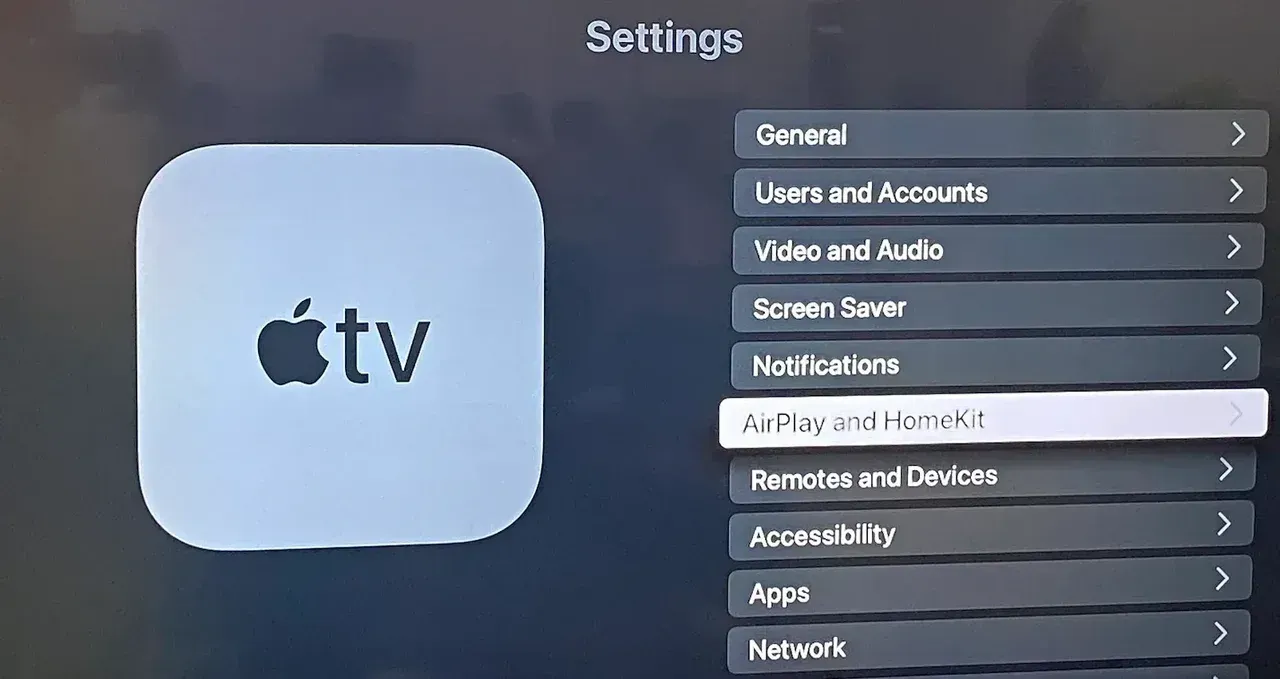
On Apple TV, open: Settings > AirPlay and Apple Home. On some tvOS versions, the menu may appear as AirPlay and HomeKit. Make sure AirPlay is turned on Apple TV.
Next, open Allow Access and review who is permitted to use AirPlay:
- Everyone: Nearby users can see and stream to the Apple TV.
- Anyone on the Same Network: Devices on the same local network can connect.
- Only People Sharing This Home: Only people added to the same Apple Home can connect.
- Require Password: Users must enter the configured password before streaming.
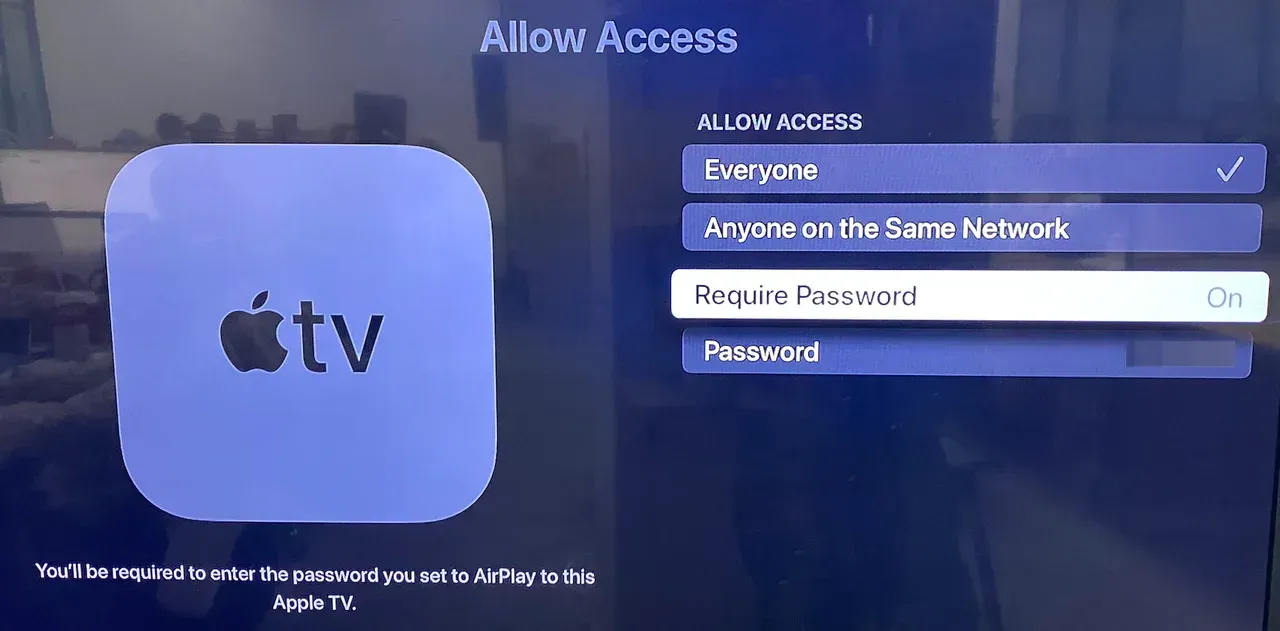
For a normal home troubleshooting test, Anyone on the Same Network is usually the simplest setting. If Only People Sharing This Home is selected, confirm that the person using the sender has been invited to the same home.
If Apple TV repeatedly asks for a code, check whether Require Password is enabled. An onscreen code may appear during the first connection, but a separately configured password can continue to be required for later sessions.
Apple TV can also be affected by access rules configured in the Home app. On an iPhone or iPad, open Home > More > Home Settings > Speakers & TV, and make sure the selected access option allows the sending device to use AirPlay.
If several Apple TVs are installed in the same home, give each one a recognizable name under its AirPlay and Apple Home settings. Similar receiver names can cause you to select the wrong Apple TV and mistake a targeting problem for a failed connection.
Fix Apple TV Not Showing Up on AirPlay
If Apple TV does not appear in the AirPlay or Screen Mirroring list, focus on device discovery. Do not troubleshoot individual video apps yet, because the sender has not established a connection with the receiver.
Work through these steps in order.
Step 1. Wake Apple TV and move the devices closer together.
Make sure Apple TV is turned on and fully awake. Keep the iPhone, iPad, or Mac nearby during the first test. Apple recommends confirming that AirPlay-compatible devices are powered on and close to one another.
Step 2. Check the local network.
Connect the sender and Apple TV to the same local network. Apple TV can use Ethernet while the sender uses Wi-Fi, provided both connections belong to the same router and local network.
Avoid guest Wi-Fi, hotel networks, or router settings that isolate connected devices. These networks may allow internet access while preventing the local discovery AirPlay needs.
Step 3. Temporarily turn off the VPN.
Disable VPN software on the iPhone, iPad, or Mac and reopen the AirPlay list. Some VPN configurations interfere with local network discovery even when both devices appear to have internet access.
Step 4. Refresh the sender connection.
Turn Wi-Fi off and back on on the sending device. Then reopen:
- Control Center > Screen Mirroring on iPhone or iPad;
- the AirPlay or Screen Mirroring controls on Mac;
- the AirPlay menu inside the app you want to use.
Step 5. Restart both devices.
Restart Apple TV and the sender, then check the list again. Apple recommends restarting the devices involved when AirPlay or screen mirroring does not work.
Step 6. Install available software updates.
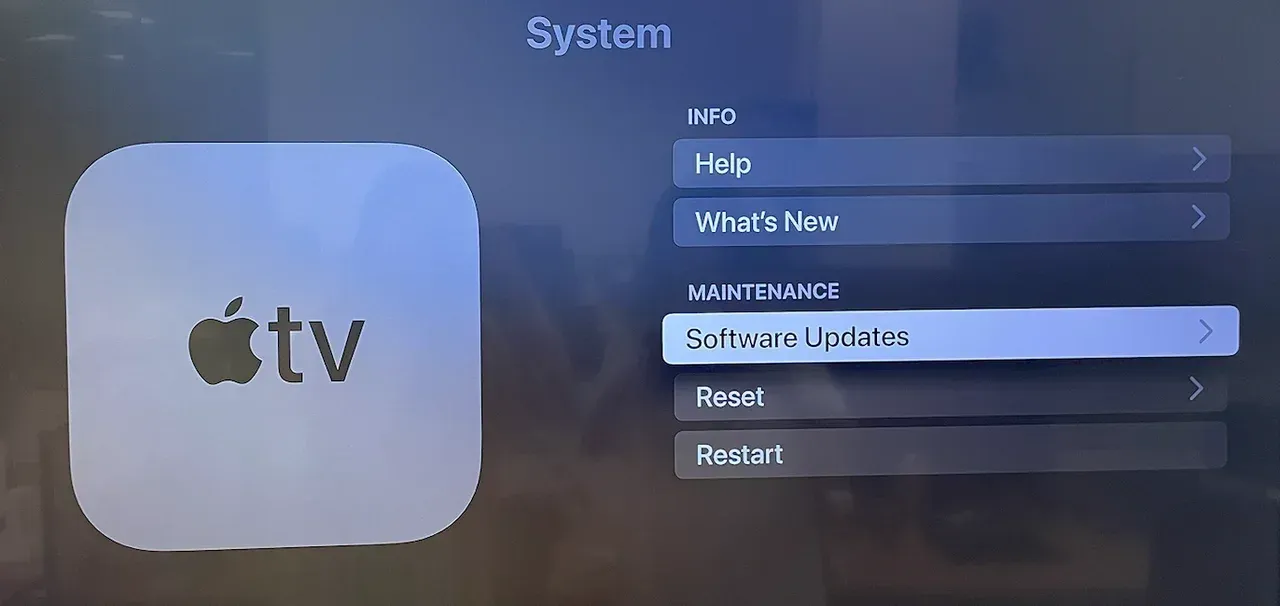
On Apple TV, go to Settings > System > Software Updates > Update Software. Install any available tvOS update, keeping Apple TV connected to power until the process finishes. Also update the iPhone, iPad, or Mac used as the sender.
After these checks, test one sender at a time. If an iPhone can see Apple TV but a Mac cannot, Apple TV discovery is working and the remaining problem is limited to the Mac. Avoid resetting the entire setup when only one sender fails.
Fix Apple TV AirPlay Black Screen or No Video
If Apple TV appears in the AirPlay list and accepts the connection but the television remains black, basic discovery has already succeeded. The next step is to determine whether the problem affects all content or only one app or video.
Start with a simple test:
- Open the Photos app on the iPhone or iPad.
- Choose a local photo or a short video recorded with the device.
- Send it to Apple TV with AirPlay.
- Alternatively, mirror the Home Screen without opening the failing streaming app.
If local photos, videos, or the Home Screen appear normally, the basic AirPlay connection is working. The problem is more likely limited to the original app, video, or playback method.
Some video apps do not support AirPlay. Apple recommends checking whether the same service has a native app in the Apple TV App Store when AirPlay is unavailable inside a video app.
Protected or licensed content may also block external video output. Common symptoms include a completely black picture, audio playing without video, playback stopping as soon as AirPlay starts, and an error message from the streaming app.
Switching from direct video streaming to full-screen mirroring does not necessarily solve this. If the app restricts external playback, the content may remain black in both modes.
When only one streaming service fails, try these options:
- update the streaming app on the sender;
- close and reopen the app;
- test a different video inside the same app;
- check whether the service offers a native Apple TV app;
- contact the app provider if its AirPlay support appears to have changed.
If every local photo, recorded video, and screen-mirroring test also remains black, restart the sender and Apple TV, install software updates, and test again. A failure across all content sources is more likely to involve the system or connection than one specific streaming app.
Fix AirPlay Disconnects, Lag, or Unstable Playback
If AirPlay connects and begins playing before freezing, lagging, or disconnecting, the setup has moved beyond device discovery. Concentrate on network quality, device load, and software stability.
Step 1. Restart the active session.
Stop AirPlay completely rather than repeatedly reconnecting from the same failed session. Restart Apple TV and the sending device, then create a new connection.
Step 2. Test with local content.
Send a short locally stored video from Photos. This separates AirPlay connection quality from problems caused by a streaming service or slow internet connection.
If the local video plays smoothly but an online stream does not, the issue may be related to the app, streaming service, or internet bandwidth rather than the local AirPlay connection.
Step 3. Reduce network congestion.
Temporarily pause large downloads, cloud backups, game updates, and simultaneous high-resolution streams on the same network. Move the sending device closer to the router and avoid weak-signal areas.
Step 4. Restart the router.
If several content sources disconnect, restart the home router and wait for Apple TV and the sender to reconnect before testing AirPlay again.
Step 5. Update the devices.
Install available tvOS, iOS, iPadOS, or macOS updates. Apple TV software updates regularly include performance and stability improvements.
Step 6. Compare different senders and apps.
Use the results to narrow down the source:
- If every sender disconnects, focus on Apple TV or the network.
- If only one sender disconnects, focus on that device.
- If only one app disconnects, focus on the app or content source.
- If local content works but online content buffers, check the internet connection.
If Apple TV supports Ethernet, connecting it directly to the router can help determine whether the receiver's Wi-Fi connection is contributing to the instability.
Avoid factory-resetting Apple TV as an early troubleshooting step. A factory reset removes settings and accounts and should be reserved for persistent system-level problems after standard settings, restarts, network checks, and updates have failed.
Use PigeonCast to Mirror to Apple TV Wirelessly
When Apple TV works as a receiver but native AirPlay does not suit the sender or device setup, PigeonCast provides a separate app-based screen mirroring method.
PigeonCast is a screen mirroring app for Apple TV that can receive wireless screen mirroring from Android, iPhone and iPad, Windows, and Mac.
This is particularly useful in mixed-device households where Apple TV needs to receive screens from both Apple and non-Apple devices. Instead of relying on each sender to provide the same native AirPlay controls, both sides use the PigeonCast connection process.
To mirror a device to Apple TV with PigeonCast:
Step 1. Install and open PigeonCast on Apple TV.
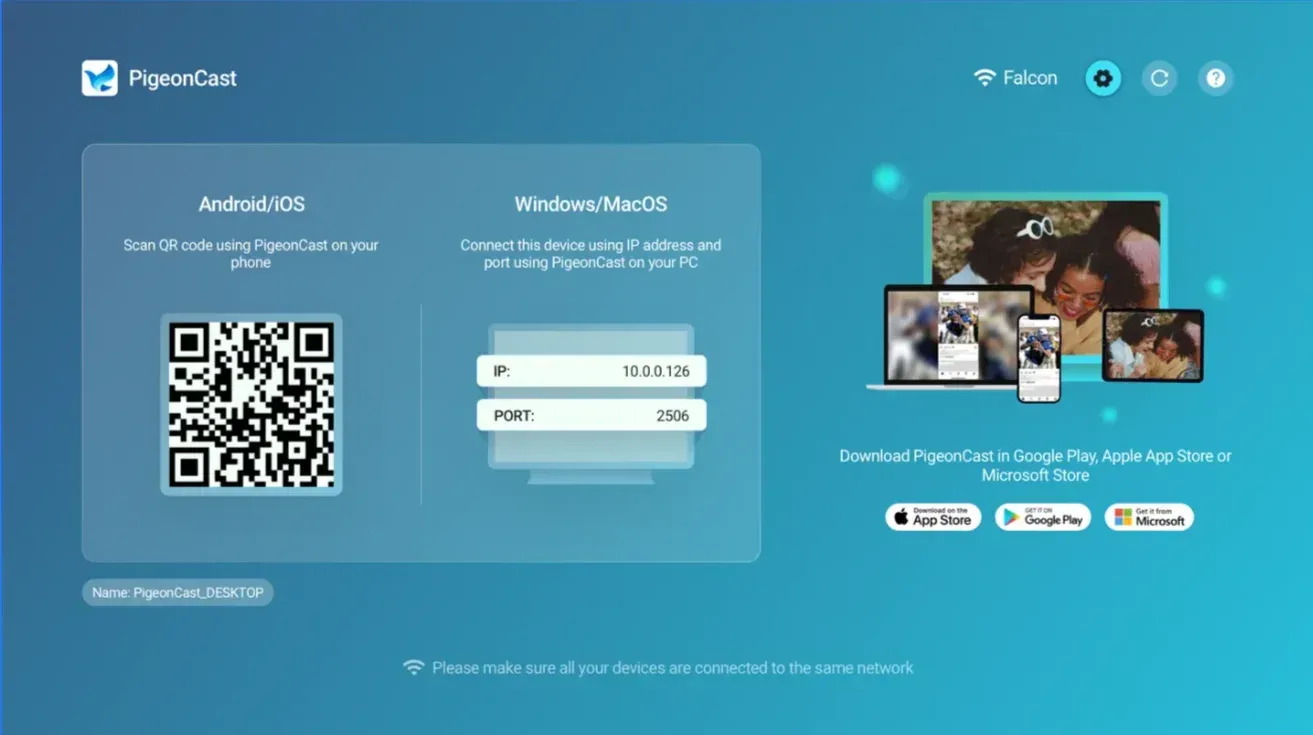
Step 2. Install and open PigeonCast on the sending device.


Overall Rating:



Step 3. Connect both devices to the same local network.
Step 4. Select the Apple TV receiver from the available device list. Where supported, use the QR code on the television to complete the connection.
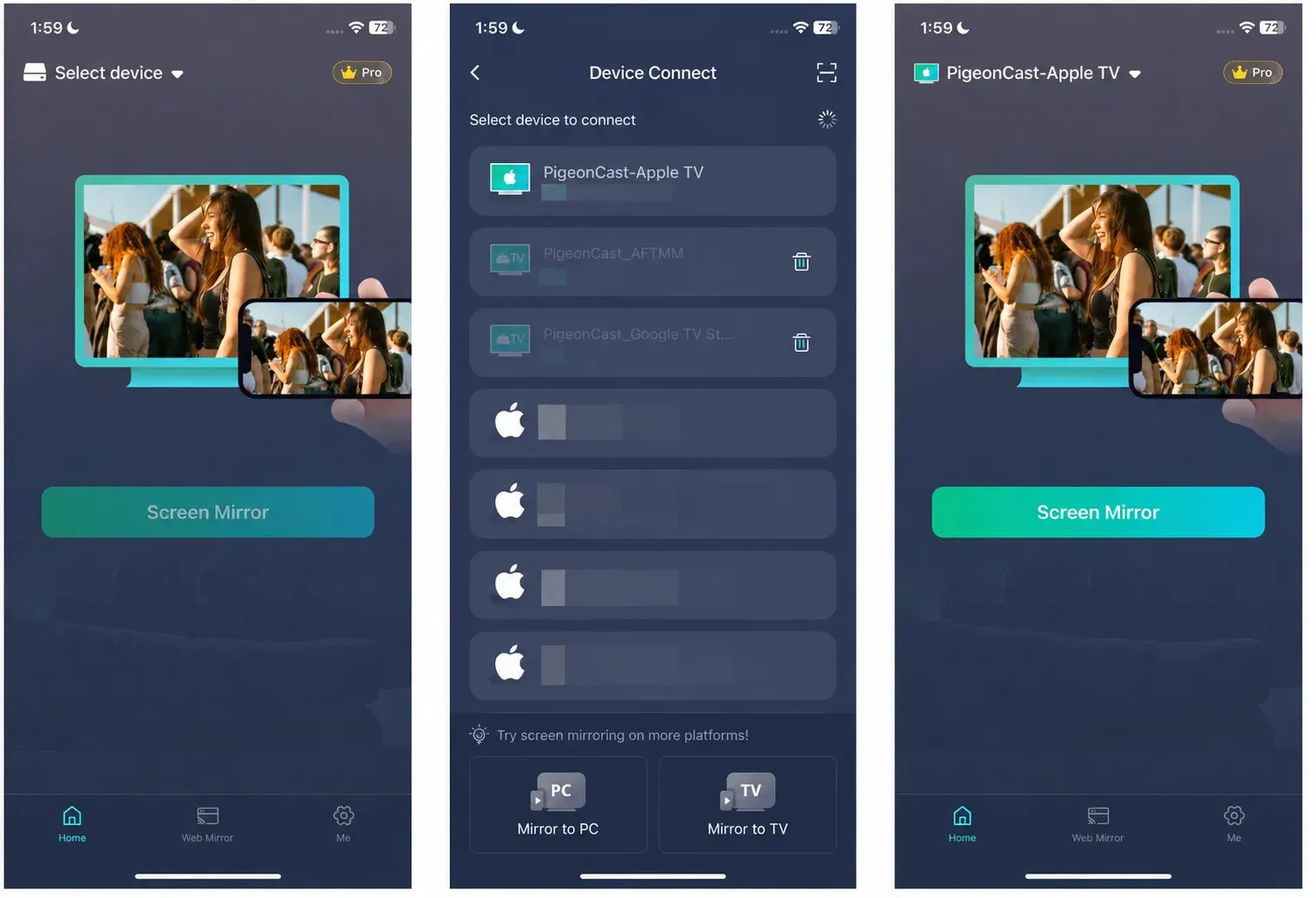
Step 5. Start screen mirroring from the sending device.
PigeonCast provides another connection method, but it does not remove restrictions imposed by streaming services. An app that blocks protected content from external displays may still show a black screen. In that situation, use the service's native Apple TV app where available.
Final Words
Troubleshooting Apple TV AirPlay is easier when each test answers one specific question.
First, confirm that Apple TV is allowed to receive AirPlay connections. If it does not appear in the device list, fix discovery before opening individual apps. Once it connects, test a local photo or video to determine whether the failure affects AirPlay generally or only one content source. If playback begins and later drops, focus on network stability and software updates.
PigeonCast is a practical additional option when the main problem is device compatibility or the need to mirror Android, Windows, iPhone, and Mac through one app-based method. It should not be treated as a way to bypass protected-content restrictions.
Apple TV AirPlay Not Working FAQ
Why is my Apple TV not showing up on AirPlay?
Make sure Apple TV is awake, AirPlay is turned on, and both devices are connected to the same local network. Avoid guest Wi-Fi and temporarily disable VPN software on the sender. Restart both devices and install available updates. If one sender can see Apple TV but another cannot, troubleshoot only the device that is missing the receiver.
Why does Apple TV keep asking for an AirPlay code?
Apple TV may display an onscreen code when a device connects for the first time. If the prompt appears repeatedly, open Settings > AirPlay and Apple Home > Allow Access and check the password and access settings. Also make sure you are selecting the correct Apple TV if multiple receivers have similar names.
Why does AirPlay connect to Apple TV but show a black screen?
Test a local photo or recorded video from the Photos app. If that works, the basic AirPlay connection is functioning and the issue is probably limited to the original app or content. Some streaming apps do not support AirPlay, while protected video may block both direct streaming and screen mirroring.
Why does audio work on Apple TV but video does not?
Audio without video often points to an app-level video restriction, unsupported AirPlay playback, or protected content. Try a local video from Photos and then test a different app. If other sources display normally, use the failing service's native Apple TV app where available instead of repeatedly changing network settings.
Why does AirPlay keep disconnecting from Apple TV?
Restart Apple TV, the sender, and the router. Then test with a short local video while close to the router. Pause large downloads and install available software updates. If every sender disconnects, investigate Apple TV or the network. If only one app or device disconnects, limit troubleshooting to that source.
Why does AirPlay work from iPhone but not from Mac?
When one sender works, Apple TV and the local network are already capable of receiving AirPlay. On the Mac, check Wi-Fi, VPN status, macOS updates, and the available Screen Mirroring controls. Restart the Mac and test again without changing the Apple TV settings that already work for the iPhone.
How do I update AirPlay on Apple TV?
AirPlay is updated as part of tvOS rather than as a separate app. Open Settings > System > Software Updates > Update Software. Download and install any available update, and keep Apple TV plugged into power until it finishes restarting. Update the sending device as well before testing AirPlay again.
Can I mirror Android to Apple TV wirelessly?
Apple TV does not give Android phones the same built-in AirPlay sending controls available on iPhone, iPad, and Mac. An app-based solution such as PigeonCast can connect an Android sender to an Apple TV running the receiver app, allowing the Android screen to be mirrored over the same local network.
Mia Clarke is a technology editor specializing in screen mirroring and casting solutions across multiple platforms. Mia provides clear, practical guides and in-depth insights to help users seamlessly connect their devices. Passionate about enhancing digital experiences, Mia is dedicated to keeping readers updated on the latest trends and tools in cross-platform screen sharing. Whether you’re looking to mirror your smartphone, laptop, or smart TV, Mia’s content delivers reliable, user-friendly advice to simplify your tech setup.