
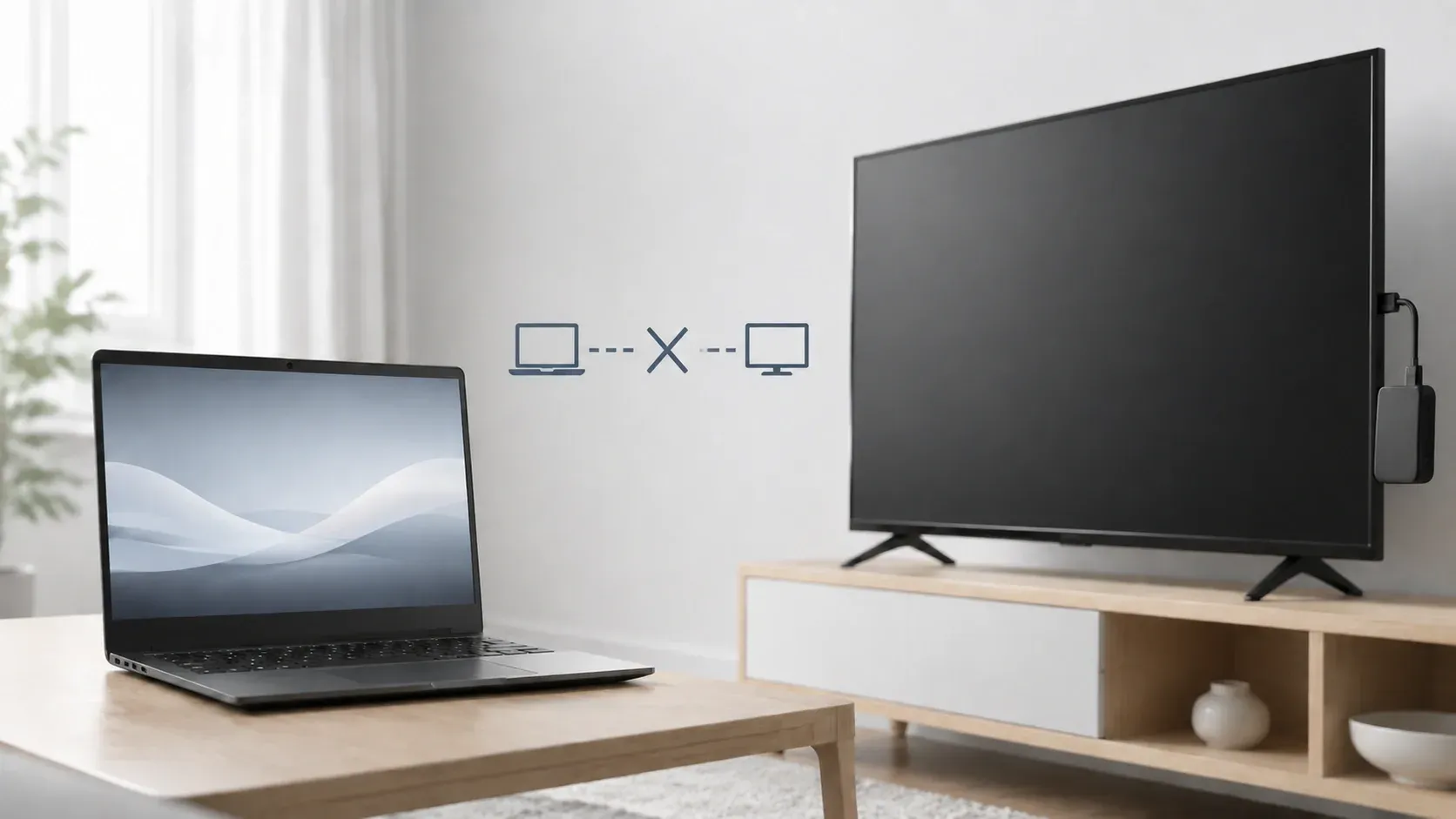
Chromebook uses Google Cast to share its screen, while Firestick's built-in Display Mirroring relies on Miracast on supported models. Since neither device natively receives the other's protocol, trying to cast Chromebook to FireStick often results in no device being found. Here's how to connect them for full-screen mirroring or video playback.
Can You Cast Chromebook to FireStick Directly
No. Chromebook and FireStick use different wireless display protocols:
| Device | Built-in protocol | Function |
|---|---|---|
| Chromebook | Google Cast | Sends Chrome tabs or the full screen |
| FireStick | Miracast | Receives screen mirroring on supported models |
Google Cast and Miracast do not connect directly, so FireStick will not normally appear in the Chromebook Cast list. YouTube is an exception because it connects through its own FireStick app. Other content requires a Google Cast-compatible receiver on FireStick.
Cast Chromebook to FireStick with PigeonCast
PigeonCast is a cross-platform wireless screen mirroring app for phones, computers, TVs, and streaming devices. It supports Google Cast, AirPlay, and DLNA, allowing users to mirror an entire screen or share browser content, videos, photos, apps, documents, and presentations. PigeonCast supports resolutions up to 4K when the sending device, receiving screen, and network can handle it. It works over Wi-Fi without cables, adapters, or separate Chromecast hardware.
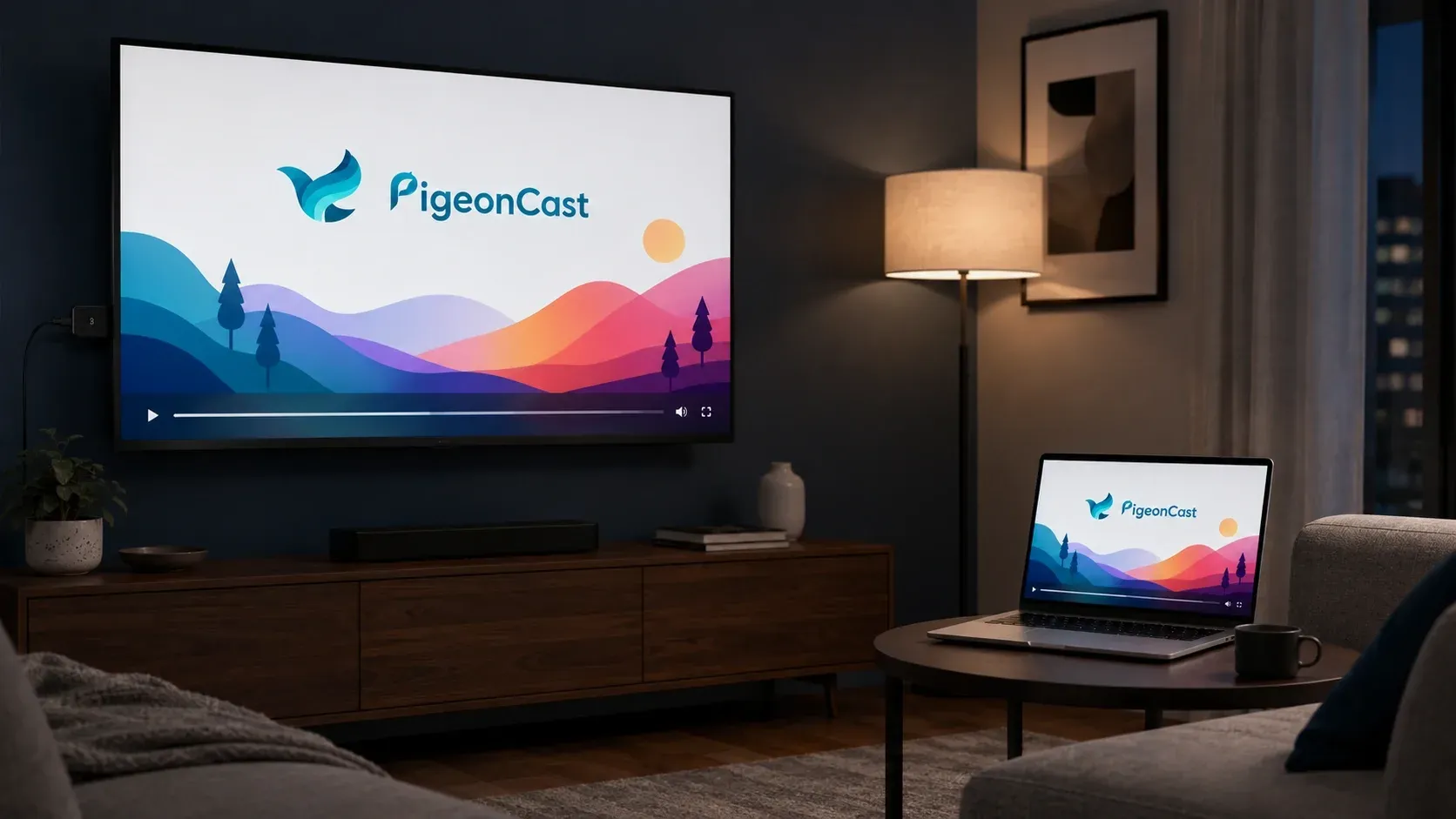
For this setup, PigeonCast runs on FireStick as a Google Cast receiver. The Chromebook uses its built-in Cast feature to share content, so no app needs to be installed on ChromeOS.
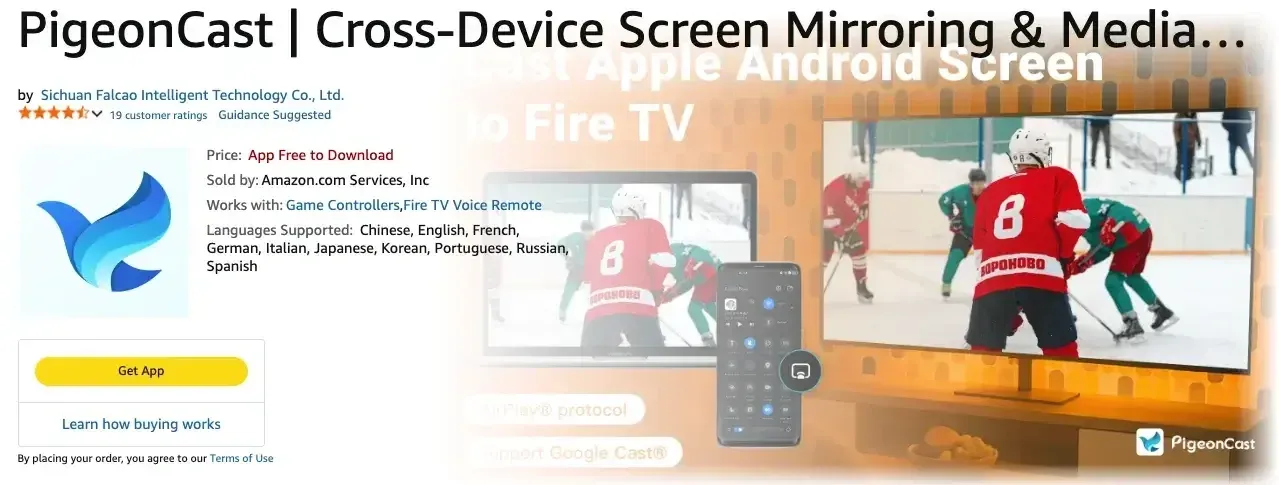
Step 1. Open the Amazon Appstore on FireStick, search for PigeonCast, and install PigeonCast.
Step 2. Connect the Chromebook and FireStick to the same Wi-Fi network.
Step 3. Launch the app and note the receiver name displayed by PigeonCast on the TV.
Step 4. Select the time in the bottom-right corner of the Chromebook screen to open Quick Settings > Cast devices available.
Step 5. Select the PigeonCast receiver name displayed on the TV.
Step 6. Choose what you want to share, then select Share. The Chromebook screen will appear on the FireStick-connected TV.
Choose What to Cast from Chromebook
Once PigeonCast is running as the receiver on FireStick, choose a casting option based on the content you want to share:
| Content | Where to Start | Best For |
|---|---|---|
| Full Chromebook screen | Quick Settings > Cast devices available | Chromebook apps, presentations, and the entire desktop |
| Chrome tab | Chrome > More > Cast, save, and share > Cast | Websites, online documents, and other browser content |
| YouTube video | Cast icon in the YouTube player | Playing a selected video with audio on the TV |
For a Chrome tab, select the PigeonCast receiver from the Cast menu. Chrome shares the current tab by default. For YouTube, start the video, click the Cast icon in the player, and choose the same PigeonCast receiver.
Fix Buffering on Chromebook and FireStick
Casting an online video involves two connections. The Chromebook first loads the original content from the internet, then sends the picture and audio to FireStick over the local network. The point where playback first slows down determines which device to check.
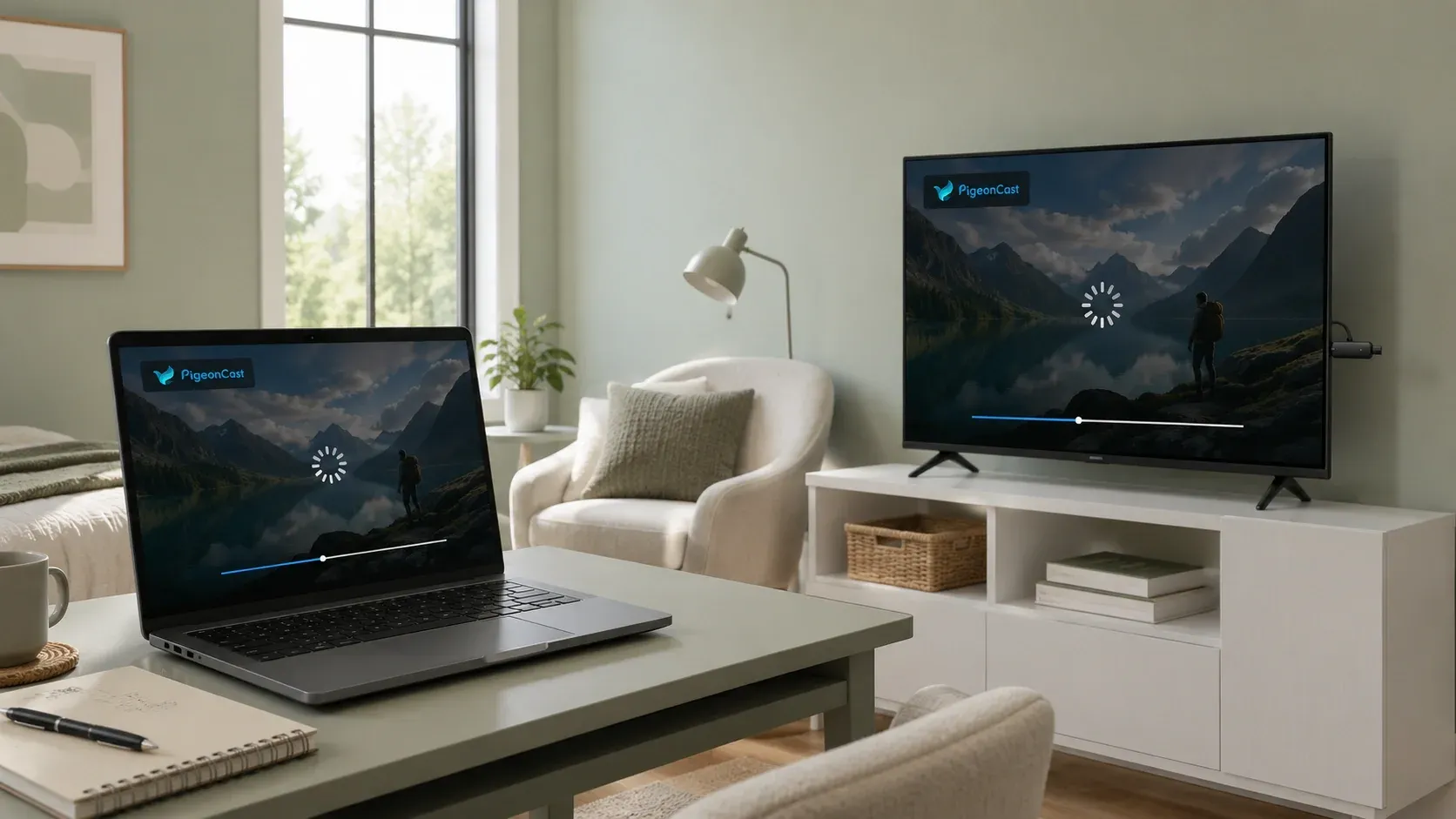
Chromebook Buffers Before Casting
If the original content already buffers on the Chromebook, close unused tabs and apps, pause downloads or cloud backups, and lower the video quality. These steps reduce both bandwidth use and the processing load on ChromeOS.
When a video plays smoothly on the Chromebook but starts lagging during full-screen mirroring, use Cast tab instead. It shares the browser content without continuously processing the entire Chromebook display.
FireStick Buffers While Receiving the Cast
Check the FireStick connection through Settings > Network. Highlight the connected network and press Play/Pause on the remote to open the Network Status Tool.
If the signal is weak, move FireStick or the router closer and use 5 GHz Wi-Fi when available. If the network test shows no issue, unplug FireStick for 10 seconds, reconnect it, and restart the router before casting again.
Wrapping Up
Once the receiver is set up, choose the casting mode around the content rather than sharing the entire Chromebook screen every time. Full-screen mirroring works well for apps and presentations, while tab or media casting is better suited to browser videos and TV audio. This keeps the setup easier to manage and reduces unnecessary processing during longer sessions.
Cast Chromebook to FireStick FAQ
How to cast Chromebook to LG TV?
First, check whether the LG TV supports Google Cast, as availability varies by model.
- Connect the Chromebook and LG TV to the same Wi-Fi network.
- Select the time in the bottom-right corner of the Chromebook screen.
- Turn on Wi-Fi and Bluetooth.
- Select Cast devices available.
- Choose the LG TV from the device list.
- Select what you want to share, then click Share.
If the LG TV does not support Google Cast, an external Google Cast receiver is required.
How to cast to Fire TV from Android?
Not every Android phone supports Fire TV screen mirroring. Native mirroring requires Miracast support on the phone and Enable Display Mirroring on the Fire TV.
- On Fire TV, open Settings > Display & Audio > Enable Display Mirroring.
- Connect the Android phone and Fire TV to the same Wi-Fi network.
- Open the phone's Quick Settings panel and select Cast, Smart View, or Wireless Display.
- Choose the Fire TV from the device list.
If the phone or Fire TV does not support Miracast, use the Cast button in a compatible app instead.
How to use Chromebook and FireStick to cast to Samsung TV?
Use FireStick as the receiver and Samsung TV as the display.
- Connect FireStick to an HDMI port on the Samsung TV and switch the TV to that HDMI input.
- Install and open PigeonCast on FireStick.
- Connect the Chromebook and FireStick to the same Wi-Fi network.
- On the Chromebook, open Quick Settings > Cast devices available.
- Select the PigeonCast receiver, choose what you want to share, and click Share.
The Samsung TV does not need built-in casting support because FireStick receives the Chromebook screen and sends it to the TV through HDMI.
Can I Cast from Chromebook to Roku?
Not directly. Chrome's Cast feature works with Chromecast, Google TV Streamer, or TVs with built-in Google Cast, not standard Roku devices. Roku's official screen mirroring supports compatible Android and Windows devices, but not Chromebook. To show a Chromebook on a Roku TV, connect it directly with an HDMI cable or use a separate Google Cast receiver.
Does Chromebook support Miracast?
No. ChromeOS on Chromebook does not include native Miracast support. Chromebook uses Google Cast to send Chrome tabs or the full screen to a compatible receiver, so it cannot connect directly to a FireStick through FireStick's built-in Miracast mode.
Can I connect my Chromebook to FireStick with an HDMI cable?
No. FireStick's HDMI port sends video to the TV and cannot receive an HDMI signal from a Chromebook.
If you prefer a wired connection, connect the Chromebook directly to the TV:
- Check whether the Chromebook has an HDMI port. If it only has USB-C, use a USB-C-to-HDMI adapter that supports video output.
- Connect the cable or adapter to an HDMI input on the TV.
- Switch the TV to the matching HDMI source.
- Adjust the Chromebook display settings if you want to mirror or extend the desktop.
The cable can carry audio to the TV when the Chromebook, adapter, and TV support HDMI audio.
Clara Rossi is an experienced technology editor and a seasoned expert in screen mirroring and casting technologies. With a keen eye for detail and a deep understanding of how to seamlessly connect devices, Clara excels at optimizing user experiences for effortless sharing and streaming. Whether you're seeking quick fixes or advanced tips, her expertise and responsiveness ensure that every query is met with a well-informed and efficient solution.