

If your Chromecast can't connect to Wi-Fi, do not start with a factory reset. Most failures come from a smaller set of issues: the Chromecast is too far from the router, the phone and Chromecast are not working on the same usable network, the router is blocking device-to-device communication, or the saved Wi-Fi connection is no longer valid.
The symptom matters here. Sometimes Chromecast cannot find the network at all. Sometimes it sees the network but refuses to join. Sometimes setup finishes, then the device drops offline again a few minutes later. Once you match the symptom to the right fix path, the problem usually becomes much easier to solve.
Chromecast Can't Connect to Wi-Fi: Quick Fix Picker
Before you change a lot of settings, start with the symptom that matches what you see.
| What you see | Most likely cause | Best first fix |
|---|---|---|
| Your Wi-Fi name does not appear during setup | Hidden SSID, wrong band, weak signal | Move closer, show SSID, check 2.4 GHz vs 5 GHz |
| Chromecast sees the network but will not connect | Wrong password, router glitch, unsupported network setting | Restart router and re-enter Wi-Fi details |
| Setup works, then Chromecast goes offline | Weak signal, interference, DHCP/IP issue | Move device/router, reboot network, test another network |
| Google Home cannot find Chromecast reliably | Guest network, AP isolation, local permission issue | Disable guest isolation and confirm Google Home permissions |
| The network is hotel, school, dorm, or office Wi-Fi | Captive portal or client isolation | Use a different network instead of forcing setup |
Why Chromecast Cannot Connect to Wi-Fi
Chromecast needs more than an active internet connection. During setup and casting, your phone and Chromecast also need to find and communicate with each other on the local network. If that local connection is interrupted or restricted, Chromecast may fail even when the Wi-Fi itself appears to be working normally.
The cause often depends on the symptom:
- If the Wi-Fi network does not appear at all, signal strength, a hidden network name, or the selected Wi-Fi band may be the issue.
- If Chromecast can see the network but cannot join it, the problem is more likely related to the password, the router, guest-network restrictions, or saved connection data.
- If it connects successfully and then keeps going offline, weak coverage, interference, or network instability becomes more likely.
Some environments are also simply less suitable for Chromecast. Hotel, dorm, school, and office networks may use browser login pages or isolate connected devices from one another, which can prevent normal Chromecast setup and discovery.
The sections below start with the quickest checks and then move into fixes based on the exact connection problem you are seeing.
Checks to Do Before Resetting Anything
These are the fastest checks, and they solve a surprising number of cases.
Move the Devices Closer First
If the Chromecast is far from the router or tucked tightly behind the TV, the connection may fail before setup even finishes. Start by moving the router and Chromecast closer together if you can. If you use an older Chromecast with an HDMI extender, use it, because the extra clearance can help signal quality.
As a practical rule, treat distance as a real suspect whenever the TV is in a far room, inside a cabinet, or surrounded by other electronics.
Confirm the Phone and Chromecast Are Using the Right Network
Your phone needs to help complete setup, so test on normal home Wi-Fi first and turn off mobile data during setup if the phone keeps switching paths. If your router shows two network names, such as one for 2.4 GHz and another for 5 GHz, make sure you know which one you are choosing.
This matters most with older Chromecast models, which may not behave the same way as newer devices on every band.
Restart the Router Before You Change Router Settings
If the network used to work and suddenly stopped, restart the router first. That is a cleaner first move than changing security settings immediately. A quick reboot can clear temporary IP conflicts, stale leases, and short-lived router bugs that make Chromecast look like the problem when the router is actually stuck.
Confirm Google Home Has the Permissions It Needs
If you are setting up from iPhone or iPad, make sure Bluetooth is on and Google Home has Local Network access enabled. If Google Home cannot see devices on the network, the Wi-Fi may be fine while the setup app still fails.
Fix It If Chromecast Cannot Find the Wi-Fi Network
When the network name does not show up at all, focus on visibility and signal first, not passwords.
Check Whether the Network Name Is Hidden
If your router uses a hidden SSID, Chromecast may not list it automatically during setup. In that case, manually add the network instead of assuming Chromecast cannot see Wi-Fi at all.
If you do not intentionally hide your network name, it is usually better to broadcast it during setup. Hidden networks tend to create extra friction without giving most home users a meaningful benefit.
Check 2.4 GHz and 5 GHz Names Carefully
Many routers broadcast two similar names, one for 2.4 GHz and one for 5 GHz. If the names are nearly identical, it is easy to pick the wrong one or assume the network is missing when you are really looking at the wrong band.
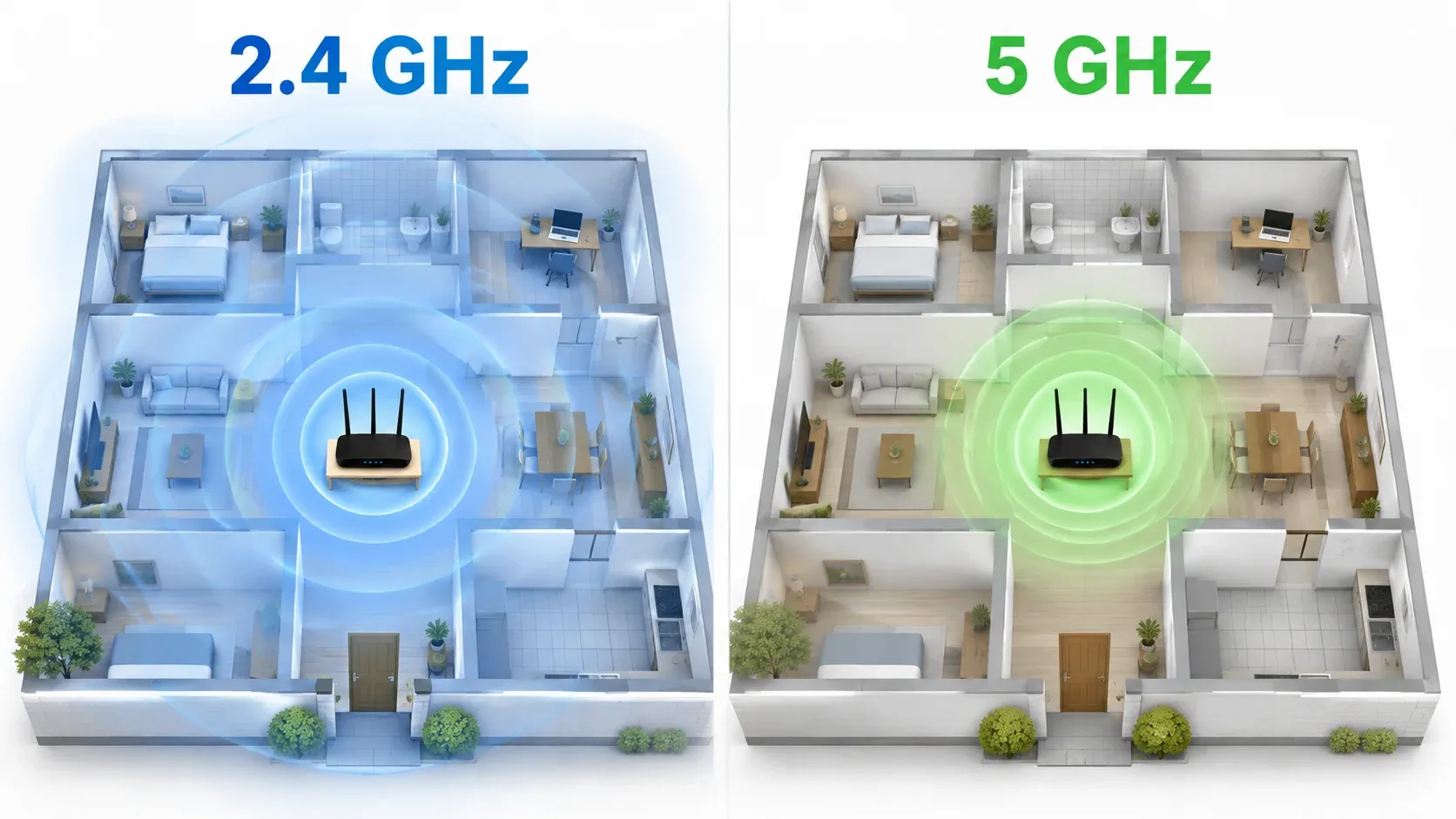
If your network list shows something like Home2 and Home5, test both only if your Chromecast model supports both. If you are not sure, start with the 2.4 GHz network because it usually has better range through walls.
Test the Signal at the TV, Not Near the Router
A phone can show strong Wi-Fi in the kitchen and weak Wi-Fi next to the TV. Check signal strength where the Chromecast actually sits. If the signal is unstable there, setup may fail even though other parts of the home look normal.
At that point, the right fix is usually physical:
- move the router closer
- move the Chromecast away from interference behind the TV
- reduce obstacles
- test a mesh node or extender only if it is not running client isolation
Fix It If Chromecast Sees Wi-Fi but Will Not Connect
If Chromecast can see your Wi-Fi network but fails when trying to join it, the issue is usually related to the password, a temporary router problem, or a network setting that prevents devices from communicating normally.
Re-enter the Wi-Fi Password
Enter the password again carefully, especially if your router has similar network names for different bands or your phone has saved credentials for more than one network.
If the password is correct and other devices can connect without trouble, move on rather than repeating the same setup attempt.
Restart Chromecast and the Router
Unplug Chromecast from power, restart the router, and then try setup again after both devices are back online. This can clear temporary connection or IP assignment problems that prevent Chromecast from joining the network correctly.
This step is especially useful if the issue started after replacing your router, changing your Wi-Fi name or password, or switching ISP equipment.
Switch Away From Guest or Isolated Networks
Guest Wi-Fi can allow internet access while blocking devices on the same network from communicating with each other. Chromecast depends on that local communication during setup and discovery.
If you are using a guest network, switch both your phone and Chromecast to the main home Wi-Fi. If you control the router, also check whether AP isolation or client isolation is enabled and temporarily disable it for the network you are testing.
Fix It If Chromecast Keeps Disconnecting After Connecting
Chromecast repeatedly disconnecting after setup is a different problem from failing to connect in the first place. If Chromecast joins Wi-Fi and then drops offline later, look for stability issues rather than setup issues.
Check for Weak Signal and Interference
Short dropouts often point to unstable signal quality. TVs, soundbars, cabinets, and other electronics can crowd the Chromecast physically and reduce connection quality more than people expect.
Try these first:
- move the Chromecast slightly away from the TV body if possible
- move the router closer to the room
- reduce competing wireless interference nearby
- test another HDMI position or extender if your model supports it
Restart the Network and Watch for Pattern-Based Drops
If Chromecast disconnects at the same time every day or only when many devices are online, that points more toward router load, Wi-Fi congestion, or lease renewal issues than toward the Chromecast hardware itself.
In that situation:
- reboot the router
- update router firmware if an update is pending
- reduce device load on the network if possible
- test whether the issue disappears on another Wi-Fi network
If the same Chromecast stays stable on another network, the router becomes the main suspect.
When a Factory Reset Is Actually Worth Trying
A Chromecast factory reset is reasonable when:
- Chromecast was moved to a different network and is no longer reachable
- the saved Wi-Fi details are stale and you cannot update them normally
- setup keeps failing after signal, router, and permission checks are already done
- Google Home still cannot complete setup even on a known-good home network
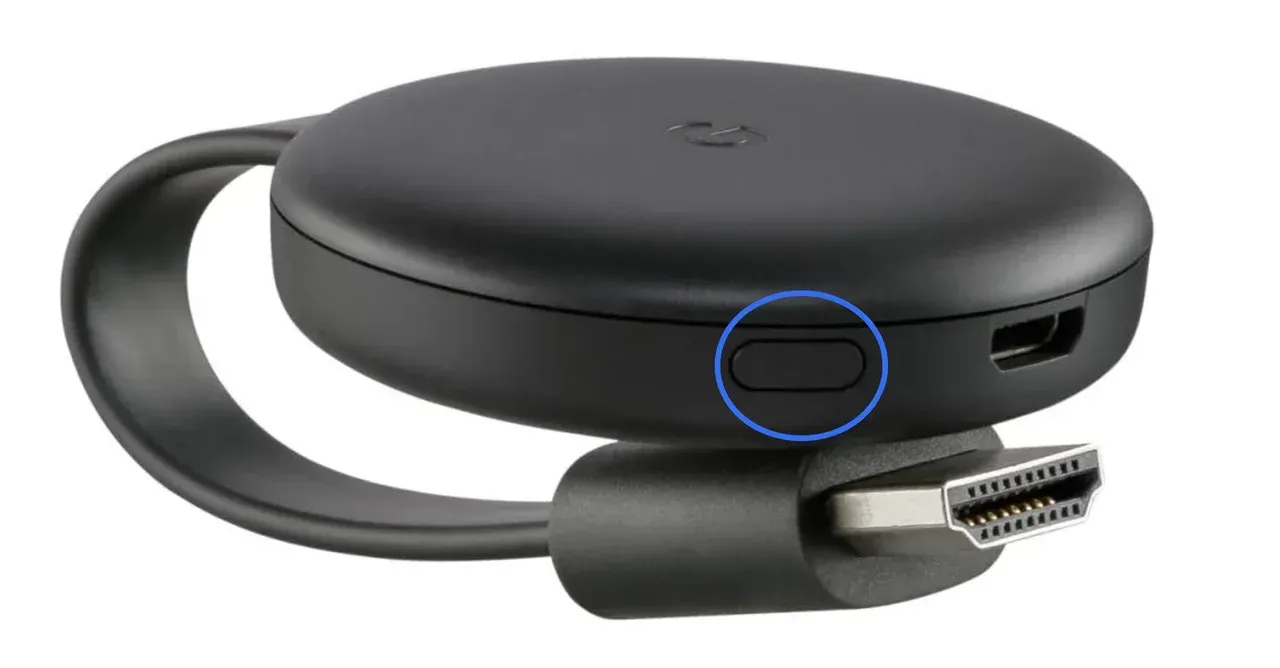
Use reset as a late troubleshooting step, not the default starting point. If the router is still blocking Chromecast through guest isolation or captive-portal behavior, a reset only makes you repeat the same failed setup path from the beginning.
Still Can't Connect Chromecast? Try PigeonCast Instead
If Chromecast still will not connect after you have checked the Wi-Fi signal, restarted the network, and ruled out guest-network restrictions, continuing to repeat the same setup process may not be worth it.
If your goal is simply to get your phone or computer onto the TV, you can use a screen mirroring app as an Chromecast alternative instead.
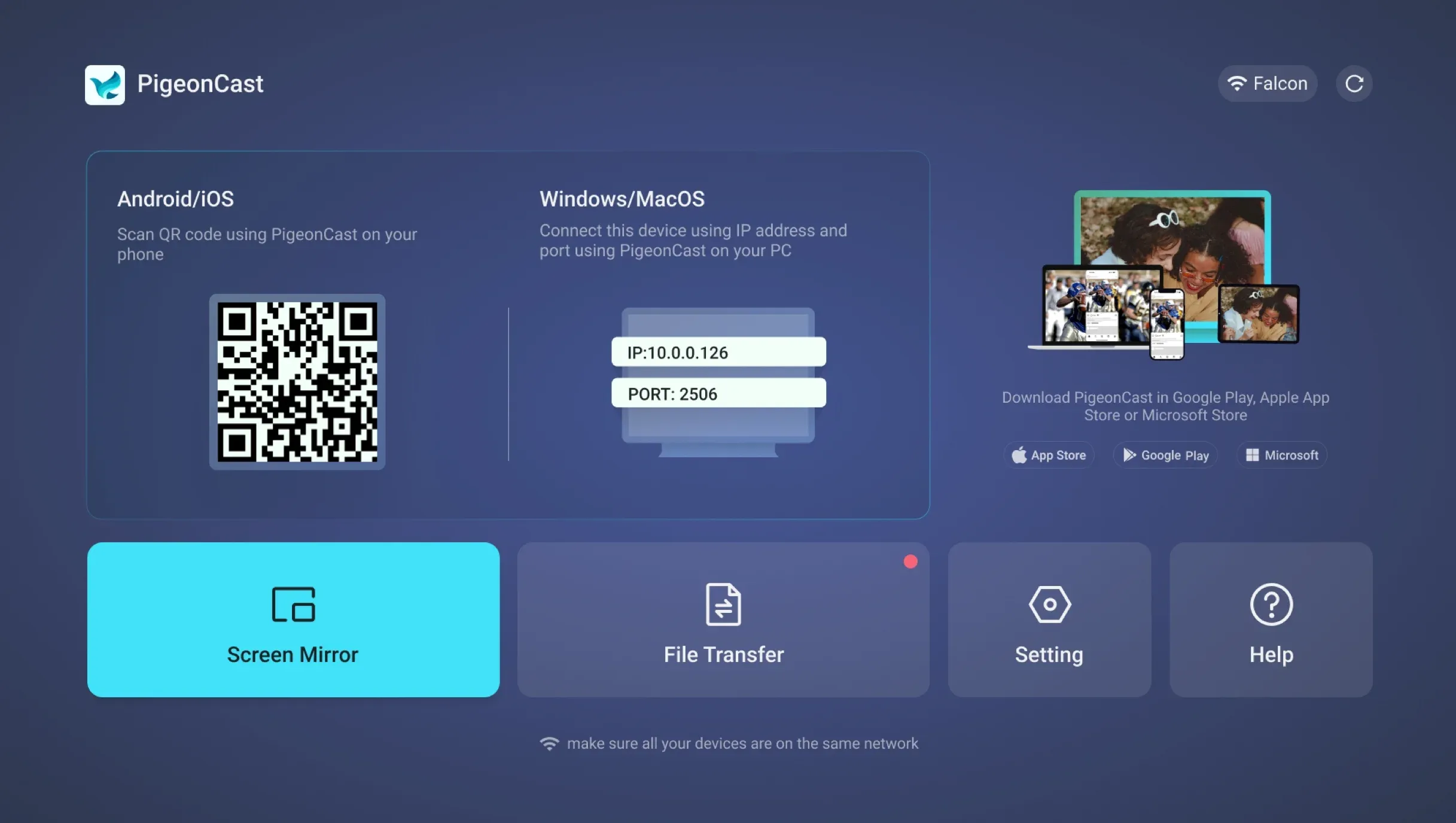
PigeonCast receiver app works through the network your receiving device is already using. You do not need to set up a separate Wi-Fi connection for the receiver or go through the same Chromecast setup flow again. Once the receiver is open on your TV or another supported device, your phone or computer can connect to it and start mirroring.
How to Use PigeonCast Instead
Step 1: Open PigeonCast on your TV or supported receiving device.
Step 2: Open PigeonCast on your phone or computer and connect using the QR code.


Overall Rating:



Step 3: Start screen mirroring and view your content on the bigger screen.
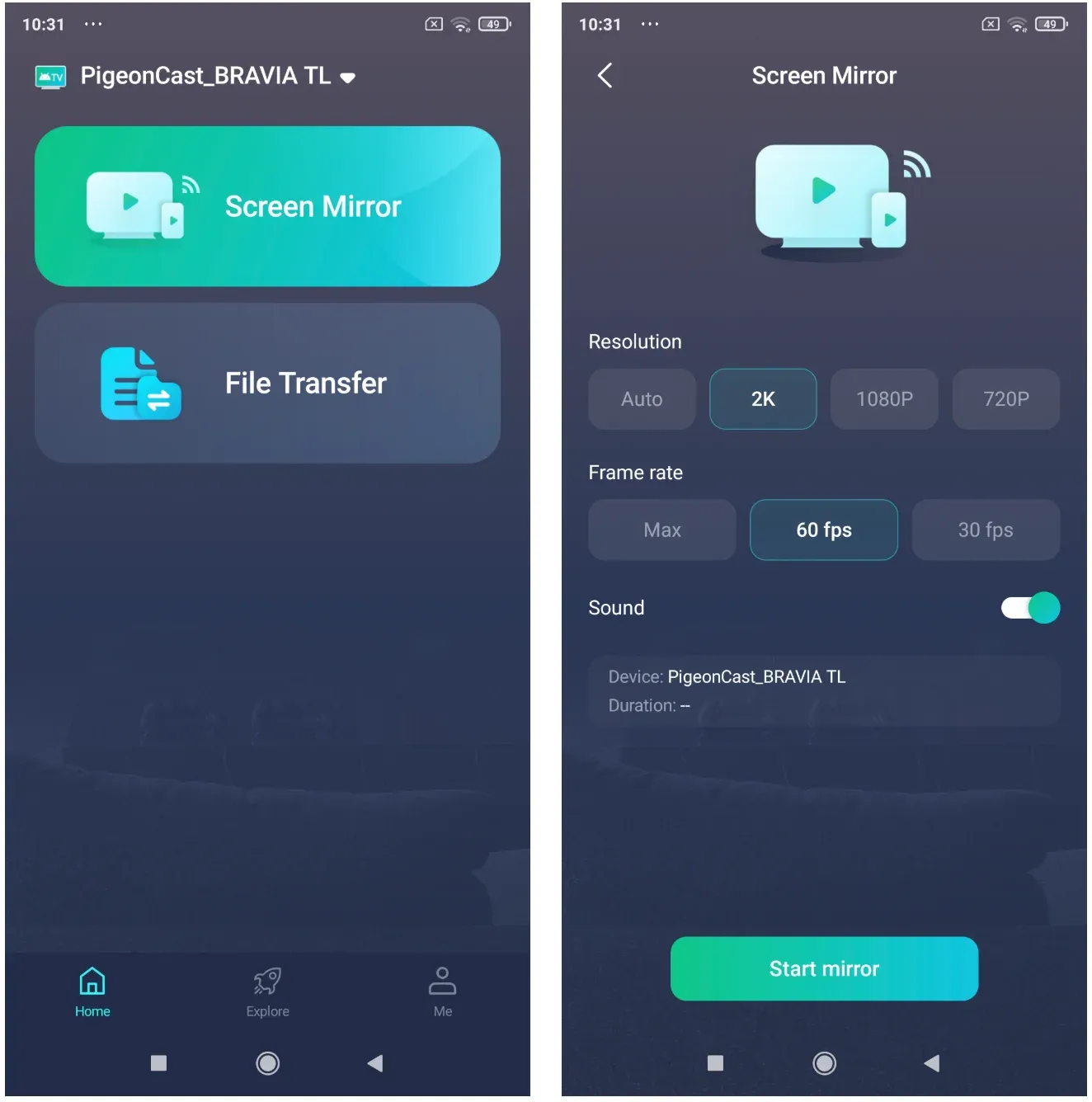
This can be a simpler fallback when the main problem is Chromecast setup or discovery rather than the content you want to watch.
Final Words
A Chromecast Wi-Fi problem does not always mean the device itself is faulty. In many cases, the real issue lies somewhere between the Chromecast, the router, and the way devices are allowed to communicate on the local network.
The most useful approach is to troubleshoot based on what is actually happening instead of repeatedly resetting everything. Once you know whether Chromecast cannot see the network, cannot join it, or keeps losing the connection, it becomes much easier to decide whether the problem is worth fixing.
And if the setup continues to demand more time than the result is worth, changing the way you get content onto the TV can be the better solution. The goal is not necessarily to make Chromecast work at all costs, but to find a reliable way to enjoy your content on the bigger screen with as little friction as possible.
Chromecast CAN'T Connect to Wi-Fi FAQ
Does Chromecast need to be on the same Wi-Fi as my phone?
For normal setup and device discovery, your phone and Chromecast should generally be connected to the same local network. Being connected to two Wi-Fi networks from the same router does not always guarantee they can communicate if the router separates devices or networks.
Can Chromecast use a mobile hotspot?
In some setups, Chromecast can connect to a mobile hotspot, but it is less straightforward than using normal home Wi-Fi. You may need a second phone or tablet to run Google Home and control the Chromecast because the phone providing the hotspot cannot always handle both roles conveniently.
Does Chromecast work with Wi-Fi 6 or Wi-Fi 6E routers?
A newer Wi-Fi router does not automatically prevent Chromecast from working. Compatibility depends more on the Chromecast model, the bands and security modes enabled on the router, and whether older devices are still allowed to connect.
If problems started immediately after upgrading your router, check whether legacy 2.4 GHz or 5 GHz support and compatible security settings are still enabled.
Can I connect Chromecast to Ethernet instead of Wi-Fi?
Some Chromecast models can use a compatible Ethernet adapter or power adapter with Ethernet support. A wired connection can be useful when Wi-Fi around the TV is weak or unstable, although your phone still needs to be able to communicate with the Chromecast over the same local network.
Why does Chromecast work on one Wi-Fi network but not another?
If the same Chromecast connects normally on another network, the device itself is less likely to be the problem. Differences in router security, network isolation, Wi-Fi bands, DHCP behavior, or other local network settings can make one network work while another fails.
Mia Clarke is a technology editor specializing in screen mirroring and casting solutions across multiple platforms. Mia provides clear, practical guides and in-depth insights to help users seamlessly connect their devices. Passionate about enhancing digital experiences, Mia is dedicated to keeping readers updated on the latest trends and tools in cross-platform screen sharing. Whether you’re looking to mirror your smartphone, laptop, or smart TV, Mia’s content delivers reliable, user-friendly advice to simplify your tech setup.